
GETTING STARTED
Introduction to SmartAssist
Glossary
Minimum System and Browser Requirements
SmartAssist Lifecycle Management
SmartAssist Setup Guide
Sign Up for SmartAssist
Setup SmartAssist for Use With AgentAssist
Upgrade from SmartAssist to XO v11
Release Notes
Recent Updates
Previous Versions
Frequently Asked Questions (FAQ)

EXPERIENCE DESIGNERS
Flow Designer
Introduction
Create Experience Flows
Navigate the Flow Designer
Experience Flow Nodes
Introduction
Node Types
Start
IVR Menu
IVR Digit Input
Conversational Input
Split
Check Agent Availability
Check Business Hours
Message Prompt
Run Automation
Agent Transfer
Connect to API
Go to Flow
Deflect to Chat
Script Task
Set Queue
End Flow
Waiting Experience
Conversation Automation
Testing Widget
Use Cases
Overview
Questions & Answers
Conversations

ADMINISTRATORS
Account Management
Switch Account
Invite Developers to an Account
Routing
SmartAssist Routing
Skills
Skill Groups
Queues
Hours of Operation
Default Flows
User Management
Users
Agent Groups
Agent Settings
Role Management
Agent Status
System Setup
Channels
Voice
Chat
Email
Limitations With Accounts Using AudioCodes
Agent Transfer
Surveys
Agent Forms
Dispositions
Language & Speech
Overview
Language Management
Voice Preferences
Hold Audio
Standard Responses
Widgets
Agent AI Events
Agent AI Mapping
Agent AI Settings
Wallboards
Utils
SearchAssist
Widget Theming (Layout Customization)
Settings
System Settings
Co-Browse Settings
Supervisor Join/Exit Notification to User
Export SmartAssist Instance
Automatic Away Status for Agent Inactivity
Obscure Customer Info in Interactions Dashboard
Advanced Settings
Community WFM (Beta)
Automatic Conversation Summary (Beta)
Intelligent Agent Tools
Reject Calls With a Delayed First Response
Translation Configurations
API Reference
API Setup
Rate Limits
API List
Integrations
Voice Automation Integration with Third-Party Applications
Amazon Connect
Voice Automation - Integration with Amazon Connect
Amazon Connect Integration with Kore using Amazon External Voice Connector (Voice Automation)
Genesys
Genesys Voice Bot
Genesys + Kore Voice Automation - Manual Installation Guide
Voice Automation With Genesys Using SIP Invite and AgentAssist Integration
Voice Automation Integration With Genesys Using Audio Connector and Agent AI
ID R&D
ID R&D Integration With Kore
Nice CX
Voice Automation NiceCX (CX One) - SIP Integration
Talkdesk
Talkdesk Voice Automation
Zoom Contact Center (ZCC)
Kore Voice Automation (IVA) Integration with Zoom Contact Center (CC)
Audit Report

AGENTS
Agent Console
Introduction
Conversation Tray
Incoming Interactions
Interacting with Customers
Additional Tools
My Dashboard

SUPERVISORS
SmartAssist Metrics
Dashboard
Automation
Queues and Agents
Interactions
Wallboards
Monitor Queues, Agents, Interactions, and Service Levels
Manage Layout

BUSINESS USERS
Reports
Introduction
Reports List

Voice Automation Integration with Genesys Using Audio Connector and Agent AI

This document describes how to configure inbound call handoff from Genesys Cloud CX to SmartAssist for automation and transfer the call to a live agent while displaying Agent AI on the Genesys Agent Desktop.

Prerequisites

  • Admin access to SmartAssist, XO Platform, and Agent AI.
  • Admin access to a Genesys Cloud CX account
  • Familiarity with creating Architect flows in Genesys Cloud CX.

SmartAssist Configuration for Automation

This section describes the configuration process of SmartAssist for automation:

1. Create/Import App into XO Platform

  1. Sign in to SmartAssist.
  2. Go to the Automations tab.
  3. Click + Add Bot to create a new bot or attach a bot from the library. For help, refer to Introduction to Bots.
  4. Publish the bot to enable the SmartAssist channel.

2. Purchase a Phone Number

  1. Go to the Configuration tab, and click Channels > Voice > Phone Numbers.
  2. Click + New to purchase a phone number.
  3. Attach this phone number to an Experience Flow.

3. Create Experience Flow in SmartAssist

  1. Click Configuration > Experience Flow > + New Flow.
  2. Add the Run Automation node to configure the bot for automation.
  3. Optional: Add an Agent Transfer node to transfer calls to agents in Genesys Cloud CX.
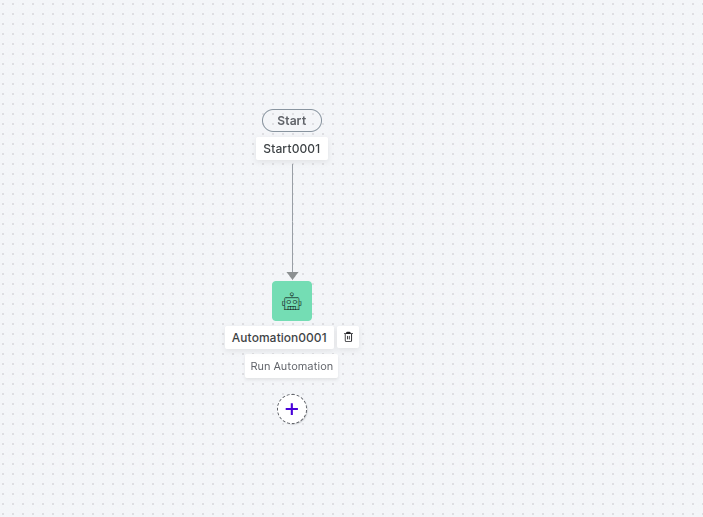
  4. Publish the flow.
  5. Click Test Flow to verify the call connects to the correct flow.

4. Configure the Agent Transfer

  1. Go to the Configuration tab.
  2. Click SYSTEM SETUP > Agent Transfer.
  3. Select SIP Transfer.
  4. Configure the following values:

    Parameter Value
    SIP Transfer Method SIP BYE
    Headers
    X-KoreSession-ID TransferToAgent
    X-KoreSession-ID {{context.session.BotUserSession.conversationSessionId}}
    X-KoreBotId {{context.session.opts.streamId}}
    X-Queue-Name Kore Inbound (queue created in Genesys)
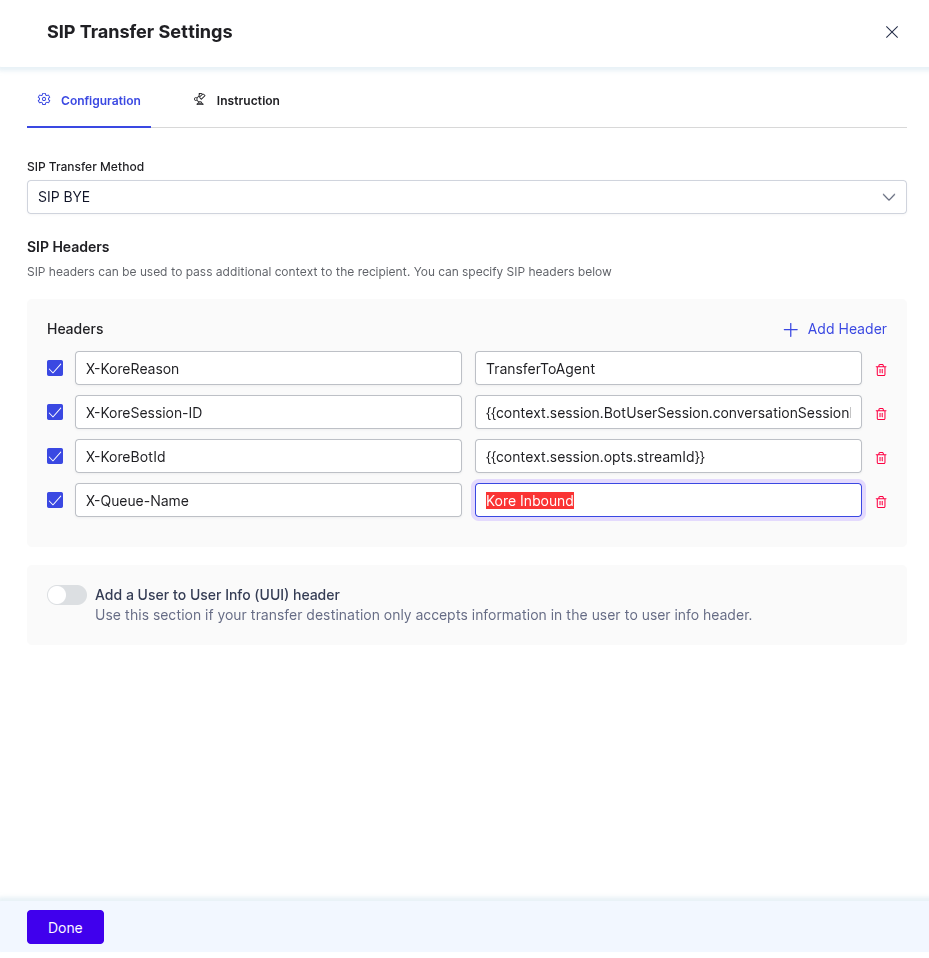
  5. Click Done.

Genesys Side Configuration for Inbound Agent Transfer

Step 1 – Queue

If you haven’t created an Agent Queue to route live agent transfers, create and add the necessary members. Refer to Set up AgentAssist for Genesys for help.

Step 2 – Architect Flow

Create an Inbound Call Flow

Create a new Inbound Call Flow to transfer calls from SmartAssist to Genesys.

  1. Sign in to Genesys Cloud.
  2. Click Admin > Architect.
  3. Click + Add to add a new call flow.
  4. Enter a name and a description in the Name and Description fields.
  5. Click Create Flow.
  6. Create the flow (Add tasks) in the Main Menu or create a Reusable Task and mark this task as set this as the starting task from the ellipsis menu in the upper-right corner. 
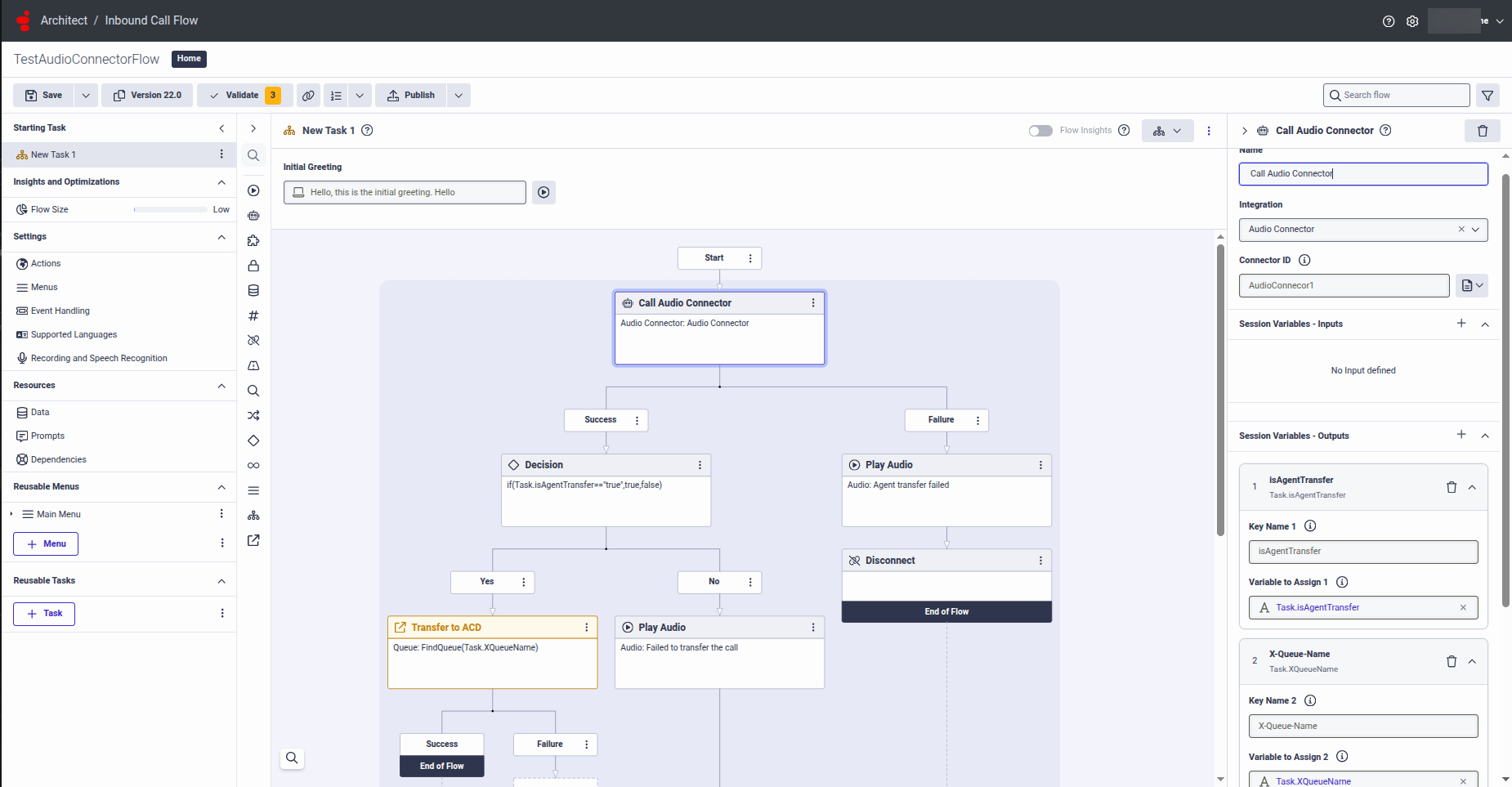
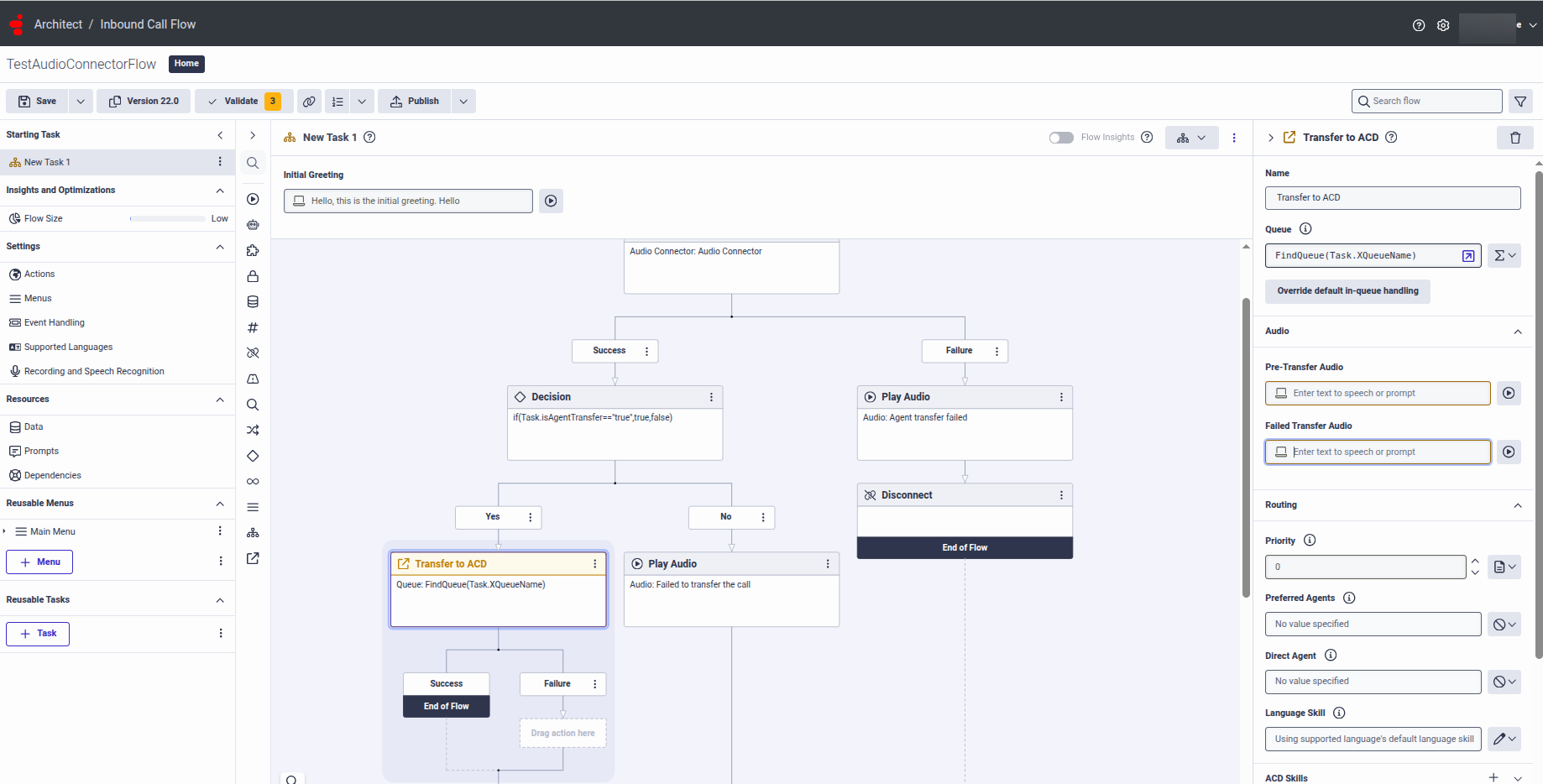
  7. After the Start node, add a Call Audio Connector node in the architect flow.
    1. Inside the Call Audio Connector node, give any descriptive name (optional).
    2. Select Literal and add the following variables:
      • isAgentTransfer – with key Name as isAgentTransfer and validate to assign as Task.isAgentTransfer
      • X-Queue-Namewith key Name as X-Queue-Name and validate to assign as Task.XQueueName
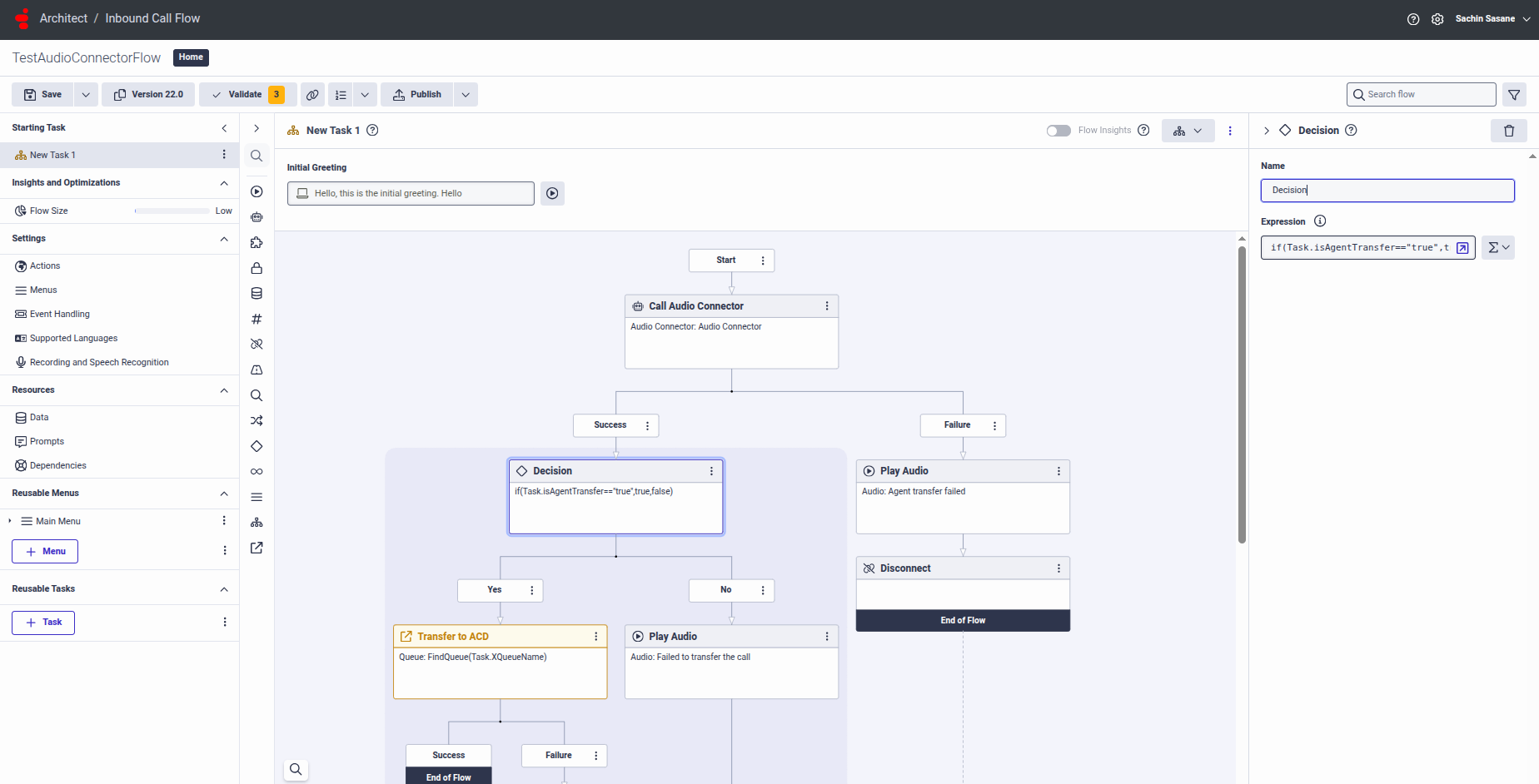
  8. Add a Decision node immediately after the previous node in the Architect flow.
    1. Inside this node, give any name.
    2. Assign the following value (as an Expression):
      if(Task.isAgentTransfer==”true”,true,false)a
  9. After the Decision node, add Transfer to ACD node at Success path.
    1. Inside this node, give any name.
    2. Point it to the queue you want to use for agents by assigning the following value (as an Expression): FindQueue(Task.XQueueName)
Step 3 – DID Numbers

You need a DID Number that is internally routable inside Genesys.

DID Ranges

Create a new single-number DID Range:

  • Keep the Start Number and End Number the same.
  • Use a number that is not a typical external number (for example, +12223334444).
  • For Service Provider, select Internal.
  • Add a comment that explains the purpose of the range.

DID Assignments

Assign the number you created to the Call Route from Step 4.

Assignee Type: Call Flow
DID Number: Your number

Step 4 – Call Route

  1. Go to Admin > Call Routing.
  2. Click the + button to create a new call route.
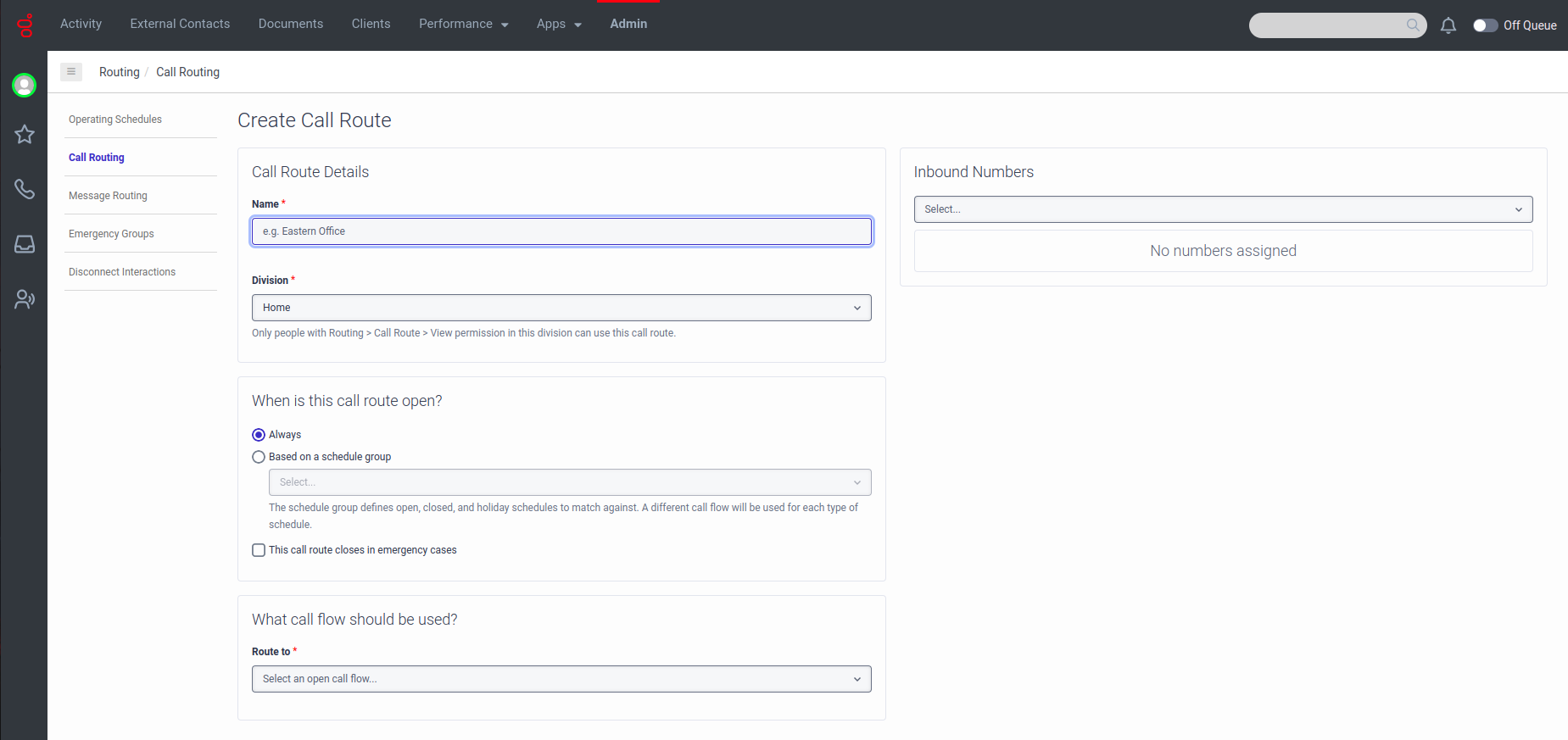
  3. Set up a call route to map the DID Number created in Step 3 to the call flow created in Step 2.

Install AudioConnector for Automation Voice Streaming

The final step is to install Audiohook for voice streaming, if using Kore-managed Transcriptions. To do that:

  1. Sign in to Genesys Cloud.
  2. Go to Admin > Integrations > Integrations.
  3. Enter audioconnector in the search bar.
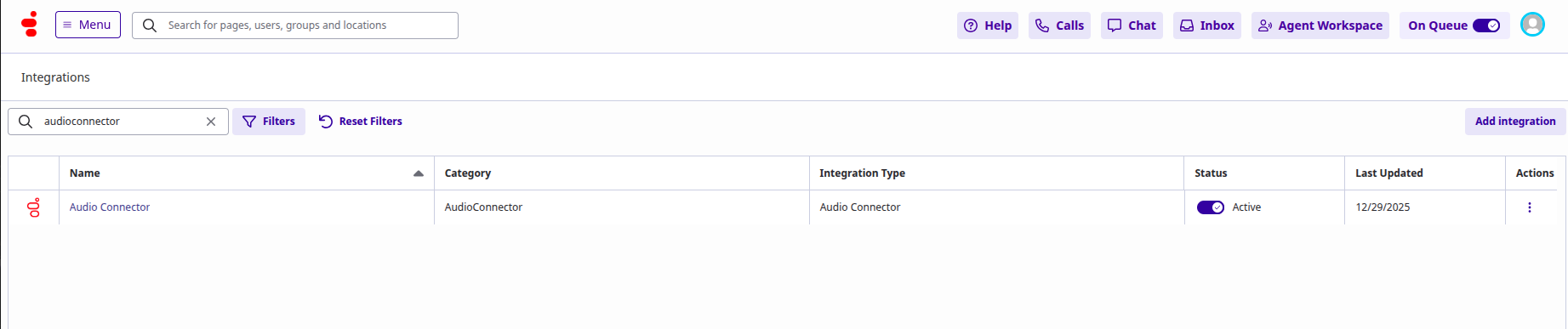
    Audio Connector integration requires specific configuration values to support Agent AI configuration.
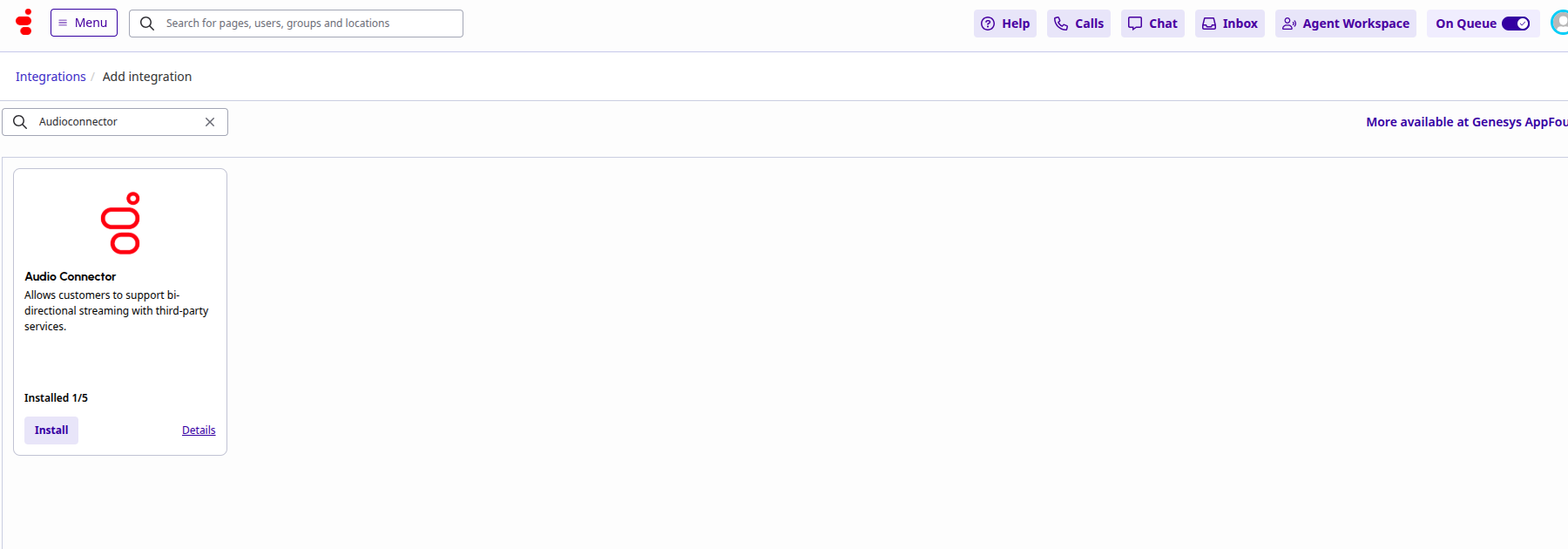
  4. Install a new audio connector app by clicking the Add Integration button in the top-right corner.
  5. Open the Audio Connector, and go to the Configuration tab.
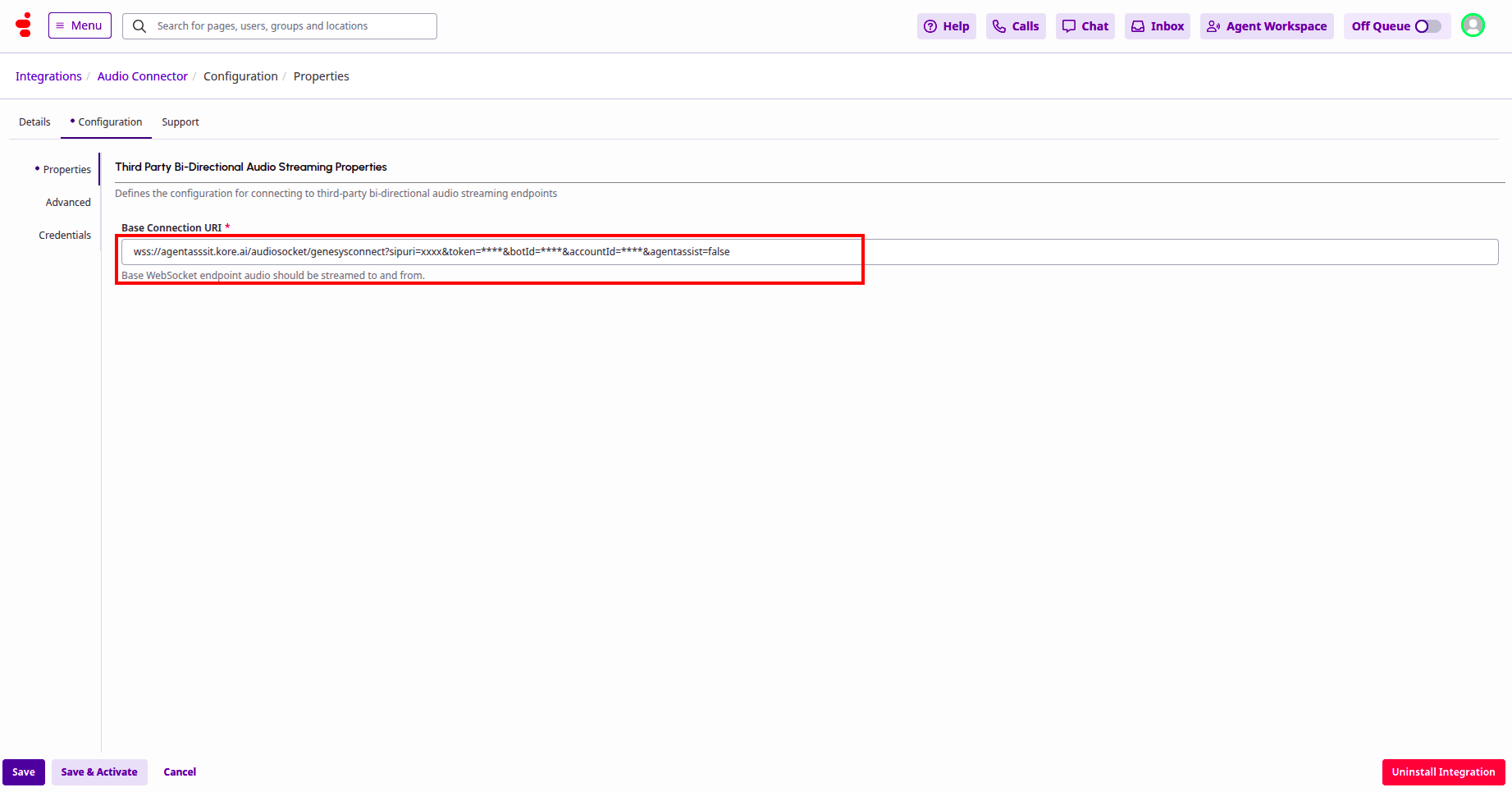
  6. The Base Connection URI format should be similar to “wss://{Kore Voice Gateway(KVG)}/audiosocket/genesysconnect/?sipuri=xxx&token=xxx&botId=xxx&accountId=xxx&agentassist=false”.

Agent AI Integration

1. Add the Bot

Use the same automation bot used in SmartAssist for automation.

  1. Sign in to Agent AI.
  2. Go to the Automation tab.
  3. Click Add Bot.
  4. Attach a bot from the Library.
  5. Select the bot.
  6. Click Convert Bot.

2. Follow the Documentation

Follow the steps from Agent AI Integration with Genesys Cloud CX for Agent AI integration.

Points to be noted:

  • In the above link, in step 4, while adding the Agent AI bot credential, add the details of the bot added in the previous step.
  • You must configure AudioHook or enable the AudioHook monitor to get the transcripts on the Agent AI widget.

Test Your Integration

Call the phone number you purchased in the previous steps. After automation and a successful agent transfer from SmartAssist to Genesys, the signed-in Genesys agent can accept the incoming calls.

  1. Click the Answer button to accept the call.
  2. Click Tools and select the interaction widget you configured in the previous steps.
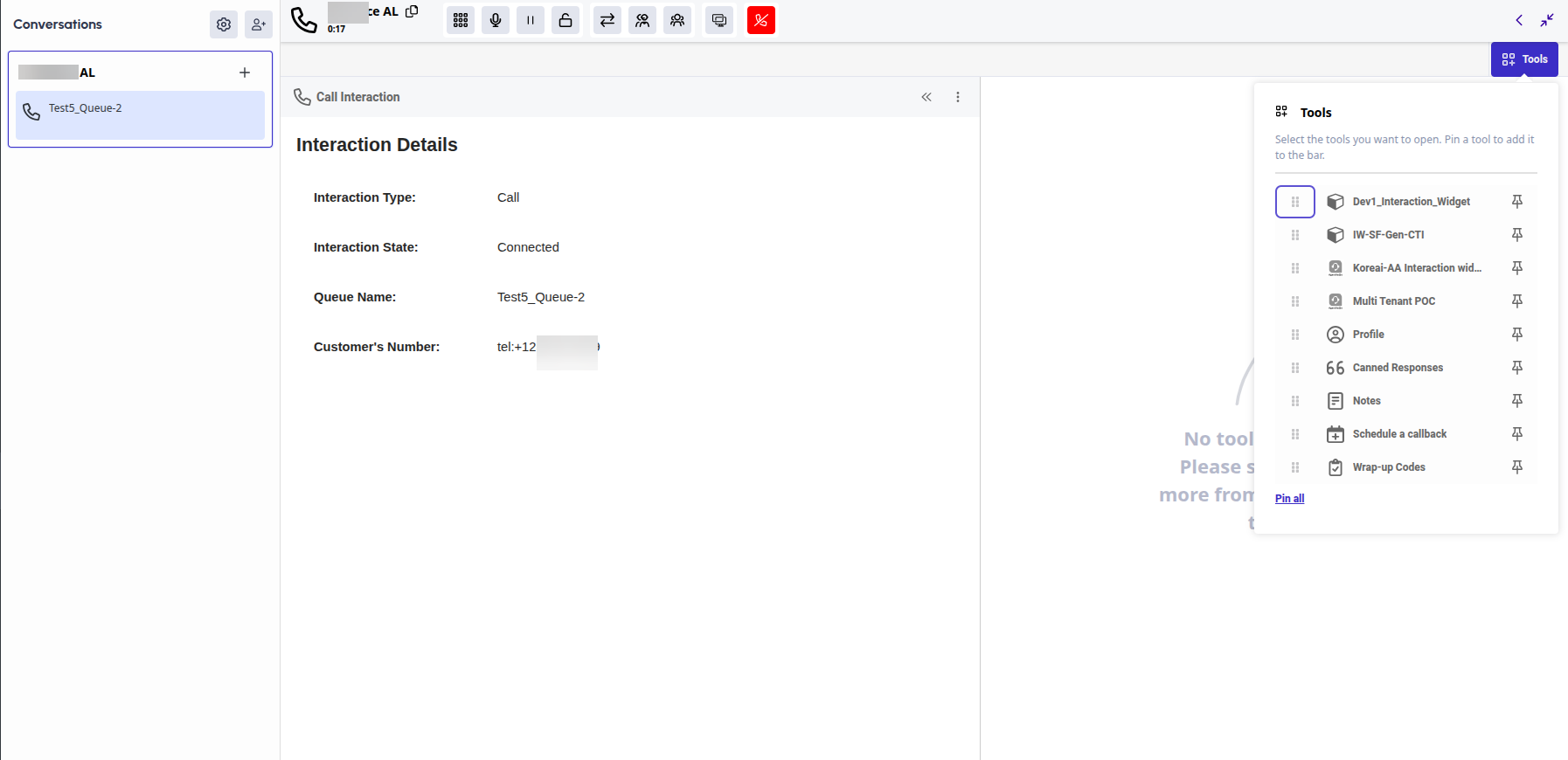
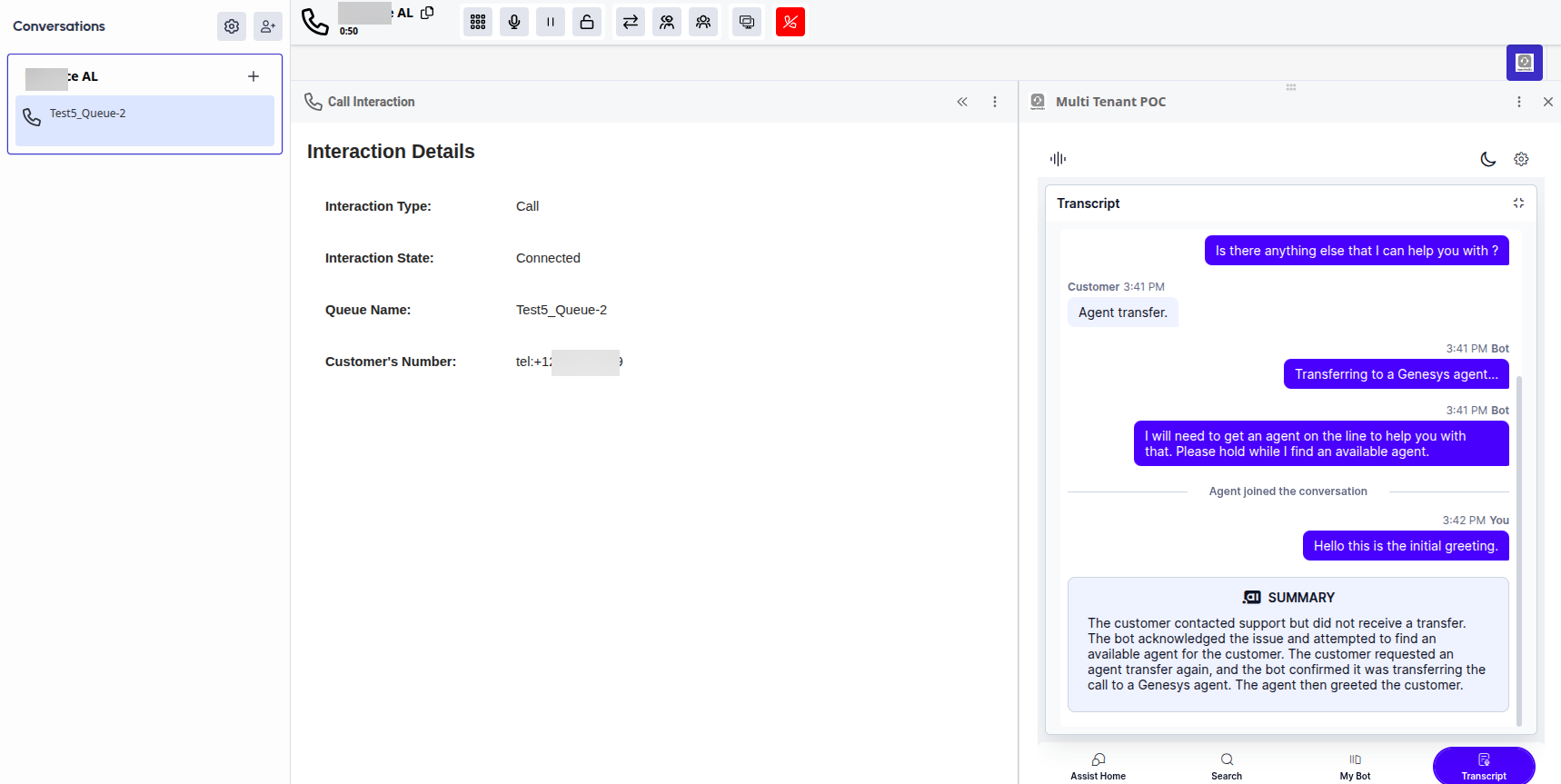
  3. The Agent AI widget appears on the right side of the Genesys Agent desktop. 
  4. Switch to the Agent AI Transcript tab to view the user-bot history and the summary between the user and the automation bot. All the real-time transcripts between the live agent and the user are captured in the Transcript tab.
Check the Interaction Details in SmartAssist

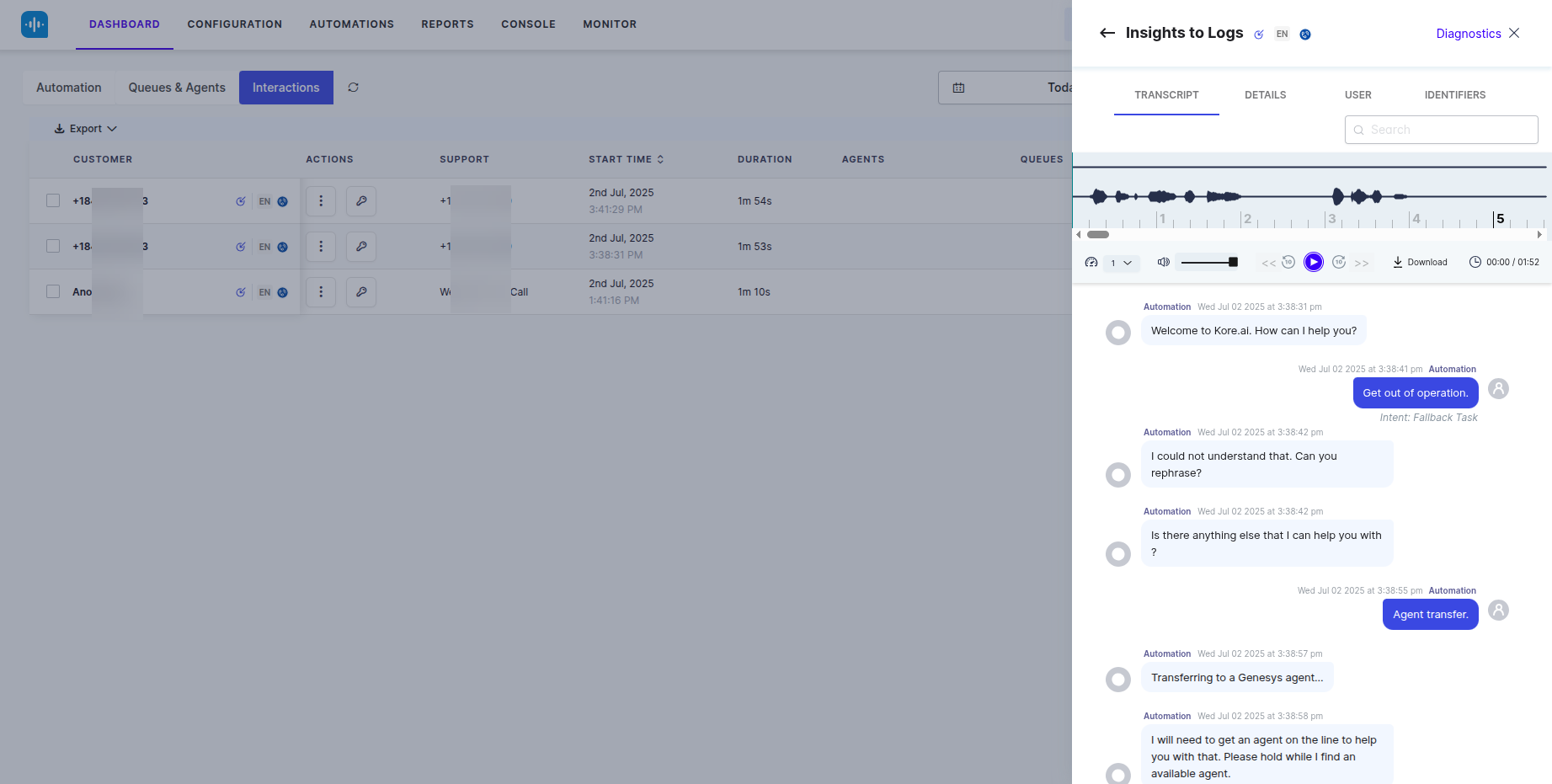
You can view all interaction details between the user and the bot during the call and the conversation between the user and the live agent after agent transfer in the SmartAssist dashboard:

  1. Sign in to SmartAssist.
  2. Go to Dashboard.
  3. Click the Interactions tab.
  4. Select the interaction you want to view.
 

Voice Automation Integration with Genesys Using Audio Connector and Agent AI

This document describes how to configure inbound call handoff from Genesys Cloud CX to SmartAssist for automation and transfer the call to a live agent while displaying Agent AI on the Genesys Agent Desktop.

Prerequisites

  • Admin access to SmartAssist, XO Platform, and Agent AI.
  • Admin access to a Genesys Cloud CX account
  • Familiarity with creating Architect flows in Genesys Cloud CX.

SmartAssist Configuration for Automation

This section describes the configuration process of SmartAssist for automation:

1. Create/Import App into XO Platform

  1. Sign in to SmartAssist.
  2. Go to the Automations tab.
  3. Click + Add Bot to create a new bot or attach a bot from the library. For help, refer to Introduction to Bots.
  4. Publish the bot to enable the SmartAssist channel.

2. Purchase a Phone Number

  1. Go to the Configuration tab, and click Channels > Voice > Phone Numbers.
  2. Click + New to purchase a phone number.
  3. Attach this phone number to an Experience Flow.

3. Create Experience Flow in SmartAssist

  1. Click Configuration > Experience Flow > + New Flow.
  2. Add the Run Automation node to configure the bot for automation.
  3. Optional: Add an Agent Transfer node to transfer calls to agents in Genesys Cloud CX.

  4. Publish the flow.
  5. Click Test Flow to verify the call connects to the correct flow.

4. Configure the Agent Transfer

  1. Go to the Configuration tab.
  2. Click SYSTEM SETUP > Agent Transfer.
  3. Select SIP Transfer.
  4. Configure the following values:

    Parameter Value
    SIP Transfer Method SIP BYE
    Headers
    X-KoreSession-ID TransferToAgent
    X-KoreSession-ID {{context.session.BotUserSession.conversationSessionId}}
    X-KoreBotId {{context.session.opts.streamId}}
    X-Queue-Name Kore Inbound (queue created in Genesys)

  5. Click Done.

Genesys Side Configuration for Inbound Agent Transfer

Step 1 – Queue

If you haven’t created an Agent Queue to route live agent transfers, create and add the necessary members. Refer to Set up AgentAssist for Genesys for help.

Step 2 – Architect Flow

Create an Inbound Call Flow

Create a new Inbound Call Flow to transfer calls from SmartAssist to Genesys.

  1. Sign in to Genesys Cloud.
  2. Click Admin > Architect.
  3. Click + Add to add a new call flow.
  4. Enter a name and a description in the Name and Description fields.
  5. Click Create Flow.
  6. Create the flow (Add tasks) in the Main Menu or create a Reusable Task and mark this task as set this as the starting task from the ellipsis menu in the upper-right corner. 
  7. After the Start node, add a Call Audio Connector node in the architect flow.
    1. Inside the Call Audio Connector node, give any descriptive name (optional).
    2. Select Literal and add the following variables:
      • isAgentTransfer – with key Name as isAgentTransfer and validate to assign as Task.isAgentTransfer
      • X-Queue-Namewith key Name as X-Queue-Name and validate to assign as Task.XQueueName
  8. Add a Decision node immediately after the previous node in the Architect flow.
    1. Inside this node, give any name.
    2. Assign the following value (as an Expression):
      if(Task.isAgentTransfer==”true”,true,false)a

  9. After the Decision node, add Transfer to ACD node at Success path.
    1. Inside this node, give any name.
    2. Point it to the queue you want to use for agents by assigning the following value (as an Expression): FindQueue(Task.XQueueName)

Step 3 – DID Numbers

You need a DID Number that is internally routable inside Genesys.

DID Ranges

Create a new single-number DID Range:

  • Keep the Start Number and End Number the same.
  • Use a number that is not a typical external number (for example, +12223334444).
  • For Service Provider, select Internal.
  • Add a comment that explains the purpose of the range.

DID Assignments

Assign the number you created to the Call Route from Step 4.

Assignee Type: Call Flow
DID Number: Your number

Step 4 – Call Route

  1. Go to Admin > Call Routing.
  2. Click the + button to create a new call route.

  3. Set up a call route to map the DID Number created in Step 3 to the call flow created in Step 2.

Install AudioConnector for Automation Voice Streaming

The final step is to install Audiohook for voice streaming, if using Kore-managed Transcriptions. To do that:

  1. Sign in to Genesys Cloud.
  2. Go to Admin > Integrations > Integrations.
  3. Enter audioconnector in the search bar.

    Audio Connector integration requires specific configuration values to support Agent AI configuration.
  4. Install a new audio connector app by clicking the Add Integration button in the top-right corner.

  5. Open the Audio Connector, and go to the Configuration tab.

  6. The Base Connection URI format should be similar to “wss://{Kore Voice Gateway(KVG)}/audiosocket/genesysconnect/?sipuri=xxx&token=xxx&botId=xxx&accountId=xxx&agentassist=false”.

Agent AI Integration

1. Add the Bot

Use the same automation bot used in SmartAssist for automation.

  1. Sign in to Agent AI.
  2. Go to the Automation tab.
  3. Click Add Bot.
  4. Attach a bot from the Library.
  5. Select the bot.
  6. Click Convert Bot.

2. Follow the Documentation

Follow the steps from Agent AI Integration with Genesys Cloud CX for Agent AI integration.

Points to be noted:

  • In the above link, in step 4, while adding the Agent AI bot credential, add the details of the bot added in the previous step.
  • You must configure AudioHook or enable the AudioHook monitor to get the transcripts on the Agent AI widget.

Test Your Integration

Call the phone number you purchased in the previous steps. After automation and a successful agent transfer from SmartAssist to Genesys, the signed-in Genesys agent can accept the incoming calls.

  1. Click the Answer button to accept the call.
  2. Click Tools and select the interaction widget you configured in the previous steps.
  3. The Agent AI widget appears on the right side of the Genesys Agent desktop. 
  4. Switch to the Agent AI Transcript tab to view the user-bot history and the summary between the user and the automation bot. All the real-time transcripts between the live agent and the user are captured in the Transcript tab.

Check the Interaction Details in SmartAssist

You can view all interaction details between the user and the bot during the call and the conversation between the user and the live agent after agent transfer in the SmartAssist dashboard:

  1. Sign in to SmartAssist.
  2. Go to Dashboard.
  3. Click the Interactions tab.
  4. Select the interaction you want to view.