GETTING STARTED
Introduction to SmartAssist
Glossary
Minimum System and Browser Requirements
SmartAssist Lifecycle Management
SmartAssist Setup Guide
Sign Up for SmartAssist
Setup SmartAssist for Use With AgentAssist
Upgrade from SmartAssist to XO v11
Release Notes
Recent Updates
Previous Versions
Frequently Asked Questions (FAQ)

EXPERIENCE DESIGNERS
Flow Designer
Introduction
Create Experience Flows
Navigate the Flow Designer
Experience Flow Nodes
Introduction
Node Types
Start
IVR Menu
IVR Digit Input
Conversational Input
Split
Check Agent Availability
Check Business Hours
Message Prompt
Run Automation
Agent Transfer
Connect to API
Go to Flow
Deflect to Chat
Script Task
Set Queue
End Flow
Waiting Experience
Conversation Automation
Testing Widget
Use Cases
Overview
Questions & Answers
Conversations

ADMINISTRATORS
Account Management
Switch Account
Invite Developers to an Account
Routing
SmartAssist Routing
Skills
Skill Groups
Queues
Hours of Operation
Default Flows
User Management
Users
Agent Groups
Agent Settings
Role Management
Agent Status
System Setup
Channels
Voice
Chat
Email
Limitations With Accounts Using AudioCodes
Agent Transfer
Surveys
Agent Forms
Dispositions
Language & Speech
Overview
Language Management
Voice Preferences
Hold Audio
Standard Responses
Widgets
Agent AI Events
Agent AI Mapping
Agent AI Settings
Wallboards
Utils
SearchAssist
Widget Theming (Layout Customization)
Settings
System Settings
Co-Browse Settings
Supervisor Join/Exit Notification to User
Export SmartAssist Instance
Automatic Away Status for Agent Inactivity
Obscure Customer Info in Interactions Dashboard
Advanced Settings
Community WFM (Beta)
Automatic Conversation Summary (Beta)
Intelligent Agent Tools
Reject Calls With a Delayed First Response
Translation Configurations
System Error Handling
API Reference
API Setup
Rate Limits
API List
Integrations
Voice Automation Integration with Third-Party Applications
Amazon Connect
Voice Automation - Integration with Amazon Connect
Amazon Connect Integration with Kore using Amazon External Voice Connector (Voice Automation)
Genesys
Genesys Voice Bot
Genesys + Kore Voice Automation - Manual Installation Guide
Voice Automation With Genesys Using SIP Invite and AgentAssist Integration
Voice Automation Integration With Genesys Using Audio Connector and Agent AI
ID R&D
ID R&D Integration With Kore
Nice CX
Voice Automation NiceCX (CX One) - SIP Integration
Talkdesk
Talkdesk Voice Automation
Zoom Contact Center (ZCC)
Kore Voice Automation (IVA) Integration with Zoom Contact Center (CC)
Audit Report

AGENTS
Agent Console
Introduction
Conversation Tray
Incoming Interactions
Interacting with Customers
Additional Tools
My Dashboard

SUPERVISORS
SmartAssist Metrics
Dashboard
Automation
Queues and Agents
Interactions
Wallboards
Monitor Queues, Agents, Interactions, and Service Levels
Manage Layout

BUSINESS USERS
Reports
Introduction
Reports List

Recharge

To recharge your account, follow the below steps:

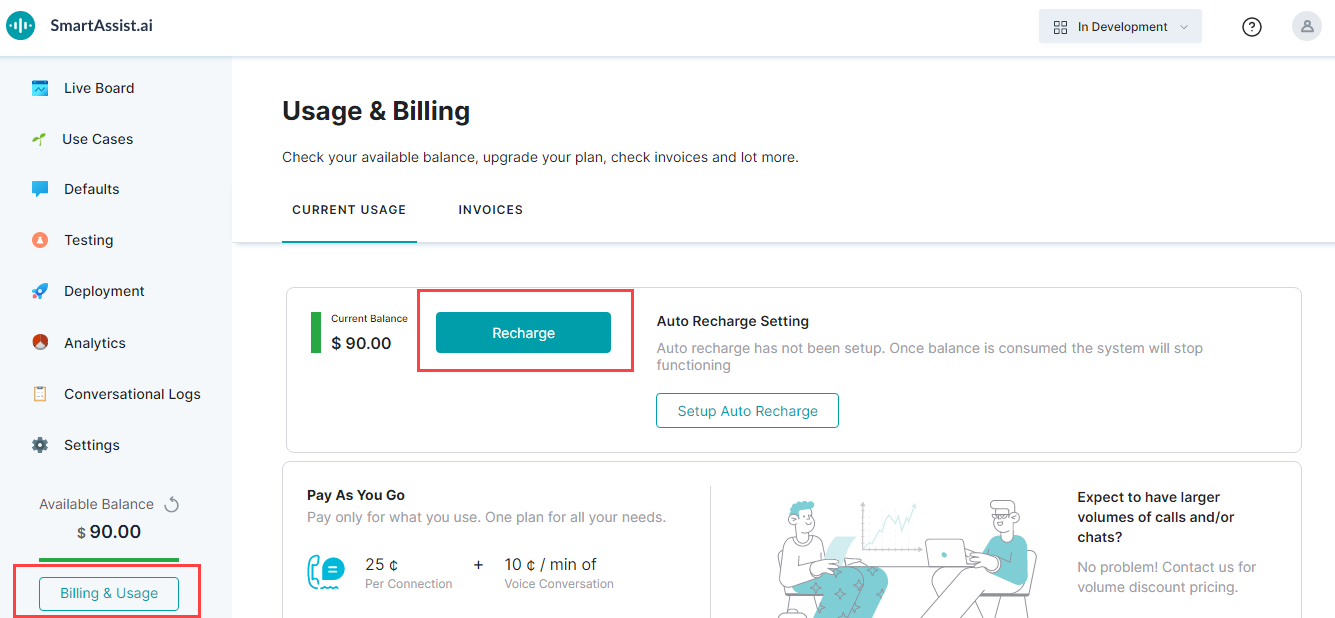
  1. On the left pane, click Billing & Usage.
  2. On the Usage & Billing page, by default, the Current Usage tab is selected. You can find the current balance, recharge, and set up auto-recharge options.
  3. Click Recharge.
  4. On the Recharge window, under the Recharge Setting section, you can select the Enable Autorecharge Setting checkbox if required.
  5. Enter the amount in the Automatically recharge when balance falls below field.
  6. Enter the amount in the Recharge Amount field.
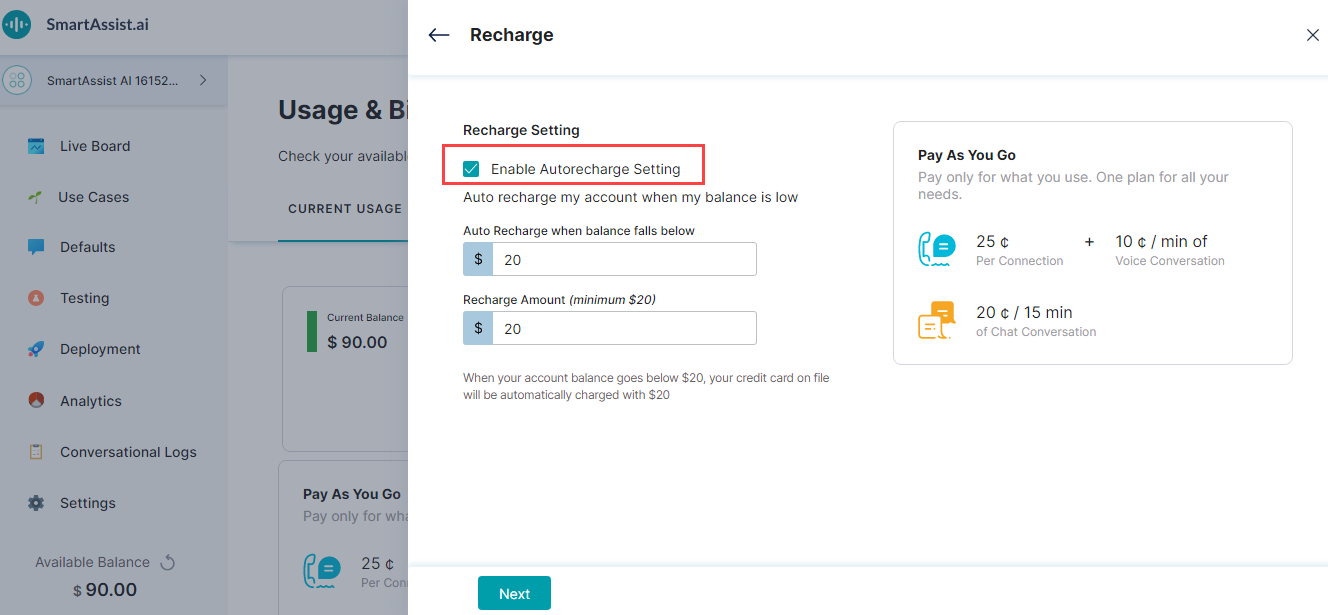
  7. Click Next.
  8. On the Payment Details window, enter the Billing Information details and Payment method.
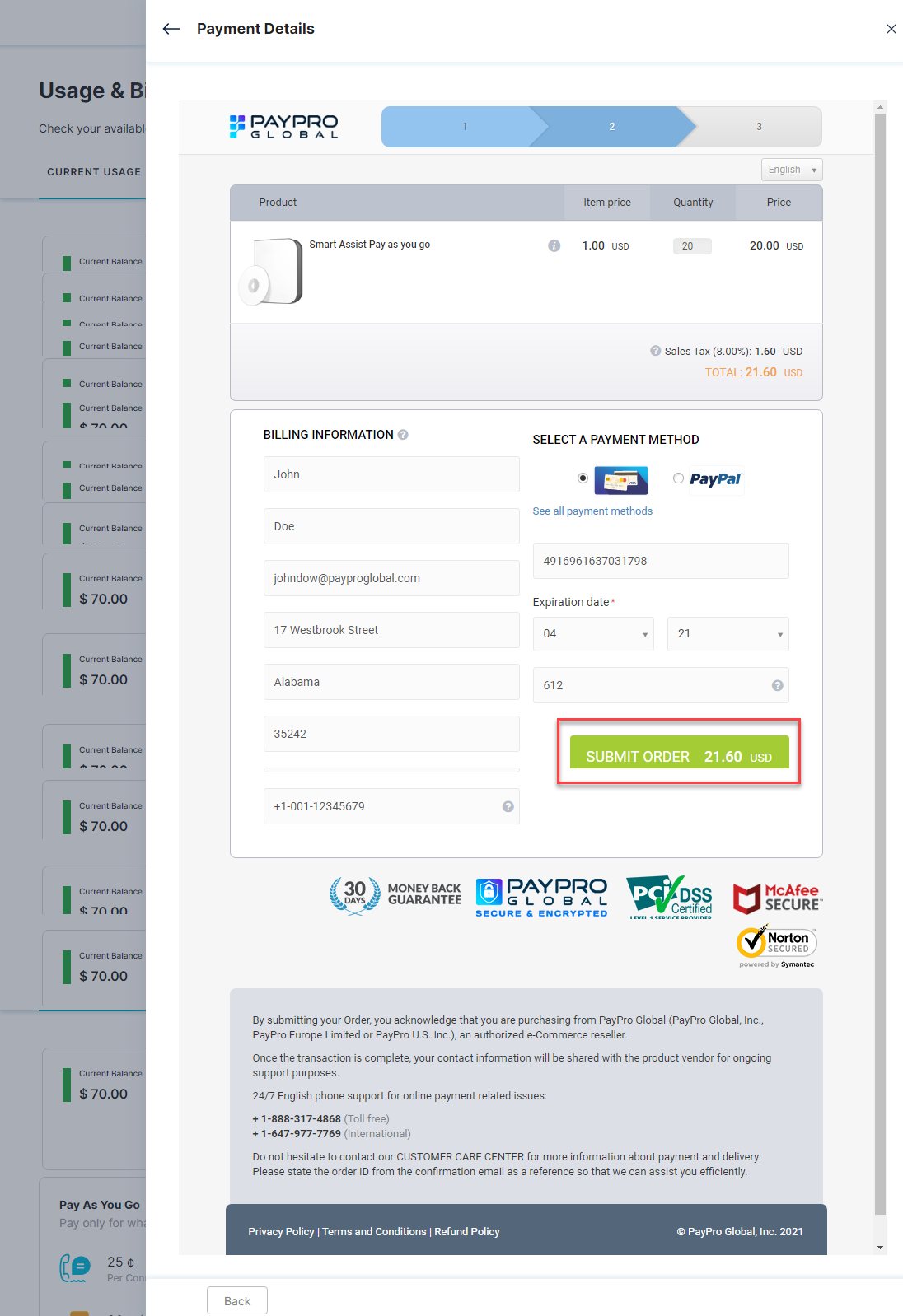
  9. Click Submit Order.
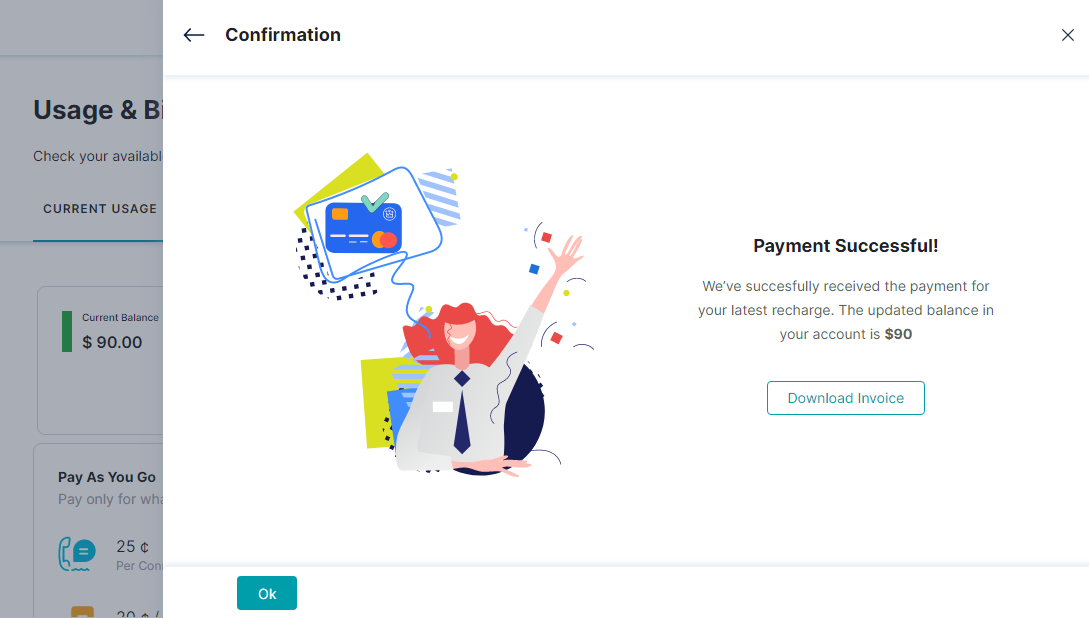
  10. On the Confirmation window, you can find the payment status. Click Download Invoice to download the invoice copy if required.
  11. Click OK.

Setup Automatic Recharge

If the user had already set up the account without the automatic recharge option, the user can enable it. To set up the automatic recharge option, follow the below steps:

  1. On the left pane, click Billing & Usage.
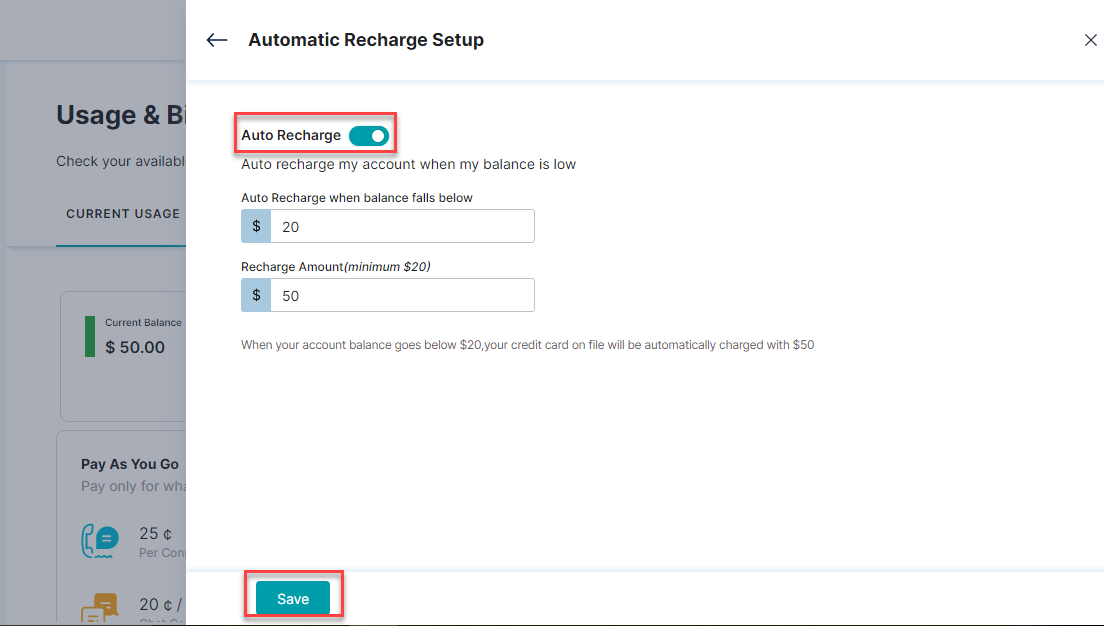
  2. On the Usage & Billing page, by default, the Current Usage tab is selected. Under the Auto Recharge Setting section, click Setup Auto Recharge.
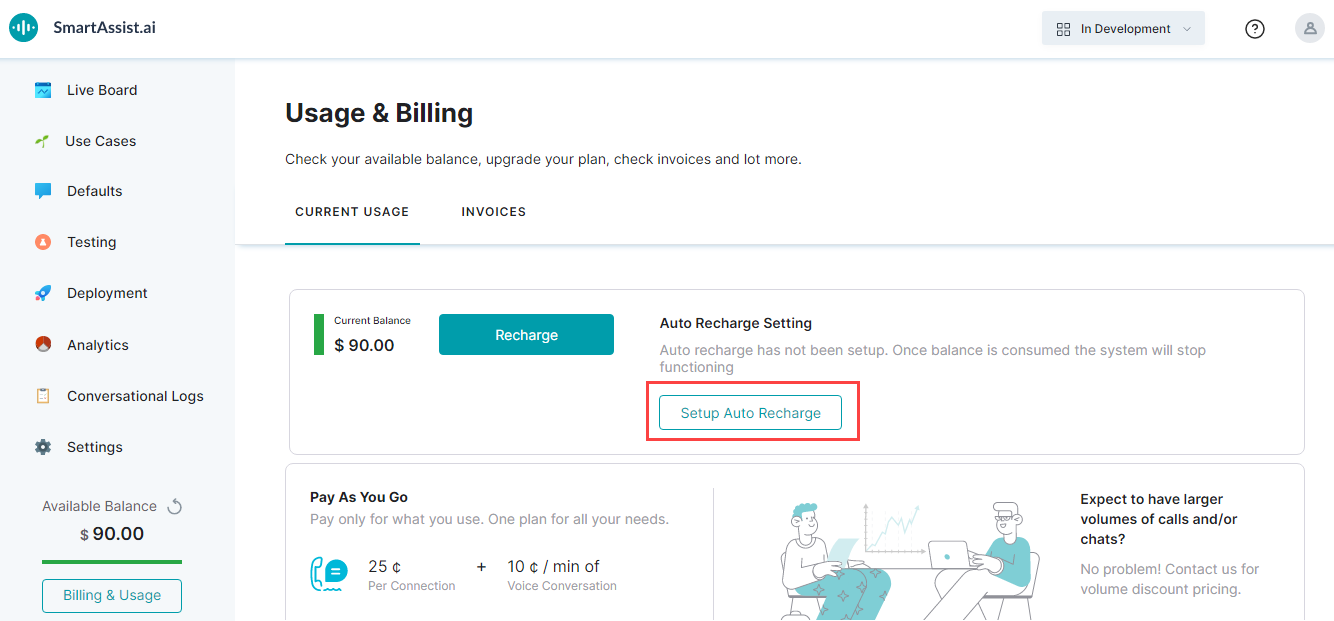
  3. On the Automatic Recharge Setup window, turn on the Automatic Recharge toggle.
  4. Enter the amount in the Automatically recharge when balance falls below field.
  5. Enter the amount in the Recharge Amount field.
  6. Click Save.

Recharge

To recharge your account, follow the below steps:

  1. On the left pane, click Billing & Usage.
  2. On the Usage & Billing page, by default, the Current Usage tab is selected. You can find the current balance, recharge, and set up auto-recharge options.
  3. Click Recharge.
  4. On the Recharge window, under the Recharge Setting section, you can select the Enable Autorecharge Setting checkbox if required.
  5. Enter the amount in the Automatically recharge when balance falls below field.
  6. Enter the amount in the Recharge Amount field.
  7. Click Next.
  8. On the Payment Details window, enter the Billing Information details and Payment method.
  9. Click Submit Order.
  10. On the Confirmation window, you can find the payment status. Click Download Invoice to download the invoice copy if required.
  11. Click OK.

Setup Automatic Recharge

If the user had already set up the account without the automatic recharge option, the user can enable it. To set up the automatic recharge option, follow the below steps:

  1. On the left pane, click Billing & Usage.
  2. On the Usage & Billing page, by default, the Current Usage tab is selected. Under the Auto Recharge Setting section, click Setup Auto Recharge.
  3. On the Automatic Recharge Setup window, turn on the Automatic Recharge toggle.
  4. Enter the amount in the Automatically recharge when balance falls below field.
  5. Enter the amount in the Recharge Amount field.
  6. Click Save.