Interaction Evaluation and Conversation Analytics Report
Exports detailed conversation data based on selected evaluation forms, with customizable fields. This report provides detailed insights into individual interactions, including sentiment analysis, topics discussed, agent performance metrics, evaluation scores, and optional AI-generated justifications for Gen AI by question metrics.
Generate the Report
Steps to generate the Interaction Evaluation and Conversation Analytics Report:
-
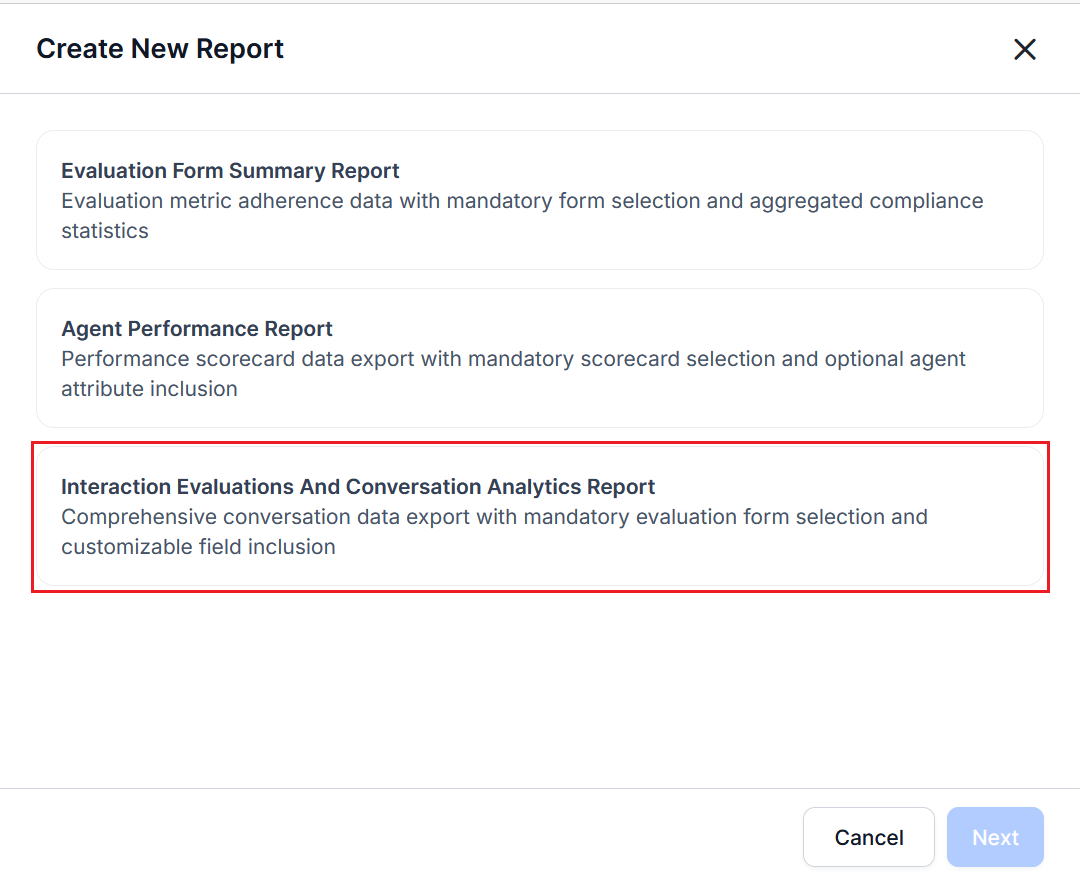
On the Reports tab, Select + New Report.
-
From the Create New Report list, select the Interaction Evaluations and Conversation Analytics Report.
-
Select Next.
-
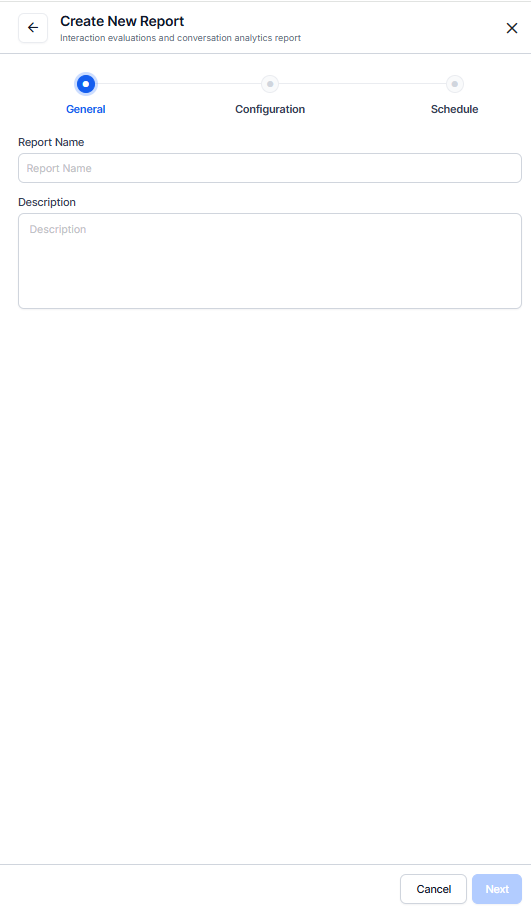
Configure the General settings section.
-
Enter a unique Name for the report.
-
Enter a Description.
-
Select Next.
-
-
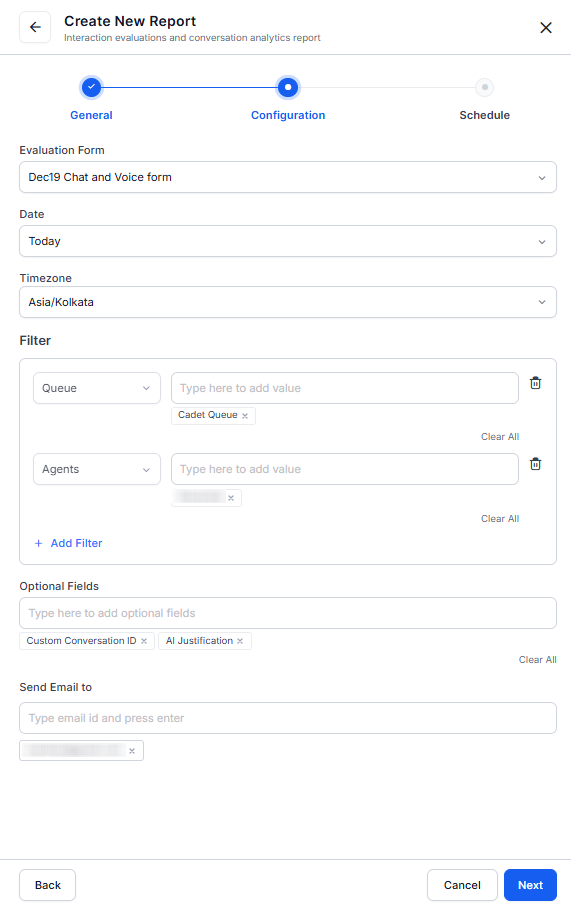
Configure the Filters and Optional Fields in the Configure section.
-
Select an evaluation Form to define the data scope (at least one form you must select).
-
Select a Date or date range.
-
Select a Timezone.
-
Configure the required Filter.
-
Select +Add Filter to add Channel, Queue, Language, Agents, Agent Groups, Duration Status.
-
Set the corresponding values for the selected/added filters.
-
-
Add Optional Fields to include additional metrics.
Note
AI Justifications, available only for Gen AI by Question metrics, provide AI-generated explanations for each evaluation score. They appear in Interaction Evaluations and Conversation Analytics reports, and are accessible via APIs.
-
Enter one or more recipient emails in the Send Email to fields to receive automated reports (minimum one required).
-
Select Next.
Note
Each scorecard determines eligibility for evaluation. Threshold configuration can evaluate an interaction for one scorecard and exclude it from another.
-
-
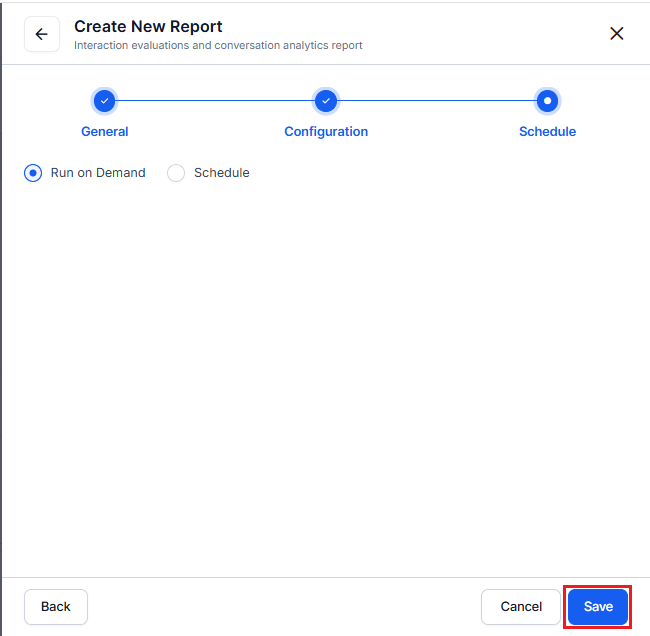
Configure the Schedule section.
-
Choose Run on Demand or Schedule.
-
Run on Demand: To generate the report immediately.
-
Schedule: To generate the report automatically.
-
-
If you select Schedule:
-
Choose a Frequency or Repeat (Hourly, Daily, Weekly, Monthly, Quarterly, or Yearly).
-
Select a Start Date and Timezone.
-
Select Save.
-
Report Fields
Conversation Summary
This report analyses agent interactions by summarizing each conversation’s sentiment, duration, and evaluation scores, along with key performance metrics, including total interactions, scorecard results, evaluation and audit scores, failure rates, coaching assignments, adherence indicators, and AI Justification (when enabled for Gen AI by question metrics).
| Resolution Compliance (Fatal) | Resolution Weight | Resolution Violation | CU Leave Question | CU Fatal | CU Weight | CU Violation | STF AU Responds | STF AU Fatal | STF AU Weight |
|---|---|---|---|---|---|---|---|---|---|
| 0 | 20 | 10 | 0 | 0 | 11 | 23 | 0 | 0 | 19 |
| 1 | 0 | 0 | 20 | 10 | 1 | 0 | 11 | 23 | 0 |
| 0 | 0 | 19 | 7 | 0 | 0 | 23 | 10 | 0 | 0 |
| 0 | 20 | 10 | 0 | 0 | 11 | 23 | 0 | 0 | 19 |
| 7 | 0 | 0 | 23 | 10 | 0 | 0 | 20 | 10 | 0 |
| 0 | 11 | 0 | 0 | 0 | 0 | 0 | 0 | 0 | 0 |
Note
The report shows all interactions, and you can use the Duration Status filter to refine the results. The system assigns a null value to Duration Status for earlier ingested interactions.
View and Download the Report
Steps to view and download a report:
-
On the Reports tab, locate the report in the Actions column.
-
Select More options (⋮), then select History.
-
Select Download to save the report as a CSV file.
Report Format
-
Format: CSV
-
File Name: [ReportName]-YYYY-MM-DD-HH-MM-SS.csv

Related Resources