The Interactions feature enables supervisors to review and filter scored conversations from their assigned queues. It provides insights into conversation quality, agent performance, and customer experience to help identify coaching opportunities, performance trends, and interactions excluded by duration thresholds.
Access Interactions
Navigate to Quality AI > ANALYZE > Conversation Mining > Interactions.
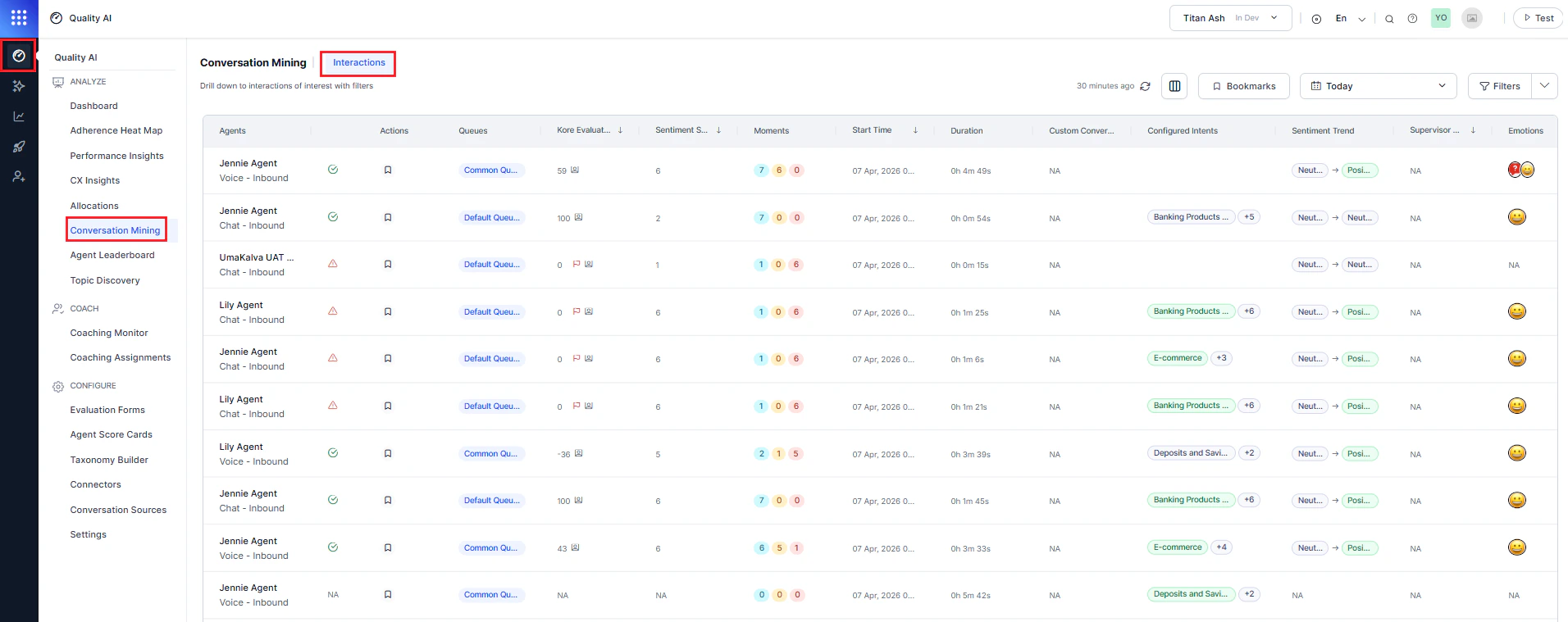
Use the Contact Direction filter to analyze Inbound and Outbound interactions separately, alongside existing filters such as Queue, Channel, and Evaluation Form.
Key Capabilities
- Review and filter interactions: Access scored interactions from assigned queues to identify conversations that need coaching or follow-up.
- Monitor conversation quality: Get a clear view of conversation quality, agent performance, and customer experience at both the conversation and agent levels.
- Gain deeper insights: Use integrated taxonomy-based topic discovery, topic-level sentiment, and resolution insights for better analysis across Conversation Mining, the AI-Assisted Audit, and Agent Dashboards.
- Identify Key Conversation Insights: Use topics, sentiment, and resolution indicators across filters, columns, audits, and dashboards to identify high-impact or unresolved conversations.
- Filter by experience insights: Apply filters for configured intents (L1, L2, L3), generated intents, resolution status, duration status, and contact direction (Inbound or Outbound).
- Audit with precision: Customize views using metadata and column controls, including configured intent, sentiment, resolution, duration status, and contact direction.
- Refine searches: Use keyword filters with speaker-specific options, include/exclude terms, and options to hide resolved cases.
- Navigate by timeline: Use timeline-based search and jump-to-match for fast, focused review.
- Save custom views: Store preferred filter sets and column configurations for repeatable audits.
Interactions Dashboard
Columns
| Column | Description |
|---|
| Agents | Name of the agent who last handled and ended the interaction. |
| Processing Status | Green = all processes succeeded; Red = at least one process failed. |
| Actions | Assign the interaction to a bookmark for future reference. |
| Queues | The queue where the interaction was terminated. The evaluation form used matches this queue. |
| Kore Evaluation Score | Auto QA score based on the completed evaluation form. Hover over the warning icon to see the API processing status. |
| Sentiment Score | System-generated score based on the customer’s words. |
| Supervisor Audit Score | Score assigned by the supervisor for audited interactions. Manual Evaluation metrics display a distinct indicator. |
| Start Time | Conversation start time (for example, 24 May 2024, 1:17:10 PM). |
| Duration | Call duration including talk time, hold time, and ACW (for example, 0h 6m 25s). |
| Moments | Counts for adherence, violations, and omissions. Hover to see details: Questions Adherence, Violations, Omissions. Select an interaction to view Moments in the AI-Assisted Manual Audit page. |
| Sentiment Trend | Distribution of positive, negative, and neutral tones; tracks sentiment changes throughout the call. |
| Emotions | Customer emotional states detected during the conversation. |
| Conversation ID | User-defined identifier for custom tracking. |
| Custom Conversation ID | Unique system-generated identifier used as the primary key. |
| Configured Intents | Topics or intents across all levels (L1, L2, L3), color-coded by sentiment (red, green, gray). |
| Generated Intents | AI-identified intents for each conversation. |
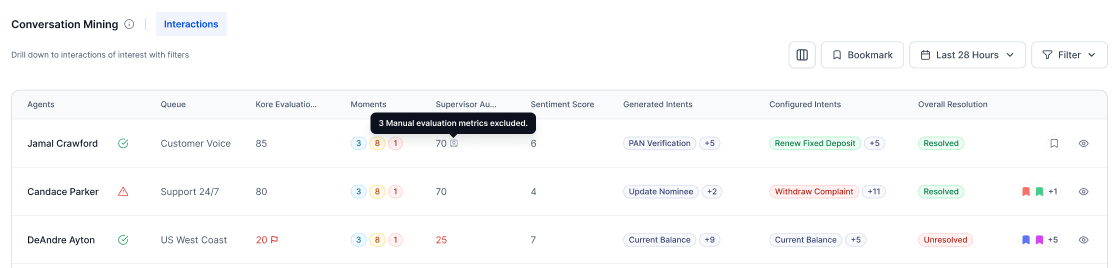
You must create bookmarks in
Settings before tagging interactions for future reference.
Dashboard Filters
| Filter | Description |
|---|
| Columns | Include or exclude specific fields from the view. |
| Bookmarks | Assign interactions to bookmarks and view all bookmarks linked to an interaction. |
| Date Range | Select the date range for interactions; defaults to the last 7 days. |
If you attempt to evaluate an interaction not assigned to you, you cannot submit the evaluation.
Filters
Use filters to narrow results to conversations that need attention. Add filters from the Filters dropdown and refine using multiple category panels.
Add a New Filter
- Select the Filters dropdown in the upper-right corner.
- Select + Add New Filter.
- Choose a Filter By category.
Filter Categories
Filter by Efficiency
Filters interactions based on handling metrics and process adherence.
- Select Channels (Chat or Voice) to limit to a specific communication mode.
- Select Audit Status to view Audited, Assigned, or Not Assigned conversations.
- Enter the Conversation ID or Custom Conversation ID to filter a specific interaction.
- From Queues, select the routing group.
- From Agent Groups, select the group linked to the chosen queue.
- From Agents, select the agent assigned to the queue.
- Enable additional options as needed:
- Filter by handling time
- Filter by deviation from AHT
- Deviation (%)
- Number of Transfers
Filter by Experience
Filters based on customer experience metrics.
| Filter | Description |
|---|
| Avg. Waiting Time | Select a date range in seconds. |
| Sentiment Score | Slider to set min-max range for positive (higher) or negative (lower) sentiment. |
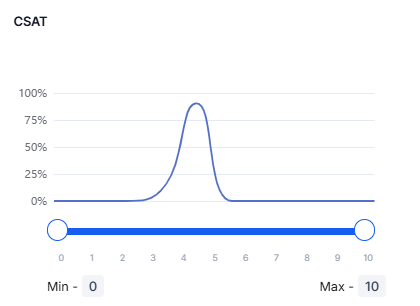
| CSAT | Distribution of interactions by customer satisfaction score. |
| Configured Intents | Filter by topic/intent across L1, L2, L3. Child lists update based on parent selection. |
| Generated Intents | Select configured or AI-suggested intents. |
| Overall Resolution | Filter by Resolved or Unresolved (both selected by default). A conversation is resolved when all applicable L3 intents are defined. |
| Churn Monitor | Filter by Churn Risk (level of customer churn risk) or Escalation (number of escalations raised). |
Select Configured Intent levels in order: L1 first, then L2, then L3. You must select at least one level to apply the filter.
Filter by Behavior
Filters based on agent conduct and interaction dynamics.
| Filter | Description |
|---|
| Metric Name | Filter by specific evaluation metrics using Pass/Fail radio buttons. |
| Metric Qualification | The selected metric appears as a tag; clear it with X. When opened from Adherence Heatmap, filters apply automatically. |
| Language | Select languages from the dropdown. |
| Empathy Score | Measures how well the agent responds to the customer’s emotional state. Higher = more empathetic. |
| Crutch Word Score | Frequency of filler words used by the agent. Higher = more crutch words. |
| Agent Playbook Adherence | Adherence percentage to Agent AI playbooks for the interaction. |
| Kore Evaluation Score | Automated QA score based on the evaluation form assigned to the queue. |
Filter by Keywords
Search, filter, and review conversations by specific keywords or phrases.

| Category | Details |
|---|
| Select Conditions (AND/OR) | AND: All specified keywords must appear. OR: At least one keyword must appear. |
| Conversation Including Keywords | Search by keyword or exact phrase with optional speaker filters (Agent only, Customer only, Both). Add up to 8 keywords. |
| Conversation Excluding Keywords | Enter keywords that must not appear. Use speaker filters. Add up to 5 exclusion keywords. All exclusions use AND NOT logic. |
| Audit Navigation | Supports transcript autoscroll and match relevance filtering. |
| Apply Keywords | Select Apply Keywords to activate filters, then Apply to run the search. |
| Filtered Interactions | Displays the count of interactions matching the selected keywords. |
Manage Saved Filters
| Action | Description |
|---|
| Apply Filters | Stores current settings as an Unsaved Filter. Use Save & Apply to save and name filters for audit allocation. |
| View Saved Filters | Shows all saved filters and their associated unsaved filters. |
| Filtered Interactions | Real-time count of matching conversations. |
| Customization Options | Copy, Mark as Default, Edit, and Delete filters. |
If interactions are not used for audit allocation, you can apply filters without saving.
