
Generate the Report
-
Create the New Report
- On the Reports tab, select + New Report.
-
From the Create New Report list, select the Agent Performance Report.
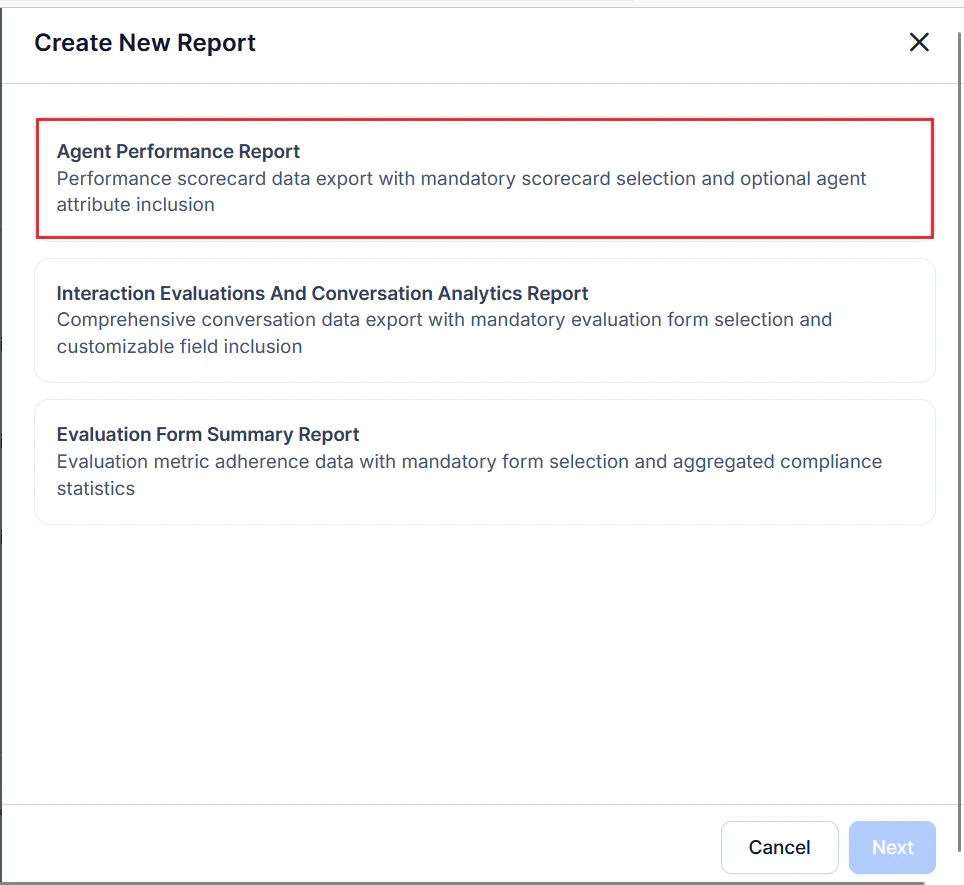
- Select Next.
-
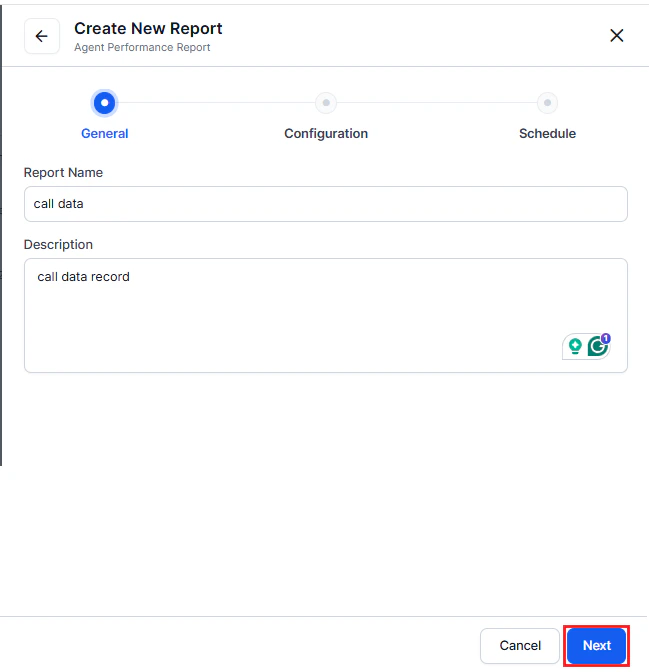
Complete the General settings.
- Enter a unique Name for the report.
- Enter a Description for the report.
-
Select Next.
-
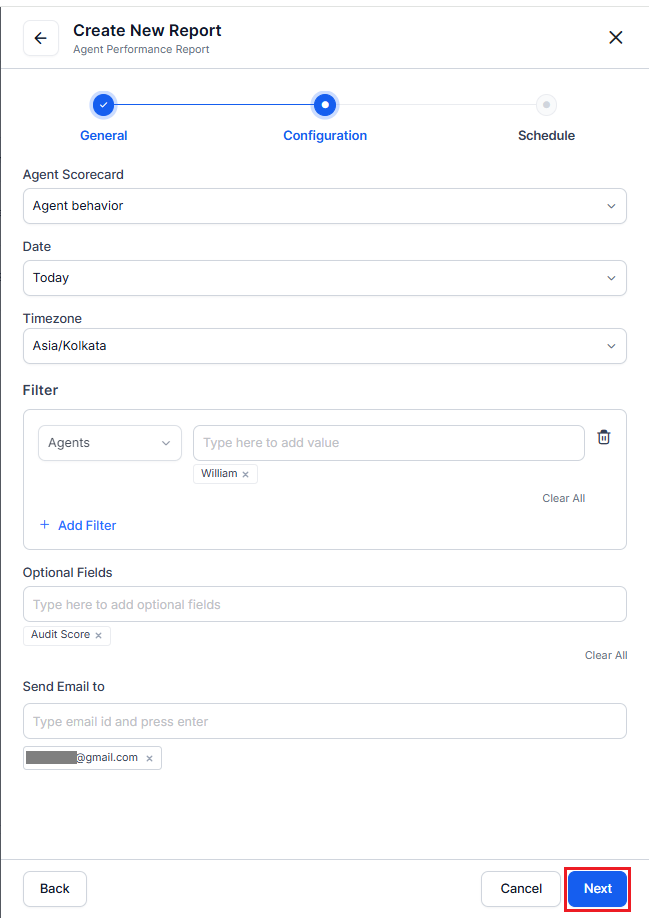
Complete the Configuration — Filters and Options.
- Select at least one Agent Scorecard from the dropdown to define the data scope and included agents, enable comparison across multiple scorecards, and display only agents with assigned scorecards in the report.
- Select a Date range from the dropdown, such as Today, Yesterday, Last 7 days, Last Week, Week to Date.
- Select a Timezone (defaults to device local timezone) from the dropdown.
-
Configure the required Filter.
- Select the required filter options such as Channel (Voice or Chat) with Contact Direction (Inbound or Outbound or All Directions), Queue, Language, Agents, Agent Groups, and Duration Status (evaluated, below threshold, and duration threshold).
- Set the corresponding values for the selected/added filters.
- Select Optional Fields to add additional columns to the report export.
- Enter one or more addresses in the Send Email to field to send the automated reports (minimum one required).
-
Select Next.
-
Complete the Schedule to generate a report with the current configuration.
-
Choose Run on Demand or Schedule.
- Run on Demand: Generates the report immediately.
- Schedule: Generates the report automatically.
-
If you select Schedule:
- Choose a Frequency or Repeat (Hourly, Daily, Weekly, Monthly, Quarterly, or Yearly).
- Select a Start Date and Timezone.
-
Select Save to confirm and activate the schedule.
This report includes only evaluated interactions in all aggregated metrics. Interactions below the duration threshold are not included in any aggregated metrics.
-
Choose Run on Demand or Schedule.
Report Fields
Agent Performance Summary
Summarizes agent performance across evaluated interactions, including scores, adherence, coaching indicators, and attribute-level results; includes evaluated interactions only, excludesBelow Threshold and Duration Unavailable from scores, includes manual evaluations, and supports inbound vs. outbound analysis using the Contact Direction field.
| Agent Name | Contact Direction | Total Evaluated Interactions | Kore Evaluation Score | Scorecard Score | Audit Score | Fail % | Coaching Assignments | Attribute Group | Metric Name | Threshold | Value / Adherence | Duration Status |
|---|---|---|---|---|---|---|---|---|---|---|---|---|
| John Dow | Outbound | 1 | -63 | 0.00% | N/A | N/A | N/A | ATT-3 | Speech Dead Air | 30% | N/A | below_threshold |
| John Supervisor | Inbound | 1 | -63 | 0.00% | N/A | N/A | N/A | ATT-3 | Speech Rate Violation | 20% | 0.00% | duration_unavailable |
View and Download the Report
- On the Reports tab, locate the report in the Actions column.
- Select More options (⋮), then select History.
- Select Download to save the report as a CSV file.
Report Format
- Format: CSV file
-
File Name:
[ReportName]-YYYY-MM-DD-HH-MM-SS.csv