

Search AI
Search AI provides intelligent, contextual, and personalized search in every interaction. Agents access results from all linked sources through the Search tab in the Agent AI widget.How It Works
- Set up Search AI Apps — Add information sources (internal, external, auto-suggestions) such as web pages, documents, and content from apps like ServiceNow and Confluence.
- Link Search AI with Agent AI — Administrators can link up to three Search AI apps. Once linked, the Agent AI widget automatically displays Search AI content.
- View results in the widget — Agents see snippets and articles from Search AI, and Dialog Tasks and FAQs from the Platform.
Search AI Options
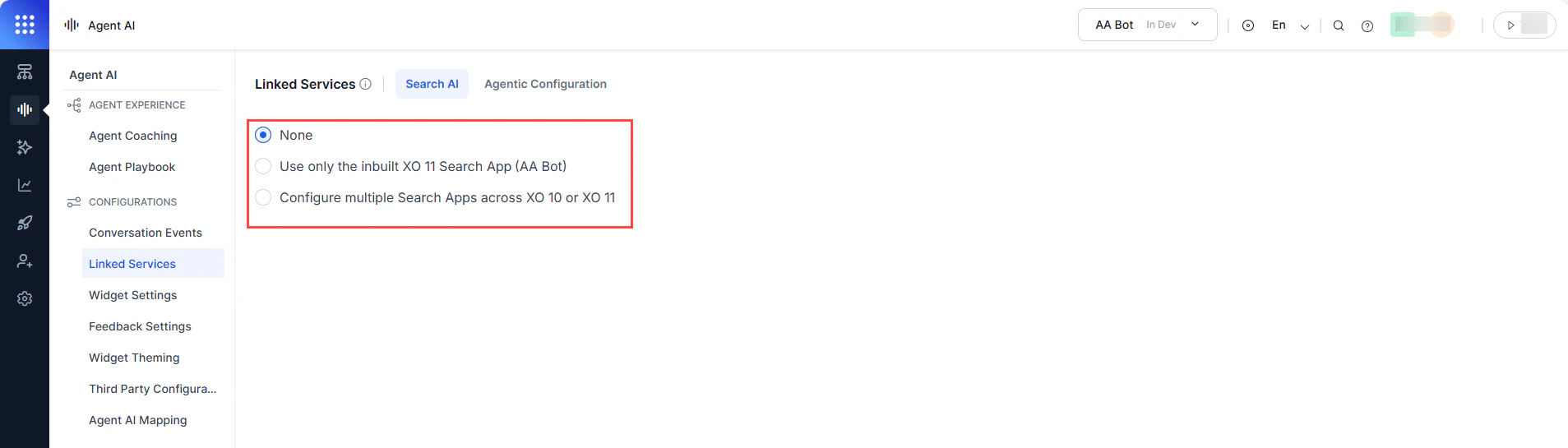
None
This option restricts search to the configured bot only. If a search query doesn’t match bot content, No Search Result Found appears. If the query matches bot content (such as dialog tasks), matching results appear.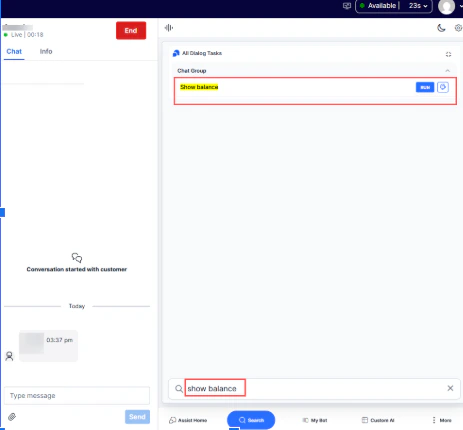
Use Only the Inbuilt XO 11 Search App
Uses the built-in Search AI app linked to your XO 11 sign-in. Select this to configure internal or external information sources and customize how the app retrieves and presents information. Steps:- Sign in to AI for Service.
- Go to Agent AI > Linked Services > Search AI.
- Select Use only the inbuilt XO 11 Search App.
- Expand the Search App section, select Internal Information or External Information in Use This App Settings for, then select Okay.
-
Expand the Knowledge AI section.
- Turn on the Knowledge Settings toggle.
- Select a channel in the Select channel list.
- Configure the Search Results and Control expand behavior of Answers options.
- Optionally, select Add Custom Meta Filter Script under Advanced Search API Configuration, select Add Script, enter your script, and select Save.
- Select Save.
You must turn on Answer Generation to use the inbuilt XO 11 Search App.
- Go to App Settings > Configurations > Dev Tools > API Scopes.
- Select the edit icon next to an existing JWT App.
- Turn on the Answer Generation toggle on the Edit App Definition page.
- Select Save.
Configure Multiple Search Apps
Configure up to three Search AI apps across XO 10 or XO 11. Lets you restrict search capabilities for specific users and assign scopes to each app.Search App Scopes
Steps:
- Sign in to AI for Service.
- Go to Agent AI > Linked Services > Search AI.
- Select Configure multiple Search Apps across XO 10 or XO 11.
-
Select + Add Search AI App.
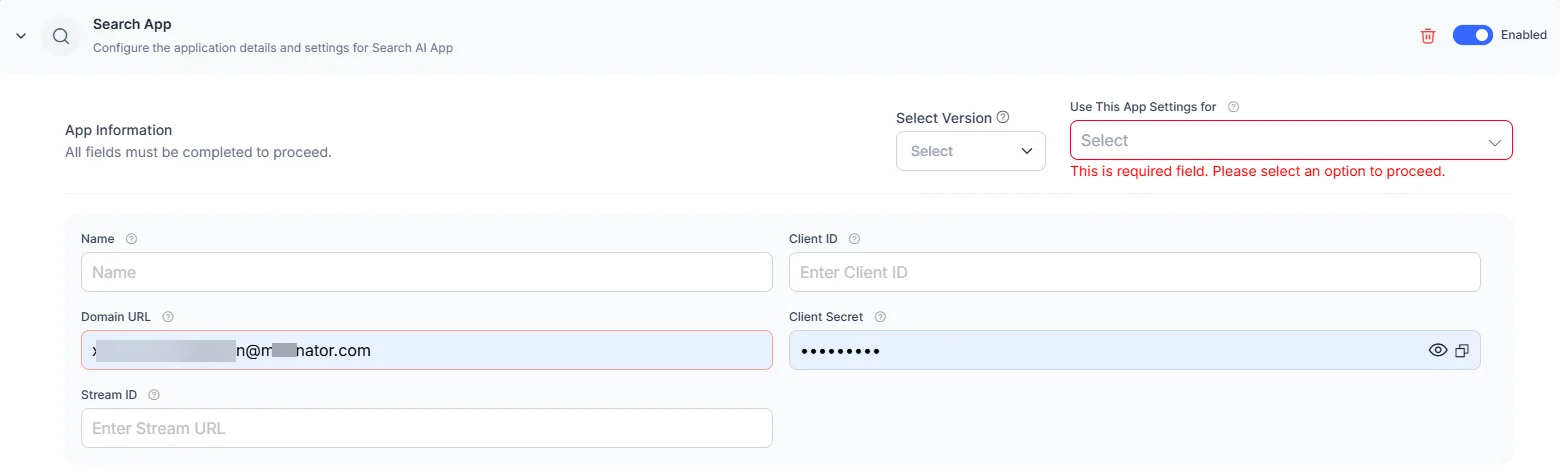
- Enter a name in the Name field.
- Select a version (XO10 or XO11) in Select Version.
-
Select one or more options in Use This App Settings for. See Configuration Rules.
Auto-Suggestions isn’t available for XO11 apps.
-
Enter the client credentials from your Search AI application:
-
Expand the Knowledge AI section (shows only if you select Internal Information or External Information).
- Turn on the toggle.
- Select a channel.
- Configure Search Results, Pass Meta Data, and Control expand behavior of Answers.
- Optionally, add a custom meta filter script under Advanced Search API Configuration.
- Select Test Connection & Save. A success message confirms the connection.
- Repeat to add more Search AI apps.
Configuration Rules
- Choose either Internal Information or External Information with Auto-Suggestions — not both.
- You can’t combine Internal Information and External Information in one app.
- Auto-Suggestions is available only for XO 10 apps.
- Knowledge AI settings appear only if you select Internal or External Information.
Knowledge AI
Knowledge AI settings let you control how search results from the Knowledge AI integration appear in the widget.
Sample for Advanced Search API Configuration
Agentic Configurations
Agentic Copilot manages end-to-end conversations autonomously. Agents supervise conversations and can cancel, override, or edit Agentic responses. Agents can also use the custom tab to run dialog tasks and perform LLM-powered searches. By default, Agentic Copilot generates next best actions (NBAs) only when it receives a request. If the Agent AI widget loads without a customer message, Agentic Copilot receives no request, and the widget remains blank. To control how Agentic Copilot receives its first request, configure the trigger options in the App Information section.Configure an Agentic Copilot App
Configuring an app is a three-step process: entering app details, selecting conversation metadata, and adding custom metadata. Select one of the following options to define how Agentic Copilot receives its first request. These options are mutually exclusive.If you don’t select either option, Agentic Copilot doesn’t generate NBAs until the customer sends a message.
App Details
Conversation Metadata
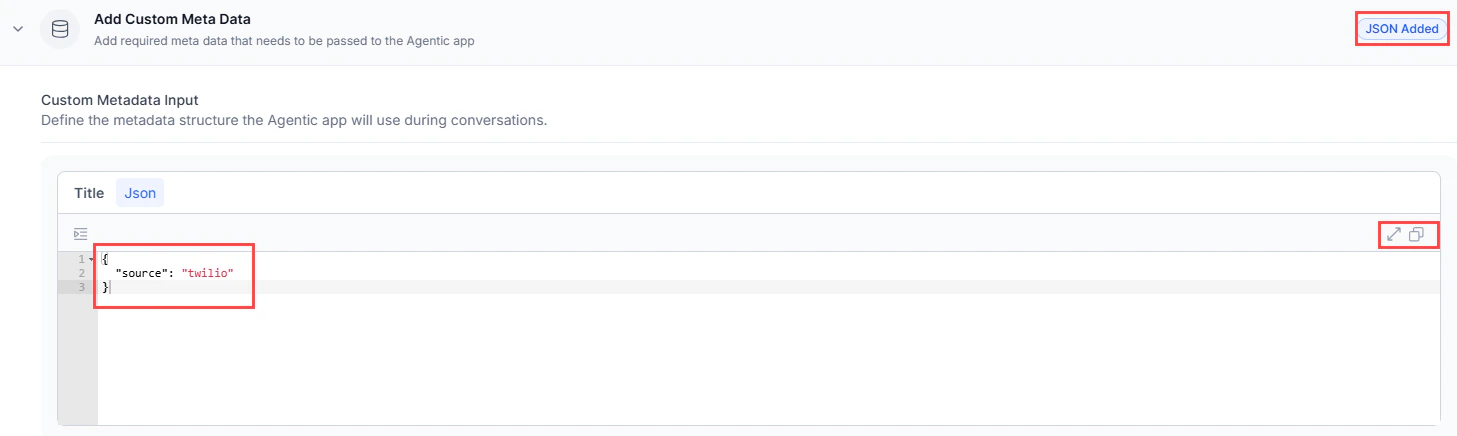
Select the metadata to pass to the Agentic Copilot app. This preserves context during transfers from automation to human agents.Custom Metadata
Add a custom metadata script in the code editor to pass to the Agentic Copilot app. The system validates and highlights errors as you enter the script. Steps:- Sign in to AI for Service.
- Go to Agent AI > Configurations > Linked Services > Agentic Configuration.
- Select + Add Agentic Copilot App.
- Enter the app name, domain URL, environment, app ID, and API key.
-
Select either Use ‘Trigger Welcome message’ as the first request to Agentic or Pass landing summary as first request to Agentic App, based on your requirement.
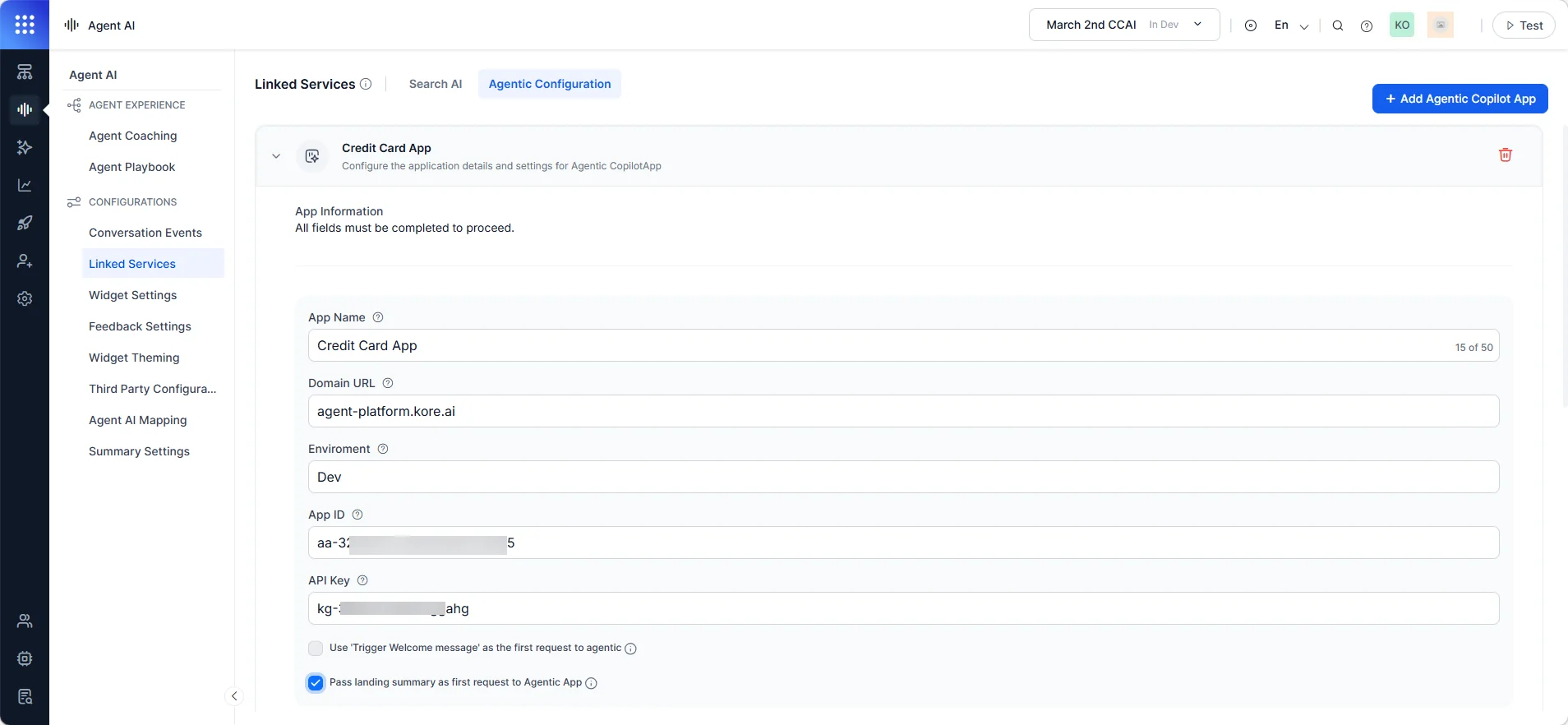
- Expand Pass Metadata and select the metadata to pass.
-
Expand Add Custom Metadata and enter your script in the code editor. Use the enlarge or copy buttons as needed.
- Select Test Connection & Save.
Delete an Agentic Copilot App
Deleting an app automatically removes it from the Agent AI widget.- Select the delete button on a saved app.
- Select Delete on the confirmation screen.
You can’t delete an app that’s in use. The delete button is unavailable, and a badge indicates the app is active.