Use this file to discover all available pages before exploring further.
Back to Search AI connectors listJira is a project management and issue-tracking platform that enables teams to plan, track, and coordinate tasks through customizable workflows.The Jira connector lets Search AI ingest, index, and search through issues, dashboards, and filters, improving accessibility to content from Jira Cloud.
Search AI interacts with Jira through APIs. Create an API token in your Atlassian account following the Atlassian documentation.Enable the following scopes when generating the API token:
Create or select a Profile.
Each profile saves its own credentials, filters, and mappings. You can maintain multiple profiles under a single connector.
In the profile setup, provide the following fields:
Field
Description
Name
Unique name for the connector profile
Email
Atlassian account email address used for indexing
Domain
Jira Cloud domain (For example <your-domain>.atlassian.net)
API Token
API token generated from your Atlassian account
Click Connect to authenticate the profile.
Repeat the process to add additional profiles as needed.
All timestamps are stored in UTC. The doc_source_type field distinguishes content types. Issue comments are concatenated into a single field; individual comment metadata is not indexed.
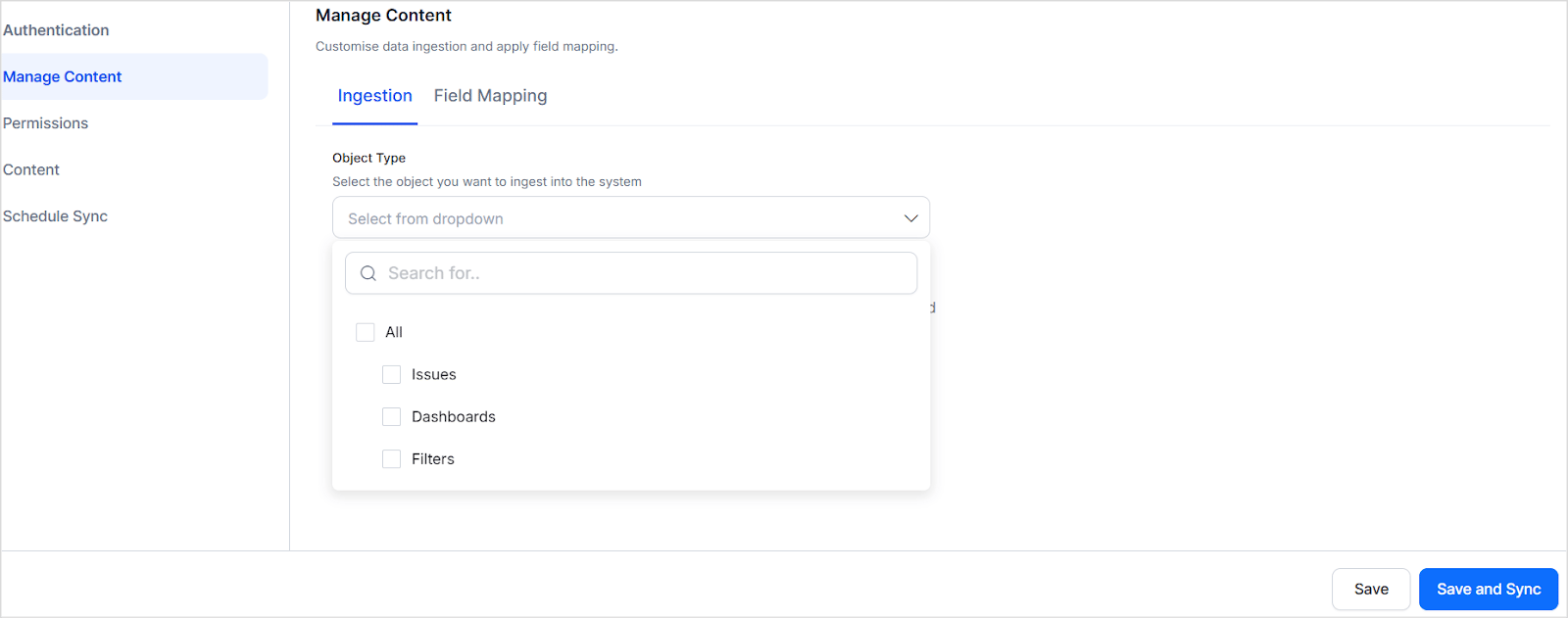
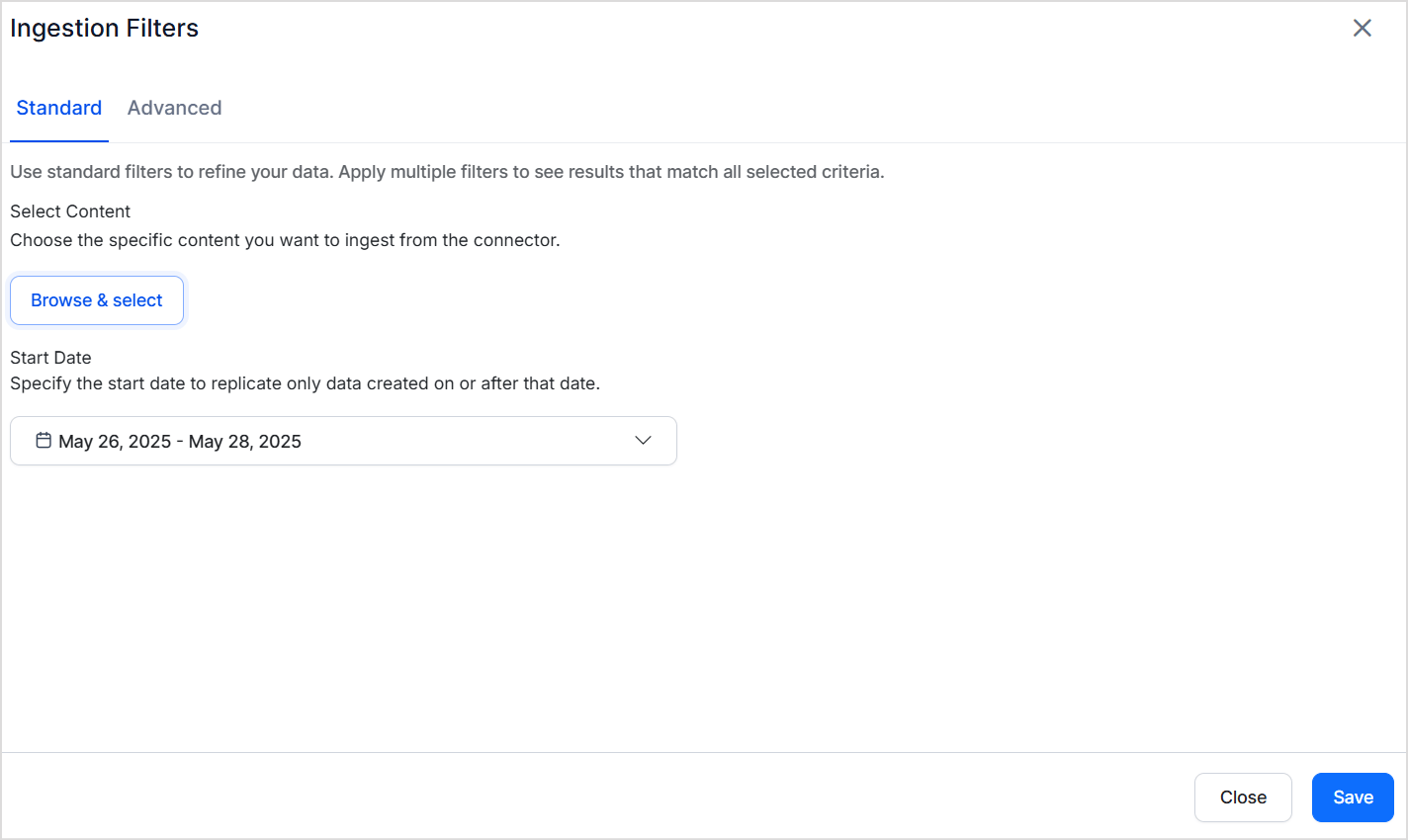
The Jira connector supports standard and advanced filters to control which content is ingested.Go to the Manage Content page and select the Object Type to define which content types to ingest. All filter settings apply only to the selected object type.Select Ingest filtered content and click Edit Configuration to apply filters.
Use standard filters to ingest content from specific projects. Select one or more projects — all items of the selected object type within those projects are ingested. You can also define a date range using the calendar selector to limit ingestion to a specific time frame.
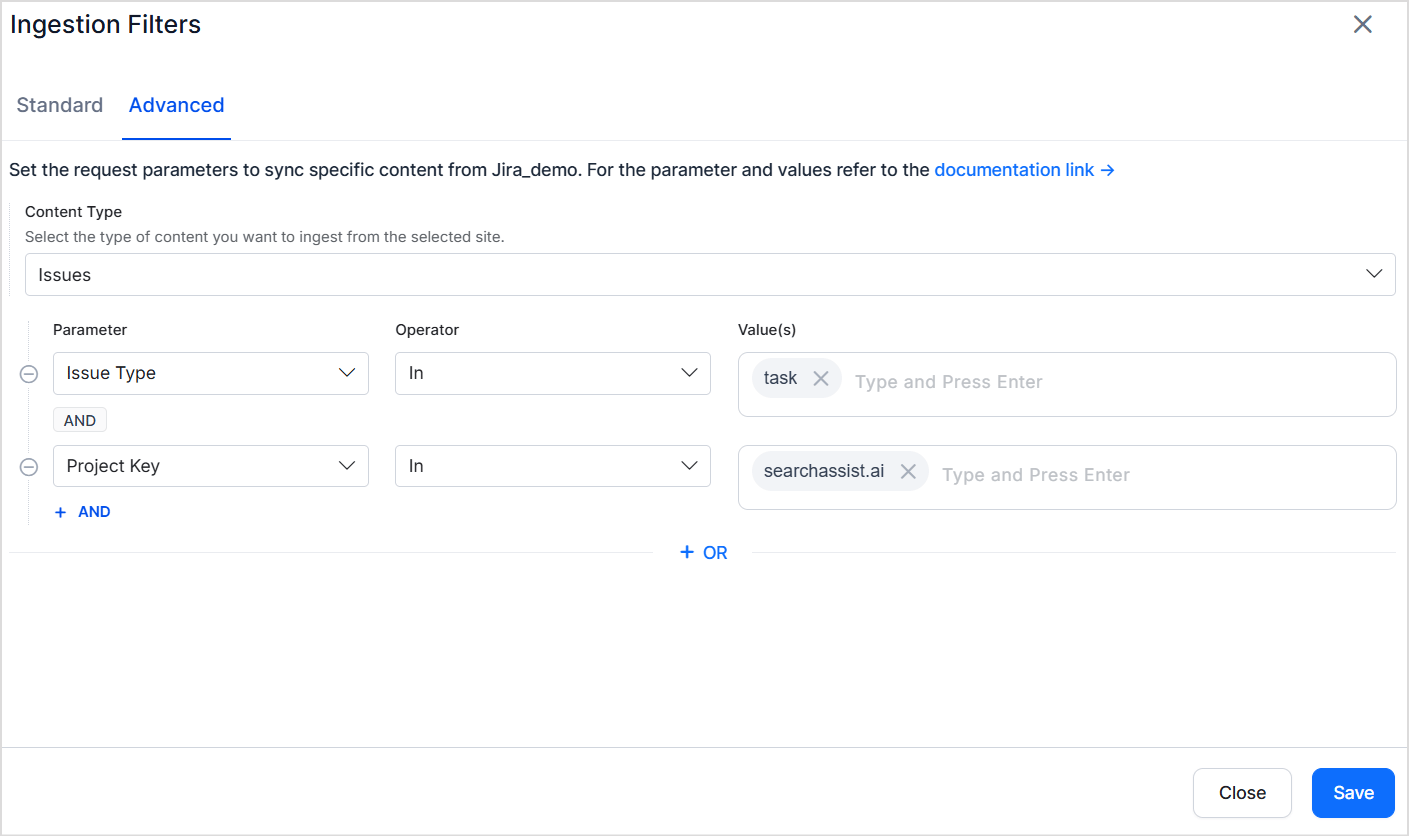
Advanced filters provide granular control through field-based rules. For example, ingest only specific issue types from a particular project.Choose from commonly used fields in the dropdown or enter any valid Jira field name. The field name must match the field name for the selected object in your Jira instance.
Advanced filters override standard filters when their criteria conflict. For example, if a standard filter selects Project A and an advanced filter specifies Project B by key, Project B takes precedence.
Filters apply only to the selected object type. An advanced filter set for issues is ignored if only dashboards are selected on the Manage Content page.
Each issue is linked to a project via a unique Project ID.
The Project ID is stored in the RACL field of the ingested chunks.
Search AI automatically resolves permission entities for Jira issues — it identifies users with access to each project and associates them with the corresponding Project ID. Manual Permission Entity mapping is not required.
When Jira dashboards or filters are shared, Search AI populates the RACL field to mirror those sharing settings:
Sharing Option
RACL Field Entries
Project
One or more Project IDs (for each shared project)
My Organization
The Organization ID
Group
One or more Group IDs (for each group granted access)
Public
*
User
Email addresses of all individual users with access
Private
Email address of the item’s owner
If multiple sharing options apply, all corresponding IDs and emails are included in the RACL field. Search AI automatically resolves permission entities — manual mapping through Permission Entity APIs is not required.