

Building a Multilingual AI Agent
If you want to build a Multilingual AI Agent, there are a few points to keep in mind:- There is a set of basic building blocks to a multilingual AI Agent: the language in which it talks to users, the language in which you train it, and the process through which it detects and selects which languages to use.ontinue reading this article to learn more.
- You can create a new AI Agent or add new languages to an existing one. Read more about managing languages here.
- Multilingual AI Agents have language-specific components and some features exhibit different behaviors compared to single language assistants. Read more about this here.
- Translation can be automated using pre-built translation services from providers such as Microsoft or Google; or custom services, including any that you may build in-house. Read here to learn more.
The Conversation (AI Agent) Language
Enabling a language requires you to train the model to understand the user’s input and present the responses in the user’s language. To achieve this, the platform allows you to choose a Conversation (AI Agent) Language and NLU Language for every language that you would like to enable. In most cases, the Conversation Language can be the same as the NLU Language. Conversation Language is the one that users use to interact with the assistant. You can choose any of the over 100 languages as the Conversation Language. You can define the responses (prompts, messages, etc.) in the Conversation Language. You can also use the automatic response translation feature when you or your team doesn’t have expertise in the user’s language. You can write the responses in your preferred language and the platform will automatically translate them to the user’s language during the conversation.Supported AI Agent Languages
The following are the Conversation Languages supported by the Platform:The NLU Language
The NLU Language is the one that you train the assistant with, to identify the user’s intents. The NLU model is built using the NLU Language that you choose. This language can be the same as the Conversation language or it can be any other supported language.Supported NLU Languages
The following are the NLU Languages supported by the platform. While most of the NLU features are supported in all languages, there are some exceptions, see here for more details.Language-specific NLU Models
The platform supports language-specific NLU models for 29 languages. These models are pre-trained to understand system entities, concepts, sentiment, etc. in specific languages.- In most cases, the NLU Language can be the same as the Conversation Language for the 29 languages listed above.
- There may be cases where you can choose an NLU Language that’s different from the Conversation Language. For example, you want to enable the Arabic language for your assistant but train using the English language. You can enable the automatic input translation feature to support this flow. The user input is automatically translated to the NLU Language during the conversation.
- These models provide a wide range of configurations for you to fully customize the model behavior.
The Multilingual NLU Model
Multilingual NLU model is a language-agnostic model that understands over 100 languages.- Translation of user input isn’t required as the model is pre-trained to understand over 100 languages.
- As the model is language agnostic, you can train the model in any of your preferred languages or a combination of languages.
- This model supports fewer configurations as compared to the language-specific NLU models.
Language Enablement Options
The platform offers various options for you to enable additional languages. You can choose a combination of Conversation Language, NLU Language, Input Translation, and Response Translation that suits your needs.Scenario 1: Enabling a language in which you can train as well
Example:- This is one of the common ways of enabling languages.
- The Conversation Language and the NLU Language will be the same.
- Input Translation and Response Translation aren’t required for this flow.
Scenario 2: Enabling a language using another language as NLU Language
Example:- Use this flow if you want to train the assistant in a language other than the conversation language.
- You can also use this flow if the language you want to enable isn’t supported as an NLU Language.
- Input Translation is required for this flow to translate the user’s input to the NLU Language.
- You will need to enable the Response Translation option if the responses are defined in a language other than the conversation language.
Scenario 3: Enabling a language using the Multilingual NLU model
Example:- Use this flow if you want to train using the multilingual NLU model.
- You can also use this flow if the language you want to enable isn’t supported as an NLU Language.
- Input Translation isn’t required for this flow as the multi-lingual model understands over 100 languages.
- You will need to enable the Response Translation option if the responses are defined in a language other than the conversation language.
Language Detection and Selection
Multilingual AI Agent auto-detect and switch language based on the user’s utterance. An exception to this rule is when the user is expected to enter a value against an entity and the user input satisfies that entity’s criteria.Language Detection
There are three ways an assistant can detect the language based upon the user utterance:- By Default: Platform uses its own language detection algorithm to detect language from the user utterance. This is the default setting and the end user’s language will be detected by the platform.
- Google API: For on-prem installation, you can go with the above-mentioned default setting of Kore.ai’s in-house language detection algorithm or use Google APIs for language detections. You can set it in the Kore Config file.
- BotKit SDK: If you are using BotKit SDK, you may also send the following cheat command from your BotKit to the platform:
cheat language <language name or code>
- Primary Detection: The Langdetect module analyzes the input to determine if it’s Tagalog. If Tagalog is detected, the utterance is processed accordingly.
- Secondary Verification: If the Langdetect module doesn’t identify the utterance as Tagalog, the system performs dictionary-based verification:
- Short utterances (1-3 words): All words must exist in the Tagalog dictionary for the utterance to be classified as Tagalog.
- Longer utterances (4+ words): At least 60% of the words must match entries in the Tagalog dictionary.
Language Selection
-
The AI Agent identifies user language from every utterance. In case a change is detected, it will get a confirmation from the user regarding the switch and will proceed as per the user response. These standard responses can be customized using the getCurrentOptions utility.
The current conversation will be discarded in case the user wants to switch languages.
-
Language selection settings - In addition, you may want to configure the language selection options. From the Settings, click Configurations -> Language Management. Under Language Selection Logic (scroll down for the option), for language selection time frame, set to one of the following:
- Lifetime: The auto-detected language will be set as the user’s preferred language and used for all subsequent communications until the user interacts in another enabled language anytime later. If the user starts to talk in another enabled language, the AI Agent changes to that language.
- Per Session: Detects the user’s language at the beginning of every session and responds accordingly.
- Every User Message: Identifies the user’s language from every utterance. In case a change is detected, the AI Agent will get a confirmation from the user regarding the switch and proceed as per the user response.
The current conversation will be discarded in case the user wants to switch languages. This is the default setting for multilingual AI Agent.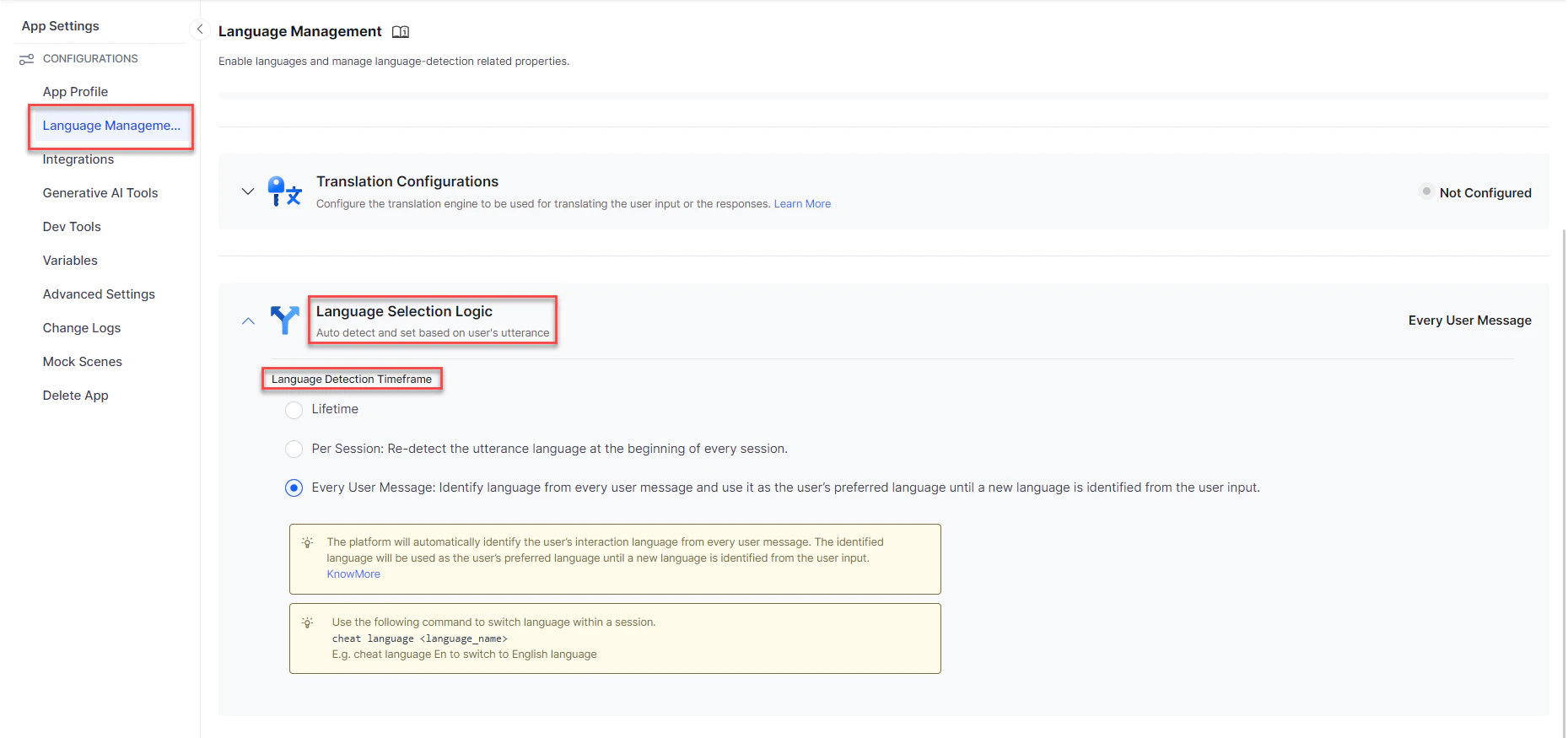
-
For testing and debugging purposes, you can override the language selection settings by using the cheat command during a chat session. Replace the language name or code with one of these values:
- English:
EnglishorEN - German:
GermanorDE - French:
FrenchorFR - Spanish:
SpanishorES
- English: