Documentation Index
Fetch the complete documentation index at: https://koreai.mintlify.app/llms.txt
Use this file to discover all available pages before exploring further.
The Agent Dashboard provides a consolidated view of an agent’s performance across interactions, evaluation scores, coaching assignments, and sentiment trends, enabling supervisors to monitor quality and identify improvement opportunities.
The Evaluation tab offers a structured, filterable view of interactions and evaluation results for a selected time period, including Auto QA scores, manual audit scores, sentiment insights, and bookmarks, displayed most recent first.
Supervisors can analyze performance by language, channel, and contact direction (inbound or outbound), identify recurring issues, and use interactions as coaching references to assign targeted coaching and track performance trends.
Navigate to Quality AI > Analyze > Dashboard > Agent Leaderboard > Select an Agent > Evaluation.
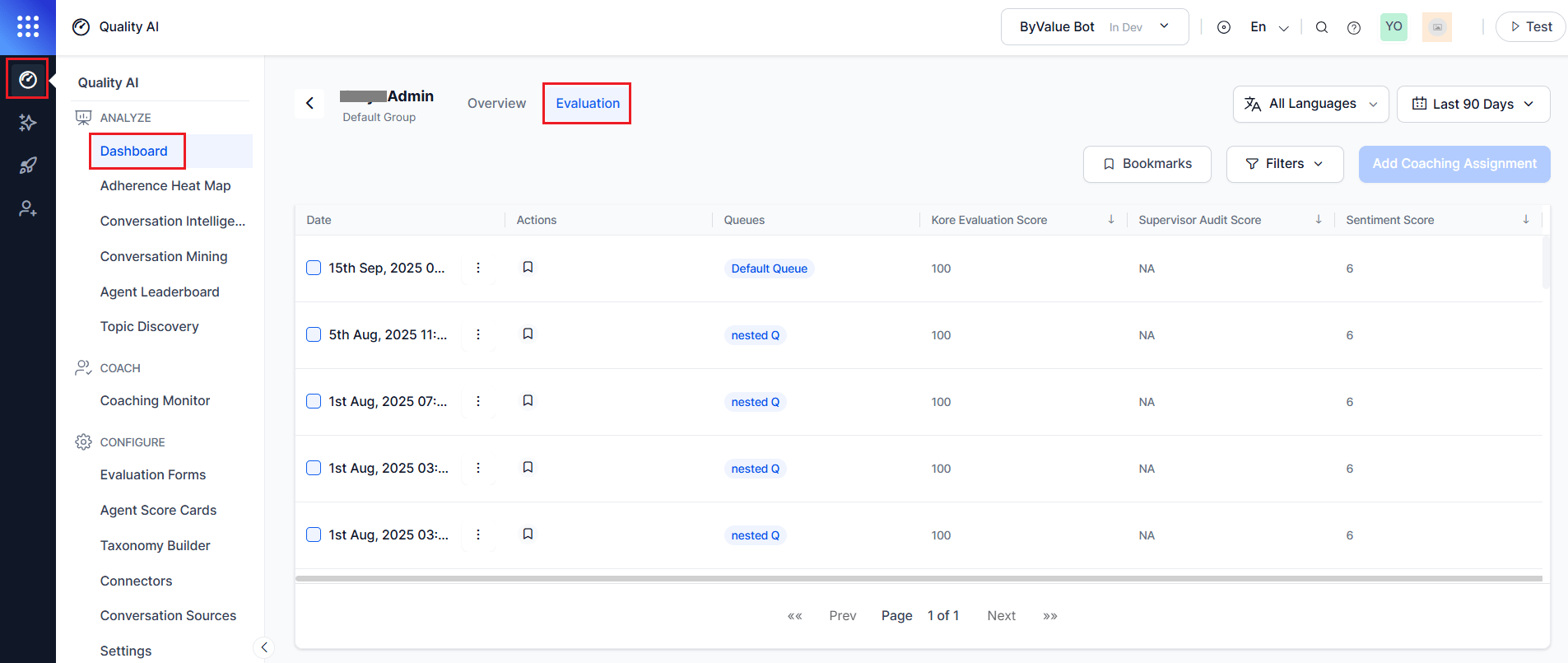 The most recent interactions appear first, ensuring quick access to the latest performance data.
The dashboard displays two tabs:
The most recent interactions appear first, ensuring quick access to the latest performance data.
The dashboard displays two tabs:
- Overview: Key performance metrics and coaching insights.
- Evaluation: Evaluation form results and metric-level scoring details.
Supervisors can also:
- Review interaction-level evaluation data.
- Use bookmarks to highlight coaching examples.
- Open interactions in the Audit screen for detailed analysis.
- Create targeted coaching assignments based on selected interactions.
Key Capabilities
| Capability | Description |
|---|
| Interaction-Level Analysis | Review Auto QA, manual audit, and sentiment scores. |
| Direction-Aware Insights | Compare inbound and outbound interaction performance. |
| Bookmark-Based Coaching | Use saved interactions to create coaching assignments. |
| Audit Drill-Down | Open interactions in the Audit screen for detailed evaluation. |
Common Filters
The Evaluation tab uses the same filters as the Supervisor Dashboard and Agent Dashboard (Overview).
| Filter | Description |
|---|
| Language | Filter by one or more configured languages. |
| Date Range | Select predefined or custom time period (default: last 7 days). |
| Channel | Voice, Chat, or All. |
| Contact Direction | Inbound, Outbound, or Both. |
| Bookmarks | Show only bookmarked interactions. |
All filters apply globally and dynamically update the interaction list.
Evaluation Details
Displays filtered interactions for the selected agent.
| Column | Description |
|---|
| Date Range Selection | Helps you select a date range; defaults to the last 7 days. |
| Actions (Bookmark) | Bookmarks assigned to the interaction, which you can filter and use for coaching. |
| Queues | The queue where the interaction was completed and its origin. |
| Channel and Direction | Interaction type and flow (Voice or Chat, Inbound or Outbound). |
| Kore Evaluation Score | Auto QA score for the interaction based on the evaluation form. |
| Supervisor Audit Score | Score assigned when a supervisor manually audits the interaction. |
| Sentiment Score | System-generated sentiment score based on the customer’s statements. |
| Bookmarks | Filters to show only the agent’s interactions that a supervisor has bookmarked for coaching. |
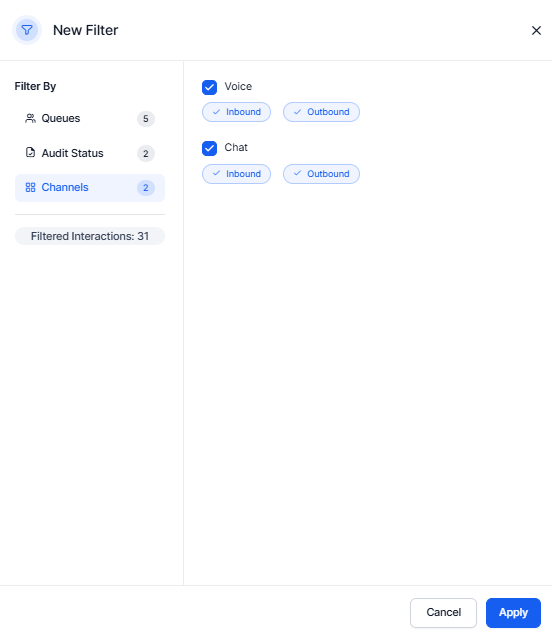
| Filters | Filters audited interactions by agent for the selected date range. |
| Audit Status | Audited or non-audited interactions. |
| Filter | Description |
|---|
| Queues | Filters interactions by queue. |
| Audit Status | Filters audited and unaudited interactions individually. |
| Filter Interactions | Displays the total number of filtered interactions. |
| Channels | Filter by Voice or Chat, with additional selection for Inbound and Outbound interactions. |
Filtering Behavior
- Filters apply across all interactions in the list.
- Contact Direction enables comparison of inbound vs outbound performance.
- Combined filters (for example, Voice + Outbound + Audited) refine coaching analysis.
- Interaction count updates based on applied filters.
Coaching Workflow
The Evaluation tab supports creating coaching assignments using selected interactions.
When to Use
- Identify low-performing interactions.
- Detect recurring issues or patterns.
- Provide targeted coaching with real examples.
Create Coaching Assignment
Supervisors create coaching assignments by selecting interactions and defining improvement areas, feedback, and follow-up actions to guide agent performance improvement.
Steps
-
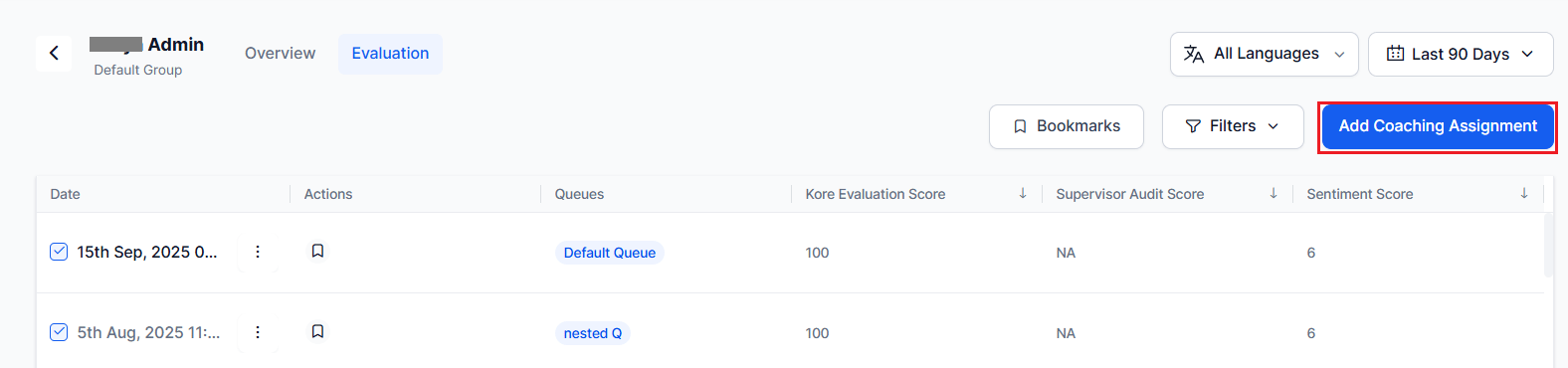
Select one or more interactions the Evaluation table where improvement is needed.

-
Select Add Coaching Assignment.
-
Enter a Name or title for the coaching assignment.
-
In Coaching Area, select skills or attributes to improve, then select Add.
-
The Interactions Marked for Coaching auto-populated from selected Evaluation tab interactions.
-
Under Best Responses (optional), Add reference interactions from saved bookmarks:
-
Select relevant bookmarked interactions.
-
Add them using Add Interaction.
You can select more than one bookmark based on the evaluation criteria. For example, one set for the support queue and another for best responses.

-
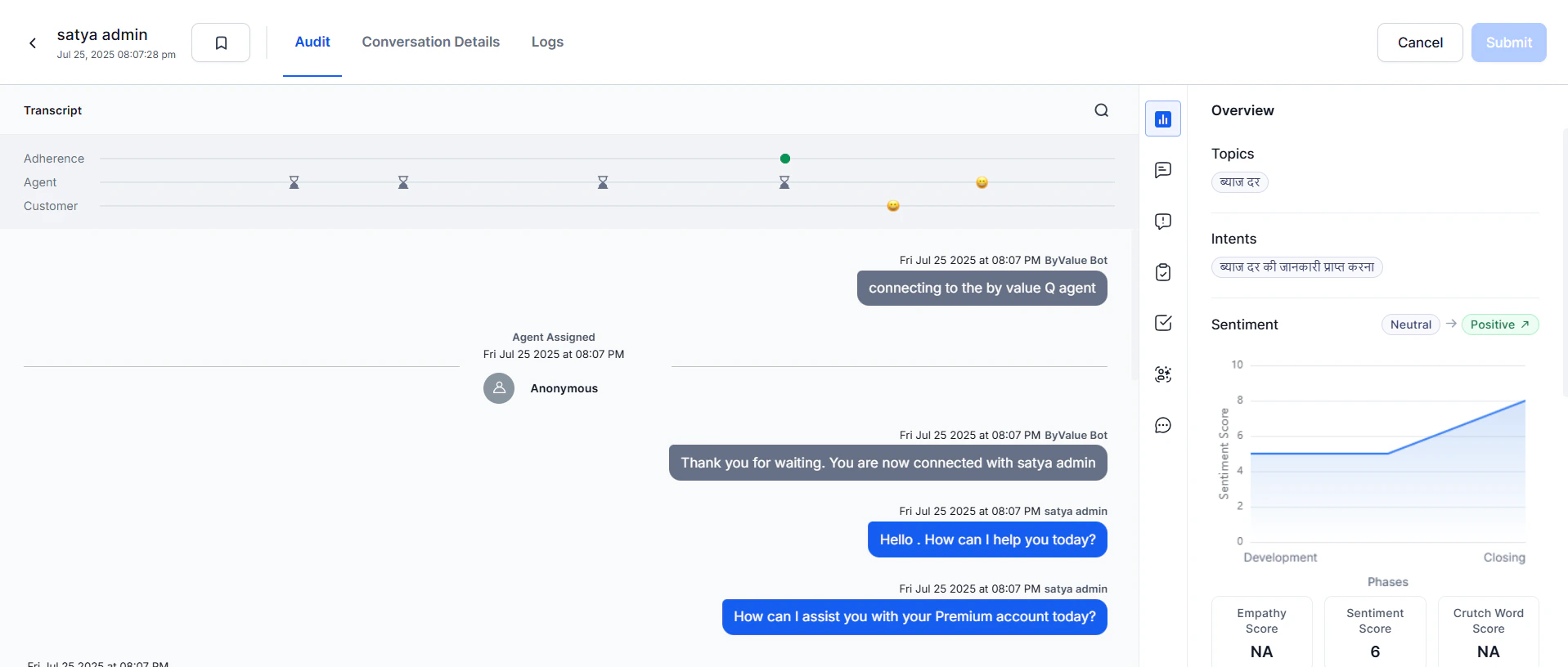
Select View Interactions (optional) to review an interaction in AI-Audit screen before adding them.
-
In Feedback, enter your assessment — strengths and areas for improvement.
-
Enter the Action Plan — concrete steps for the agent to improve.
-
Set the Follow-up Date for the coaching review.

-
Select Create. The assignment saves in the agent’s dashboard.
When to Use This Tab
Use the Evaluation tab to:
- Review agent-specific interactions.
- Analyze performance by channel and contact direction.
- Identify coaching opportunities.
- Create structured coaching assignments.
| Feature | Purpose |
|---|
| Supervisor Dashboard | Monitor overall team performance. |
| Agent Dashboard (Overview) | Analyze agent-level trends and insights. |
| AI-Assisted Manual Audit | Perform detailed interaction evaluation. |
