Evaluation Forms standardize QA scoring across queues, channels, and interaction directions. QA Managers can configure metrics, scoring models, duration thresholds, and dispute workflows for Auto QA and manual evaluations.
Key Features
| Feature | Description |
|---|
| Multi-language Support | Configure forms for multiple languages. |
| Flexible Scoring | Use percentage-based or points-based scoring. |
| Fatal & Negative Scoring | Configure pass thresholds, fatal metrics, and penalties. |
| Direction-aware Evaluation | Apply forms individually to inbound and outbound interactions. |
| Channel-specific Configuration | Separate settings for Voice and Chat. |
| Queue and Channel Assignment | Assign forms to specific queues and channels. |
| Auto QA and Manual Audits | Supports automated scoring and supervisor-led manual evaluations. |
| Duration Threshold | Exclude short or incomplete interactions from scoring. |
| Dispute Configuration | Configure acknowledgement and dispute workflows. |
| Versioned Forms | Apply updates only to future evaluations. |
Defines the overall evaluation and dispute workflow configuration.
| Section | Purpose |
|---|
| General Settings | Configure form details, scoring, language, and thresholds. |
| Evaluation Metrics | Define scoring metrics and outcomes. |
| Assignments | Map queues, channels, and contact direction. |
| Dispute Allocation | Configure dispute routing and re-dispute rules. |
Navigate to Quality AI > Configure > Evaluation Forms.
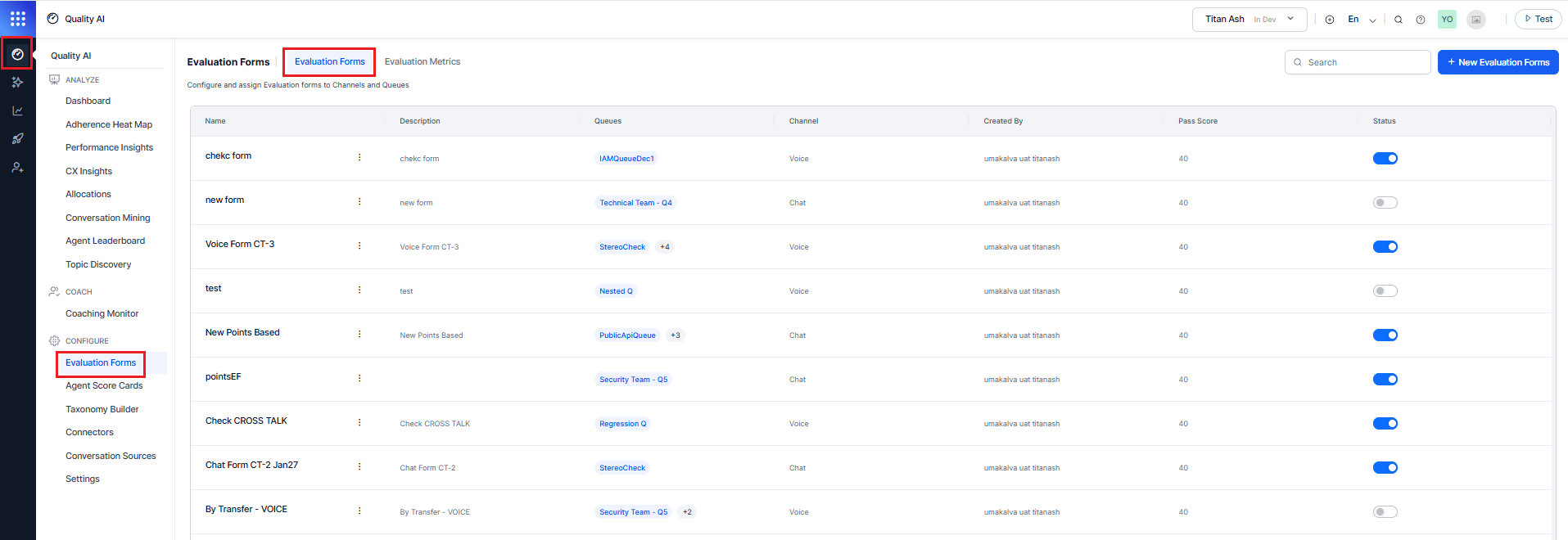
The Evaluation Forms display the following list of elements:
| Column | Description |
|---|
| Name | Evaluation form name. |
| Description | Short description of the form. |
| Queues | Assigned and unassigned queues. |
| Channel | Channel mode assigned to the form (Voice or Chat). |
| Created By | Form creator. |
| Pass Score | Minimum score for the agent to pass. |
| Status | Enable or disable scoring for a form. |
| Search | Find evaluation forms by name. |
Enable Auto QA in Quality AI Settings before creating evaluation forms.
Creating an evaluation form involves the following four sections:
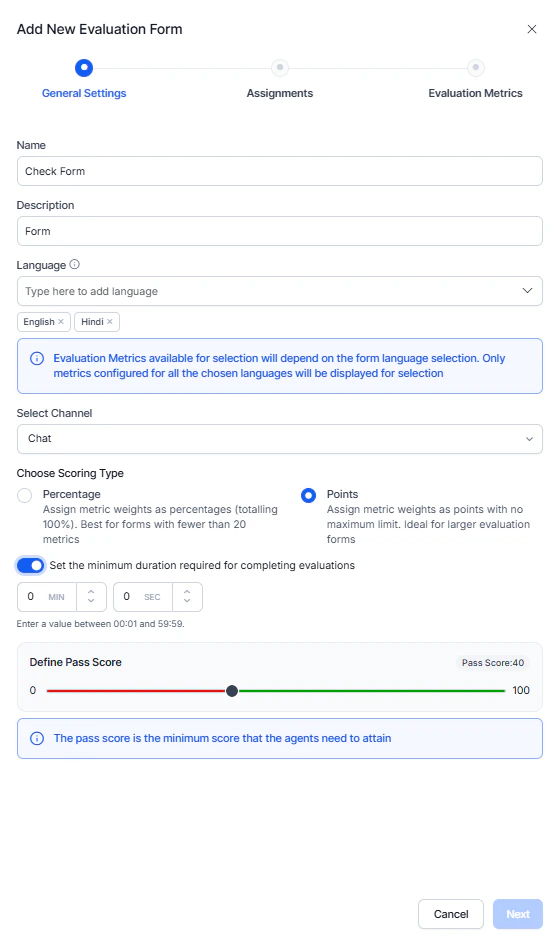
General Settings
- Select the Evaluation Forms tab.
- Select + New Evaluation Forms.
- Enter a Name and Description (Optional).
- Select the required Language.
- Select a Channel type:
- Chat: Displays only chat metrics (excluding speech and voice-specific Playbook metrics).
- Voice: Displays voice, speech, and Playbook-supported metrics.
- Select a Scoring Type (Percentage or Points).
- (Optional) Set the minimum interaction duration required for evaluation by entering values in MIN and SEC.
- Set a minimum Pass Score required for agents.
- Select Next.
Assignments
Assign queues to the evaluation form and define the interaction direction for evaluation.
-
Search and add queues to the Evaluation Form.
-
Select the applicable contact direction for each queue: Inbound, Outbound, or Both.
-
Select a Conversation Source:
- Quality AI Express: Processes Express-based processing,
- CCAI Integration: Processes Contact Center AI interactions
- Agent AI Integration: Processes Agent AI interactions.
-
Select Next.
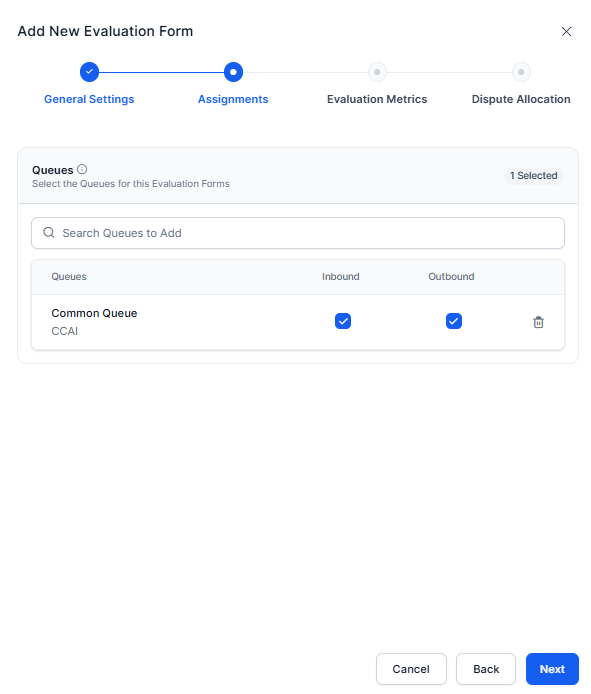
If CCAI or Agent AI queues are assigned together with Quality AI Express queues in the same form, By Playbook and By Dialog metrics are unavailable.
Queue Assignment Rules
Each Evaluation Form supports only one unique Queue + Channel + Contact Direction assignment combination. Duplicate assignments aren’t allowed, and only queues the user has access to are displayed.
If you don’t select a direction, the system excludes the queue from evaluation. CCAI Chat queues don’t support the Outbound direction.
Supported directions include Inbound (incoming interactions), Outbound (agent-initiated interactions), or Both (same form applied to both inbound and outbound interactions).
Assign at least one queue before proceeding to the next step, and make sure the selected direction determines which interaction types the system evaluates for the queue.
Evaluation Metrics
Evaluation metrics define the criteria used for audits and Auto QA scoring. Manual metrics are human-scored and assess qualitative aspects such as tone, empathy, and judgment.
-
Add the required evaluation metrics to the form.
-
Select the Edit icon to configure the metric weight or points value, response logic, scoring outcomes, and optional Fatal Error settings for compliance-critical metrics.
-
Reorder or remove metrics as needed.
-
Select Next.

Manual metrics are supported only in points-based scoring and are excluded from automated (Auto QA) scorecards.
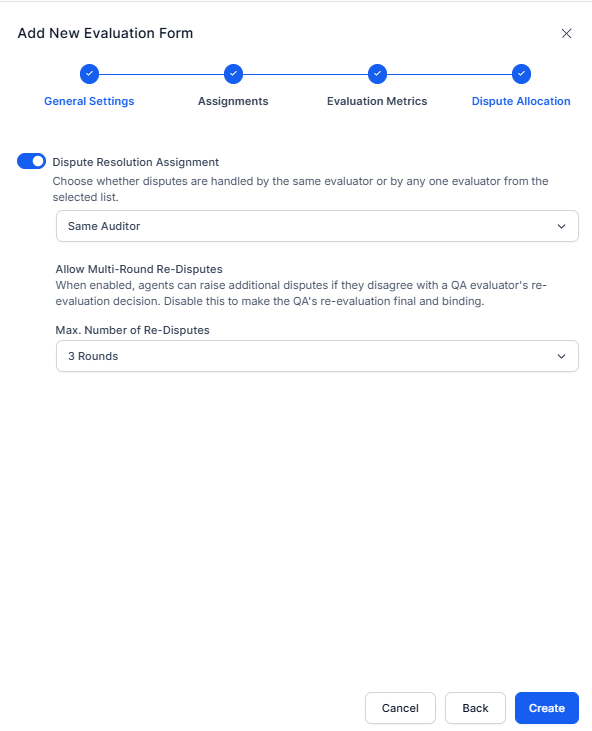
Dispute Allocation
Configure how agents can acknowledge or dispute evaluations created under this form.
- Turn on Dispute Resolution Assignment to make acknowledgement and dispute actions available to agents.
- Select a routing option for dispute re-evaluation:
- Same Auditor: Routes disputes back to the original evaluator.
- Different Auditor: Routes disputes to another QA from the selected auditor list.
- If you select Different Auditor:
- Search and select one or more auditors.
- Select Add to include them in the routing list.
- Set the Max. Number of Re-Disputes rounds for agents after re-evaluation.
- Select Create.
When you disable dispute resolution, the system marks completed evaluations as Audited, and agents can’t acknowledge or dispute them. To enable acknowledgment or disputes, you must enable Agent Accept & Dispute in Settings > Quality AI General Settings.
Evaluation Behavior
During evaluation, the system selects the applicable form based on queue, channel, and contact direction. The system skips conversations without matching assignments and supports manual metrics only in points-based scoring, excluding them from automated scorecards.
-
Trigger Scoring Disabled: When Trigger Scoring is off, the metric card shows a Weightage field for score contribution and a Fatal Error toggle that fails the evaluation if the metric isn’t met.
-
Trigger Scoring Enabled: When Trigger Scoring is on, the metric card expands to outcome-level scoring with Yes or No rows, each having a Weightage field, plus a Correct Response option and a Fatal Error toggle for non-adherent outcomes, with negative scoring set at the outcome level.
-
Outcome Configuration: Defines Yes or No outcomes with positive, zero, or negative weights, where matching responses get positive weight and non-matching responses get zero or negative weight if configured.
You must configure negative scoring at the outcome level.
Outcome Configuration
For each metric, define the outcomes (for example, Yes or No) and assign a positive, zero, or negative weight based on the expected response. A matching response receives positive weight. A non-matching response receives zero or negative weight (if configured).
The system evaluates contact duration before scoring.
| Contact Duration Status | Assigned Result | Notes |
|---|
| Meets or Exceeds Threshold | — | Evaluated normally. |
| Falls Below Threshold | Below Threshold | Excluded from scoring and quality metrics. |
| Duration Unresolved | Duration unavailable | Excluded from evaluation. |
- Myi, Wyi = Adhered metrics and positive points.
- Mni, Wni = Non-adhered metrics and negative points.
Scoring Logic
- Pass: Final score ≥ Pass Score threshold.
- Fail: Final score < Pass Score threshold.
The system calculates the final score using positive and negative metric weights.
Scoring Systems Comparison
Quality AI supports two scoring methods: Percentage-Based and Points-Based.
| Feature | Percentage-based | Points-based |
|---|
| Best for | Fewer than 20 metrics. | 20 or more metrics. |
| Total weight | Must equal 100%. | No fixed maximum. |
| Scalability | Limited. | High. |
| Weight per metric | Decreases as metrics increase (for example, 40 metrics ≈ 2.5% each). | Assign any point value based on importance. |
| Weight precision | May require fractional values (for example, 2.5%). | Uses whole-number allocation (for example, 50 points for critical metrics). |
| Negative scoring | Managed within 100% structure. | Negative points allowed; can’t exceed total positive points. |
| Final evaluation score | Direct percentage (0-100). | Normalized to percentage (0-100). |
Weight Assignment Rules
| Configuration | Percentage-based | Points-based |
|---|
| If the expected correct response is Yes | Positive % for Yes; zero or negative % for No. | Positive points for Yes; zero or negative points for No. |
| If the expected correct response is No | Positive % for No; zero or negative % for Yes. | Positive points for No; zero or negative points for Yes. |
| Validation | Total positive weight must equal 100%; negative weight allowed within the 100% structure. | No upper limit on total positive points; total negative points must not exceed total positive points. |
| Manual Evaluation Metrics | Not supported. | Supported. |
Fatal Error Behavior
Fatal error configuration remains the same for both scoring types. When a fatal metric fails, the system sets the final score to 0 and marks the interaction as failed, regardless of other metric scores.
During evaluation, the system selects the applicable Evaluation Form using a hierarchy of Queue > Channel > Contact Direction, ensuring the selected form matches the interaction’s configured queue, channel, and contact direction.
An interaction is eligible for evaluation when it has a valid queue association and an active evaluation form mapped to that queue.
Conversations linked to evaluation-enabled queues remain eligible for evaluation even if the handling agent isn’t directly assigned to the queue, provided they match the configured channel and contact direction.
The system determines evaluation eligibility based on the conversation’s mapped queue and assigned Evaluation Form, not on agent-to-queue membership in agent or workforce management systems.
This section guides you through editing and updating the existing evaluation forms.
Steps to edit or delete the existing evaluation forms:
- Use the three-dot menu to Edit or Delete the evaluation form and update the required details.
- Before deleting an evaluation form, remove linked queue assignments, dependent metrics (if required), and resolve attribute dependencies. If the form is still in use, the system displays a warning.
- Select Update to save changes.
Troubleshooting
Switching Scoring Types
Changing the scoring type clears all existing metric weights and requires reconfiguration; percentage totals must equal 100% and points-based values must meet validation rules.
This error occurs when you add a new language to a form but one or more associated metrics don’t support it. The system blocks the update until all metrics support the selected language. For example, if you add Hindi to a form while metrics support only English and Dutch, the system triggers this error.
To resolve it, review each metric’s language configuration, update the metrics to support the new language, and then add the language to the form once all metrics are compatible.
Language Selection Behavior
The system applies an AND condition to multi-language selection, so it displays only By-Question metrics available in all selected languages. For example, if you select English and Dutch, the system shows only metrics available in both languages.
Channel Mode Change
Switching between Voice and Chat triggers a warning and removes speech-based metrics; update remaining metrics and adjust weights before saving changes. 
