Surveys
Surveys let you send customers a satisfaction survey after they interact with your business.
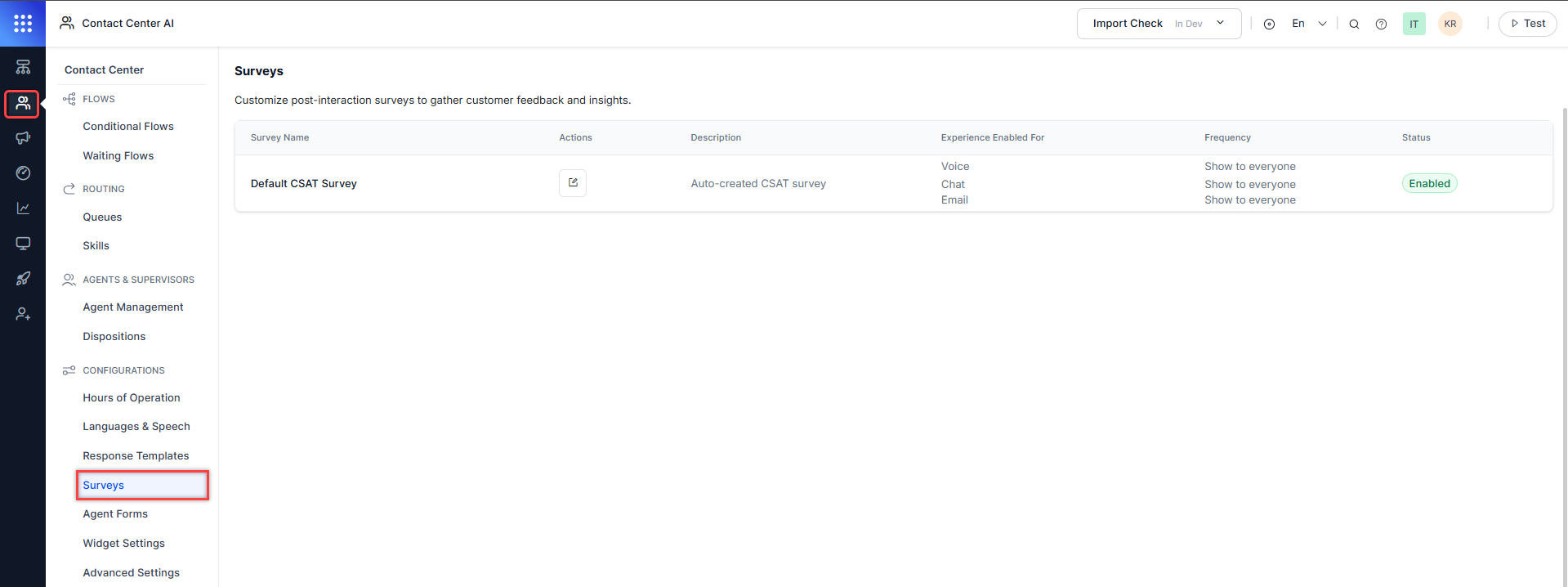
To access surveys, go to Contact Center AI > CONFIGURATIONS > Surveys.
How Surveys Work
The Surveys feature lets you get customer satisfaction ratings after conversations. You can only create one survey, which you can assign to voice, chat, or both.
survey configuration window
The system sends the survey according to a frequency that you can customize. After a customer conversation ends, the system or agent can ask the customer to provide feedback using a survey form.
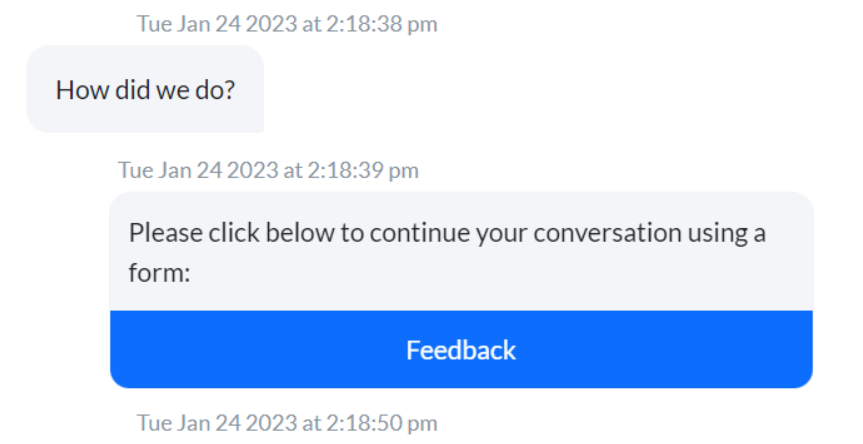
When selecting the Feedback option, customers see a short survey through which they can rate the conversation on a scale from 1 to 5 (1 is extremely poor, while 5 is extremely good).
The submitted rating reflects in the Dashboard, under the Queues and Agents view, as the Average Satisfaction Rating and Customer Satisfaction by Channel.
The Surveys Live Board
The Surveys section lets you create a survey or view and edit an existing one. You can find the following information:
- Survey Name: The name given to your survey.
- Actions: An Edit action is available under this column, allowing you to make changes to an existing survey. This action only displays if there is a survey created.
- Description: The description provided for the survey.
- Experience Enabled For: The system lists the survey enabled channels.
- Frequency: The frequency with which the survey goes out:
- None: The survey displays to everyone,
- Show to every nth user: The survey displays once every set number of customers,
- Agents can trigger: The survey only displays to customers to whom agents choose to send it.
- Status: Enabled or Disabled.
Create a Survey
To create a survey, follow these steps:
- Go to Contact Center AI > CONFIGURATIONS > Surveys.
-
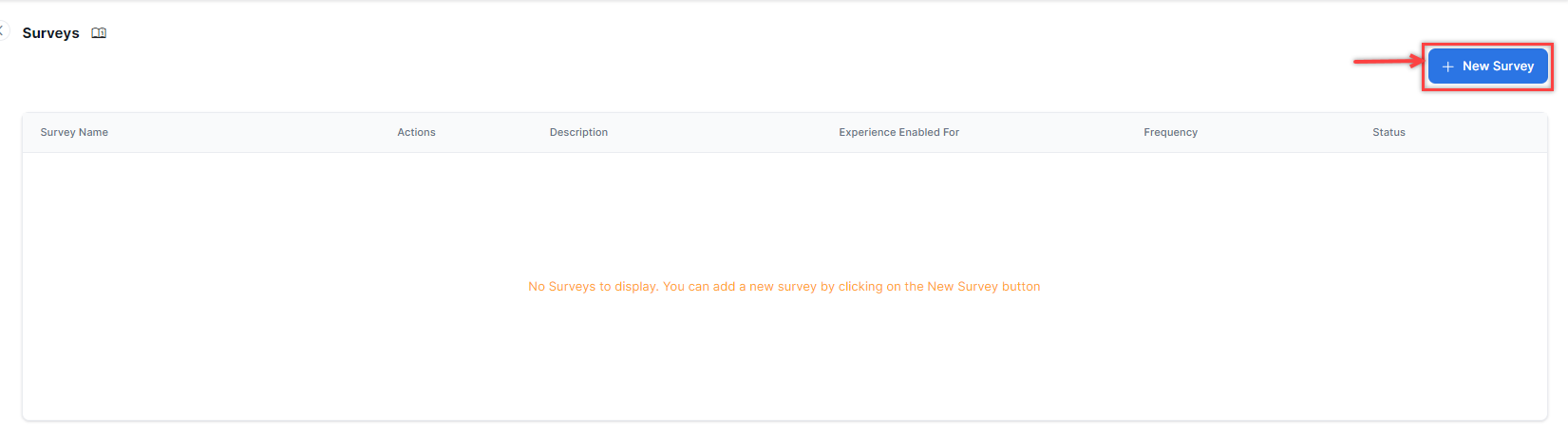
In the Surveys section, select + New Survey.
-
In the New Survey window, configure the following:
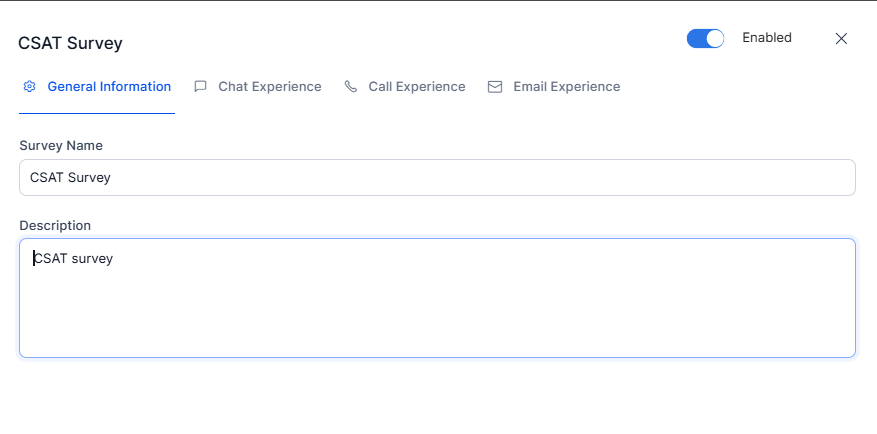
General Information
Under General Information, provide information for the following mandatory fields:
- Survey Name: The name by which to identify the survey.
- Description: A short description of the survey.
Chat, Call, and Email Experience
The Chat, Call, and Email Experience tabs provide access to the following features:
- Select the Chat Experience, Call Experience, or Email Experience tabs.
- Enable the Chat Experience, Call Experience, or Email Experience to request customers to take the survey.
- Configure the Request Message and add a Gratitude Message that appears to customers before and after they take the survey.
- Choose the message language, type the message in, then select Done.
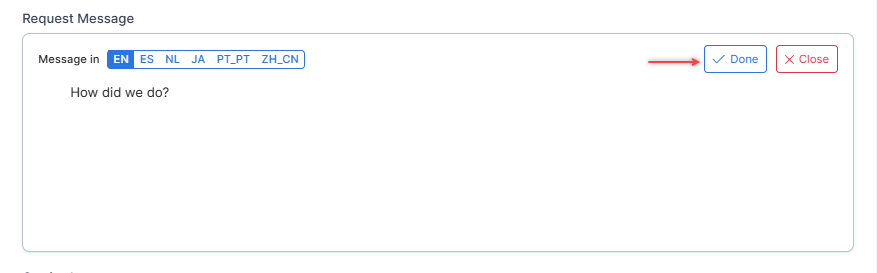
- Choose the message language, type the message in, then select Done.
Note
Email message can be written in plain text or HTML/CSS code.
- Set the Survey Frequency by configuring the following options:
- Show to Everyone - Select this option to make the survey visible to all the customers.
- Show to Every nth User - Select this option to make the survey visible to every nth user. For example, if you enter 2 in the input textbox, the survey appears to every second customer.
- Agents can Trigger - This lets the agents trigger the survey. When you select Auto Trigger Survey, the system sends surveys automatically, and agents can turn them off if needed.
- Advanced Survey Conditions
- Trigger the Customer Satisfaction (CSAT) survey when no agents are available: Triggers a CSAT survey when agent transfer isn't initiated.
- Trigger the CSAT survey outside business hours: Triggers a CSAT survey outside business hours when no agents are available.
- Trigger CSAT for agent-closed conversations: Triggers CSAT survey for conversations closed by agents.
- Turn on the toggle to verify the survey is active.
- Select Done to begin sending it to customers. If you don't want to do so, leave the survey disabled.

Edit a Survey
Steps to edit a survey:
-
In the Surveys section, select the Survey Name or the Edit icon.

-
Make the required changes in the survey window, then select Done.
Delete a Survey
Steps to delete a survey:
- In the Surveys section, select the Survey Name or the Edit icon.
- In the survey configuration window, select Delete on the left side of the bottom toolbar.
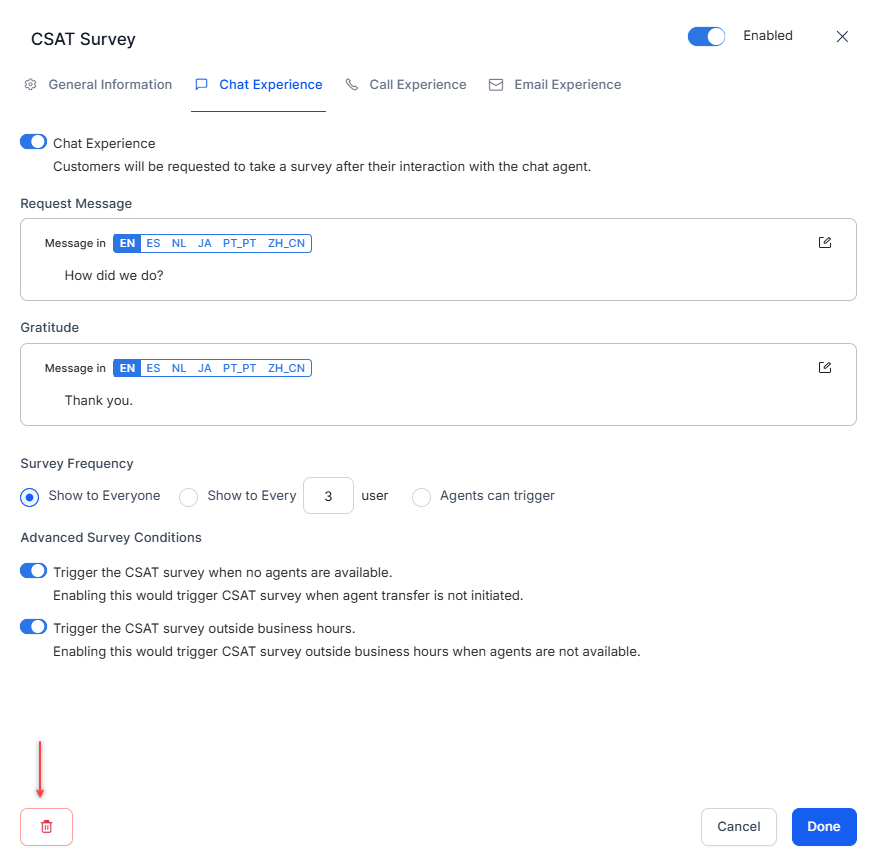
- Confirm your choice.
Deleted Surveys
You cannot restore deleted surveys. After you delete a survey, the system no longer sends it to customers.