GETTING STARTED
Introduction to AgentAssist
Architecture and Configuration
Glossary
FAQ
Agent AI Migration from XO v10 to v11
Release Updates
Release Notes
Previous Versions

SET UP AgentAssist
AgentAssist Setup Guide
Sign Up for AgentAssist
Third Party Configuration
Conversation Automation
Automations Board
Create a Bot
Add Multiple Bots
Create Use Cases
Overview
FAQs Setup
Create Dialog Tasks
Conversation Events
LLM and Generative AI
Access Custom Data in Agent AI Bot
Linked Services
Agent Coaching
Playbook
Customizing the Agent AI Widget
Configure Auto Summarization with Custom Dialog Tasks
Feedback Settings
Widget Theming (Layout Customization)
Supported Languages

INTEGRATIONS
AgentAssist Integration with Third-Party Applications
Amazon Connect
Amazon Connect with AgentAssist Voice using CCP
Amazon Connect with AgentAssist Chat Using CCP
Amazon Connect with AgentAssist – Voice via AWS Third Party Applications
Channels
Voice
Configure Voice Channel
Configure Speech Recognition
Chat
SmartAssist
Configure AgentAssist
Demos
Voice Demo
Chat Demo
Salesforce
OmniChannel
Chat
Legacy Chat Configuration
Messaging in App and Web (New Chat)
AgentAssist Configuration - Chat (Messaging)
Voice
Salesforce Service Cloud Voice (Amazon Connect Telephony)
Salesforce Service Cloud Voice with partner Amazon Connect Telephony (BYOA)
Genesys Adapters
AgentAssist Voice Integration with Genesys CTI
Agent AI Voice Integration with CX Cloud from Genesys and Salesforce
NICE-CTI
Kore Agent AI with Salesforce NICE CX-CTI
Kore Agent AI with Salesforce NICE CX-CTI for Outbound Calls
Demos
Voice Demo
Chat Demo
Zendesk
Set up AgentAssist for Zendesk
Genesys
Agent AI Integration with Genesys Cloud CX
Set Up AgentAssist for Genesys
Change AgentAssist Bot in Genesys
Integrate Kore.ai Bot on Genesys Cloud CX Messaging
ServiceNow
NICE CX
NICE MAX Desktop (Chat and Voice)
NICE MAX Desktop for Outbound Calls
NICE Agent Desktop (Voice)
Talkdesk
Twilio
Five9
Agent AI Chat Integration with Five9

AGENT EXPERIENCE
AgentAssist Widget
Bot Override and Automations
Agentic Copilot

ANALYTICS
Conversation Logs
Dashboard
Agent AI ROI Analyzer (Beta)
APIs
Raw Data API v1
Raw Data API v2
Conversation Summary Trigger
Control Transcription API
Hooks API for Internal Transfers
API for Duration-Based Conversation Records

Salesforce Service Cloud Voice Integration with partner Amazon Connect Telephony (BYOA)

The Agent AI integration with Salesforce Service Cloud Voice (Amazon Connect Telephony) combines Salesforce CRM with Amazon Connect’s telephony system. This integration empowers agents to deliver efficient and personalized support through real-time AI-driven insights, suggestions, and automation. It improves response time, customer satisfaction, and operational efficiency by streamlining workflows and providing quick access to critical information.

Prerequisites

Before integrating Agent AI with Salesforce Service Cloud Voice, you must meet the following prerequisites:

  • In Salesforce
    • Service Cloud Voice license (Partner Telephony) is available.
  • Agent AI Salesforce package installed.
  • In Amazon Web Services (AWS)
    • Amazon Connect instance (SAML 2.0-based authentication) created
    • Kinesis Stream 
    • Lambda function 
  • In Kore
    • Agent AI admin permission

Salesforce Service Cloud Voice Setup

  1. Sign in to Salesforce.
  2. Refer to Set Up Service Cloud Voice with Partner Telephony from Amazon Connect for detailed documentation, and perform the following mandatory tasks:
    1. Turn on Service Cloud Voice with Partner Telephony from Amazon Connect.
    2. Configure AWS Identity and Access Management (IAM) Role for Voice.
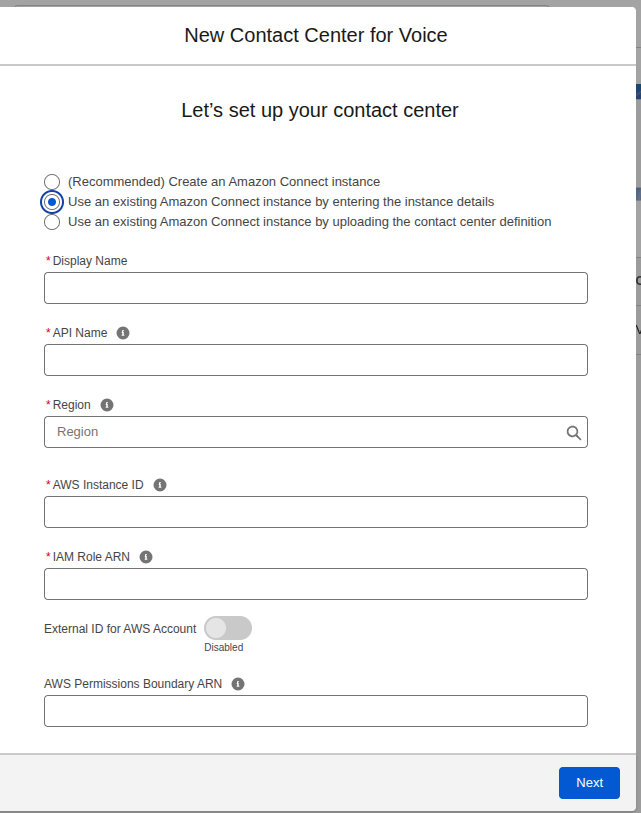
  3. Create a Partner Amazon Contact Center in Salesforce. Choose the second option–Use an Existing Amazon Connect Instance Integrated by Salesforce–because it reduces the number of steps and Salesforce handles most of the integration-related steps.
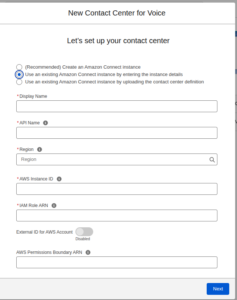
  4. To configure the above partner contact center, refer to this document.
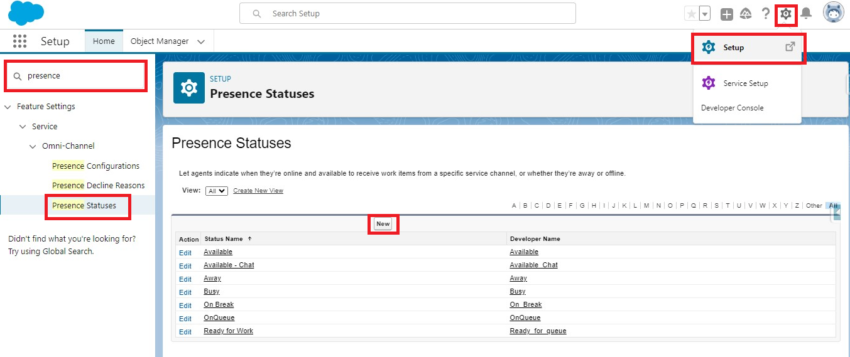
Create Agent Presence Status

  1. Sign in to Salesforce.
  2. Select the Gear icon > Setup.
  3. Type Presence Statuses in the quick search box, and then select Presence Statuses in suggestions.
  4. Select the New button.

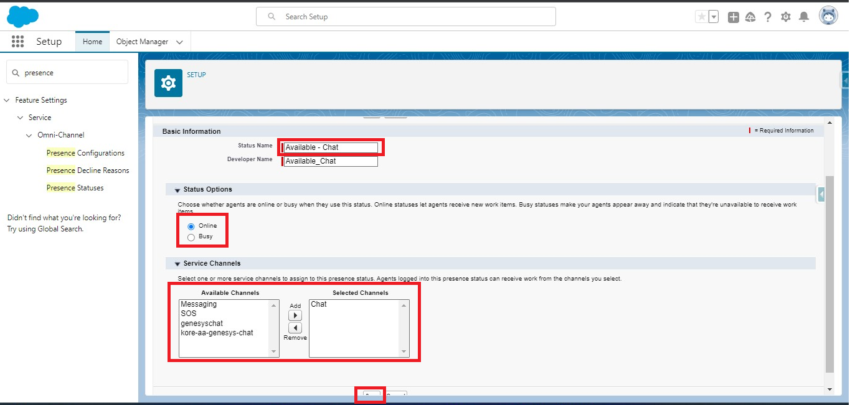
  5. Enter the Status Name.
  6. Select an option in the Status Options section.
  7. Select the Service Channels.
  8. Select Save.

Add Omnichannel to the Utility Bar

  1. Select the Gear icon > Setup, and enter App Manager in the search box.
  2. Select App Manager from the suggestions list.
  3. Search for the Service Console, select the dropdown list against it, and then select the Edit button.
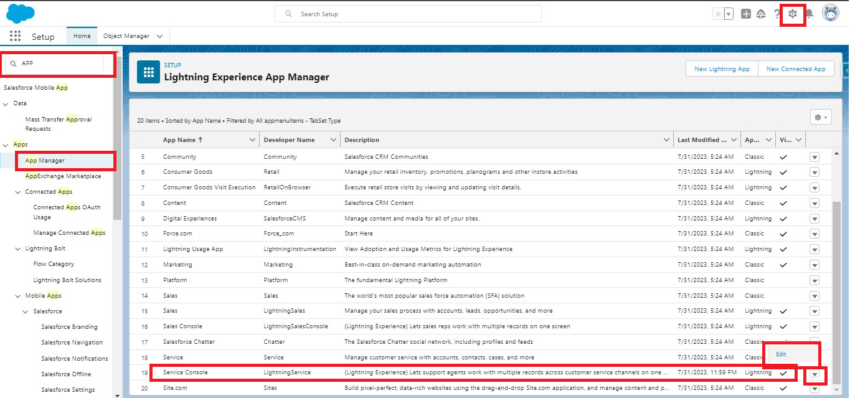
  4. Select Utility Items (Desktop Only) > Add Utility Item.
  5. Search for Omni-Channel, and select it.
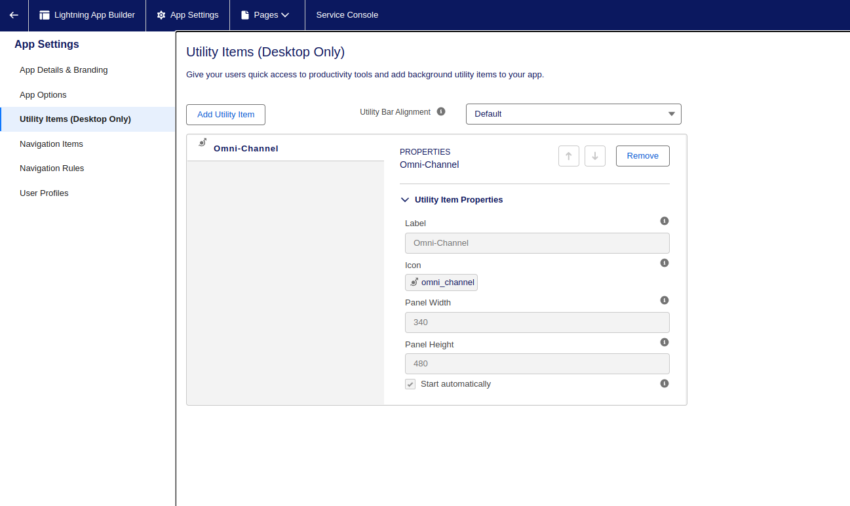
  6. Rename the label, if required, and then select Save.

After completion of the above configuration, you can call the Amazon Connect number and accept it via the Omnichannel tool.

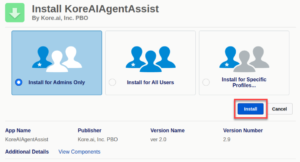
Install the Agent AI Package

The installation process of the Agent AI package is a simple, 3-step process. Follow these steps to install it:

  1. Visit Salesforce AppExchange.
  2. Select one of the three available options–Install for admins only, Install for All Users, or Install for specific Profiles.
  3. Select Install.

Configure Agent AI for Salesforce

This section explains the post-installation steps of Agent AI integration with Salesforce.

Enable the Agent AI Package Features

  1. Select the app launcher in the top-left corner, and type Kore in the quick search box.
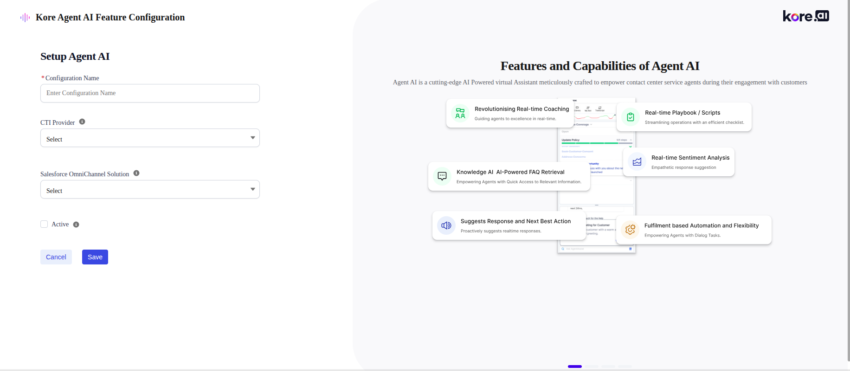
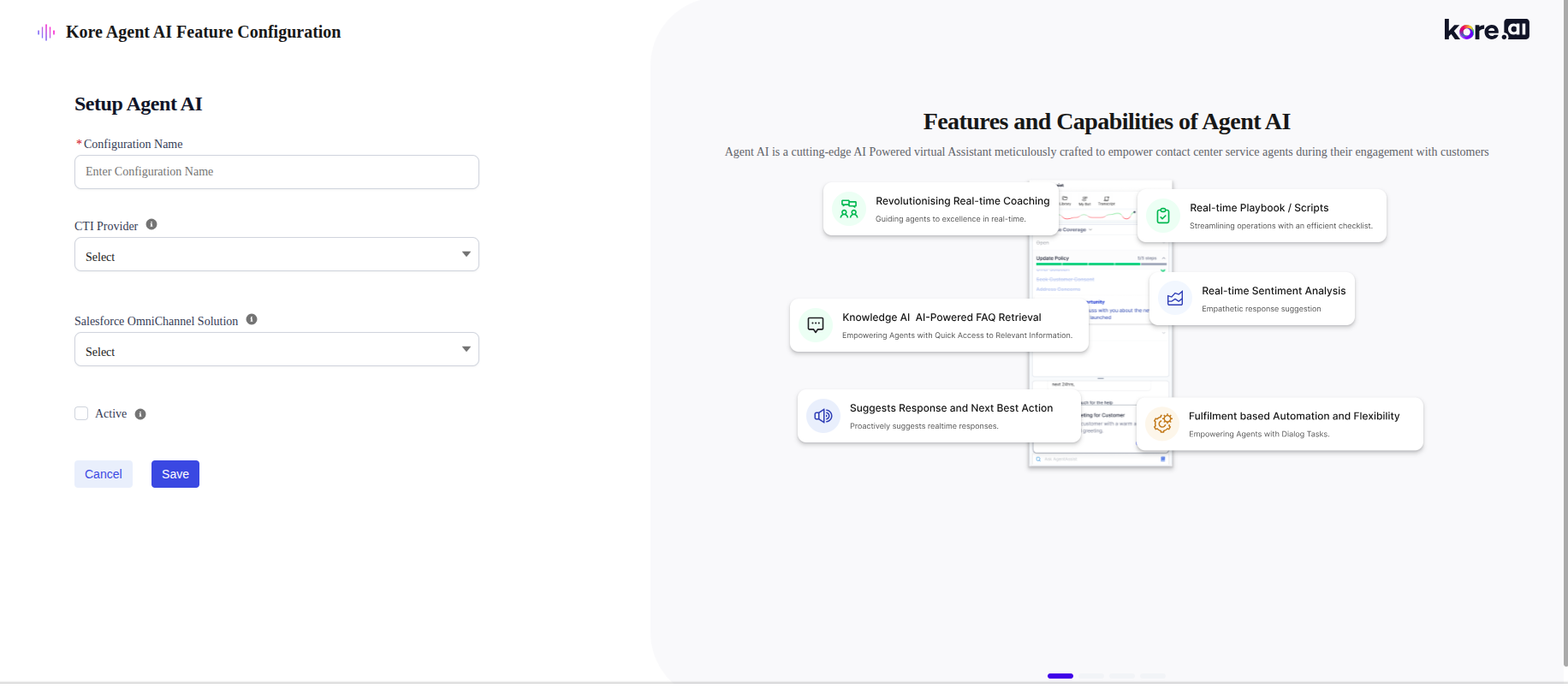
  2. Select Kore Agent AI Feature Configuration from the suggestions list.
  3. Select the New button in the top-right corner, and select the desired features in the package.
    1. Configuration Name: Provide a name for the configuration you are creating.
    2. CTI Provider: Skip this field.
    3. Salesforce OmniChannel Solution: Chat and Voice or Voice (based on your license).
    4. Active: Only one feature configuration remains active, and the active configuration is considered at runtime.
  4. Select Save.

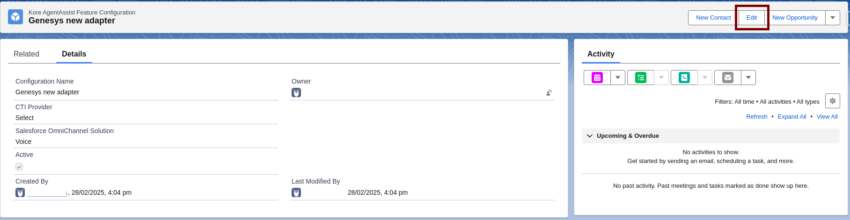
  5. Select the Edit button, if you want to edit the existing feature configurations.
Set up Widget Configuration

  1. Select the app launcher in the top-left corner.
  2. Type Kore in the quick search bar, and select Kore Agent AI Configuration from the suggestions list.
  3. Select the New button to provide configurations.
  4. Provide all the details in the text boxes, and select Save.

    Note: In the Agent AI URL field, enter the URL from Configuration > System Setup > Channels > Chat of your Agent AI instance.

    Note: Only one configuration is active and that active configuration is used at runtime.
  5. Choose the language you want to enable for the Agent AI widget. The default language is English.

Place the Widget in the Voice Calls Record page

  1. Select the app launcher, and search with Voice Calls in the quick search box.
  2. Open any voice call record page.

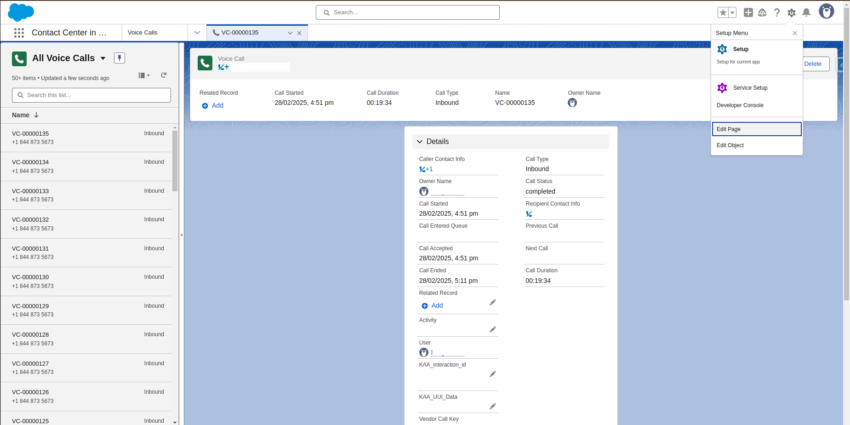
  3. Select the Gear icon > Edit Page.

  4. In the search box, search for koreAgentAssistVoice. Components are visible under the Custom-Managed section.
  5. Drag the component to the screen at the required location and adjust the height and width, as required.

  6. Select Save.

Initiate the Voice Call

  1. Select the app launcher, and type Service Console or Lightning app you created in the quick search bar.
  2. Select Service Console in the suggestions list.
  3. Select Omni-Channel that’s at the bottom of the page, in the utility bar, and change the status to Available for Voice.
  4. When a user calls an agent, a voice call record page appears automatically. The agent receives the call by selecting the tick mark button, as highlighted in the following image:

  5. Once the agent accepts the call, the following screen (a voice call record page) appears with the Agent AI widget on the right.

  6. The Agent AI widget shows the live transcription between users and agents, and provides proactive suggestions to the agent based on the user’s messages.
  7. It also supports the real-time sentiments, Agent Coaching, and Playbook features.
  8. Once either the user or the agent ends the call, a conversation summary appears at the top of the Agent AI widget.
  9. If the agent selects Submit on the summary popup, Agent AI saves the summary in a custom Salesforce object. To access the saved conversation summary, go to App Launcher > Kore NonCTI AgentAI Conversation Summary).


Salesforce Service Cloud Voice Integration with partner Amazon Connect Telephony (BYOA)

The Agent AI integration with Salesforce Service Cloud Voice (Amazon Connect Telephony) combines Salesforce CRM with Amazon Connect’s telephony system. This integration empowers agents to deliver efficient and personalized support through real-time AI-driven insights, suggestions, and automation. It improves response time, customer satisfaction, and operational efficiency by streamlining workflows and providing quick access to critical information.

Prerequisites

Before integrating Agent AI with Salesforce Service Cloud Voice, you must meet the following prerequisites:

  • In Salesforce
    • Service Cloud Voice license (Partner Telephony) is available.
  • Agent AI Salesforce package installed.
  • In Amazon Web Services (AWS)
    • Amazon Connect instance (SAML 2.0-based authentication) created
    • Kinesis Stream 
    • Lambda function 
  • In Kore
    • Agent AI admin permission

Salesforce Service Cloud Voice Setup

  1. Sign in to Salesforce.
  2. Refer to Set Up Service Cloud Voice with Partner Telephony from Amazon Connect for detailed documentation, and perform the following mandatory tasks:
    1. Turn on Service Cloud Voice with Partner Telephony from Amazon Connect.
    2. Configure AWS Identity and Access Management (IAM) Role for Voice.
  3. Create a Partner Amazon Contact Center in Salesforce. Choose the second option–Use an Existing Amazon Connect Instance Integrated by Salesforce–because it reduces the number of steps and Salesforce handles most of the integration-related steps.

  4. To configure the above partner contact center, refer to this document.

Create Agent Presence Status

  1. Sign in to Salesforce.
  2. Select the Gear icon > Setup.
  3. Type Presence Statuses in the quick search box, and then select Presence Statuses in suggestions.
  4. Select the New button.

  5. Enter the Status Name.
  6. Select an option in the Status Options section.
  7. Select the Service Channels.
  8. Select Save.

Add Omnichannel to the Utility Bar

  1. Select the Gear icon > Setup, and enter App Manager in the search box.
  2. Select App Manager from the suggestions list.
  3. Search for the Service Console, select the dropdown list against it, and then select the Edit button.

  4. Select Utility Items (Desktop Only) > Add Utility Item.
  5. Search for Omni-Channel, and select it.

  6. Rename the label, if required, and then select Save.

After completion of the above configuration, you can call the Amazon Connect number and accept it via the Omnichannel tool.

Install the Agent AI Package

The installation process of the Agent AI package is a simple, 3-step process. Follow these steps to install it:

  1. Visit Salesforce AppExchange.
  2. Select one of the three available options–Install for admins only, Install for All Users, or Install for specific Profiles.
  3. Select Install.

Configure Agent AI for Salesforce

This section explains the post-installation steps of Agent AI integration with Salesforce.

Enable the Agent AI Package Features

  1. Select the app launcher in the top-left corner, and type Kore in the quick search box.
  2. Select Kore Agent AI Feature Configuration from the suggestions list.
  3. Select the New button in the top-right corner, and select the desired features in the package.
    1. Configuration Name: Provide a name for the configuration you are creating.
    2. CTI Provider: Skip this field.
    3. Salesforce OmniChannel Solution: Chat and Voice or Voice (based on your license).
    4. Active: Only one feature configuration remains active, and the active configuration is considered at runtime.
  4. Select Save.

  5. Select the Edit button, if you want to edit the existing feature configurations.
Set up Widget Configuration

  1. Select the app launcher in the top-left corner.
  2. Type Kore in the quick search bar, and select Kore Agent AI Configuration from the suggestions list.
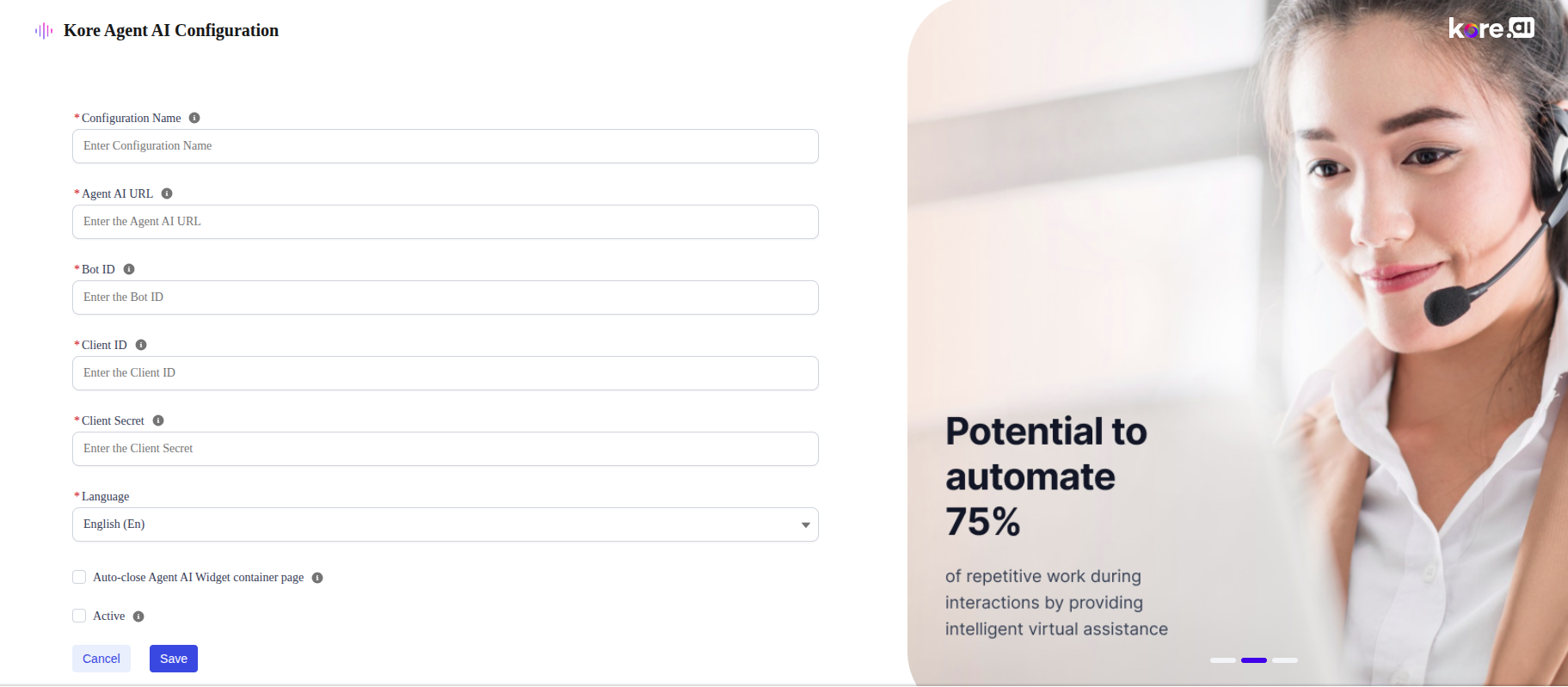
  3. Select the New button to provide configurations.
  4. Provide all the details in the text boxes, and select Save.
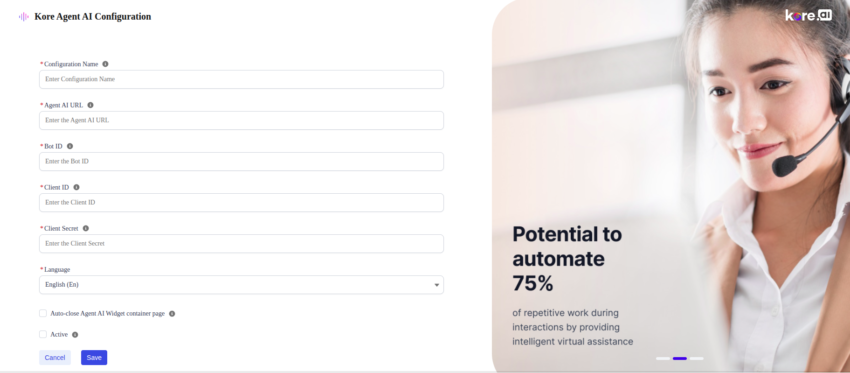
    Note: In the Agent AI URL field, enter the URL from Configuration > System Setup > Channels > Chat of your Agent AI instance.
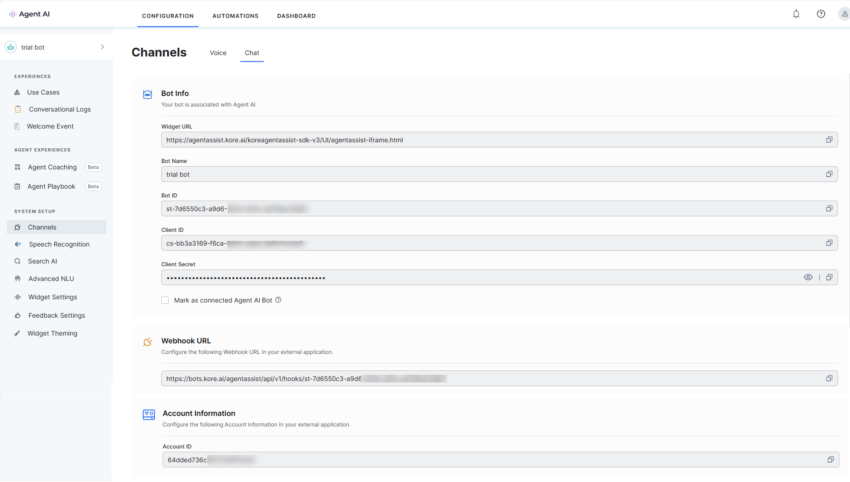
    Note: Only one configuration is active and that active configuration is used at runtime.
  5. Choose the language you want to enable for the Agent AI widget. The default language is English.
Place the Widget in the Voice Calls Record page

  1. Select the app launcher, and search with Voice Calls in the quick search box.
  2. Open any voice call record page.

  3. Select the Gear icon > Edit Page.

  4. In the search box, search for koreAgentAssistVoice. Components are visible under the Custom-Managed section.
  5. Drag the component to the screen at the required location and adjust the height and width, as required.
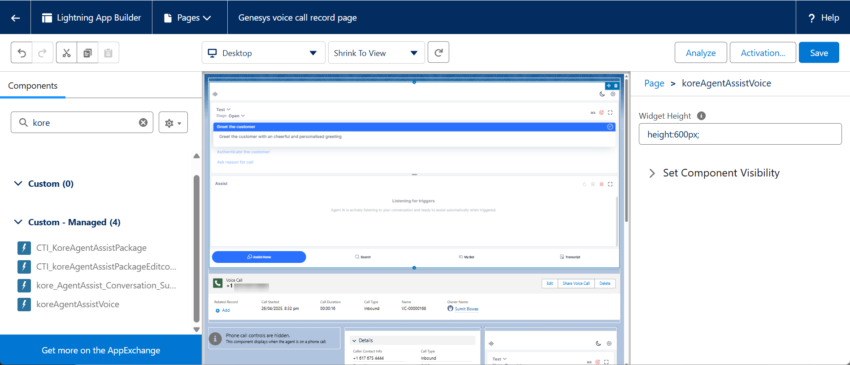
  6. Select Save.

Initiate the Voice Call

  1. Select the app launcher, and type Service Console or Lightning app you created in the quick search bar.
  2. Select Service Console in the suggestions list.
  3. Select Omni-Channel that’s at the bottom of the page, in the utility bar, and change the status to Available for Voice.
  4. When a user calls an agent, a voice call record page appears automatically. The agent receives the call by selecting the tick mark button, as highlighted in the following image:
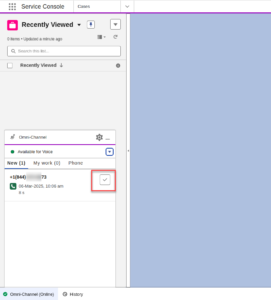
  5. Once the agent accepts the call, the following screen (a voice call record page) appears with the Agent AI widget on the right.
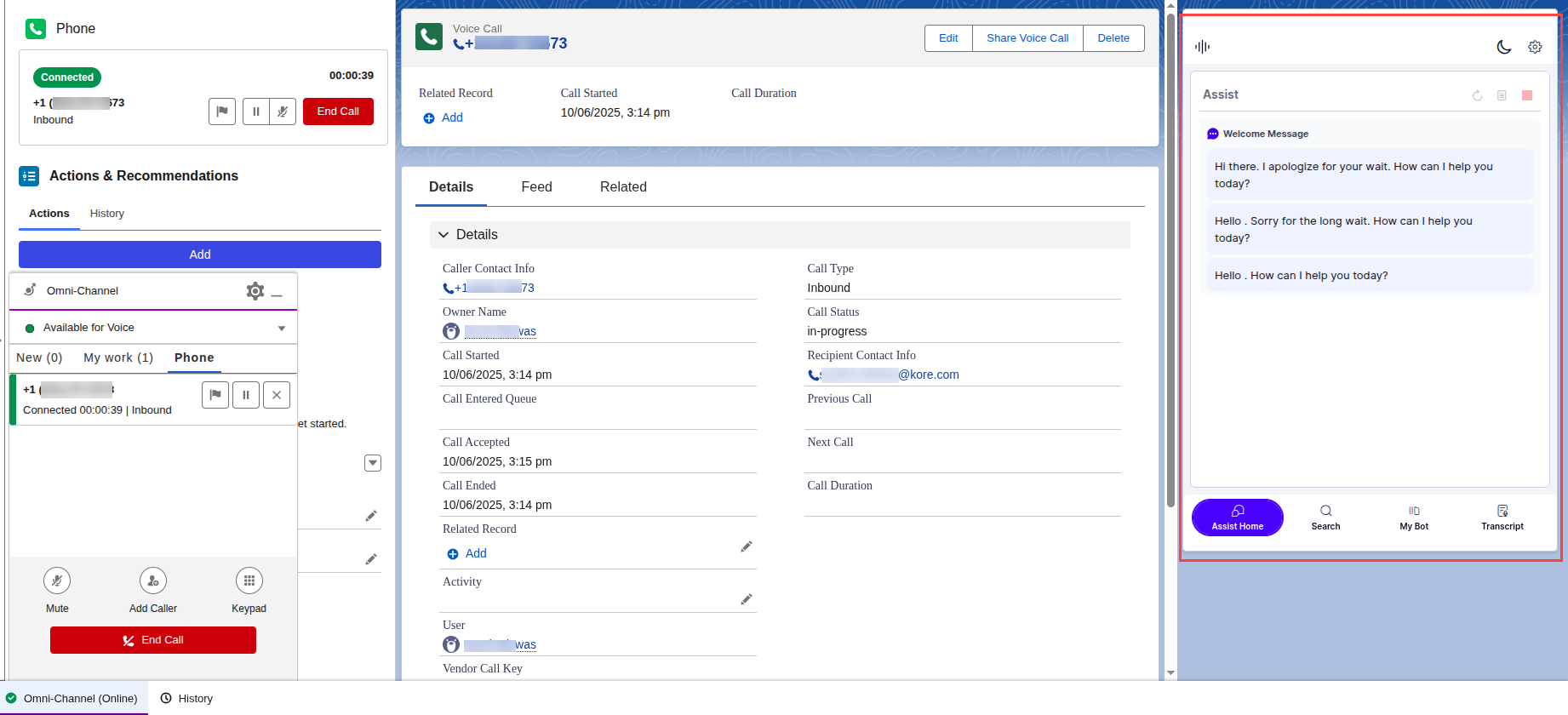
  6. The Agent AI widget shows the live transcription between users and agents, and provides proactive suggestions to the agent based on the user’s messages.
  7. It also supports the real-time sentiments, Agent Coaching, and Playbook features.
  8. Once either the user or the agent ends the call, a conversation summary appears at the top of the Agent AI widget.
  9. If the agent selects Submit on the summary popup, Agent AI saves the summary in a custom Salesforce object. To access the saved conversation summary, go to App Launcher > Kore NonCTI AgentAI Conversation Summary).