

- At a Glance reports conversation outcomes, quality, sentiment, and return on investment for a period.
- Billing and Usage reports what the project consumed and which part of that consumption bills.
At a Glance
At a Glance aggregates outcome, quality, sentiment, and cost metrics into a single view that needs no configuration. Use it for a daily check or a leadership review, and to decide which of the deeper pages to open next. Navigation: Project -> Insights -> At a GlancePage filters
Three controls at the top of the page scope everything below them: an environment filter, a channel filter, and a date range. Narrow the environment filter when production and non-production traffic would otherwise mix. Test conversations distort containment and cost figures more than any other input. When you change a filter, a Reset filter control appears with the number of filters you applied. Check it before you conclude that a period was quiet, since a narrowed view looks much the same as a slow week.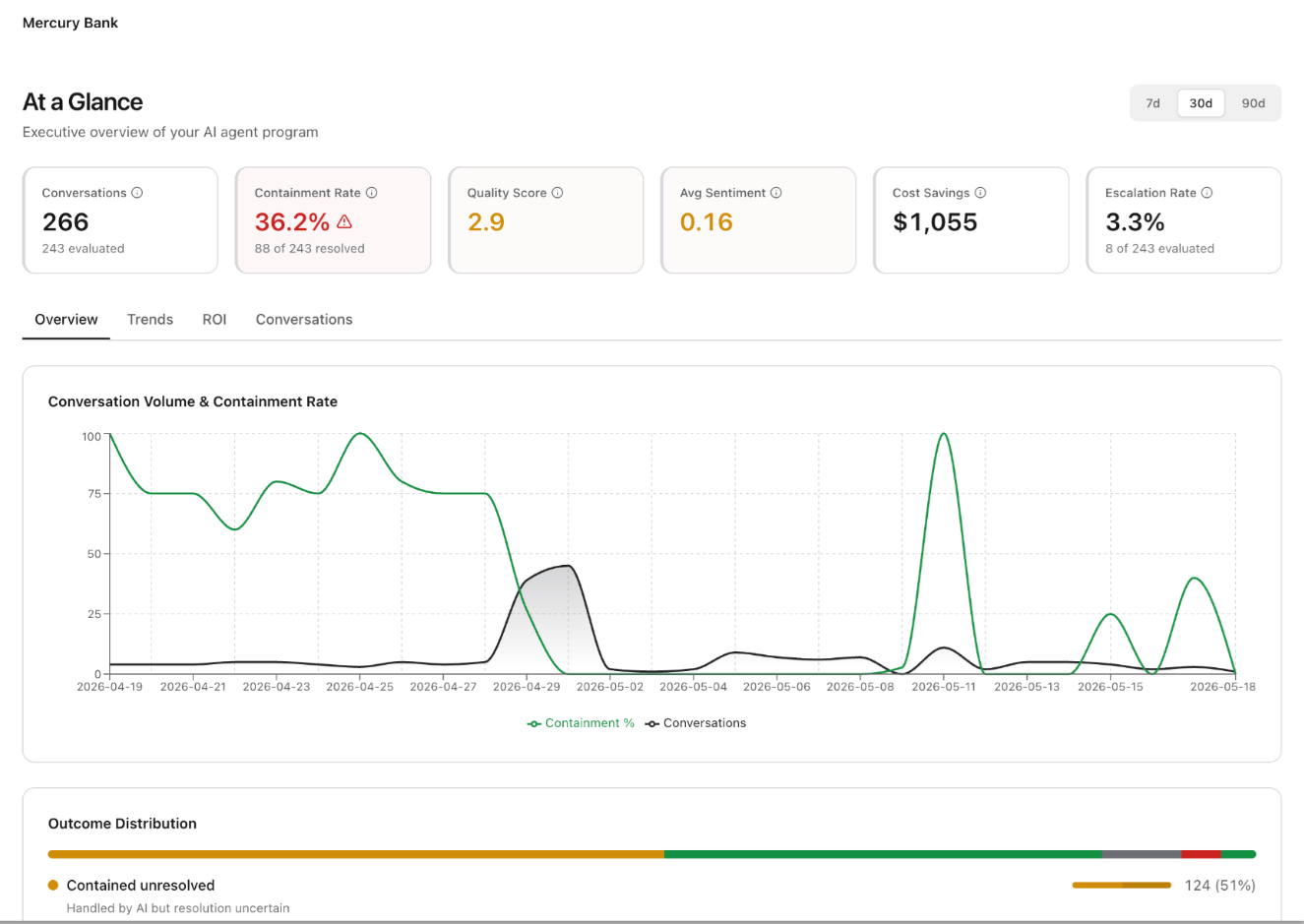
Metric cards
Six cards summarize the selected period. Each card shows a headline value and a supporting figure that supplies its denominator. Read the two together, because a containment rate means one thing across a thousand conversations and something else across one.
A card shows a dash when the pipeline behind it produces no value for the period. A dash means the measure has no data, not that it scored zero, and it usually indicates that the relevant pipeline isn’t running.
Overview tab
The Overview tab explains the headline numbers. Conversation Volume & Containment Rate plots volume and containment on one timeline. The chart separates the two ways a containment figure moves: the agent resolves a different share of conversations, or the volume changes underneath a stable share. Outcome Distribution divides the same conversations into three categories. Each category appears as a segment with its count, its share of the total, and a caption that describes the outcome. A footer states how many conversations the distribution covers.
The middle category is the reason to read this section rather than the cards alone. Containment and escalation together imply a binary outcome, and the partial category holds the conversations that fit neither.
What’s Driving the Metrics attributes the period to individual agents, so you can locate the cause of a project-level movement.
Trends tab
The Trends tab answers questions about direction rather than current state. Three charts cover the period. Multi-Metric Trends plots containment, escalation, and quality on one timeline. Reading the three together is what makes the tab useful, because a containment rise that coincides with a quality fall is a different event from one that doesn’t. Sentiment & Quality Over Time plots average quality and average sentiment. Point to any date to read its values. Daily Outcome Distribution shows the outcome mix day by day. Use it to tell whether a change in the period totals comes from a shift in how conversations end or simply from more of them.ROI tab
The ROI tab converts contained volume into money and staffing. Every figure except cost per conversation rests on the assumptions in cost settings, so agree those with your finance team before you circulate anything from this tab.
AI Cost vs Estimated Human Cost plots both costs across the period and states the per-conversation human cost it applies, so anyone who reads the chart can see the assumption behind the comparison. The platform attributes actual model costs to contained conversations.
Conversations tab
The Conversations tab lists the individual conversations behind the metrics. Select a conversation to open its session record, which holds the full trace, cost, and message history. Use this tab when a metric looks wrong and you need to read the conversations that produced it.ROI cost settings
Select Cost Settings on the ROI tab to set the assumptions that produce the ROI figures, then select Save. Nothing here affects what the platform bills you. These values only determine the baseline that the platform compares your actual spend with.Billing and usage
Billing and Usage shows what the project consumed, how much of that consumption bills, and the policy that decides the difference. Finance and operations teams use it to reconcile spend and to explain gaps between activity and charges. Navigation: Project -> Insights -> Billing & UsageData currency
The page reads published billing report rows rather than live traffic, and it states when the platform last published those rows. Check that timestamp before you reconcile a period, because recent activity appears only after the next materialization. A date range control scopes the page.Usage and billing units
Daily Billing Units plots billing units and included sessions across the period, so you can trace a spike in charges to either more sessions or longer ones.
Channel Breakdown reports sessions, units, and model calls per channel. It shows which channel drives your spend, and it exposes an excluded channel as activity that produced no units.
Voice minutes reports voice consumption separately, because voice meters in minutes rather than in the unit model that governs the rest of the page.