

from and to date tokens follow this range, all applicable widgets update.
Filters: Select All environments and All channels at the top of the page to narrow the data by deployment environment and channel. Filter selections are reflected in the page URL, so you can bookmark a filtered view or share it with a colleague.
When a project has no dashboards, the page shows No dashboards yet. Select New dashboard to create your first one.
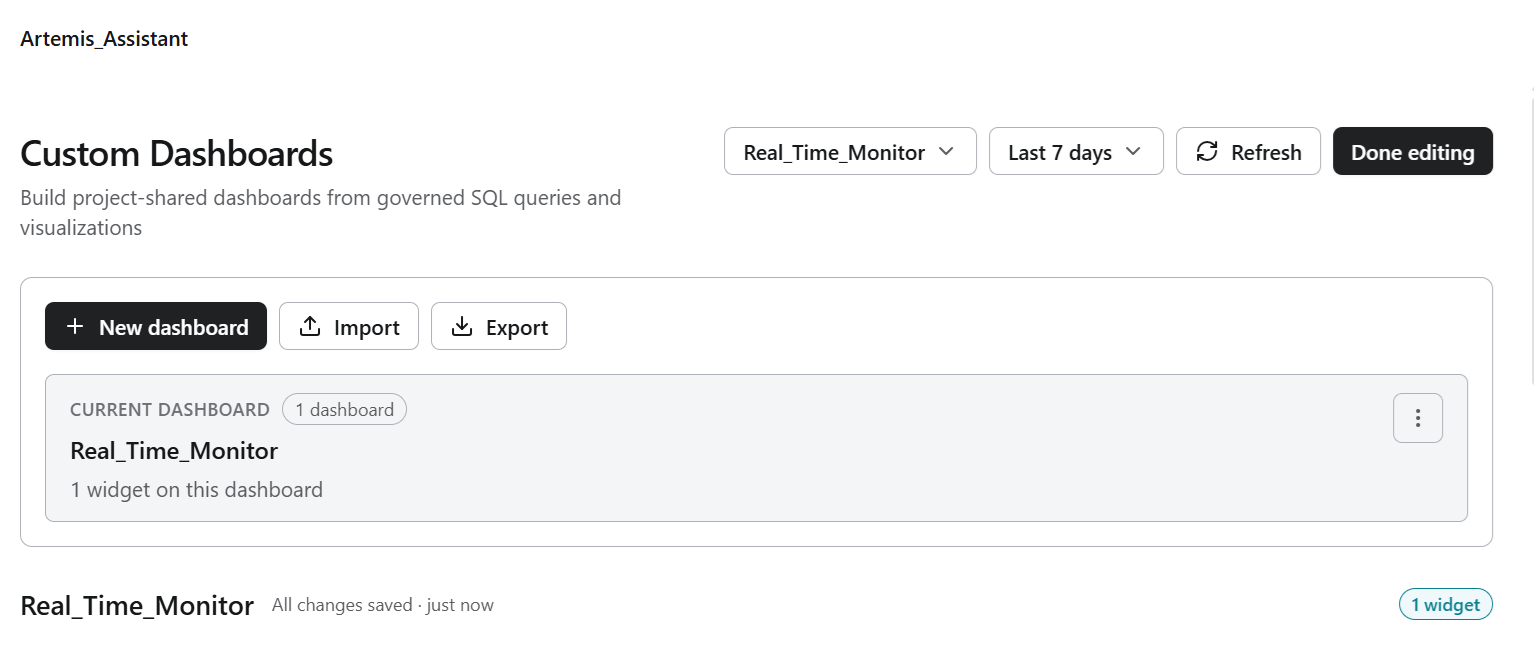
Dashboard actions
Build a widget
Each visualization on a dashboard is a widget. Select Add widget to open the widget editor, which opens as Untitled widget and stays open until you save or cancel.
To build a widget:
- Open a dashboard and select Add widget.
- On Query data, select a table from the table selector, for example
abl_platform.platform_events. - Write your SQL. Use the Table columns panel to find column names and data roles.
- Select Run query. The result panel below the editor reports the rows returned.
- Open Preview rows to confirm the query returns what you expect.
- Open Visualize, choose a chart type, then map your fields to the axes.
- Select Save widget.
Query data
The SQL editor sits at the center of the tab, with the table selector and Run query above it. Queries are scoped bytenant_id and project_id by default. Use the from and to date tokens when the widget should follow the dashboard date range. See Example of Query scoping.
The right rail supports the editor with three panels.
Result panel
After you run a query, the panel below the editor holds the result. Switch between Preview rows and Visualization without leaving the result, so you can check the data and the chart against each other. The result reports five statistics.
Below the statistics, a chip for each column shows the data role the platform assigned it, for example
timestamp: time and rows: metric. These roles determine which columns are available to each axis in Visualize.
Preview rows displays the result as a table, one column per field in the result set.
Visualize
Visualize builds the chart from the result set. A status badge reads Ready when the current mapping produces a valid chart. Four tabs configure the visualization.Example of query scoping
The platform scopes queries to the current tenant and project by default. Let us considerabl_platform.platform_events as the query table. Use the date tokens when a widget should follow the dashboard date range.
The following query counts events over time and follows the dashboard date range: