Customer insights
The Customer Insights page helps you understand what customers are asking about and how they feel about the experience. It combines intent classification, sentiment scoring, frustration detection, and resolution tracking into a single view to help you identify emerging topics, detect dissatisfaction early, and measure whether the agent resolves the intents it encounters. Navigation: Project → Insights → Customer Insights
Date range selector: Use the toggle to select 7d, 30d, or 90d.
Filters: Select All environments and All channels at the top of the page to narrow the data by deployment environment and channel. Filter selections are reflected in the page URL, so you can bookmark a filtered view or share it with a colleague.

Customer sentiment summary
A banner at the top displays a contextual summary of the analyzed data, for example: “322 analyzed conversations · 144 intent-classified · 322 sentiment-scored · 13 intents detected · 26.7% frustration.” A sentiment indicator (for example, “Mixed Sentiment”) provides a quick qualitative read. The label is Positive, Mixed, or Negative, from the Avg Sentiment bands.KPI metric cards
Resolution Rate isn’t the same as Containment Rate on At a Glance. A conversation can be resolved and still involve a person.
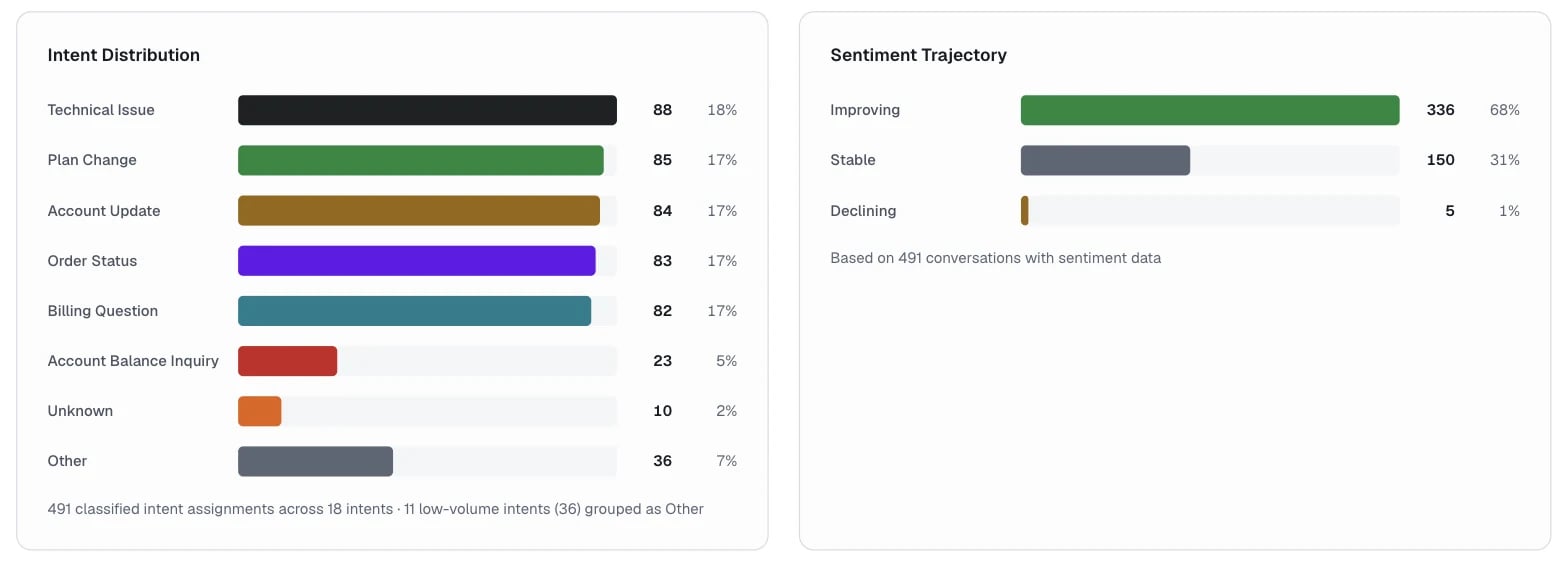
Intent distribution
A horizontal bar chart ranks detected intents by volume. Each bar shows the intent name, count, and percentage of total conversations. The chart lists the top seven intents and groups the rest into an “Other” category. The footer indicates the total classified intent assignments and how many low-volume intents the chart grouped. A large Other or Unknown share means the classifier needs better intent definitions.Sentiment trajectory
A side-by-side panel displays conversation counts across three sentiment directions:
The footer indicates the total conversations with sentiment data contributing to the trajectory analysis.
Trends over time
A section below the distribution charts plots five daily series. Read counts on the left axis and percentages on the right axis.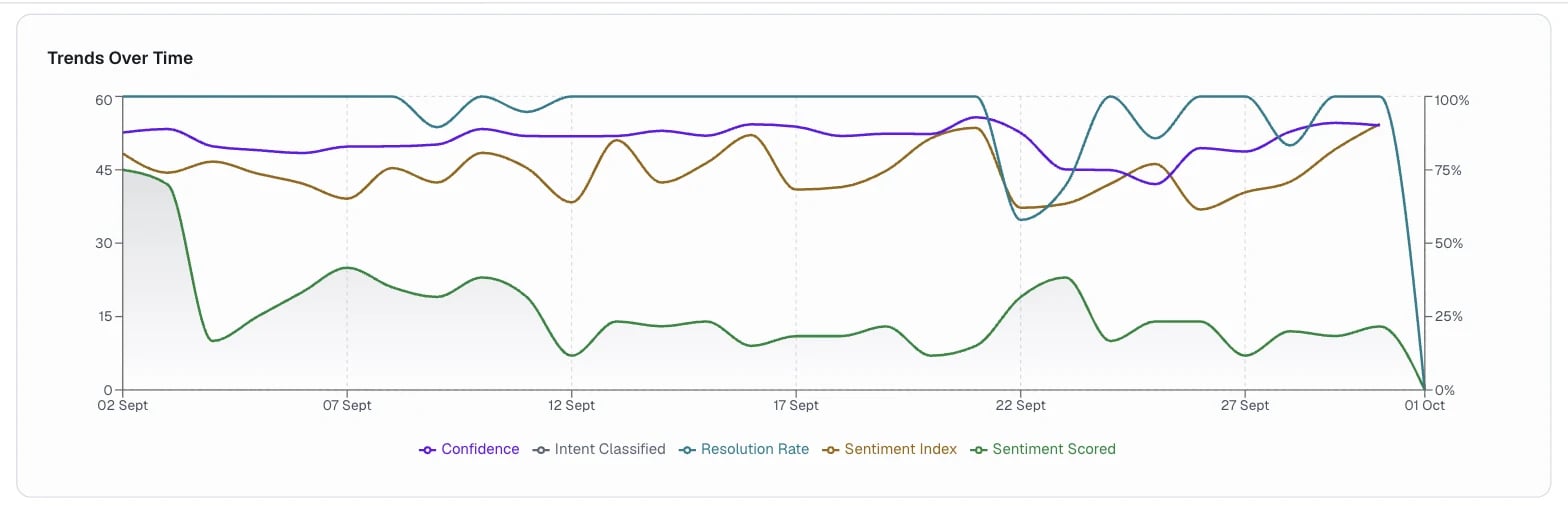
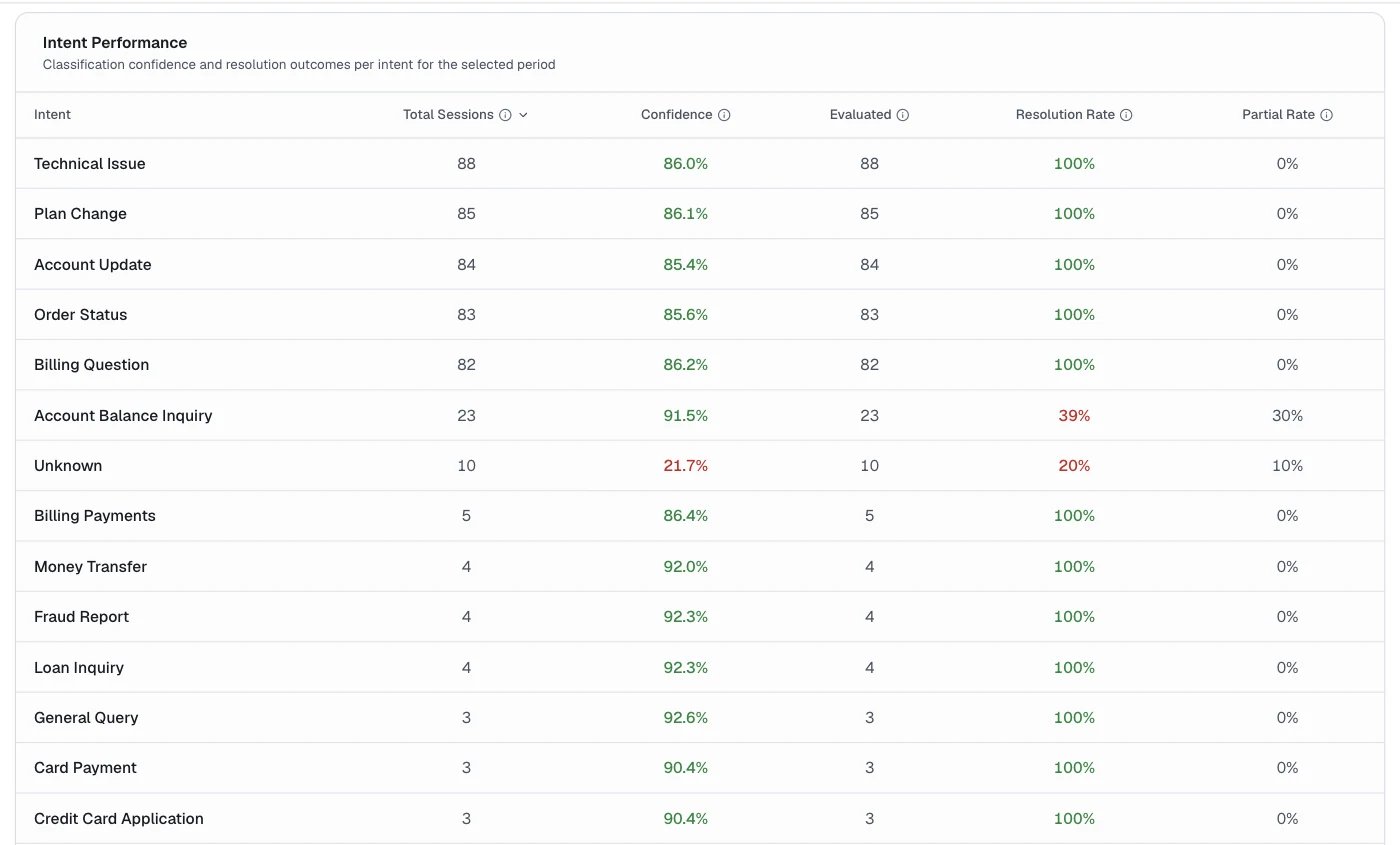
Intent performance
The Intent Performance table shows how well the agent handles each intent.
Low-confidence intents, such as Unknown, are the ones the classifier couldn’t place. Read them first.
Feedback insights
The Feedback Insights page reports the results of a single feedback survey. Use it to read the headline score, see how the score moved, find the segments driving it, and open the individual responses behind it. Feedback Insights reads the responses collected against a feedback template. Responses reach the page from agents that reference the template and from external systems that submit through the public feedback API. Until you create a template, the survey list offers only the built-inmessage_feedback capture, and the page prompts you to set up a survey before it reports anything.
Navigation: Project → Insights → Feedback Insights
Date range selector: Use the toggle to set the reporting window, for example, Last 7 days.
Filters: Select All environments and All channels at the top of the page to narrow the data by deployment environment and channel.
Export: Select Export CSV to download the current results for offline analysis.
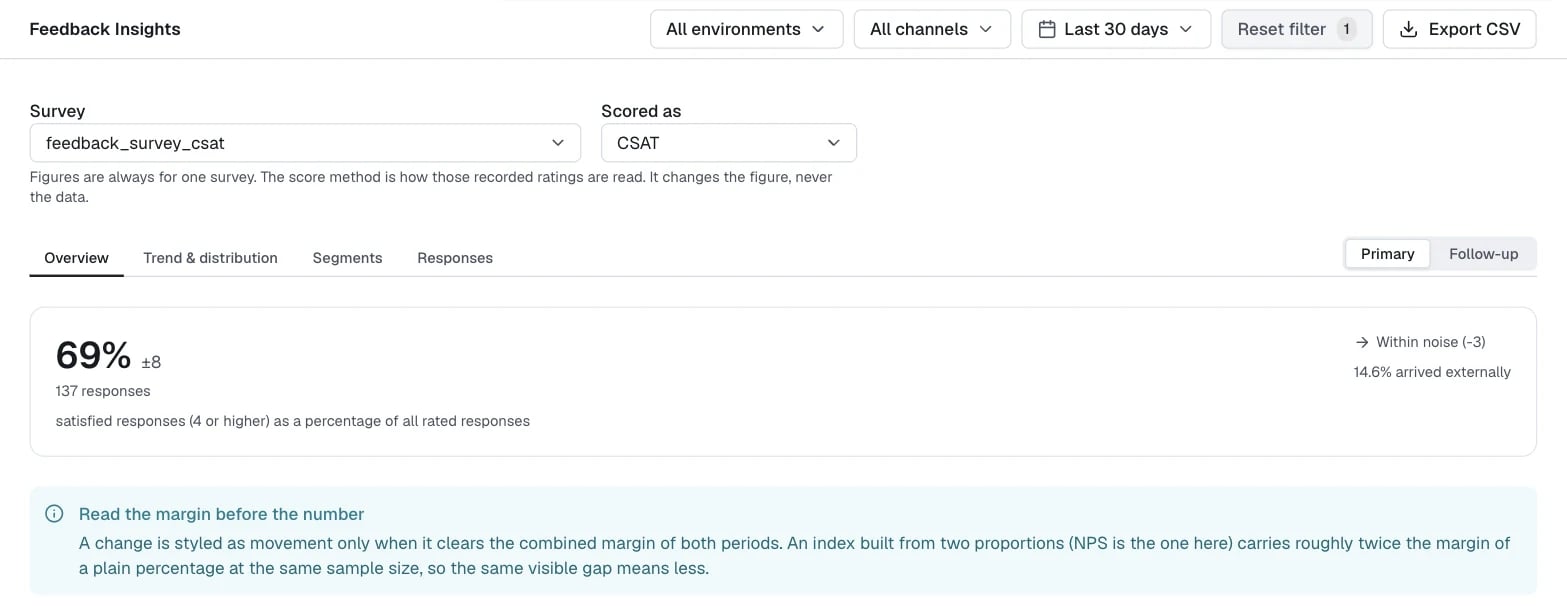
Survey and score method
Two controls at the top of the page define every figure below them.
The score methods available depend on the survey’s rating scale.
Overview
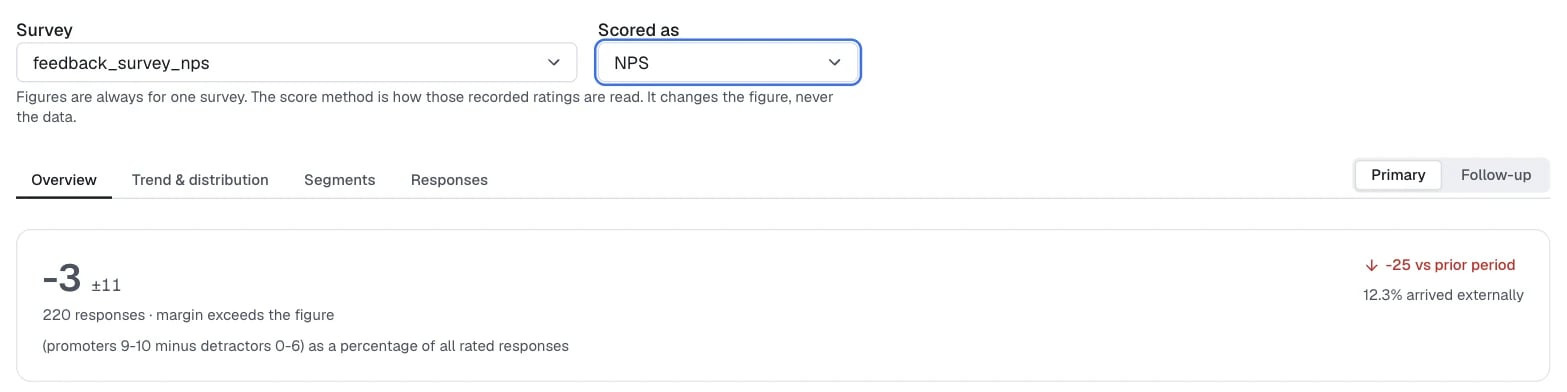
The Overview tab reports the headline score for the selected survey and the figures that qualify it.
When the margin is bigger than the score itself, the page warns that the margin exceeds the figure. Don’t act on that score.
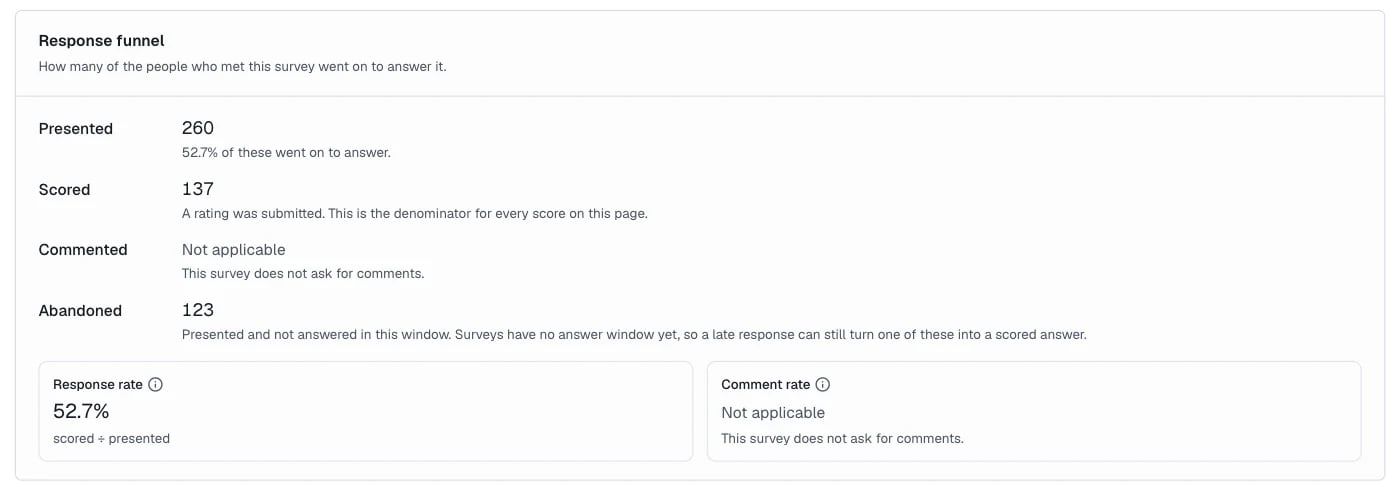
Below the score, the response funnel shows how many of the people who met the survey went on to answer it.
The funnel also reports two rates. The response rate is scored divided by presented. It needs a presented count, and reads as not available until the survey records one. The comment rate is commented divided by scored. It reads as not applicable when the survey doesn’t ask for comments. Abandoned equals presented minus scored.
Surveys have no answer window, so a late response can still turn an abandoned survey into a scored answer.
Read the margin before the number
The page styles a change as movement only when the change clears the combined margin of both periods. An index built from two proportions carries roughly twice the margin of a plain percentage at the same sample size. NPS is such an index: it subtracts the share of detractors from the share of promoters. At the same number of responses, the same visible gap on an NPS figure means less than it would on a plain percentage.Trend and distribution
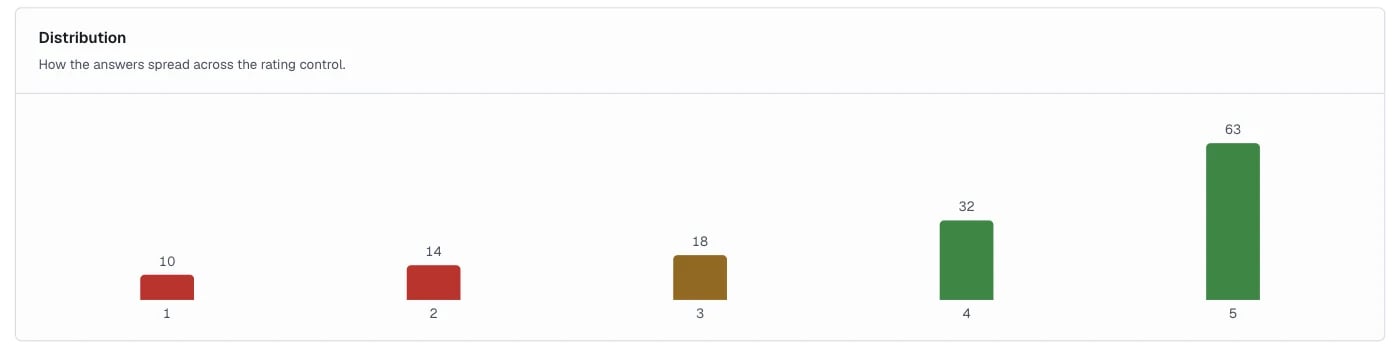
The Trend & distribution tab shows how the score moved across the selected period, and how the responses spread across the rating scale. Use the granularity control on the Trend panel to change the interval, for example, from daily to a wider grouping. By default, the Trend panel groups scores hourly for ranges up to 2 days, daily up to 31 days, weekly up to about 6 months, and monthly beyond that. The line skips periods with no responses. Bars under the line show the response count for each period. Short bars mean the point rests on very few answers. The Distribution panel counts responses at each rating. Detractor ratings (1 to 2) show in red, the neutral rating (3) in amber, and satisfied ratings (4 to 5) in green. Satisfied ratings count toward CSAT.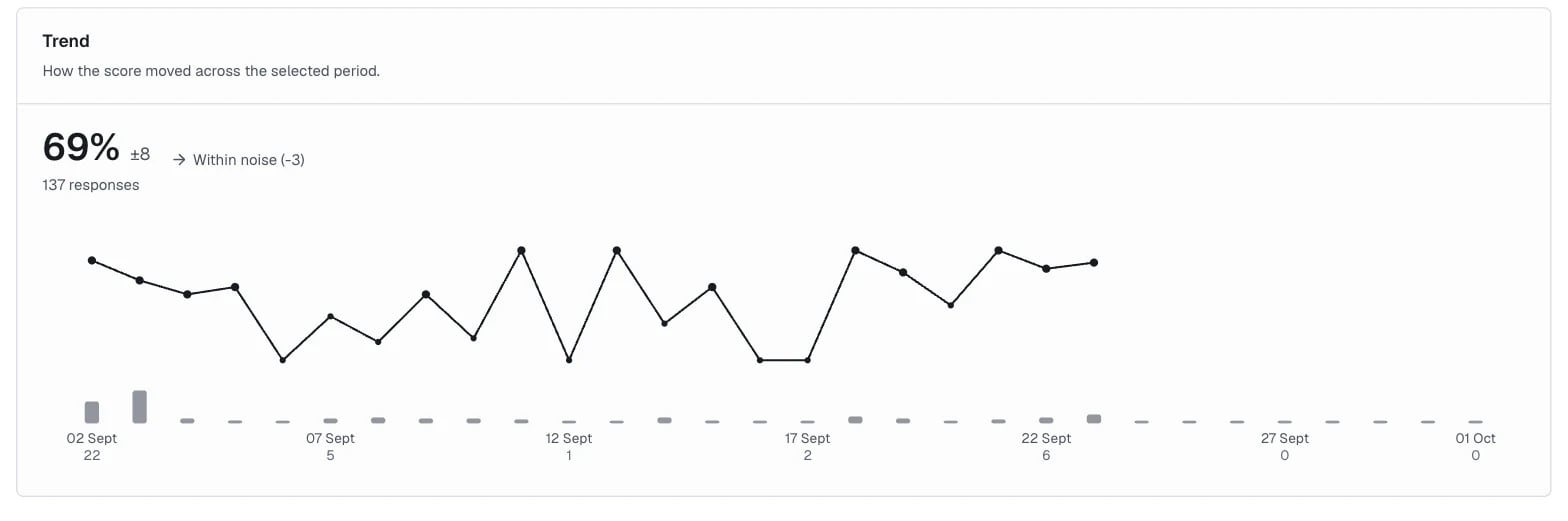
Segments
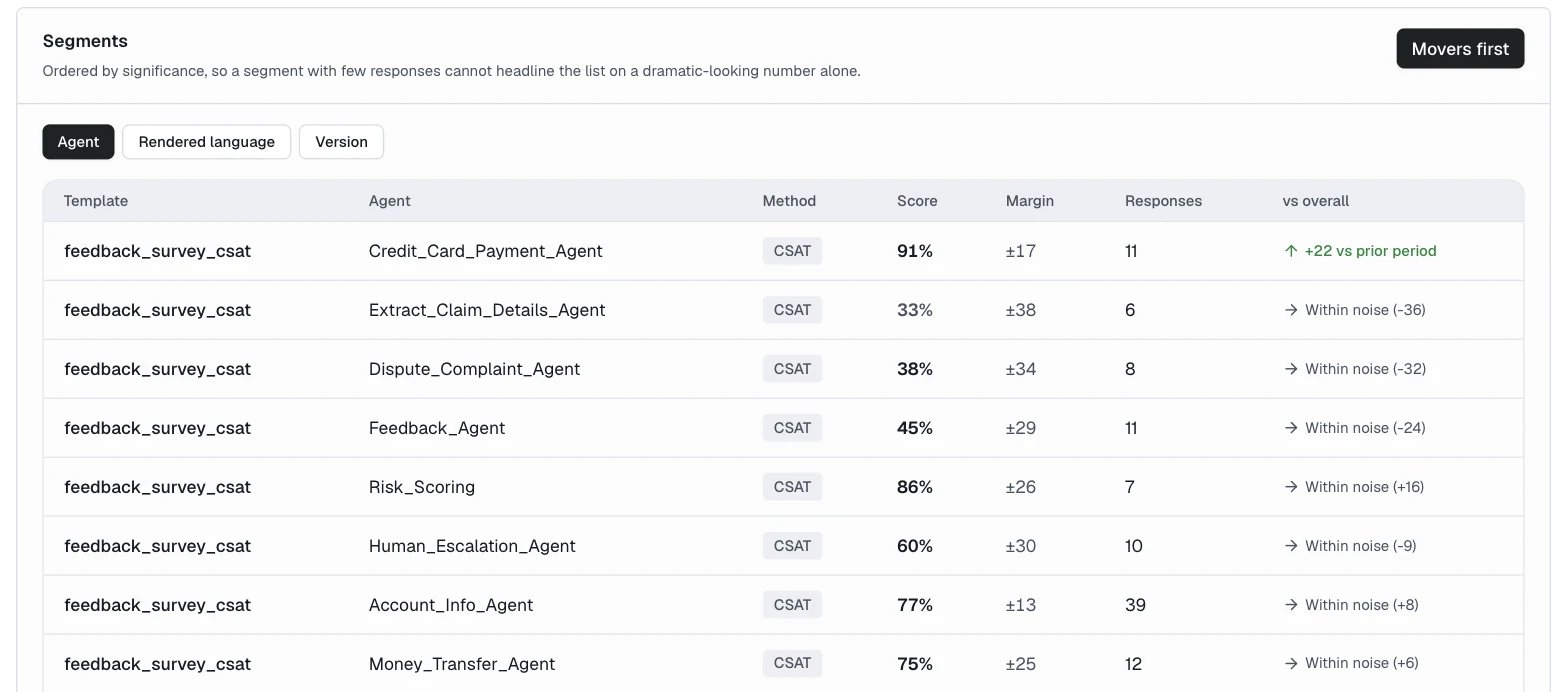
The Segments tab breaks the score down by the dimensions the platform records with each response.
Select Movers first to order segments by the size of their change. The page orders segments by significance, so a segment with few responses can’t headline the list on a dramatic-looking number alone.
Each segment shows its score, margin, response count, and movement. Small segments have wide margins, so act only on segments marked as a real move.
Responses
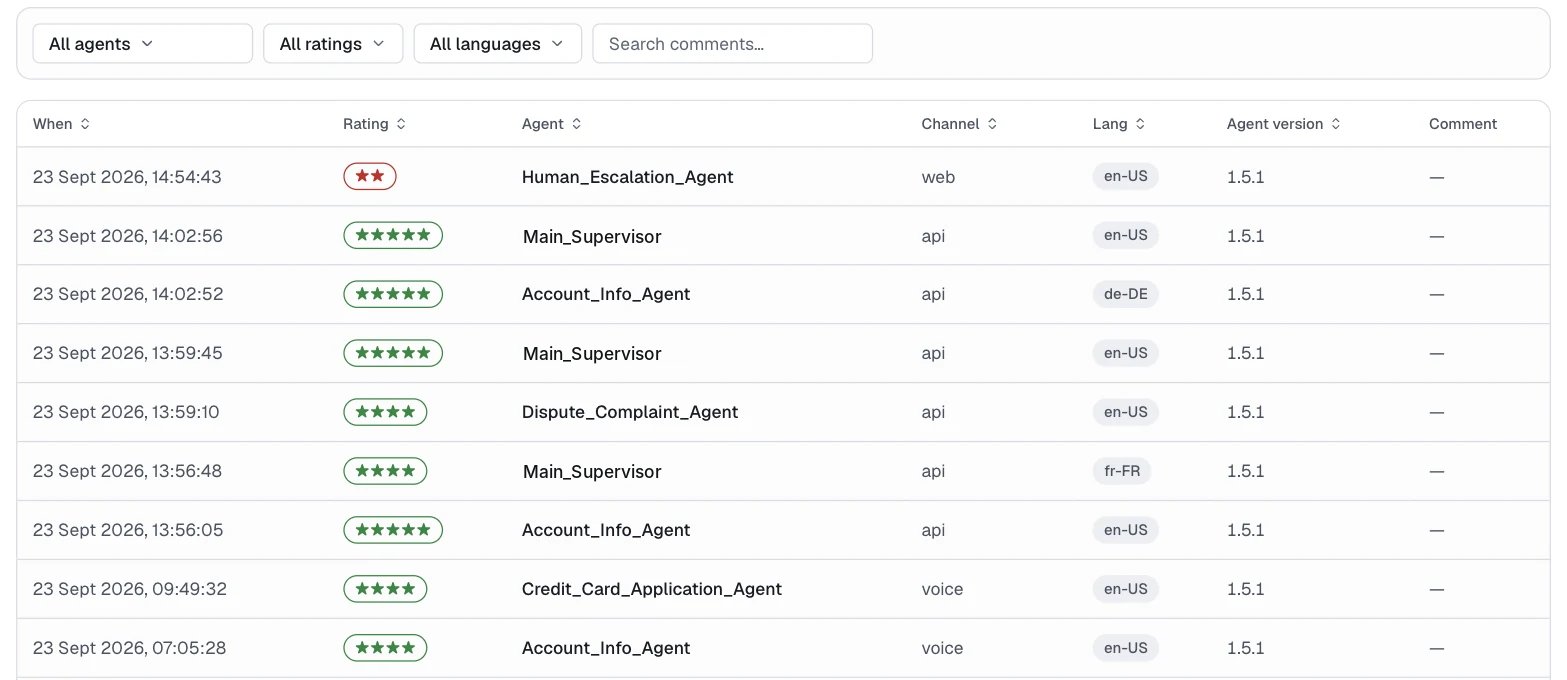
The Responses tab lists the individual responses behind the figures on the other tabs. Four controls let you narrow the list.
Each row shows the rating, the channel where the survey was answered (
web, api, voice, or web_debug), the language, the agent version, and the comment. Under Follow-up, the comment column shows the follow-up answer.
If no responses match, the tab reports that it found no feedback for the selected filters. Widen the date range or clear a filter.
Follow-up questions and NPS
Select Follow-up to read the follow-up question’s score, margin, and movement. It works the same way as the primary question. For a 0 to 10 survey, select NPS under Scored as. NPS subtracts the share of detractors (0 to 6) from the share of promoters (9 or 10), so it runs from -100 to +100. Its margin is wider than a plain percentage at the same number of responses, so check the margin before you report a change.