

Prerequisites
Confirm that you meet the following prerequisites before configuring the Five9 Voice Automation integration:Five9 Requirements
- A Five9 Virtual Contact Centre (VCC) Administrator account with privileges to configure:
- SIP trunks and DID numbers
- Interactive Voice Response (IVR) scripts
- Campaigns, skills, and agents
- VoiceStream subscription
Artemis Requirements
- Artemis Platform account with administrator access
- Familiarity with Artemis Agent building
Network Requirements
- A SIP trunk between Five9 and Kore. Five9 pre-configures this trunk.
- DID numbers. The Five9 team provides these after your Five9 instance is set up.
Artemis Configuration
Build the agent
- Sign in to Agent Platform - Artemis.
- Open the required project.
- Create or edit an Agent for Voice Automation from Agents > Your Relevant Agent > Designer / Editor:
- Use the
ESCALATEblock to send routing headers. Learn more about routing headers. - Update the Agent definition as per your business use case.
- End the conversation and disconnect the call.
- Transfer the caller to a Five9 skill.
- Transfer the caller directly to a Five9 agent.
Configure Agent Transfer
Configure Agent Transfer to send the headers back to Five9 duringSIP BYE.
The system transfers Custom SIP headers back to Five9 only when the SIP Headers are whitelisted in Agent Transfer.
- Go to Settings > Agent Transfer > Voice Gateway.
- Select Gateway Type as Kore Voice Gateway.
- Select Transfer Method as SIP BYE (release-link).
- Enable Header Passthrough.
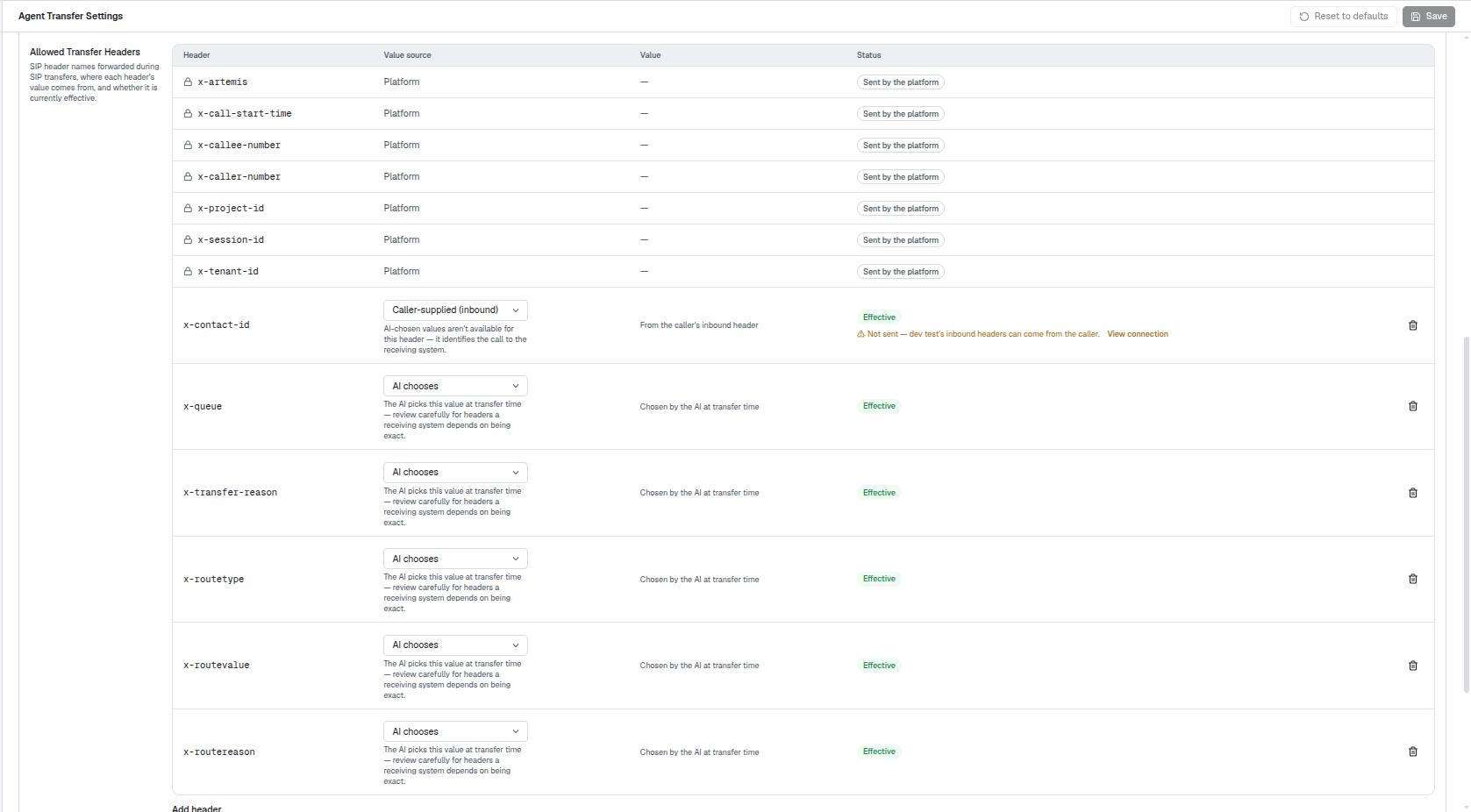
- Under the Allowed Transfer Headers section add all the Five9 custom headers as shown below.
Configure SIP Trunk
For inbound calls to Artemis using SIP INVITE, the system uses Bring Your Own SIP as the Voice Provider.- Navigate to Deployments > Channels > Pipeline Voice.
- Click Create New.
-
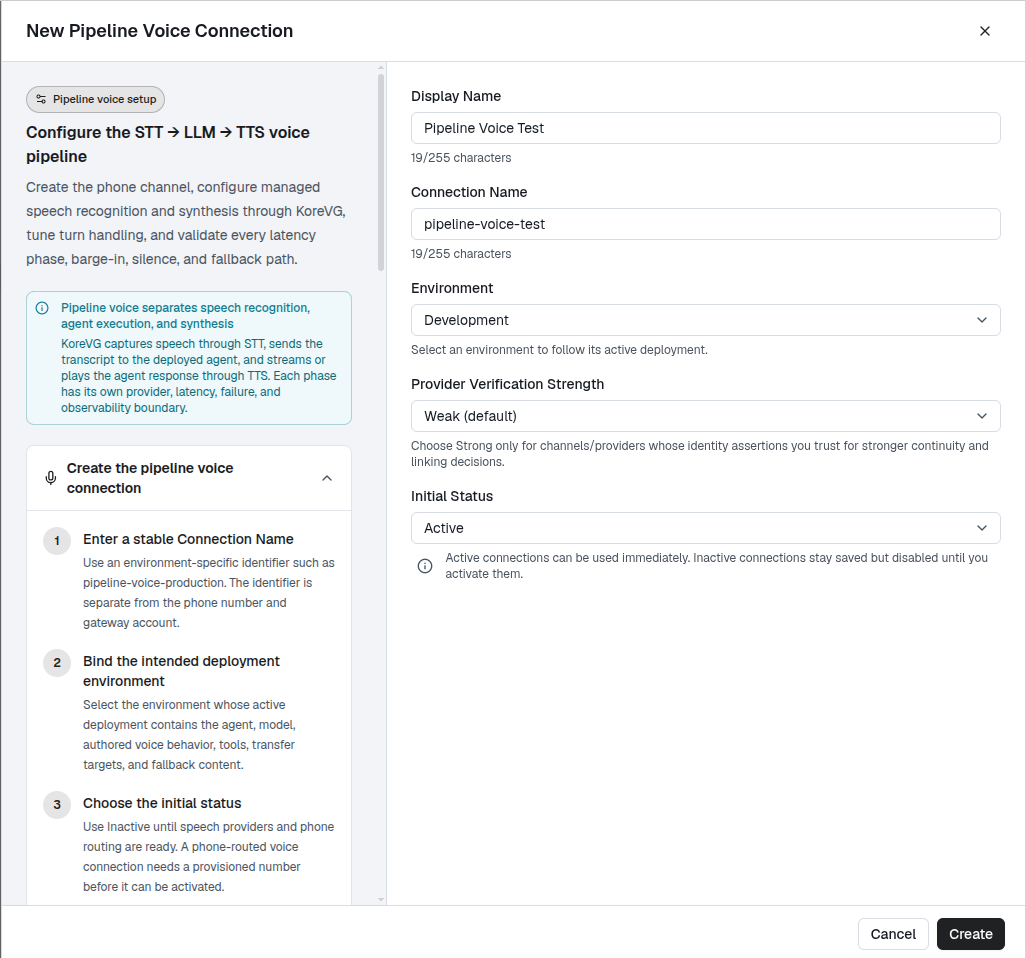
Fill in the details as per your use case, as shown below, and click Create.
-
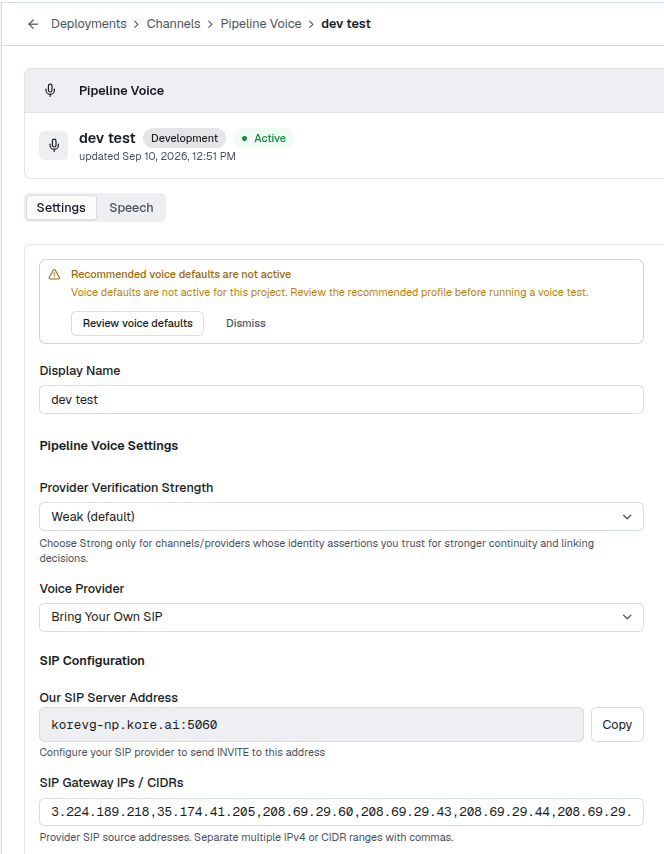
Select Voice Provider > Bring Your Own SIP and use the following Five9 IPs as SIP Gateway IPs / CIDRs:
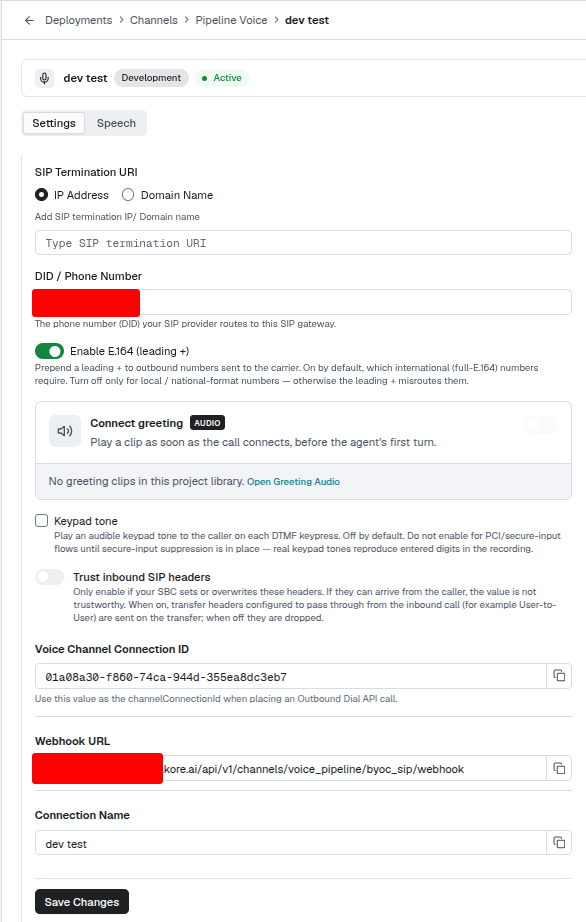
- For DID / Phone Number, enter a number from the range provided by the Five9 team after the SIP Trunk Route setup.
-
Click Save Changes.
Five9 Configuration
Upon acquiring the Five9 instance for Kore Voice Automation, the Five9 team will automatically configure the Five9 - Kore Voice Automation IVR Script Template in your instance. You will need to update a few details like theDID number, Authorization Header, Kore.abl_tenant_id, Kore.abl_project_id. Below steps will help to validate the IVR Script details.
Create the IVR Flow
- Sign in to Five9 VCC Administrator.
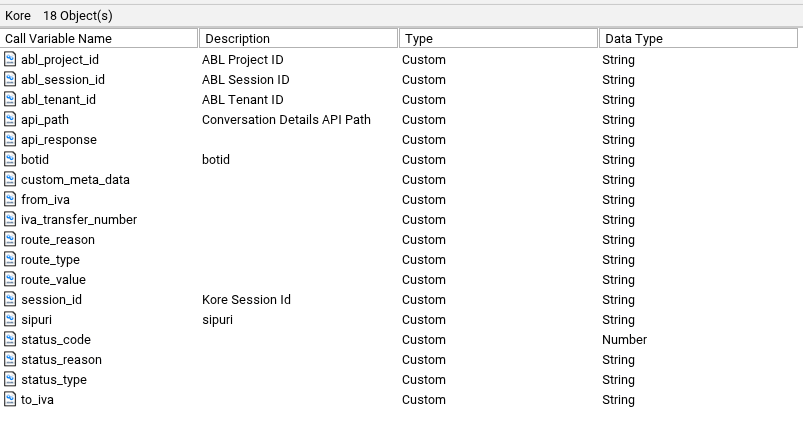
- Create a list of required Kore variables in VCC Admin Panel > Call Variables > Kore as shown below.
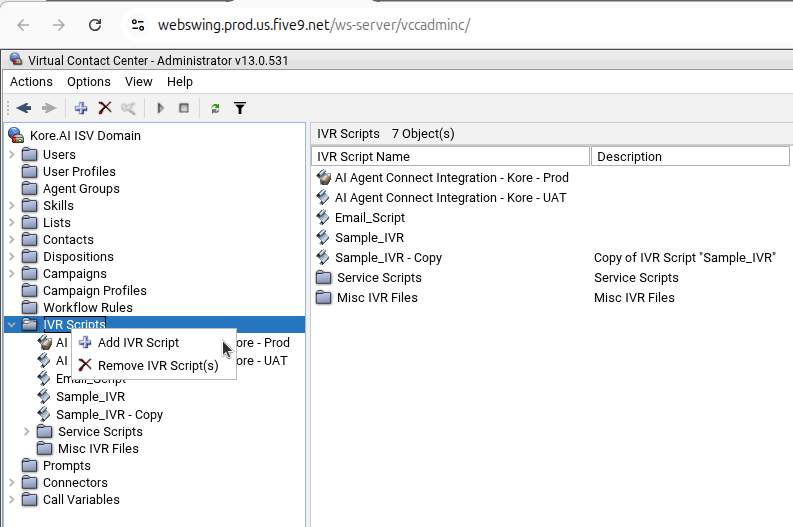
- Under IVR Scripts, right-click and select Add IVR Script.
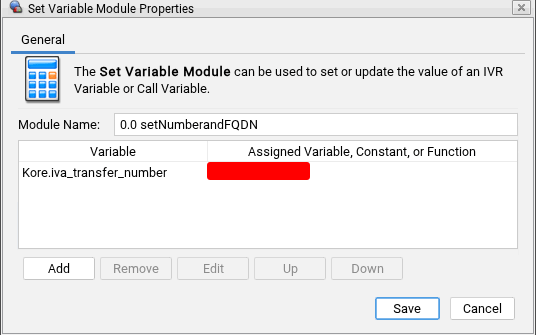
- In the IVR Flow, soon after the Incoming Call Module, use Set Variable Module to set the DID number (refer to SIP Trunk Provisioning).
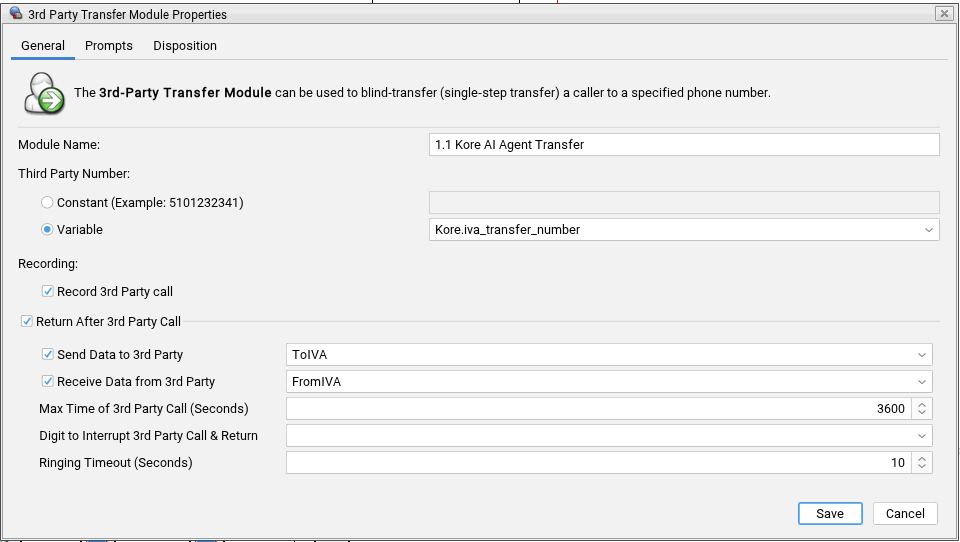
- Use 3rd-Party Transfer Module to transfer the call to Kore Voice Automation.
- Use Case Module to transfer the call back to a Skill, to an agent, or to hang up.
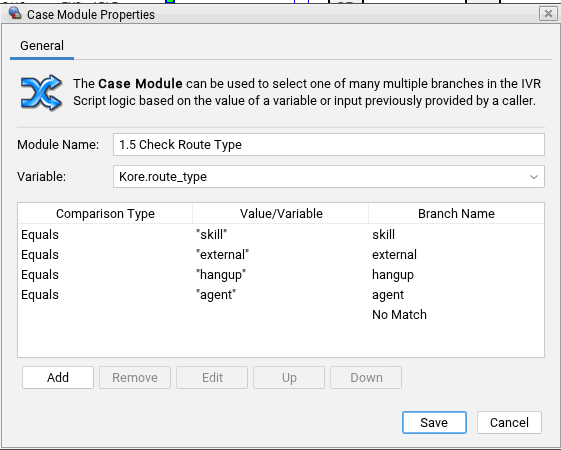
- In Query Module, use the Session Summary API to retrieve data from the Artemis platform when users hang up during interaction with the AI Agent.
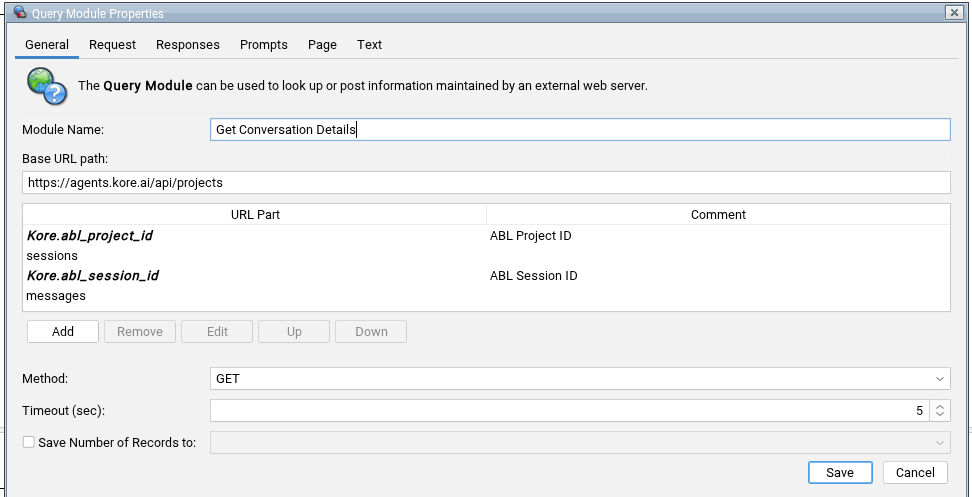
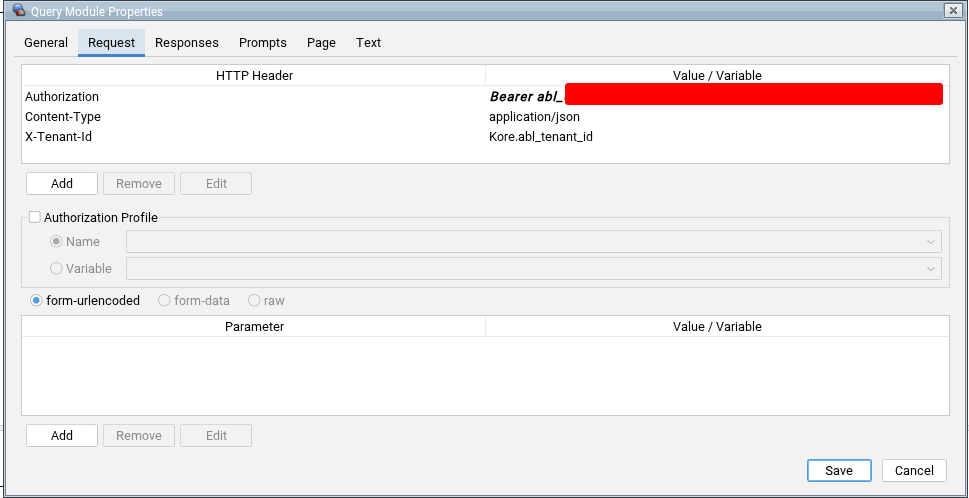
- Update the Bearer token in the Request tab of the Query Module with the Artemis API Key > Platform Key and other headers as shown below.
SIP Trunk Provisioning
The Five9 team has preconfigured the SIP trunk to enable Kore to identify the dialed DID in SIP INVITEs from Five9. As an accredited Five9 ISV partner, Kore has documented this setup with Five9 in its onboarding materials to help new customers get onboarded more quickly. Kore SBC details used for configuring SIP Trunk at Five9 end:Verify the SIP Trunk configuration
Follow these steps to verify the SIP Trunk configuration:- Attach a Five9 number to the Campaign using the IVR Script configured in this section.
- Make a call to the Five9 number from Google Meet or Zoom, which transfers the call to Kore Voice Automation Flow using the DID number for SIP INVITE.
Call Routing Logic
Configure the routing logic after the SIP session ends, as in this section. Route the call based on the SIP headers Kore sends. The system supports the following routing scenarios: Bot Hangup If the bot completes the conversation successfully:- Kore ends the SIP session.
- Five9 receives the configured route type as
hangup. - Five9 disconnects or hangs up the call.
- Kore sends the required SIP headers.
- Five9 reads the routing information.
- Five9 transfers the caller to the configured skill queue.
- Kore sends the required SIP headers.
- Five9 reads the destination agent.
- Five9 transfers the caller directly to the specified agent.
The Five9 agent username must use the email-format username you configure in VCC Administrator.
Kore Integration
Integrate Voice Gateway with Five9
Associate the Voice Gateway SIP endpoint with the Five9 Voice Automation flow. Configuration notes:- Verify the SIP trunk is active before publishing the flow.
- Verify that the SBC IP addresses are in the allowlist.
- Verify that the DID maps to the correct SIP destination.
- Verify the Agent Transfer whitelists the SIP headers to be sent back to Five9 during SIP BYE.
Test the Integration
Perform the following steps to validate the integration.- Call the Five9 phone number.
- Verify that Five9 routes the call to Kore.
- Complete one of the supported conversation outcomes.
Bot Hangup
Expected result:- Conversation completes.
- Call disconnects successfully.
Skill Transfer
Expected result: Call is transferred to the configured Five9 skill.Agent Transfer
Expected result: Call is transferred directly to the configured Five9 agent.Best Practices
- Configure Agent Transfer to allow SIP headers that must return to Five9.
- Validate SIP connectivity before publishing the flow.
- Use dedicated DIDs for production and non-production environments.
- Verify SIP routing after every Voice Automation flow update.
- Test all supported routing scenarios before deploying to production.
Troubleshooting
View Interaction Details in Kore
You can refer to Operate > Sessions for detailed user-bot interactions.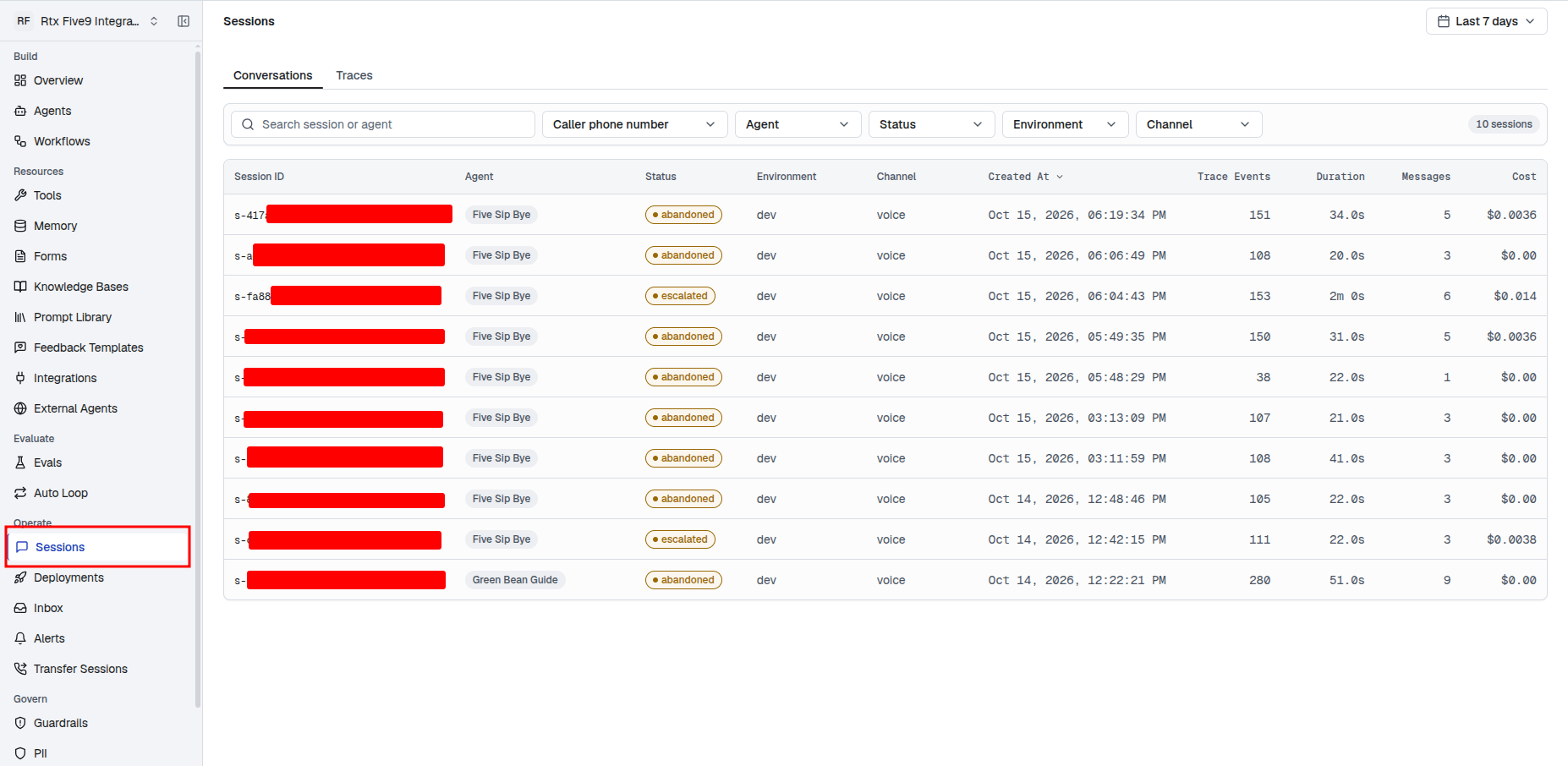
Additional Notes
- The system uses SIP BYE to return control from Kore to Five9.
- The system stores conversation context in Kore after the transfer.
- Five9 uses SIP headers to determine the routing action after the SIP session ends.