Use the Configurations section to set up the operational parameters of your contact center-working hours, languages, agent tools, and monitoring displays.
| Configuration | Description |
|---|
| Hours of Operation | Define working hours, holidays, and special days. |
| Languages and Speech | Manage supported languages, hold audio, and voice authentication. |
| Response Templates | Create and organize canned responses for agents. |
| Surveys | Configure post-interaction customer satisfaction surveys. |
| Agent Forms | Build forms for capturing customer information. |
| Widgets | Embed external systems into the Agent Console. |
| Wallboards | Monitor contact center performance in real time. |
Hours of Operation
Hours of Operation defines when agents are available-standard working hours, weekends, holidays, and special days by time zone. Contact Center AI uses this configuration to trigger Conditional Flows for out-of-hours and no-agents-available scenarios.
To access, go to Contact Center AI > CONFIGURATIONS > Hours of Operation.
Add Hours of Operation
- Select + Add New.
- In the panel, configure:
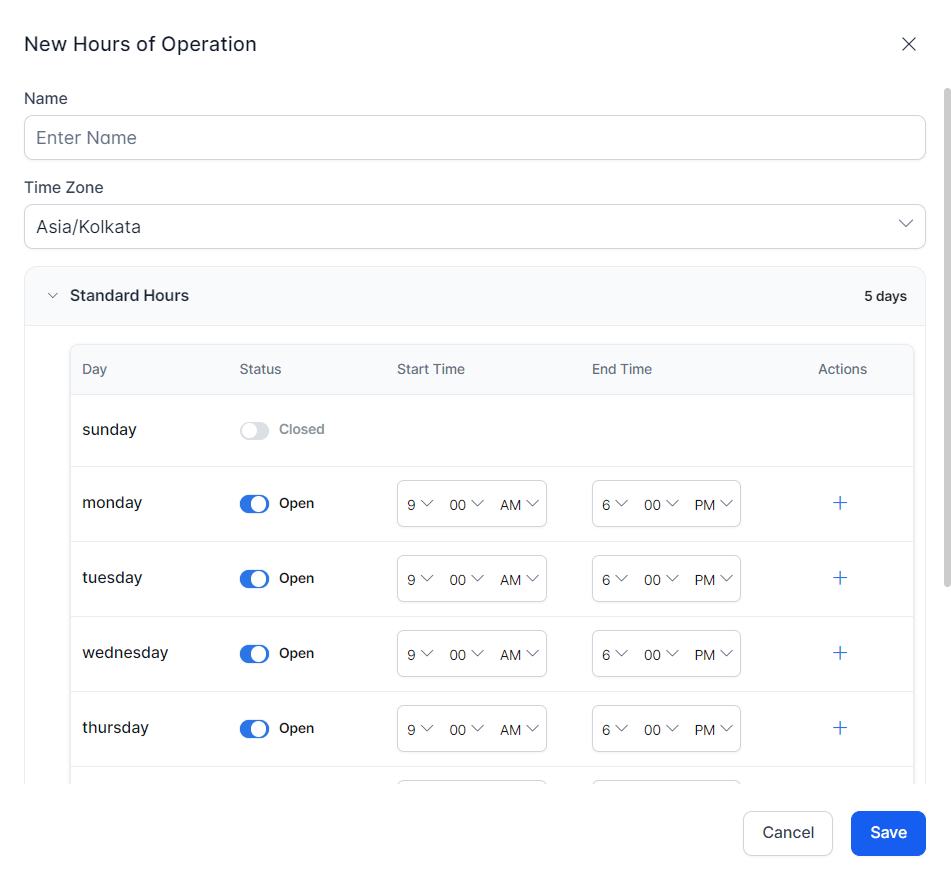
- Name-A label for the profile (for example, Official Working Hours).
- Time Zone-Select the applicable time zone.
- Work Days, Holidays, and Special Days-See below.
Standard Hours
Set hours per day or use the default (9 AM to 6 PM). Weekdays are open by default; weekends are closed. Use the toggle to enable or disable Saturday and Sunday.
Holidays and Special Days
| Field | Description |
|---|
| Date | The date of the holiday or special day. |
| Name | A label for the entry. |
| Period | Partial-Adjust working hours for that day. Full-The entire day is a holiday. |
- Select + Add New to add an entry.
- Select + Add Another to add more time ranges within an entry.
- Select the Delete icon to remove an entry.
- Select Save when done.
Edit Hours of Operation
Select the Edit icon under Actions.
Delete Hours of Operation
Select the Delete icon under Actions and confirm.
Languages and Speech
This section manages the languages, hold audio, and voice authentication settings for your contact center.
To access, go to Contact Center AI > CONFIGURATIONS > Languages & Speech.
| Feature | Description |
|---|
| Language Management | Add, enable, or disable languages for agents and bots. |
| Hold Audio | Configure audio that plays while customers wait on hold. |
| Voice Authentication | Set up voiceprint-based customer authentication. |
Language Management
Select Supported Languages to manage which languages the contact center supports.
 You can also manage languages from Language Management in App Settings.
Add a Language
- Select languages from the Language pane.
- Select Save.
Disable and Re-Enable a Language
- Disable: Uncheck the language and select Save. The language is deactivated in all access channels but not removed.
- Re-enable: Check the language again and select Save.
Supported Languages
The platform supports the following languages for AI Agents and Human Agents:
| | | | | |
|---|
| Afrikaans | English | Indonesian | Malayalam | Sesotho | Ukrainian |
| Albanian | Esperanto | Irish | Maltese | Sona | Urdu |
| Amharic | Estonian | Italian | Maori | Sinhala (Sinhalese) | Uyghur |
| Arabic | Filipino | Japanese | Marathi | Slovak | Uzbek (Latin) |
| Armenian | Finnish | Javanese | Mongolian (Cyrillic) | Slovenian | Vietnamese |
| Assamese | French | Kannada | Myanmar (Burmese) | Somali | Welsh |
| Azerbaijani | Galician | Kazakh | Nepali | Spanish | Wolof |
| Basque | German | Khmer | Norwegian | Sudanese | Xhosa |
| Belarusian | Georgian | Kinyarwanda | Nyanja (Chichewa) | Swahili | Yiddish |
| Bangla | Greek | Korean | Odia | Swedish | Yoruba |
| Bosnian | Gujarati | Kurdish (Central) | Persian | Tagalog | Zulu |
| Bulgarian | Haitian Creole | Kyrgyz | Polish | Tajik | |
| Catalan | Hausa | Lao | Portuguese (Brazil) | Tamil | |
| Cebuano | Hawaiian | Latin | Portuguese (European) | Tatar | |
| Chinese Simplified | Hebrew | Latvian | Punjabi | Telugu | |
| Corsican | Hindi | Lithuanian | Russian | Thai | |
| Croatian | Hmong Daw | Luxembourgish | Romanian | Tibetan | |
| Czech | Hungarian | Macedonian | Samoan | Traditional Chinese | |
| Danish | Icelandic | Malagasy | Scots Gaelic | Turkish | |
| Dutch | Igbo | Malay | Serbian (Cyrillic) | Turkmen | |
Hold Audio
Hold audio plays to customers while they wait in queue or are on hold.
To access, go to Languages & Speech > Hold Audio.
Add Hold Audio
- Select Browse or drag a
.WAV file into the panel.
- Optionally rename the file in the Rename Audio field.
- Select Save. The file is added to the Hold Audio list and plays automatically.
Delete Hold Audio
- From the saved list: Select the Delete icon next to the file and confirm. Re-upload if you change your mind.
- Before saving: Select the Delete icon in the upper right of the upload panel.
Voice Authentication
Voice authentication uses voiceprints to identify and verify customers for secure access.
-
Go to Languages & Speech > Voice Authentication.
-
Enable Voice Biometric Authentication and select a provider: Illuma or ID R&D.

-
Enter the Host URL and API Key from the provider.
-
Select Save.
Response Templates
Response Templates are predefined messages that agents send during customer interactions-greetings, closings, transfers, and more. Templates are organized into Response Groups and can be filtered by skill, agent group, or queue.
To access, go to Contact Center AI > CONFIGURATIONS > Response Templates.
 The section lets you search by name, browse groups, and add new groups.
Default response groups:
The section lets you search by name, browse groups, and add new groups.
Default response groups:
| Group | Purpose |
|---|
| Greeting | Welcome messages. |
| Conversational | Small talk, follow-ups on delays. |
| Closing | End-of-chat messages, survey requests, no-response closures. |
| Transfer | Messages for transferring to an agent, manager, or queue. |
| Abuse | Initial and final warnings for abusive language. |
| Privacy | Permission-based privacy responses. |
Create a Response Group
- Select + Response Group.
- In the Add New Response Group panel, configure:
- Group Name-For example, Greetings or Sales Responses.
- Shortcut Command-Agents type this in the chat box to pull up the group’s responses.
- Description-A brief summary of the group’s purpose.
- Skill Match (optional)-When enabled, responses appear only to agents with matching skills. Configure AND/OR conditions using the condition builder.
- Agent Group Match (optional)-When enabled, responses appear only to agents in the selected agent groups.
- Queue Match (optional)-When enabled, responses appear only to agents handling interactions from selected queues.
When Skill Match, Agent Group Match, and Queue Match are all enabled, a response appears only if the agent meets all three conditions.
Edit a Response Group
- Select the response group name.
- Select the Edit icon next to the name.
- Make changes and select Save.
Delete a Response Group
- Select the response group name.
- Select the Edit icon, then Delete Response Group.
- Confirm deletion.
Deleted response groups and all responses within them cannot be restored. Agents will no longer see those responses in the console.
Create a Response
- Select a response group to open it.
- Select + New Response.
- Set the Title and Auto Expire:
- Never-The response doesn’t expire.
- Custom Date-Set an end date and time.
- Select a response type tab and add content:
- Chat Response: Type the message in the text editor. Select Done.
- Email Response: Write in plain text, using variables, or in HTML/CSS. Optionally select + Add Subject to add a subject line. Select Done.
- Select Create.
Variables in Response Templates
Pull customer and agent details dynamically using these variables:
| Variable | Description |
|---|
Customer First Name | Customer’s first name |
Customer Last Name | Customer’s last name |
Customer Email | Customer’s email address |
Customer Phone Number | Customer’s phone number |
Agent First Name | Agent’s first name |
Agent Last Name | Agent’s last name |
Agent Nick Name | Agent’s nickname |
Agent Email | Agent’s email address |
Edit a Response
- Select the response group name.
- Find the response and select the Edit icon under Actions.
- Make changes and select Save.
Delete a Response
- Select the response group name.
- Select the Edit icon for the response.
- Select the Delete icon and confirm.
Deleted responses cannot be restored.
Export Response Templates
Administrators and supervisors can export all response templates as a CSV file for review and compliance purposes.
- Select Download Response Templates.
- A notification confirms the download. The file saves as a CSV.
Surveys
Surveys collect customer satisfaction feedback after an interaction ends. You can configure surveys per channel-chat, call, and email-each with its own message, frequency, and conditions.
To access, go to Contact Center AI > CONFIGURATIONS > Surveys.
Supported survey types:
| Type | Scale |
|---|
| CSAT (Customer Satisfaction) | 1 (extremely poor) to 5 (extremely good). |
| NPS (Net Promoter Score) | 0-10: Detractors (0-6), Passives (7-8), Promoters (9-10). |
| Like or Dislike | Thumbs up (satisfied) or Thumbs down (unsatisfied). |
Create a Survey
Step 1-General Information
Enter the Survey Name and Description.
Step 2-Configure channel experience
-
Select the Chat Experience, Call Experience, or Email Experience tab.
-
Enable the toggle for that channel.
-
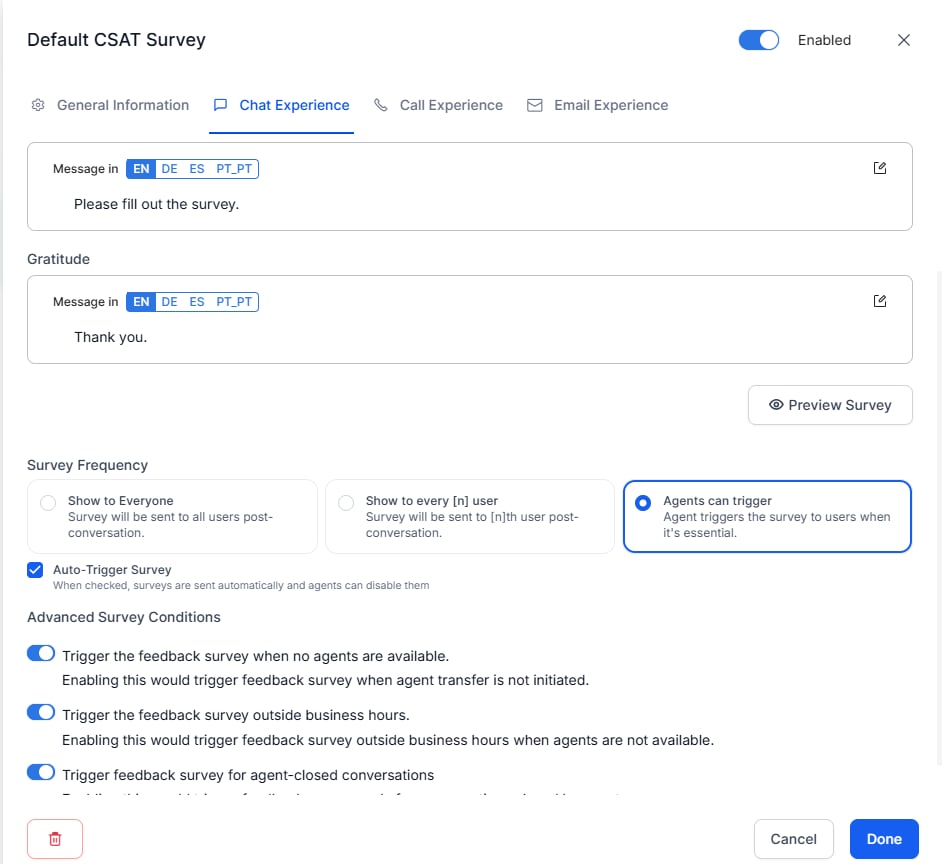
Configure the Request Message (shown before the survey) and the Gratitude Message (shown after). Select a language, enter the text, and select Done.
Email messages can be written in plain text or HTML/CSS.
-
Set the Survey Frequency:
| Option | Description |
|---|
| Show to Everyone | All customers receive the survey. |
| Show to Every nth User | Sends to every nth customer-for example, every 2nd. |
| Agents can Trigger | Agents manually trigger the survey. Enable Auto Trigger to send automatically; agents can still disable it per interaction. |
-
Configure Advanced Survey Conditions (optional):
| Condition | When it applies |
|---|
| Trigger the feedback survey when no agents are available | Agent transfer didn’t occur due to unavailability. |
| Trigger the feedback survey outside business hours | Conversation occurred outside configured business hours. |
| Trigger feedback survey for agent-closed conversations | Only conversations closed by an agent receive the survey. |
-
Enable the survey toggle to activate it.
-
Select Done.
Edit a Survey
Select the survey name or the Edit icon, make changes, and select Done.
Delete a Survey
- Select the survey name or the Edit icon.
- Select Delete in the bottom toolbar and confirm.
Deleted surveys cannot be restored. The system stops sending the survey immediately.
Agent Forms are configurable input forms that agents use to capture customer information during interactions.
To access, go to Contact Center AI > CONFIGURATIONS > Agent Forms.
Form statuses:
| Status | Meaning |
|---|
| In-development | The form is being built, or was edited after publishing. |
| Published | The form is approved and available to human agents in the console. |
- Select + New Form.
- Enter the Name, Display Name, and Description.
- Enable Agent Form Data (optional)-Redacts form input from logs, context objects, service calls, and agent transfers by replacing it with a system-generated alphanumeric value.
- Select an Assignment:
- Assign to Queues-Make the form available for all or selected queues.
- Assign to Agent Groups-Make the form available to specific agent groups.
- Select Save & Proceed.
Add components to the form-text fields, checkboxes, radio buttons, date fields, and more-using the Form Builder.
- Edit form fields: Select the form record to open the Form Builder and make changes directly.
- Edit form settings (Name, Description, Data Security, Assignments):
- From the live board: Select the Edit icon under Actions.
- From the Form Builder: Select More Options > Form Setting.
Publishing makes the form available for agents to send to customers from the Agent Console.
- Select the More Options icon under Actions.
- Select Publish.
If you edit a published form, republish it for the changes to take effect.
- From the live board: Select More Options > Delete.
- From the Form Builder: Select More Options > Delete.
Deleted forms cannot be restored.
Widgets embed external systems or web pages into the Agent Console. Agents access widgets within custom Agent Console Layouts.
External applications may require permission configuration to load properly within the console.
-
Select External Widget, then + New External Widget.
-
Configure:
- Widget Name-A name to identify the widget.
- Load without conversation-Check this to display the widget on the agent desktop even when no conversation is active.
- Widget Icon-Upload a file or drag and drop.
-
Enter the Widget URL. Use a static URL or a dynamic URL with variables from the Variable dropdown:
| Variable | Description |
|---|
Agent Id | Unique agent identifier |
Agent First Name | Agent’s first name |
Agent Last Name | Agent’s last name |
Customer Email Id | Customer’s email address |
Customer First Name | Customer’s first name |
Customer Last Name | Customer’s last name |
Customer Phone Number | Customer’s phone number |
Conversation Id | Unique conversation identifier |
{{context.metaInfo.<yourCustomVarName>}}
Example: https://www.example.com/?id={{context.metaInfo.customerId}} resolves to https://www.example.com/?id=12345 at runtime.
-
Enter a Failure URL (optional)-Displays if the main page fails to load. Supports the same variables.
-
Select Save.
In the External Widgets list, select the widget. Update the name, icon, or URLs and save.
In the External Widgets list, select the widget. Select Delete in the bottom toolbar and confirm.
Deleting a widget removes it and all its configurations from the Agent Console permanently.
- In the Agent Console, select Manage Layout.
- Select a layout and select the edit icon.
- Drag the widget from the left panel to the right panel.
- Select Save.
- In the Agent Console, select Manage Layout.
- Select a layout and select the edit icon.
- Select More Options on the widget and select Delete.
Removing a widget from a layout only hides it from agents-the widget configuration is preserved and can be re-added later.
Wallboards
Wallboards display real-time contact center performance metrics across queues, giving administrators and supervisors a live view of operations as they develop throughout the day.
To access, go to Contact Center AI > CONFIGURATIONS > Wallboards.
Create a Wallboard
- Select + Add New Wallboard.
- Enter a Name and optional Description.
- Select the Wallboard Type and configure the settings.
Center Wide
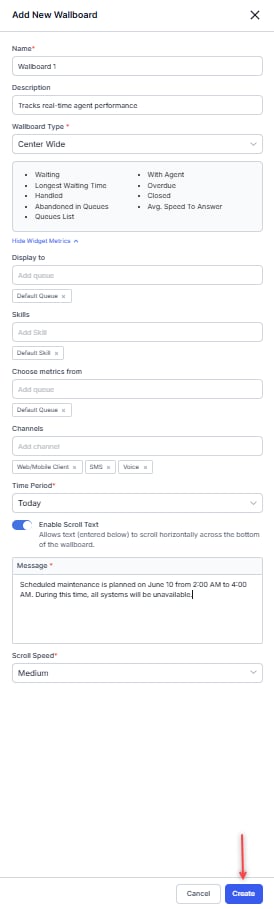
Shows aggregated data across multiple queues.
| Setting | Description |
|---|
| Display to | The queues that can view this wallboard. |
| Queues | Queues to include in the data. Defaults to all if none selected. |
| Channels | Channels to include. Defaults to all if none selected. |
| Time Period | Last 15 min, 30 min, 1 hr, 2 hr, 8 hr, 12 hr, or Today. |
| Enable Scroll Text | Optional. Adds horizontally scrolling text at the bottom. Set the message and scroll speed: Slow, Medium, or Fast. |
Queue Specific
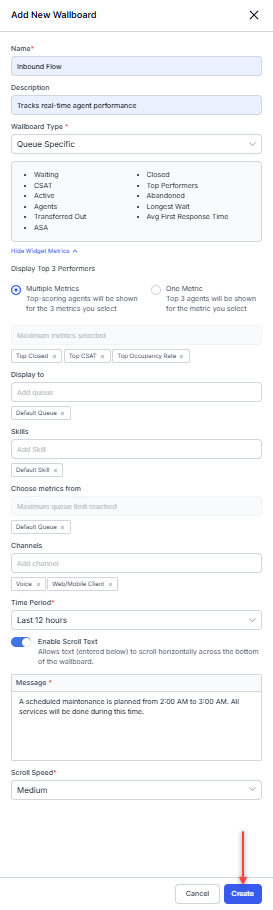
Shows agent performance rankings for a specific queue.
| Setting | Description |
|---|
| Display Top 3 Performers | Choose Multiple Insights (three different metrics) or One Insight (three agents for one metric). |
| Available metrics | Top Closed, Top Answered, Top CSAT, Top Occupancy Rate, Top Average First Response Time. |
| Display to / Queues / Channels / Time Period / Scroll Text | Same options as Center Wide. |
Center Wide Abandoned
Shows aggregated data across all queues. This wallboard is built in and not customizable.
| Setting | Description |
|---|
| Display to | Defines the queues that can view the wallboard. |
| Queues | Specifies the queues to include in the data. Defaults to all queues if none are selected. |
| Choose Metrics From | Specifies the queues from which metrics are collected. |
| Channels | Specifies the channels to include. Defaults to all channels if none are selected. |
| Time Period | Defines the reporting window: Last 15 min, 30 min, 1 hr, 2 hr, 8 hr, 12 hr, or Today. |
| Enable Scroll Text | Optional. Displays horizontally scrolling text at the bottom. Configure the message and scroll speed (Slow, Medium, or Fast). |

- Select Create.
Edit a Wallboard
Select Edit, make the required changes, and select Update.
Delete a Wallboard
Select the Delete icon and confirm.
