Configure the Microsoft Translator Service
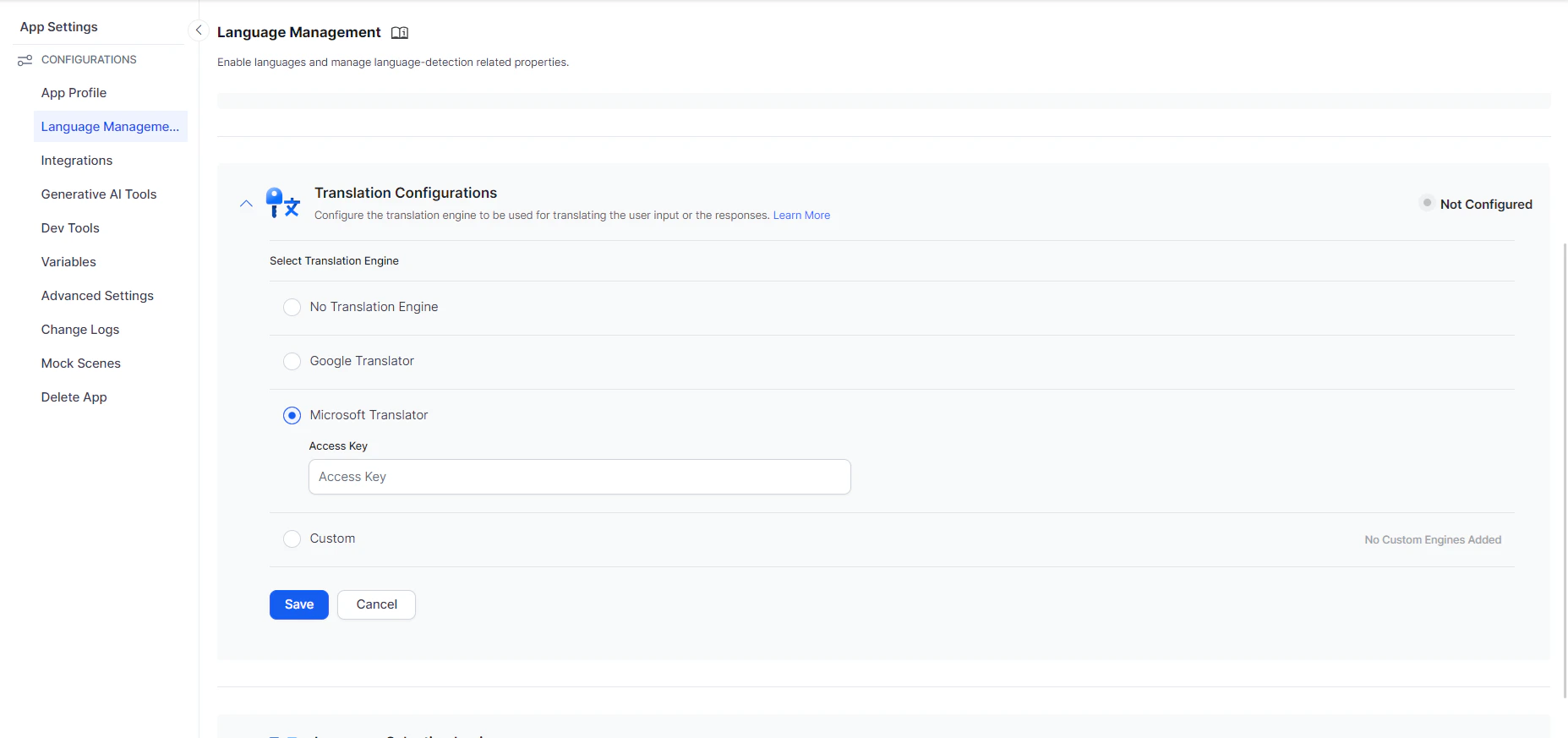
To enable automatic translation using Microsoft Translation Services, follow the steps below:- Go to App Settings > Language Management > Translation Configurations.
- Select Microsoft Translator and enter the API Key of your Microsoft Translator API service. Learn More.
- Click Save to complete the setup.
Configure the Google Translation Service
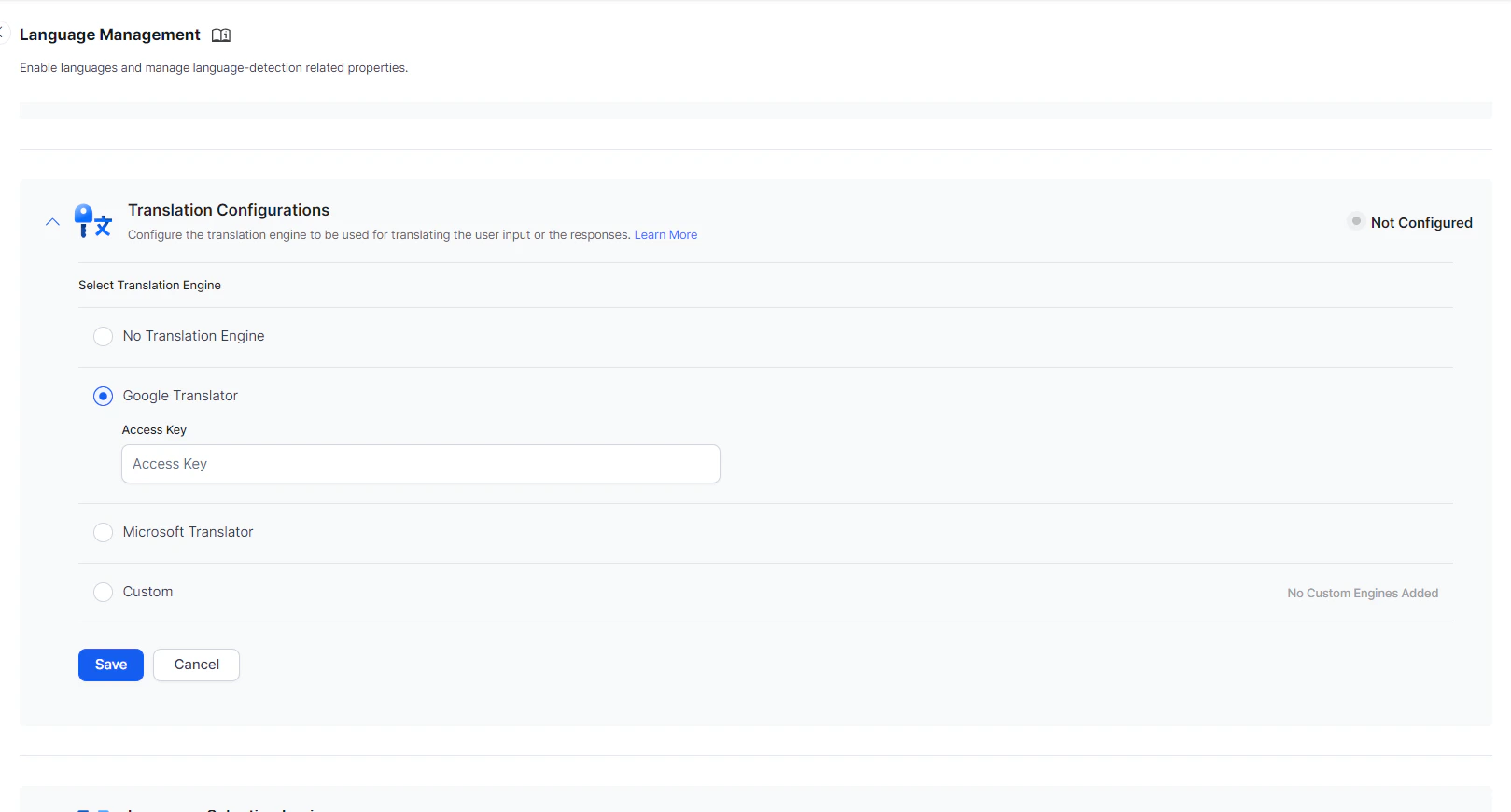
To enable automatic translation using Google Translation Services, follow the steps below:- Go to App Settings > Language Management > Translation Configurations.
- Select Google Translator and enter the API Key (Example, AIzaXXXXXXXXXXXXXXXXXXXEpeW4xa0) of your Google Translation API service. Learn More.
As the Platform doesn’t validate the key, it is recommended that you validate the API key beforehand to ensure it is active and working. You can use Postman to validate the key. Postman also lets you to save the translator key in an environment / content variable and provide that variable name enclosed in double curly braces while setting up the configuration.
- Click Save to complete the setup.
Configure Custom Translation Service
The Custom Translation Service lets you to use translation services by integrating with other translation providers or to integrate with any in-house translation services you may have.How it works
Here is how custom translation services work:- Follow the instructions below to enable the Custom Translation Engine feature.
- You can set up the integration with your translation service APIs using the Get or Post method.
- Refer to your translation service documentation for the authentication mechanism, request payload, and response payload.
- This integration is used for translating both the user input as well as the AI Agent responses. The platform avails the following information in the context during runtime.
-
It uses of the following functions while defining the request payload:
-
koreUtil.conversation.sourceText()- This function returns the text to be translated.- If the user’s input is being translated, then the function returns the user’s input.
- If the AI Agent response is being translated, then the function returns the AI Agent response.
- For translating user input, this function returns the user input. For translating the AI Agent response, the function returns the AI Agent response text.
-
koreUtil.conversation.getSourceLanguage()- This function returns the current language of the text to be translated.- If the user input is being translated, then the function returns the language in which the user is interacting.
- If the AI Agent response is being translated, then the function returns the language in which the response is written.
-
koreUtil.conversation.getTargetLanguage()- This function returns the language to which the text must be translated.- If the user input is being translated, then the function returns the language to which the input must be translated.
- If the AI Agent response is being translated, then the function returns the language to which the response must be translated. The platform invokes the translation service using the defined configurations.
-
- The translation engine must share the translated text as part of the API response.
- Map the relevant field from the response payload to be used as the translated text.
Enable a Custom Translation Engine
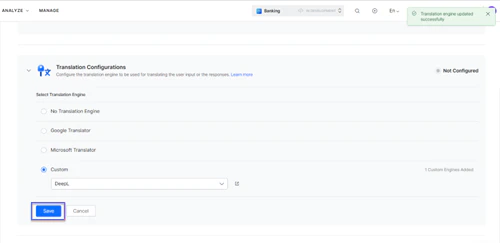
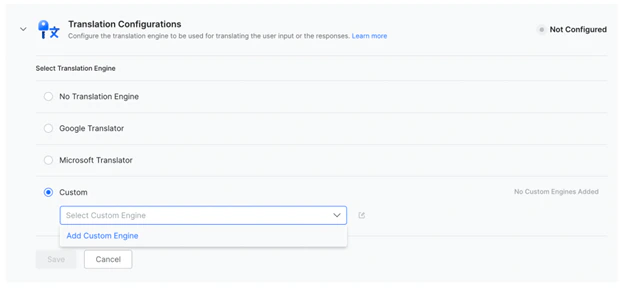
- Go to App Settings > Language Management > Translation Configurations.
-
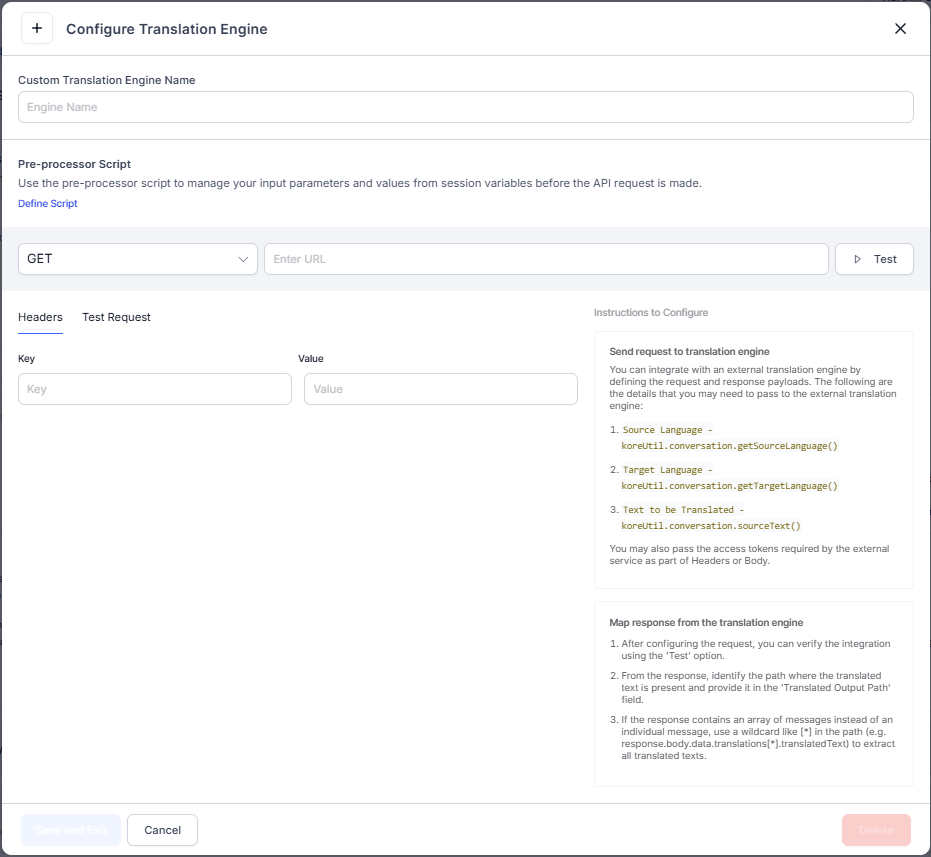
Select Custom, and choose Add Custom Engine from the dropdown.
- Provide a name for the Custom Translation Engine.
- Select the Define Script link under the Pre-Processor Script. This option helps in managing your input parameters and values from session variables before the API Request is made.
- Define the request payload for sending the text to be translated. Refer to the details provided above for defining the request payload.
-
Refer to the Service Node documentation to learn more about how to configure service integrations.
-
After defining the request payload, you can test the integration by providing the required details from the Test Request tab. Provide the sample values for the variables shown under the Sample Context Values sections, click Test to verify if the custom translation connection is established.
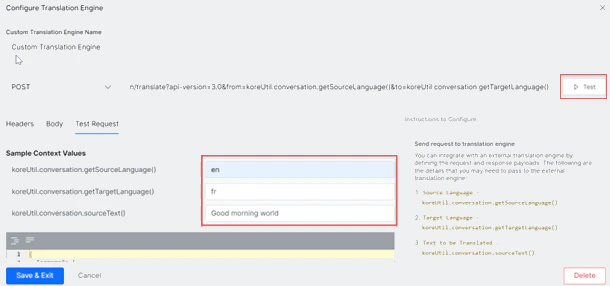
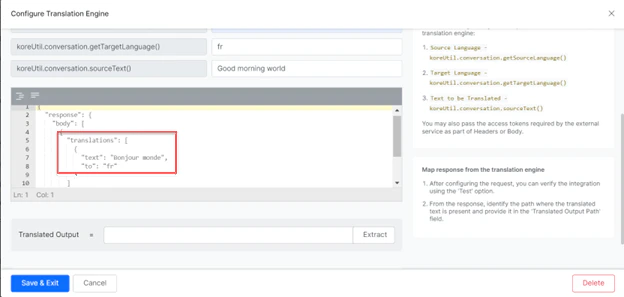
- After a successful test, the platform displays the API response received from the translation service.
-
Verify the response payload and map the translated text from the payload in the Translated Output field.
-
Click the Extract button to verify if the translation output is correctly mapped.
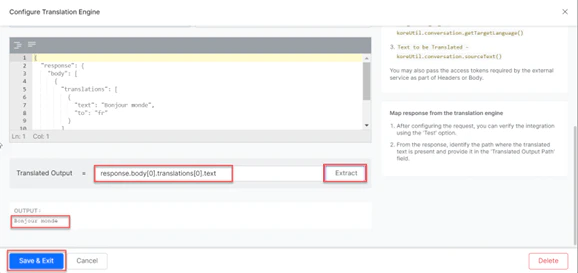
- Click Save & Exit to return to the Languages page.
-
Click Save to complete the configuration.