

Access Quality AI General Settings
Navigate to Quality AI > Configure > Settings > Quality AI General Settings.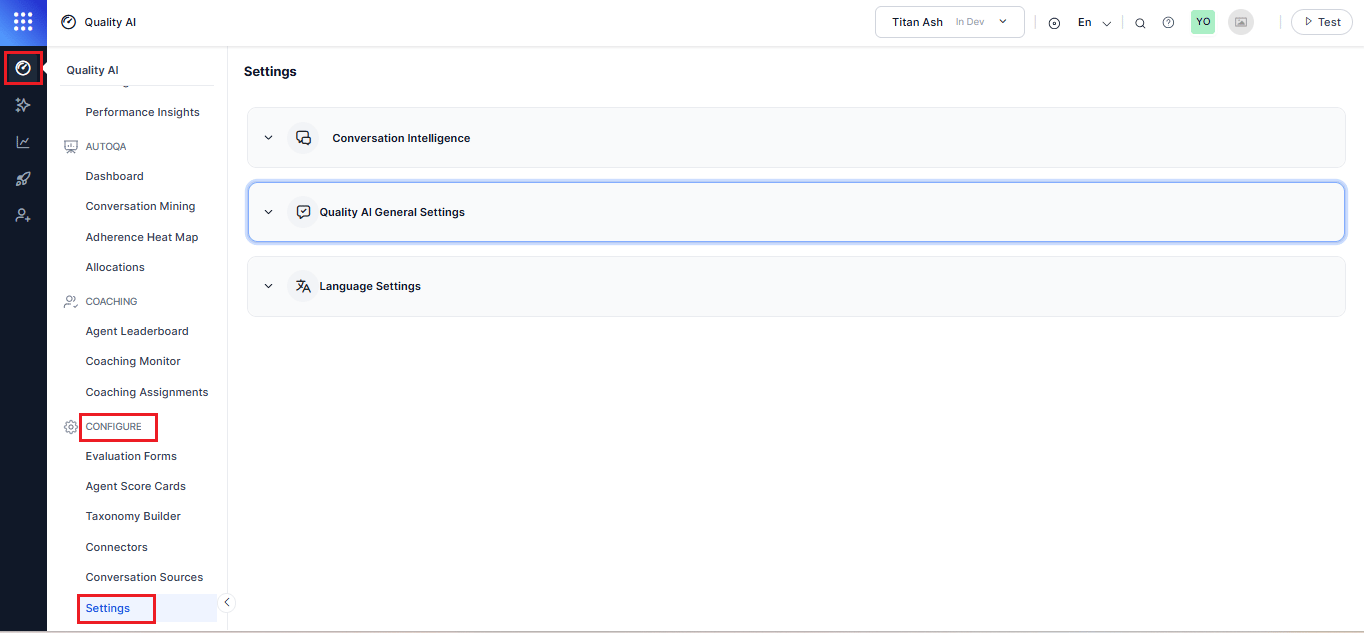
Quality AI Features
Auto QA
Auto QA enables automated evaluation using configured forms. When disabled, automated QA scores, Conversation Mining, Dashboards, and Evaluation Forms are hidden.Enable Auto QA
-
Expand Quality AI General Settings.

- Turn On Auto QA.
- Select Save.
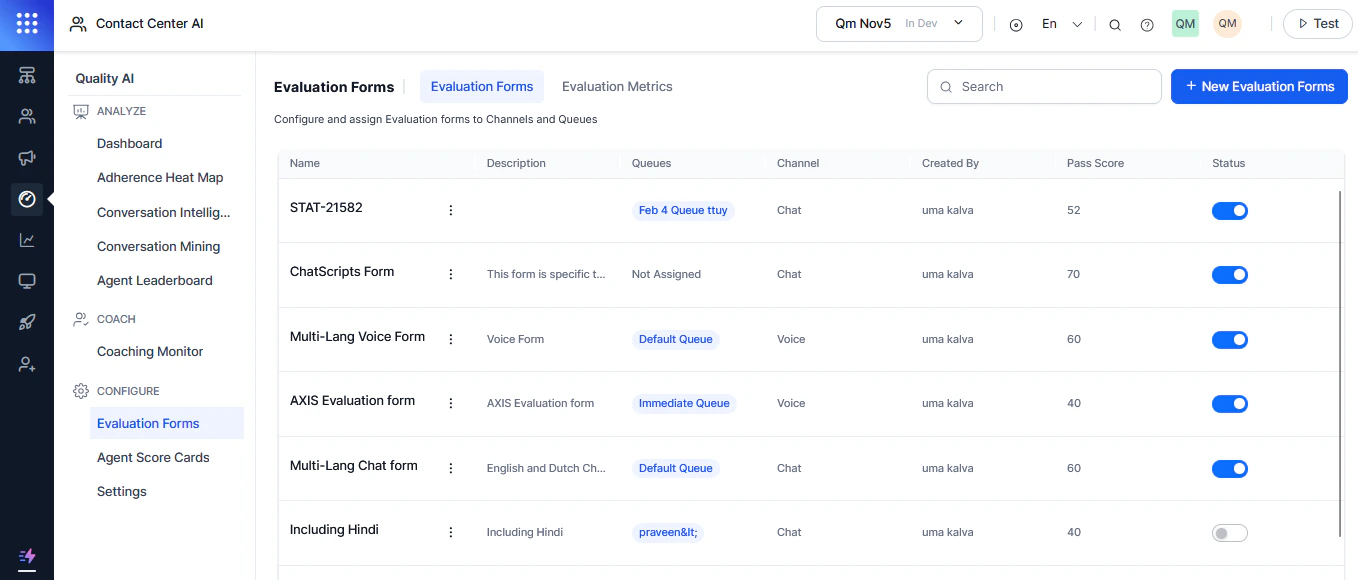
Only administrators can enable Auto QA. It’s off by default. Disabling Auto QA hides Agent Scorecards and bookmarks, regardless of user permissions. Auto QA operates independently of Conversation Intelligence — you can enable either one without the other.
Disable Auto QA
- Toggle Off Auto QA.
- Select Confirm, and then Save.
Disabling Auto QA turns off automated scoring across the entire app and all queues.
Agent Score Card
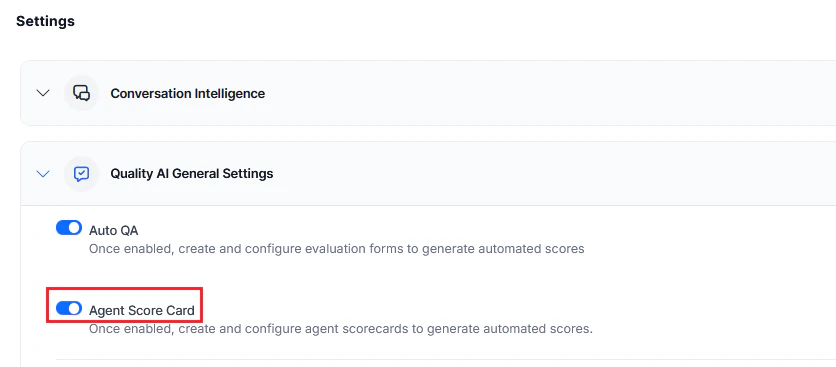
Agent Scorecards enable scoring at the agent level using evaluation forms.Enable Agent Score Card
-
Expand Quality AI General Settings.
-
Turn On Agent Score Card.
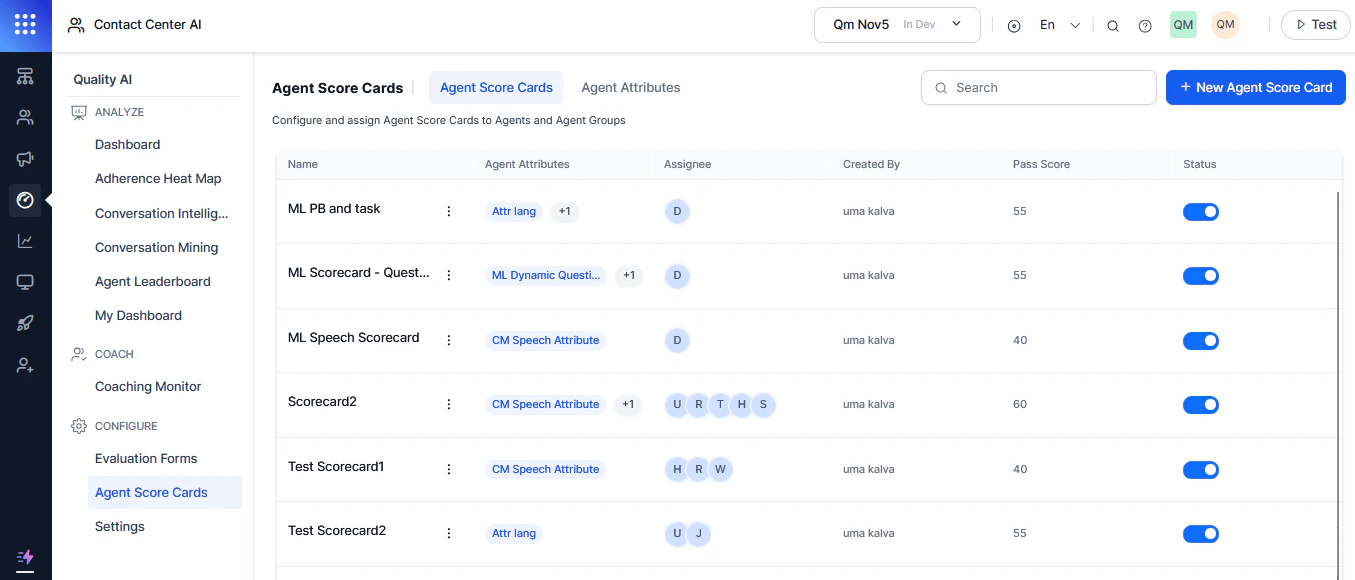
- Select Save.
Disable Agent Score Card
- Toggle Off Agent Score Card.
- Select Confirm, and then Save.
Disabling this feature disables automated agent scoring across the application and all queues.
Bookmarks
Enable users to tag interactions into named bookmark collections for future reference. Bookmark collections are available in Conversation Mining for tagging, filtering, and coaching workflows.Enable Bookmarks
- Expand Quality AI General Settings.
- Turn On Bookmarks. This makes bookmarks available in Conversation Mining (Interactions) and Dashboard > Agent Leaderboard (Evaluation).
-
Select Add Bookmark.
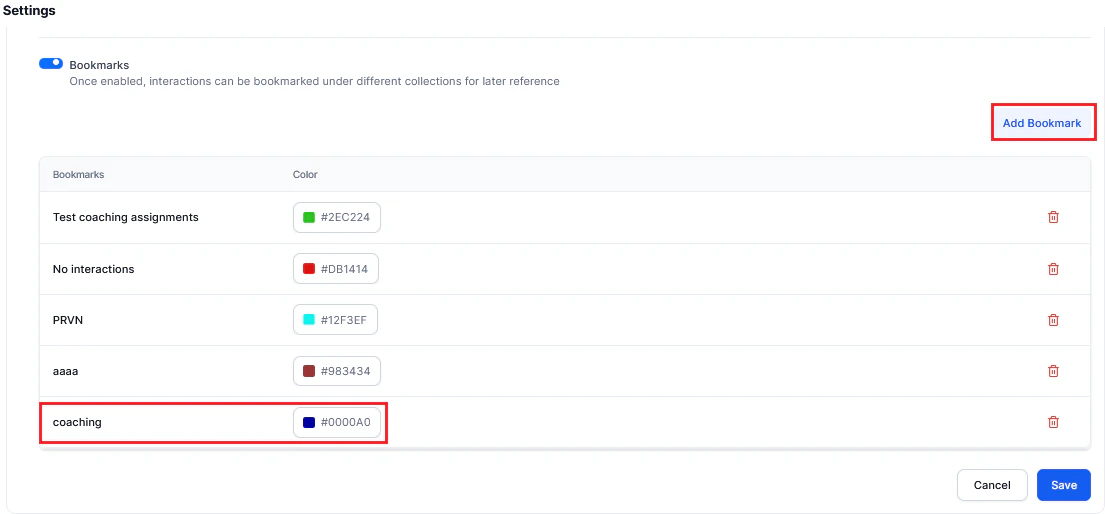
- Enter a Bookmark name.
- Select a Color.
- Select Save.
Disable Bookmarks
- Toggle off Bookmarks.
- Select Delete, and then Save.
Deleting a bookmark removes only the tag, not the associated interactions.
Agent Experience
Agent Access to Scored Interactions
Agent Access to Scored Interactions allows agents to review their evaluated interactions from My Dashboard. This helps agents understand their performance, review supervisor feedback, and identify improvement opportunities. By default, this setting is disabled.Enable Agent Access to Scored Interactions
- Navigate to Quality AI > Configure > Settings > Quality AI General Settings.
- Expand Agent Access to Scored Interactions.
- Turn on Agent Access to Scored Interactions.
- Select one of the following access options:
- Select Save.
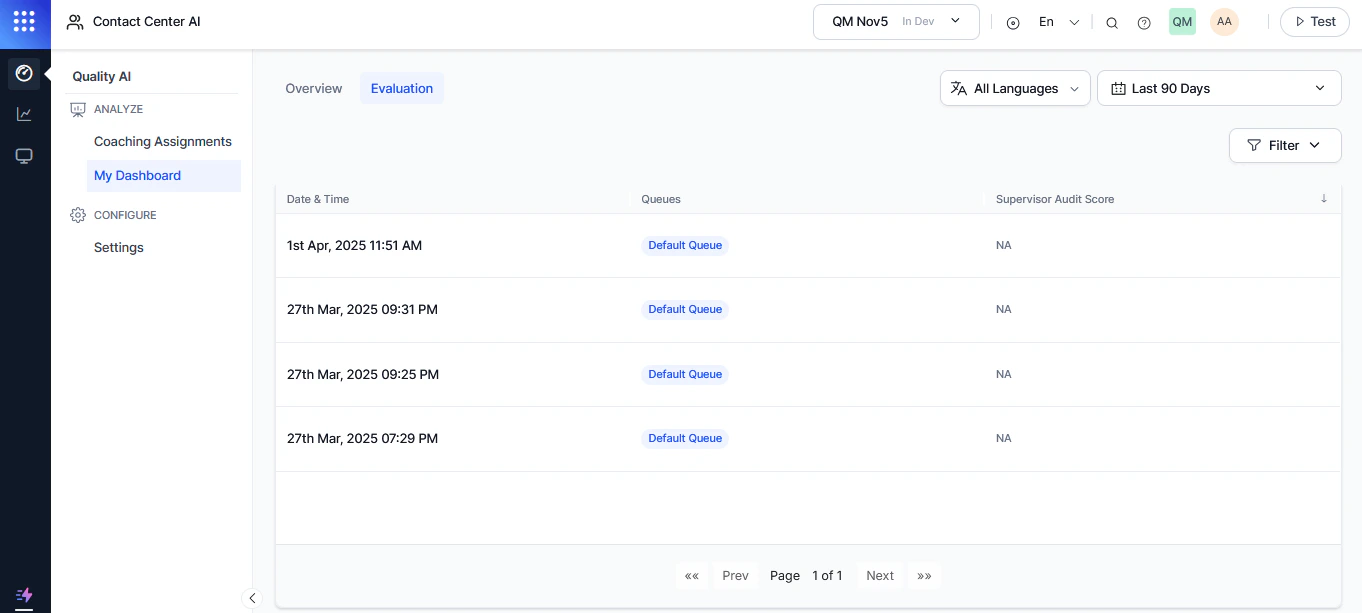
Agents can view only their own evaluated interactions.
Agent Dashboard Insights
Agent Dashboard Insights controls whether agents can view Sentiment and Resolution analytics for their own conversations.Enable Agent Dashboard Insights
Turn On Agent Dashboard Insights abd select Save.
When enabled, agents can view: Sentiment trends, Topic-level sentiment, Resolution rates, and Conversation drill-down insights.

Dashboard insights mirror the supervisor dashboard but display only the signed-in agent’s conversations.
AI Justification and Evidence
AI Justification and Evidence provides transparency into how Auto QA calculates evaluation scores.Enable AI Justification and Evidence
Turn On AI Justification and Evidence and select Save. When enabled, agents can view: AI-generated justification, Supporting evidence, Evaluation question, Assigned value, and AI Agent metric type.Audit Settings
Audit Settings control the evaluation information that agents can view after an interaction is audited.Configure Audit Settings
- Open Audit Settings.
- Configure the required options.
- Select Save.
Audit Settings
Agent Access to Scored Interactions
When Hide Auditor Details for Agent is enabled, agent users can’t view auditor identities during audit review. Supervisors continue to see auditor information.
Manual Audit
Manual Audit enables supervisors to evaluate additional speech and playbook metrics during manual quality reviews. Enable Audit Speech Metrics to allow auditors to evaluate: Clarity, Tone, Pace, Configure Playbook Metrics. Choose one of the following evaluation methods:Audit Speech Metrics
Provides speech analysis capabilities for quality assurance:- If By Speech is on, auditors enter responses for each speech metric (clarity, tone, pace).
Audit Playbook Metrics
Configure Playbook Metrics Choose one of the following evaluation methods:Audit Behavior
Playbook evaluation results appear differently depending on whether the interaction is manually audited.- For non-audited interactions, agents see a read-only status of Executed, Not Executed, or Not Applicable.
- For manually audited interactions, agents see only the supervisor-selected response, while the remaining options remain unselected.
Configure Evaluation Review Workflow
Agent Accept and Dispute
Agent Accept & Dispute enables agents to review completed evaluations, acknowledge scores, and raise disputes on specific feedback items from the Evaluation tab in My Dashboard. Supervisors can review disputes, perform re-evaluation, and track pending review and dispute metrics in the QA Dashboard. When re-evaluated, updated scores automatically reflect across dashboards, scorecards, and leaderboard views. When enabled, it activates the evaluation review and dispute workflow in Quality AI General Settings, including configuration of dispute allocation rules. When disabled, agents lose access to acknowledgment and dispute actions, and these options are also unavailable while creating evaluation forms or configuring their assignment to channels and queues.If acknowledgment and dispute workflows are disabled, these options aren’t available while creating evaluation forms or configuring evaluation form assignments.
Configure Conversation Processing
This helps you control when Quality AI processes conversations. When enabled, conversations are active daily during the configured processing window.Scheduled Processing
- Turn on Enable Processing Window. This processes conversations only during the configured daily time window.
- Set the From and To times for the daily processing window.
- Select the Time Zone for the processing window.
- Set the Batch Size to define how many conversations are active in each batch.
- Select Save.
Scheduled Processing is available only when Automation AI, Agent AI, or CCAI conversation sources are enabled.