

Environment Variables
Environment Variables are global, reusable components which can be used in multiple places to define the App configuration. Every Environment Variable is a key-value pair. The Variable Keys can be used at various places in the App configuration. The platform will resolve/replace the Variable Keys with Variables Values during the conversation. Some of the typical use cases where a developer can use environment variables are:- To manage the app across environments having different endpoint URLs. The app can be exported and imported based on the environment, and the infrastructure team will need to modify only the variable configuration file.
- To manage Conditions in the Dialog Node Transitions. Only the left-hand side of the transition condition uses Environment Variables. The right-hand side of the transition conditions doesn’t use Environment Variables
- To define and manage the app response that’s repeated within the app configuration as variables.
- Authorization Token
- Channel-related tokens and URLs
Ensure that the Environment or Content variable name doesn’t contain any hyphen.
Restricting Sensitive Data
During the AI Agent definition, developers may create environment variables for sensitive data like credentials/keys. These variables are useful for connecting to other systems using service nodes or as a part of authorization profiles. However, environment variables are visible to all the developers with shared access to the AI Agent, especially when its definition is exported. The latest Platform release introduces the Secure Variable feature for environment variables, which encrypts the added variable when enabled. This makes only the encrypted variable value visible to others and not the original value. Important Considerations- The secure variable is encrypted in the database and doesn’t require any encryption key.
- The original value is used only internally for all service calls, language translation, etc. while executing the AI Agent definition.
- During the export of a secure variable through App or environment variables import, it has an empty value, so the original value isn’t available in plain text.
- Channel Configuration: While configuring channels under Channels & Flows > Channels, you can use encrypted/regular environment variable values for all the fields including access token, access key, app ID, URLs, etc.
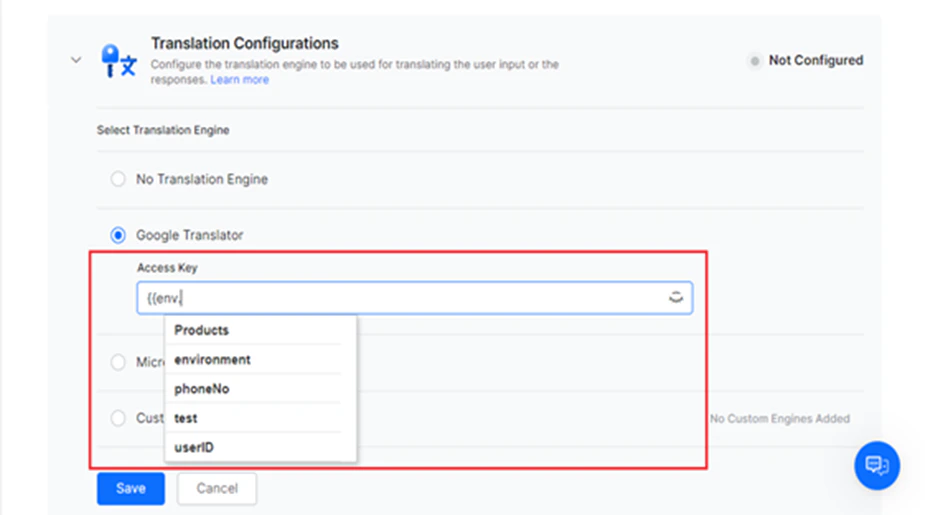
- Languages: Under App Settings > Language Management > Translation Configurations, while configuring the translation engine, you can use the regular/encrypted environment variable value (type
{{env.environment variable name}}) to set up the encrypted variable name as the access key as follows:-
The Access Key field for Google Translator or Microsoft Translator.
-
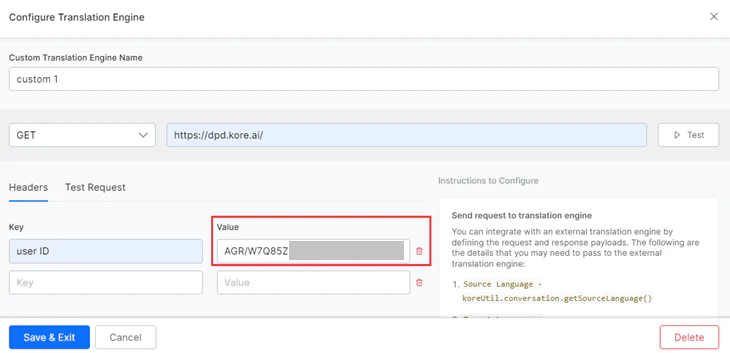
The Value field in the Configure Translation Engine panel for Custom Translation Engine Configurations.
-
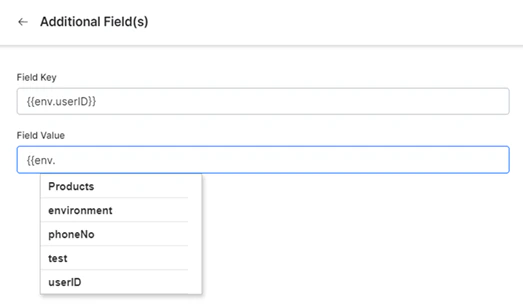
Authorization Profiles - You can use encrypted/regular environment variables on the following fields while defining a new authorization mechanism for all types of authorizations:
- Authorization Check URL, Field Key for form field, and Field Key and Field Value Authorization Fields for Authorization Type Basic Auth. Learn more.
- Client Id, Client Secret Key, and Authorization URL for Authorization Type Oauth V2. Learn more.
- Client Id, Client Secret Key, Token Request URL, Scope, and Refresh Token URL for Authorization Type Oauth V2 Client Credentials.
- Consumer Key, Consumer Secret, Request Token Link, Access Token Link, and User Authorization Link for Authorization Type Oauth V1. Learn more.
- Authorization Check URL and Field Key (for Form Field) for Authorization Type API Key. Learn more.
- Field Key for Form Field, Token URL, Field Key, and Field Value for Authorization Field, and Refresh Token URL for Authorization Type Oauth V2 Password Grant Type. Learn more.
-
The Access Key field for Google Translator or Microsoft Translator.
Create Environment Variables
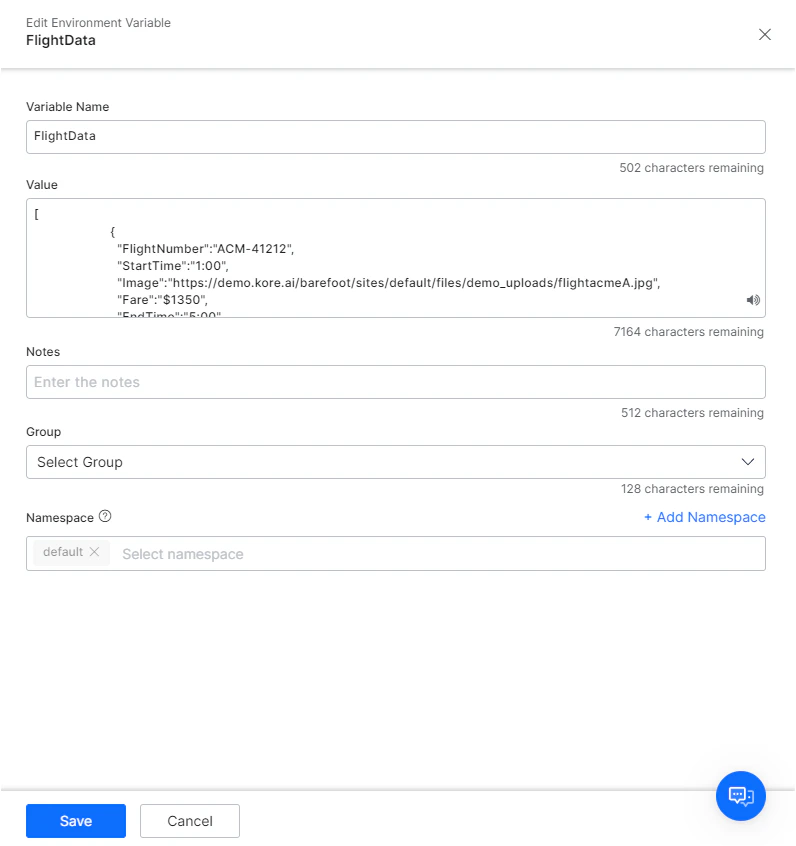
Enabling the secure variable setting after defining an Environment Variable, encrypts and securely stores credentials set as environment variables. To add a variable, follow the steps:-
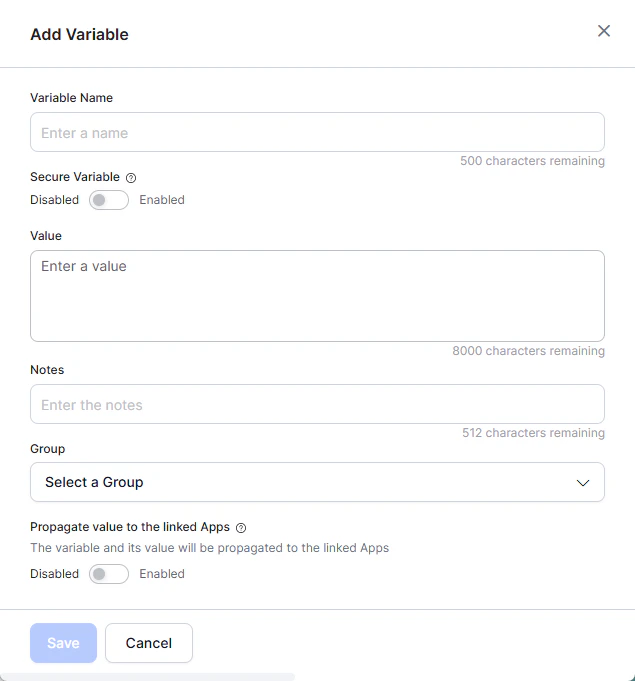
Navigate to App Settings > Variables > Environment Variables and click Add Variable.
-
In the Add Variable panel, provide the following details:
- Variable Name (required): Enter the variable name. For example, user credentials.
- Value (required): Enter the variable value that’s encrypted.
- Notes: Any tip/note describing the environment variable.
- Group: The name of the group to which the environment variable is mapped.
- Assign a Namespace if enabled (refer here for more).
- Enable the Secure Variable toggle (Disabled by default) to encrypt the original values.
- Enable the Propagate value to linked apps toggle (disabled by default) and select the linked app. This action shares the variable and its value with the selected apps. If the same variable exists in both apps, the current app’s variable value takes precedence.
-
Click Save.
-
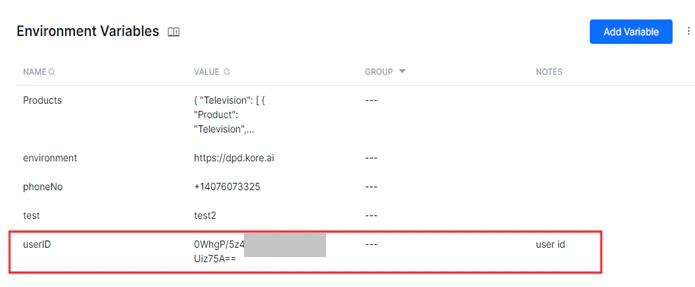
The variable and its encrypted value appear in the list.
Using Environment Variables
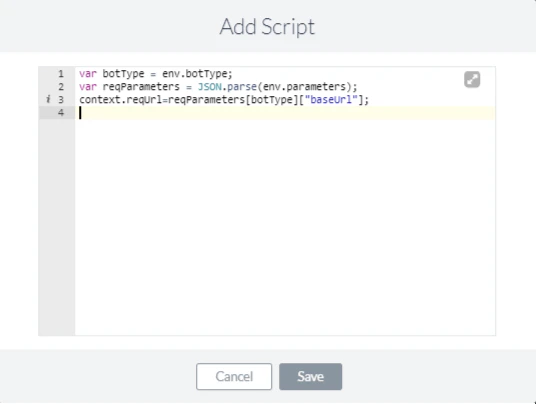
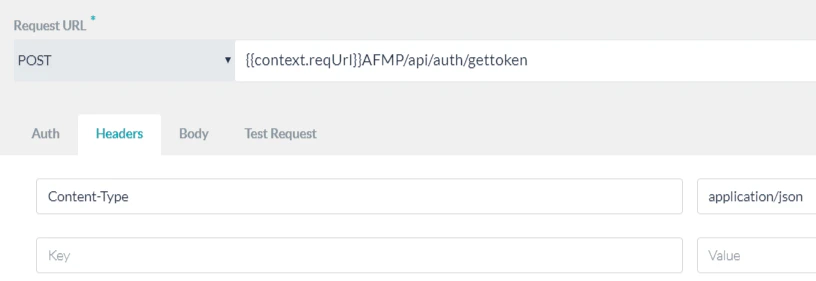
You can invoke an environment variable in plain text mode (Standard editor) using the following syntax:{{env.variableName}}. If you are using it in JavaScript mode, it’s env.variableName. Here’s an example from an app that uses two environment variables called appType and parameters to determine different app environments such as development, testing, and production. The following script node in one of the app’s tasks captures the base URL of the app, depending on the current app environment.
Content Variables
App building essentially requires extensive content management efforts. When it comes to multi-language Apps, it also involves tedious coordination efforts between the developers and globally-distributed content authors or copyright team. Content variables enable you to overcome that by abstracting AI Agent flow development efforts from authoring or editing the content. Using Content Variables, programmers can avoid hard-coding the AI Agent content, such as prompts, messages, or any data presented to the user, into AI Agent components, and instead point to specific variables in centrally managed Content Variables files for each app language. You can export the language-specific content variable files to content editors, without exposing any app configurations. The writers can author the content in the exported file, which you can import back into the app.Ensure that the Environment or Content variable name doesn’t contain any hyphen.
User Variant-based Content Variables
Content Variables allow user variant-based values, enabling a single content variable to return different values for users within the same language based on region or deployment variant. Developers can define multiple variant-specific values under a single language, along with a mandatoryDefault fallback value. This approach simplifies multi-region and multi-segment bot deployments by reducing duplicate variables and minimizing conditional flow logic.
At runtime, the platform resolves the appropriate value using the reserved session variable context.session.BotUserSession.UserVariant, which developers must set in the Script node.
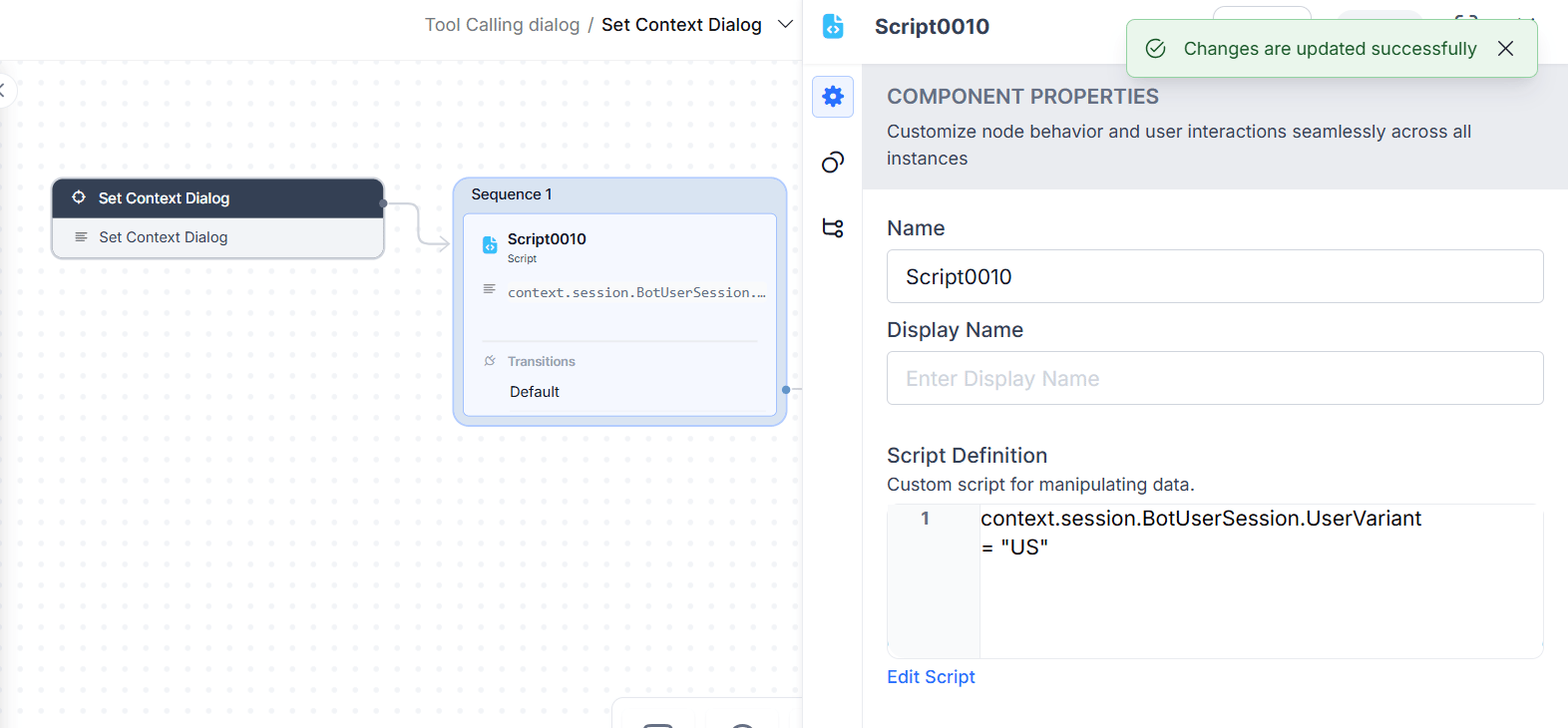
- If the value of
context.session.BotUserSession.UserVariantmatches a configured variant name, the platform returns the corresponding variant-specific value. - If no match exists, the platform returns the
Defaultvalue for the active language.
The variant names are case-sensitive.
support_number content variable configured with variant-specific values:
For example, content variable: support_number
- Default: +1-800-000-xxxx
- US: +1-800-111-xxxx
- UK: +44-800-222-xxxx
- AU: +61-800-333-xxxx
context.session.BotUserSession.UserVariant.
Entering Language-Specific Values
To add language-specific values for content variables, you first need to switch the app language. You can switch the language by clicking the name of the currently-enabled language from the top-right corner of the app’s page and then selecting another language as follows: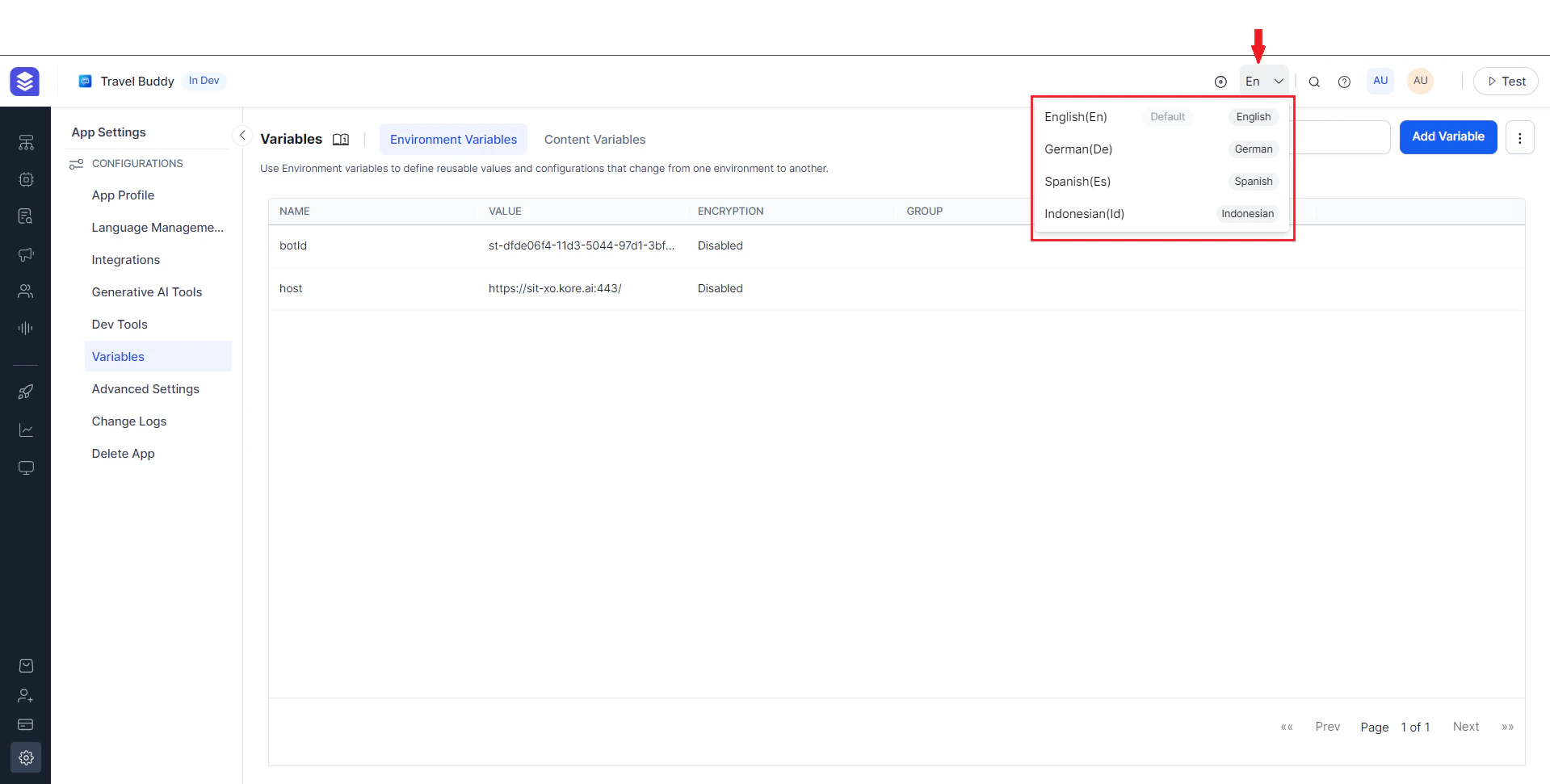
Create Content Variables
To add a variable, follow the steps- Navigate to App Settings > Variables > Content Variables tab and click Add Variable.
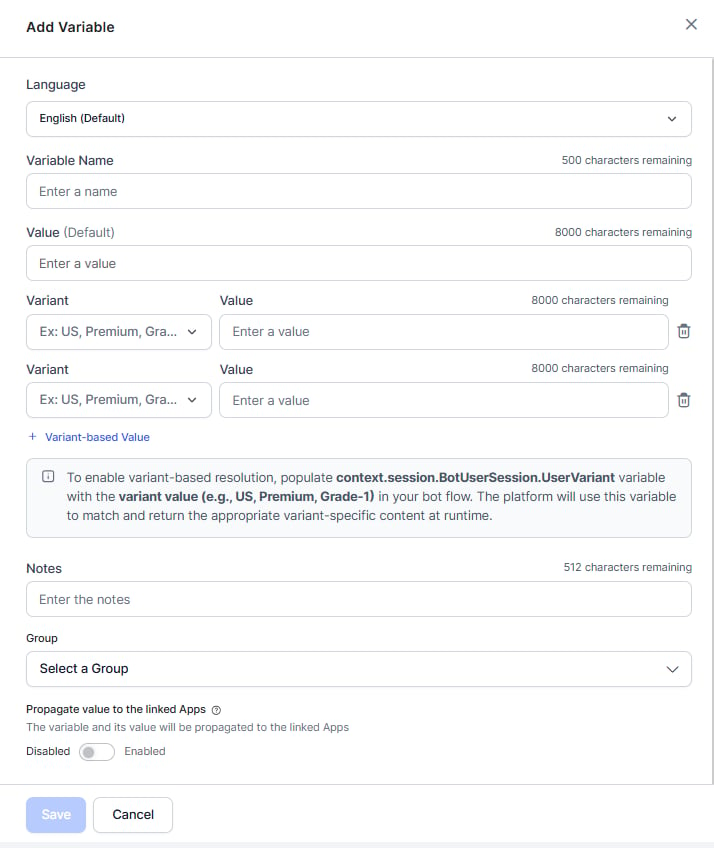
- In the Add Variable panel, select the Language from the dropdown list, enter Variable Name (required), and Value Default (required).
- Click Variant-based Value to add its Variant and Value. The variant names are case-sensitive.
- Enter a Notes/description or additional information about the variable.
- Select the group to which the variable belongs.
- Enable the Propagate value to linked apps toggle (disabled by default) and select the linked app. This action shares the variable and its value with the selected apps. If the same variable exists in both apps, the current app’s variable value takes precedence.
- Click Save.
Using Content Variables
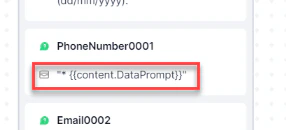
You can invoke a content variable in plain text mode (Standard editor) using the following syntax:{{content.variableName}}. If you are using it in JavaScript mode, it’s content.variableName. Here’s an entity node of a multi-language flight booking app that captures the source airport of the users. It uses a content variable instead of a hard-coded user prompt.
Manage Variables
To manage a variable, click the More icon next to the variable and select Edit or Delete. Use the Edit option to update the variable configuration or value, and then click Save to apply the changes. For on-premises deployments, you can update encrypted variable values when required. The new encrypted secure variable value is updated in the list as shown below: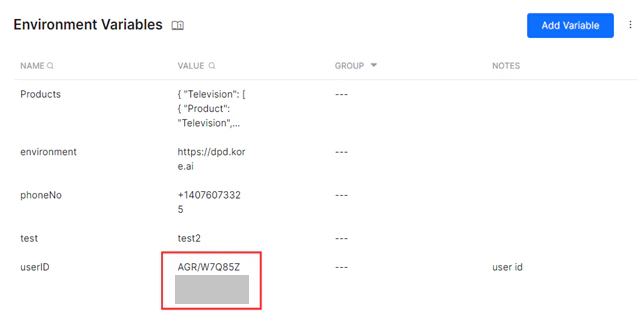
Importing and Exporting
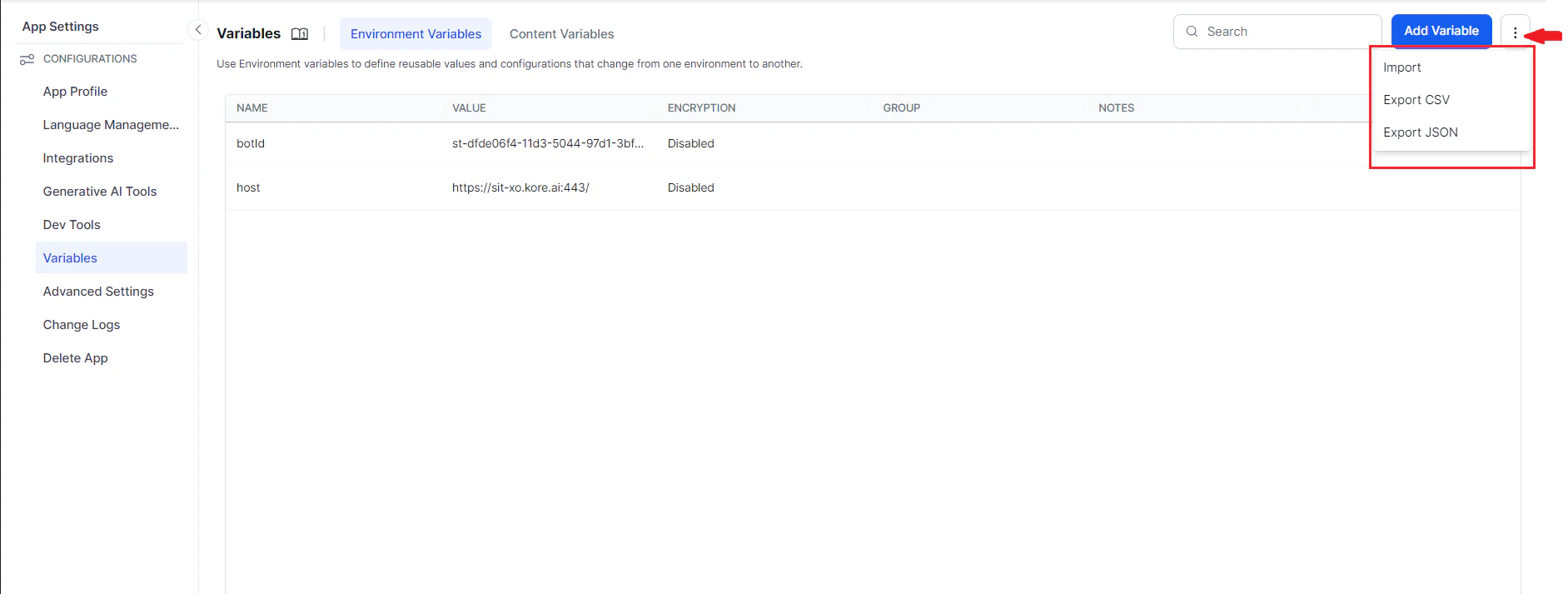
You can import and export variables between apps.- On any of the Variables page accessible from App Settings > Variables > (Environment/Content) Variables,
- Click the ellipses next to Add Variables
-
To Import: Select Import to import variables from a JSON or CSV file
- Since the import will replace the existing variables, you are advised to take a backup of the same.
- After taking a Backup, Proceed with the Import
- Select a JSON or CSV file to import (see below for the file format)
-
To Export: Select either Export CSV or Export JSON as the preferred format for the export file:
- App variables are exported in the form of a JSON or CSV file based upon your selection.
- This file includes both environment and content variables.
- key (mandatory) - name of the variable
-
scope - the scope of the variable corresponds to the Setup Option at the time of variable declaration (if not provided will be set to prePopulated) and can be
- prePopulated,
- askOnInstall, or
- hidden
- value - the value of the variables
-
variableType (if not set will default to env) -
- env for Environment and
- locale for Content Variable
- audioTag - for the player details in case IVR enabled
- group - group name
- hint - description of the variable
- propagateVAlue - true or false
- Namespace - the namespace associated to the variable
- Language-specific variable
