

Collaborate on Workflows
Account owners can invite users to collaborate on specific workflows. They can invite only those users who already have access to their account. The invited users can access the Models and Data modules for the account but can only see the workflows they’re invited to. To invite users to a workflow, follow these steps:- In the workflow’s left navigation pane, click Sharing & Permissions.
- Select Invite.
- Enter the users’ email addresses, assign a role, and select Send invitation.
Workflow Endpoints
After deployment, the platform generates sync and async poll endpoints automatically. An async push endpoint requires additional configuration.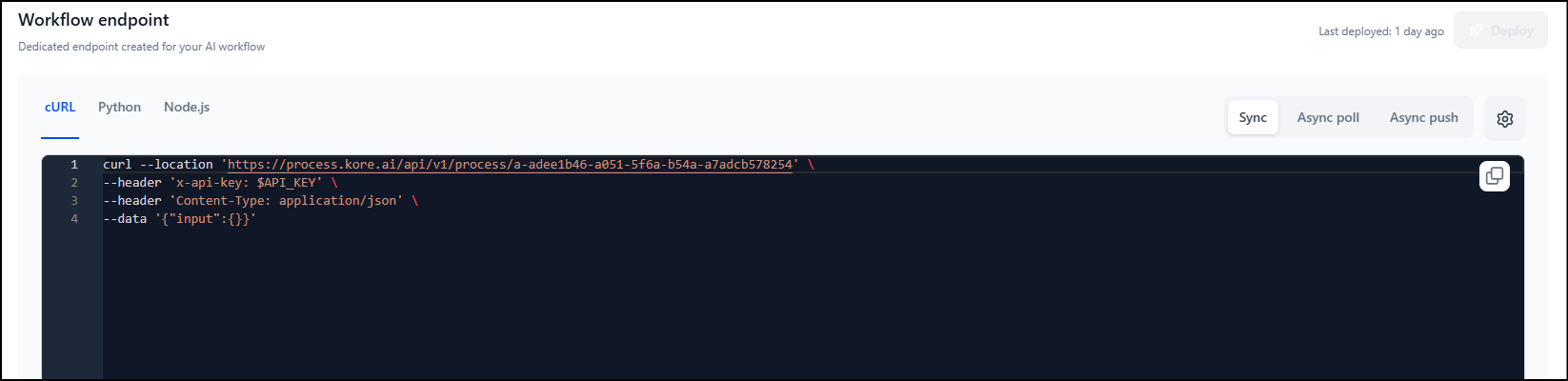
Deploy a Workflow
Deploying a workflow generates a dedicated API endpoint for integration with external systems.Fix all errors and warnings in the workflow before deploying.
- In the workflow’s left navigation pane, select Workflow endpoint.
- Select Deploy. The Sync and Async poll endpoints are generated automatically.
- On the Workflow endpoint page, click the Async push tab, and click Settings.
- Turn on the Enable async toggle.
- Enter the callback URL of the external application that will receive the response.
- Enter the access token generated by the external application.
-
Set the timeout:
- Set timeout: 60 - 600 seconds (default: 180 seconds).
- No timeout: The workflow runs without a time limit.
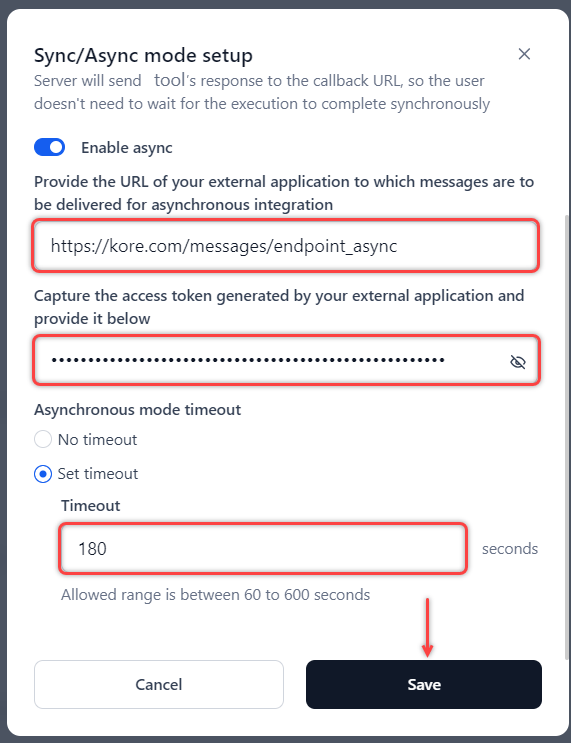
- Click Save. The async push endpoint is created.
Timeout precedence: Workflow timeout > Node timeout > Model timeout.
Redeploy a Workflow
You can redeploy a workflow to publish updates made to its flow.- On the Workflow page:
- View the deployed flow in read-only mode.
- Update the in-development version of the flow.
- On the Workflow endpoint page, select Deploy to publish the updated flow.
API Keys
When you deploy a workflow, the platform generates a dedicated API endpoint. External systems call this endpoint to invoke the workflow. API keys control who can access the endpoint. To create an API key:- In the workflow’s left navigation pane, click API keys.
- Click Create a new API key, enter a descriptive name for the key, and click Generate key. The key is displayed once.
- Click Copy and close to save the key to your clipboard.
Monitoring
Monitoring provides visibility into workflow activity after deployment. It helps you track trigger behavior, review workflow executions, diagnose failures, and understand performance over time. Use these monitoring tools to ensure workflows continue running reliably in production.Trigger History
The Triggers page shows all configured triggers for a deployed workflow and their recent activity. To access triggers: In the workflow’s left navigation pane, click Monitoring > Triggers.
Inactive triggers show a warning with recommended actions. If a trigger is inactive:
- Redeploy the workflow to refresh connections.
- Retest the auth profile in Settings > Security & Control > Authorization profiles.
Workflow Monitor
The Workflow Monitor gives you a time-based, run-level view of every execution of a deployed workflow. Use it to track performance, inspect inputs and outputs, diagnose failures, and review the history of runs and configuration changes. Monitoring is only available for workflows deployed to production. Workflows in design or debug phases are not tracked in the Workflow Monitor. To access workflow monitor: In the workflow’s left navigation pane, click Monitoring > Workflow runs. The Workflow Monitor provides two analytics views:- All runs: Shows all workflow run instances, including runs triggered by events, schedules, or API calls.
- Model runs: Shows individual AI node executions within each workflow run.
These metrics update dynamically when you apply filters or change the date range.
All Runs
Each row in the All runs tab represents one workflow execution and shows:- Run ID: Unique identifier for the run.
- Status: One of the following:
- In Progress: The run is actively executing.
- Waiting: Execution is paused, waiting for a response from an external system (typically an async API node).
- Success: The run completed without errors.
- Failed: The run did not complete successfully.
- Response time: Total time from request to output.
- Nodes executed: Number of nodes that ran in this execution.
- Start time / End time: When the run began and ended.
- Type: The trigger type—Event-based, Schedule-based, or API-based.
- Source: The service or schedule that initiated the run (for example, Gmail for an event-based trigger).
Model Runs
The Model runs tab tracks each AI node call separately. If a workflow has three AI nodes, each run produces three entries in this tab. The tab is empty if the workflow has no AI nodes. Each entry shows:- Request ID: Unique identifier for the AI node call.
- Status: In Progress, Waiting, Success, or Failed.
- Node name: The name of the AI node.
- Model name: The AI model used.
- Connection / Deployment name: The connection or deployment linked to the model.
- Response time: Time taken for the AI node to complete.
- Start time / End time: Execution window for the AI node.
Viewing Execution Results
Clicking any row in the Workflow Monitor opens a detailed run panel. This panel mirrors the Run dialog on the workflow canvas and shows:- Run ID / Request ID: Unique identifier for the run.
- Response time: Total execution time.
- Debug icon: Opens the debug log for the run.
- Input section: The inputs passed to the workflow.
- Flow log: Node-by-node execution log.
- Success: Shows the same debug output as in the canvas debug panel.
- Failure: Shows failure details and error information for the failed node. For AI nodes, you can expand the node to see scanner information.
- Output section: The final output from the workflow (available for successful runs). You can copy the output and view token usage.
Guardrails
Enable safety scanning to enforce safety, policy, and compliance checks:Audit Logs
Audit logs track all user actions and system events for a workflow, including logins, role changes, and configuration updates. To access audit logs: In the workflow’s left navigation pane, click Audit logs. Each log entry includes:- Event name: The action or event that occurred.
- Category: The module or entity affected.
- User name: The user who performed the action.
- Date and time: When the event occurred.
- Description: Details about the action.
Configure a Workflow
From your workflow’s Configurations page, you can update workflow details, set the sync/async mode, and manage environment variables.Set sync/async mode
The sync/async mode determines how the workflow endpoint responds to callers. Synchronous mode blocks the client until the workflow completes and returns a response. Asynchronous mode lets the client continue working while the workflow processes the request and delivers the result to a callback URL. If you change the mode after deployment, you must redeploy the workflow for the change to take effect.- In the workflow’s left navigation pane, click Configurations > Setup sync/async.
- Configure the mode:
- Synchronous mode: Set the timeout duration. The allowed range is 60 - 300 seconds (default: 180 seconds). The endpoint returns a timeout error if the workflow does not complete within this window.
- Asynchronous mode: Turn on the Enable async toggle, then:
- Enter the URL of the external application to receive the workflow’s response.
- Enter the access token generated by the external application.
- Set the timeout:
- Set timeout: Allowed range is 60-600 seconds (default: 180 seconds).
- No timeout: The workflow runs without a time limit.
- Select Save.
Timeout precedence: Workflow timeout > Node timeout > Model timeout.
Manage environment variables
Environment variables store reusable values—such as API base URLs or configuration flags—that nodes across the workflow can reference. Marking a variable as secure encrypts its value. To add an environment variable:- In the workflow’s left navigation pane, click Configurations > Manage environment variables.
- Select Add or Add variable. The Add variable dialog box opens.
-
Provide the following details and select Save.
Import a Workflow as a Version
You can import a workflow package as a new version of an existing parent workflow. It replaces the existing in‑development version with the imported one and can optionally back up the current version first (saved asExported_<Workflow Name>.zip).
Required files for version import:
flow_definition.json– workflow canvas definitions and AI node configurationsapp_definition.json– workflow version info and guardrailsenv_variables.json– environment variables set for the workflow
Any environment variable conflicts must be resolved during the import process.
- In the workflow’s left navigation pane, click Configurations > Import a workflow, and click Import.
- (Optional) Select the Back up your current workflow option to preserve the data of the version being replaced. Backing up automatically saves a
.zippackage of the workflow definition files to the designated location. - Click Import in the confirmation dialog.
- In the Import Workflow window, upload the required JSON files and click Import.
- If neither workflow has variables, no conflict occurs.
- For conflicting values, existing variables are retained by default unless replaced.
- In the Edit environment variable dialog, go to the Conflicting variables tab.
- For each variable, choose Overwrite (replace with imported value) or Keep existing.
- Click Proceed to continue importing.
Export a Workflow
You can export workflow versions as self-contained packages for sharing and data preservation, without compromising the integrity or security of your workflow setup. AI for Process creates a.zip file named after the workflow—for example, Banking Assistant.zip for a workflow named Banking Assistant. Save this file to any local location.
The package can be reimported to create a new workflow or add it as a version to an existing one.
The exported package preserves the following workflow configurations within JSON files:
- Name and description
- API, Condition, AI, and Script node configurations
- Input/output variables and scanners
- Environment variables
- Sync/Async setup
Users with only Viewer permissions cannot export a workflow.
- In the workflow’s left navigation pane, click Configurations > Export workflow.
- By default, the currently deployed version is selected in the dropdown.
- Click the Export button.
Once export begins, the selected version cannot be changed.
flow_definition.json: Includes the workflow canvas definitions (node definitions) and AI node configurations, including prompts, hyperparameters, and timeout information.app_definition.json: Includes general information about the workflow version and guardrails.env_variables.json: Includes the environment variables set for the workflow. Learn more.