Monitor agent performance and usage across AI for Work.

Overview

Analytics provides a history of all administrative tasks through two views: the Dashboard view and the Data view. Switch between them using the toggle at the top right of the Analytics page. The views display key performance metrics, trends, and reports, enabling you to gauge real-time usage and performance. dashboard
Dashboard View

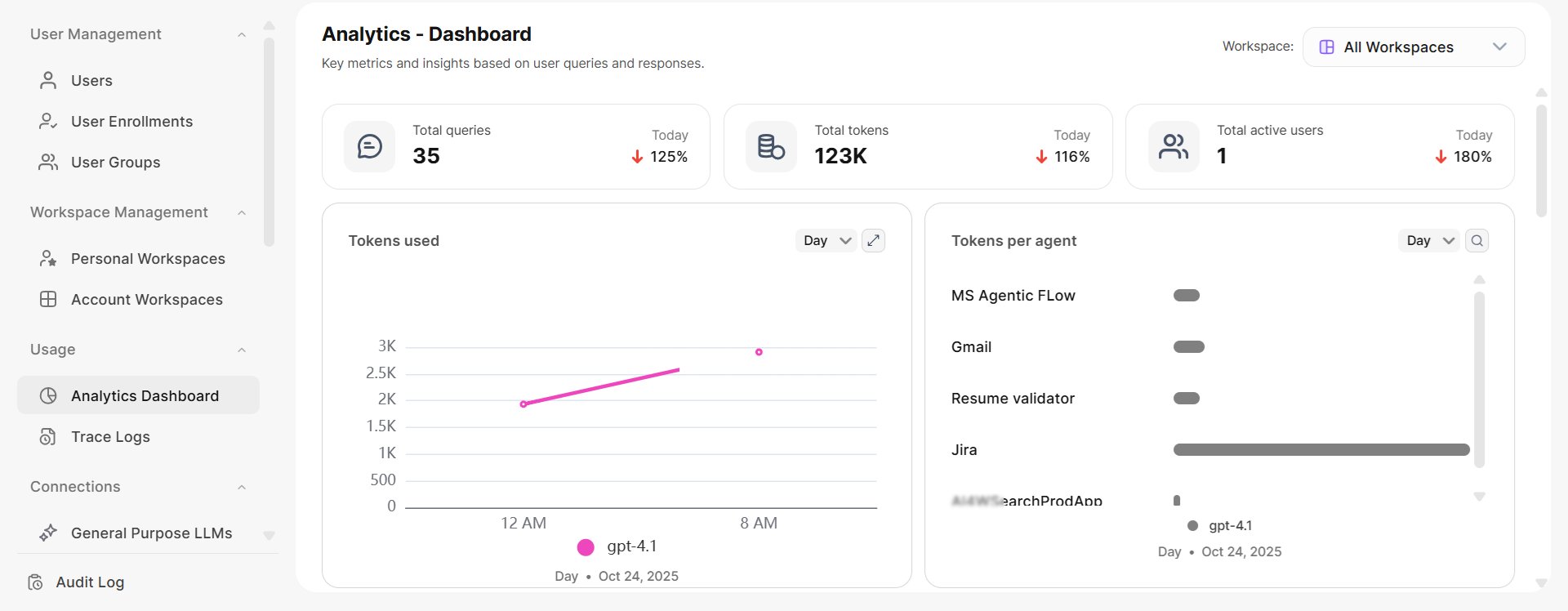
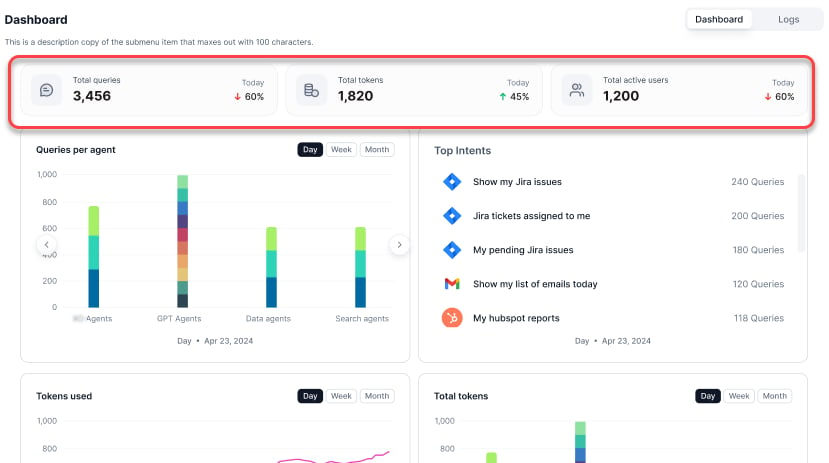
The Dashboard view provides graphical reports on usage, performance, and feedback. At the top, you can see the total queries, total tokens, and total active users for the day. dashboard top view The following reports are available:
ReportDescription
Tokens UsedToken usage trends across models
Tokens Per AgentToken consumption broken down by agent
Queries Per AgentQuery volume per agent by type
Top AgentsAgents ranked by query volume
Top UsersTop 10 users by query count
UsersUnique users by platform (web vs. native)
Average Response TimeAverage response time of the service
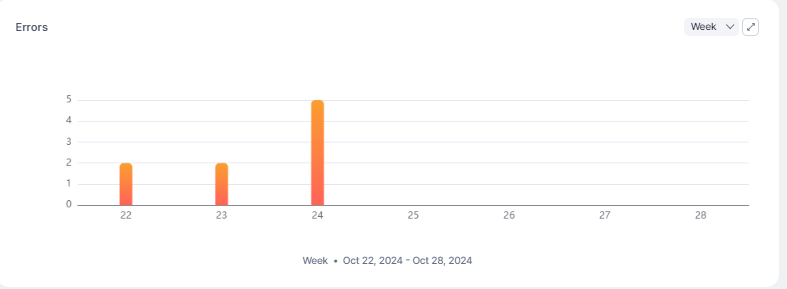
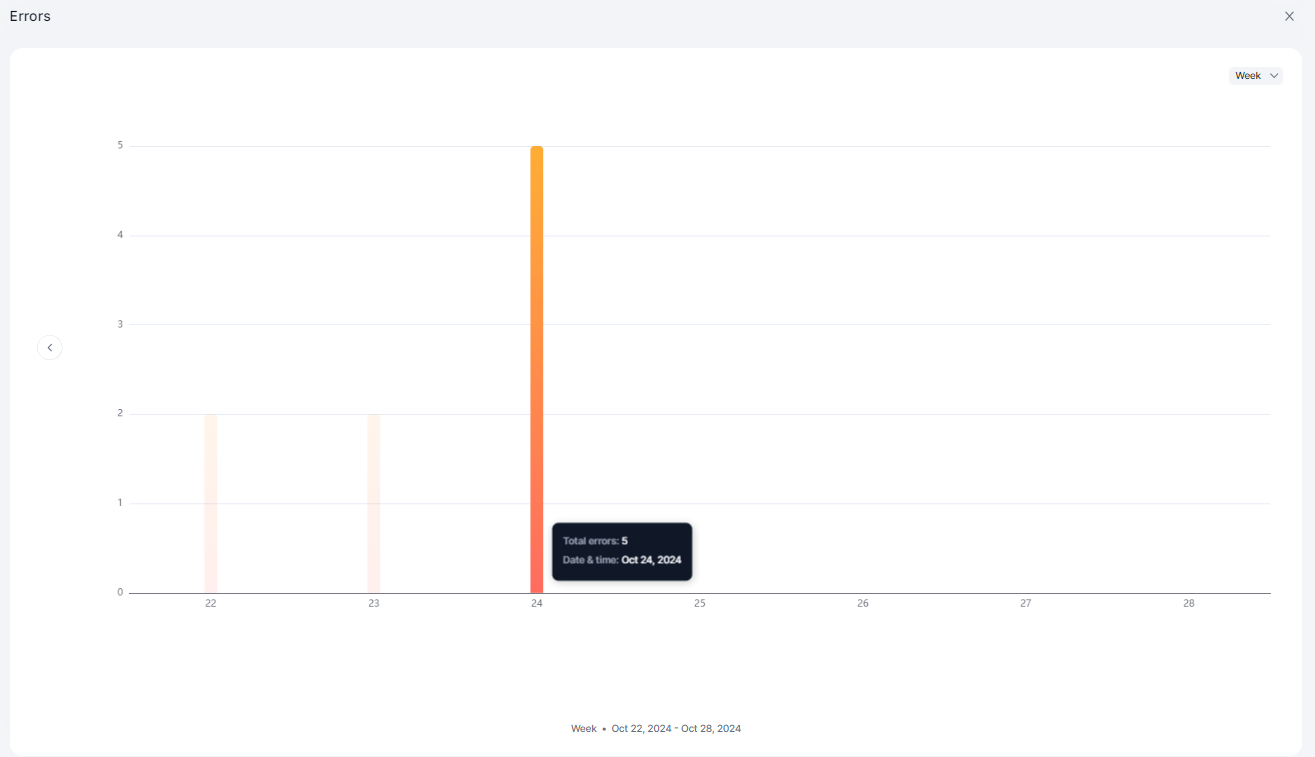
ErrorsQueries with errors over time
FeedbackEnd-user feedback on responses
All graphical reports support Day, Week, and Month views with left-right navigation for detailed metrics at each time point. Time averaging: 30-minute average (daily), 6-hour average (weekly), daily average (monthly).

Tokens Used

Displays token usage trends across models. token used
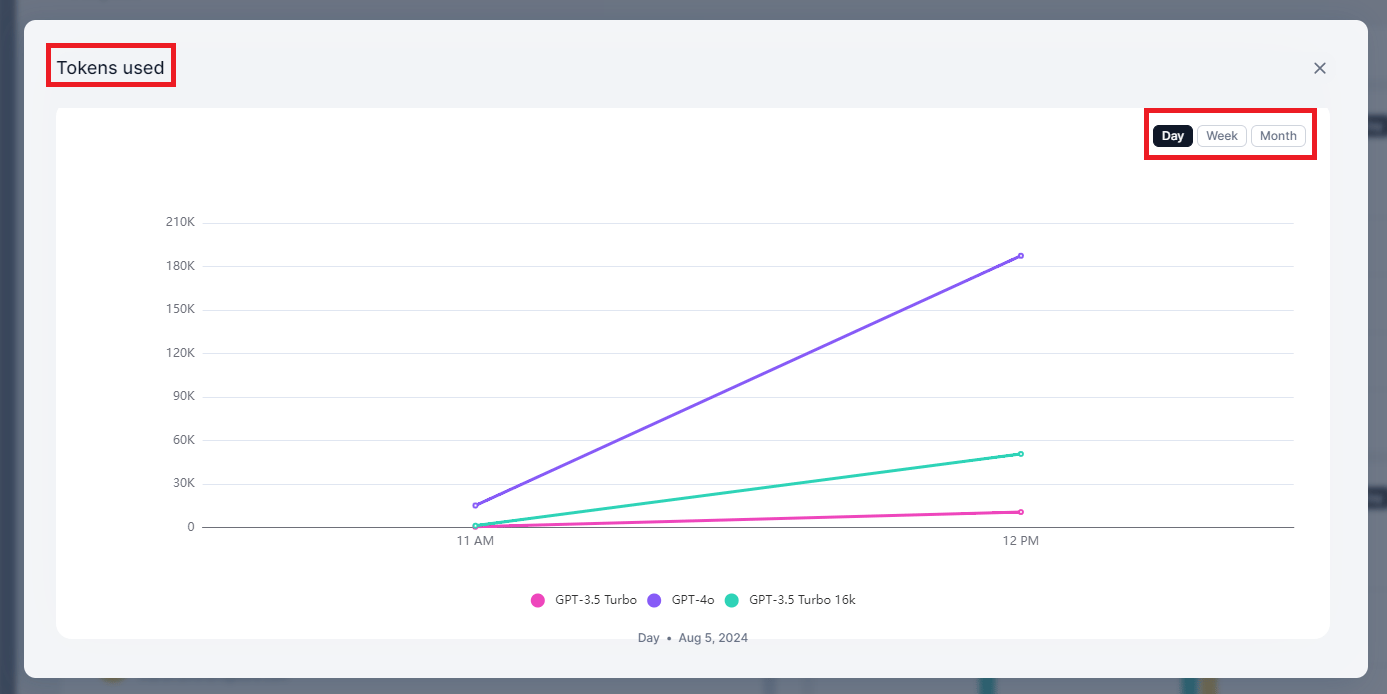
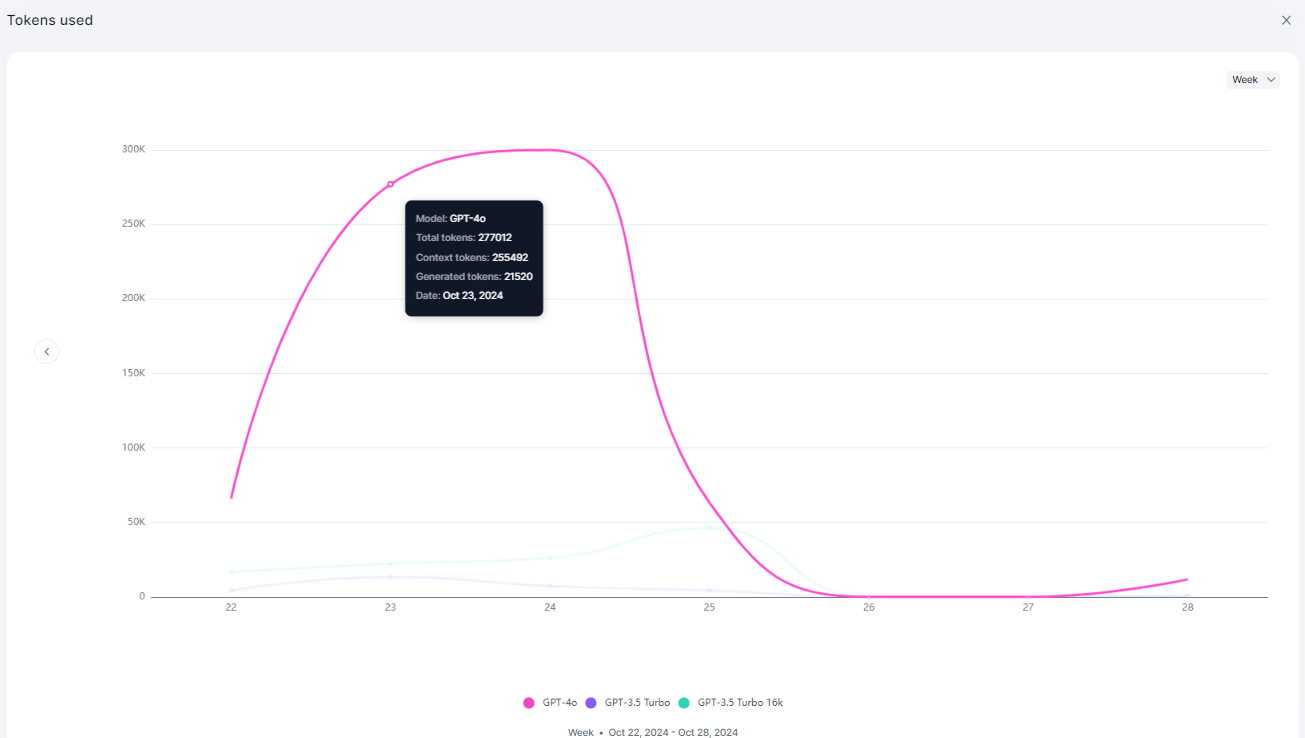
MetricDescription
Model NameThe LLM model used
Total Tokens UsedCombined context and generation tokens
Context TokensTokens in the input/context
Generation TokensTokens in the response
TimestampDate and time of usage
token used detail

Tokens Per Agent

Displays token consumption broken down by agent. tokens per agent
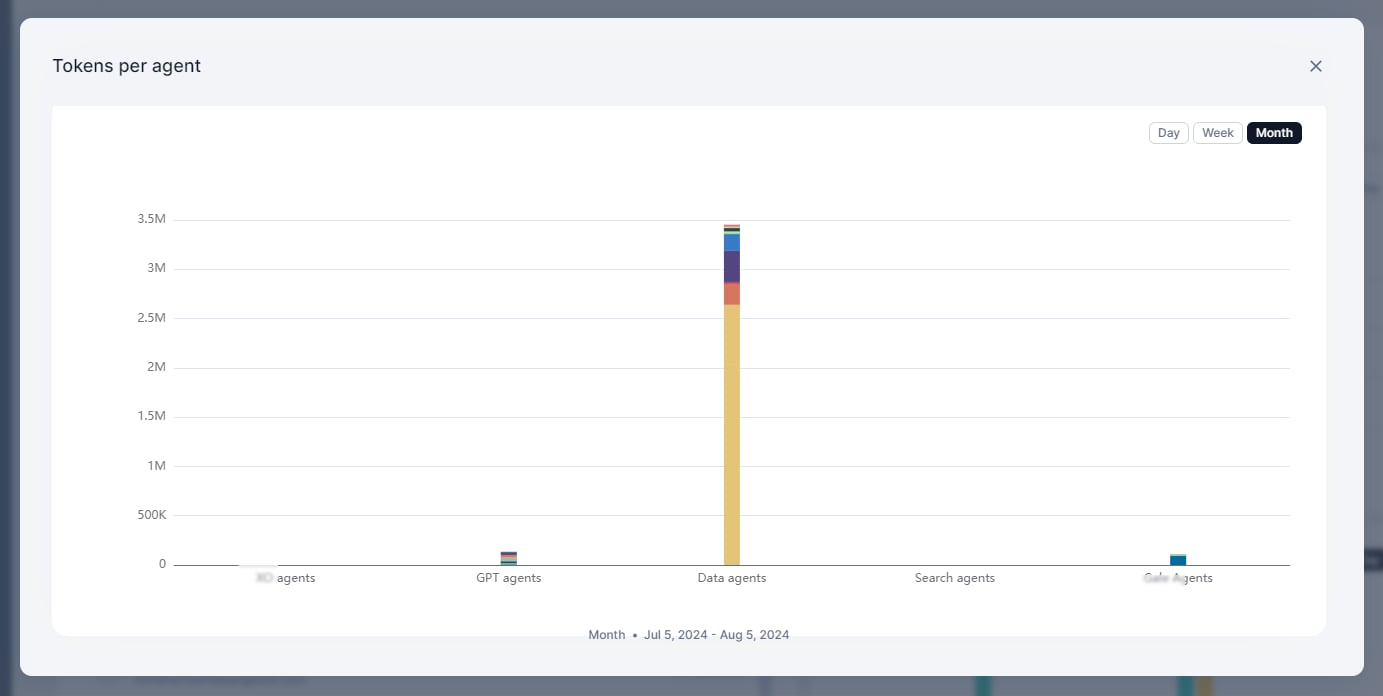
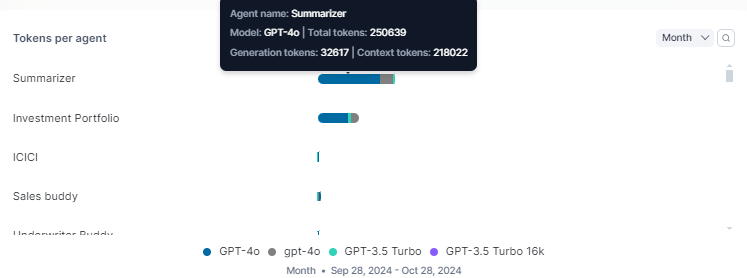
MetricDescription
Agent NameName of the agent
Model NameLLM model used by the agent
Total Token CountCombined context and generation tokens
Generation Token CountTokens in the response
Context Token CountTokens in the input/context
tokens per agent detail

Queries Per Agent

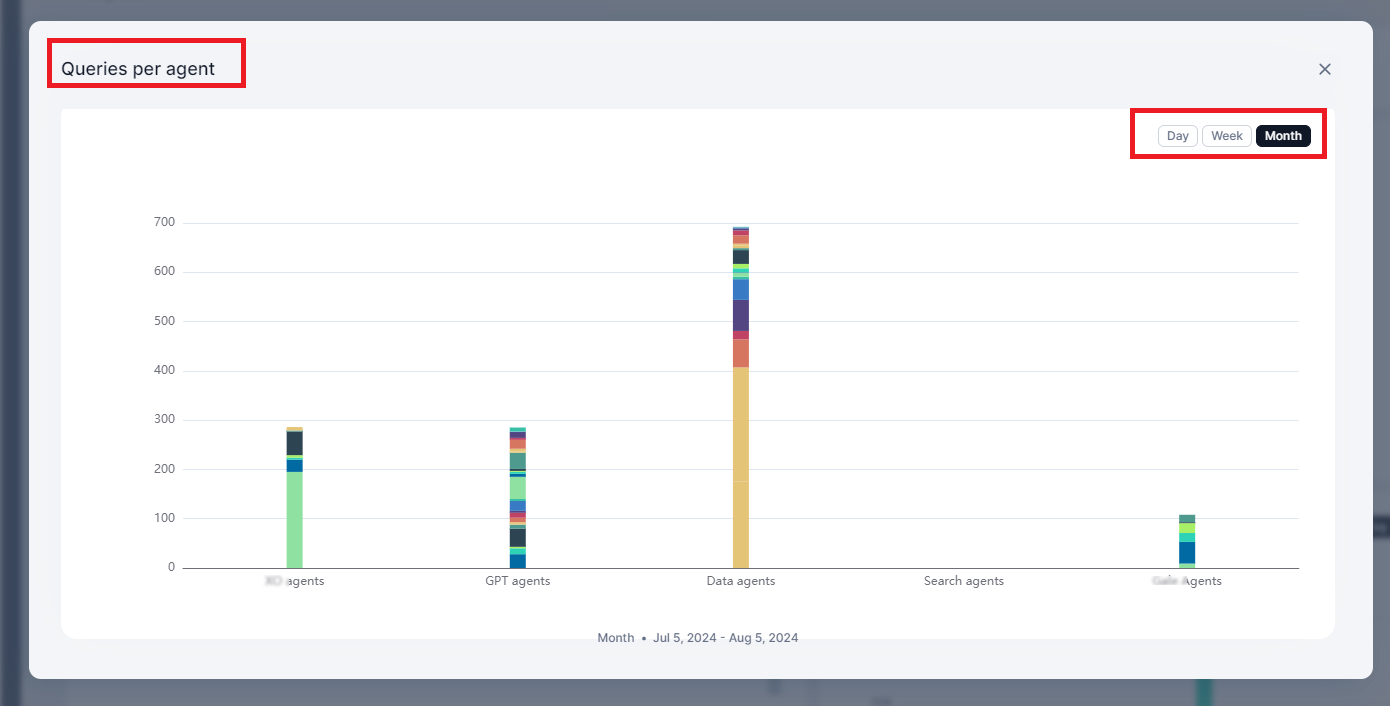
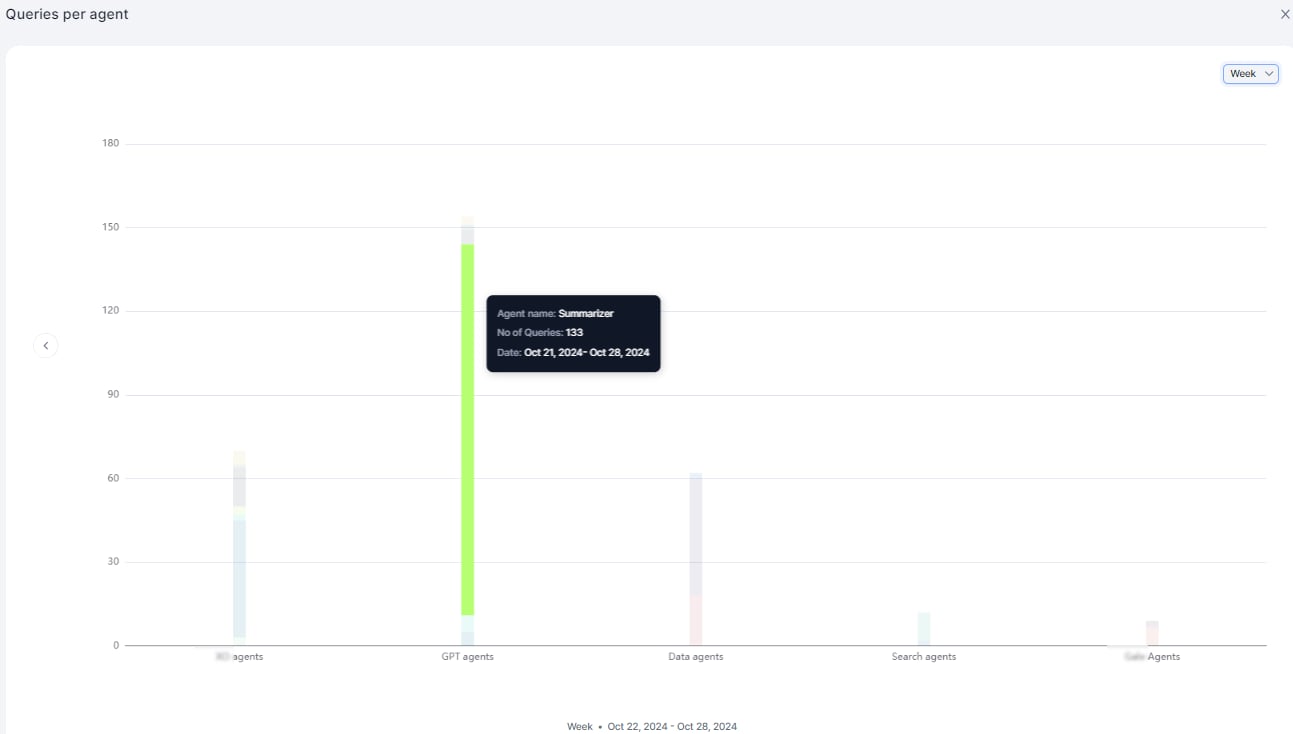
Displays query volume by agent, categorized by agent type: AI for Service, GPT, Data, Search, and Workflow. queries per agent
MetricDescription
Agent NameName of the agent
No. of QueriesTotal queries handled
TimestampDate and time
queries per agent detail

Top Agents

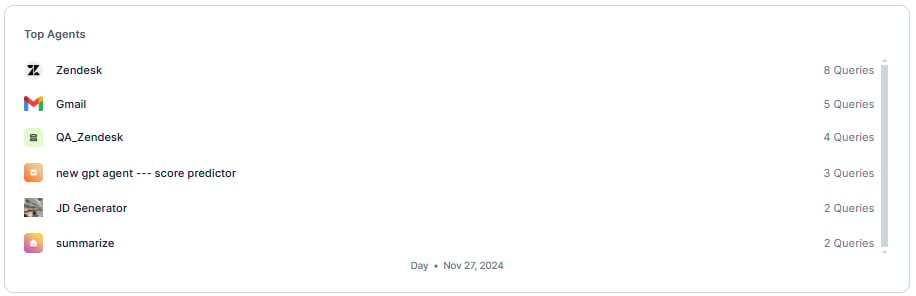
Displays agents ranked by query volume in descending order. top agents
Top Users

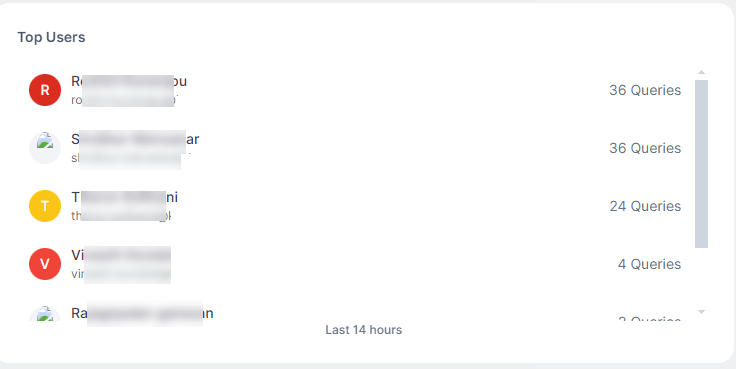
Displays the top 10 users by query count. top users
Users

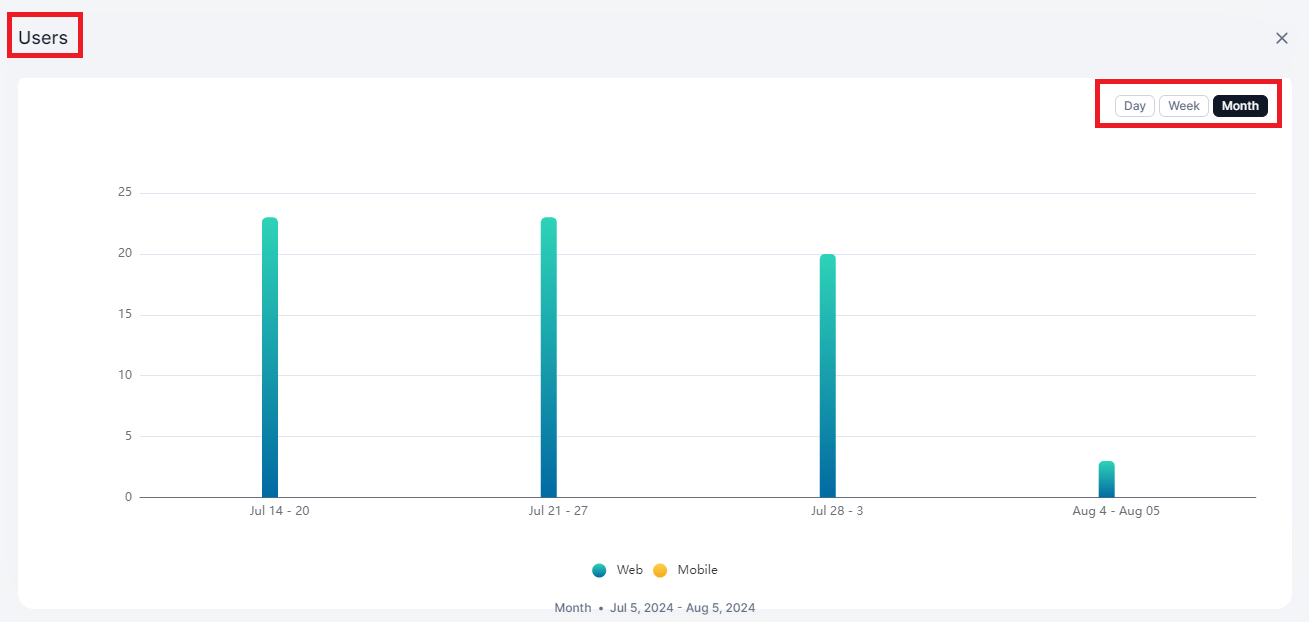
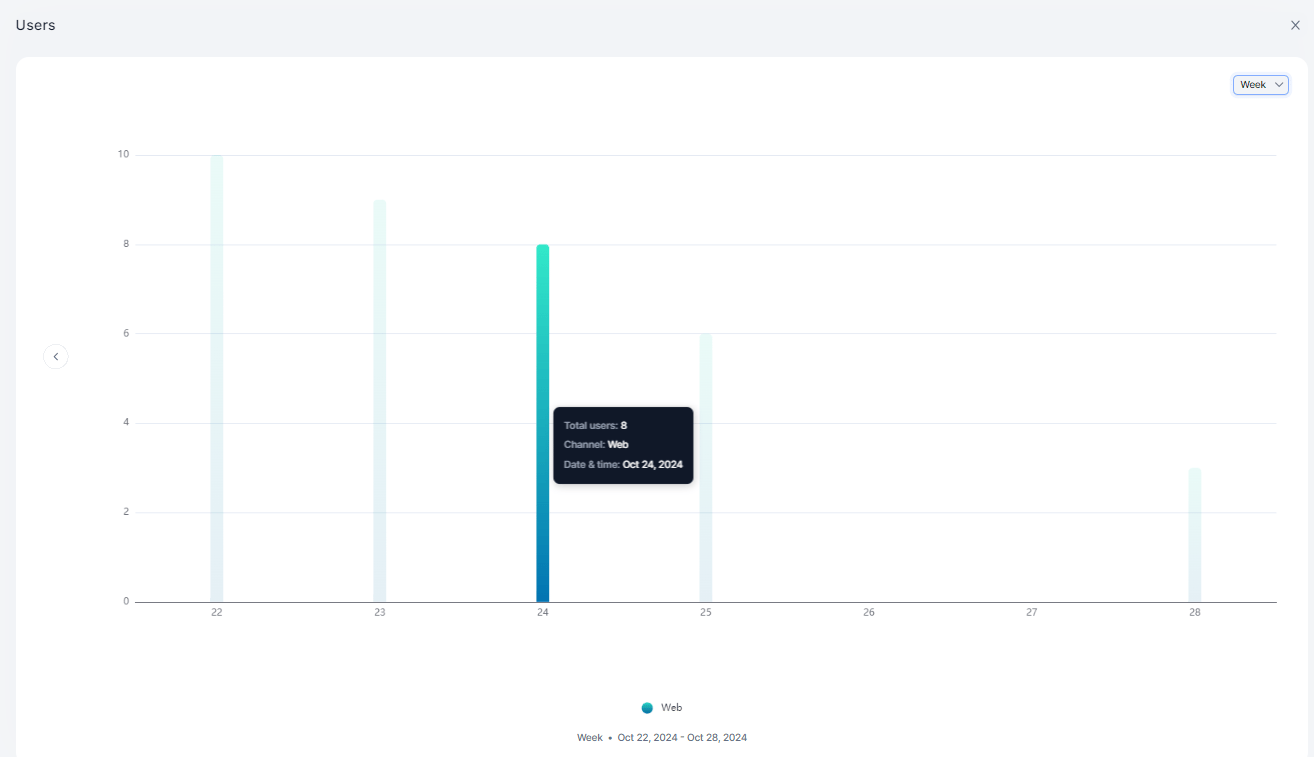
Displays unique users interacting with the system, comparing web vs. native platforms. users
MetricDescription
Total UsersUnique user count
ChannelWeb or native platform
TimestampDate and time
users detail

Average Response Time

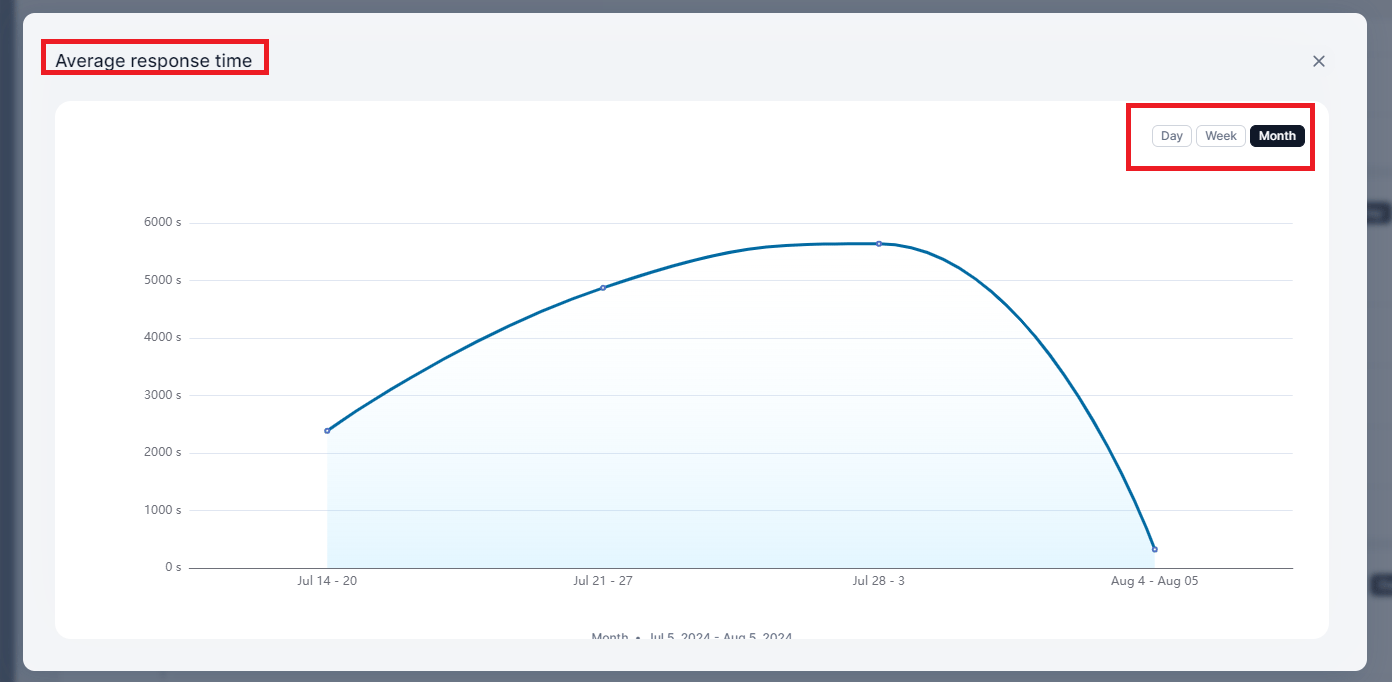
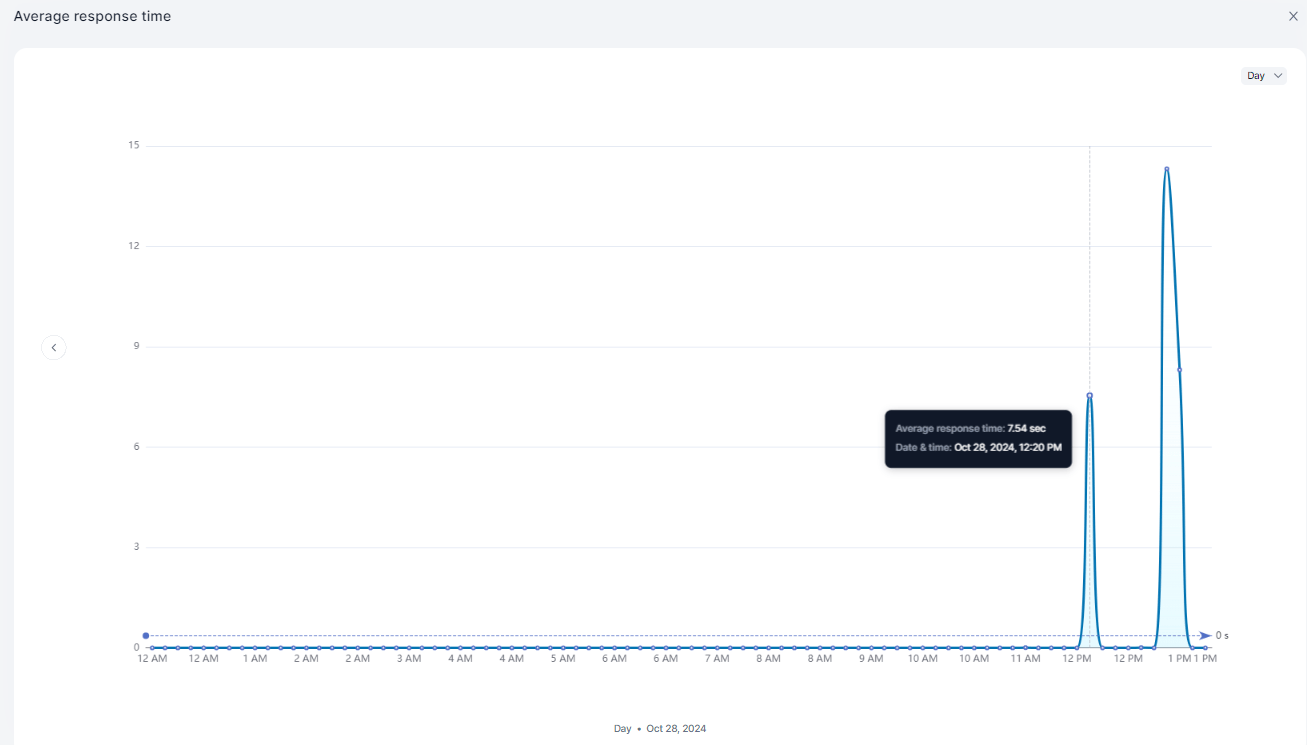
Displays the average response time of the service over time. average response time
MetricDescription
Average Response TimeMean response time per period
TimestampDate and time
average response time detail

Errors

Displays the number of queries that resulted in errors over time. errors
MetricDescription
Total ErrorsCount of error responses
TimestampDate and time
errors detail

Feedback

Displays end-user feedback on responses. feedback

MetricDescription
FeedbackFeedback type (positive/negative)
QueriesAssociated query count
TimestampDate and time
feedback detail

Data View

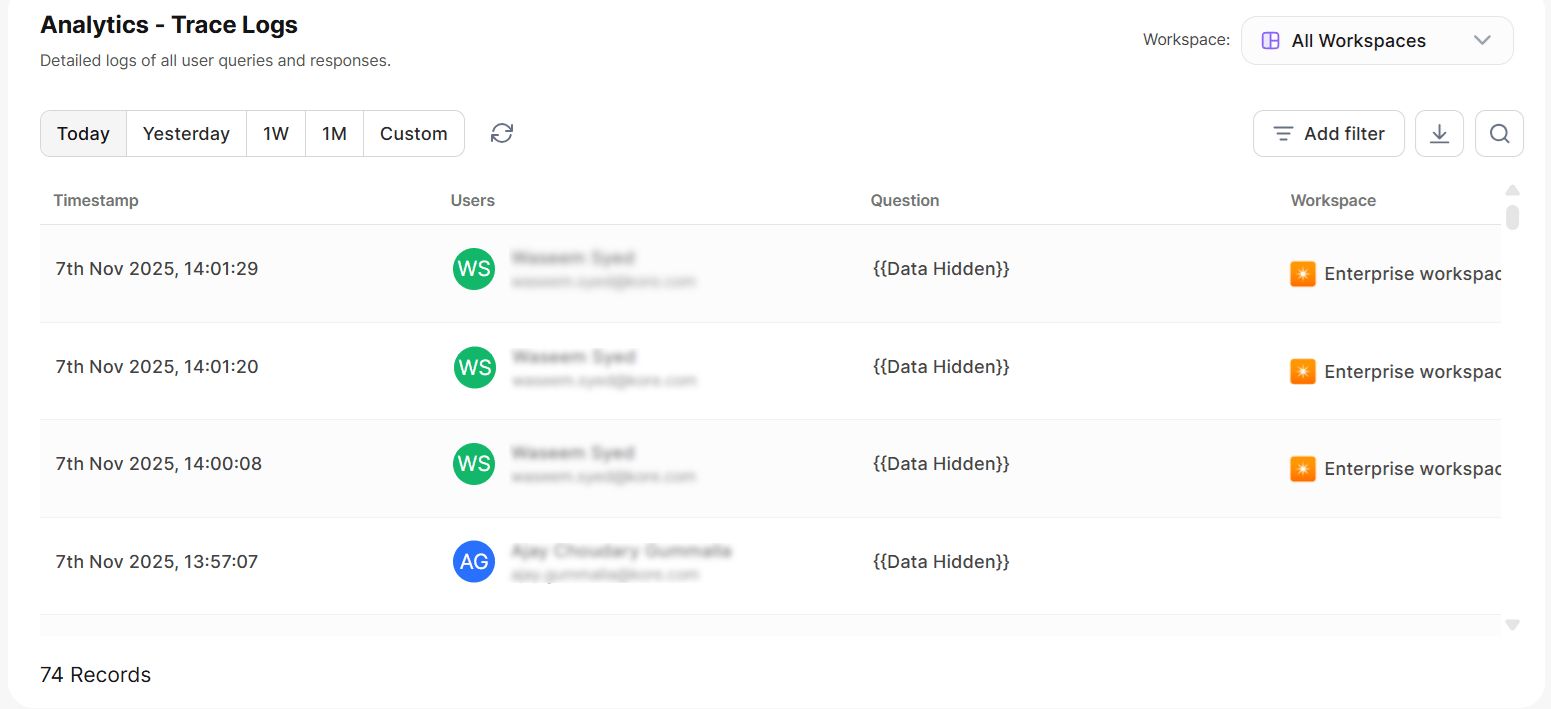
The Data view lists individual query records. Each record corresponds to a user utterance. data view
ColumnDescription
Request IDUnique identifier for the request
UsersUser who submitted the query
QuestionsThe user utterance
Overall TokensTotal tokens consumed
Response TimeTime taken to respond
Agent TypeType of agent that handled the query
StatusResponse status
TimestampDate and time of the request
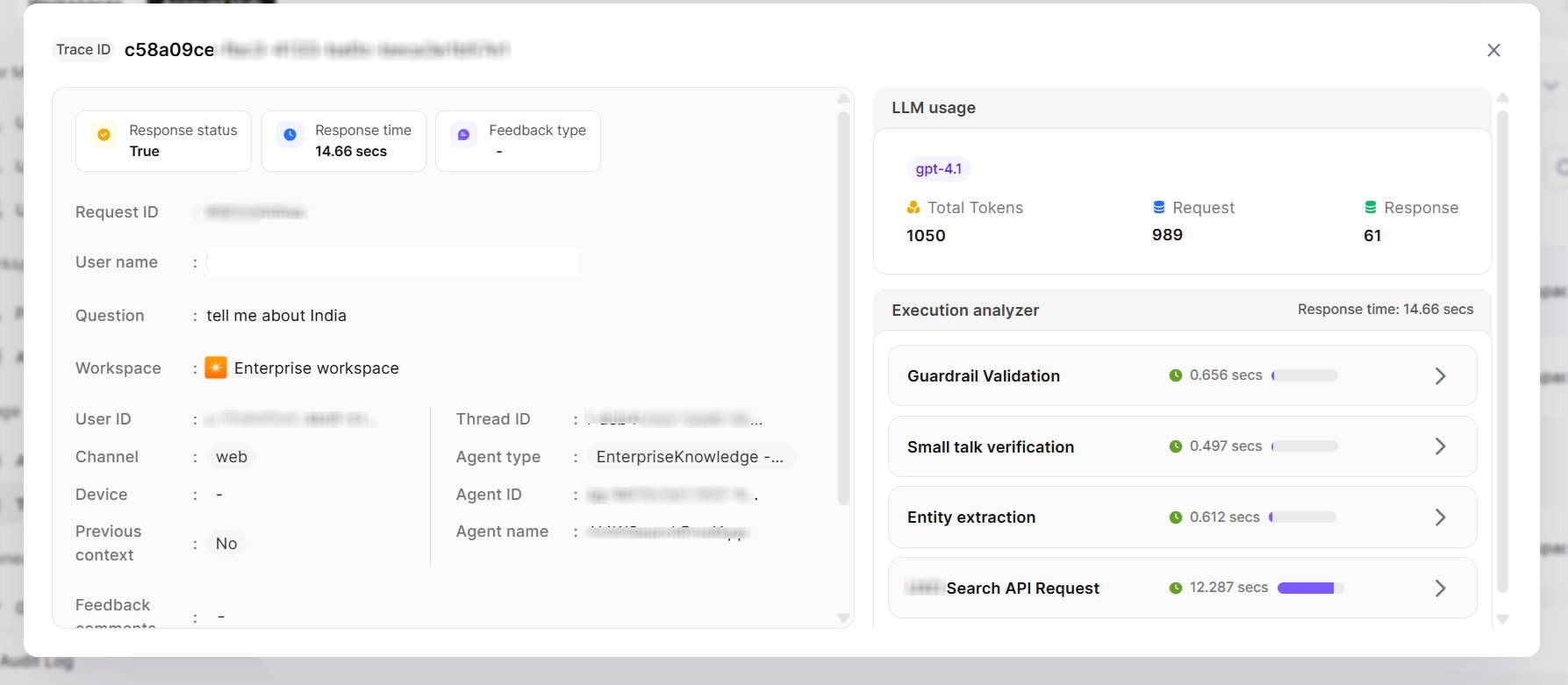
Click More on any record to open a detailed view. At the top of the detail panel, you can see the Response Status, Response Time, and Feedback Type for that record.

Record Details

Request Information
FieldDescription
Request IDUnique identifier
User Name and EmailIdentity of the user
User IDSystem user identifier
ChannelMobile or Web
Previous ContextWhether prior context was used (Yes/No)
Thread IDConversation thread identifier
Feedback CommentsUser-submitted feedback
TimestampDate and time
Query Details
FieldDescription
QuestionThe user utterance
Query PointsKey points extracted from the query
LLM Usage
FieldDescription
ModelLLM model used
Total TokensCombined token count
Request TokensContext/input tokens
Response TokensGeneration tokens
Execution Analyzer execution analyzer Expand the Execution Analyzer to examine each background step. For each step, you can:
  • View the exact prompt sent to the model
  • Review the model’s response
  • Debug individual steps to identify issues

Feedback Management

Feedback Management gives administrators visibility into user feedback submitted across the platform, with configurable email notifications and scoped access by role. Navigation: Admin Console → Usage → Feedback

Accessing the Feedback Page

Access to the Feedback page is role-based:
RoleScope
Account-level admins with Usage accessAll feedback across the account
Workspace OwnersFeedback scoped to their workspace only. The Workspace column is not shown.
Agent-level accessFeedback scoped to that specific agent only. The Agent Name column is not shown.

Feedback Detail View

Click any feedback entry to open its detail view. The view displays the associated trace log and the submitted feedback — type, category, and any additional comments.

Notify Feedback

Click Notify Feedback on the Feedback page to configure email notifications. Select which feedback types should trigger notifications and add recipients. Recipients can be any valid email address or distribution list and do not need to belong to the account. Notification scope follows the level at which it is configured — account-level covers all workspaces and agents, workspace-level covers all agents in that workspace, and agent-level covers only that specific agent. Email notifications include: user email, query, agent name, workspace, feedback type, feedback category, and additional comments (if provided).

End User Feedback Submission

Users submit feedback using the Upvote or Downvote icons in the chat interface. Downvote submissions include a category selection and an option to add free-text comments. Share Query and Response If Hide conversation is enabled in Data Settings at the agent or account level, the feedback pop-up shows a Share Query and Response checkbox, checked by default. When enabled, the question and response for that entry are stored in an unhidden state. If the user has prior queries in the same thread, a Share previous queries option also appears, capturing up to the last 5 queries from that thread.
Feedback is only recorded when the user clicks Submit. Cancelling the pop-up discards the submission entirely.