

- Queue-based forms support Human Agent evaluations.
- Experience Flow-based forms support AI Agent evaluations.
- AI Agent evaluations use the same Quality AI roles and permissions as Human Agent evaluations.
Dispute and acknowledgment workflows apply only to Human Agent evaluations. AI Agent evaluations don’t participate in dispute workflows.
Permission-Based Access
The following table lists the permissions required for each capability.Roles and Permissions
Available workspaces and actions depend on the user’s assigned role and permissions. Document only permissions that are explicitly available in the product. Internal assumptions about QA Manager or Auditor permission names shouldn’t appear in end-user documentation.
Audit Status Reference
This reference consolidates the finalized status list used across My Allocations, Assigned to Me, My Evaluations, Disputes, and Resolved.Workspace Views
The following table summarizes the purpose of each workspace tab. For the Allocations tab, human agent evaluations display queue-based allocations, while AI agent evaluations display Experience Flow-based allocations.My Allocations
The My Allocations tab displays audit allocations created by the signed-in user. It provides a centralized view to monitor allocation progress, review interaction and auditor assignments, inspect allocation configuration, and redistribute pending interactions when required. Use this workspace to track allocation completion, review evaluation progress, and manage active allocations throughout the audit lifecycle.Before You Begin
Before managing allocations:- Verify that you have permission to create and manage audit allocations.
- Create at least one audit allocation.
- Ensure the allocation contains assigned interactions.
Review Allocations
The allocation list provides an overview of allocation details, assigned auditors, interaction counts, review progress, and current status.Search and Filter Allocations
Helps you to search and filter allocations by criteria, with the list updating automatically based on applied filters.Edit (Review) Allocations
Use Edit Allocation to redistribute pending interactions without impacting completed evaluations, allowing updates to active workloads without creating a new allocation. Use Edit Allocation to:- Reassign interactions when auditors are unavailable (for example, leave or workload changes).
- Balance workload across auditors based on completion progress.
- Add auditors to support completion of active allocations.
- Update allocation name or description.
View Allocation Configuration
Select View icon from the Actions column to review the allocation configuration used during creation. The configuration is organized into the following sections:Reassign Interactions
Select Reassign from the Actions column to move interactions from one auditor to another while maintaining the required 100% allocation. Only pending interactions are redistributed. Completed evaluations remain unchanged.
Create New Allocation
Select New Audit Allocation to start a structured workflow for defining, configuring, and assigning audit work. Allocation creation follows a three-step process:- Settings – Define the evaluation scope, including form, filters, and interaction criteria.
- Allocation Type – Choose how interactions are selected (Random or Custom).
- Assignment – Distribute interactions across auditors.
- Dispute Configuration (Human Agent only) – Configure dispute and review settings. For more information, see Creating Audit Allocations.
After Updating an Allocation
After updating an allocation:- Pending interactions are redistributed based on the updated assignments.
- Completed evaluations remain unchanged.
- Auditor workloads are updated automatically.
- Allocation progress reflects the revised interaction assignments.
Assigned to Me
The Assigned to Me tab displays audit allocations assigned to the signed-in auditor for evaluation.Before You Begin
Before reviewing assigned interactions:- Confirm you have permission to access Audit Allocations.
- Confirm one or more interactions are assigned to you through an active audit allocation.
- Confirm the required evaluation forms are configured and available.
Access Assigned to Me
Navigate to Quality AI > Allocations > Assigned to Me.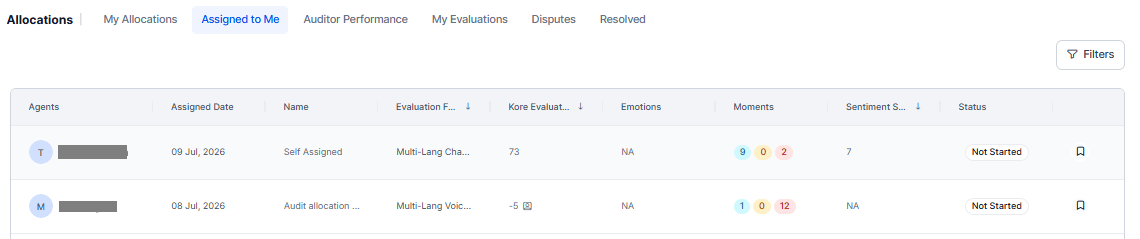
Review Assigned Allocations
The allocation list provides an overview of assigned audit work and its evaluation status.Filter Assigned Allocations
Select Filters to narrow the allocation list. The table updates to display only the allocations that match the selected criteria.
After selecting the required filters, select Apply. The allocation list refreshes automatically to display the matching results.
Open an Assigned Allocation
Select an allocation to begin or continue evaluating its assigned interactions. After selecting an allocation, you can start reviewing your assigned interactions, complete pending evaluations, and submit completed evaluations. For details, see AI-Assisted Manual Audit.Open an Assigned Interaction
Select an interaction row to open the Audit Review screen. The Audit Review screen provides a complete workspace for reviewing the conversation, evaluating metrics, viewing AI insights, tracking audit progress, and submitting the evaluation. Available actions depend on the interaction’s current audit status and your permissions.After Completing an Evaluation
After you submit the evaluation:- The interaction is marked as Completed.
- The completed evaluation is available in the My Evaluations workspace.
- If the evaluation form supports acknowledgments or disputes, the evaluation proceeds through the configured review workflow.
- The evaluation remains available for future review and reporting.
Auditor Performance
The Auditor Performance tab gives Operations Heads and QA Managers a consolidated view of auditor workload, audit progress, and performance for the selected queues and reporting period, without modifying evaluation results. Without this tab, Operations Heads have no way to answer these questions from within Quality AI:- Which auditors are behind on their allocated conversations, and by how much.
- Whether scores are consistent across auditors, or show drift that points to a calibration problem.
- Which allocations still have unaudited conversations.
Only users with Audit Allocations and Cross Queue Data Access permission can view the Auditor Performance tab.
Before You Begin
Before reviewing auditor performance:- Verify that you have permission to access Audit Allocations.
- Verify that you have permission to view Auditor Performance.
- Verify that you have the Cross Queue Data Access permission to view data across multiple queues (if applicable).
- Verify at least one audit allocation is created and assigned to auditors.
Access Auditor Performance
Navigate to Quality AI > AutoQA > Allocations > Auditor Performance. The tab displays every QA auditor in the app by default. The system applies no queue, team, or assignment group scope until you filter.
After you update the filters, select Apply to refresh the results.
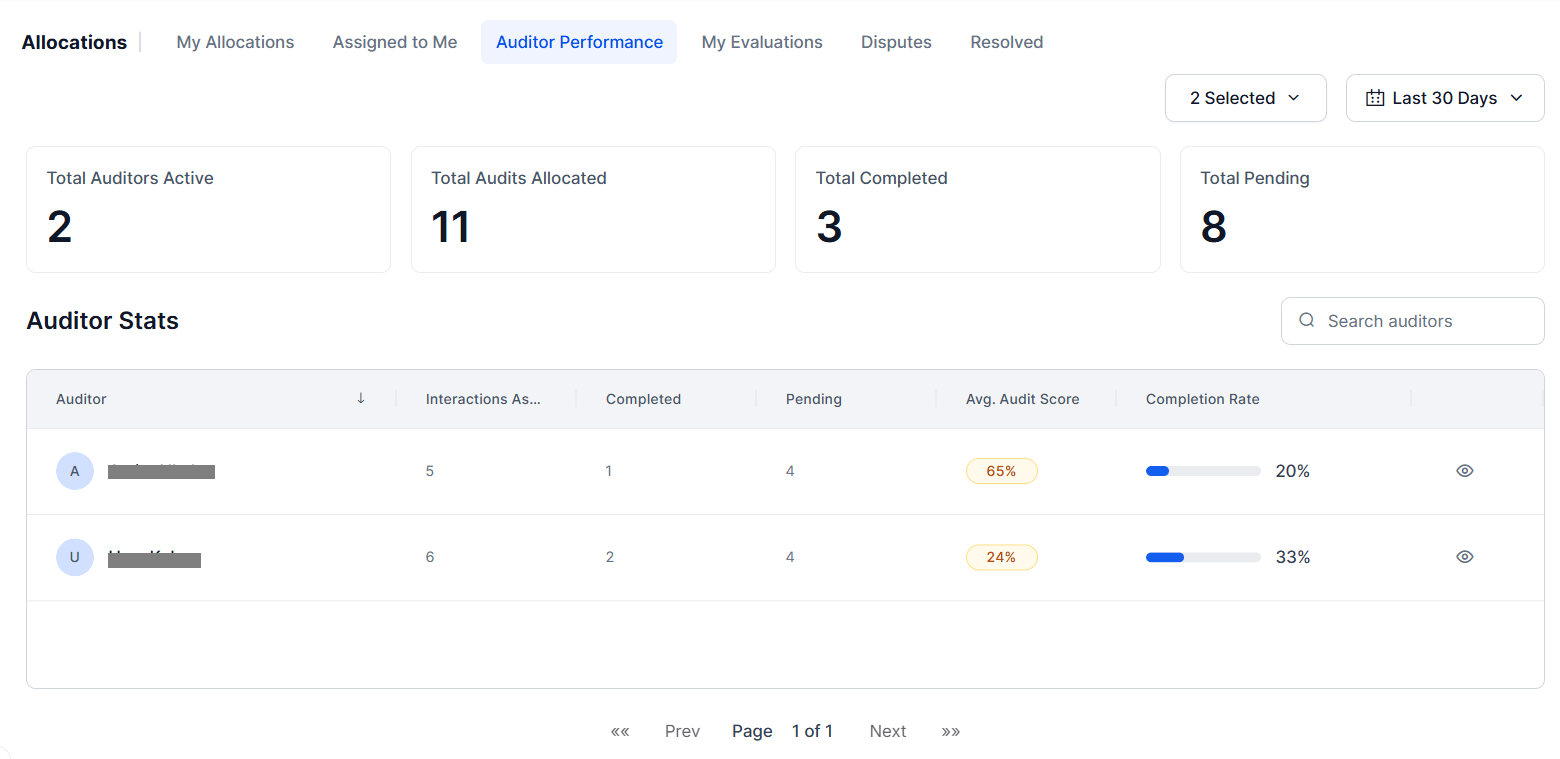
Review Summary Metrics
The summary cards display key audit statistics for the selected filters.
Use these metrics to assess audit workload and completion status.
Review Auditor Statistics
The Auditor Status table summarizes audit workload and completion for each auditor.Search Auditors
Use the Search box to locate a specific auditor. The auditor list updates automatically as you type.Review Auditor Allocations
Select the View icon for an auditor to display all audit allocations assigned to that auditor.
Breadcrumb navigation displays the current location: Auditors > Auditor Name.
Review Allocation Conversations
Select an allocation to view its interactions. Use the tabs to filter by status: All, Not Started, In Progress, Completed to filter.- Audited includes conversations where the audit is submitted or completed.
- Pending includes conversations with an audit status of Not Started or In Progress.
Breadcrumb navigation updates to: Auditors > Auditor Name > Allocation Name.
Review an Evaluation
Select the View icon to open the completed evaluation in the AI-Assisted Manual Audit workspace, in read-only mode. You can review the conversation, submitted evaluation, AI insights, audit trail, and overall audit progress. You can’t modify or resubmit the evaluation. If a conversation has an active dispute, a Dispute Open badge displays next to the audit status in the header.Scoring inputs, Submit Audit, and Override actions don’t display for Not Started or In Progress audits.
- The system marks the interaction Completed.
- The completed evaluation displays in My Evaluations.
- If the evaluation form supports acknowledgments or disputes, the evaluation proceeds through the configured review workflow.
- The completed evaluation remains available for future review and reporting.
My Evaluations
The My Evaluations tab lists all conversations that the system manually evaluates under allocations assigned to the signed-in supervisor or QA, and it tracks the acknowledgement and dispute status of each evaluated conversation. It also collects all completed acceptances from supervisors or agents. Navigate to Quality AI > Allocations > My Evaluations.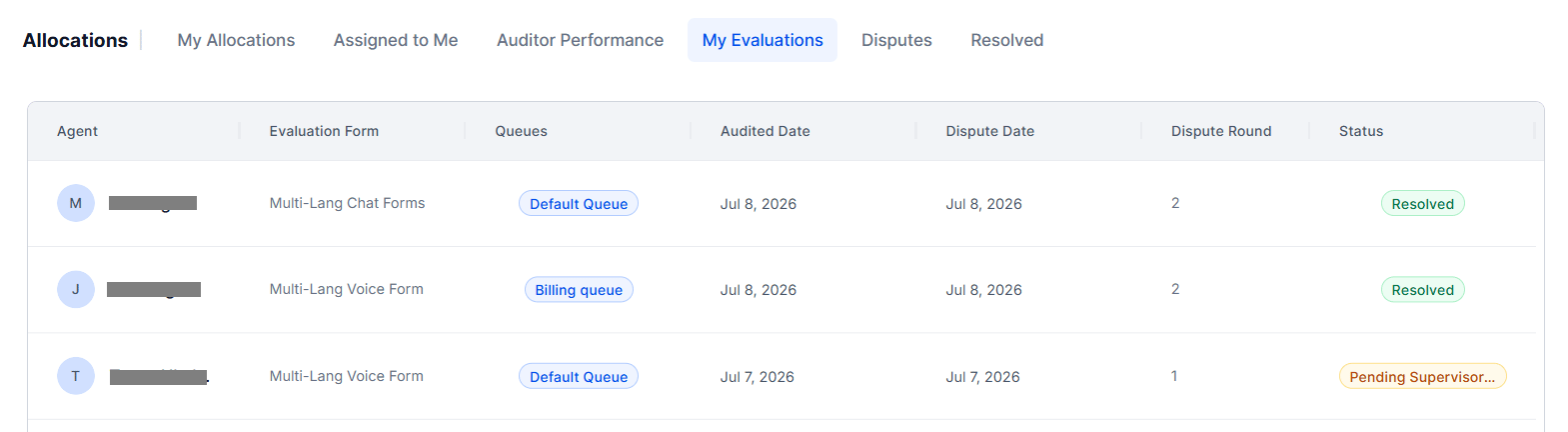
Status Values
Filters — My Evaluations
Evaluation Workflow
- Select Evaluate for an interaction to open the full conversation context.
-
Review the complete interaction thread with all available context:
- Transcript and conversation flow
- Interaction metadata, such as duration, queue, channel, and contact direction
- Auto QA insights and scores
- Topics, intents, sentiment, and Moments
- Duration eligibility indicators when applicable
- Complete the assigned Evaluation Form to score each criterion.
- Save your evaluation when complete.
-
After you submit, the system removes the interaction from the Assigned to Me list.
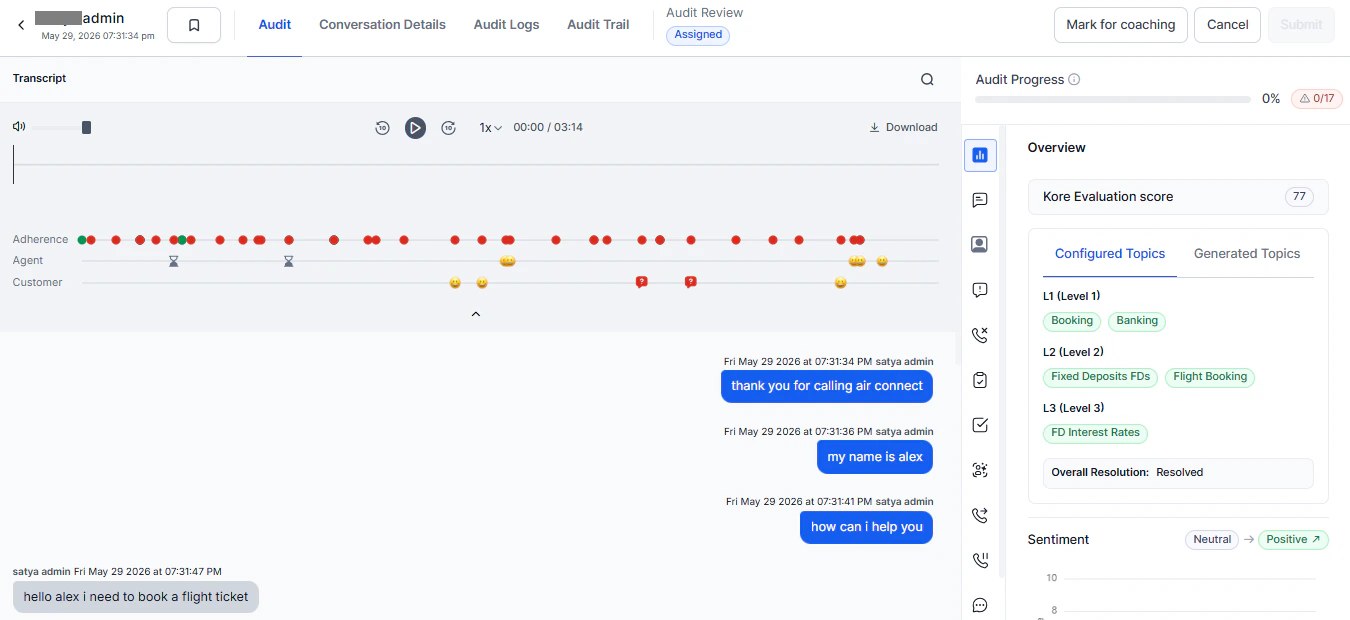
You can download conversation recordings directly from the audit screen if you have the Download Conversations permission.