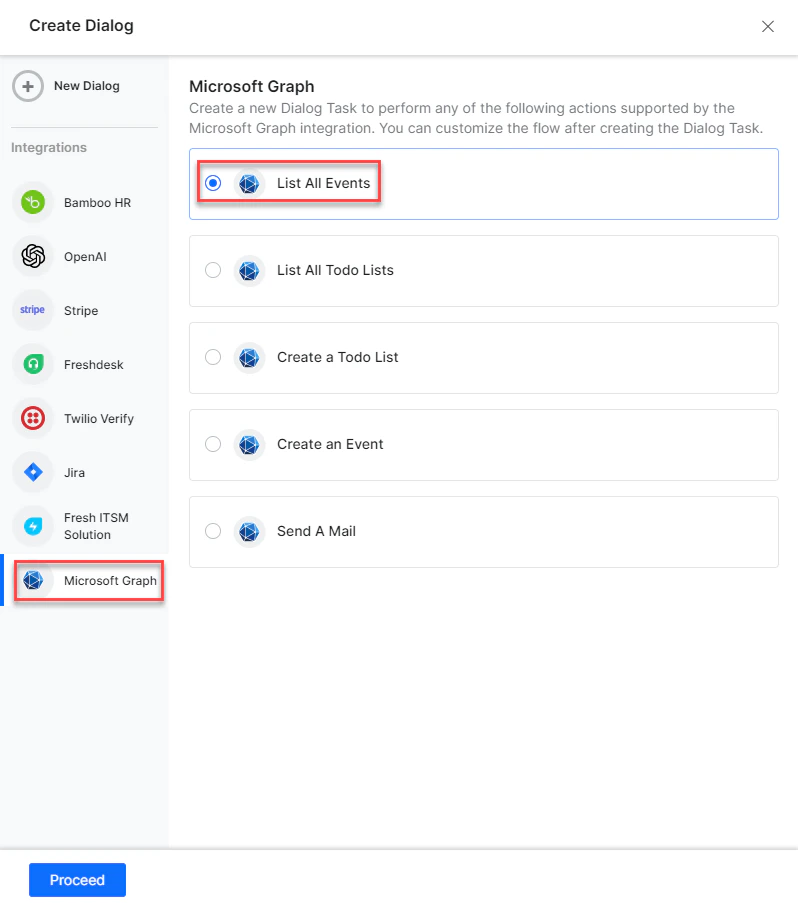
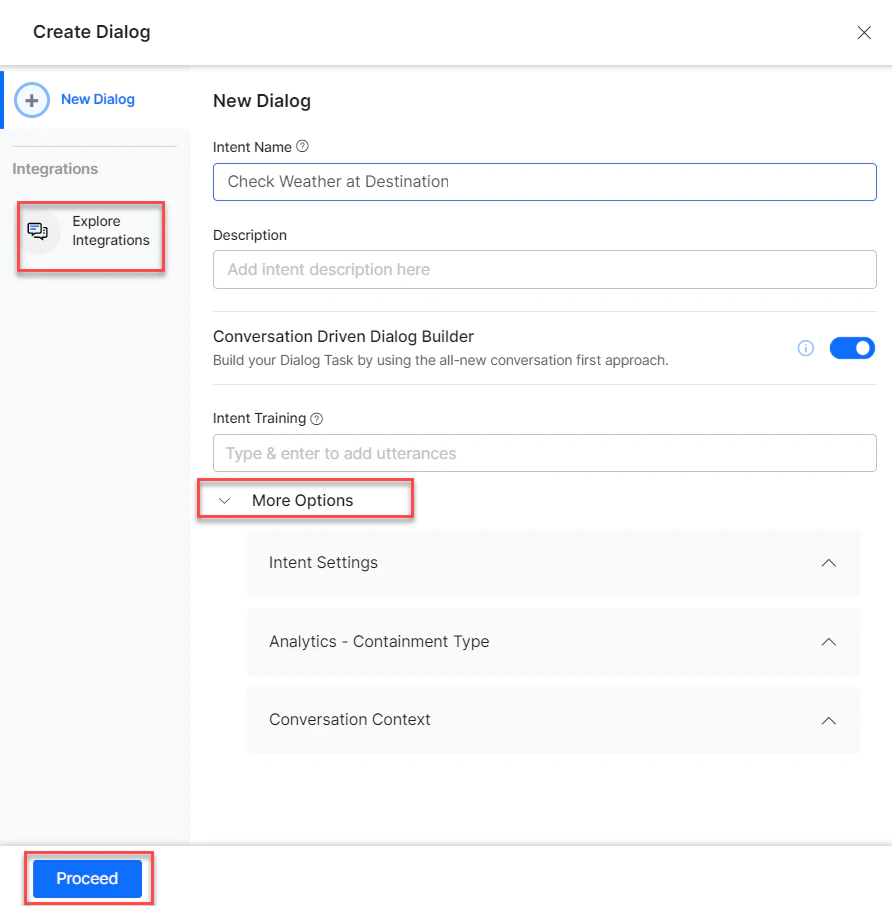
- Go to Automation AI > Use Cases > Dialogs and click Create a Dialog Task.
-
Under Integration, select Microsoft Graph.
-
If no integration is configured, click Explore Integrations to set one up. See Actions Overview.
Supported Actions
List All Events
- Install the template from Microsoft Graph Action Templates.
-
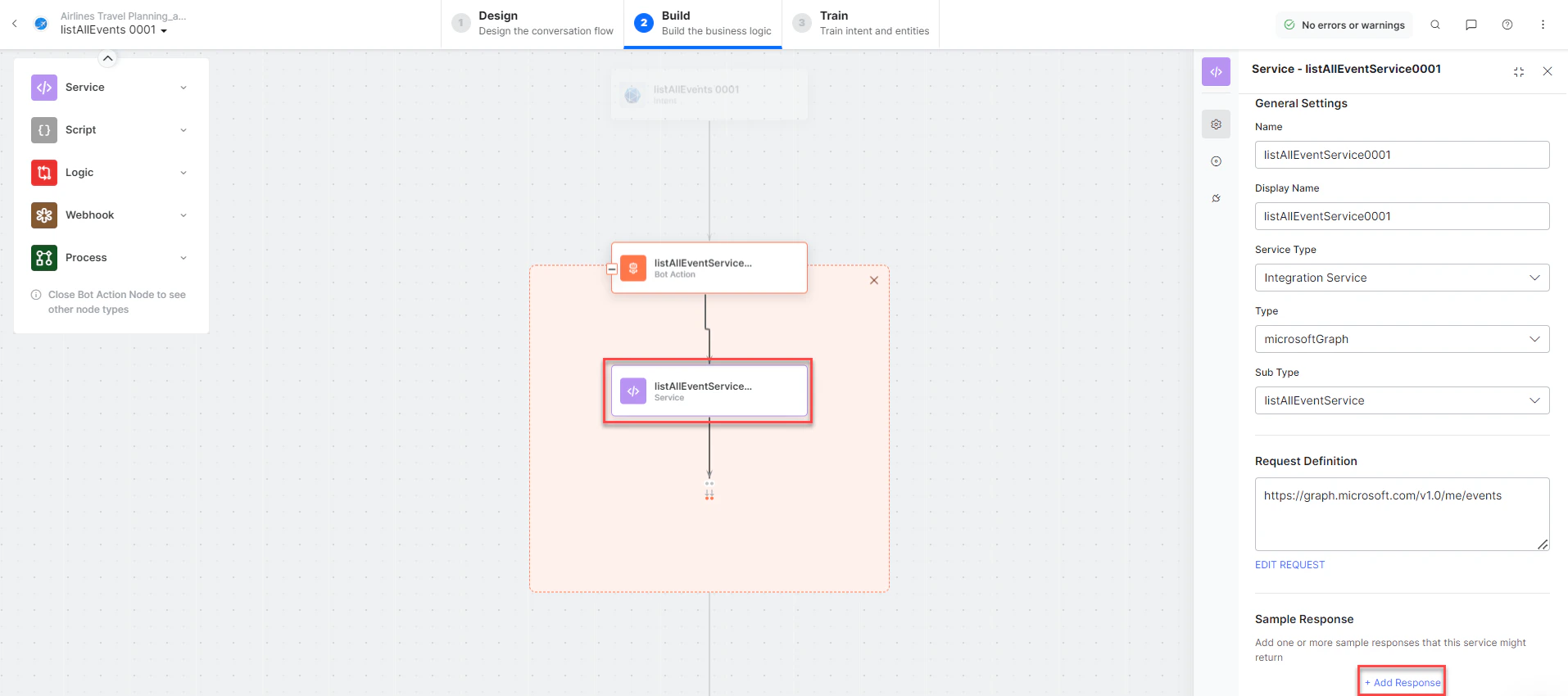
The List All Events dialog task is added with the following components:
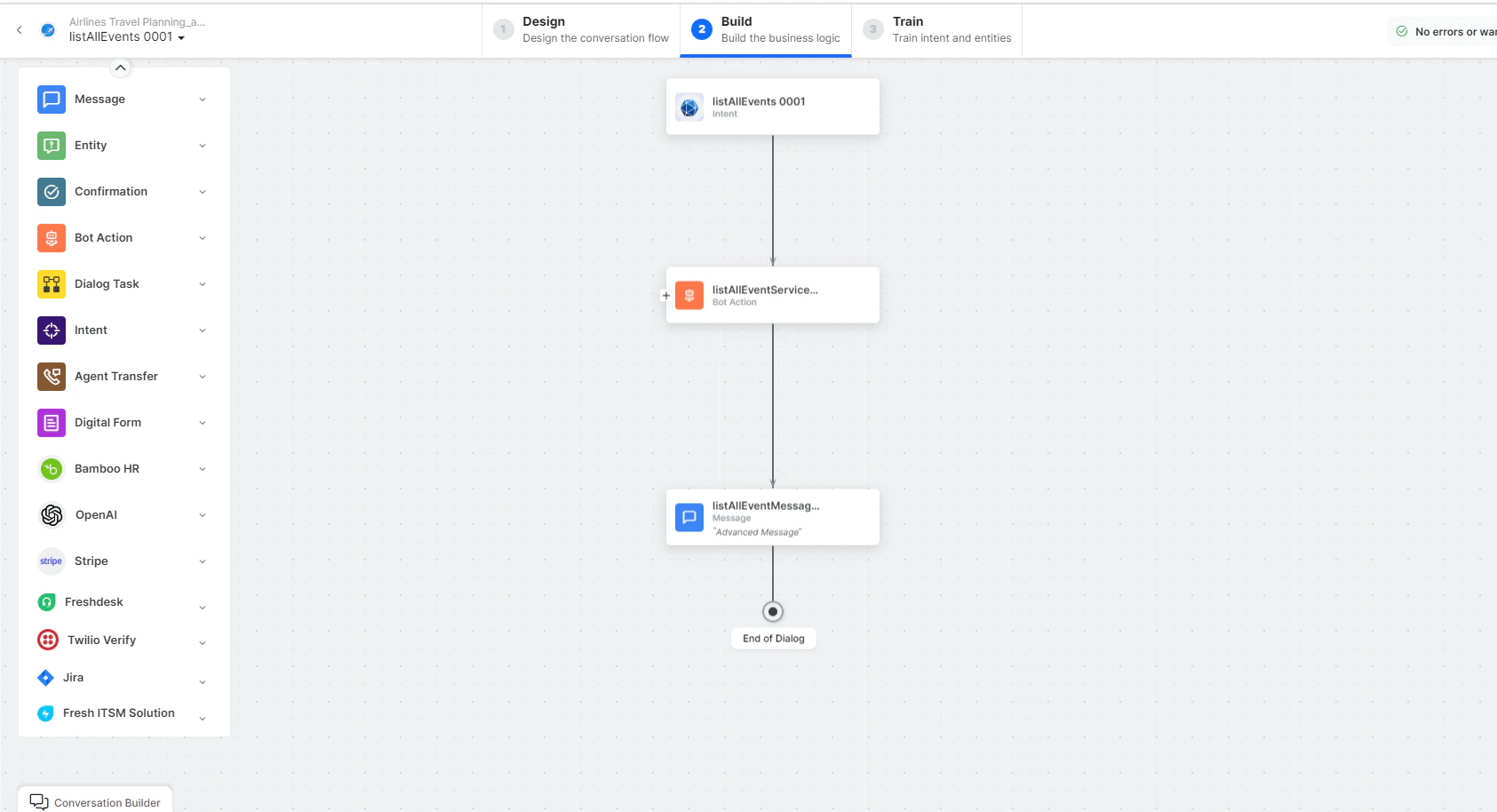
- listallEvents - User intent to view all events.
-
listAllEventsService - Bot action service to fetch all events. Click +Add Response:
- listAllEventstMessage - Message node to display responses.
-
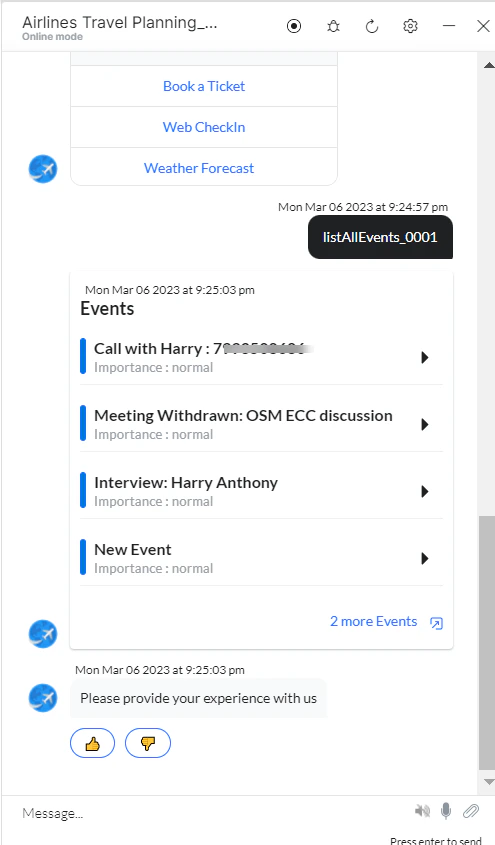
Click Train, then Talk to Bot to test:
List All To-Do (Tasks) Lists
- Install the template from Microsoft Graph Action Templates.
-
The List All Todo Lists dialog task is added with the following components:
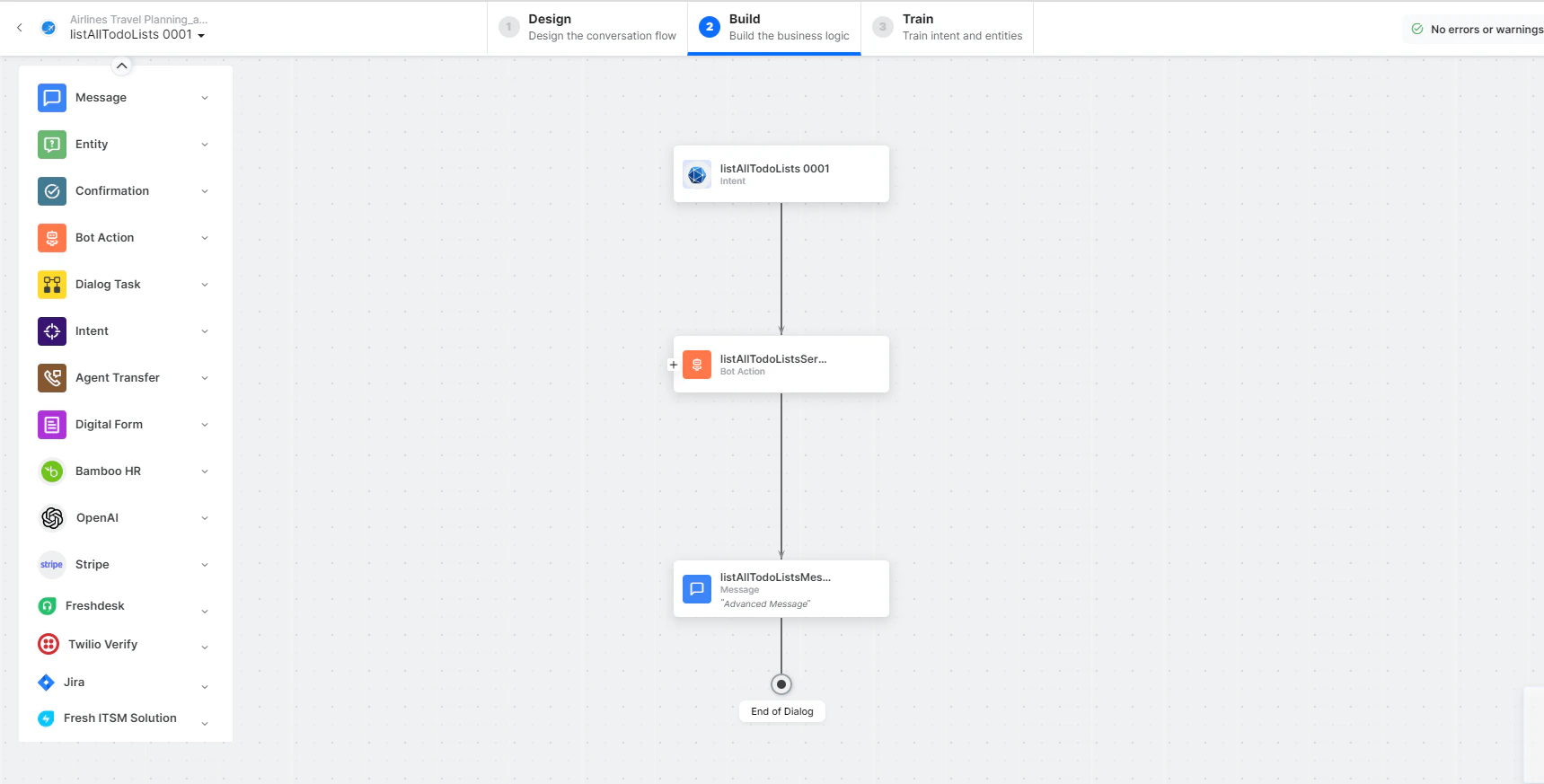
- listAllToDolists - User intent to view all to-do lists.
-
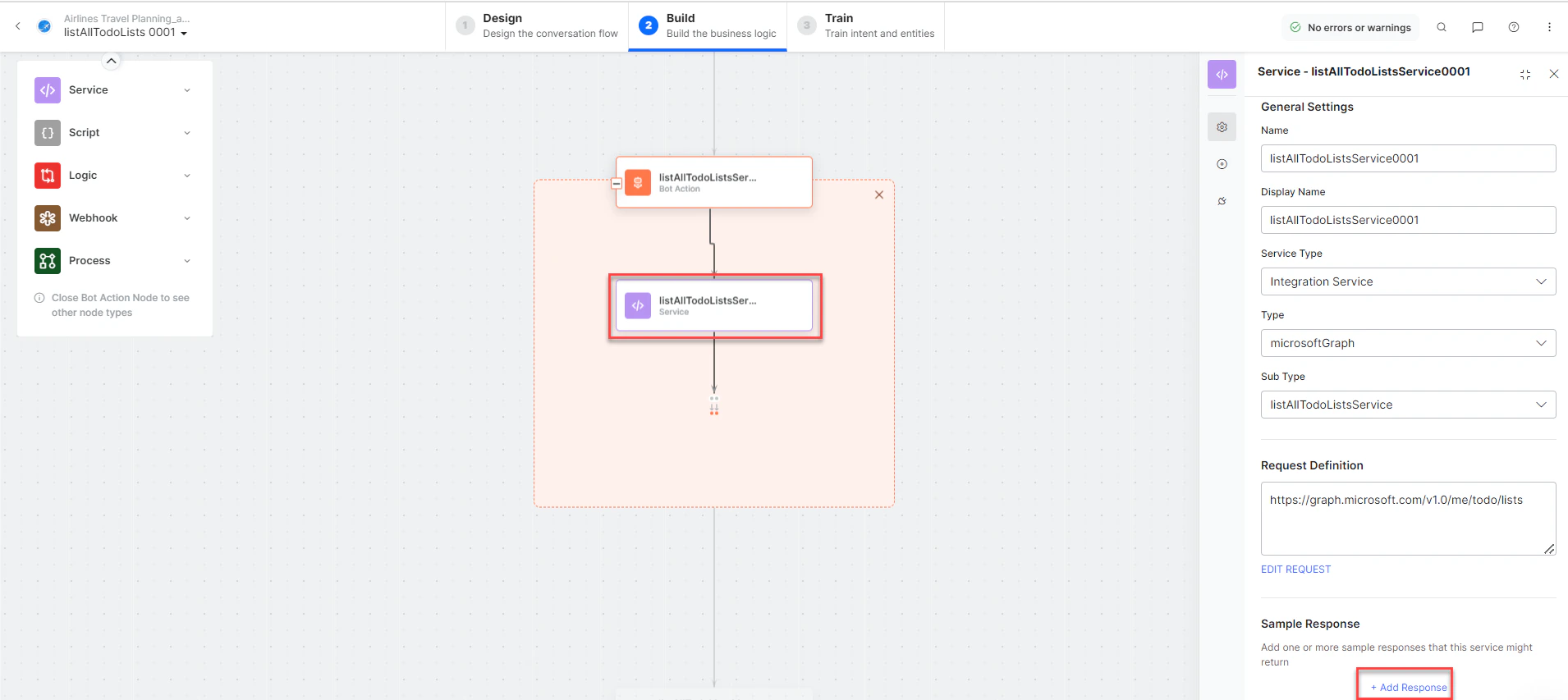
listAllToDoListService - Bot action service to fetch all to-do lists. Click +Add Response:
- listAllTodoListsMessage - Message node to display responses.
-
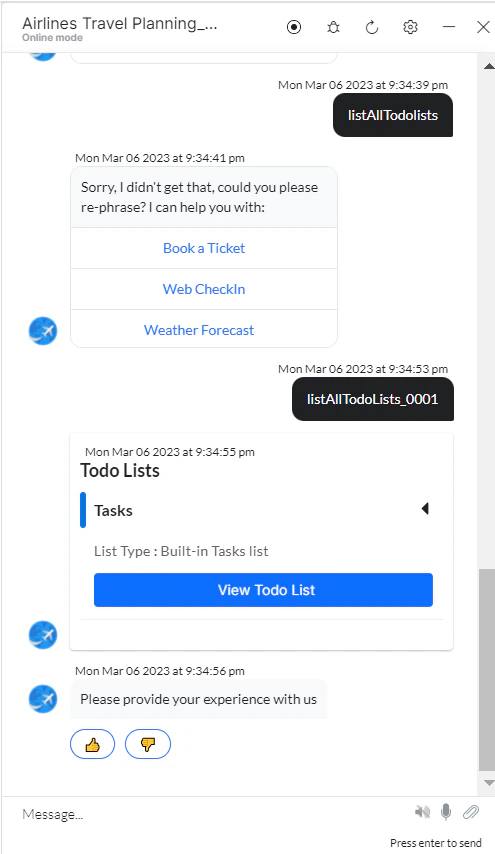
Click Train, then Talk to Bot to test:
Create an Event
- Install the template from Microsoft Graph Action Templates.
-
The Create an Event dialog task is added with the following components:
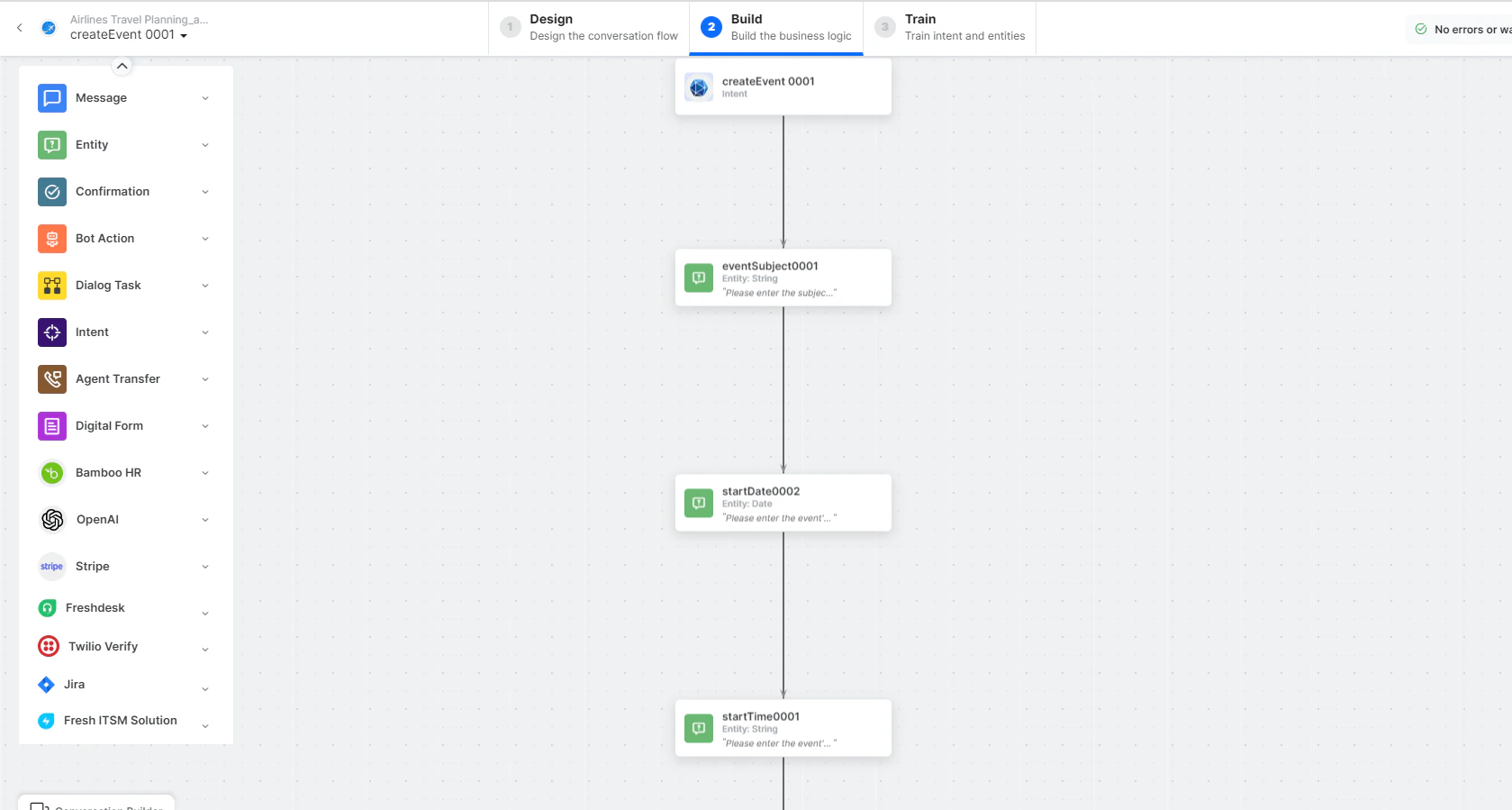
- createEvent - User intent to create an event.
- eventSubject, startDate, startTime, endDate, endTime, attendeesEmailAddresses - Entity nodes.
- getMailboxSettingsService - Bot action service to fetch mailbox settings.
- entityFormatterScript - Script to format attendee email entities.
-
createEventService - Bot action service to create an event. Click Edit Request:
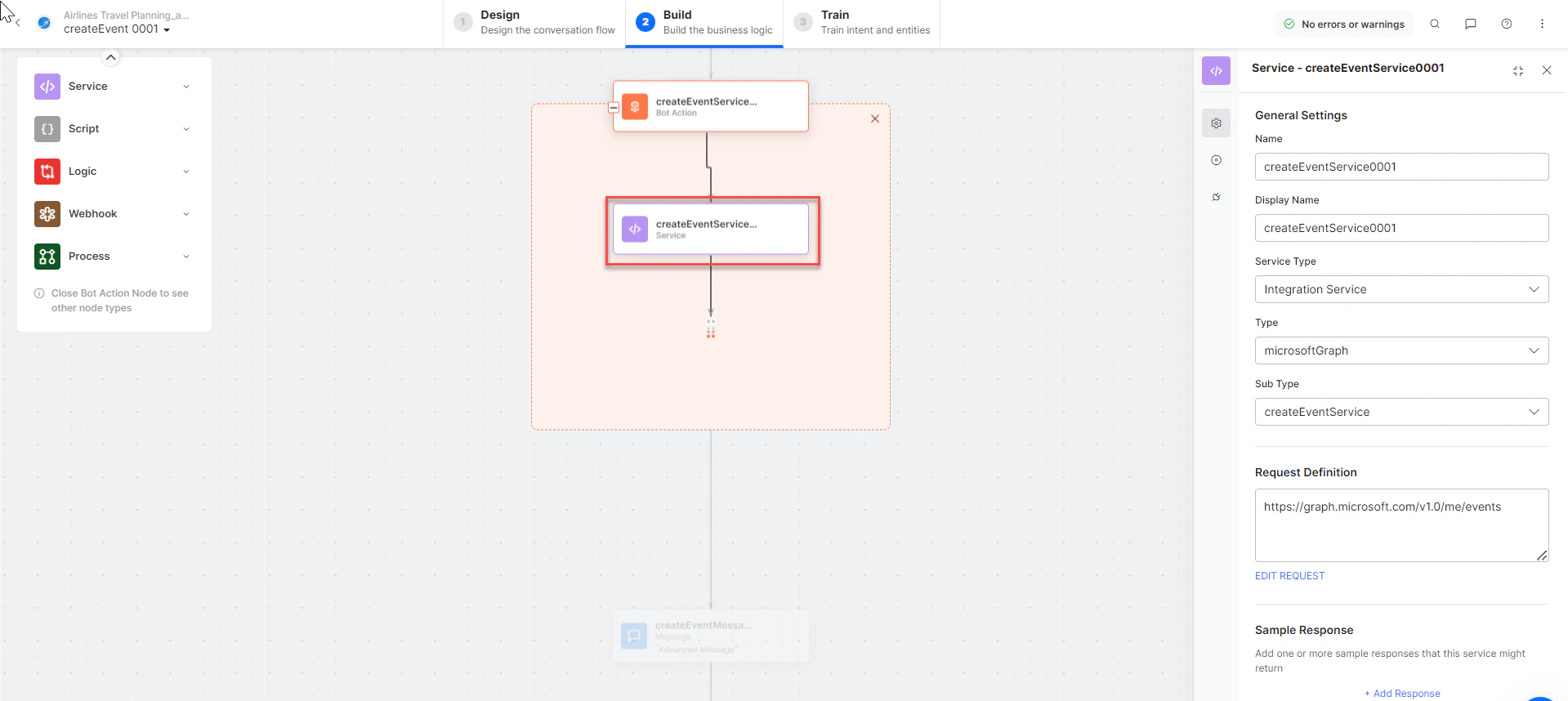
- createEventMessage - Message node to display responses.
-
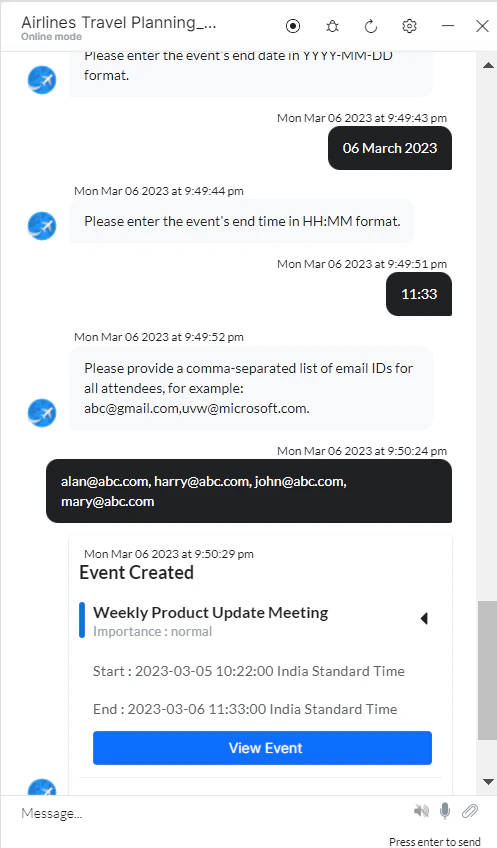
Click Train, then Talk to Bot to test:
Create a To-do (Tasks) List
- Install the template from Microsoft Graph Action Templates.
-
The Create a todo list dialog task is added with the following components:
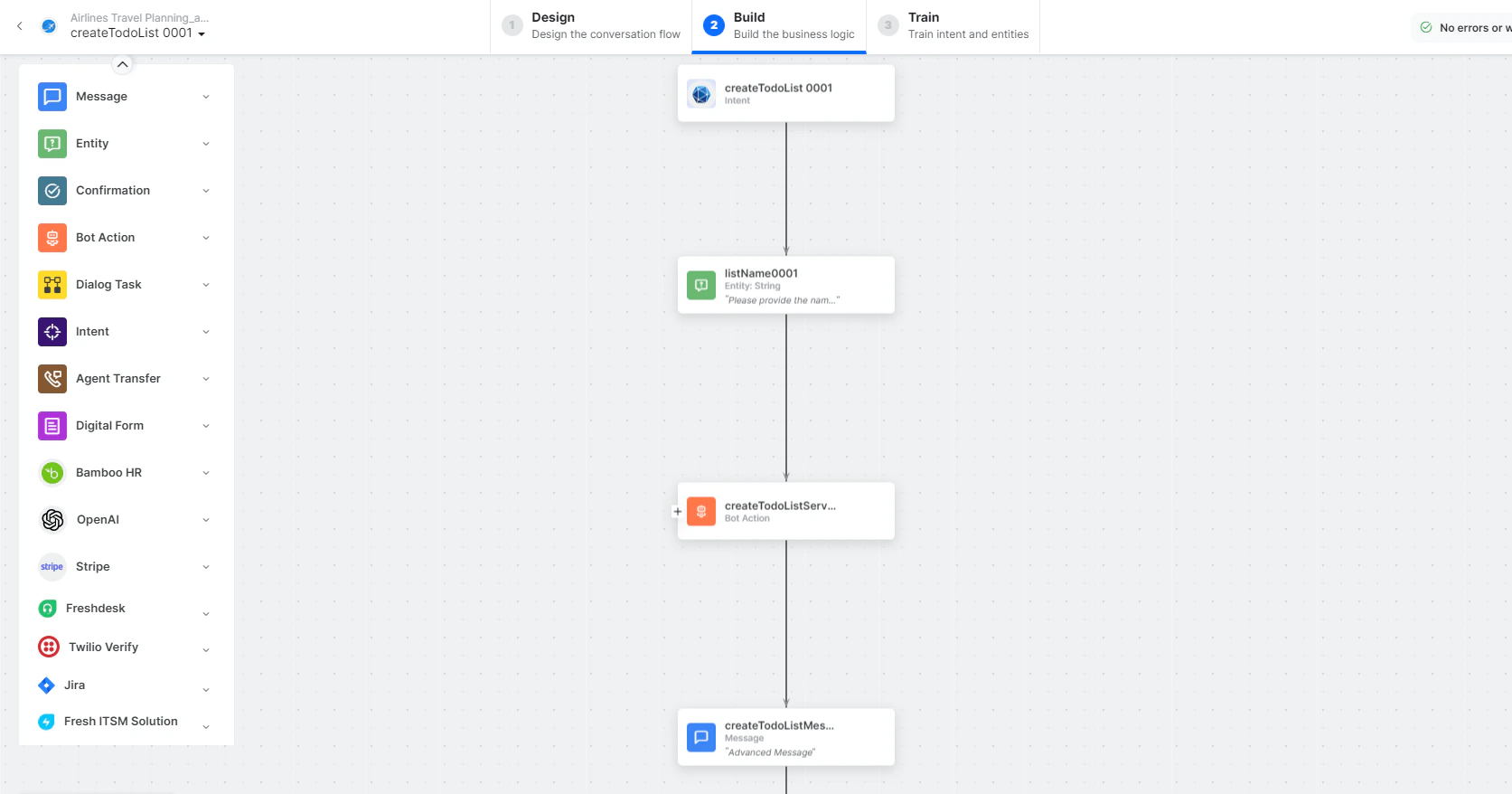
- createTodolist - User intent to create a task list.
- listName - Entity node for the todo list name.
-
createTodolistService - Bot action service to create a todo list. Click Edit Request:
 Sample Response:
 - createTodolistMessage - Message node to display responses.
-
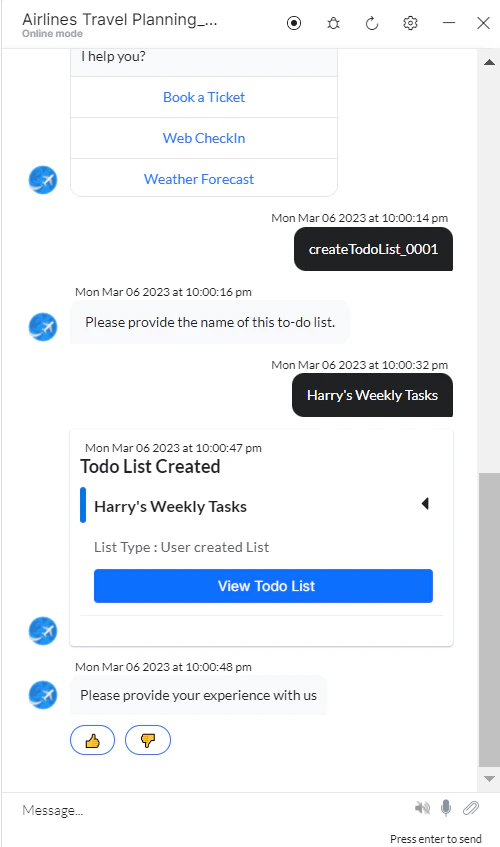
Click Train, then Talk to Bot to test:
Send an Email
- Install the template from Microsoft Graph Action Templates.
-
The Send email dialog task is added with the following components:
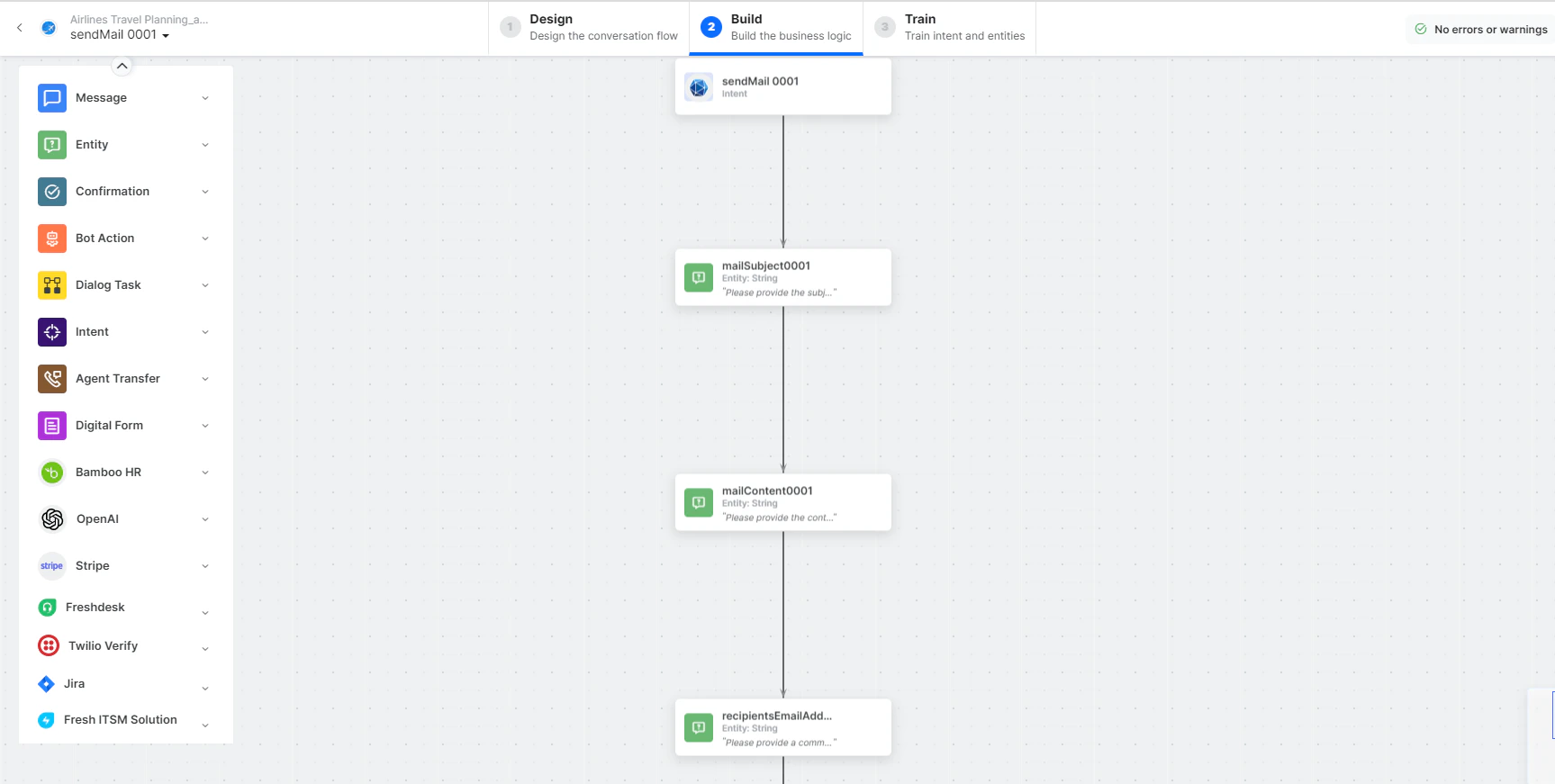
- sendEmail - User intent to send an email.
- mailSubject, mailContent, recipientsEmailAddresses - Entity nodes.
- prepareEmailIdsScript - Bot action service to format email IDs.
-
sendEmailService - Bot action service to send email. Click Edit Request:
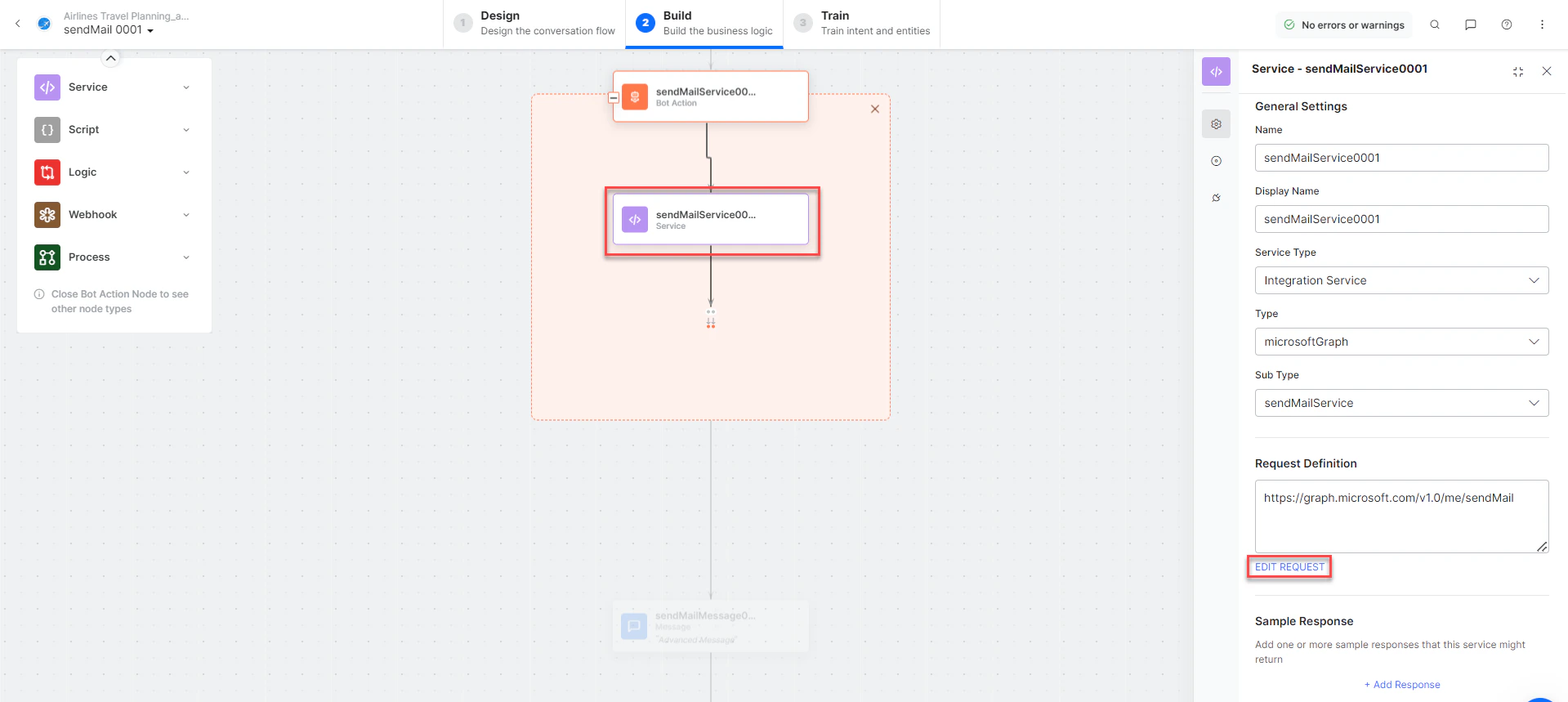
- sendMailMessage - Message node to display responses.
-
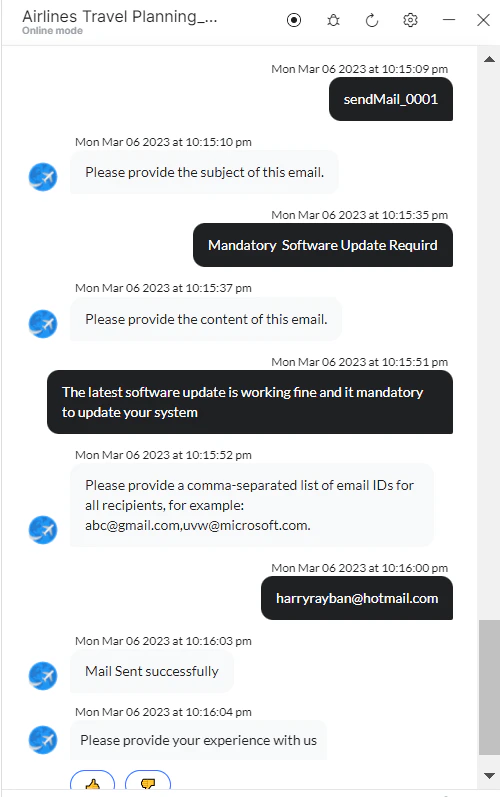
Click Train, then Talk to Bot to test: