

Supported Authorization Types
The platform supports API key authentication for Bitly integration. See App Authorization Overview for details.Prerequisites
Before enabling the Bitly action:- Create a Bitly Developer account.
- Create a custom app on the Bitly admin page.
- Copy your Bitly personal access token.
Enable the Bitly Action
Go to App Settings > Integrations > Actions and select Bitly from the Available actions list.Pre-authorize the Integration (Basic Auth)
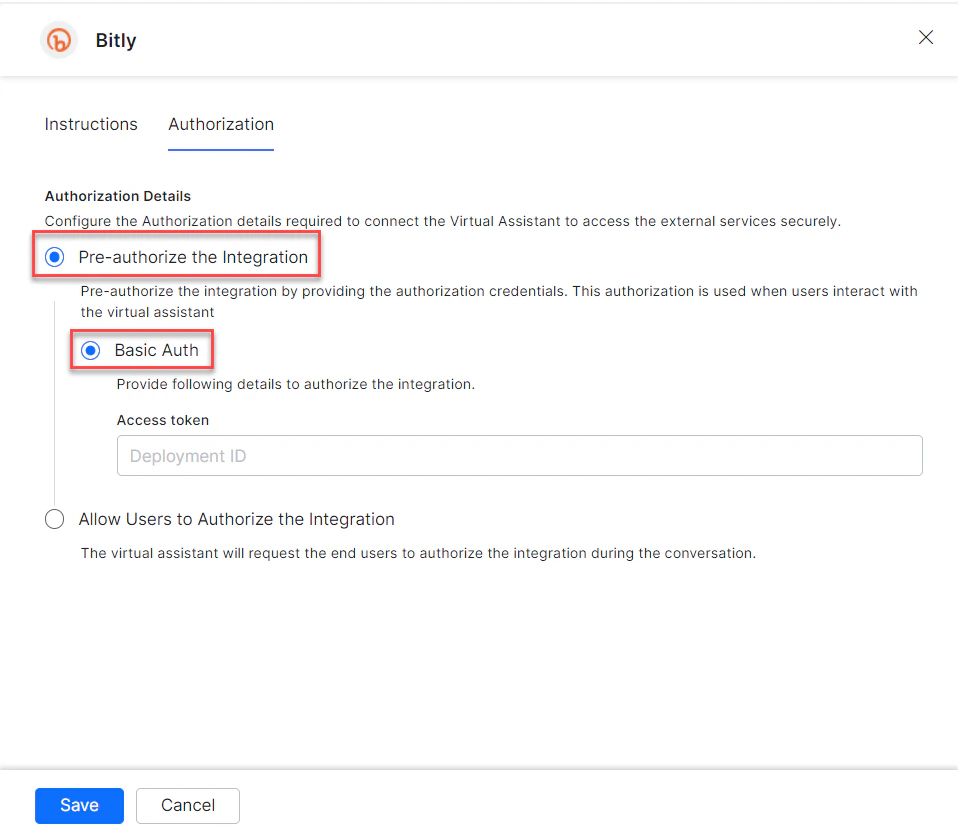
- In the Configurations dialog, select the Authorization tab.
-
Set Authorization Type to Pre-authorize the Integration > Basic Auth.
-
Enter your Personal Access Token.
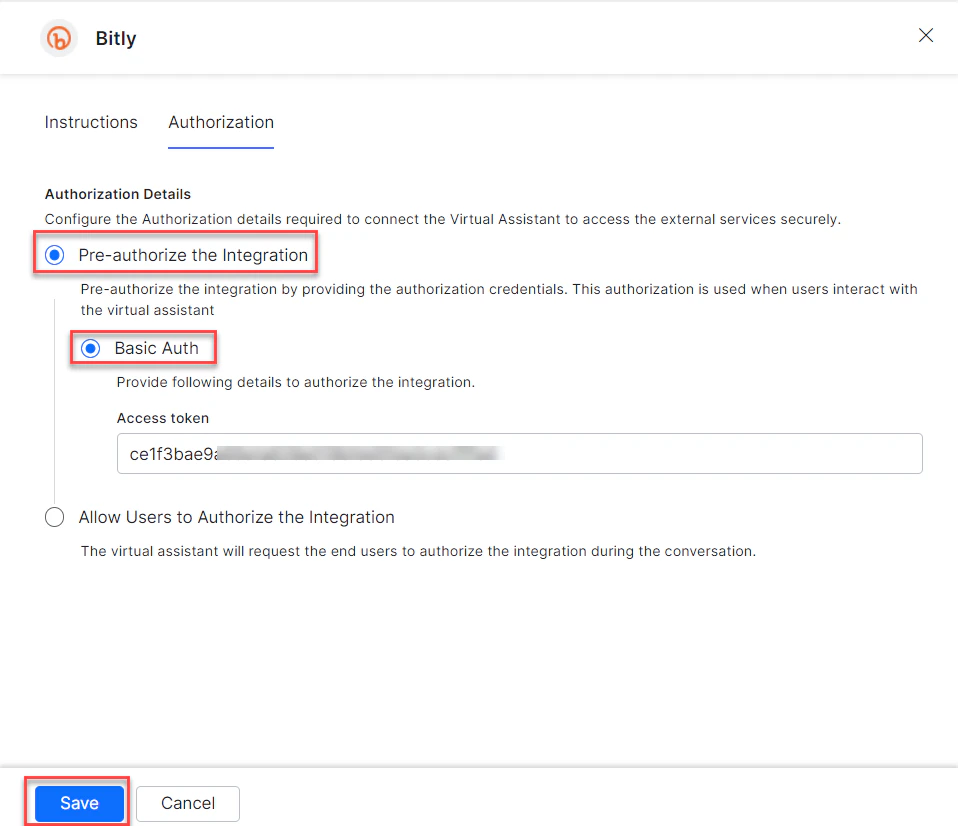
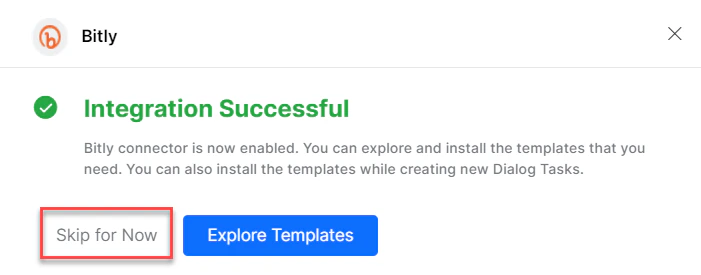
- Click Save. On first configuration, the Integration Successful pop-up appears.
The Bitly action moves from Available to Configured.
-
Click Skip for Now to install templates later.
Allow End Users to Authorize (Basic Auth)
- In the Configurations dialog, select the Authorization tab.
-
Set Authorization Type to Allow Users to Authorize the Integration > Basic Auth.
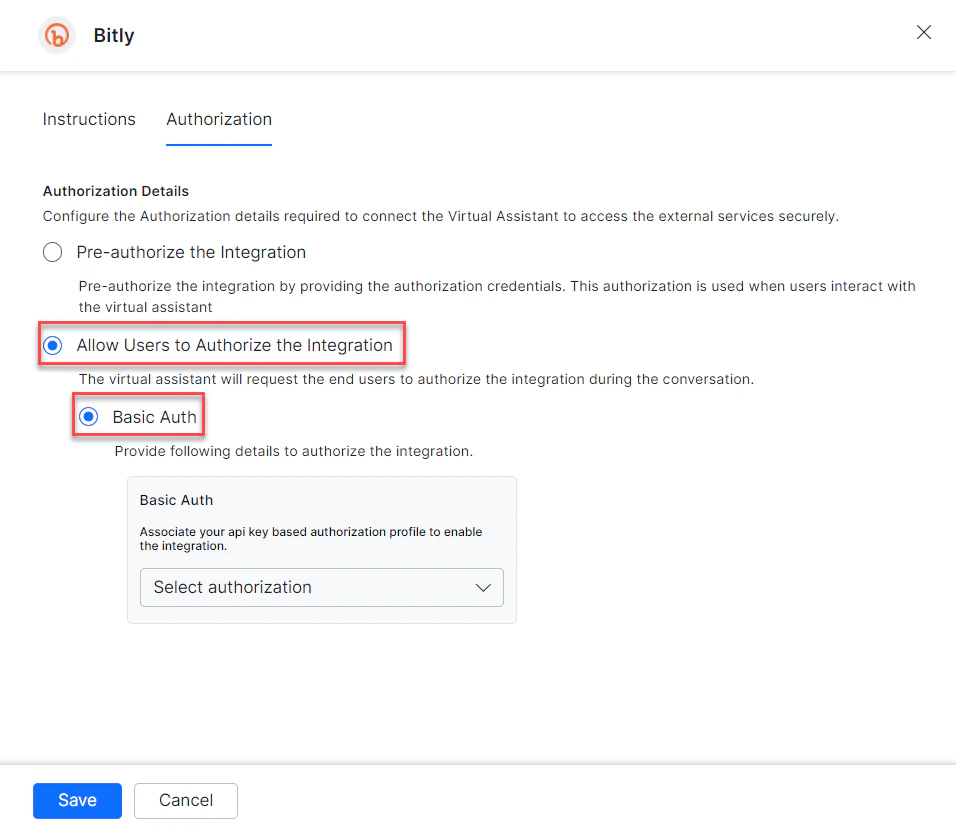
- Click Select Authorization > Create New.
-
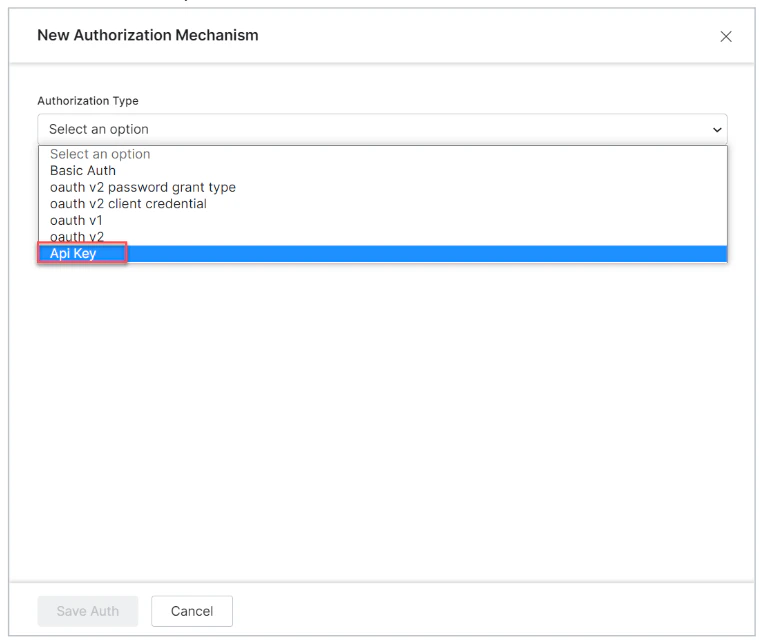
Select the authorization mechanism (for example, API Key).
-
Enter the following credentials:
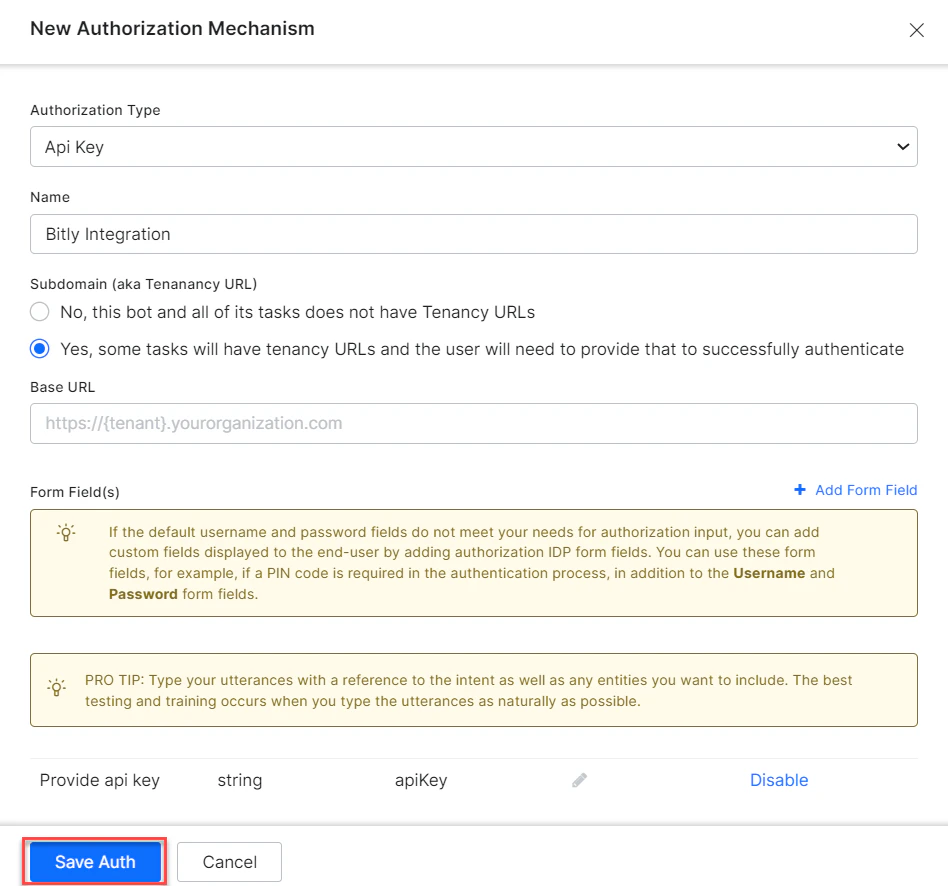
- Click Save Auth, then select the new profile.
- Click Save. The Integration Successful pop-up appears.
Install Bitly Action Templates
-
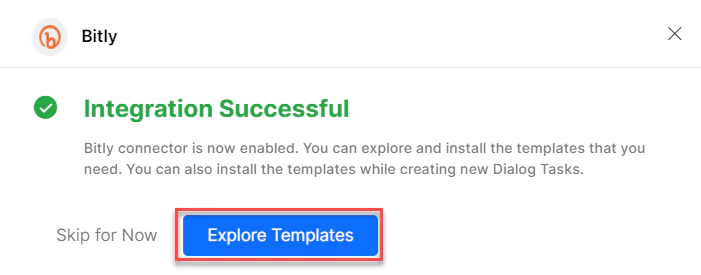
On the Integration Successful dialog, click Explore Templates.
-
Click Install for the desired template.
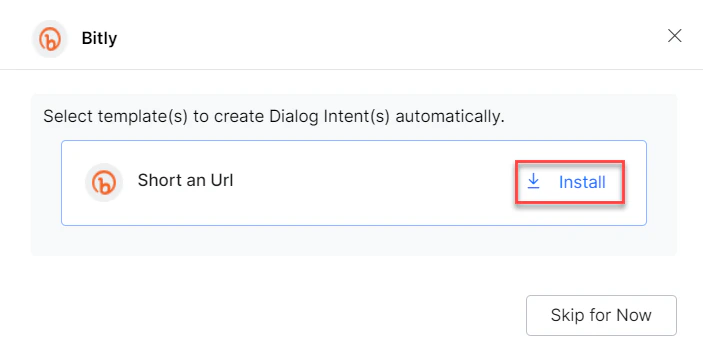
- The associated dialog task is auto-created. Click Go to Dialog or navigate to Automation AI > Use Cases > Dialogs.
- To use the templates, see Using Bitly Action Templates.