Overview
System Settings allow administrators to configure key platform features that control call handling, data management, and system behavior. From this section, administrators can manage Call Recording Control, configure whether calls are answered on the first Bot or AI Agent response, and set the Data Retention Period for stored information. These settings ensure consistent system operation, compliance with policies, and efficient handling of conversations. Navigate to Automation AI > App Settings > Advanced Settings > System Settings to access and configure these functionalities.
Call Recording Control
By default, Contact Center AI records all voice interactions. Administrators can disable call recording for all voice interactions.Steps to disable Call Recording Control
-
Click Call Recording Control.

-
Turn off the toggle to disable call recording for all voice interactions.

Screen Recording Control
If enabled, agent screens are automatically recorded during inbound or outbound call interactions. Learn more. Steps to enable Screen Recording Control:-
Select Screen Recording Control.

- Turn on the toggle to enable screen recording for all voice interactions.
Video Call Recording Control
Video Call Recording settings control whether agent-user video calls are recorded, when recording begins, and how customer consent is handled. Learn more. Steps to configure Video Call Recording:- Turn on Enable Video Call Recording.
- Select a Recording Start option.
- Select a Recording Consent option.
-
(Optional) Turn on the Allow Agents to Pause/Resume Video Call recording toggle to let them pause or resume the recording.

Answer Call on First Bot/AI Agent Response
This feature plays a dial tone to the caller if there is a delay before the AI Agent delivers its first response on inbound calls. This improves the caller experience by indicating the call is still connected, preventing confusion or the impression of a dropped call. Administrators can enable or disable this behavior using a configuration flag.Steps to enable Answer Call on First Bot/AI Agent Response
-
Click Answer Call on First Bot Response.

-
Turn on the toggle to enable the functionality.

Maximum Bot Call Duration
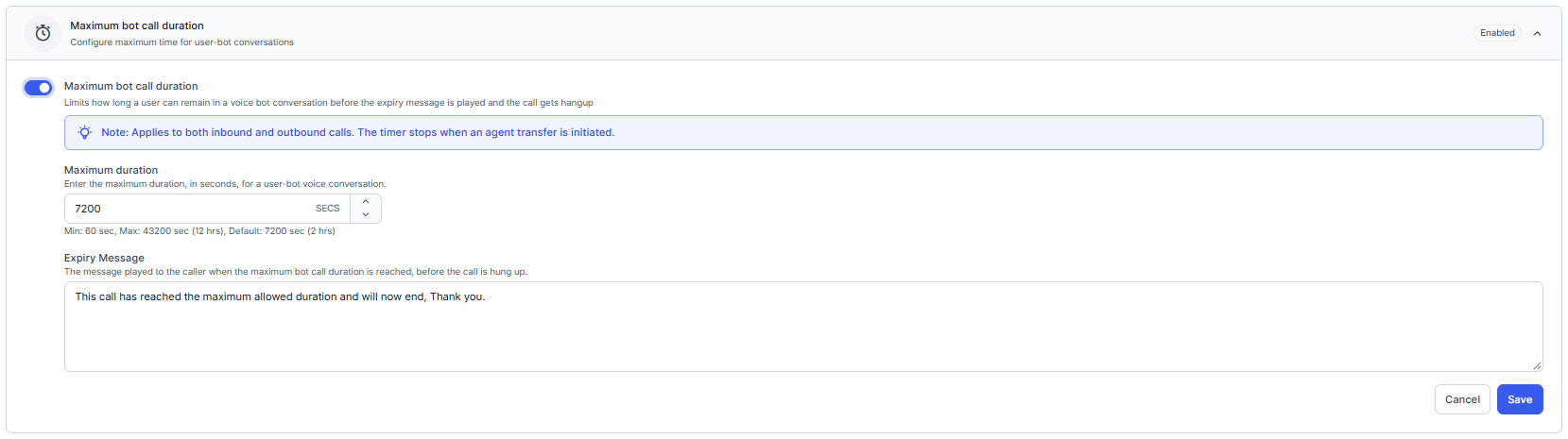
The Maximum bot call duration setting limits the duration of a user-bot voice conversation. When the configured duration expires, the system plays the configured expiry message and ends the call gracefully. The setting applies to inbound and outbound calls. The timer stops when a transfer to a human agent is initiated. The setting includes the following options:
Steps to configure the maximum bot call duration:
- Turn on the Maximum Bot Call Duration toggle.
- Enter the Maximum Duration in seconds. Only whole numbers are accepted.
- Enter the Expiry Message (optional) — the message played to the caller when the maximum duration is reached, before the call ends.
-
Select Save and publish the configuration.
- The timer starts when the Session New event triggers and the bot begins interacting with the caller.
- When the timer expires, the system plays the configured expiry message completely and then ends the call.
- If the caller hangs up while the expiry message is playing, the system retains the Smart Status, Reason, Mode, and Status associated with the maximum call duration timer. The Disconnecting Event is recorded as User Hangup.
- The timer applies to both inbound and outbound calls.
- The timer stops when a transfer to a human agent is initiated, including while the transfer is pending, queued, or in progress.
- The previous bot timer remains closed.
- The returned bot interaction uses a new, independent timer.
- The new timer starts when the new bot media session connects.
- The new timer doesn’t include the duration of the previous bot interaction or the human-agent interaction.
- A single timer that spans multiple bot and human-agent segments isn’t supported.
- App Owners and App Administrators with permission to edit Advanced Settings can modify, save, and publish the setting. View-only users can view the configuration but cannot modify, save, or publish changes.
- The maximum bot call duration applies only to user-bot voice conversations.
Data Retention Period
Use the Data Retention Period feature to configure how long voice call recordings are retained. Select a retention period from 1 day to 7 years. New applications use a default retention period of 3 months, which administrators can change. Enable email notifications before recording deletion. Email notifications are unavailable when the retention period is less than 1 month. Administrators must acknowledge recording deletion before the system deletes recordings. The system records retention setting changes, email preference updates, and successful and failed recording deletions in the audit logs. Only App Owners and Supervisors can modify these settings.Attachment Retention Period
The Attachment Retention Period feature allows administrators to configure a separate retention period for attachments in user-bot conversations. The attachment retention period must always be shorter than the conversation retention period, allowing attachments to be deleted earlier if required. All changes to attachment retention settings are recorded in audit logs for traceability and compliance. Only App Owners can modify these settings.Steps to configure the Data Retention Period
-
Click Data Retention Period.
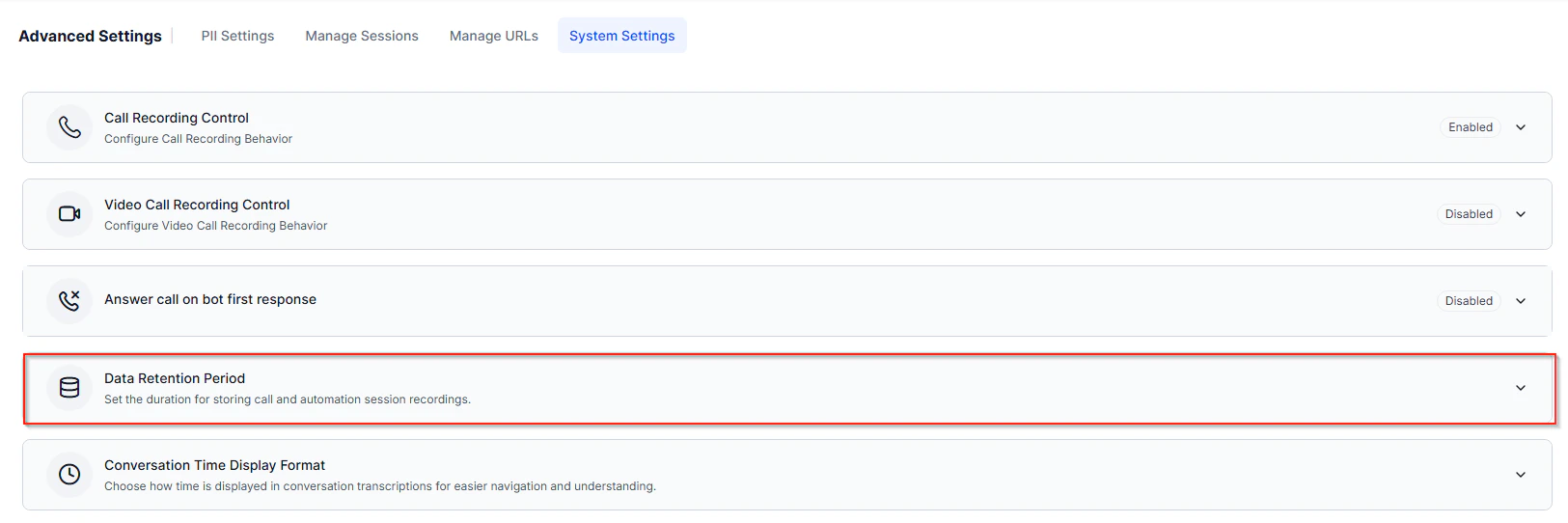
- Select the required retention duration for voice call recordings and voice automation session recordings.
- Optionally, select the checkbox to enable email notifications 5 days before deletion of voice call recordings. Email notifications are available only for retention periods greater than 30 days.
-
Select the required retention period for attachments in user-bot conversations. The retention period can be configured in days, months, or years, up to a maximum of 7 years. However, the configured value can’t exceed the conversation retention period set at the workspace level.
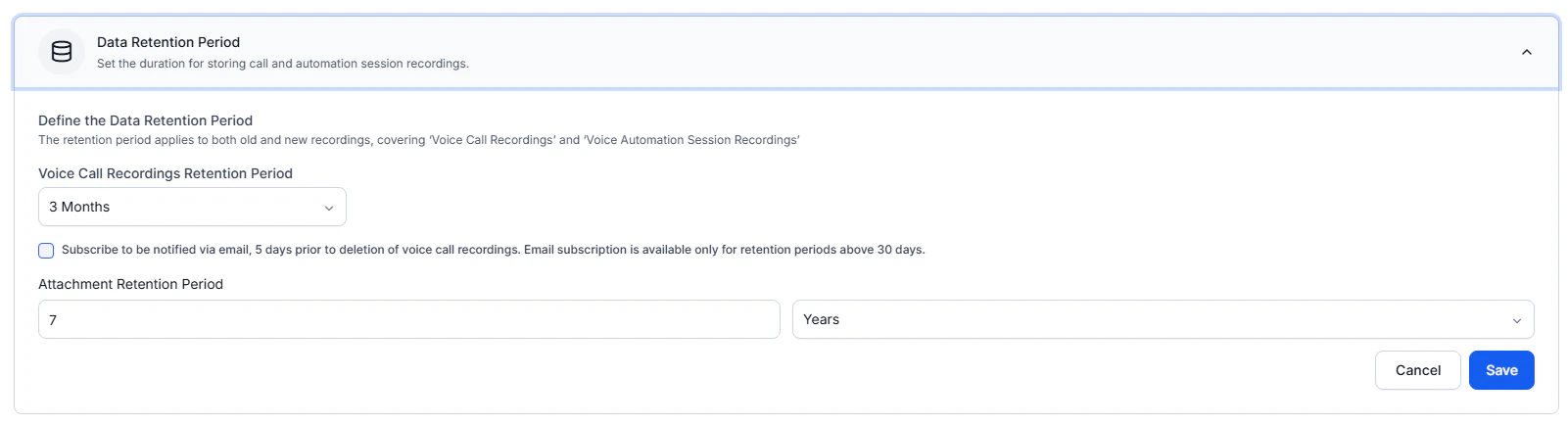
- Select Save to apply the changes.
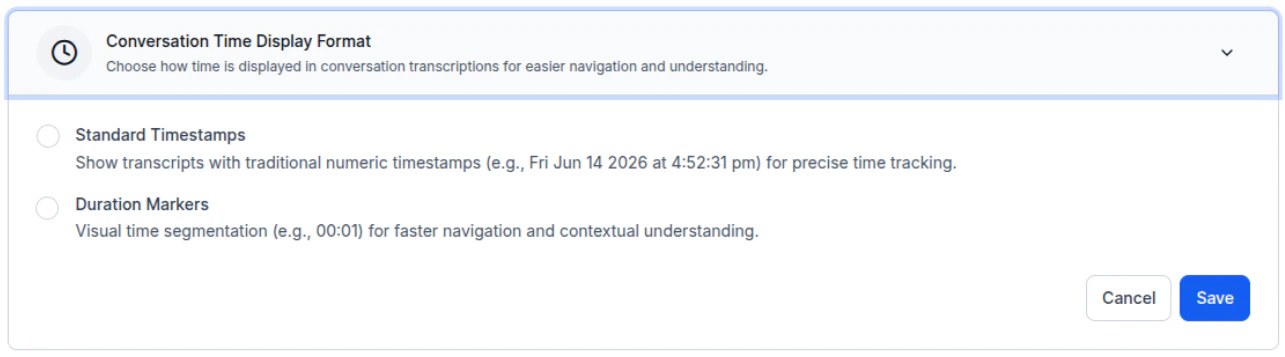
Conversation Time Display Format
Choose how time appears in call recording transcripts. The system displays either actual timestamps or elapsed duration from the start of the call. Learn MoreSteps to configure Time Display Format
- Open Conversation Time Display Format.
- Select Standard Timestamps or Duration Markers.
- Select Save.