

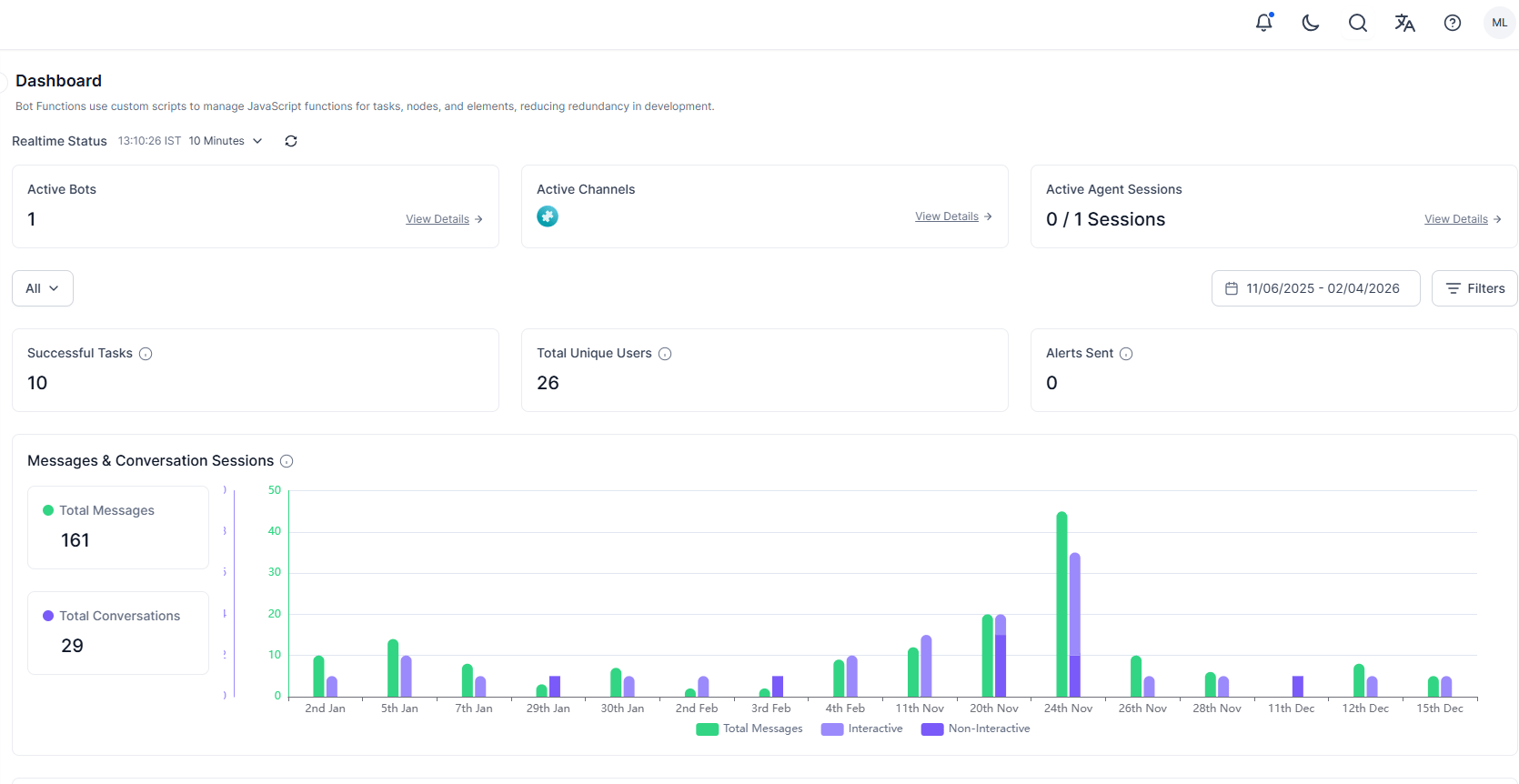
Dashboard Metrics
Real-time Status
This gives an overview of your entire enterprise account at a given point in time. It’s set to refresh every 10 minutes, which can be customized using the dropdown. The Real Time Status includes:- Active Apps – AI Agents that have one or more active sessions. Click View Details to display the name of the Active App along with the number of users interacting with it.
- Active Channels – Click View Details to display the list of active channels along with the number of users using the same.
- Active Agent Sessions – agent sessions that are in progress at a given instance.
App Metrics
By default, App metrics based on usage of all apps during the last 24 hours is displayed. You can customize the metrics displayed by the time period and app selection. Select the App for which you want to see the metrics and further select a Task (multiple selections allowed) within the assistant if needed. By default, the metrics for all Apps are displayed The Time Periods you can select are:- Last 24 Hours – Data aggregated during the preceding 24 hours is displayed. This is the default setting.
- Last 7 Days
- Last 90 Days
- Custom Date Range
- Filters can be applied to display Metrics for the following:
-
conversation session type – see here for more details on the conversation sessions can be either one or both (default setting) of the following:
- interactive sessions – the conversation which include one or more messages from the user;
- non-interactive sessions – conversations where only assistant messages are presented without any message from the user;
- over a specified Channel;
- based upon the meta tags added at a message, user, or session levels. Multiple tags can be selected wherein the ‘AND’ condition is applied (see below for the applicability of the filter on widgets).
-
conversation session type – see here for more details on the conversation sessions can be either one or both (default setting) of the following:
- Filters can be applied to display Metrics for the following:
- An overview of the number of successfully Completed Tasks, Total Users (unique users) who have interacted with the assistant, and number of Alerts Sent is displayed.
- A graphic illustration of the Messages and Conversation Sessions by the hour. This includes
- Number of Messages per hour/day based upon the time period selected. A message is defined as an interaction between the user and the assistant.
- The number of Conversation Sessions per hour/day based upon the time period selected – Conversation Session is defined as the uninterrupted exchange of messages between the user and the assistant without change of intent even after a considerable idle time based on the assistant’s settings (refer here for sessions configuration).
- Hourly (or Daily) details of the Successful Tasks and Active User is displayed.
- The activity related to Successful Tasks, Apps Used, Active Users, and Billing Sessions are also displayed.
Tag based Filters
Meta tag filtering is available for app metrics when a single assistant is selected. Multiple tag values use an AND condition. Changing the app selection resets tag filters.Tag-based filters are available only when a single assistant is selected.