Setup
1. Download the Service
Obtain the skeleton custom connector service from the SearchAssist Toolkit on GitHub.2. Configure the Service
- Modify
config.jsonto include the application configuration details and content fields. - Set the authorization password in the
.envfile in the root folder. Rename the existing.env.samplefile to.envand add your auth value to theAuthorizationkey.
3. Implement Changes (if needed)
Modify the service implementation as required. Refer to the readme file for details.4. Host the Service
Host the configured service on your preferred platform.Configure the Custom Connector in Search AI
- Go to Content > Connectors and select Custom Connector.
-
Configure the following fields:
-
For default implementation, under Headers, add the authorization headers as shown below:
- Key:
Authorization - Value:
<Your-Auth-Key>(the value set in the service’s.envfile)
The encoding format for a header can be set tobase64(value is encoded before sending) ornone(value is sent as plain text). The default for newly added headers isbase64. - Key:
-
If your service is secured using OAuth 2.0 Client Credentials authentication, create an authorization profile in App Settings > Dev Tools > Authorization Profiles and associate it with the connector. Search AI uses the configured profile to obtain and manage access tokens automatically when connecting to the service.
Only the OAuth 2.0 Client Credentials grant type is currently supported for Custom Content Connectors.
- Click Connect to complete the setup.
Content Synchronization
- Go to the Configurations tab of the custom connector configuration page.
- Click Sync Now.
Access Control
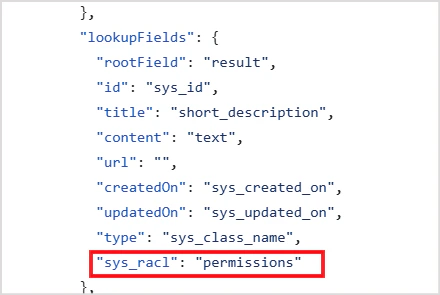
Search AI supports RACL on content ingested via the custom connector. Thesys_racl field in the connector service config.json specifies which field in your source data holds permission information. The data fetched from that field is saved as a permission entity.
For example, if access information is stored in a permissions field in your content, set the sys_racl field in the connector service config accordingly: