

The metric works for both warm transfers (agent stays during handoff) and cold transfers (immediate agent disconnect). It integrates with telephony systems to detect transfer events and can evaluate multiple transfers in a single conversation.
Key Benefits
- Evaluate 100% of internal transfer interactions automatically.
- Reduce customer frustration from poor handoffs.
- Identify coaching opportunities for better transfer communication.
- Maintain consistent service quality throughout the transfer process.
Create By Transfer Etiquette Metric
- Navigate to Quality AI > Configure > Evaluation Forms > Evaluation Metrics.
- Select + New Evaluation Metric.
-
From the Evaluation Metrics Measurement Type dropdown, select By Transfer Etiquette.
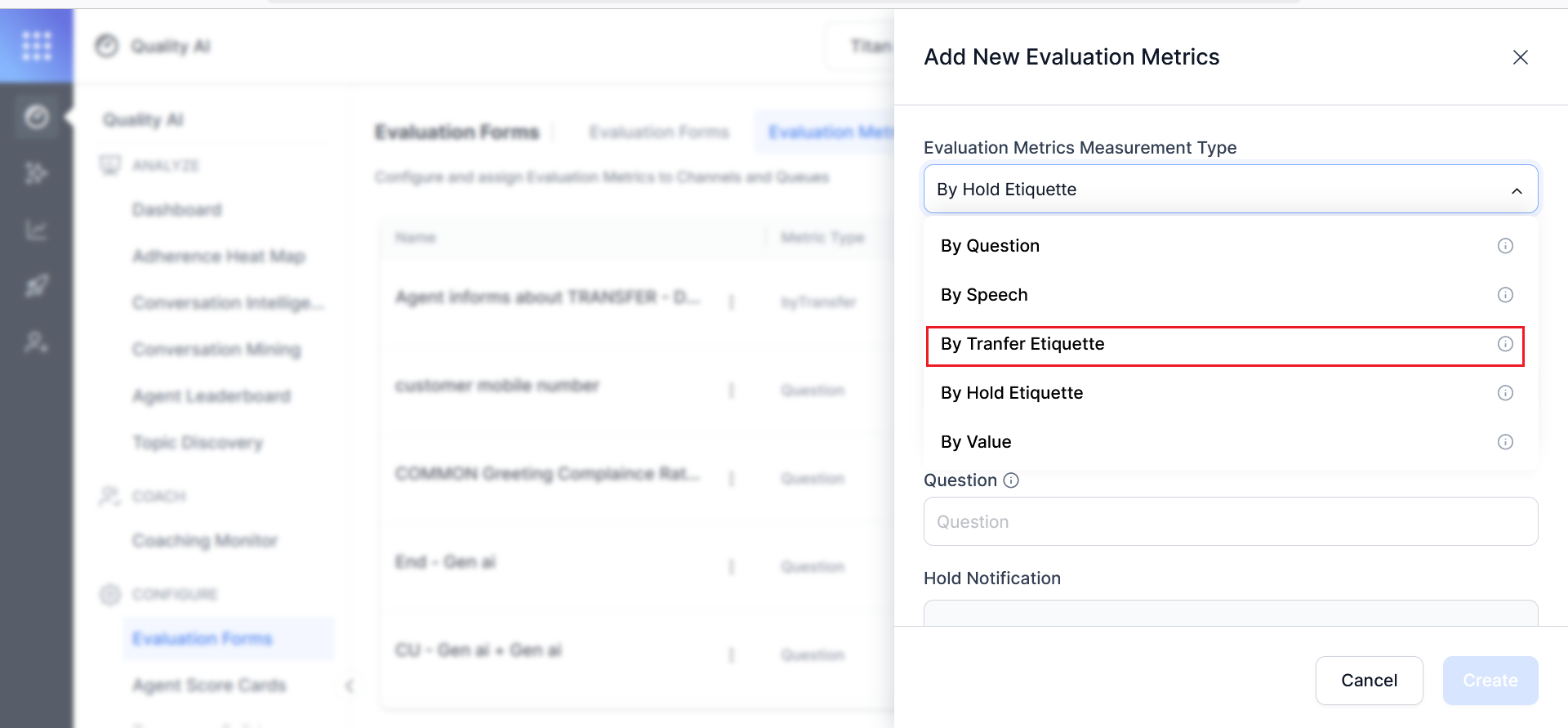
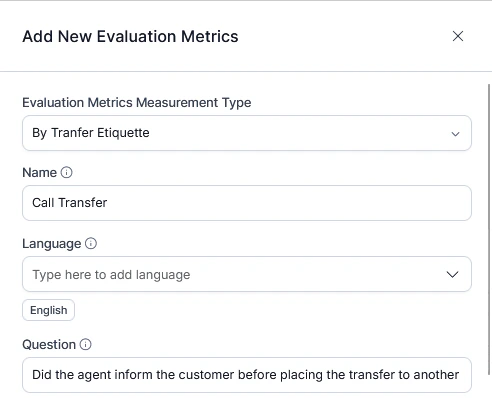
- Enter a descriptive Name (for example, “Pre-Transfer Communication Check”).
- Select the applicable Languages. You must select at least one; you can add or remove languages later.
-
Enter an evaluation Question (for example, “Did the agent inform the customer before transferring to another department?”).
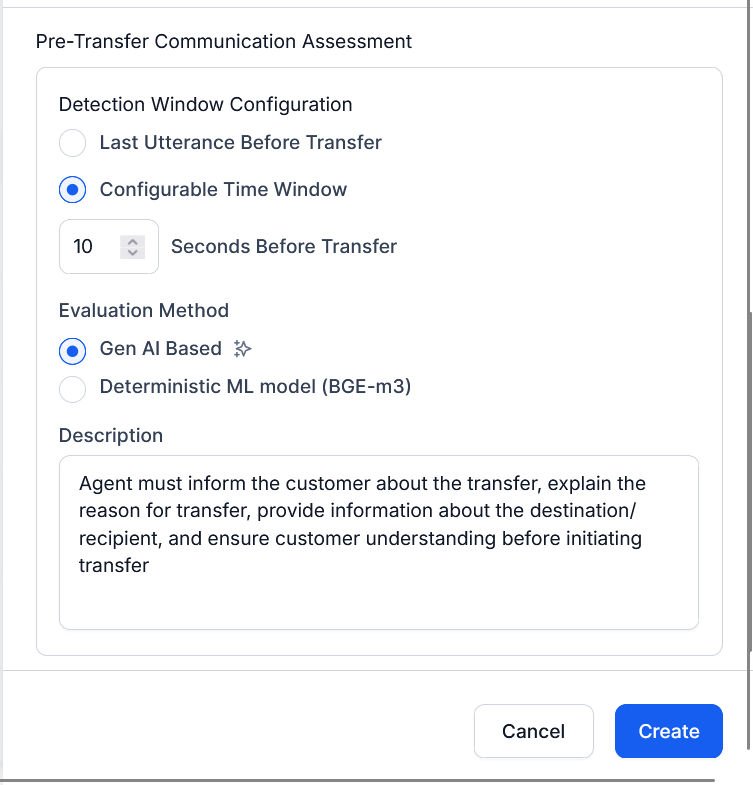
- Configure Pre-Transfer Communication Assessment-verifies whether agents provided required information before transferring.
-
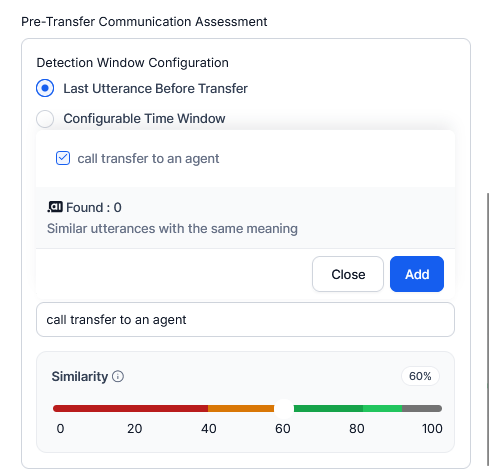
Configure the Detection Window-defines how the system detects agent behavior before the transfer:
-
Select an Evaluation Method:
Gen AI-Based
Uses natural language analysis to assess transfer etiquette contextually.-
Enter a Description of expected behavior (for example, “Agent must inform the customer about the transfer, explain the reason, and provide destination information”).
Deterministic ML (BGE-m3)
Compares embedded similarity scores against sample reference utterances.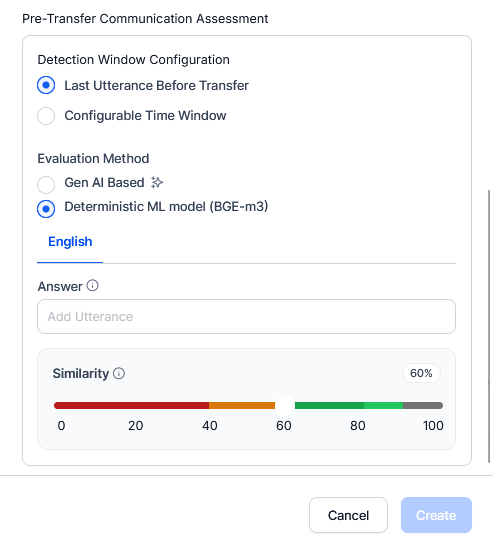
-
In Answer, add sample utterances (for example, “I’d like to transfer this call to another department”).
- Add multiple utterances per configured language. Each language has its own set.
- Check/uncheck utterances to include or exclude them.
-
Set the minimum Similarity threshold (0-100%, default 60%):
- Below 60%-orange (doesn’t meet standard)
- 60-100%-green (meets standard)
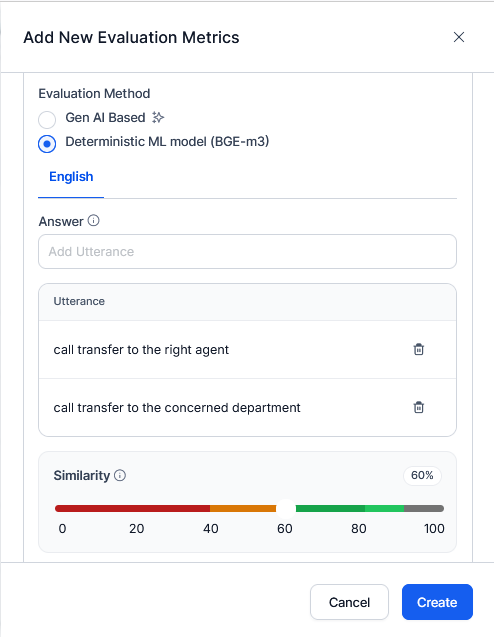
- Select similar utterances from the sample list to enable the Create button.
-
Enter a Description of expected behavior (for example, “Agent must inform the customer about the transfer, explain the reason, and provide destination information”).
- Select Create.
The Create button activates only after all validation checks pass. Once saved, the metric becomes active and appears in the Evaluation Metrics dashboard.