

Why Use Topic Discovery?
Topic Analysis Capabilities
Key Capabilities
- Trend Identification: Identify high-volume topics and their performance impact to assess operational health.
- Coaching Focus: Pinpoint topics with low sentiment or resolution rates for targeted coaching and improvement.
- Performance Monitoring: Track topic-level metrics such as AHT, sentiment, and resolution rate for objective evaluation.
- Proactive Management: Detect emerging topics early using AI-generated insights to prevent escalation.
- Handled By Filtering: Filters analytics by All, Human Agent, or AI Agent segments; All combines both, while each mode shows only its respective segment (AI or human).
- Direction-Aware Analysis: Filter all topic views by Inbound or Outbound interactions.
Prerequisite
- Topic Discovery analyzes AI Agent conversations only when the Automation AI conversation source is enabled for the workspace.
- If the Automation AI conversation source is disabled, AI Agent conversations are excluded from Topic Discovery, while Human Agent conversations continue to be analyzed.
- AI Agent conversations are included automatically once both the Conversation Intelligence feature and Automation AI conversation source are enabled.
Access Topic Discovery
Navigate to Quality AI > Topic Discovery.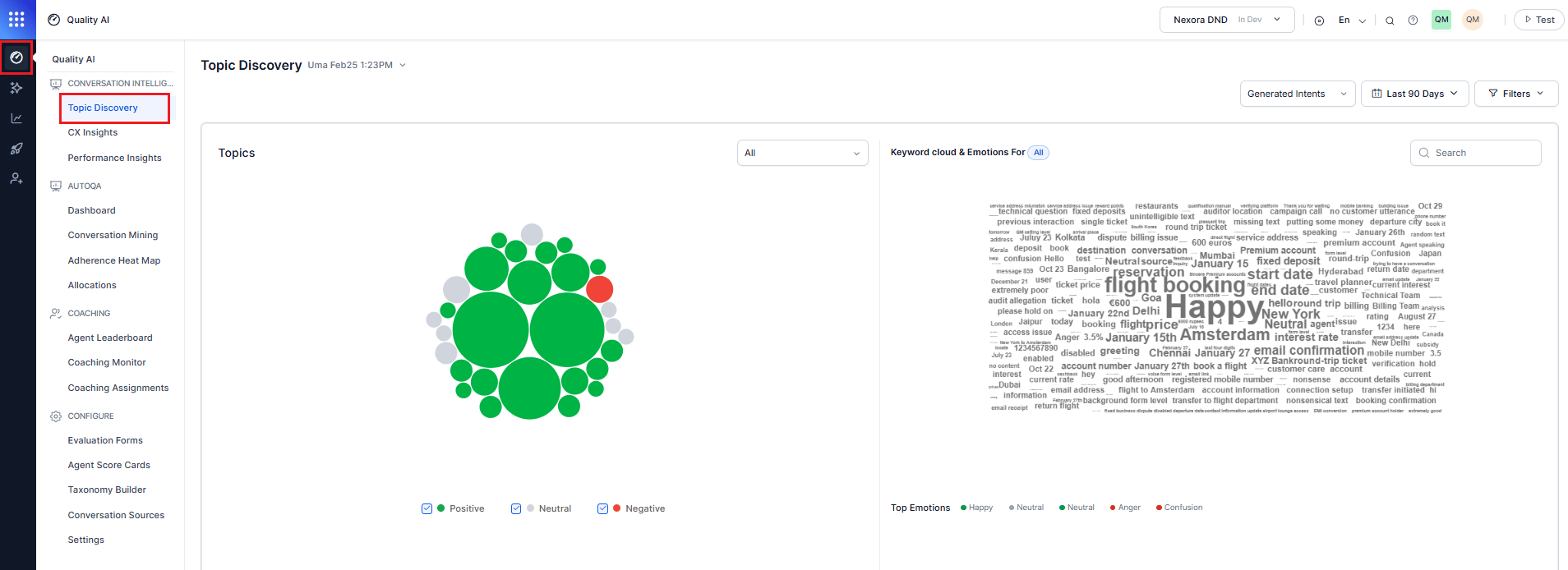
Topic Hierarchy
Topic Discovery uses a three-level structure: Bot conversations, AI Agent conversations, and Human Agent conversations all use the same L1/L2/L3 taxonomy, ensuring consistent reporting across all interaction types.
Filters
The top filter bar is the central control panel for customizing the Topic Discovery dashboard. Every adjustment updates the visualization in real time.
Filters Overview
Advanced Topic Filters
Select Filters to access additional filtering options and refine the dashboard view.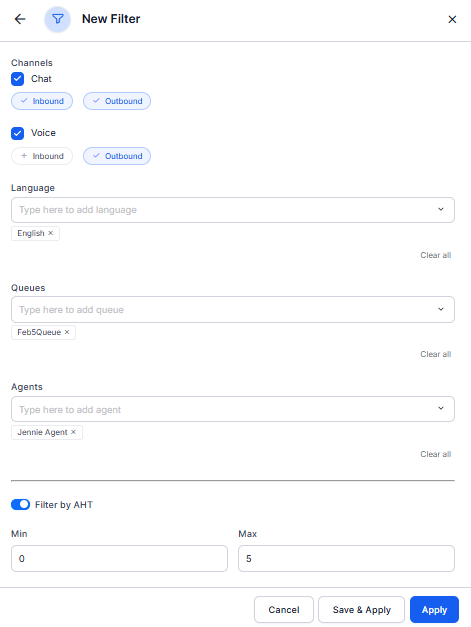
Bubble Visualization Canvas
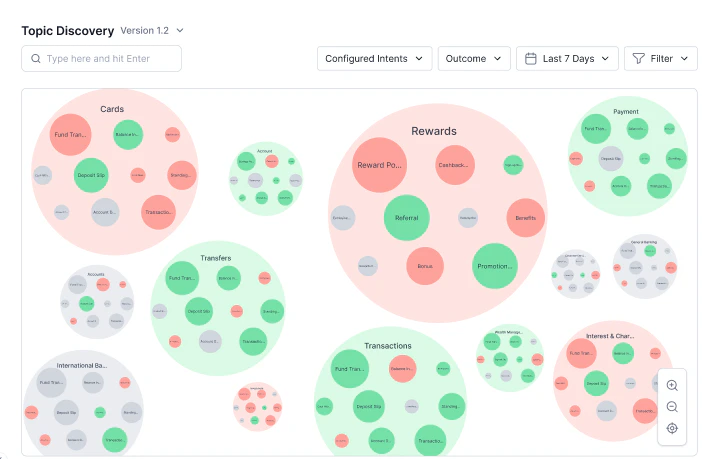
The central visualization displays topics as interactive bubbles with meaningful visual encoding, providing an at-a-glance view of conversation volumes, performance metrics, and relationships between topics. This intuitive interface allows you to explore your conversation data spatially, with visual cues guiding you to areas that need attention.- AI Agent displays metrics derived only from AI Agent conversation segments.
- Human Agent displays metrics derived only from Human Agent conversation segments.
- All displays aggregated metrics across both conversation segments.
Bubble Chart Display
The central visualization displays topics as interactive bubbles, encoding meaningful data visually. Each bubble encodes key topic attributes visually:- Bubble Size: Represents conversation volume. Larger bubbles indicate a higher number of conversations.
- Bubble Color: Indicates topic performance based on the selected metric (sentiment or resolution).
- Positioning: Groups related topics together to reveal patterns and clusters.
- Labels: L1 topics are labeled outside the bubbles. L2 and L3 topics are labeled inside.
Sentiment Visualization Across Topic Hierarchy
Customer sentiment is captured at the L3 level and aggregated across L2 and L1 topics. Topic Discovery uses color-coded indicators: green (positive), gray (neutral), and red (poor), helping identify sentiment trends across the topic hierarchy.Resolution-Based Visualization
When resolution-based coloring is applied, topics appear as red (0–50%), grey (50–70%), and green (70–100%). Changing the coloring mode affects only visualization; sentiment and resolution filters remain active together, enabling combined analysis of topic performance.Bobble Tooltips
Hovering over any bubble reveals a detailed tooltip that provides quick access to key metrics without leaving the main visualization. This instant feedback mechanism helps you assess topic performance and identify areas for deeper investigation.
Configured vs. Generated Intents
Topic Discovery provides two topic views to support different analysis needs.
To create or update your taxonomy, see Taxonomy Setup.
Topic View Detail Pane
Topic metrics reflect the selected Handled By filter and use data from the corresponding conversation segment. Select View Details from any bubble tooltip to open the detail slideout for a specific topic. The detailed slideout provides comprehensive analytics for individual topics, combining historical trends, performance metrics, and qualitative insights.Overview Tab
Shows the Overview tab to analyze topic performance over time.Time Granularity
Use this you can switch between Daily and Weekly views based on your analysis needs.Time Granularity
Use the Time Granularity toggle to switch between Daily and Weekly views based on your analysis needs.Topic Metrics
Review topic-level performance metrics to understand conversation volume, customer sentiment, operational efficiency, and resolution outcomes over the selected time period.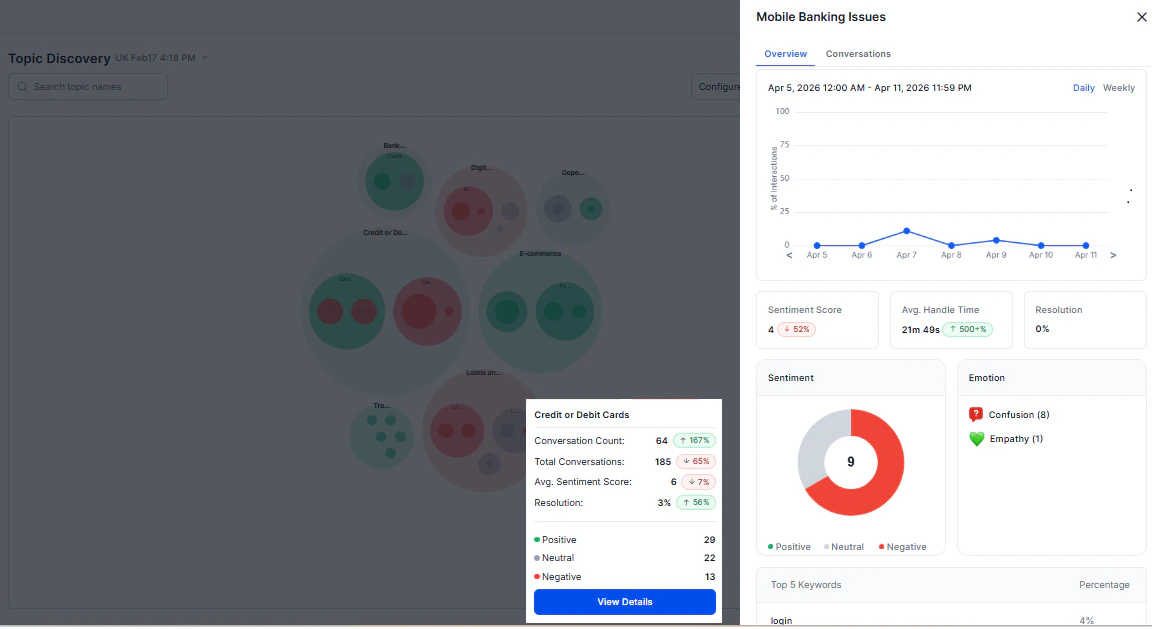
Conversations Tab
Shows the Conversations tab with list and detailed views of interactions for analysis of the selected topic.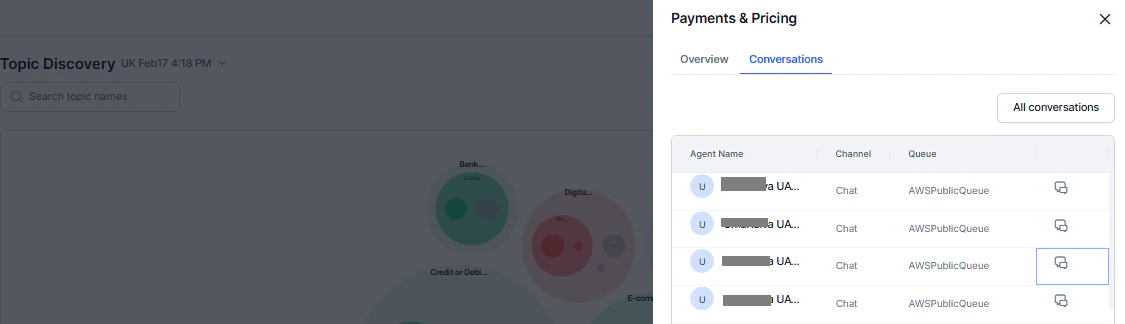
Conversation List Columns
Navigation and Access
The Conversation List view displays individual interactions and lets you search, sort, and filter conversations to quickly identify patterns and locate specific interactions.- Sorting: Most recent conversations first.
- Pagination: 10 conversations per page.
- Page Jumping: Direct access to specific pages.
- All Conversations: Opens Conversation Mining - Interactions with topic filters applied.
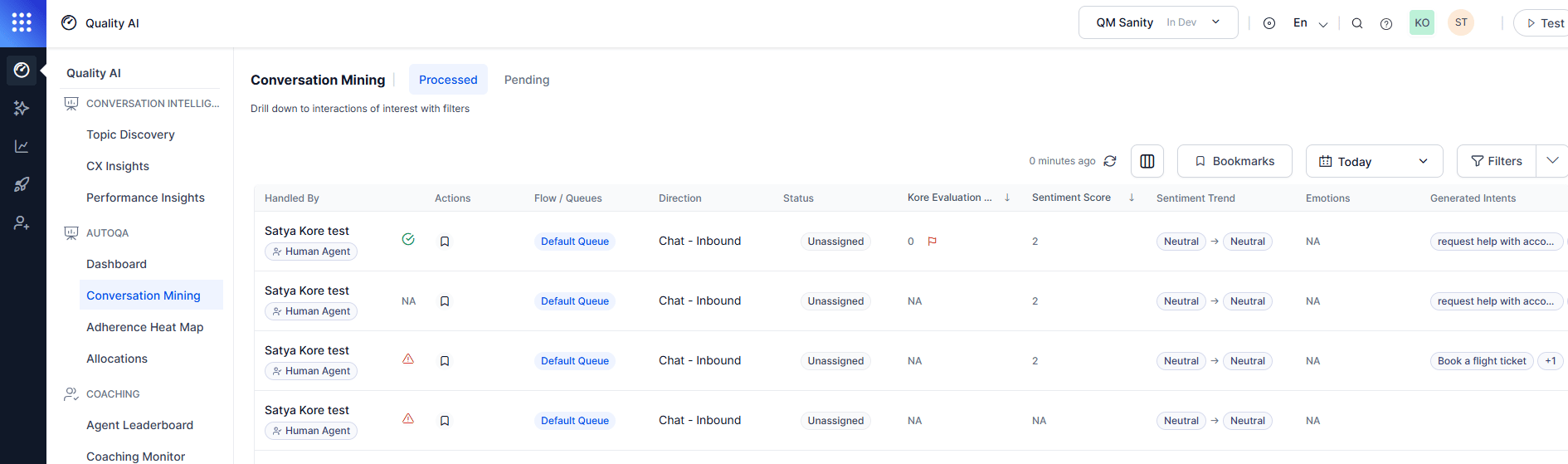
Full Conversation View
Open the conversation icon from the Conversations Tab to view a detailed interaction breakdown with full thread, metadata, and analytics in one panel.Conversation Details
Analysis Tools
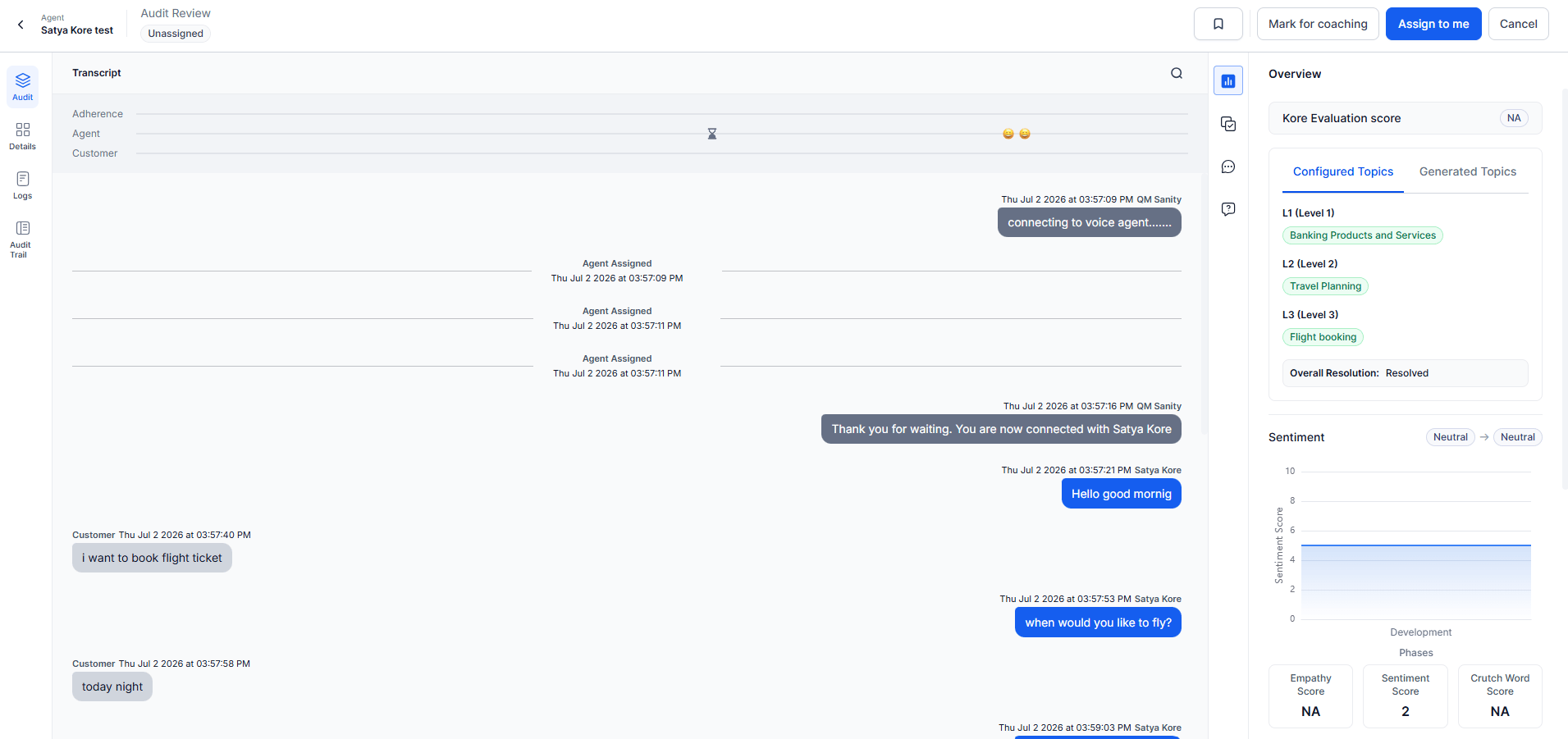
Use Case: Identifying Agent Coaching Opportunities
Scenario: A QA Manager notices increasing customer complaints and needs to find specific areas for improvement.Step-by-Step
-
Initial analysis
- Open Topic Discovery with the default 7-day view.
- Scan L1 topics for large bubbles with negative sentiment.
- Identify
Technical Supportas a high-volume, low-sentiment topic.
-
Drill-down investigation
- Select
Technical Supportto reveal L2 topics. - Notice
Software Installationhas poor resolution rates. - Select
Software Installationto see L3 subtopics. - Identify
Driver Installationas the primary problem area.
- Select
-
Detailed analysis
- Open the
Driver Installationdetail pane. - Metrics: 150 conversations, 45% resolution rate, average sentiment: 2.
- Top keywords:
error,crash,incompatible,frustrated. - Top emotions: Anger (40%), Frustration (35%), Confusion (25%).
- Open the
-
Conversation review
- Select View Conversations to review individual interactions.
- Review 3-4 representative conversations to identify failure patterns.
- Identify knowledge gaps in driver troubleshooting procedures.
-
Action planning
- Develop a targeted training module on driver installation.
- Create job aids for common driver compatibility issues.
- Schedule coaching sessions with agents handling technical support.