Documentation Index
Fetch the complete documentation index at: https://koreai.mintlify.app/llms.txt
Use this file to discover all available pages before exploring further.
Overview
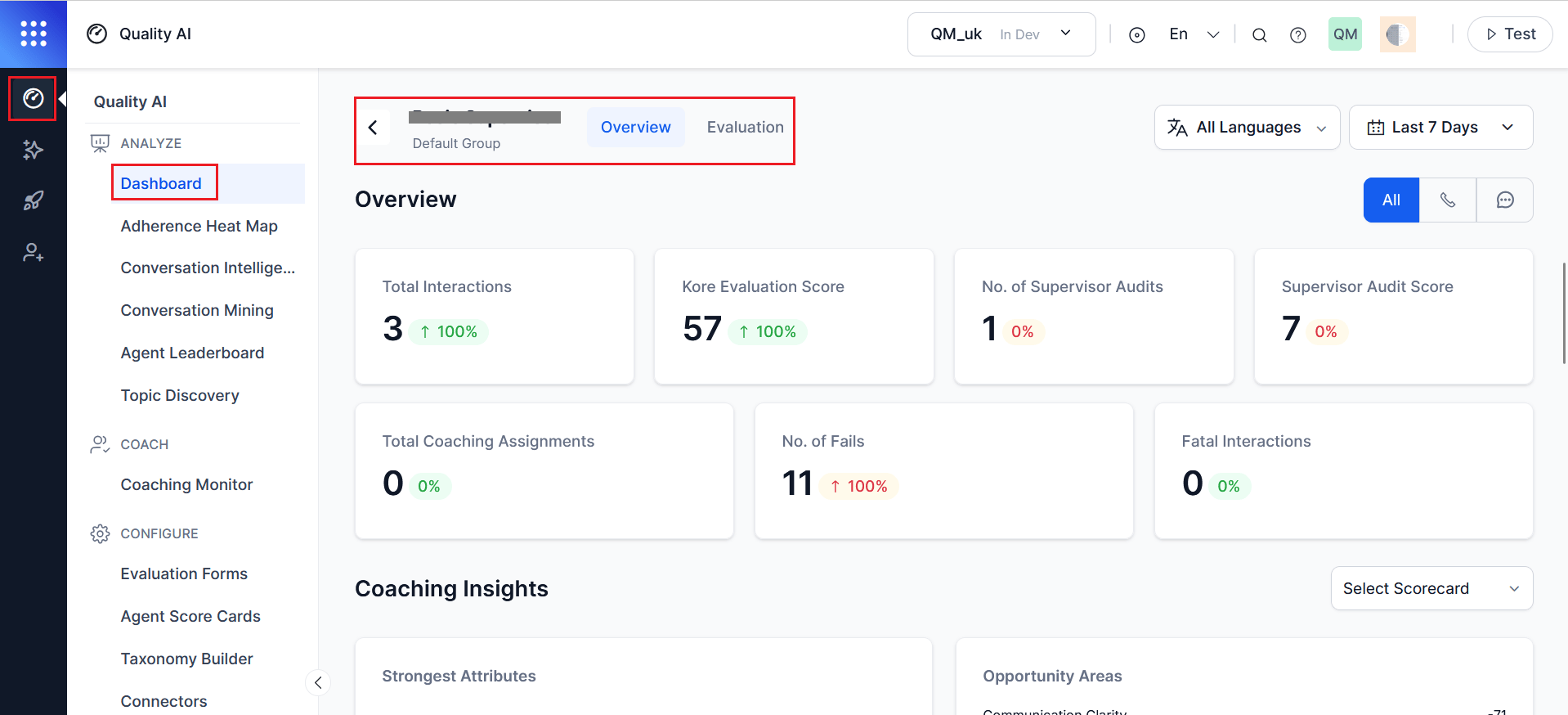
The Agent-Specific Dashboard provides supervisors with a detailed view of individual agent performance across quality, coaching, sentiment, and resolution insights to support targeted coaching and performance improvement.
Supervisors can track interaction trends, Auto QA and manual scores, scorecard performance, L3-level sentiment and resolution insights, evaluation review status, and dispute activity when agent disputes are enabled. Filter data by date range, language, queue, channel (voice or chat), and contact direction to focus on relevant interactions and trends.
Supervisors with Cross Queue Data Access can view performance across all queues. Otherwise, the dashboard displays data only for assigned queues.
Key Capabilities
| Capability | Description |
|---|
| Agent-Level Performance Analysis | Track interaction volume, evaluation scores, and audit activity. |
| Coaching Insights | Identify strengths and improvement areas using scorecard data. |
| Sentiment and Resolution Insights | Analyze customer experience trends at topic (L3) level. |
| Trend Monitoring | View performance trends across daily, weekly, and monthly intervals. |
| Evaluation Review Tracking | Monitor the acknowledgement and dispute status of manually audited conversations. |
| Detailed Navigation | Navigate to Topic Discovery and Conversation Mining for deeper analysis. |
Access Agent Dashboard
A supervisor can access the Agent Dashboard in the following ways:
Option 1:
-
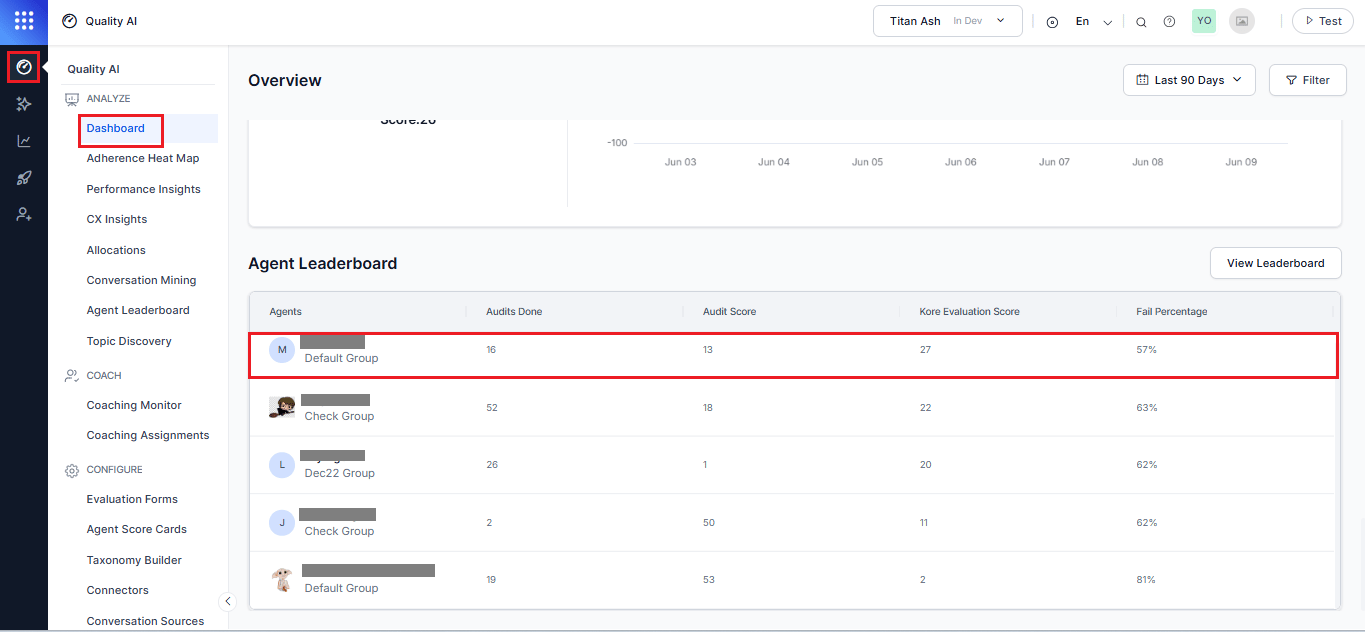
Navigate to Quality AI > Analyze > Dashboard.
-
In the Agent Leaderboard, select an agent to open their agent-specific dashboard.
Option 2:
-
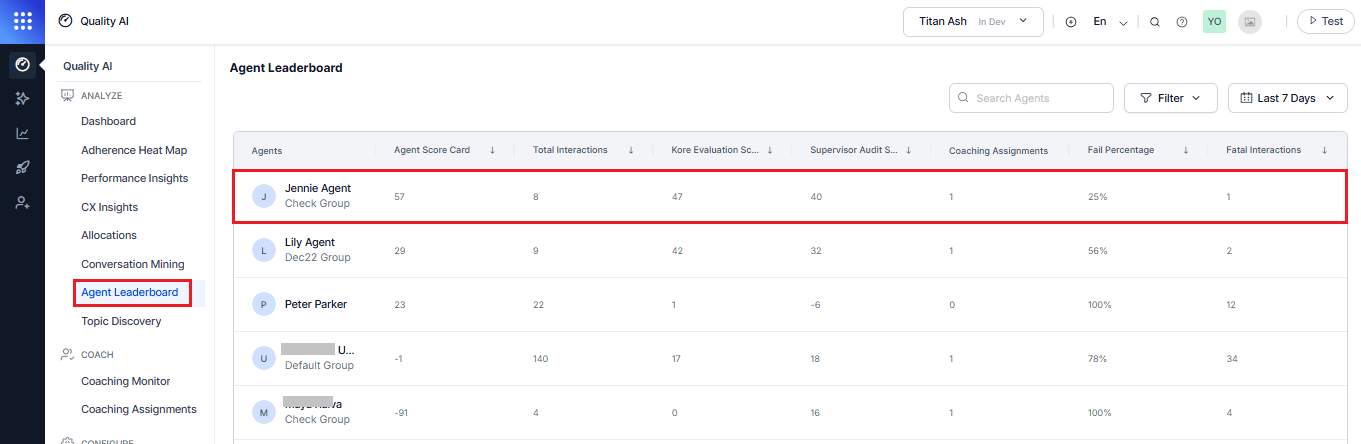
Navigate to Quality AI > Analyze > Agent Leaderboard.
-
In the Agent Leaderboard, select an agent to open their agent-specific dashboard.
Enable Auto QA, Agent Scorecard, and Agent Access to Scored Interactions, and Agent Accept & Dispute in Quality AI Settings to view evaluation scores and coaching insights, review status, and dispute activity.
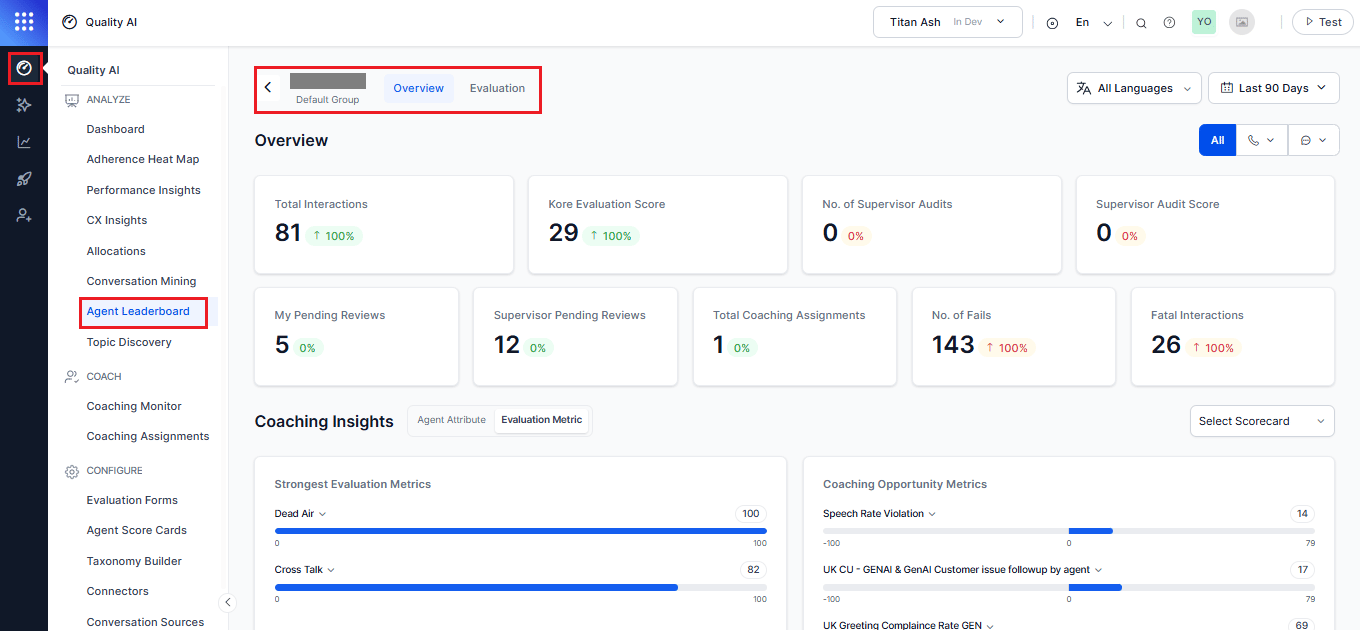
The Overview tab provides the supervisor’s view of the agent dashboard for each agent and includes the following:
Filters
The Dashboard metrics helps you to filter and refine the data displayed across the entire Agent Dashboard by selected languages, date range, channel, and contact direction.
| Filter | Description |
|---|
| Language | Filter by one or more configured languages. Metrics reflect only languages defined in Configuration > Settings. The system selects all languages by default. Key widgets such as Total Audits, Average Audits per Agent, Evaluation Scores, Fail Statistics, and Performance Monitor updates based on selection. |
| Date Range | Filter data using predefined ranges (Today, Yesterday, Last 7, 28, or 90 Days) or a custom range (up to 31 days). The system displays data according to the agent’s time zone. |
| Channel | Filter by Voice, Chat, or All Channels. Supports trend and distribution views. |
| Contact Direction | Filter by Inbound, Outbound, or Both. You can apply it per channel for more granular analysis. |
All widgets update dynamically based on selected filters.
Provides a summary of agent activity and quality performance. Each widget shows the current value and % change (↑ improvement, ↓ decline).
| Metric | Description |
|---|
| Total Interactions | Interactions completed by the agent in the selected period. |
| Kore Evaluation Score | Average Auto QA score for the agent’s completed calls. |
| No. of Supervisor Audits | Total number of interactions manually audited by a supervisor for the selected period. |
| Supervisor Audit Score | Average manual audit score for audited interactions, reflecting the latest revised score for any re-evaluated interactions. |
| Total Coaching Assignments | Total number of coaching sessions assigned to the agent during the selected period. |
| No. of Fails | Total scorecard failures over the selected date range. |
| Fatal Interactions | Interactions that triggered a fatal metric failure, resulting in a zero score. |
Coaching Insights
This section shows where the agent performs well and where they need coaching. It surfaces strengths and improvement areas through score-based bars and supports two selectable tabs.
Select Scorecard
Use the Select Scorecard menu to filter insights for a specific scorecard. All data in both tabs updates based on the selected scorecard and time range.
Agent Attribute
This view summarizes performance at the attribute level and contains two sections.
| Section | Description |
|---|
| Strongest Attributes | Displays the top five highest-scoring attributes based on adherence for the selected scorecard and time period. |
| Opportunity Areas | Displays the bottom five lowest-scoring attributes for the selected scorecard and time period, highlighting areas that need coaching attention. |
Attribute Bar Details
| Component | Label | Score Display (Right Side) | Bar Length Representation | Color Meaning |
|---|
| Attribute Bar | Attribute name | Aggregated adherence score | Performance level (typically -100 to 100 scale) | Blue = strong performance, Red = needs improvement |
| Metric Bar | Metric name | Score | Performance level | Blue = strong performance, Red = coaching required |
Evaluation forms assigned to the agent at the queue level determine the metrics.
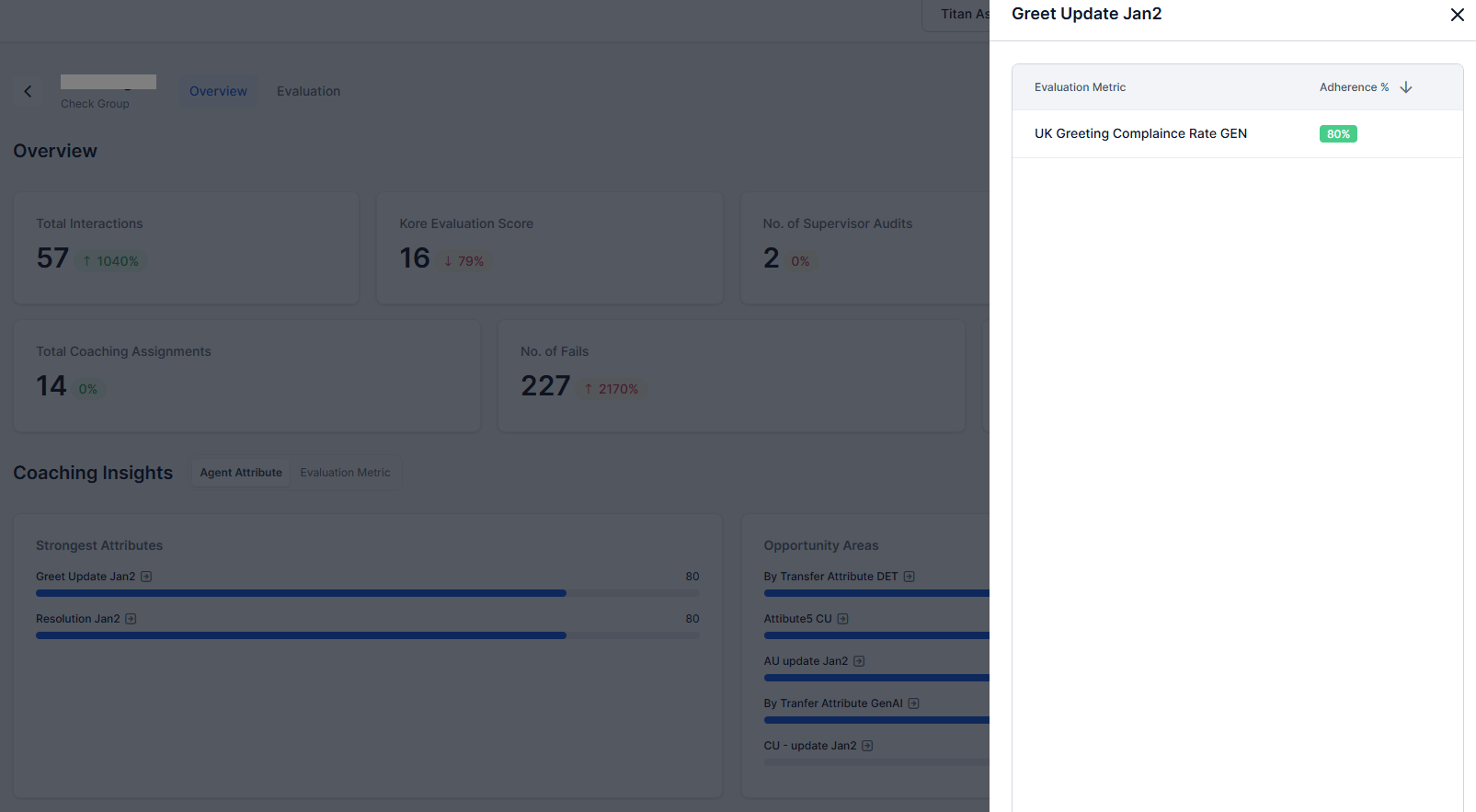
Click-through (Attribute to Metric Breakdown)
Select an attribute to open a detailed modal view with metric-level breakdown.
| Column | Description |
|---|
| Evaluation Metric | Individual metric mapped to the selected attribute. |
| Score or Adherence % | Adherence percentage score for the metric. |
Evaluation Metric
This tab displays metrics based on the evaluation forms assigned to the agent at the queue level.
| Section | Description |
|---|
| Strongest Evaluation Metrics | Top-performing metrics where the agent shows strong adherence. |
| Coaching Opportunity Metrics | Lowest-performing metrics that require improvement. |
Hover Insight (Metric — Attribute Mapping)
Hover over a metric to view its mapped agent attribute. For example, hovering over Authentication displays the related attribute, helping supervisors trace metrics to parent attributes without switching tabs or views.
Example: Hovering over a metric such as Authentication displays its mapped attribute.
This enables quick traceability from metrics to their parent attributes without switching views or tabs.
Sentiment Insights
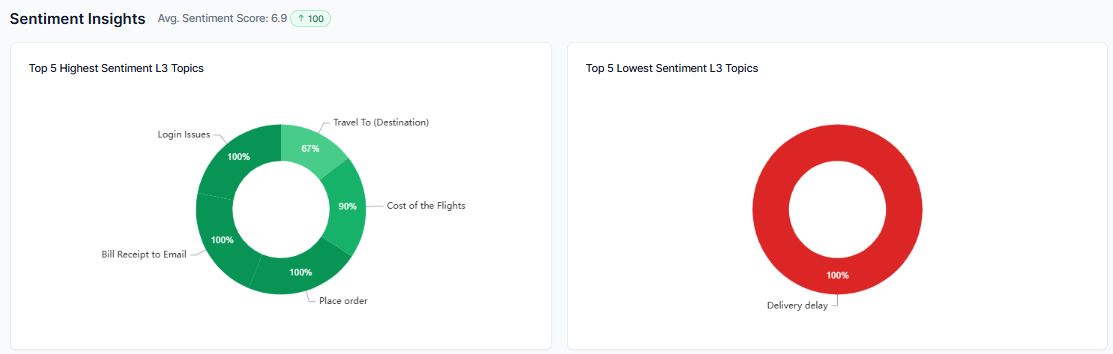
Sentiment Insights displays agent sentiment trends across conversations to support performance analysis and coaching decisions.
- Average Sentiment Score: Displays the agent’s overall sentiment across all topics, including positive and negative conversation counts, along with trend indicators.
- Top Five Highest Sentiment L3 Topics: Displays the top five L3 topics with the highest sentiment scores.
- Top Five Lowest Sentiment L3 Topics: Displays the top five L3 topics with the lowest-sentiment scores.
- Hover Insights: Hovering over a doughnut chart segment displays the topic name, sentiment percentage, conversation count, and quick links.
- View All Topics: Opens the Topic Discovery page with relevant filters pre-applied.
- View Conversations: Opens the Conversation Mining page filtered to the exact topic selected.
- Performance Analysis: Displays the topic-level counts, sentiment splits, and insights when you hover over the doughnut chart.
- Color-Coded Patterns: Displays the visual patterns (green = positive, red = negative) for instant understanding of customer mood.
- Identify Performance Gaps: Provides a comparison view to identify the highest and the lowest sentiment.
- Spot Coaching Opportunities: Enables you to make informed decisions based on negative sentiment drivers or recurring customer frustrations.
- Monitor Trends: Displays track agent sentiment patterns in conversation.
Resolution Insights
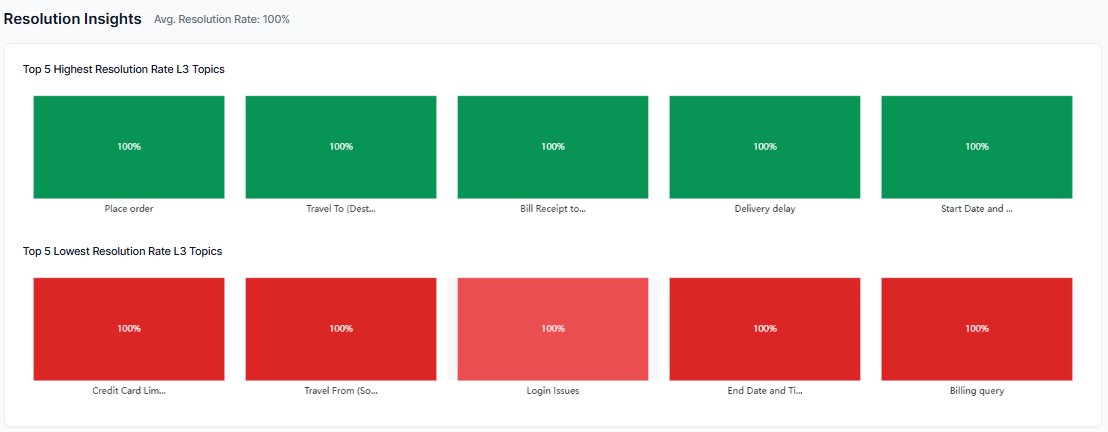
Resolution Insights helps supervisors evaluate how well agents resolve customer issues by displaying resolution trends across L3 topics.
-
Average Resolution Rate: Displays the agent’s overall average resolution rate across all conversations and topics.
-
Top Five Highest-Resolution L3 Topics: Displays the five L3 topics with the highest resolution rates.
-
Top Five Lowest-Resolution L3 Topics: Displays the five L3 topics with the lowest resolution rates.
-
Resolved or Unresolved Breakdown: Displays conversation counts and percentages for resolved and unresolved conversations for each topic.
-
Hover Insights: Hovering over a chart segment displays topic details, resolution percentage, conversation count, and navigation links.
- View All Topics: Opens the Topic Discovery page with relevant filters pre-applied.
- View Conversations: Opens the Conversation Mining page filtered to the exact topic selected.
-
Identify Performance Gaps: Displays a comparison of the highest vs. the lowest resolution rates.
-
Color-Coded Patterns: Displays the visual patterns (green = high or successful resolution rates, red = low resolution or unresolved interactions).
-
Performance Analysis: Highlights resolution gaps and coaching opportunities across topics.
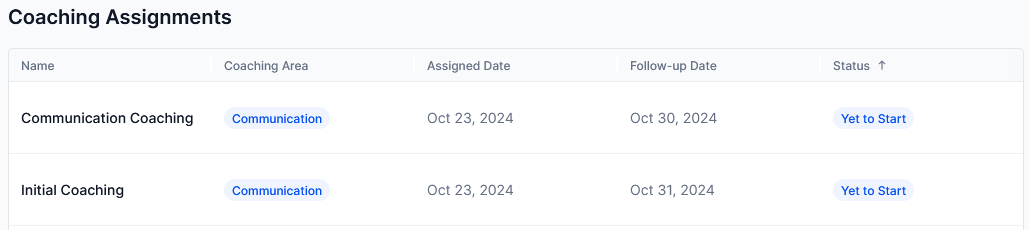
Coaching Assignments
Displays all coaching assignments given to an agent. It enables supervisors to track scorecard performance trends over time and assess improvement or decline.
| Column | Description |
|---|
| Agent | Displays the name of the assigned agent. |
| Coaching Area | Displays the attributes selected as coaching focus areas for the assignment. |
| Assigned Date | Shows the date the system assigned the coaching session. |
| Follow-up Date | Displays the scheduled follow-up date for the coaching assignment. |
| Status | Indicates the current stage of the coaching assignment. |
Status values
| Status | Who sees it | Meaning |
|---|
| Start Now | Agent only | Coaching is ready to start and no interactions reviewed. |
| Yet to Start | Supervisor only | No interactions reviewed. |
| In Progress | Both | At least one interaction reviewed. |
| Completed | Both | All interactions reviewed. |
Use this section to track coaching progress and follow-ups. For more information, see Coaching Assignments.
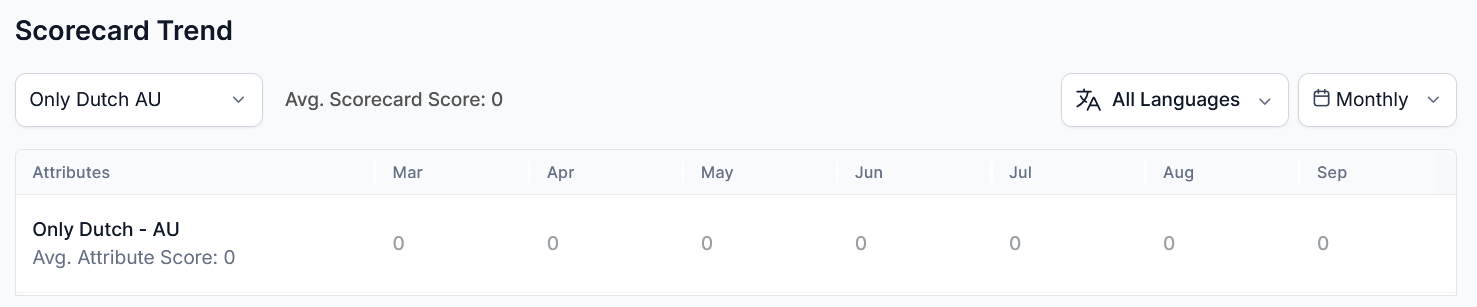
Scorecard Trend
This feature tracks agent performance across assigned scorecards through daily, weekly, and monthly trends. It supports attribute-level analysis, multilingual scorecard views, and targeted coaching insights.
| Element | Description |
|---|
| Trends | Displays score trends across daily, weekly, and monthly intervals. |
| Average Score | Displays the agent’s average score for the selected time range. |
| Attributes | Displays average scores for each attribute within the selected scorecard. |
Language Configuration
| Element | Description |
|---|
| Language Filter | Displays only languages configured for the selected scorecard. |
| Auto Selection Behavior | When you select a scorecard, all associated languages are automatically included. |
| Multilingual Analysis | Enables comparison of agent performance across languages for localized insights and coaching. |
| Configuration Scope | Each scorecard maintains independent language settings separate from the global dashboard language. |
Access & Availability
| Element | Description |
|---|
| Feature Availability | The system disables this feature for agents and supervisors if you turn off the Agent Scorecard in Quality AI General Settings. |
Avg. Scorecard Score
From the agent side, the scorecard trend widget displays the average scorecard for the selected time range and the scoring trend at an attribute level across the scorecards.
When you select a scorecard, the average score for that agent within the chosen global date range is displayed. If the number of conversations is calculated after assignment, the scorecard does not display any score for that agent. If any conversations exist, then the scorecard is shown in the scorecard trends dropdown.
Attributes
Shows all agent attributes included in the scorecard along with the average score for each attribute within the selected date range.
Handling Flagged Interactions
The Agent Dashboard handles contacts marked Below Threshold or Duration Unavailable as follows:
- Excludes flagged contacts from all metric aggregates, coaching insights, and score calculations by default.
- Includes manually evaluated flagged contacts in metrics as normal.
- All dashboard widgets exclude these contacts from both numerator and denominator calculations.
Scorecard and Language Behavior
- Each scorecard supports specific languages.
- The system uses only the languages mapped to the selected scorecard.
- Selecting a scorecard automatically applies its associated language scope.
- Supports comparison of agent performance across different scorecards.
When No Data is Available
Scorecard data may not display when:
- No interactions exist for the selected filters.
- The selected scorecard isn’t applied to any interactions.
- Scorecard evaluation isn’t enabled for the agent.
Data Behavior
- Displays only when scorecard-linked interactions exist.
- Updates based on selected filters.
- Uses data from Auto QA and audited interactions.
Scorecard Usage
Use Scorecard Trend to:
- Identify performance improvement or decline.
- Detect low-scoring attributes.
- Measure coaching impact.
When to Use This Dashboard
Use the Agent Dashboard to:
- Analyze individual agent performance
- Identify coaching opportunities
- Track sentiment and resolution trends
- Monitor scorecard performance over time
How Supervisors Use It
- Identify high-performing topics (best practices).
- Detect low-performing topics (training needs).
- Drill down into conversations for root cause analysis.
- Use insights for targeted coaching assignments.