

Access Evaluation Tab
Navigate to Quality AI > AutoQA > Dashboard > Agent Leaderboard > Select an Agent > Evaluation tab. Or, Quality AI > Coaching > Agent Leaderboard > Select an Agent > Evaluation tab.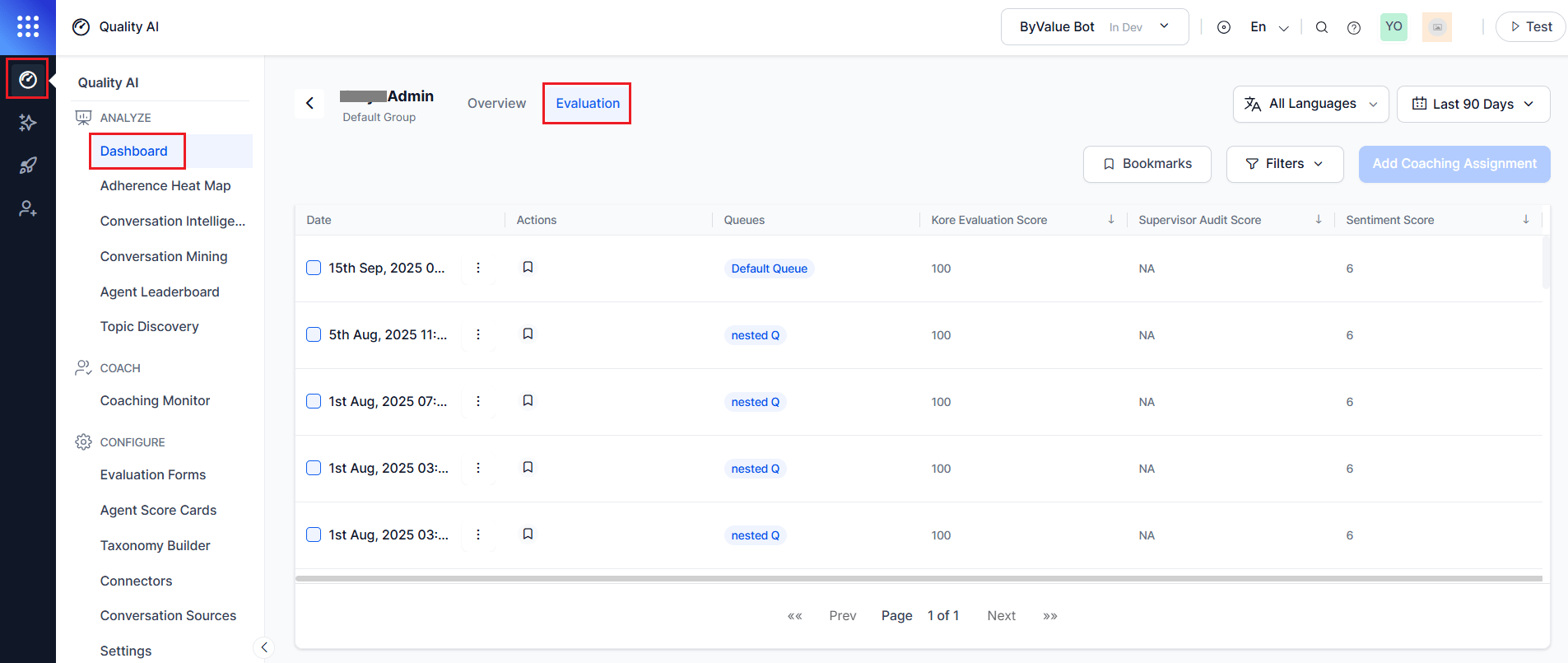
- Review interaction-level evaluation results.
- Compare Auto QA and manual audit scores.
- View sentiment scores and audit status.
- Filter interactions by queue, channel, language, and contact direction.
- Bookmark interactions for future reference.
- Open interactions in the Audit screen for detailed review.
- Create coaching assignments from selected interactions.
Key Capabilities
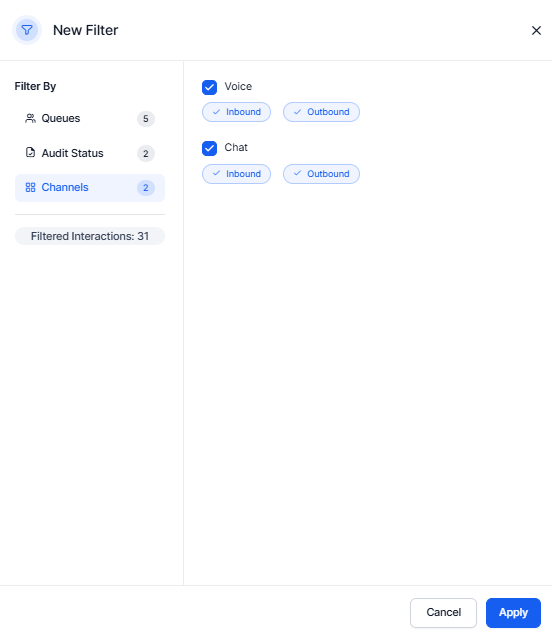
Evaluation Tab Filters
Provides filters to help supervisors focus on specific interaction segments and performance areas. All filters apply globally and dynamically update the interaction list.
Evaluation Interaction List
Displays filtered interactions for the selected agent.
Available filter categories:
Coaching Workflow
The Evaluation tab supports creating individual coaching assignments using selected interactions.Create Coaching Assignment
- Select the Evaluation tab on the Agent Details page.
- Select an interaction that require coaching.
-
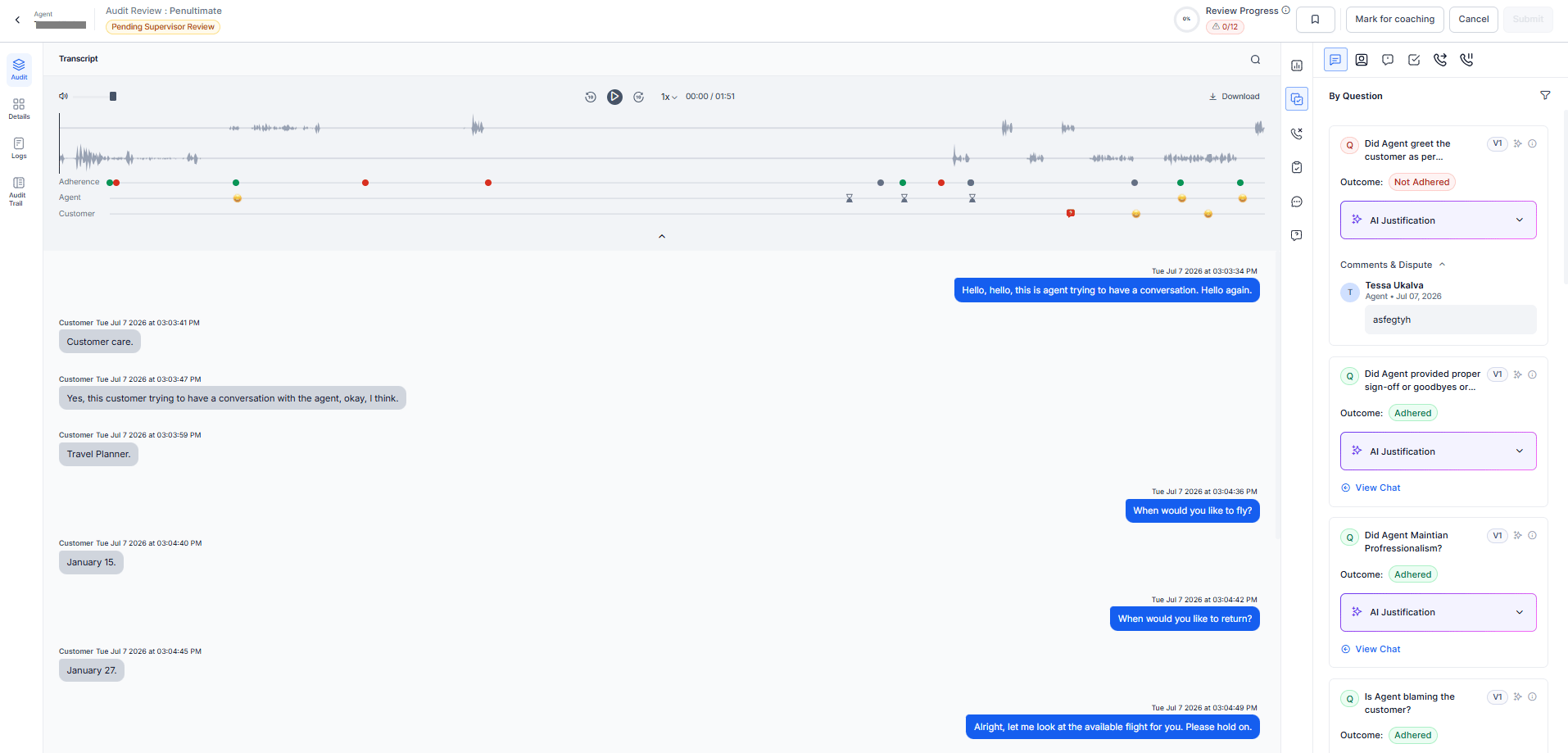
Select the vertical ellipsis (⋮) and select View. The system opens the Audit Review workspace. The available actions depend on the interaction’s audit status. For example:
- Unassigned interactions display Assign to me.
- Assigned interactions display audit progress and evaluation controls.
- Audited, Resolved, and other completed interactions open in review mode.
-
Select Add Coaching Assignment. The New Coaching Assignment dialog opens.
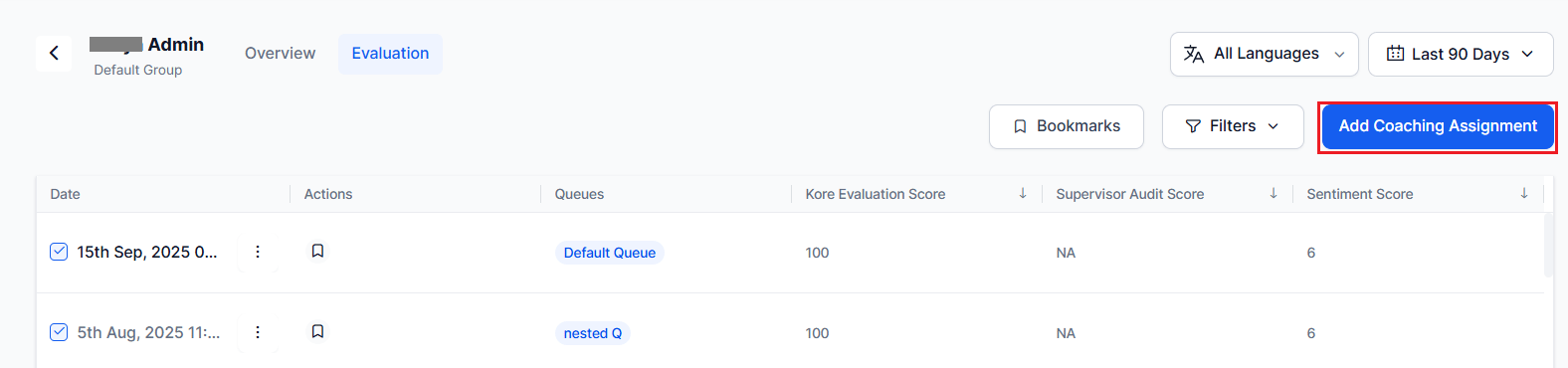
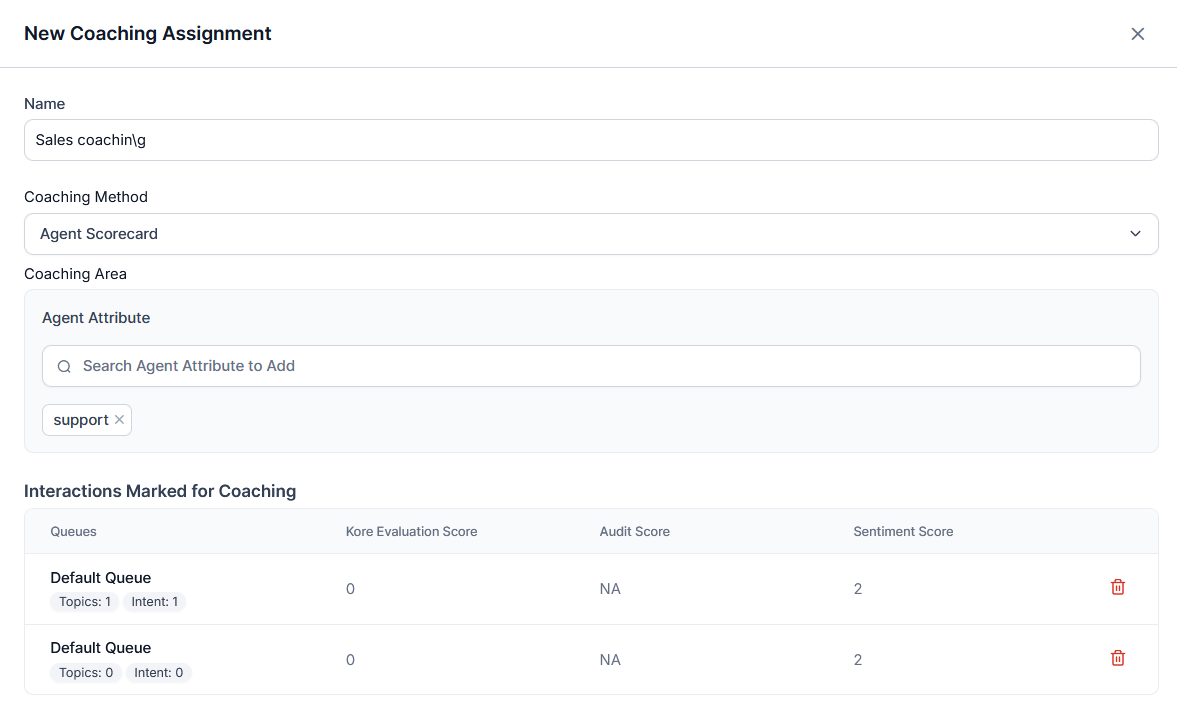
- Enter a Name for the coaching assignment.
-
Select a Coaching Method.
-
Configure the Coaching Area based on the selected coaching method:
- Agent Scorecard: Select one or more Agent Attributes to define the coaching focus.
- Evaluation Form: Select an Evaluation Form, then search for and select one or more Evaluation Metrics to define the coaching focus.
-
Review the Interactions Marked for Coaching.
The system automatically adds the interactions selected from the Evaluation tab.
-
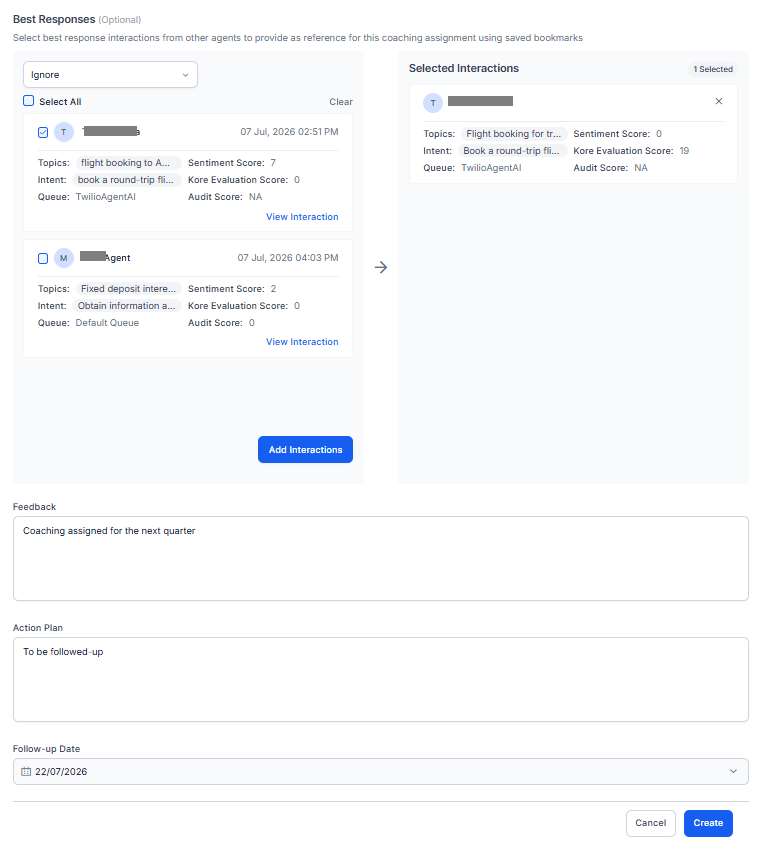
Under Best Responses (optional), add reference interactions from saved bookmarks.
- Select relevant bookmarked interactions.
-
select Add Interaction to add them.
You can select more than one bookmark based on the evaluation criteria. For example, one set for the support queue and another for best responses.
-
Select View Interactions (optional) to review an interaction in AI-Audit screen before adding them as a coaching reference.
- Enter your Feedback that summarizes strengths and improvement areas.
- Define an Action Plan for the agent to improve.
- Set the Follow-up Date for coaching review.
- Select Create.
You can mark interactions for coaching directly from the Audit Review workspace. The system automatically adds those interactions to the Interactions Marked for Coaching section when you create a coaching assignment.