

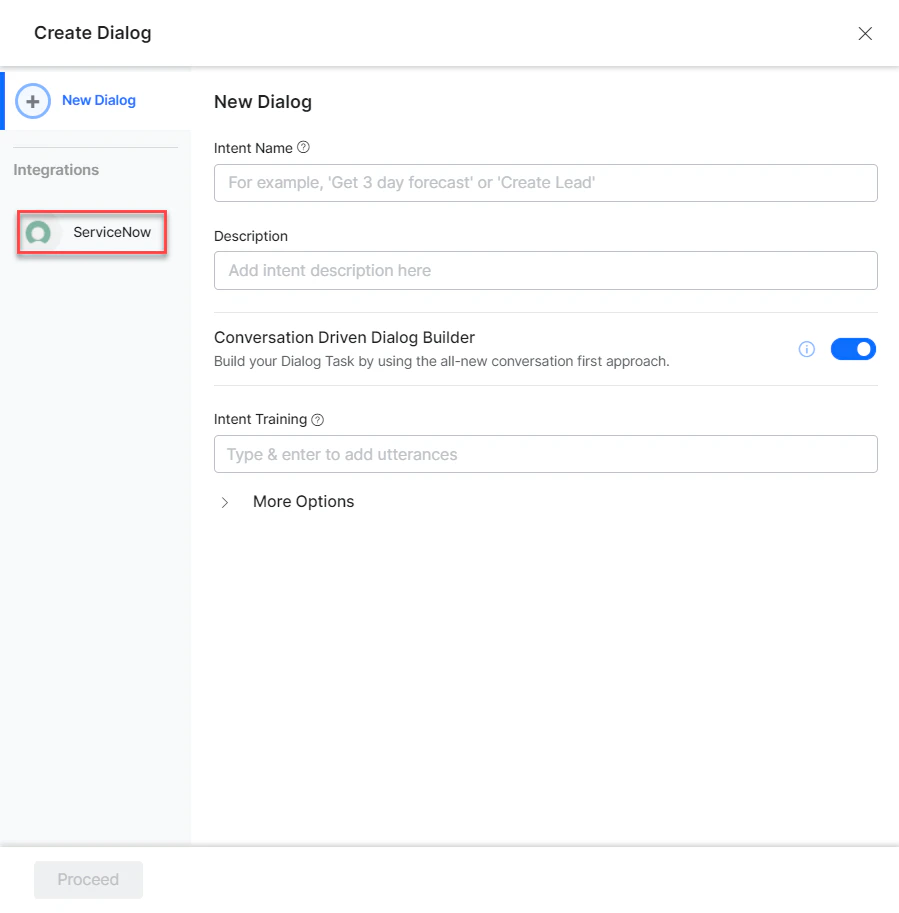
- Go to Automation AI > Use Cases > Dialogs and click Create a Dialog Task.
-
Under Integration, select ServiceNow.
-
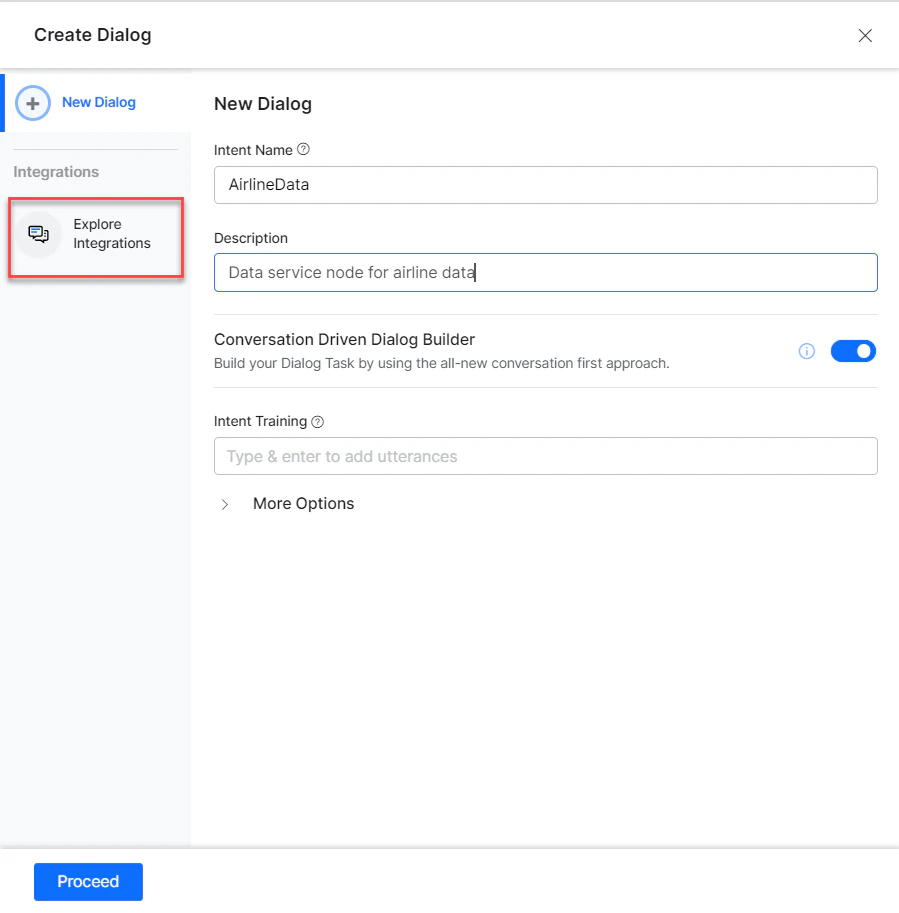
If no integration is configured, click Explore Integrations to set one up. See Actions Overview.
Supported Actions
Create an Incident
- Install the template from ServiceNow Action Templates.
-
The Create a Incident dialog task is added with the following components:
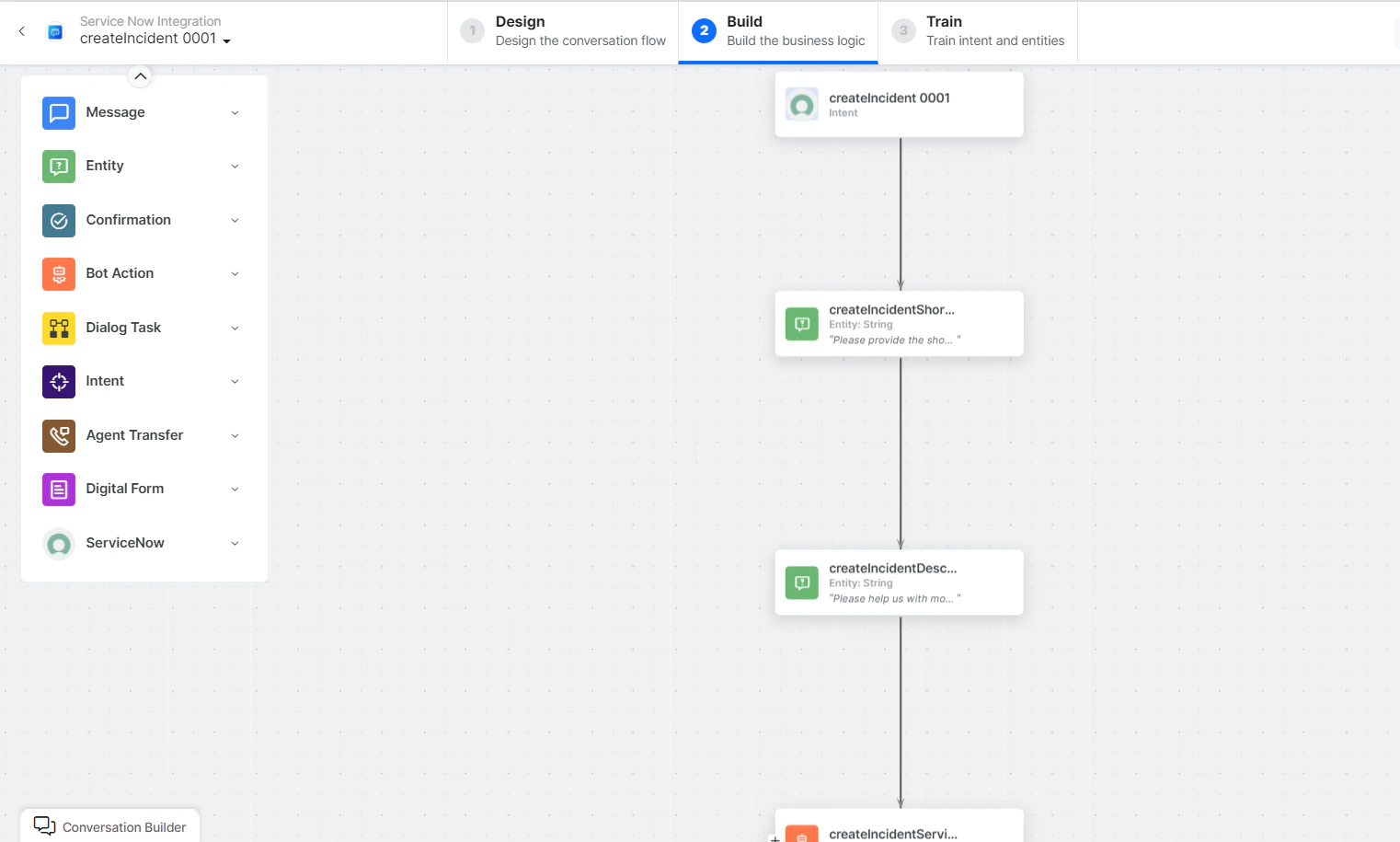
- createIncident - User intent to create an incident.
- createIncidentShortDescription and createIncidentDescription - Entity nodes for incident details.
-
createIncidentService - Bot action service to create an incident. Click Edit Request:
 Click +Add Response: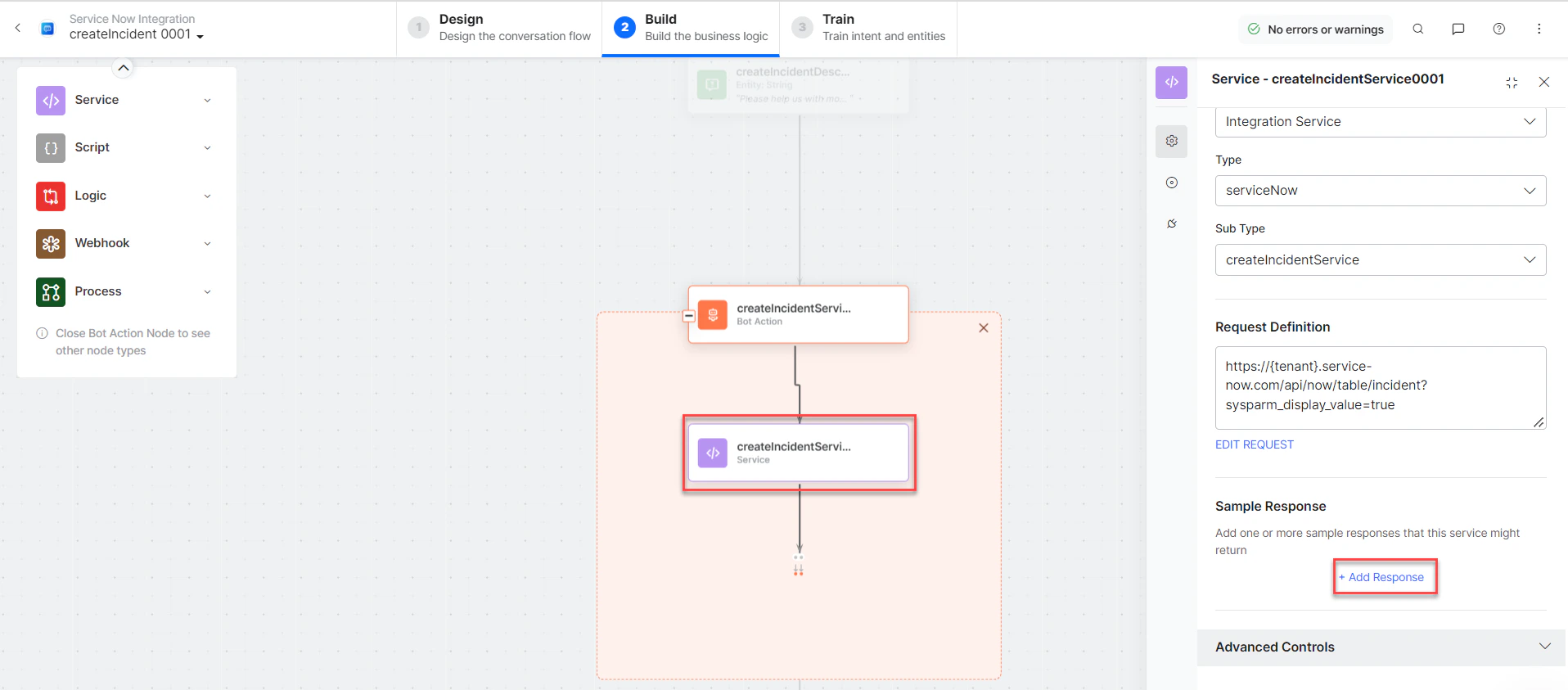
- setCallerService - Bot action service to set a caller node.
- createIncidentMessage - Message node to display responses.
-
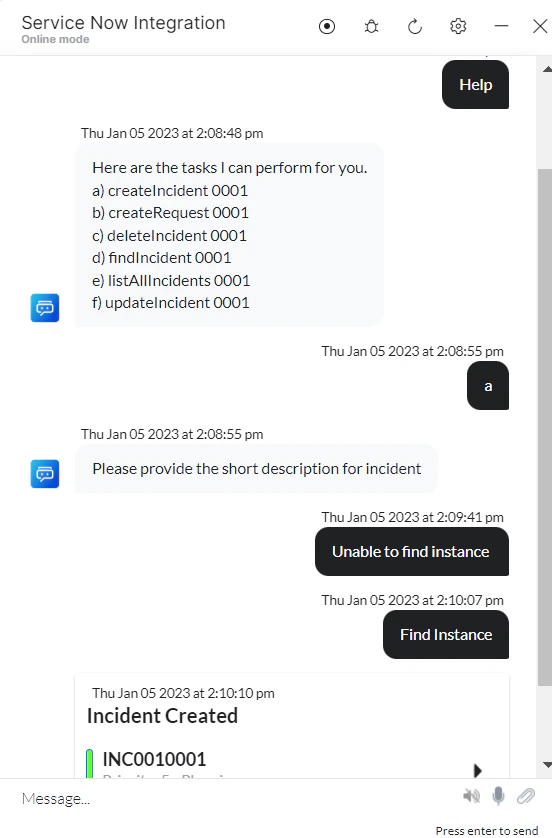
Click Train, then Talk to Bot to test:
-
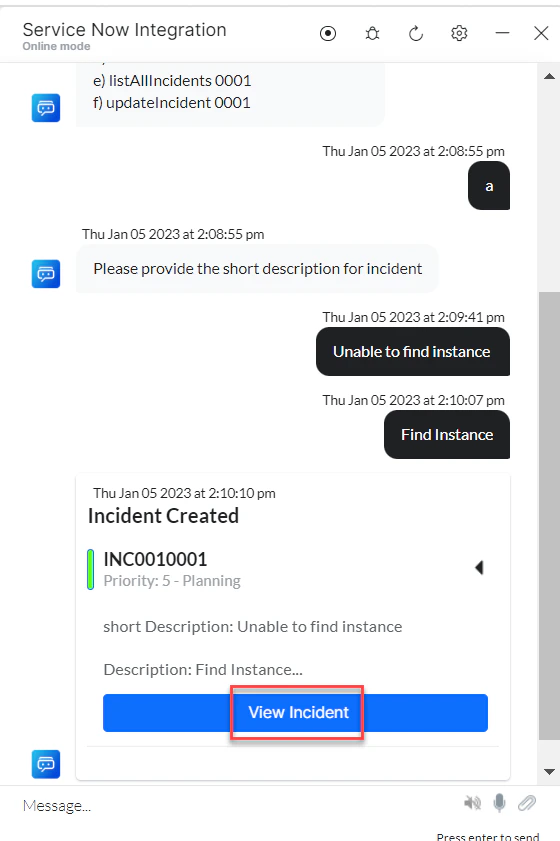
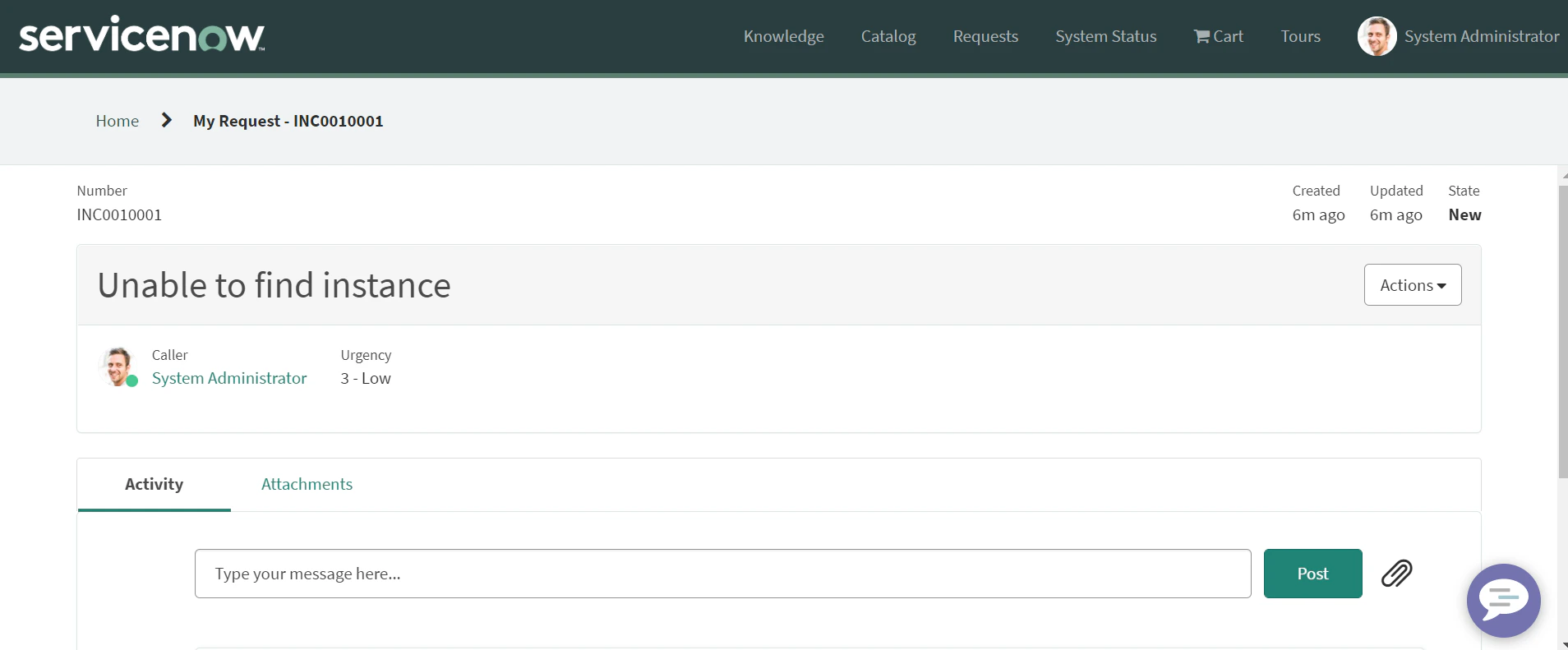
The new incident is created in ServiceNow:
-
Click View Incident to see incident details:
Update an Incident
- Install the template from ServiceNow Action Templates.
-
The Update an Incident dialog task is added with the following components:
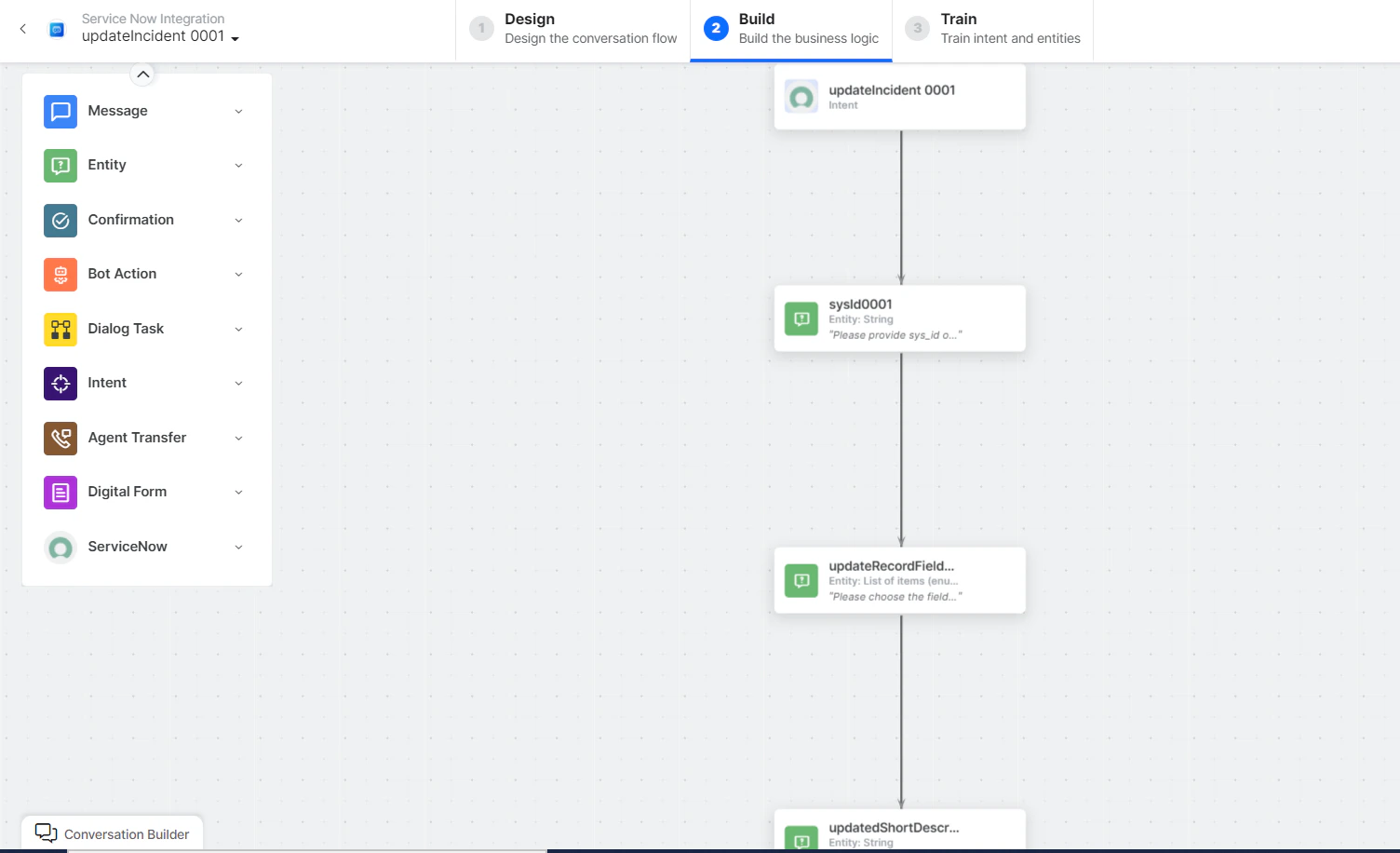
- Update Incident - User intent to update an incident.
- SysId, updateRecordFields, updatedShortDescription, updatedDescription - Entity nodes for update details.
-
prepareUpdatePayloadScript - Bot action script to update an incident.
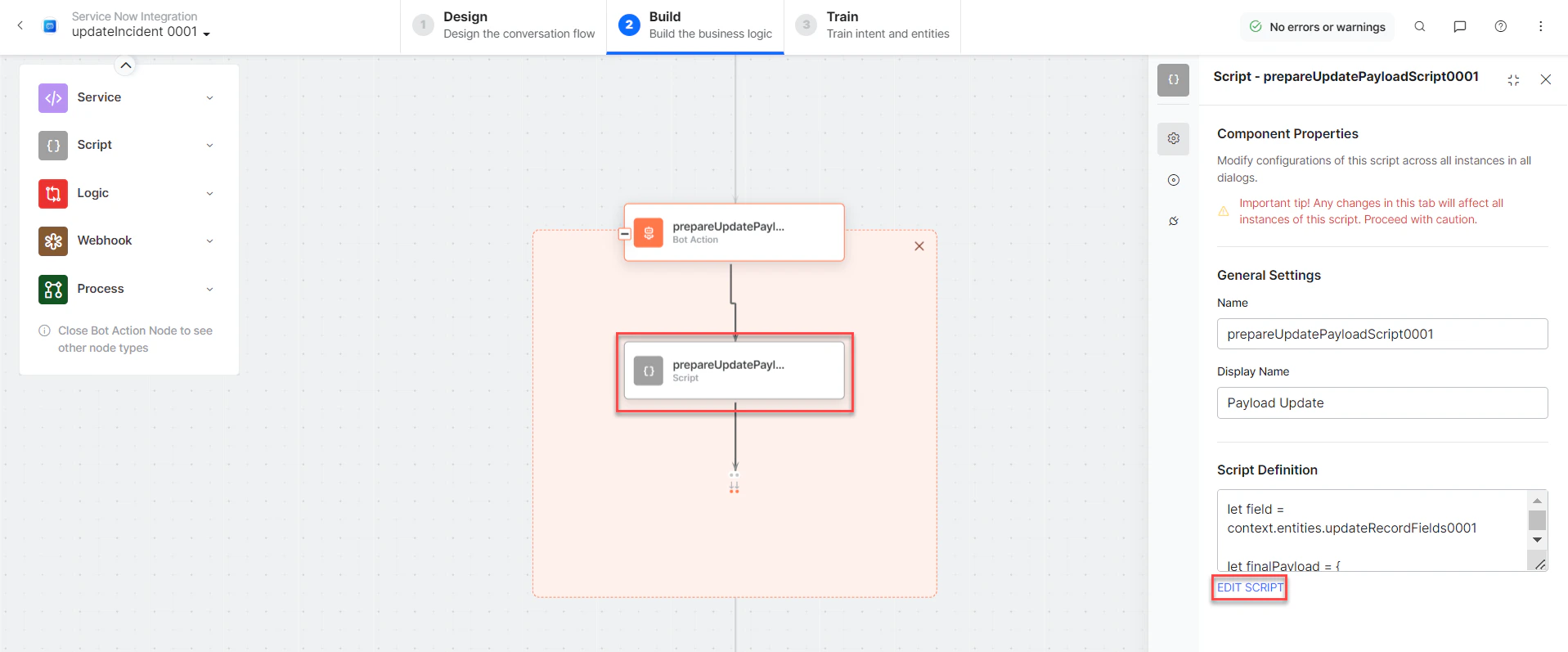
-
updateIncidentService - Bot action service to update an incident.
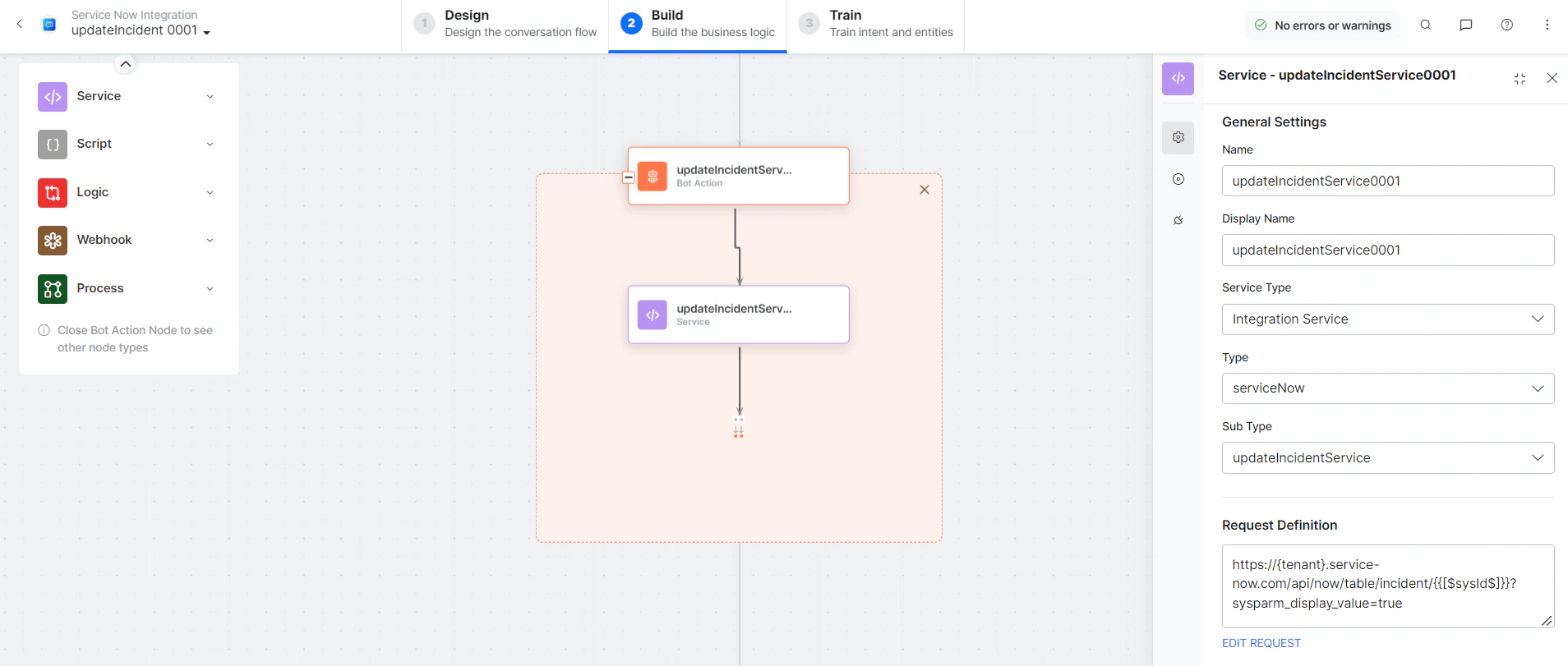
- updateIncidentMessage - Message node to display responses.
-
Click Train, then Talk to Bot to test:
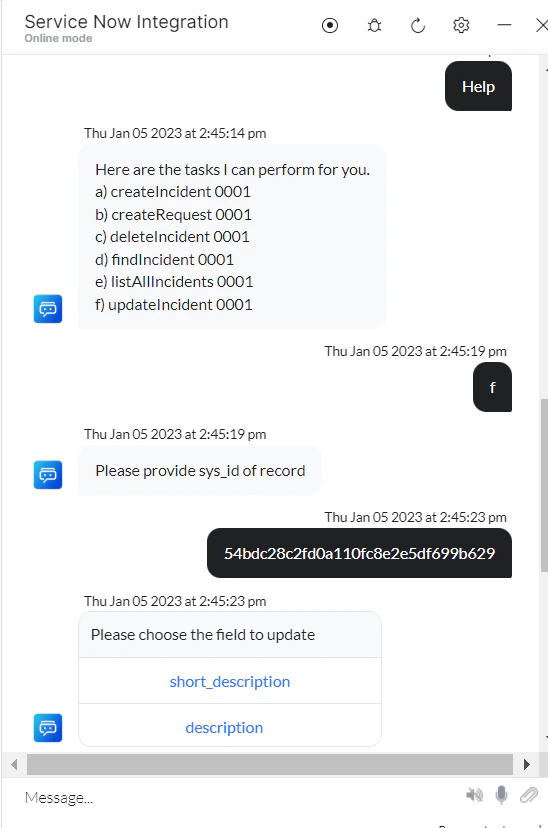
-
Enter all incident update details when prompted. The incident is updated in ServiceNow:
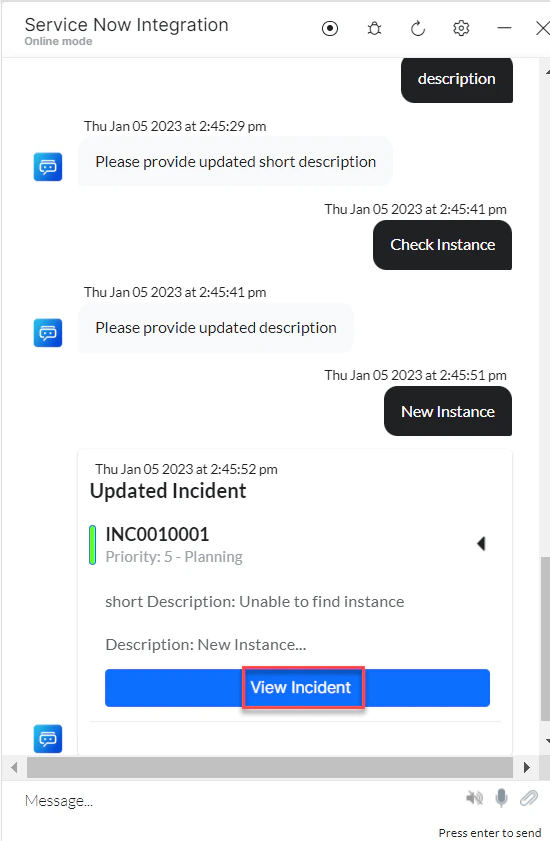
List All Incidents
- Install the template from ServiceNow Action Templates.
-
The List All Incidents dialog task is added with the following components:
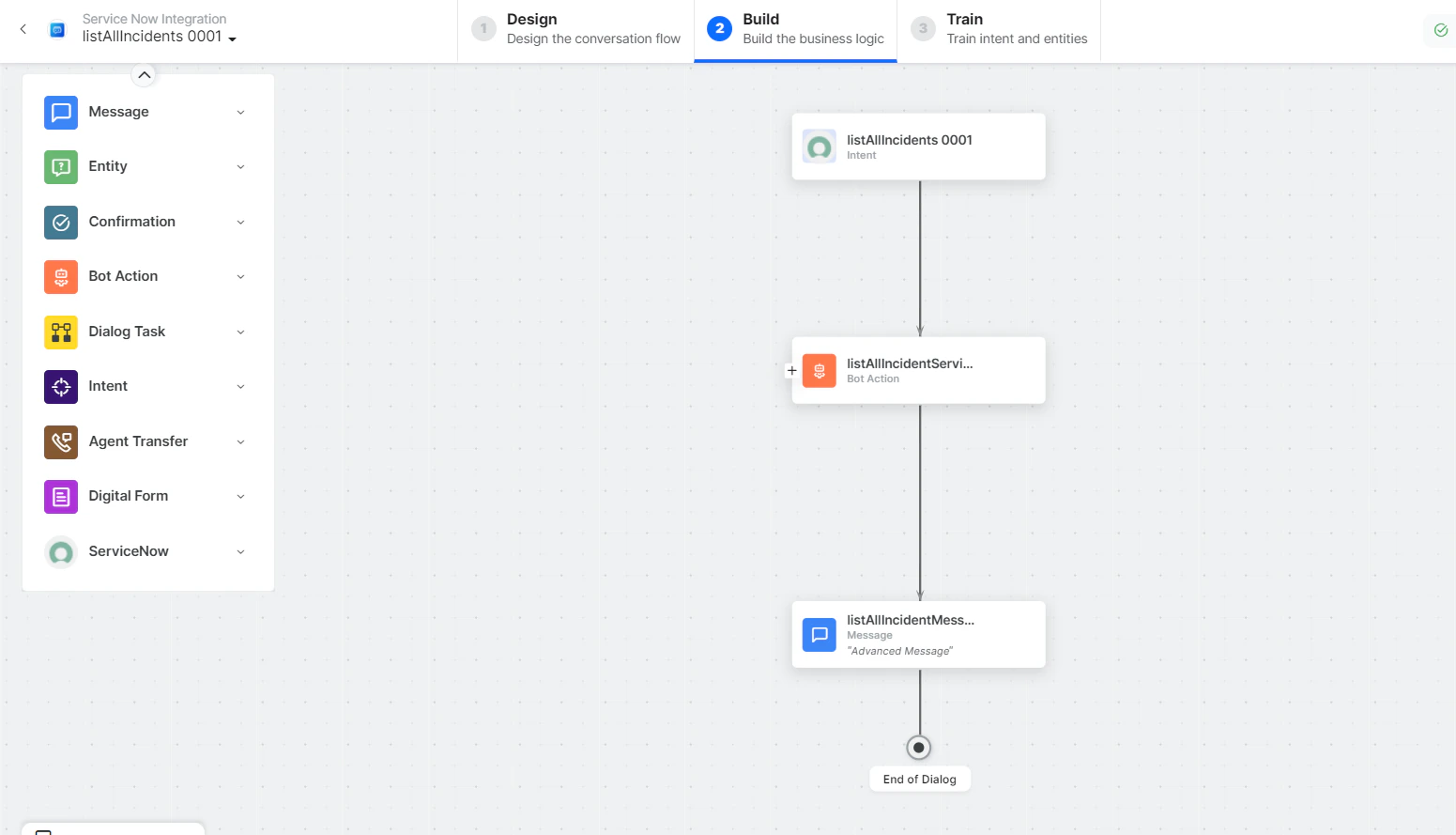
- List All Incidents - User intent to list all incidents.
-
listAllIncidentsService - Bot action service to fetch all incidents. Click +Add Response:
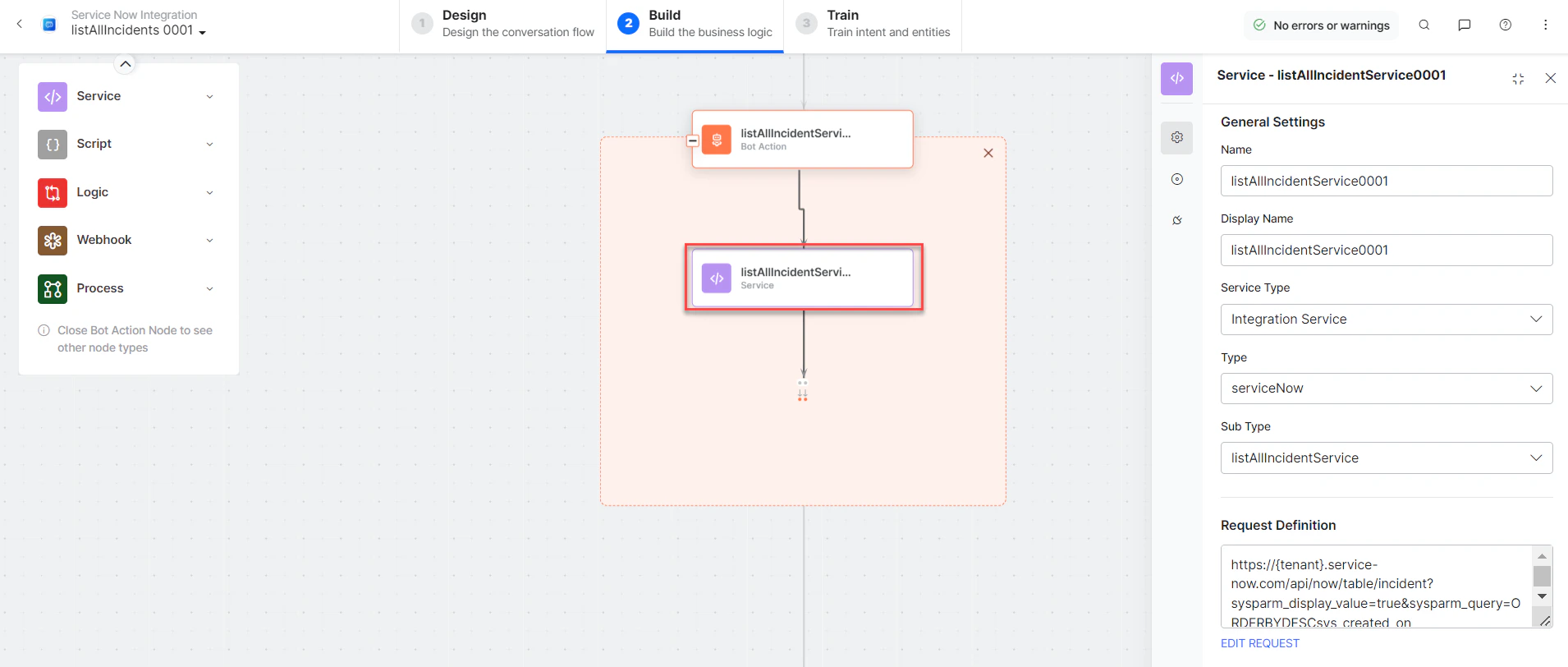
- listAllIncidentsMessage - Message node to display responses.
-
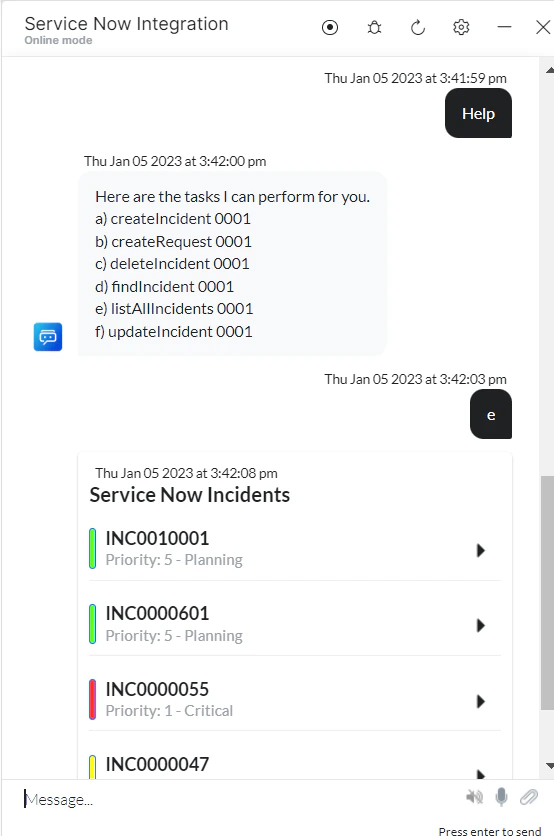
Click Train, then Talk to Bot to test:
Find an Incident
- Install the template from ServiceNow Action Templates.
-
The Find an Incident dialog task is added with the following components:
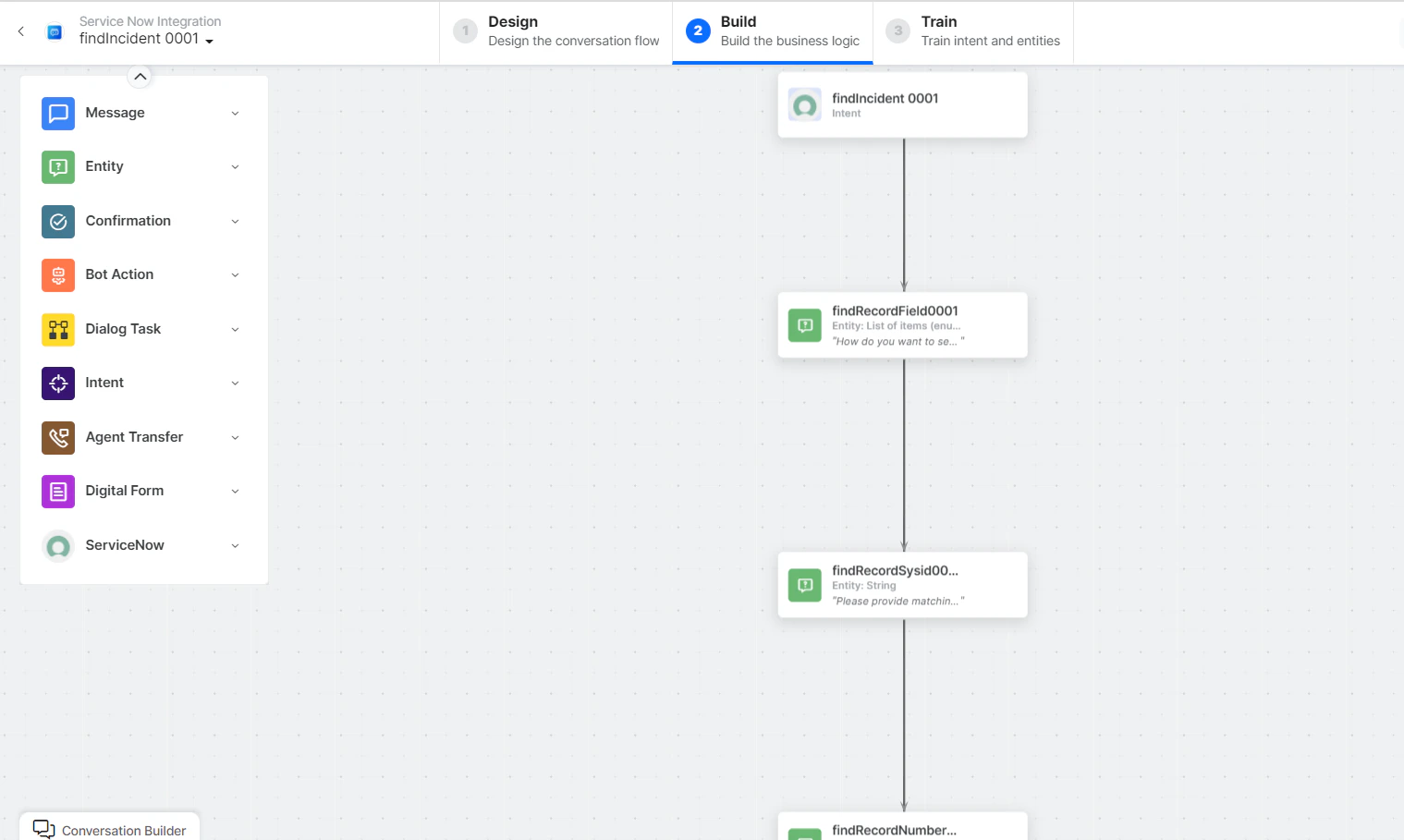
- Find Incident - User intent to find an incident.
- findRecordFields, findRecordSysId, findRecordNumber, findShortDescription, findDescription - Entity nodes for finding an incident.
-
prepareSearchingFieldScript - Bot action script to prepare search fields.
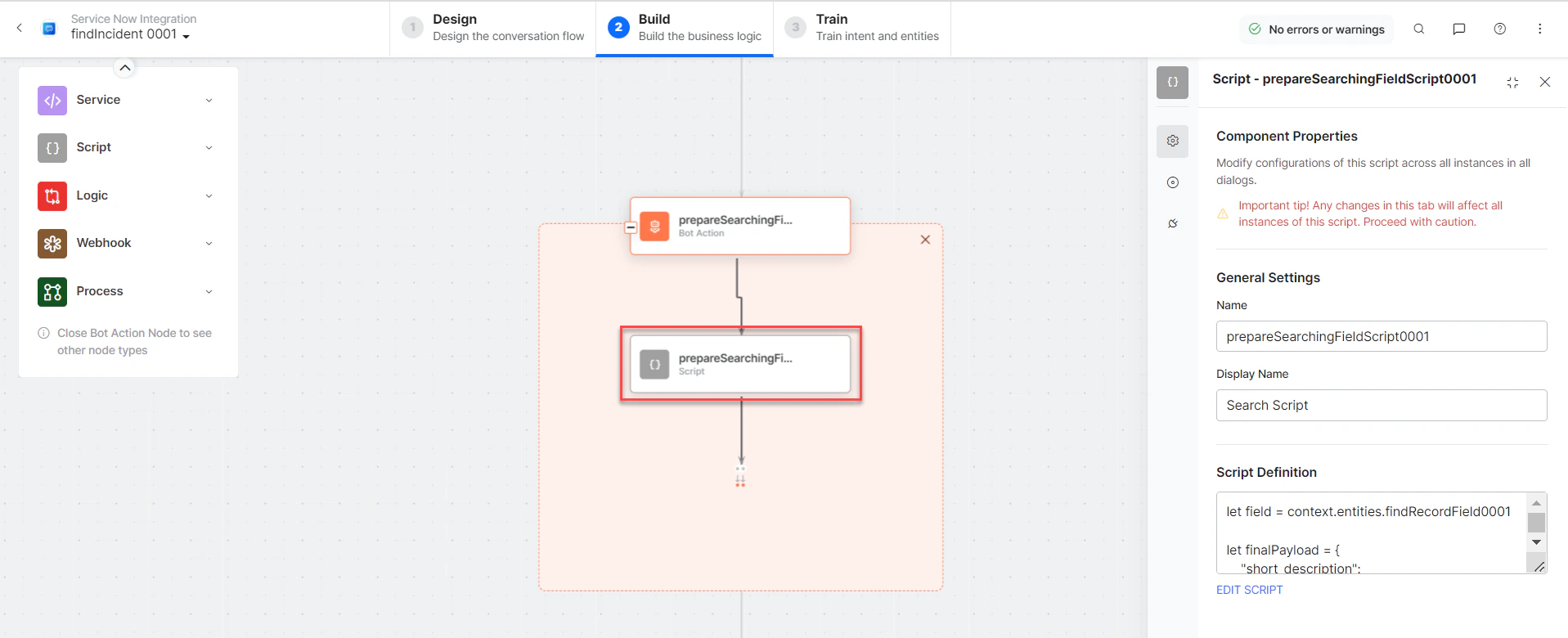
- findSearchingFieldScript - Bot action service to search incidents.
- findIncidentMessage - Message node to display responses.
-
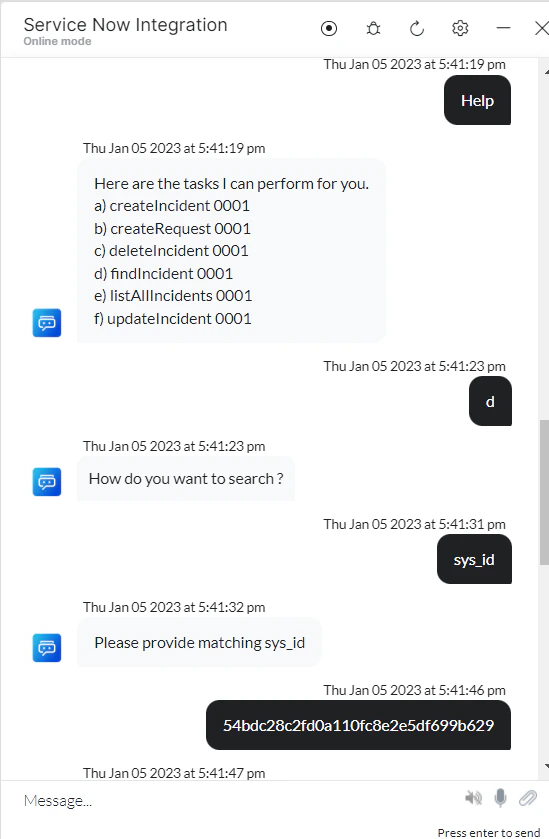
Click Train, then Talk to Bot to test:
Delete an Incident
- Install the template from ServiceNow Action Templates.
-
The Delete an Incident dialog task is added with the following components:
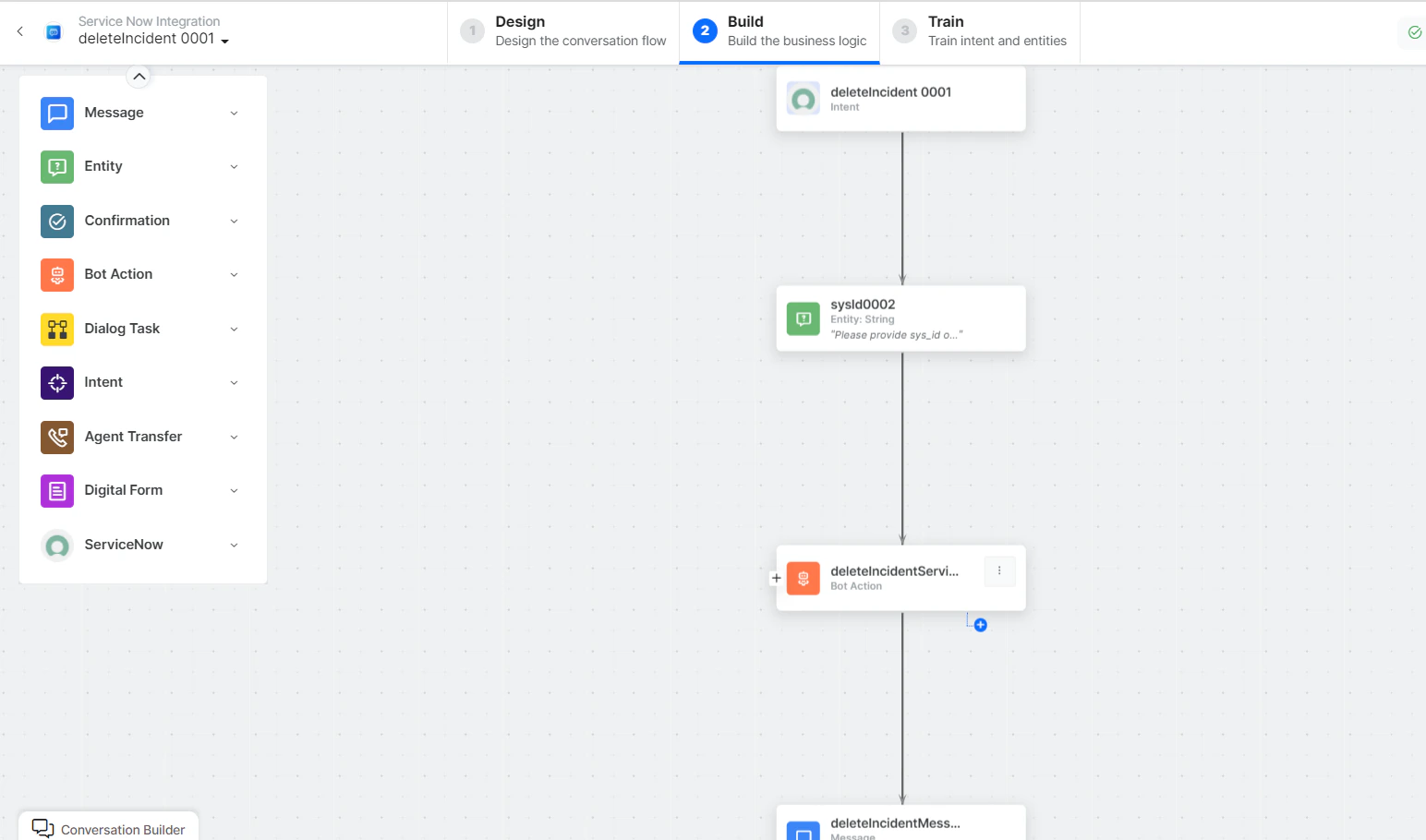
- Delete Incident - User intent to delete an incident.
- SysId - Entity node for the incident ID.
- deleteIncidentService - Bot action service to delete an incident.
- deleteIncidentMessage - Message node to display responses.
-
Click Train, then Talk to Bot to test:
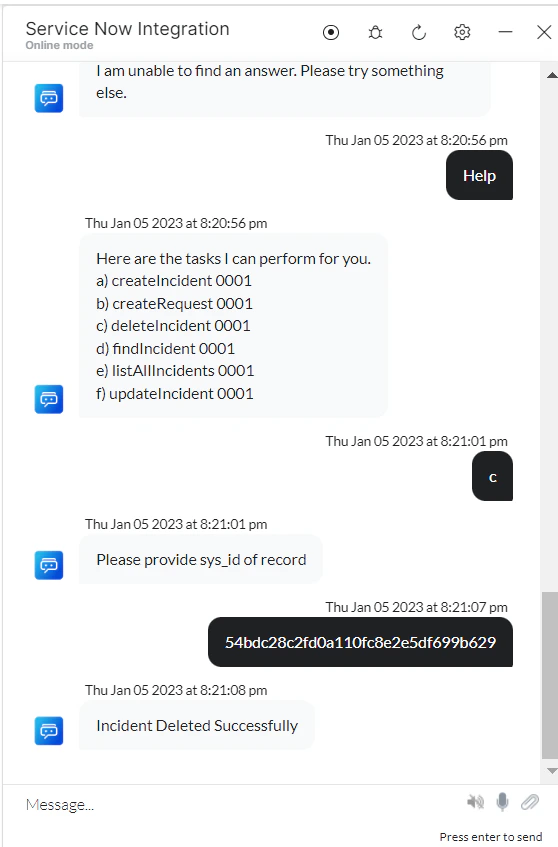
If you enter an incorrect ID, the 404 - No Record Found error message is displayed.
Create a Request
- Install the template from ServiceNow Action Templates.
-
The Create Request dialog task is added with the following components:
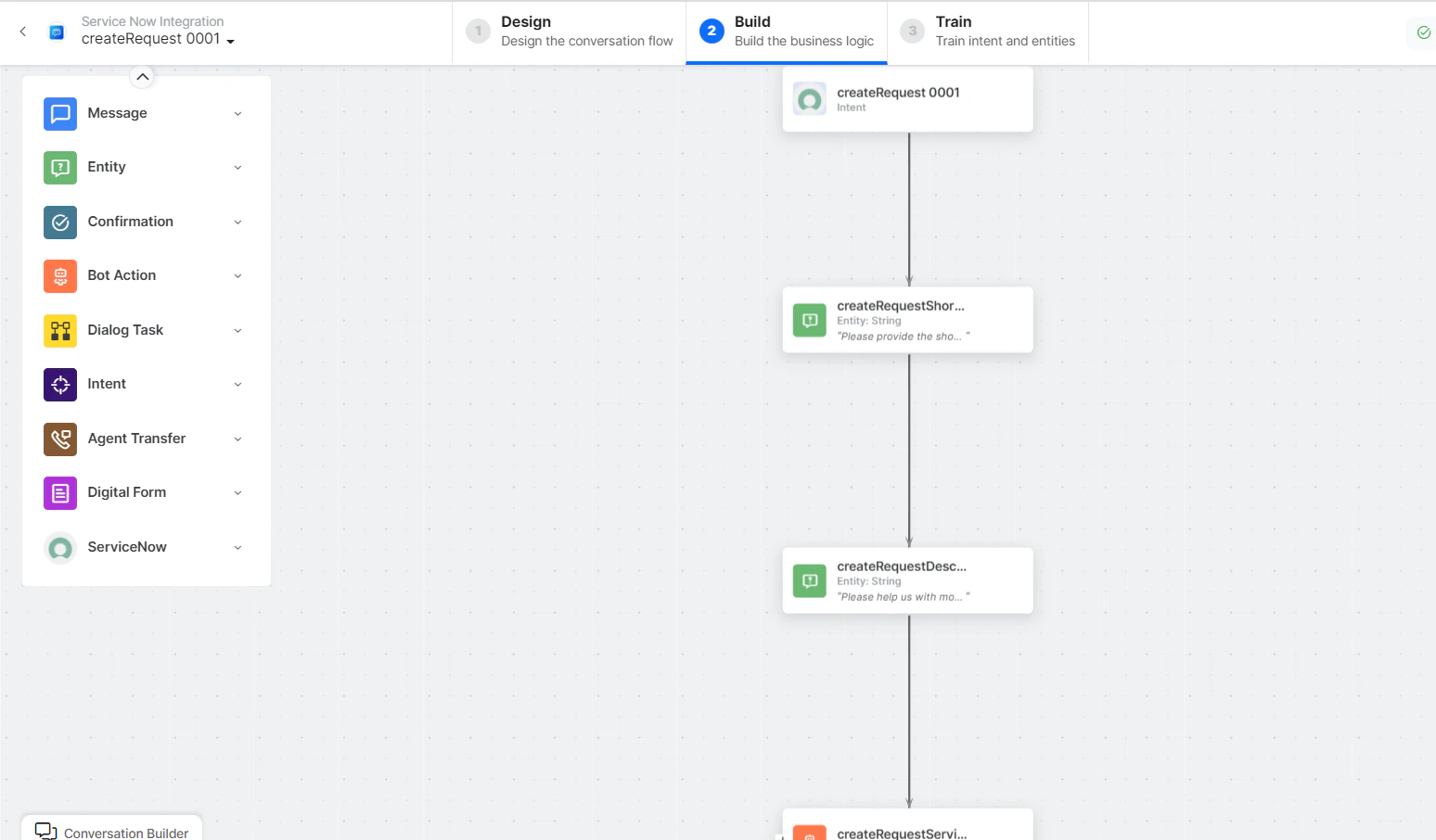
- Create Request - User intent to create a request.
- createRequestShortDescription and createRequestDescription - Entity nodes for request details.
-
createRequestService - Bot action service to create a request. Click Edit Request:
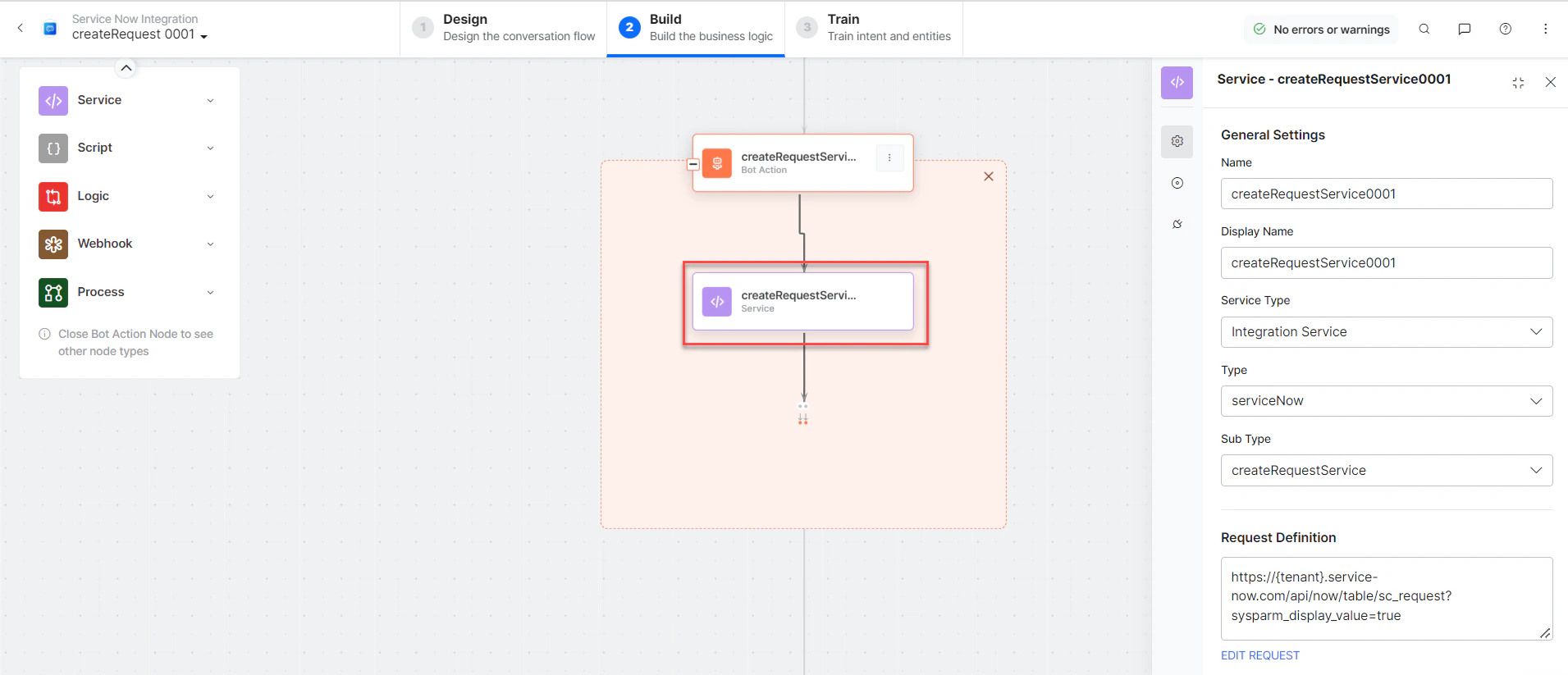
- createRequestMessage - Message node to display responses.
-
Click Train, then Talk to Bot to test:
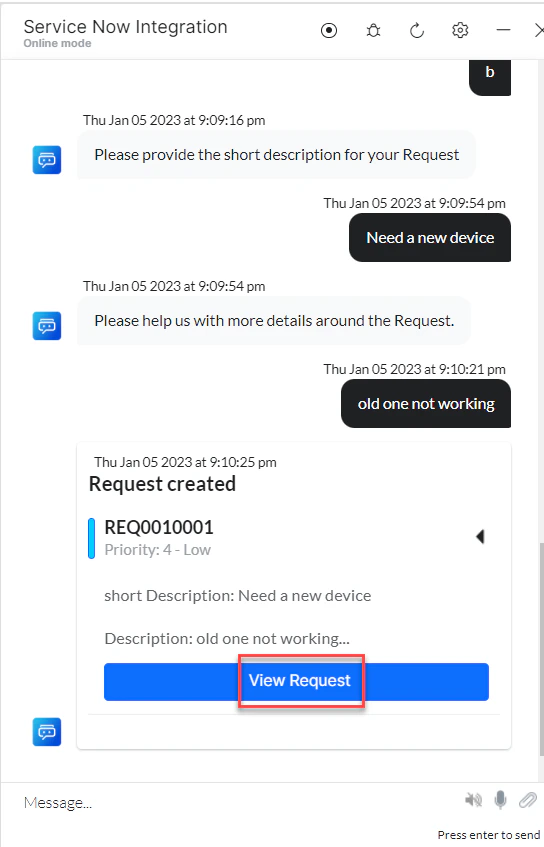
-
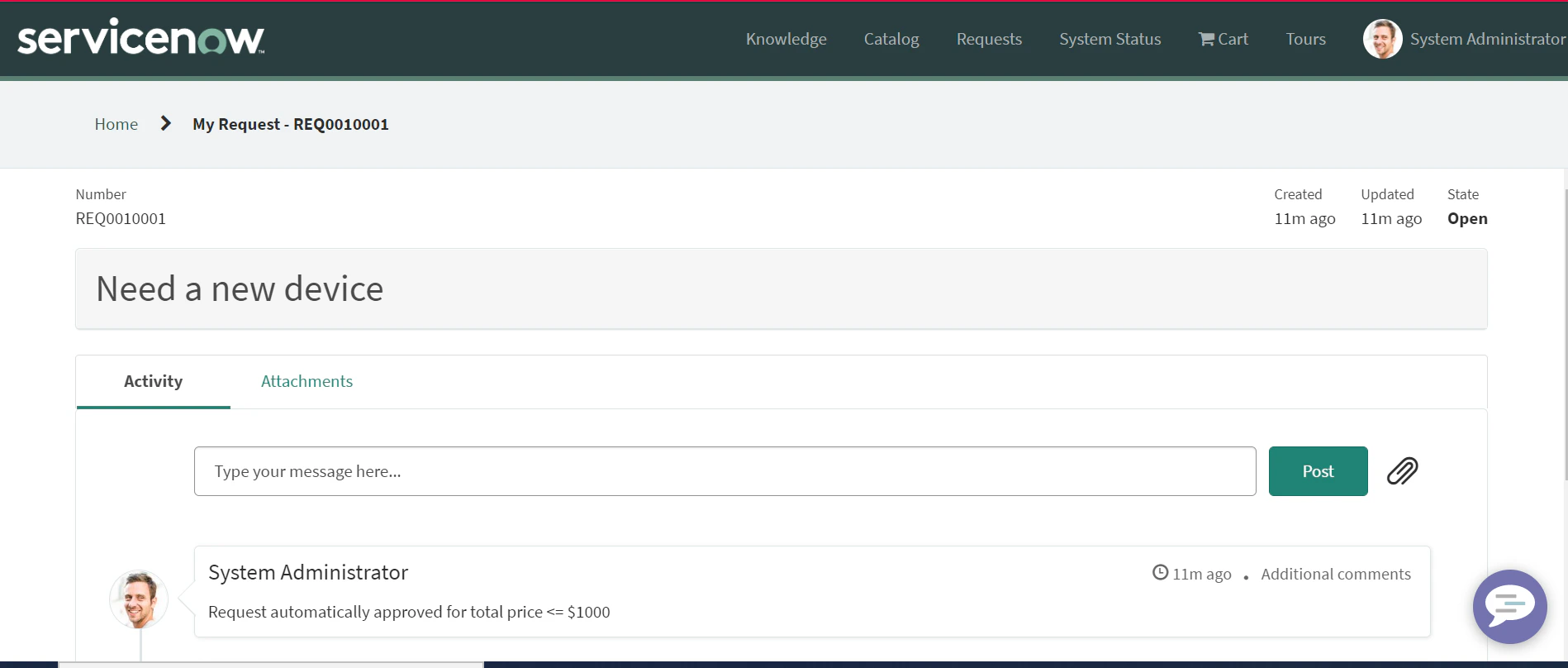
Click View Request to see request details in ServiceNow:
Update a Request
- Install the template from ServiceNow Action Templates.
-
The Update a Request dialog task is added with the following components:
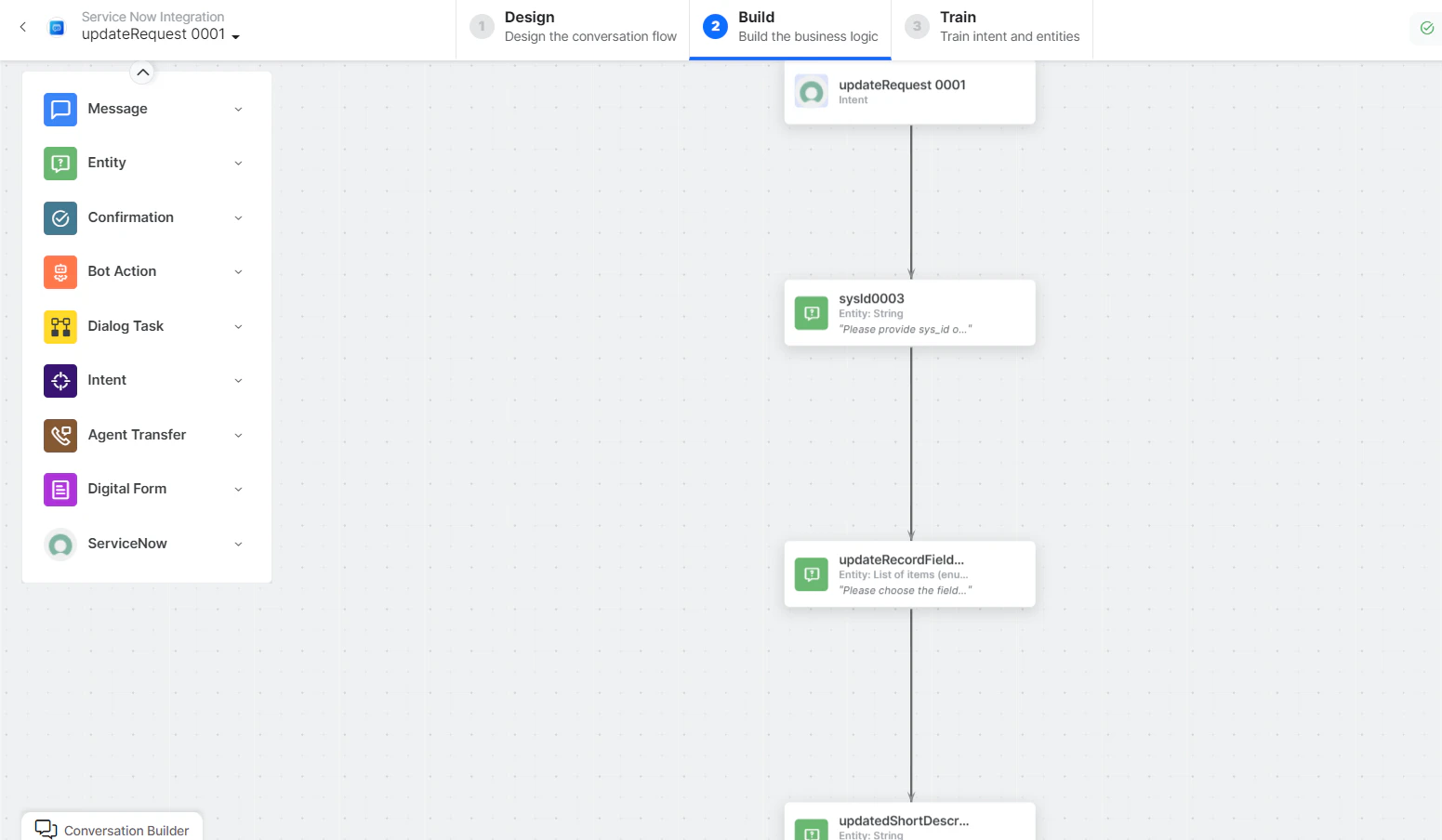
- Update Request - User intent to update a request.
- SysId, updateRecordFields, updatedShortDescription, updatedDescription - Entity nodes for update details.
- prepareUpdatePayloadScript - Bot action script to update a request.
-
updateRequestService - Bot action service to update a request.
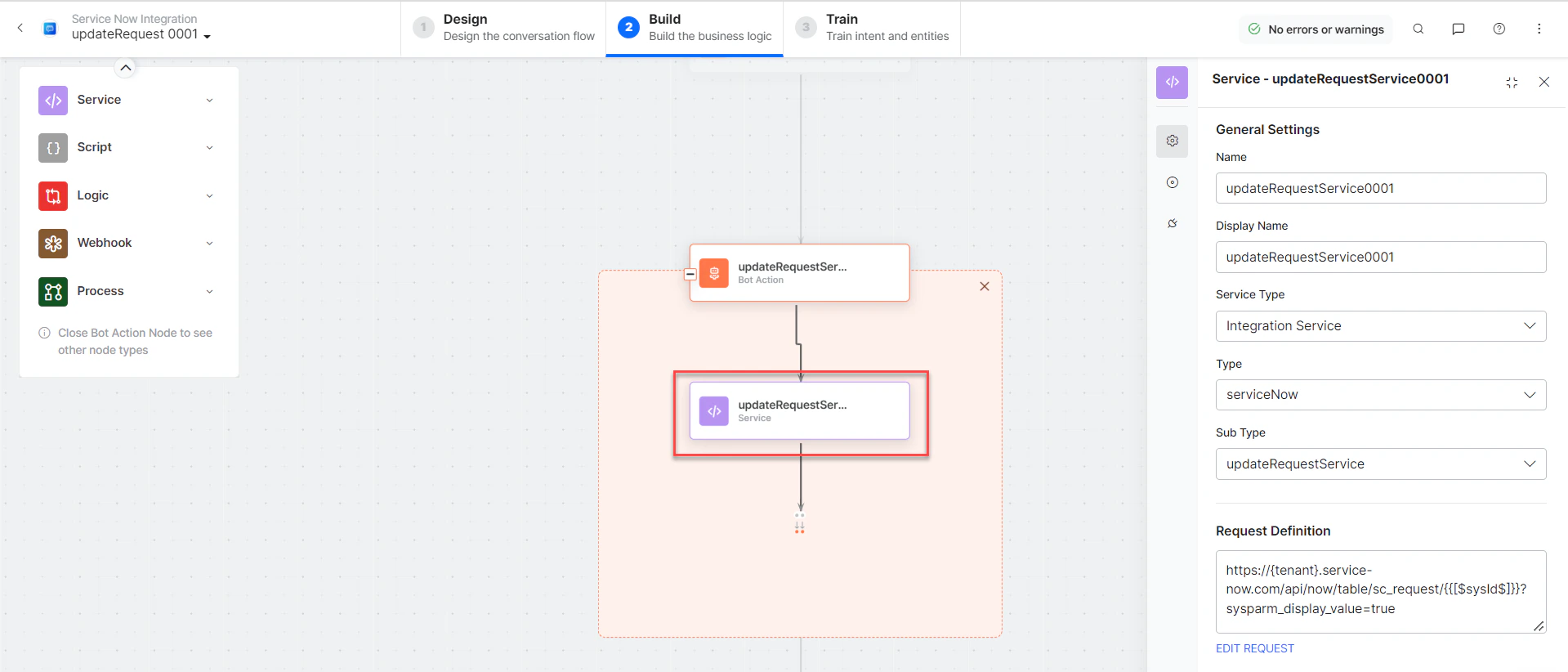
- updateRequestMessage - Message node to display responses.
- Click Talk to Bot and follow the prompts to update a request.
List All Requests
- Install the template from ServiceNow Action Templates.
-
The List All Requests dialog task is added with the following components:
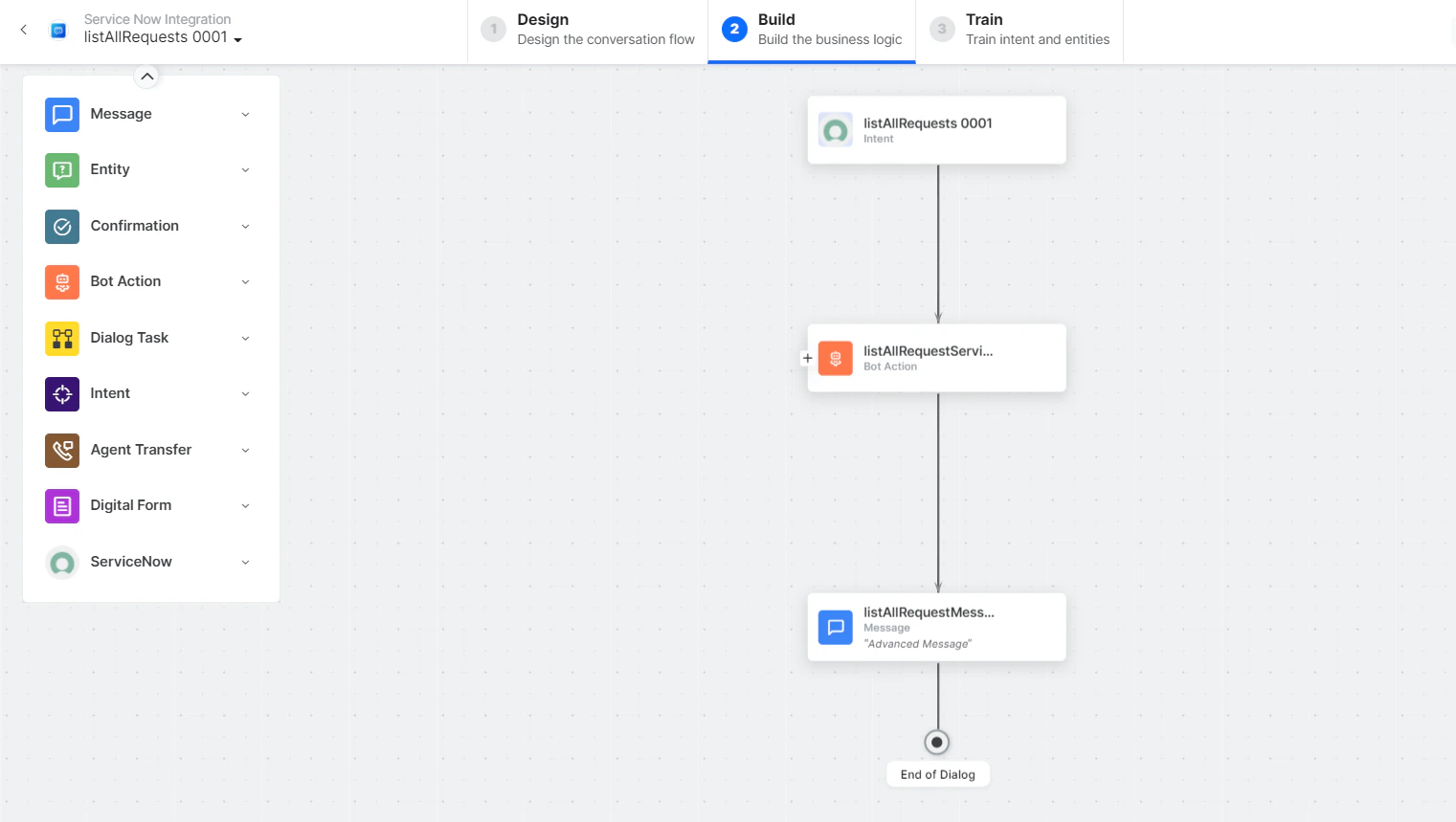
- List All Requests - User intent to list all requests.
-
listAllRequestsService - Bot action service to fetch all requests.
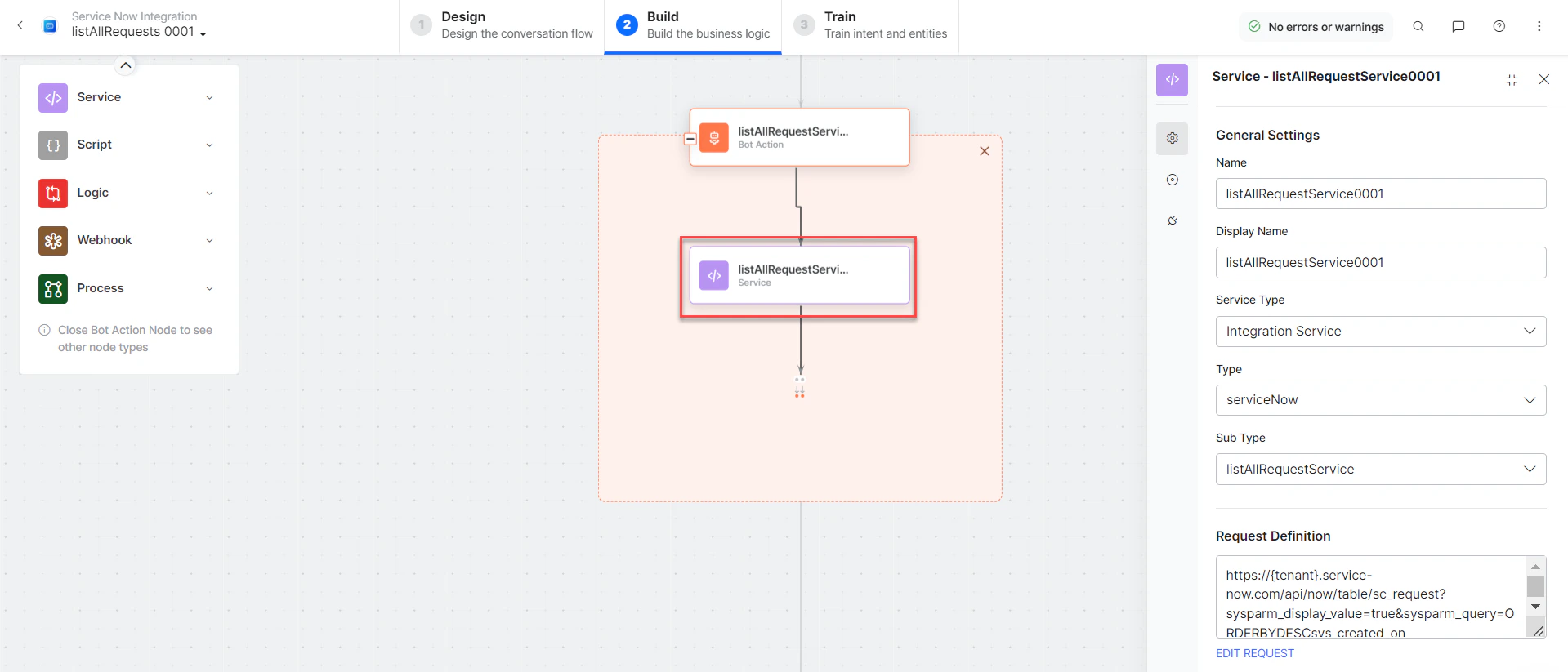
- listAllRequestsMessage - Message node to display responses.
- Click Talk to Bot and follow the prompts to view all requests.
Find a Request
- Install the template from ServiceNow Action Templates.
-
The Find a Request dialog task is added with the following components:
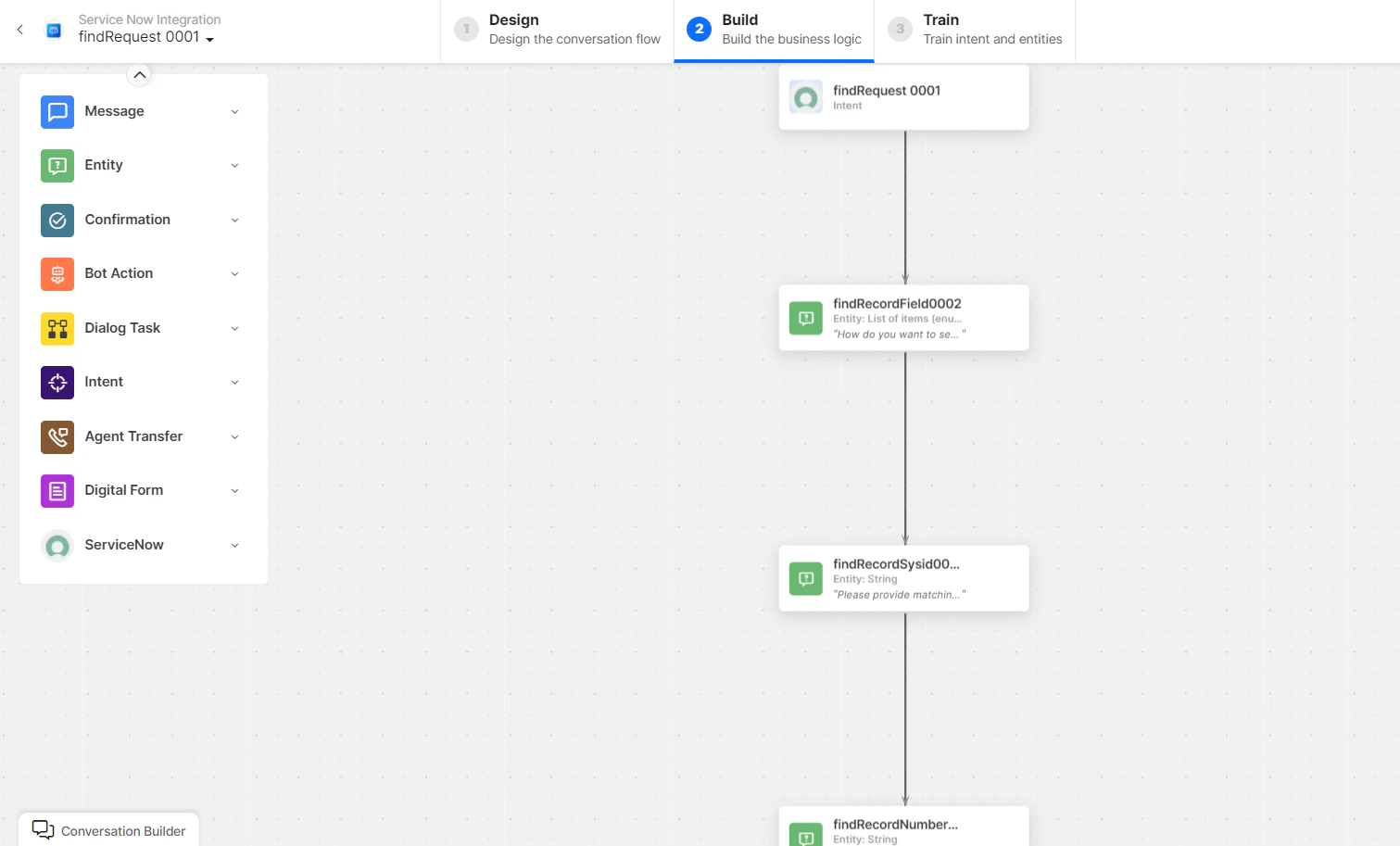
- Find Request - User intent to find a request.
- findRecordFields, findRecordSysId, findRecordNumber, findShortDescription, findDescription - Entity nodes for finding a request.
- prepareSearchingFieldScript - Bot action script to prepare search fields.
-
findRequestService - Bot action service to search requests.
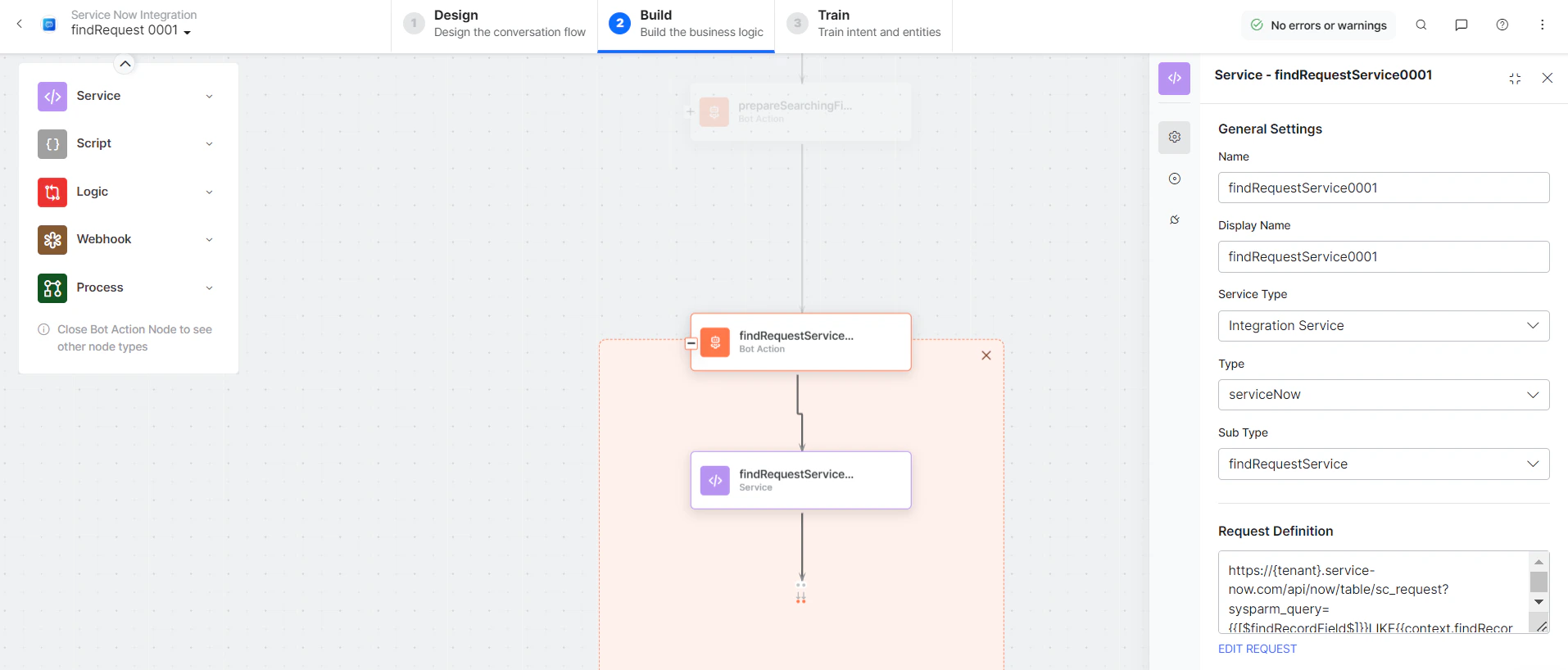
- findRequestMessage - Message node to display responses.
- Click Talk to Bot and follow the prompts to find a request.
Delete a Request
- Install the template from ServiceNow Action Templates.
-
The Delete a Request dialog task is added with the following components:
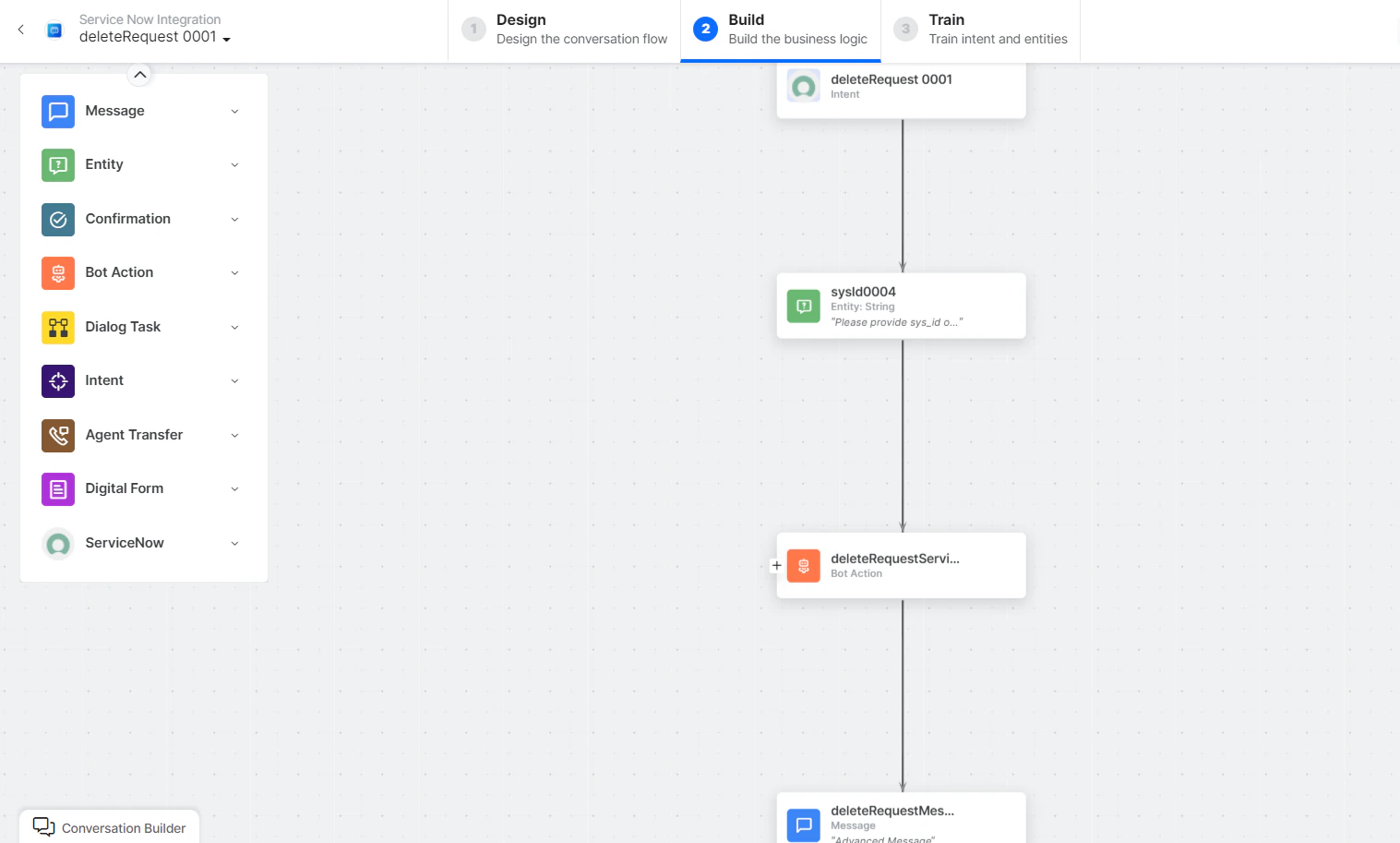
- Delete Request - User intent to delete a request.
- SysId - Entity node for the request ID.
-
deleteRequestService - Bot action service to delete a request.
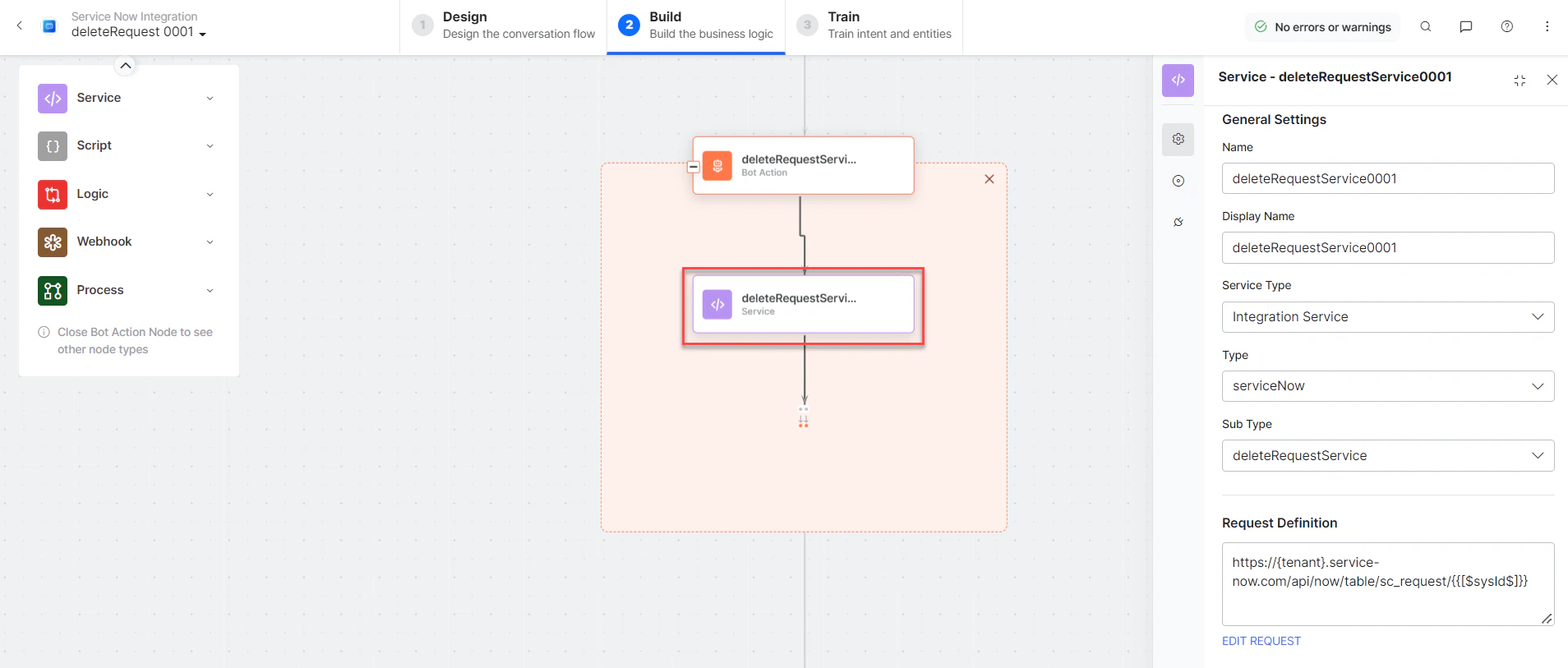
- deleteRequestMessage - Message node to display responses.
- Click Talk to Bot and follow the prompts to delete a request.
If you enter an incorrect ID, the 404 - No Record Found error message is displayed.