

Prerequisites
- Admin access to CCAI, XO Platform, and Agent AI.
- Admin access to a Genesys Cloud CX account.
- Familiarity with creating Architect flows in Genesys Cloud CX.
Contact Center AI Configuration for Automation
This section describes the configuration process of CCAI for automation:1. Create or Import App into XO Platform
- Sign in to AI for Service.
- Go to Settings > App Settings > Dev Tools > BotKit.
- Select Add to create a new bot or select one from the library. For help, refer to Create an App.
- Publish the bot.
2. Purchase a Phone Number
- Go to Flows & Channels > Channels > Voice Gateway.
- Follow this doc for purchasing a new phone number.
- Attach this phone number to an Experience Flow.
3. Create an Experience Flow in Contact Center AI
- Follow this doc to create an experience flow.
- Add the Automation node to configure the app for automation.
-
Optional: Add an Agent Transfer node to transfer calls to agents in Genesys Cloud CX.
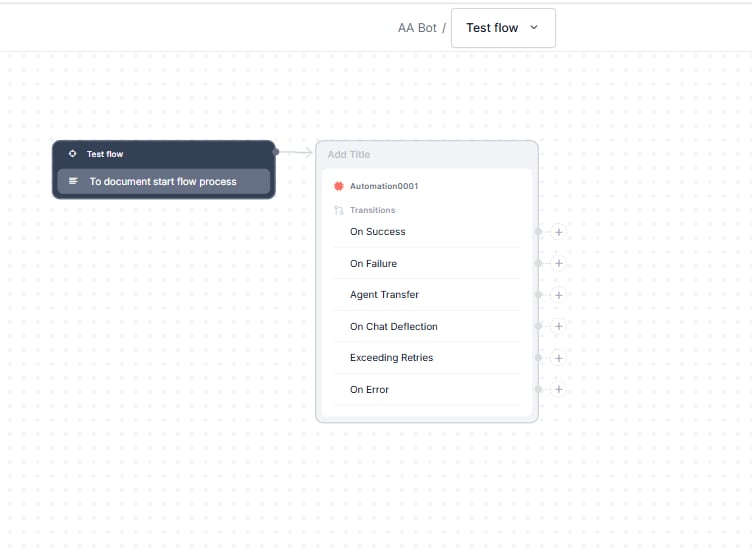
- Publish the flow.
- Select Test Flow to verify the call connects to the correct flow.
4. Configure the Agent Transfer
- Go to the App Settings > Integrations > Agent Transfer.
- Select Voice > SIP Transfer.
- Configure SIP Transfer by following this doc.
Genesys Side Configuration for Inbound Agent Transfer
Step 1 – Queue
If you haven’t created an Agent Queue to route live agent transfers, create and add the necessary members. Refer to this doc for help.Step 2 – Architect Flow
Create an Inbound Call Flow Create a new Inbound Call Flow to transfer calls from SmartAssist to Genesys.- Sign in to Genesys Cloud.
- Select Admin > Architect.
- Select + Add to add a new call flow.
- Enter a name and a description in the Name and Description fields.
- Select Create Flow.
- Create the flow (Add tasks) in the Main Menu or create a Reusable Task and mark this task as set this as the starting task from the ellipsis menu in the upper-right corner.
-
After the Start node, add a Call Audio Connector node in the architect flow.
- Inside the Call Audio Connector node, give any descriptive name (optional).
- Select Literal and add the following variables:
isAgentTransfer– with key Name as isAgentTransfer and validate to assign as Task.isAgentTransferX-Queue-Name– with key Name as X-Queue-Name and validate to assign as Task.XQueueName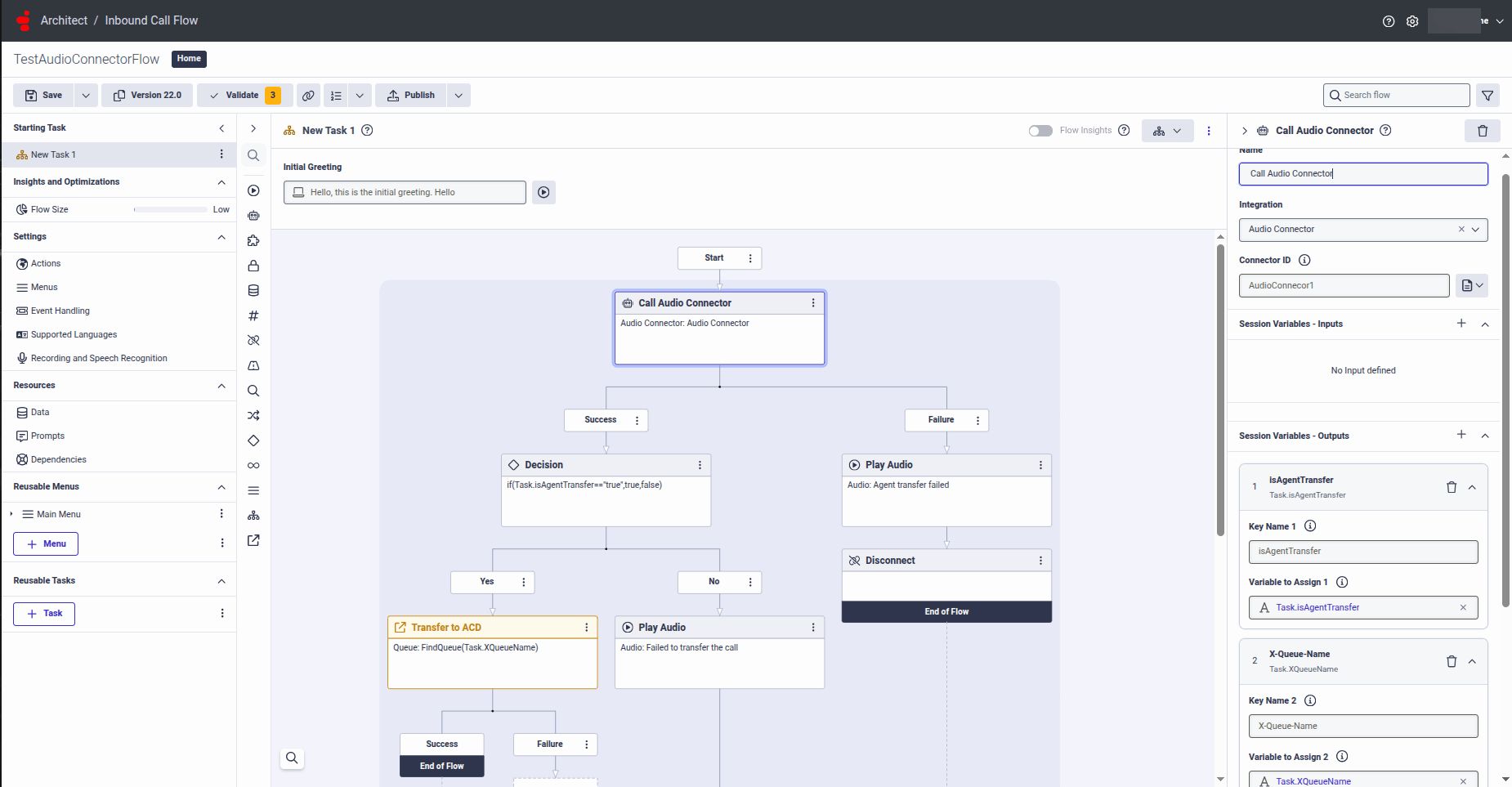
-
Add a Decision node immediately after the previous node in the Architect flow.
- Inside this node, give any name.
- Assign the following value (as an Expression):
if(Task.isAgentTransfer==”true”,true,false)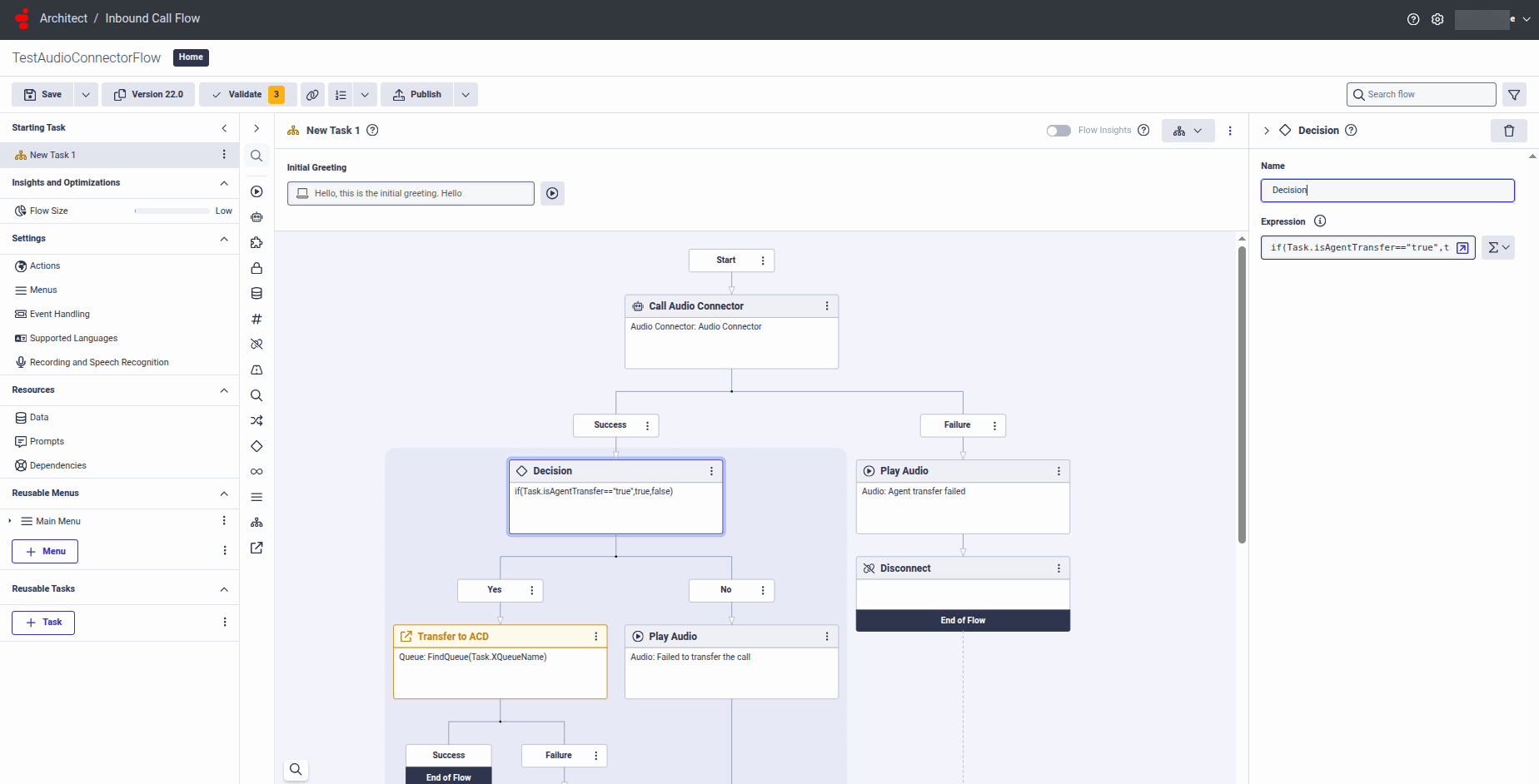
-
After the Decision node, add Transfer to ACD node at Success path.
- Inside this node, give any name.
- Point it to the queue you want to use for agents by assigning the following value (as an Expression):
FindQueue(Task.XQueueName)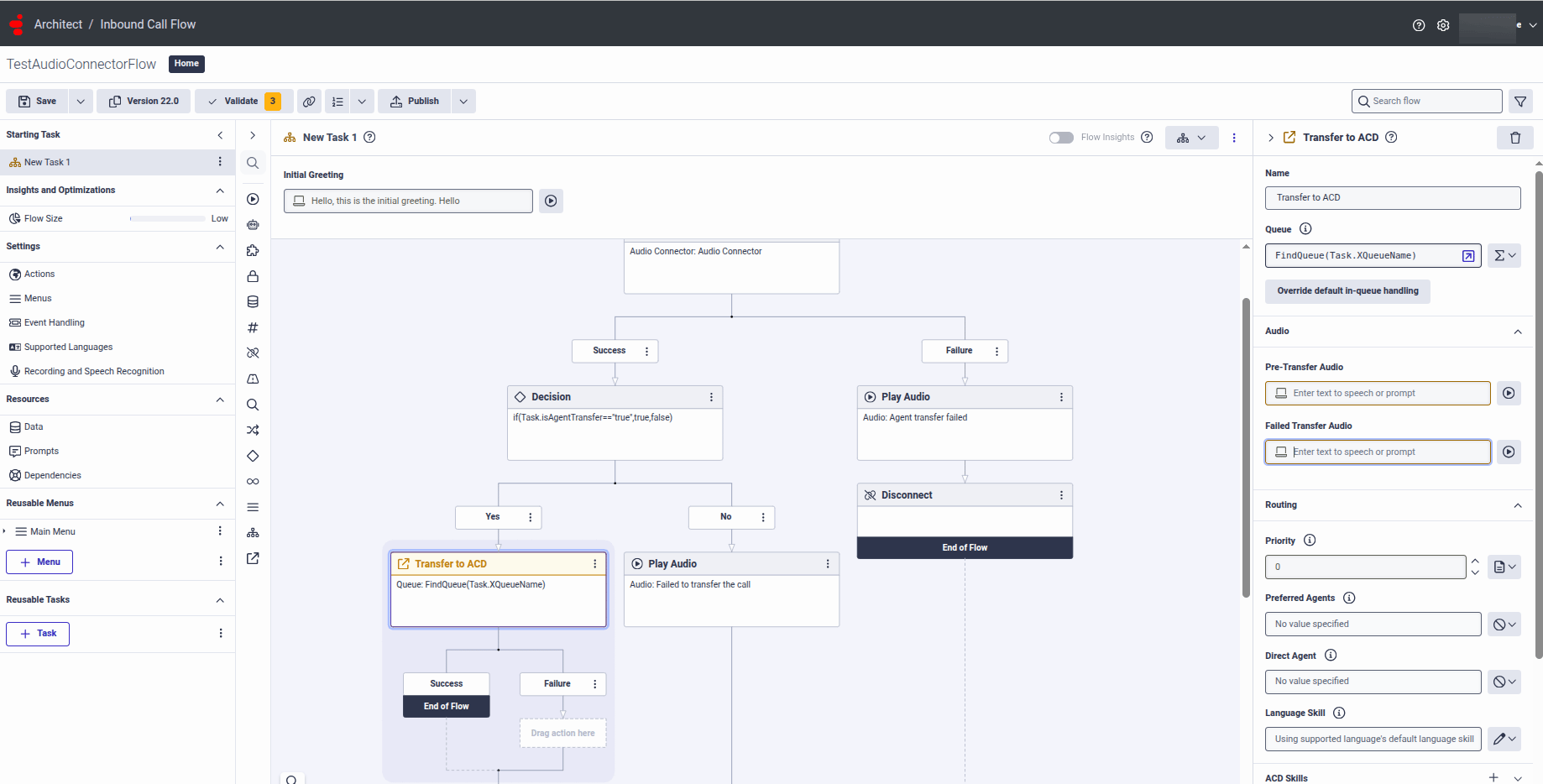
Step 3 – DID Numbers
You need a DID Number that’s internally routable inside Genesys. DID Ranges Create a new single-number DID Range:- Keep the Start Number and End Number the same.
- Use a number that’s not a typical external number (for example, +12223334444).
- For Service Provider, select Internal.
- Add a comment that explains the purpose of the range.
Step 4 – Call Route
- Go to Admin > Call Routing.
-
Select the + button to create a new call route.
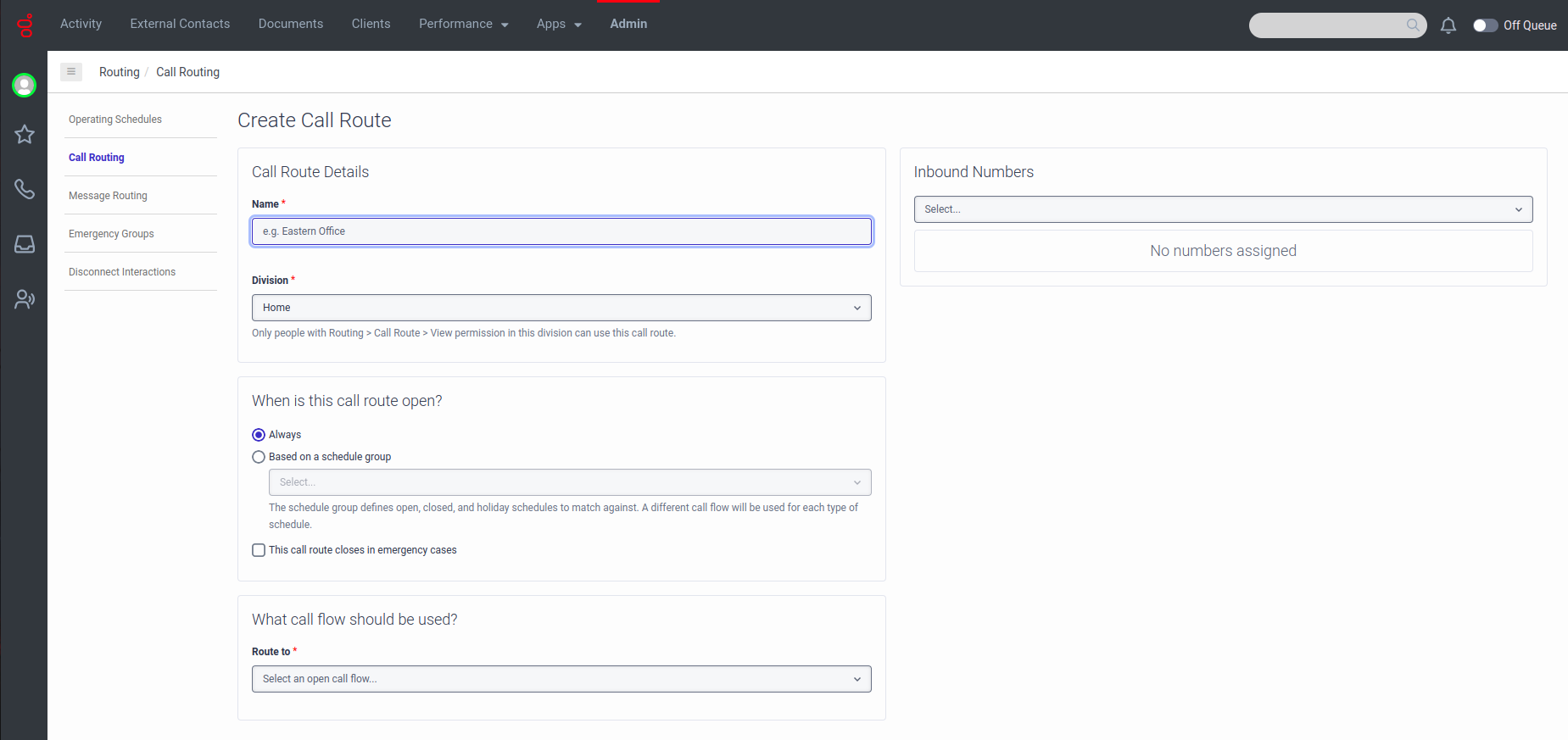
- Set up a call route to map the DID Number created in Step 3 to the call flow created in Step 2.
Install AudioConnector for Automation Voice Streaming
The final step is to install Audiohook for voice streaming, if using Kore-managed Transcriptions. To do that:- Sign in to Genesys Cloud.
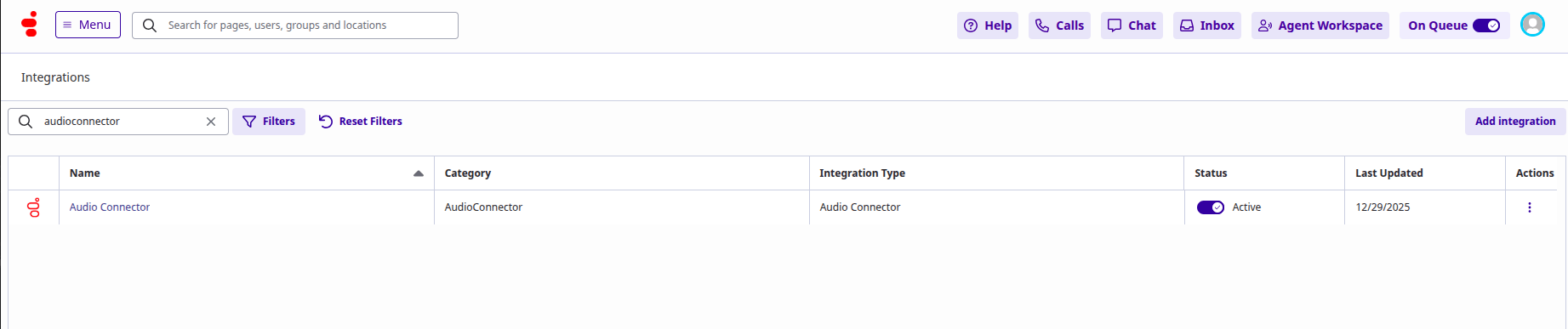
- Go to Admin > Integrations > Integrations.
-
Enter audioconnector in the search bar.
-
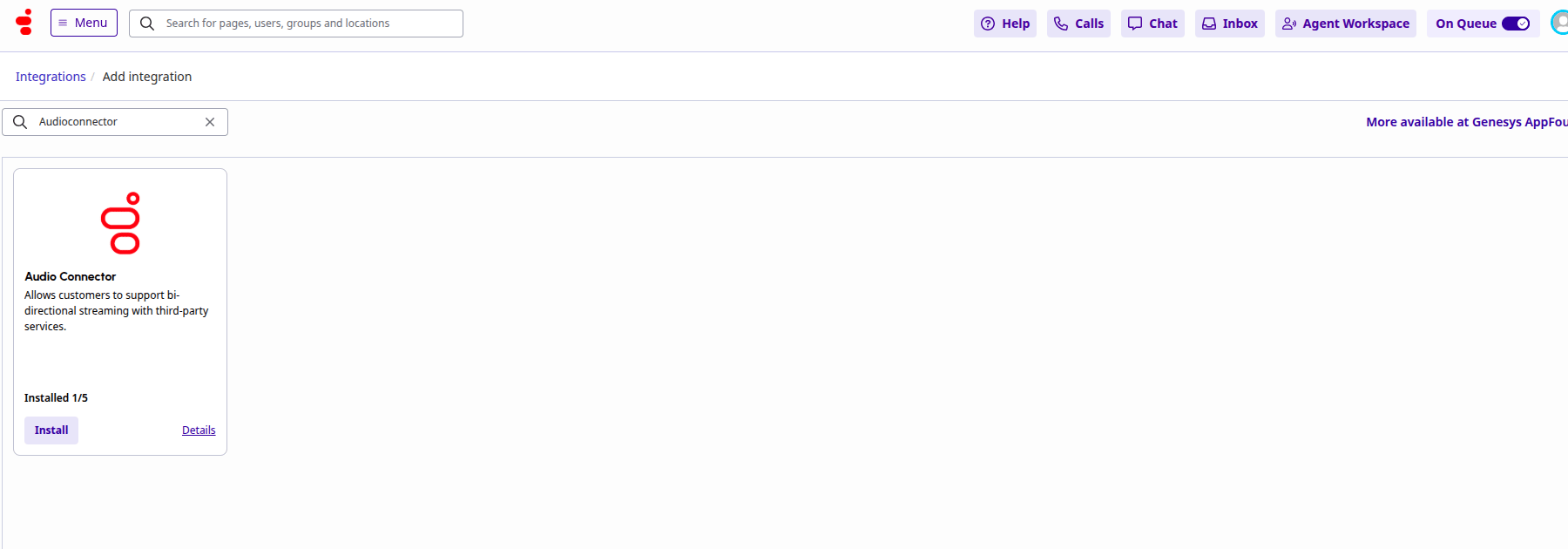
Install a new audio connector app by selecting the Add Integration button in the top-right corner.
-
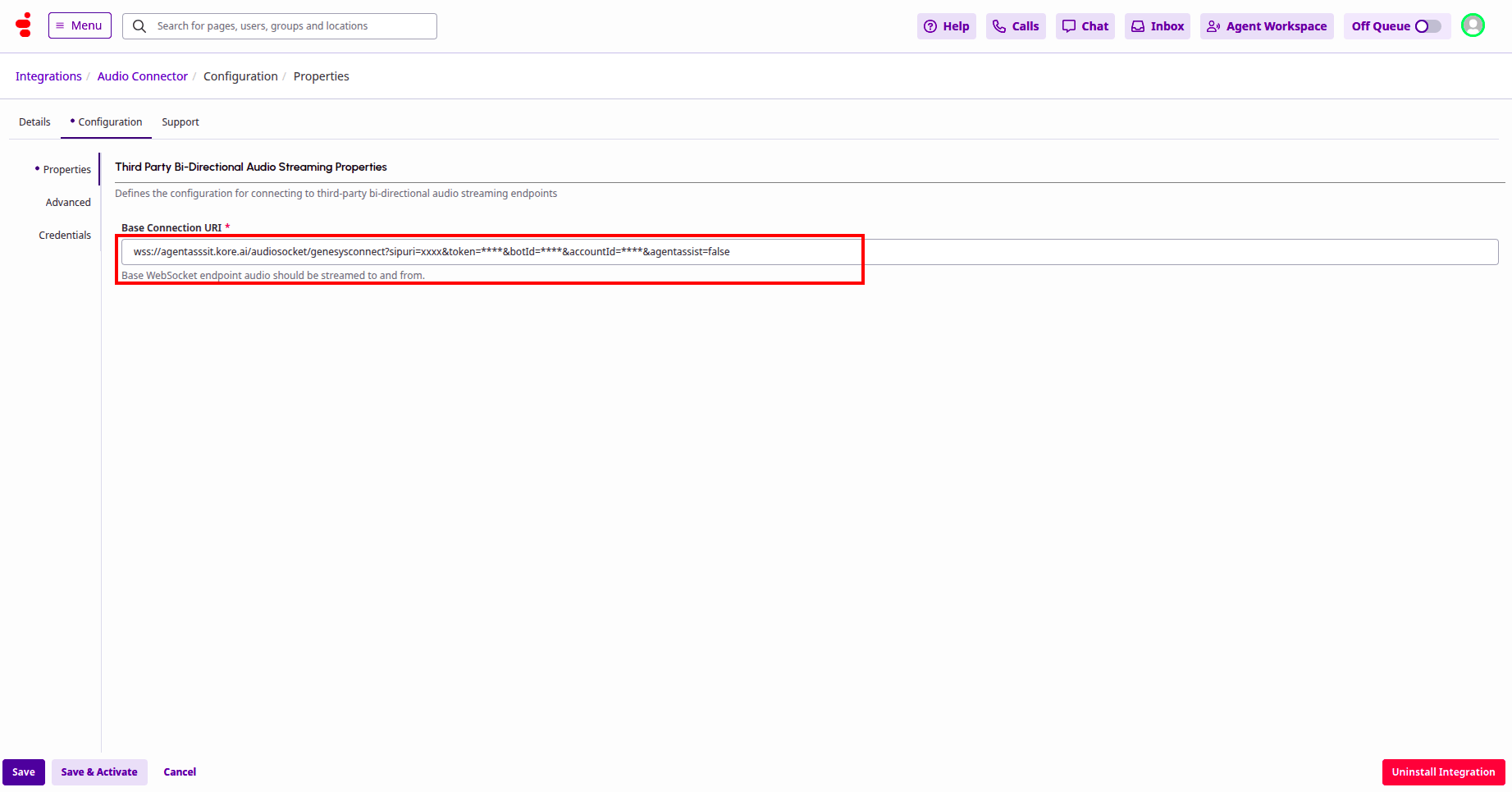
Open the Audio Connector, and go to the Configuration tab.
-
The Base Connection URI format should be similar to
wss://{Voice Gateway(KVG)}/audiosocket/genesysconnect/?sipuri=xxx&token=xxx&botId=xxx&accountId=xxx&agentassist=false.
Agent AI Integration
Follow the steps from Agent AI Integration with Genesys Cloud CX for Agent AI integration.You must configure AudioHook or enable the AudioHook monitor to get the transcripts on the Agent AI widget.
Test Your Integration
Call the phone number you purchased in the previous steps. After automation and a successful agent transfer from CCAI to Genesys, the signed-in Genesys agent can accept the incoming calls.- Select the Answer button to accept the call.
-
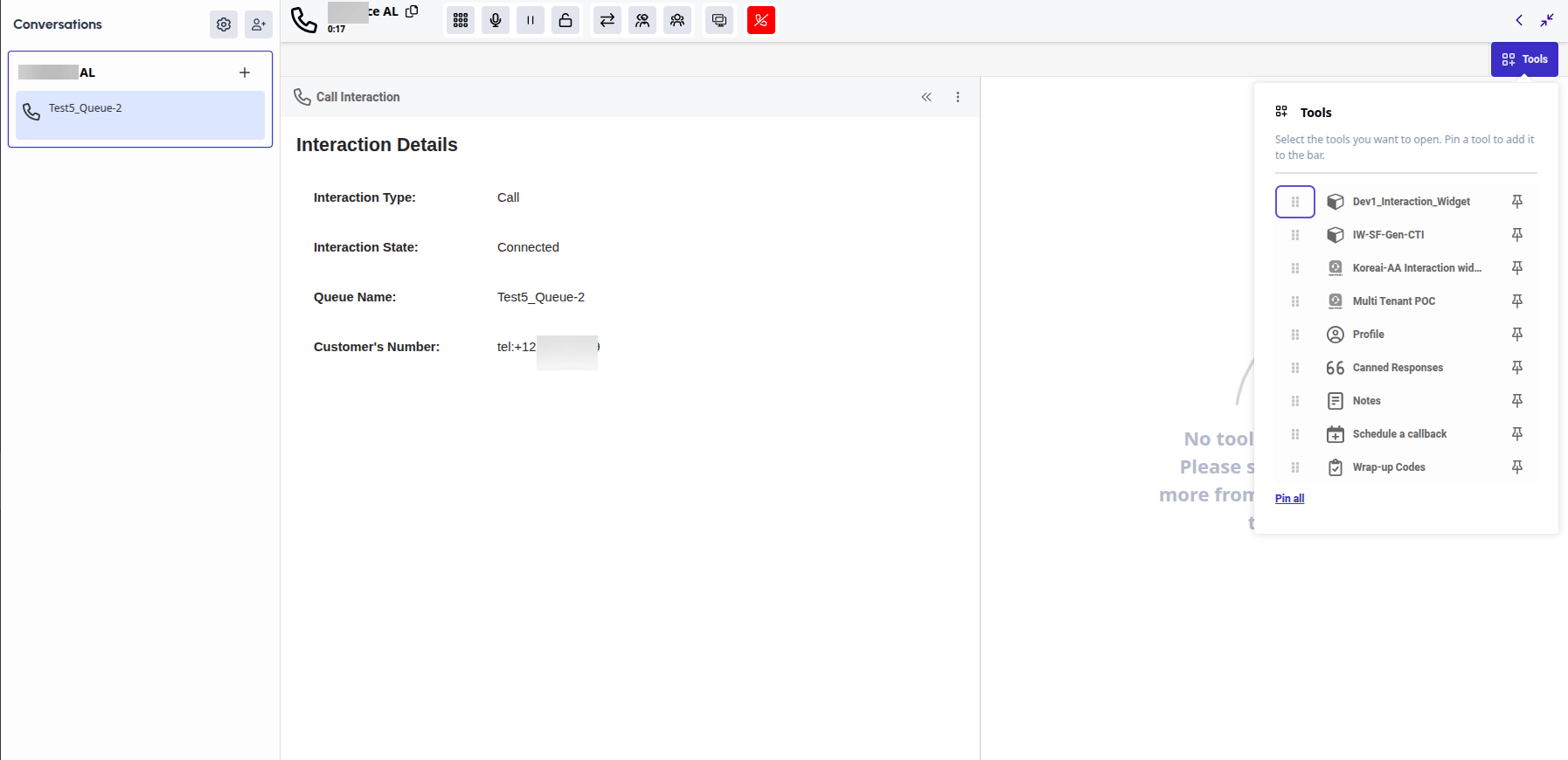
Select Tools and select the interaction widget you configured in the previous steps. The Agent AI widget appears on the right side of the Genesys Agent desktop.\
-
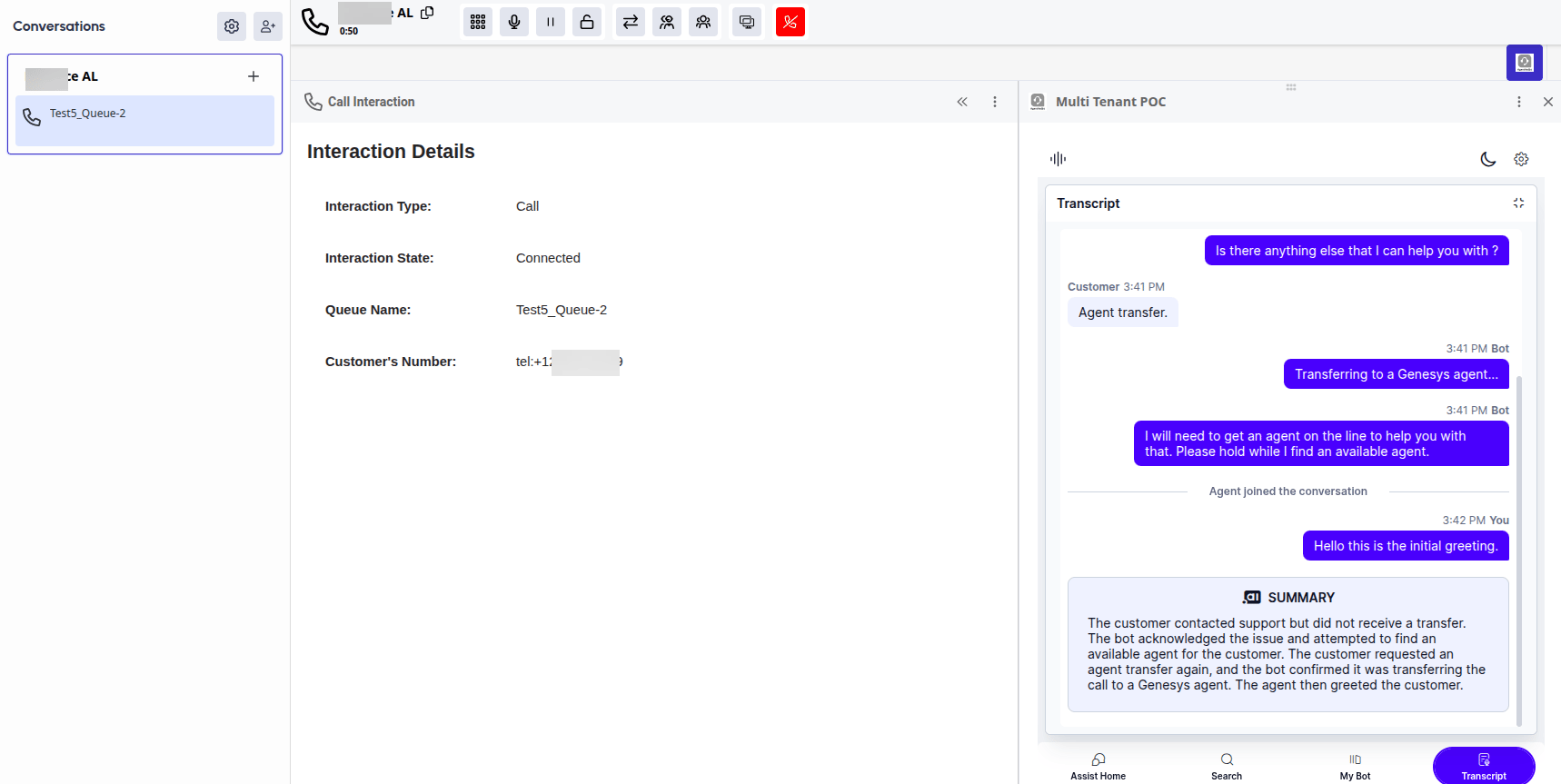
Switch to the Agent AI Transcript tab to view the user-bot history and the summary between the user and the automation bot. All the real-time transcripts between the live agent and the user are captured in the Transcript tab.
Check the Interaction Details in Contact Center AI
You can view all interaction details between the user and the bot during the call and the conversation between the user and the live agent after agent transfer in the CCAI dashboard:- Sign in to AI for Service and go to Contact Center AI.
- Go to Analytics.
- Select the Conversations tab.
- Select the interaction you want to view.