

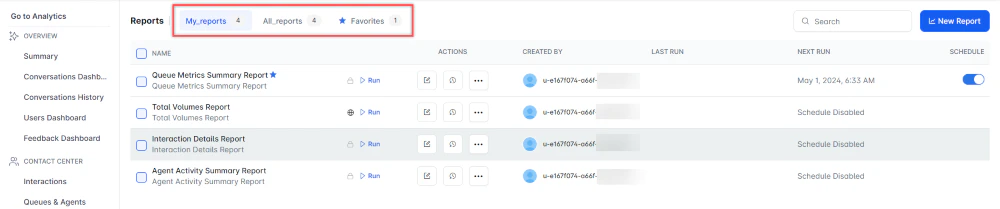
- My Reports: Shows only reports created by the current user.
- All Reports: Shows all reports.
- Favorites: Shows reports marked as favorites by the current user.
Creating a New Report
To create a new report, follow these steps:- On the Reports page, select New Report.
- From the list of reports, select a report type to generate. For example, Interaction Details Report.
- Enter the Report Name and Report Description.
- Select a Time Period.
- Select Data Filters.
- Select Report Generation and choose Run On Demand or Schedule, where you can create up to six schedules (only one for the Hourly option).
- Select the desired format.
- Enter a Send To address (single email address or mailing list).
- Select Create to create the report.
- Select the Run option to generate the report. Run On Demand generates the report as and when needed, while Schedule configures automatic generation at the specified date and time. Use the toggle to enable or disable the schedule (applies only to scheduled reports).
- Select the option to download the report.
The red dot beside the report indicates it was generated within the last 24 hours.
Availability
You can restrict report visibility using one of two permissions:- Public (default)-visible to all users.
- Private-visible only to the creator.
- Select ⋮ under ACTIONS for the report.
- Select Switch to Private to restrict access, or Switch to Public to make it available to everyone.
A private report isn’t visible to other users on the REPORTS page.
Bulk Actions
Bulk actions let you run or delete multiple reports at once. Select Run Now or Delete and then follow the on-screen instructions.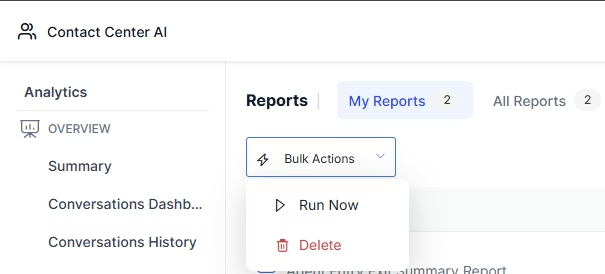
Actions
The following actions are available for each report:| Action | Icon | Steps |
|---|---|---|
| Edit |  | 1. Select Edit on the report. 2. In the pop-up, make your changes and select Save. |
| View History |  | 1. Select View History to see the last 5 runs. 2. Select the PDF icon to download a run. |
| Clone | 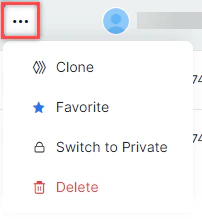 | 1. Select ⋮ > Clone. 2. In the pop-up, select Save. |
| Favorite/Unfavorite | | 1. Select ⋮ > Favorite or Unfavorite. 2. Confirm in the pop-up. |
| Delete | | 1. Select ⋮ > Delete. 2. In the confirmation pop-up, select Yes, Delete. |