

Prerequisites
- Five9 administrators with access to the Admin Console and privileges to set up the configurations.
- Five9 administrators who can receive calls on Five9 Agent Desktop.
- Five9 VoiceStream set up for your instance. Contact your Five9 representative for help.
- Platform administrators with access to Agent AI instance and know-how of Agent AI bots.
- App credentials, such as Agent AI widget URL, Bot ID, Client ID, Client Secret, Account ID, and SIP URI.
Definitions
Configurations on Platform
- Bot Information in Agent AI Third-Party Configuration
- Access Custom Data and Secure Custom Data in Agent AI Bot
Configurations on Five9 Admin Console
- Five9 account set up for incoming phone call
- Create connector
- Create voice stream
- Create custom call variables
Interaction between Five9 and Agent AI
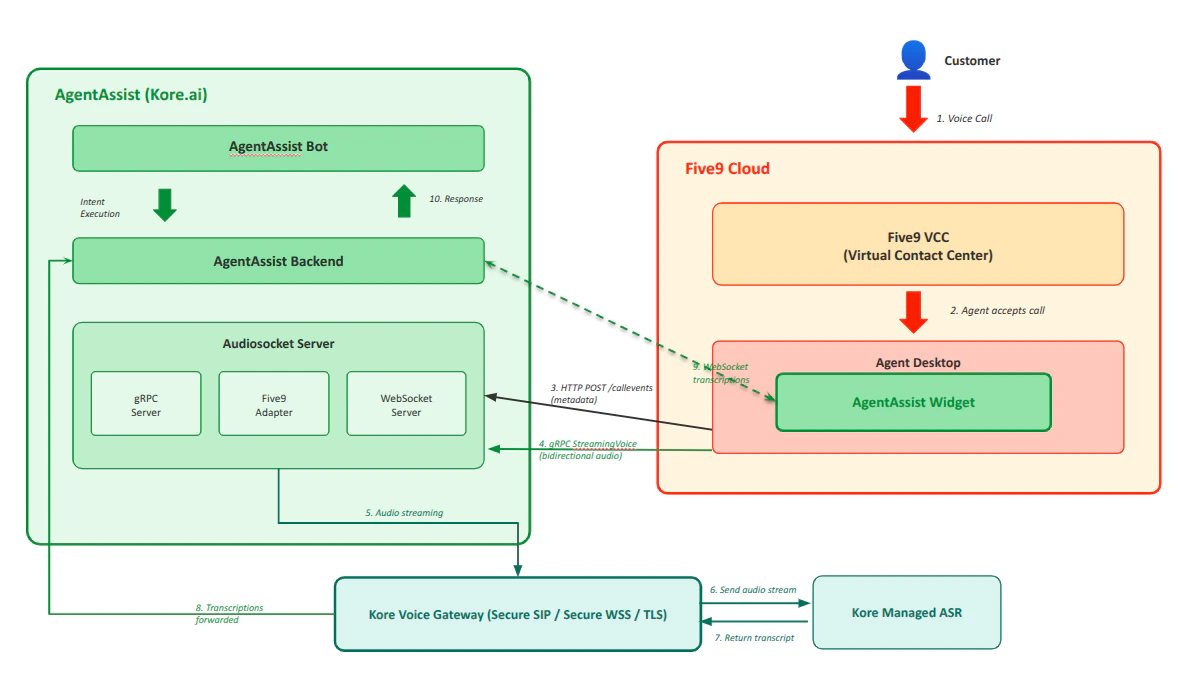
Five9 Agent AI - Voice Flow Steps
- Customer calls Five9 Virtual Contact Center.
- Agent accepts the call on Five9 Agent Desktop.
- Five9 sends call metadata via HTTP POST /call events to Audiosocket server.
- Five9 opens gRPC StreamingVoice bidirectional stream (audio encoding: LINEAR16, 8000Hz).
- Five9 adapter routes audio to Voice Gateway.
- Voice Gateway sends audio stream to Kore-managed ASR.
- ASR returns real-time transcriptions to Voice Gateway.
- The system forwards the transcriptions to the Agent AI backend.
- The Agent AI backend shares the transcripts with Agent Desktop widget (Agent AI Transcript tab).
- The Agent AI backend shares the transcripts with the Agent AI bot, and the bot recognizes the intents and sends responses back to the Agent AI widget. This process continues until the end of the call.
Agent AI Bot Mapping for Skills or Campaigns
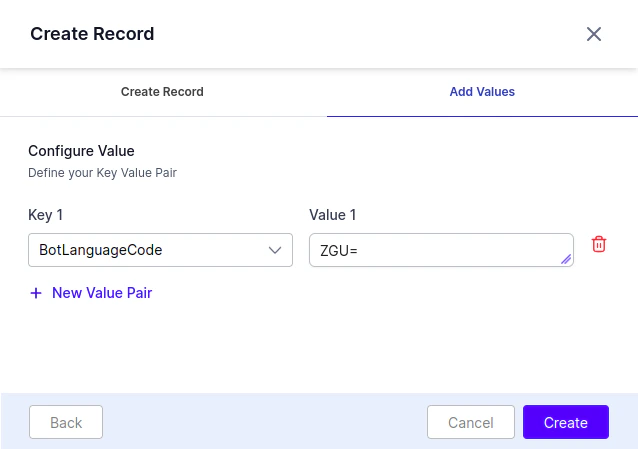
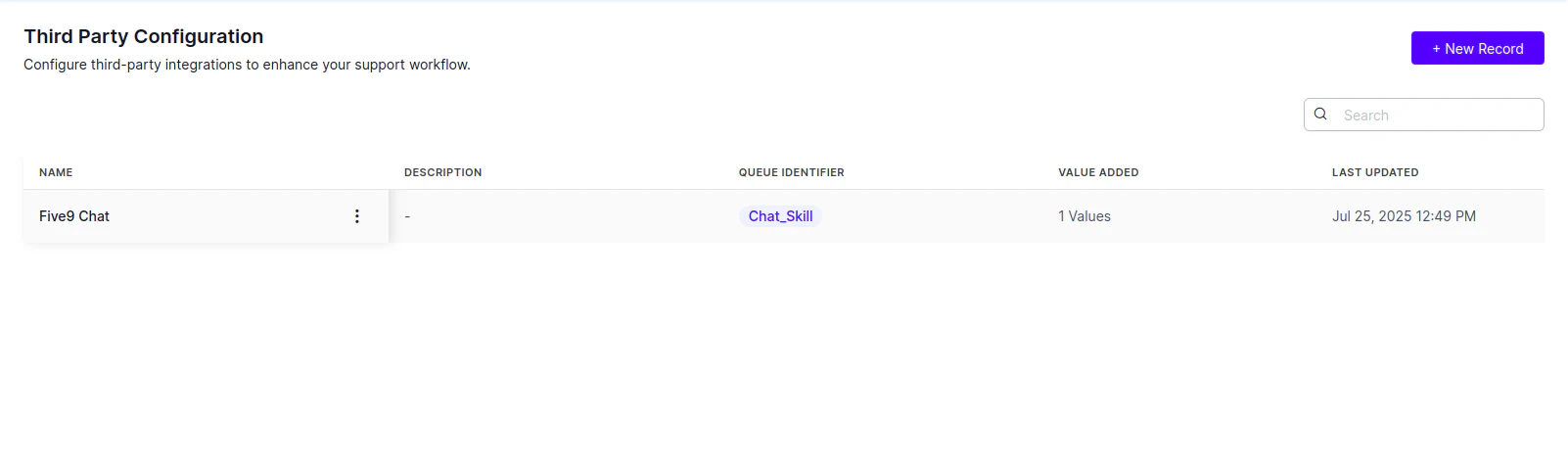
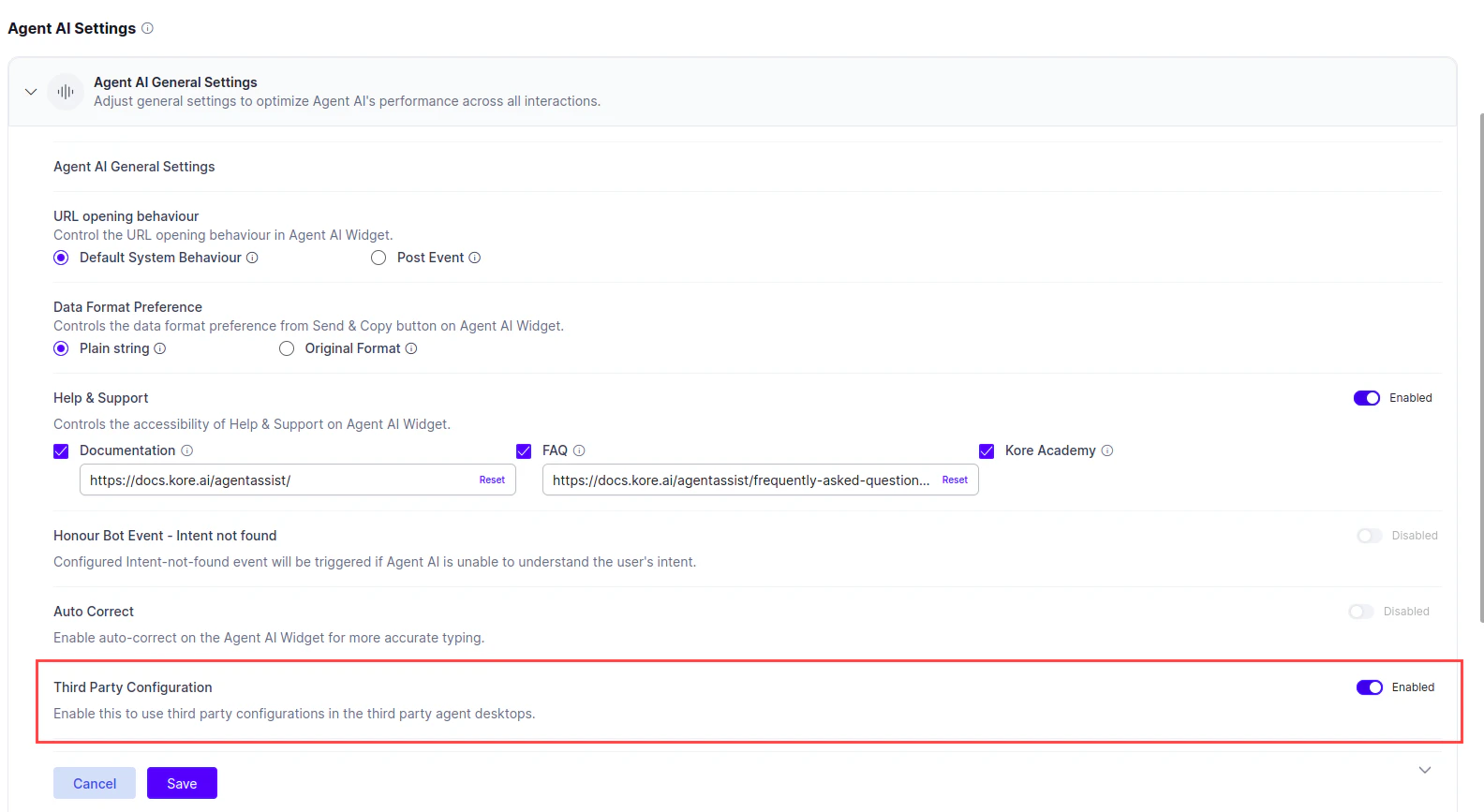
Third-Party Configuration maps Agent AI bots to specific skills or campaigns. Use it to set the bot’s language, custom data, and secure custom data. Example: To associate Agent AI Bot1 with Skill1, create a record for Agent AI Bot1 and set the Queue Identifier to Skill1. Map each skill or campaign to only one Agent AI bot. This setup ensures the correct Agent AI widget renders for conversations routed based on the defined skill or campaign. Refer to third-party configuration for instructions on creating records for an Agent AI bot. Example: You have a skill named Chat_Skill, that handles incoming chat requests, and you want the Agent AI widget to render for conversations routed to this skill. You must create the following details of the third-party configuration record in your Agent AI account: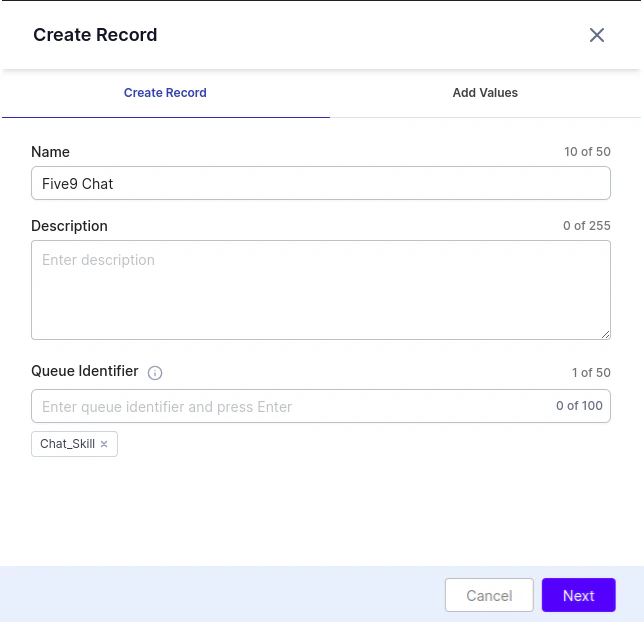
Create SIP Trunk
Create a SIP trunk in Kore Platform with Agent AI as the production selection. For steps, see Steps to Configure SIP Trunk. Use the generated SIP identifier to configure the Five9 IVR script in the next step.\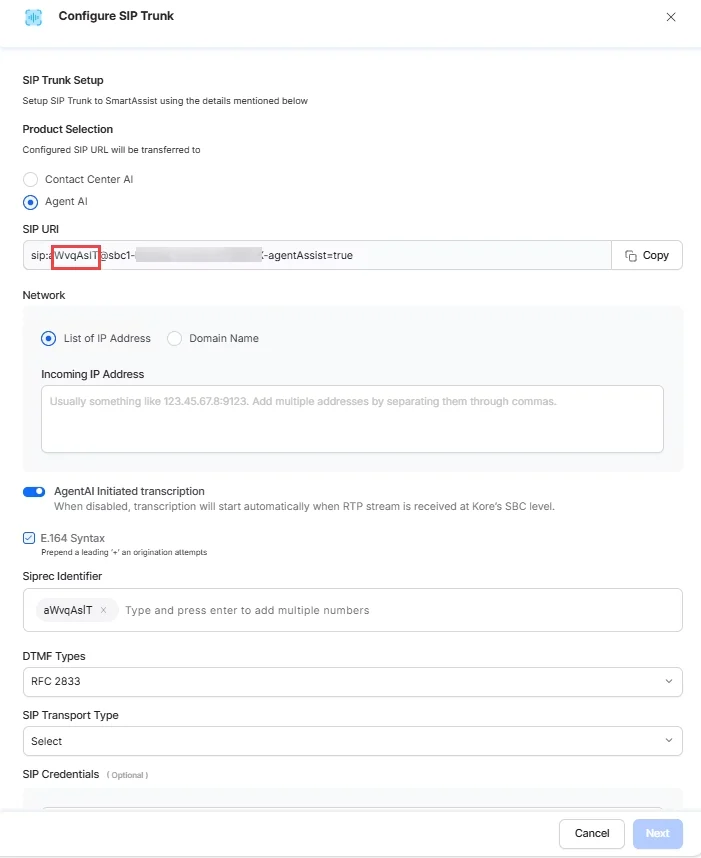
Create Connector
- Sign in to Five9 Administrator Console.
- Search for connectors in the search bar, and select Connectors.
-
Select Create.
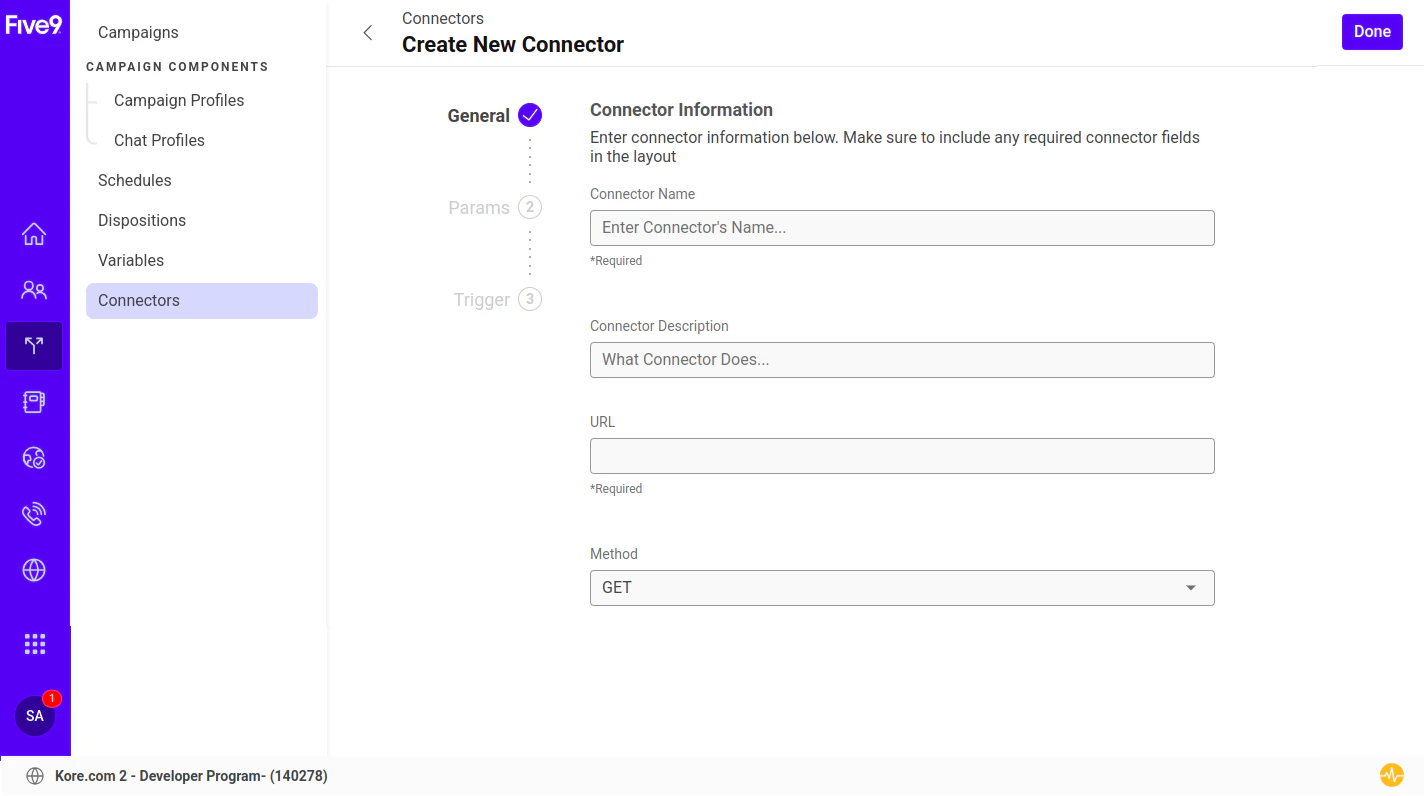
- Enter a name in the Connector Name field.
-
Enter the URL as
{Agent AI URL}/integrations/five9/. -
Enter the method as GET.
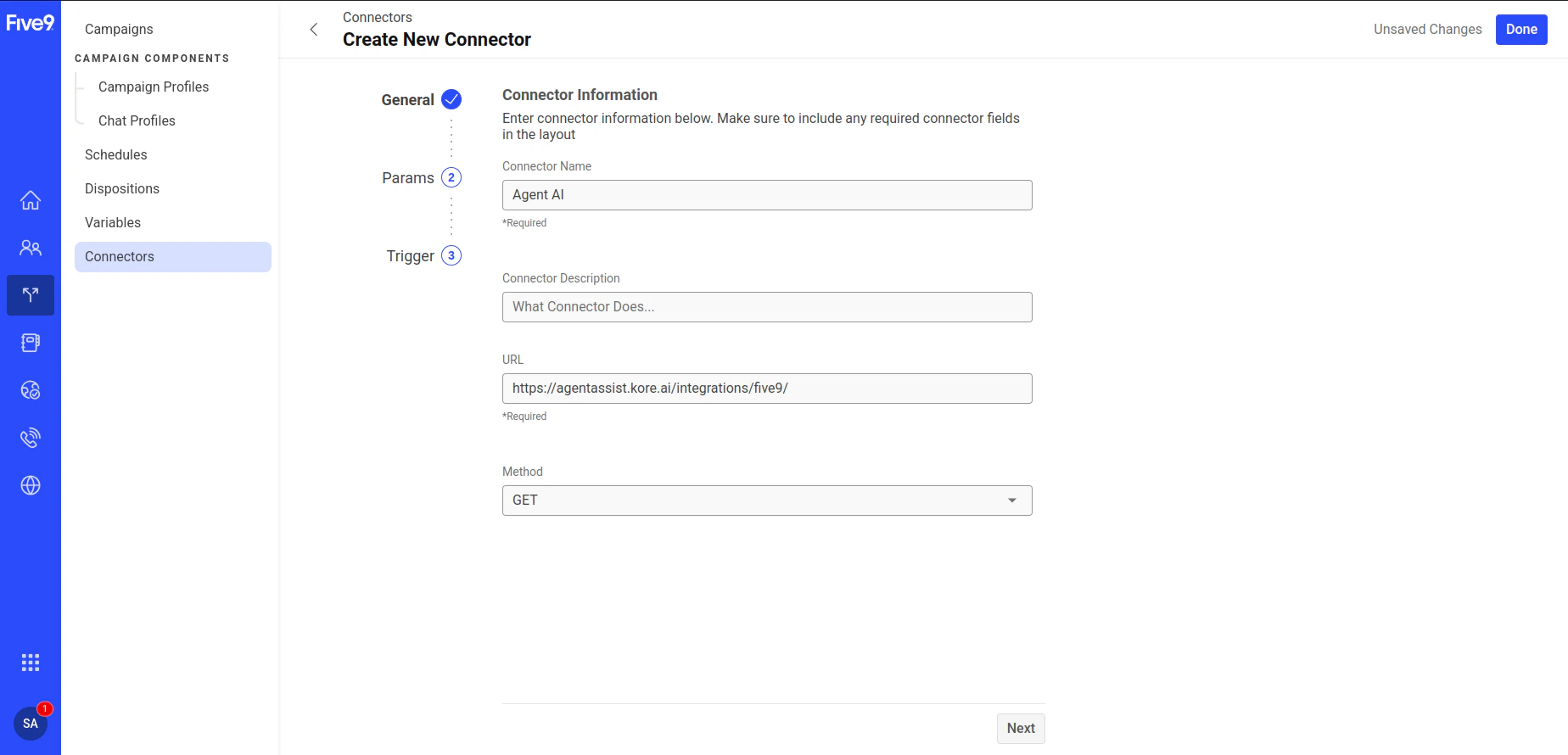
- Select Next.
-
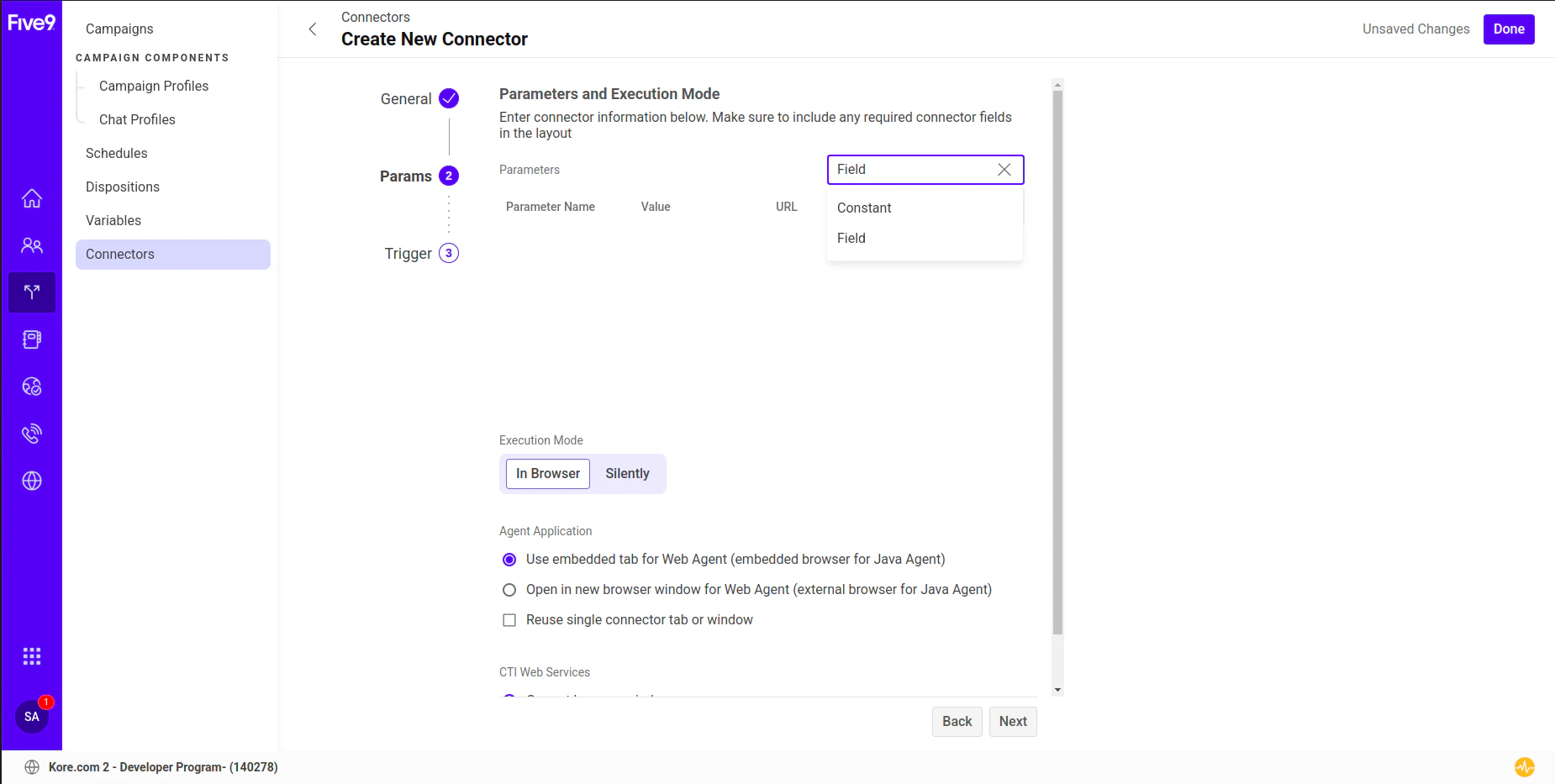
Select Field from the Add dropdown list in the Parameters section.
-
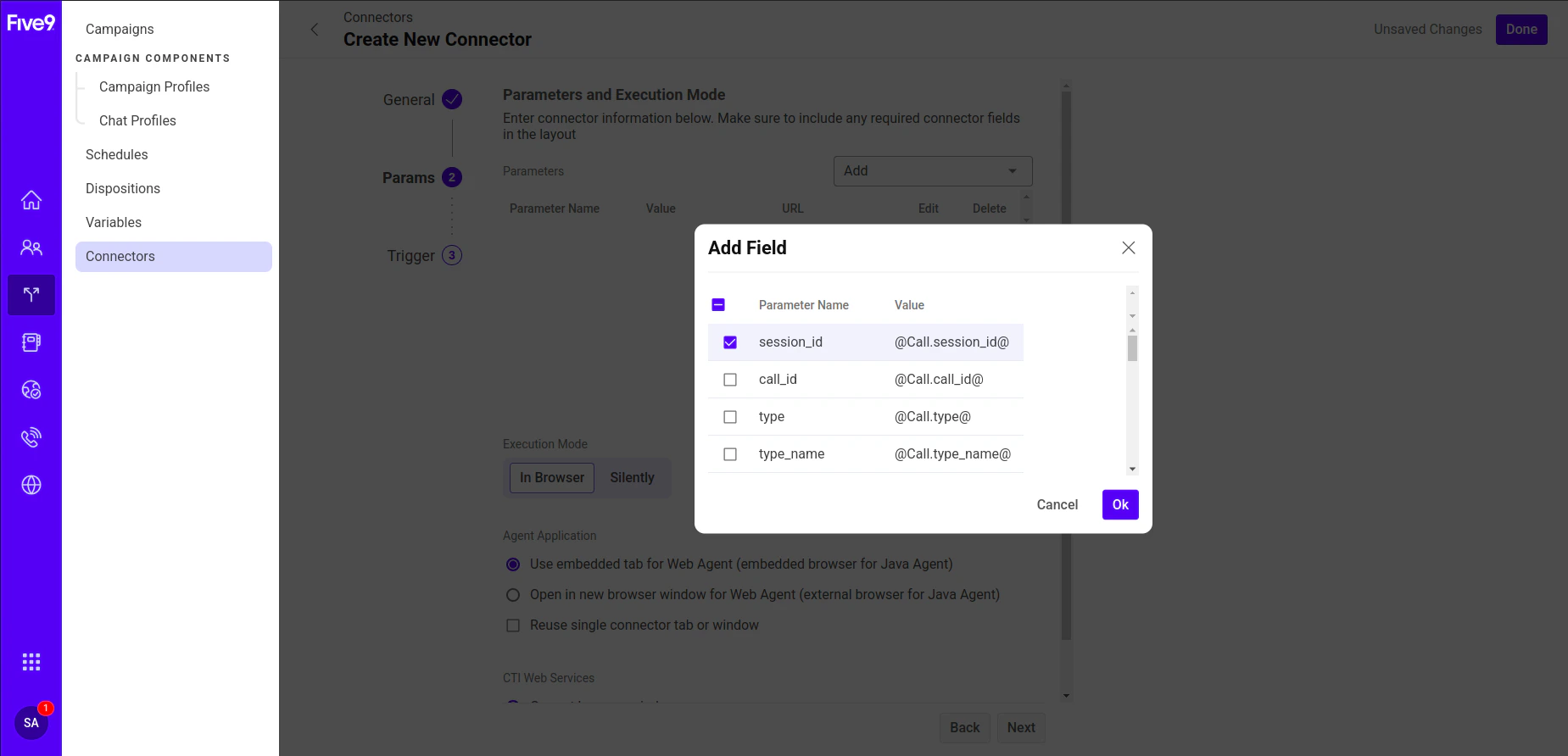
Select call_id, session_id, domain_id, id, skill_name / campaign_name (choose either skill_name or campaign_name, depending on which you use to map the bot in Agent AI), and select Ok.
-
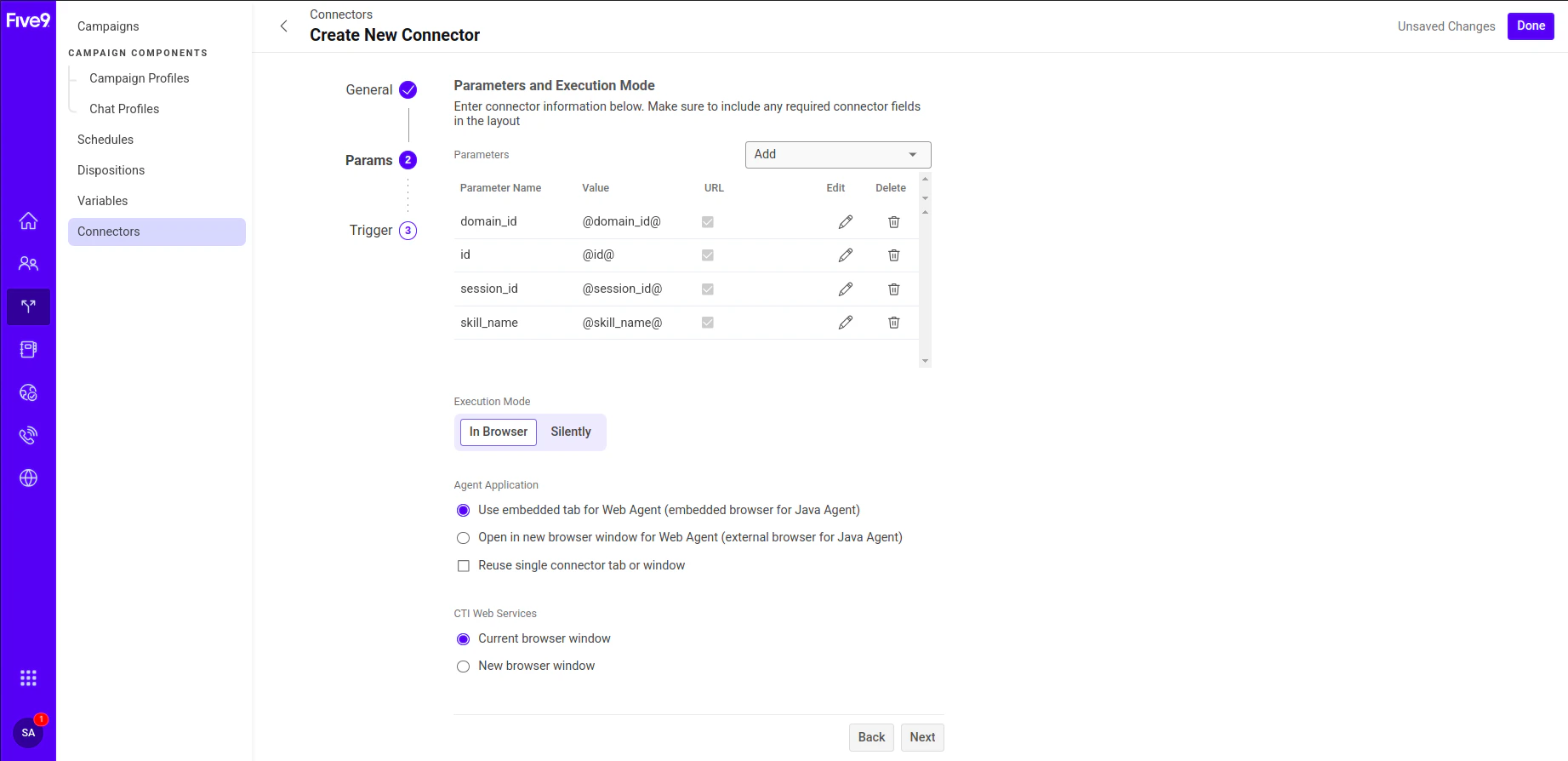
Select the Edit icon next to each parameter and update the values as follows:
- call_id -> callid
- domain_id -> domainid
- id -> agentid
- session_id -> conversationid
- skill_name/campaign_name -> identifier
-
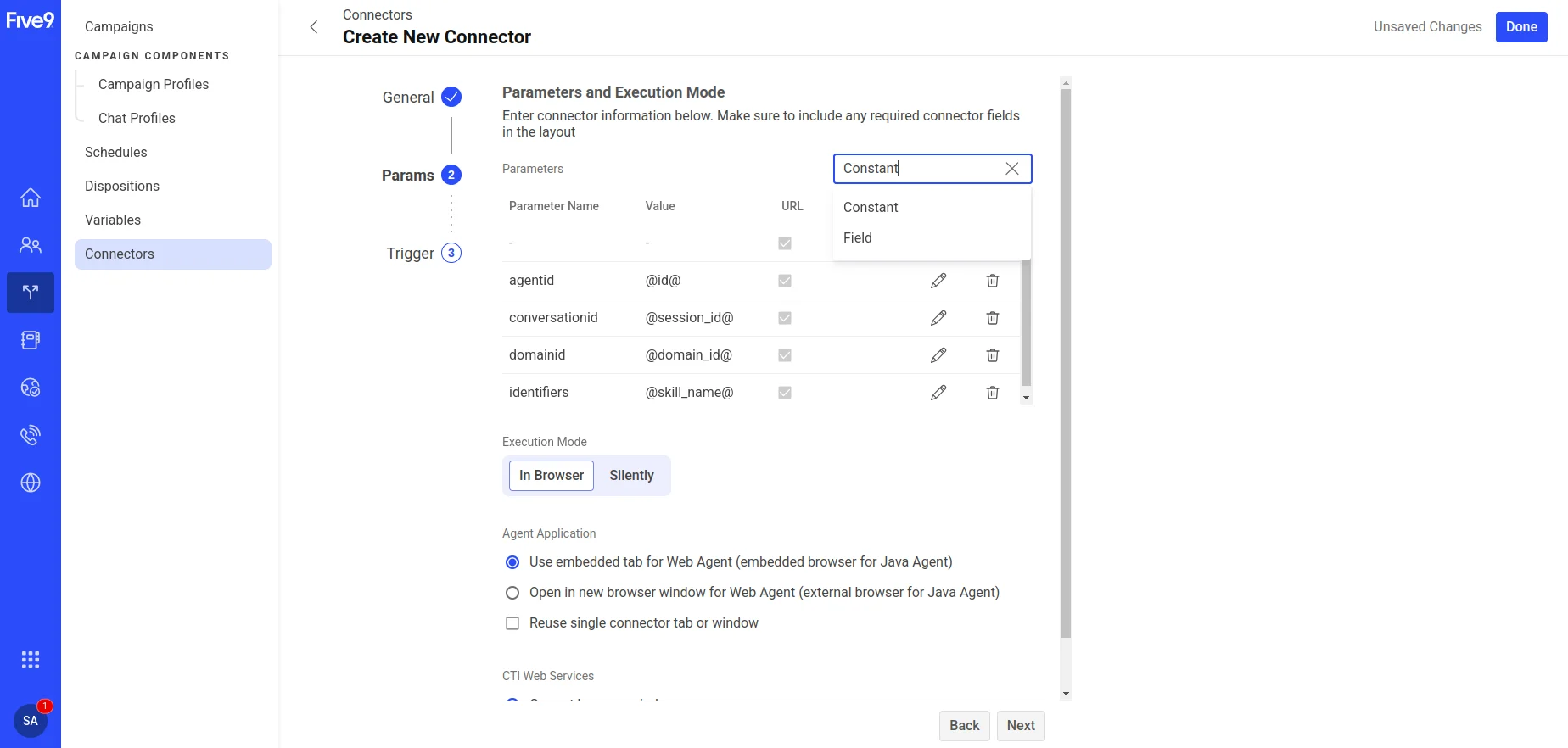
Select Constant from the Add dropdown list in the Parameters section.
-
Enter ‘accountid’ in the Name field and the accountid of your Agent AI account in the Value field. To find this ID, go to Agent AI > Flows & Channels > Channels > Digital > Web/Mobile Client > JWT App Details. For more details, see this doc.
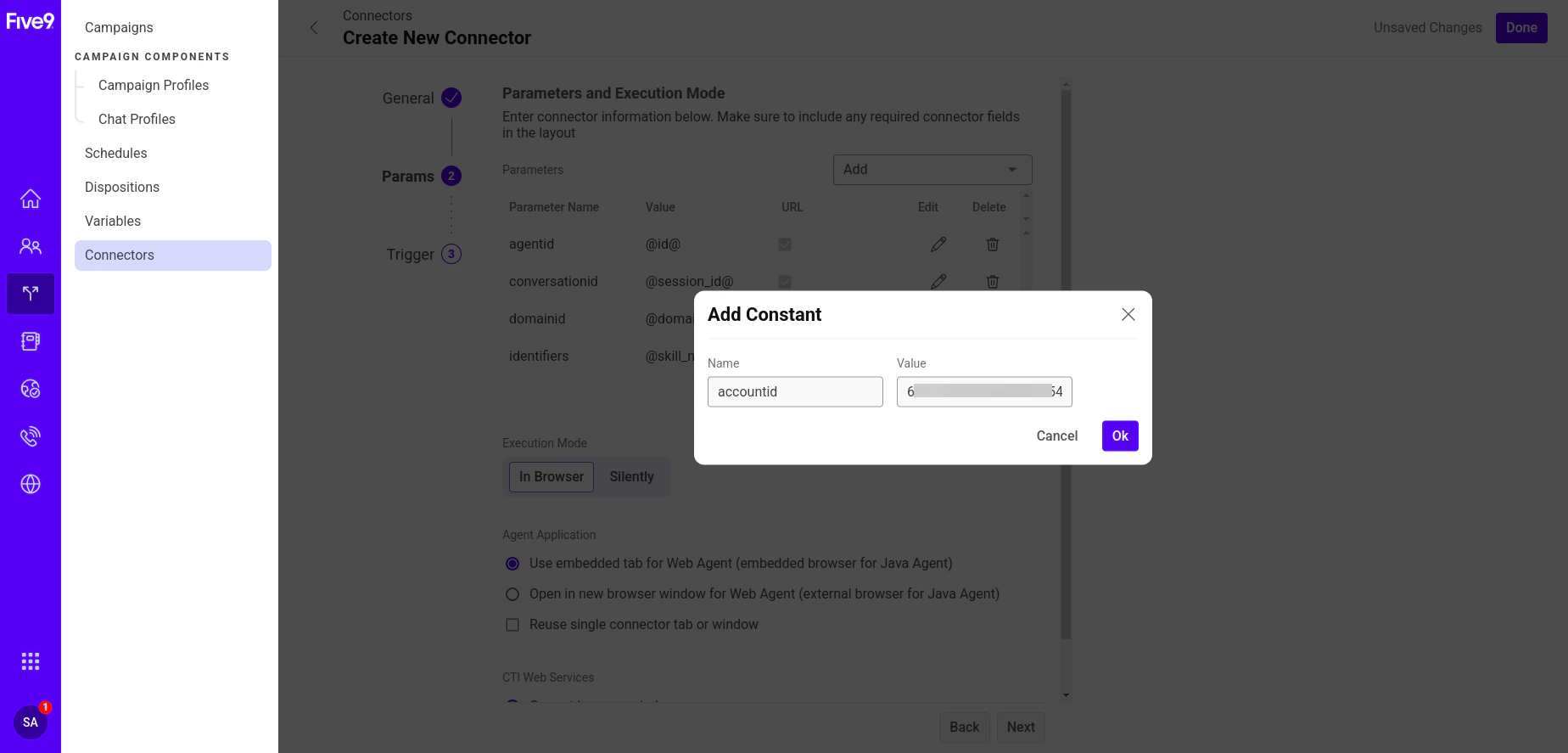
-
Select Ok > Next.
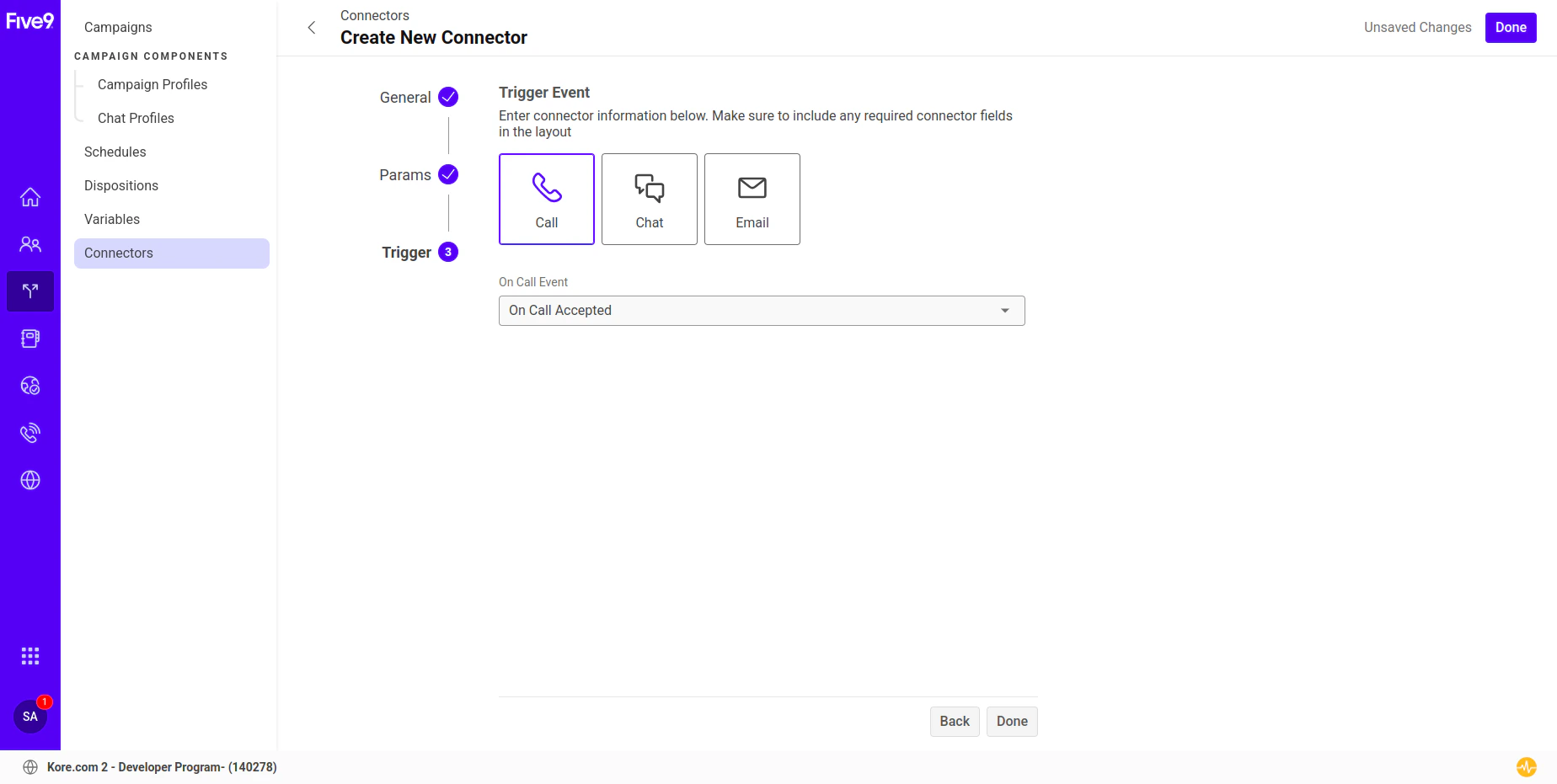
- The default selection for Trigger Event is Call and for On Call Event is On Call Accepted.
- Select Done.
Create Custom Call Variables
- Sign in to Five9 Admin Console.
- Search for variables, and open Variables.
- Select Create.
- Enter Kore as the group Name, and select Create.
-
Select Kore.
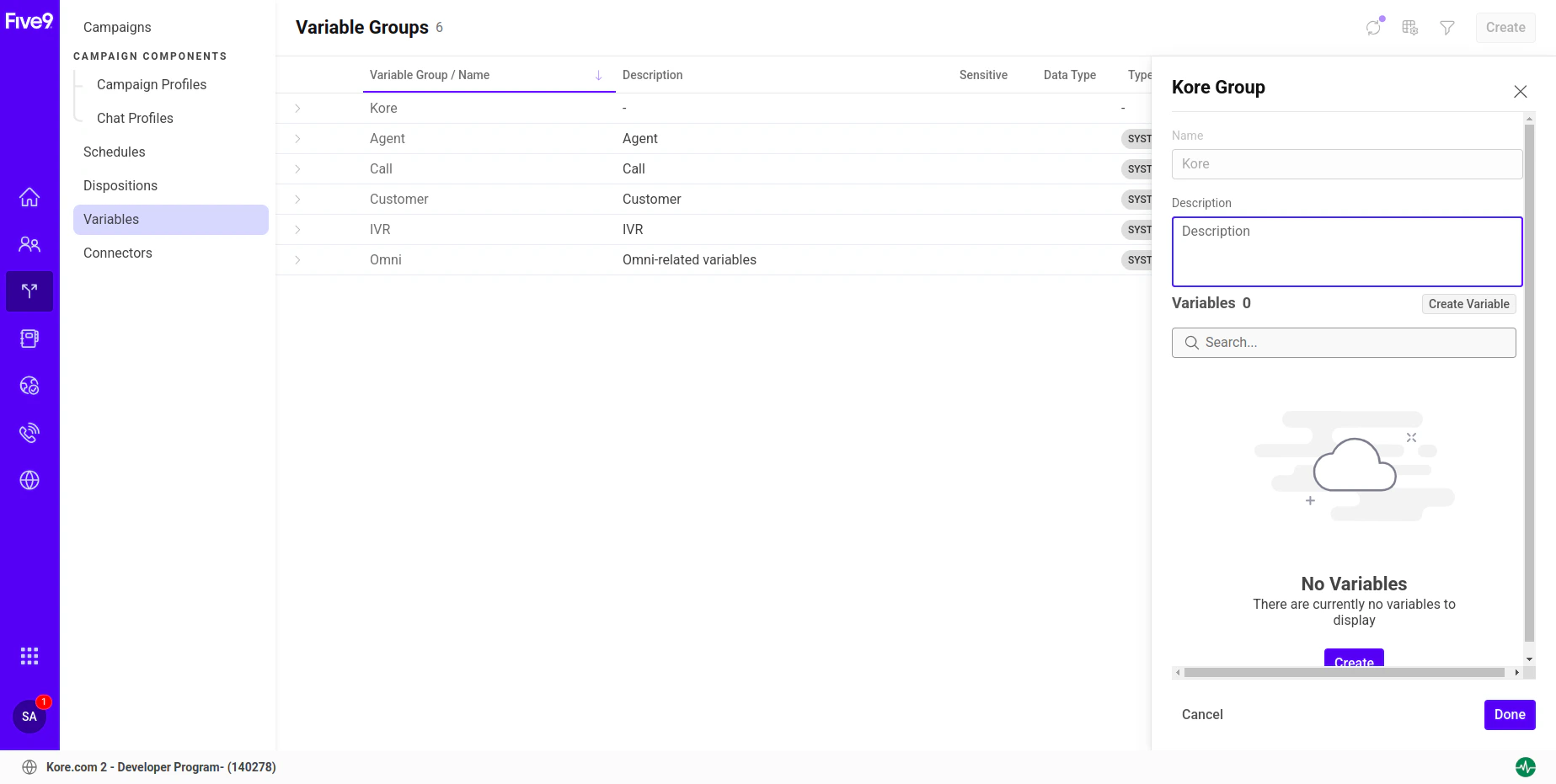
- Select Create Variable.
- Enter botid as the variable Name.
- For the question Will this variable contain sensitive data?, select the No option, select the Datatype as String, and then select Next.
- For the question Will the data in this variable be needed in reports?, select No.
- Select Next.
- For the question Should the values of this variable come from a predefined list?, Select No and provide your Bot ID in the Set Default Value field.
- Select Done.
- Select Create Variable.
-
Repeat the same steps to create a variable named
sipuriwith a default value of the SIP URI configured for your Agent AI bot. - Select Done.
Five9 Account Setup for Incoming Phone Call
- Buy a phone number by following the Numbers Inventory doc.
-
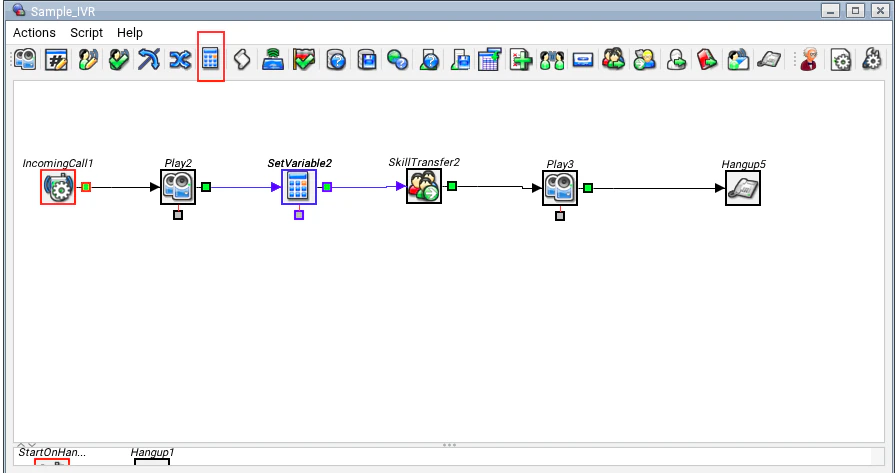
Create an IVR script by following the Creating an IVR Script doc.
Sample IVR Script:
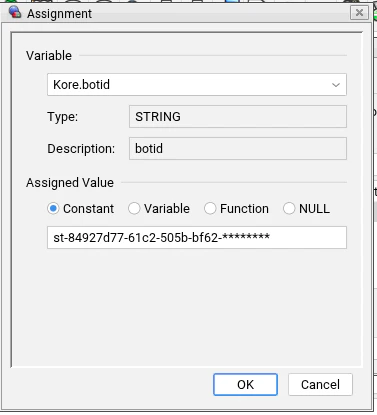
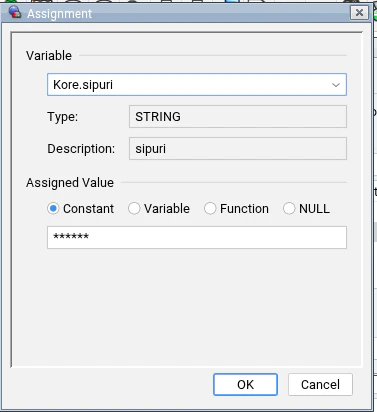
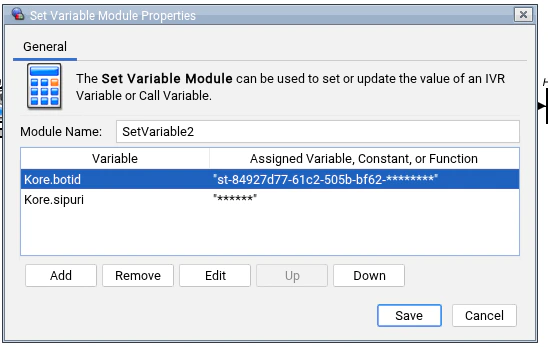
- Create a skill and add agents to the skill by following the Skills doc.
- Create an inbound campaign by following the Create Inbound Campaigns doc.
-
Go to the Integrations section and add the connector you created in the previous step.
After you create the inbound campaign, run it.
Create VoiceStream
- Sign in to Five9 Admin Console.
-
Search for VoiceStream, and select VoiceStream.
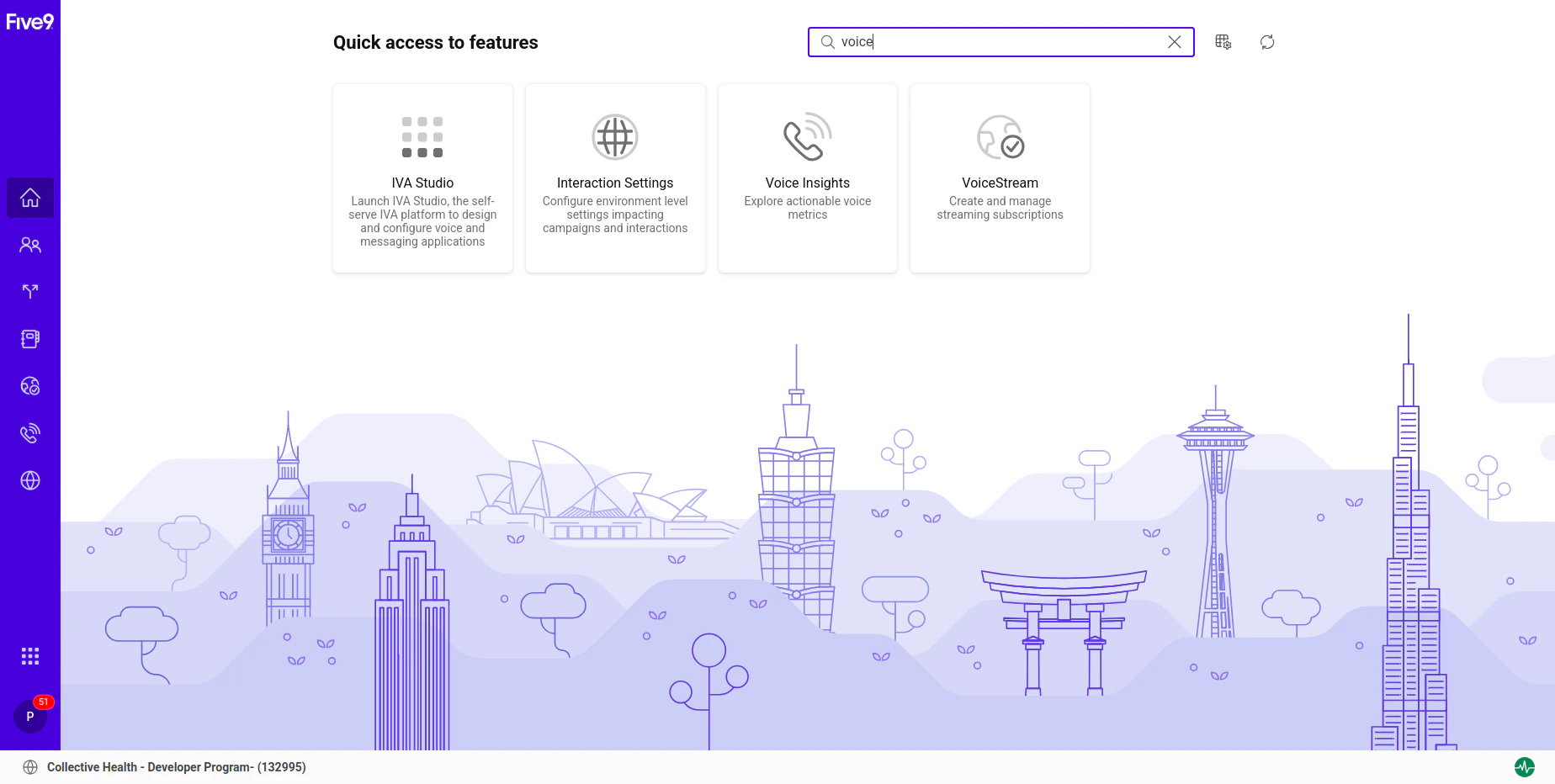
- Select Create.
- Enter a unique VoiceStream subscription name in the Name field.
- Select Other (Self Service) in the Streaming Destination field.
- Select gRPC as Streaming Protocol.
-
Configure the following destinations and provide Trust Token value.
- Primary Streaming Destination: savg-us-grpc-audiosocket.kore.ai:443
- CTI Call Event Destination: https://savg-webserver.kore.ai/audiosocket/five9/callevents
- VoiceStream Event Destination: https://savg-webserver.kore.ai/audiosocket/five9/callevents
- Select Done.
- Configure the Trust Token while creating the subscription. It’s validated at Kore by call event GET API.
Access Custom Data and Secure Custom Data in the Agent AI Bot
You can access the custom data and secure custom data in Welcome Events in the Agent AI configuration page and in Dialog Tasks in the Agent AI automation page. You can access the custom data as{{context.session.UserContext.customData.<key>}}.
Follow this doc for the detailed steps on how to access custom data.
You can access the secure custom data as {{context.session.UserContext.secureCustomData.<key>}}
Follow the same steps of this doc for detailed information on how to access secure custom data, except for the path being {{context.session.UserContext.secureCustomData.<key>}}