This guide explains how to integrate Five9 Voice Automation with Voice Gateway using SIP trunking. With this integration, Five9 routes inbound voice calls to an automation flow for self-service. Based on the conversation outcome, the bot can end the call, transfer the caller to a Five9 skill queue, or transfer the caller directly to a Five9 agent.
Prerequisites
Confirm that you meet the following prerequisites before configuring the Five9 Voice Automation integration:
Five9 Requirements
- A Five9 Virtual Contact Centre (VCC) Administrator account with privileges to configure:
- SIP trunks and DID numbers
- Interactive Voice Response (IVR) scripts
- Campaigns, skills, and agents
- VoiceStream subscription
- Active Five9 Voice Automation tenant
Kore Requirements
- Kore XO Platform account with administrator access
- Automation AI product license
- Familiarity with Automation and Agent AI bot building
Network Requirements
- A SIP trunk configured between Five9 and Kore
- SBC IP addresses added to the allowlist. See SIP Trunk Provisioning.
Definitions
| Key | Definition | Example Value |
|---|
identifier | A unique identifier in the Data Table to fetch bot details at runtime. It can be a skill name or a campaign name. | @Call.skill_name@ @Call.campaign_name@ |
SecureCustomDataConfig | Key-value pairs in SecureCustomData, a session-level store for sensitive data. Use SecureCustomDataConfig to pass sensitive information to the Agent AI bot. Provide a JSON object with keys and their corresponding XPath values (paths to locate the value in Five9 Call Variables). This column is optional. | { "skillName": "Call.skill_name", "agentName": "Agent.full_name"} |
CustomDataConfig | Key-value pairs of JSON objects containing keys and XPath (paths to locate the value in Five9 Call Variables) to send custom data to Agent AI. This column is optional. | {"skillName": "Call.skill_name", "agentName": "Agent.full_name"} |
Kore Configuration
-
Sign in to Kore Platform.
-
Open the required Automation application.
-
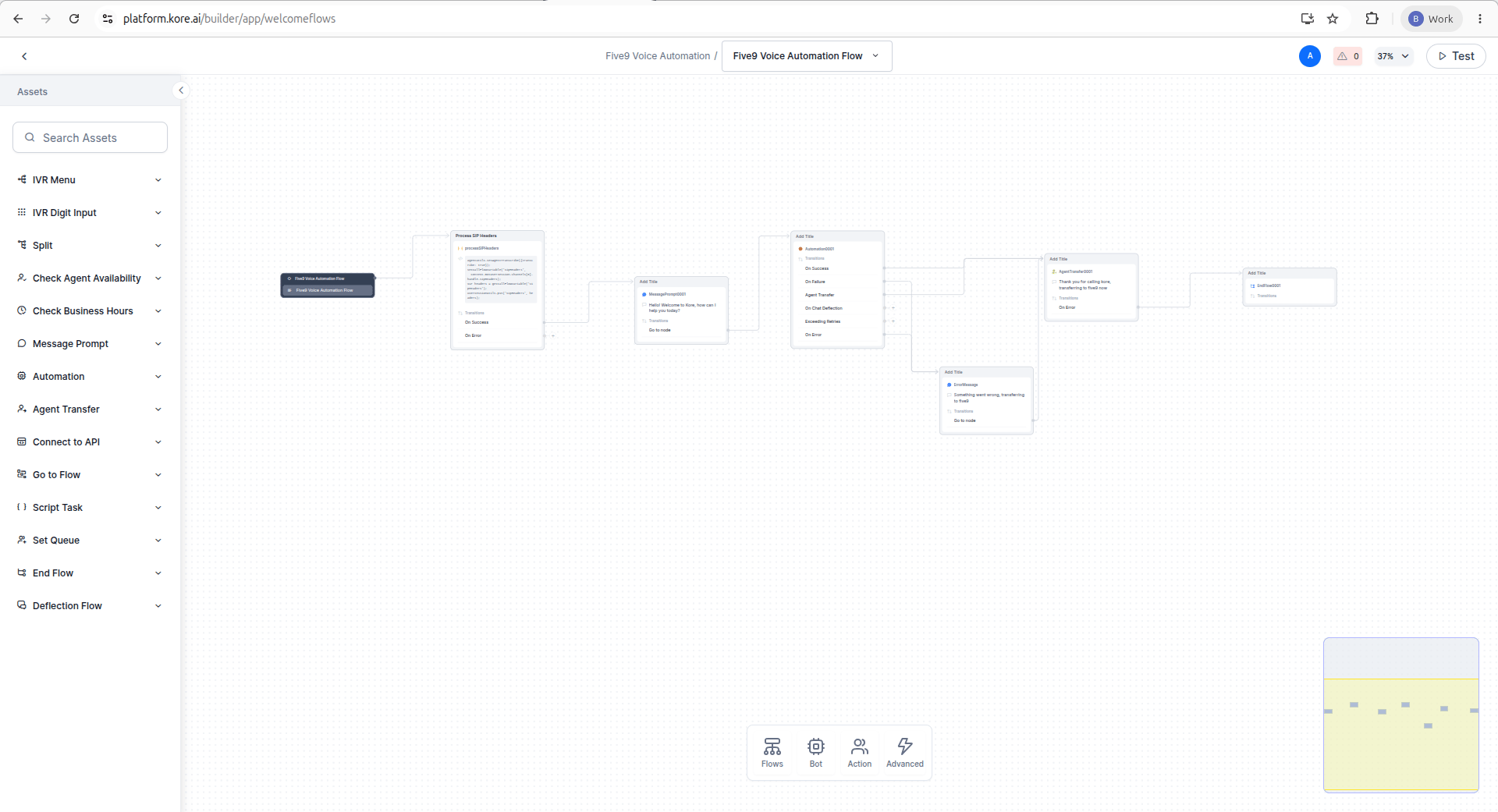
Create or edit an Experience flow for Voice Automation from Flows & Channels > Start Flows:
-
Design the conversation flow according to your business requirements.
Add a Script Task to process the SIP Headers.
agentUtils.setAgentTranscribe({transcribe: true});
setCallFlowVariable('sipHeaders',
context.BotUserSession.channels[0].handle.sipHeaders);
var headers = getCallFlowVariable('sipHeaders');
userSessionUtils.put('sipHeaders', headers);
-
Add the dialog tasks your business use case requires.
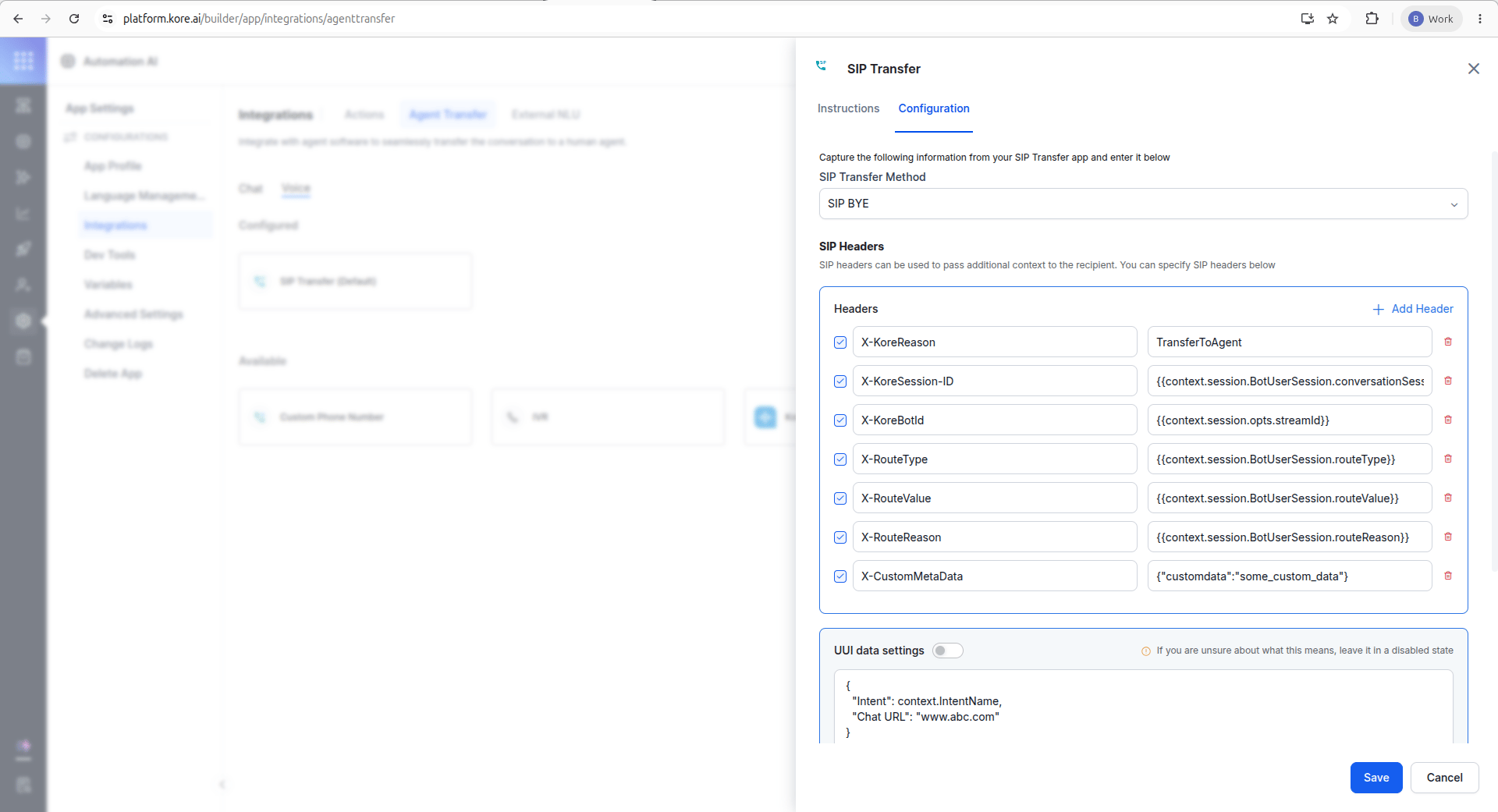
In each dialog task, use the script node to configure the SIP BYE headers for your use case.
For Skill Transfer:
BotUserSession.put('routeType', "skill");
BotUserSession.put('routeValue', "Kore_Skill");
BotUserSession.put('routeReason', "TransferToQueue");
BotUserSession.put('routeType', "agent");
BotUserSession.put('routeValue', "agentmail@domain.com");
BotUserSession.put('routeReason', "TransferToAgent");
BotUserSession.put('routeType', "hangup");
BotUserSession.put('routeValue', "hangup");
BotUserSession.put('routeReason', "Hangup");
- End the conversation and disconnect the call.
- Transfer the caller to a Five9 skill.
- Transfer the caller directly to a Five9 agent.
Add an Agent Transfer node at the end of the automation flow.
The system transfers Custom SIP headers back to Five9 only when the Automation flow contains an Agent Transfer node.
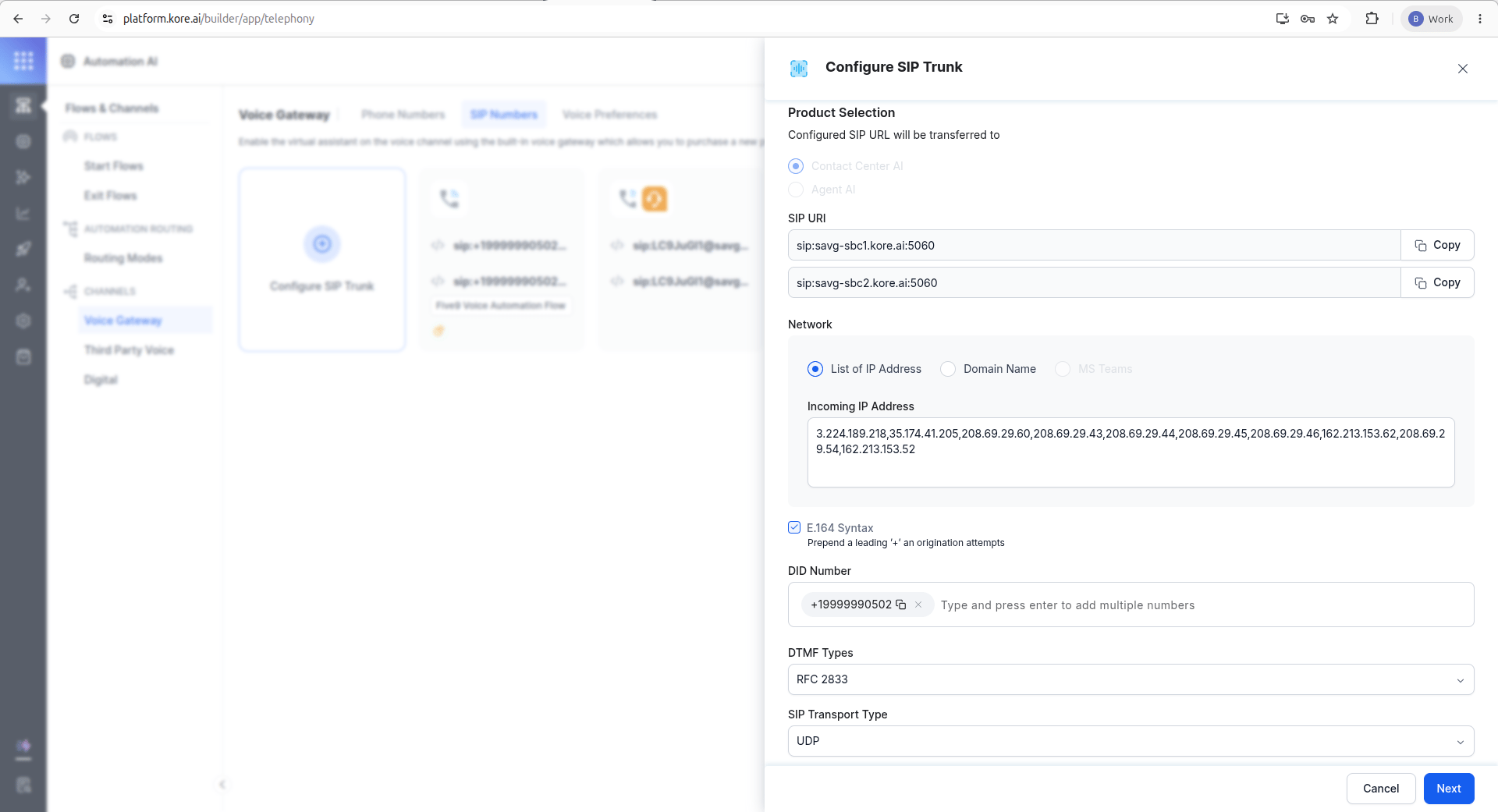
 For Inbound call to Kore Voice Automation using SIP INVITE, the system uses Contact Center AI SIP Trunk.
- Configure a SIP endpoint for Five9 Voice Automation integration from Flows & Channels > Channels > Voice Gateway > SIP Numbers.
- Select Product Selection > Contact Center AI.
- Select Network > List of IP Address and use these Five9 IPs to add to the allowlist:
3.224.189.218,35.174.41.205,208.69.29.60,208.69.29.43,208.69.29.44,208.69.29.45,208.69.29.46,162.213.153.62,208.69.29.54,162.213.153.52
- For DID Number, enter a number from the range the Five9 team provides after SIP trunk configuration.
- Select SIP Transport Type as UDP.
SIP Trunk - Agent AI
The Agent AI SIP trunk delivers transcripts to the Agent Assist widget when an automation call escalates and returns to the Five9 Agent Desktop.
- Configure a SIP endpoint for Five9 Voice Automation integration from Flows & Channels > Channels > Voice Gateway > SIP Numbers.
- Select Product Selection > Agent AI.
- Select SIPREC as SIP Trunk connection method.
- Under Network > List of IP Address, enter these IPs:
172.23.12.0/24,172.23.13.0/24.
- Note the SIPREC Identifier. You use it in the Five9 IVR Flow in a later step.
- Select UDP as the SIP Transport Type.
Agent AI Bot Mapping for Skills or Campaigns
See Agent AI Bot Mapping for Skills or Campaigns.
Five9 Configuration
Create the IVR Flow
-
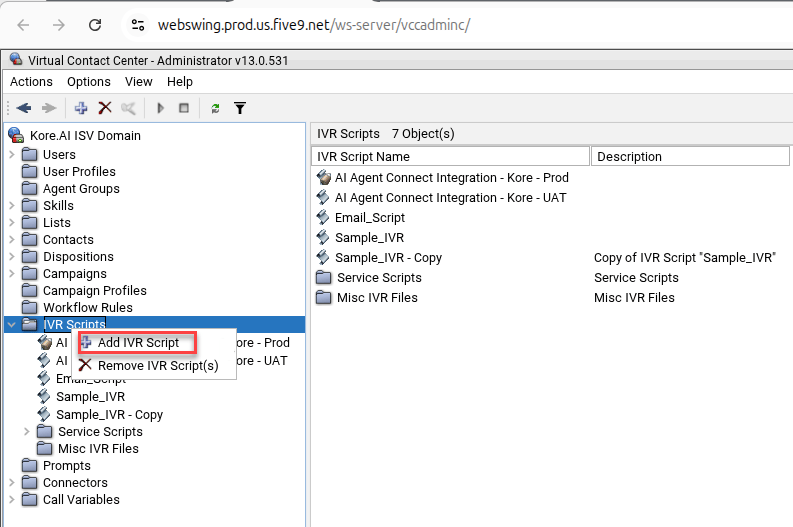
Sign in to Five9 VCC Administrator.
-
Under IVR Scripts, right-click and select Add IVR Script.
-
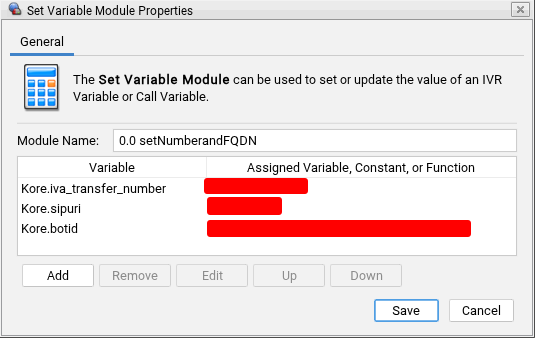
In the IVR Flow, soon after the Incoming Call Module, use Set Variable Module to set the DID number, SIP URI, and the BotID.
-
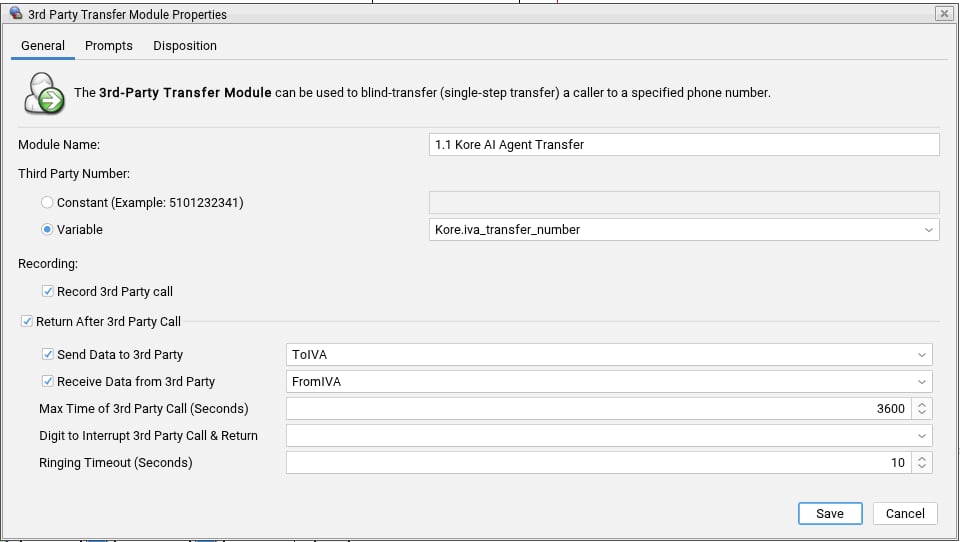
Use 3rd-Party Transfer Module to transfer the call to Five9 Voice Automation.
-
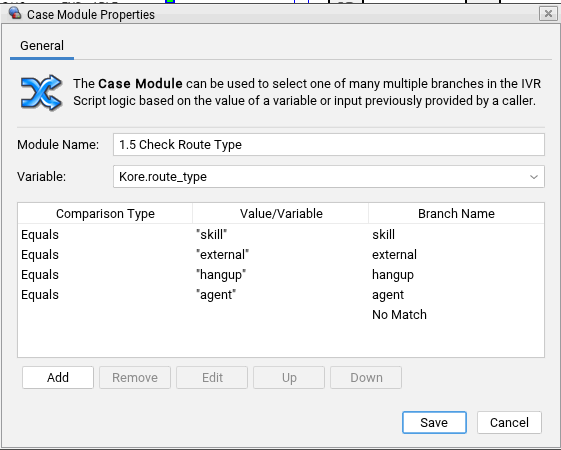
Use Case Module to transfer the call back to a skill, to an agent, or to hang up.
-
In Query Module, use the Conversation Details and Summary API to retrieve data from the Kore platform when users hang up during interaction with the Kore bot.
SIP Trunk Provisioning
The Five9 team sets up the SIP trunk on their side so that Kore can identify the DID number during a SIP INVITE from Five9. Since this is a backend change, the Five9 team handles this configuration. As Kore is an Independent Software Vendor (ISV) partner, Five9 covers these steps in their onboarding documents.
Kore SBC details used for configuring SIP Trunk at Five9 end:
| Serial Number | Domain | IP Address |
|---|
| 1 | savg-sbc1.kore.ai | 3.224.189.218 |
| 2 | savg-sbc2.kore.ai | 35.174.41.205 |
Verify the SIP Trunk configuration
Follow these steps to verify the SIP Trunk configuration:
- Attach a Five9 number to the Campaign using the IVR Script configured in this section.
- Make a call to the Five9 number from Google Meet or Zoom, which transfers the call to Kore Voice Automation Flow using the DID number for SIP INVITE.
The connector passes the required information to the Kore Agent AI widget and delivers live transcripts during agent-customer conversations.
For detailed steps, see Create Connector.
Refer to Create Custom Call Variables.
Refer to Create VoiceStream.
Call Routing Logic
Configure the routing logic after the SIP session ends, as in this section.
Route the call based on the SIP headers Kore sends.
The system supports the following routing scenarios:
Bot Hangup
If the bot completes the conversation successfully:
- Kore ends the SIP session.
- Five9 receives the configured route type as
hangup.
- Five9 disconnects or hangs up the call.
Skill Transfer
If the bot determines that the caller needs transfer to a queue:
- Kore sends the required SIP headers.
- Five9 reads the routing information.
- Five9 transfers the caller to the configured skill queue.
Agent Transfer
If the bot determines that the caller needs transfer directly to an agent:
- Kore sends the required SIP headers.
- Five9 reads the destination agent.
- Five9 transfers the caller directly to the specified agent.
The Five9 agent username must use the email-format username you configure in VCC Administrator.
Kore Integration
Integrate Voice Gateway with Five9
Associate the Voice Gateway SIP endpoint with the Five9 Voice Automation flow.
Configuration notes:
- Verify the SIP trunk is active before publishing the flow.
- Verify that the SBC IP addresses are in the allowlist.
- Verify that the DID maps to the correct SIP destination.
- Verify the Automation flow contains an Agent Transfer node if SIP headers are required.
Test the Integration
Perform the following steps to validate the integration.
- Call the Five9 phone number.
- Verify that Five9 routes the call to Kore.
- Complete one of the supported conversation outcomes.
Validate each supported scenario:
Bot Hangup
Expected result:
- Conversation completes.
- Call disconnects successfully.
Skill Transfer
Expected result: Call is transferred to the configured Five9 skill.
Agent Transfer
Expected result: Call is transferred directly to the configured Five9 agent.
Custom Data and Secure Custom Data
To access custom data and secure custom data, refer to Access Custom Data and Secure Custom Data in the Agent AI Bot.
Best Practices
- Configure an Agent Transfer node whenever SIP headers must return to Five9.
- Validate SIP connectivity before publishing the flow.
- Use dedicated DIDs for production and non-production environments.
- Verify SIP routing after every Voice Automation flow update.
- Test all supported routing scenarios before deploying to production.
Troubleshooting
| Issue | Resolution |
|---|
| SIP connection fails | Verify SIP trunk connectivity and confirm the SBC IP addresses are in the allowlist. |
| Call doesn’t reach Kore | Verify DID mapping and SIP URI configuration. |
| Skill transfer fails | Verify the routeType and routeValue SIP headers. |
| Agent transfer fails | Verify the destination agent username matches the Five9 username format. |
| SIP headers are missing | Confirm the Automation flow contains an Agent Transfer node. |
View Interaction Details in Kore
After the system transfers the call to Five9, authorized users can view the user-bot interaction summary as Landing Summary in the Agent AI widget. The widget displays conversation transcripts, conversation summary, and customer interaction history.
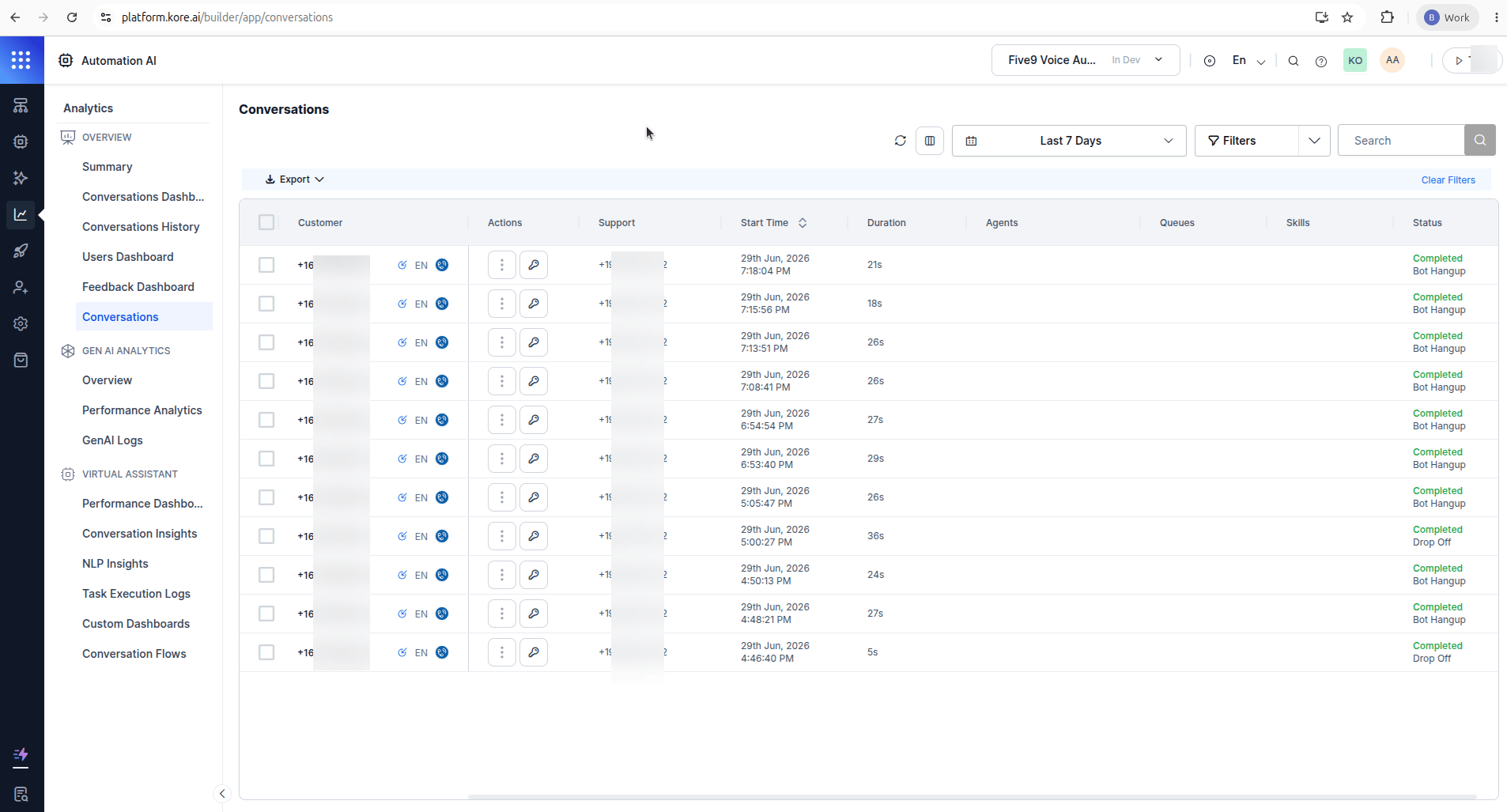
Additionally, you can refer to Automation AI > Analytics > Conversations for detailed user-bot interaction.
Additional Notes
- The system uses SIP BYE to return control from Kore to Five9.
- The system stores conversation context in Kore after the transfer.
- Five9 uses SIP headers to determine the routing action after the SIP session ends.

