Details
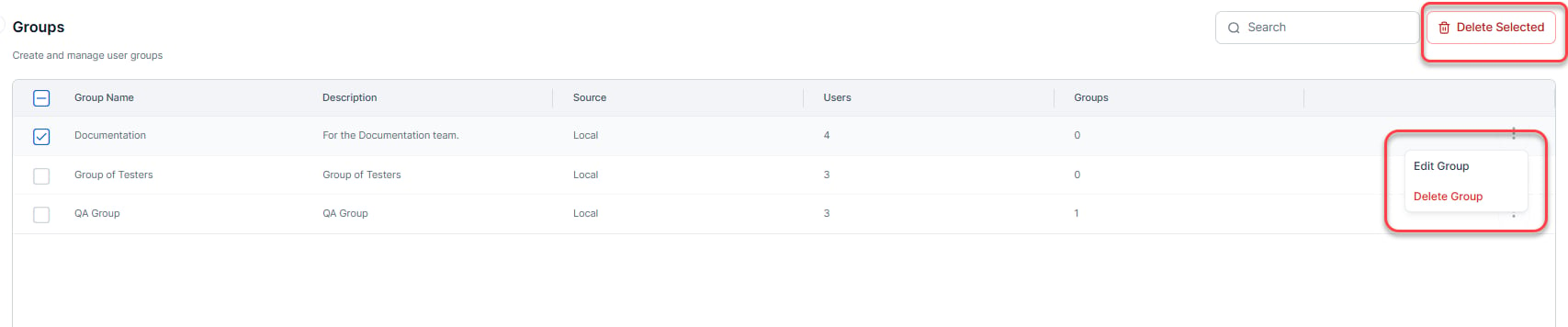
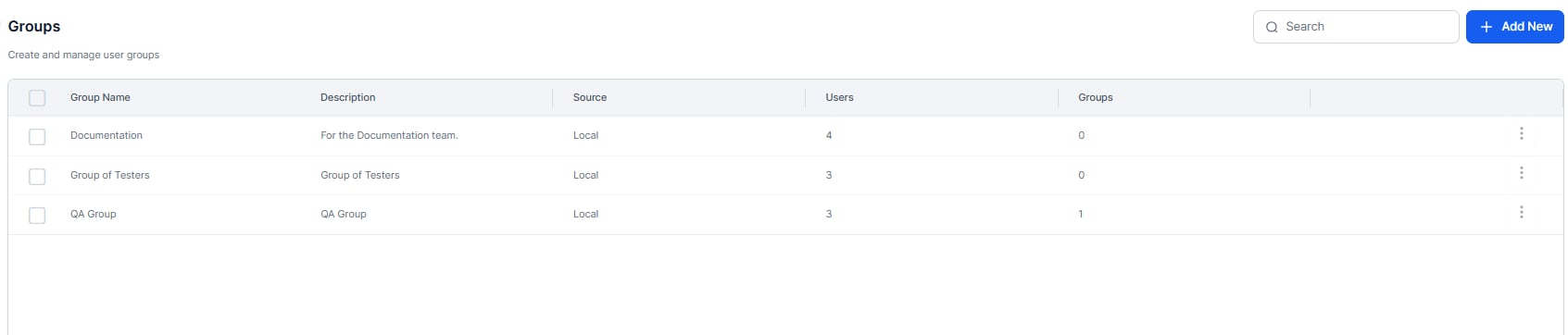
The following list describes the columns displayed in the Groups listing.| Column | Description |
|---|---|
| Group Name | Displays the group name. |
| Description | Displays the description of the group. This is an optional field. |
| Source | The source used to create the group. One of: Local - The group was created manually from the User Management module. AD. The group was imported or synchronized using Active Directory. System – The group was created as a default group. |
| Users | Displays the number of group members as users. Click the link to edit the list of users for the selected group. |
| Groups | Displays the number of groups as child members of the parent group. Click the link to edit the list of child groups for the selected group. |
Using the Search Field
The list of entries in an admin console table can be extensive, depending on your company’s size. To locate specific users or groups, enter at least three characters in the Search field to start the find-as-you-type process. The number of search terms in a search query is unlimited; however, no more than the first 20 characters of each search term are used to return search results.
Creation
Create one or more user groups in your account based on common factors such as interests, departments, or locations. Groups created by an admin aren’t visible to end users and serve administrative purposes only. This topic explains how to create a new group and add users or existing groups to it.- In the User Management module, select Groups.
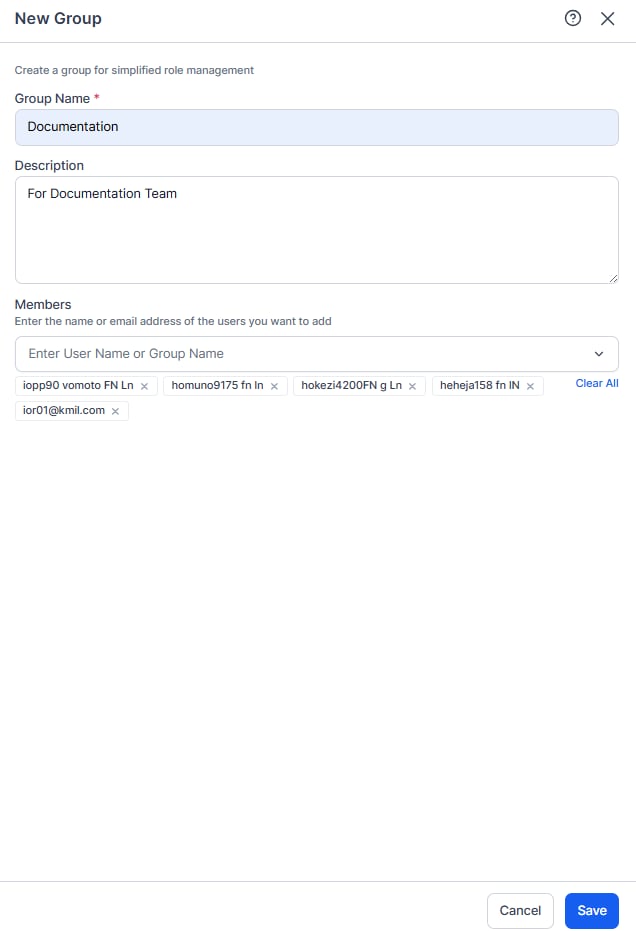
- Click Add New to open the New Group dialog.
- In the Group Name field, enter a name for the group.
- (Optional) In the Description field, enter a description for the group.
- Select the users and/or groups that you want to add to this new group.
-
Click Save. The system creates the group and returns you to the Groups page.