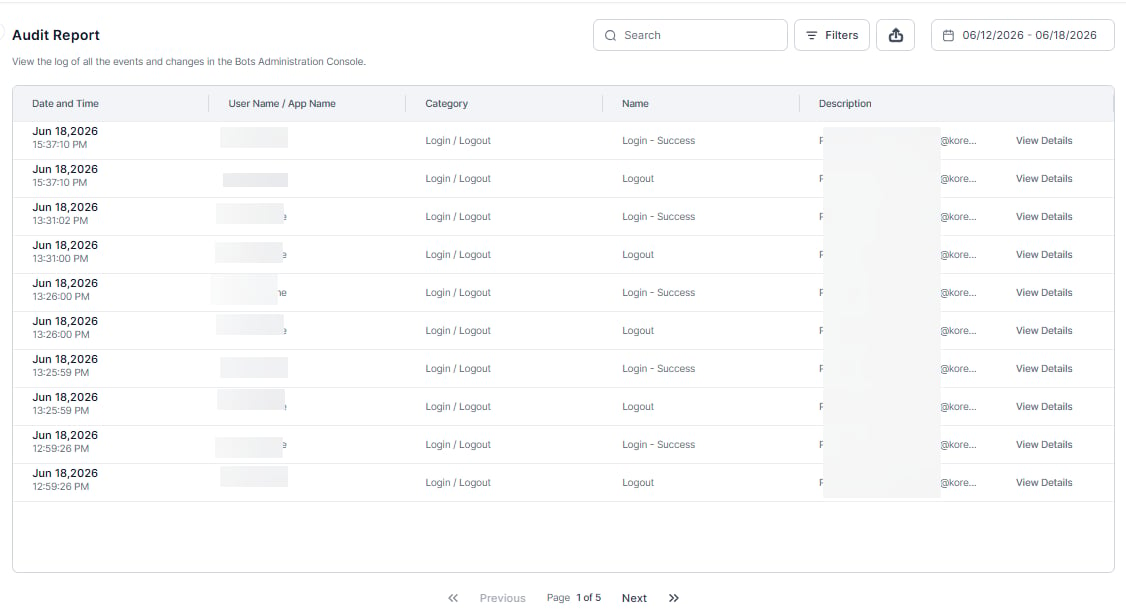
Back to Admin Console This module provides the history of all administrative tasks with attributes such as User Name, User Email, Date/Time, and Description for an event. You can review the Audit Report page to analyze admin users, custom admins, and user events such as log on, log off, and changes to system settings. The following illustration shows an example of the Audit Logs module with the Audit Report page displayed. audit logs

Viewing System and User Events

On the Audit Report page, you can view the system and user-generated events. For example, a system-generated event could be a periodic Microsoft® Active Directory® Sync. An example of a user-generated event could be the addition of a new user. Using the filters on the Audit Report page, you can select event categories, events, and time periods to drill down and filter events as needed. Audit reports also list error messages that can help you troubleshoot system issues or when you create a service request.

Search and Filters

  • Use the Search field to find records by entering at least three characters.
  • Select “Filters” to refine your results by User/App, Event Category, and Event Name.
  • Use the Date Picker to filter events by a selected date range.
  • Select the Export icon to download the filtered audit report.

Record Details

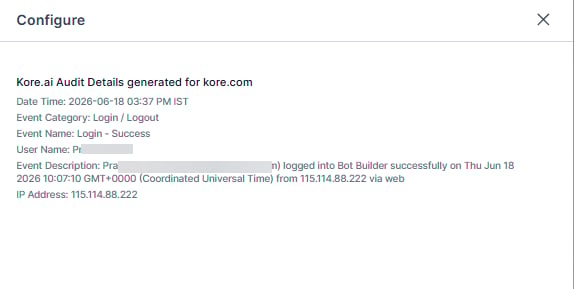
By clicking on any entry, you get to view further details: Record details
The Audit Report contains system and user events for several Kore.ai products. To drill down further than Event Categories, use the Search for Description field, which lets you add one more criterion to the filter. To get XO Platform data, search for App Builder” exactly; the Search field is case-sensitive. For more complex filtering, we recommend exporting the report and using a spreadsheet editor.

Audit Report Details

The audit report is categorized by event category and event name. The following table lists these categories and a brief description of what even qualifies against each category.
Event TypeEvent Description
User CreatedWhen a user account is created.
User ModifiedWhen a user profile is updated.
User DeletedWhen a user account is deleted.
Group CreatedWhen a group is created.
Group UpdatedWhen a group is updated.
Group DeletedWhen a group is deleted.
Users Added to GroupWhen users are added to a group.
Groups Added to GroupWhen groups are added to a group.
Users Removed from GroupWhen users are removed from a group.
Groups Removed from GroupWhen groups are removed from a group.
Admin Role Assigned to UsersWhen a user is assigned an admin role.
Admin Role Deleted for UsersWhen a user is unassigned from an admin role.
Bot Role Assigned to UsersWhen a bot role is assigned to users.
Bot Role Deleted for UsersWhen a bot role is deleted for a user.
Role CreatedWhen the custom admin role, and/or bot role is created.
Role UpdatedWhen custom admin role, and/or bot role details are updated.
Role Permissions UpdatedWhen master and/or custom admin role, and/or bot role permissions are updated.
Role DeletedWhen the custom admin role, and/or bot role is deleted.
Role Assigned to GroupsWhen a master and/or custom admin role, and/or bot role are assigned to groups.
Role Assigned to UsersWhen a master and/or custom admin role, and/or bot role are assigned to groups.
Role Deleted for UsersWhen master and/or custom admin role, and/or bot role are deleted for Users
Role Deleted for GroupsWhen master and/or custom admin role, and/or bot role are deleted for groups
Kore Connector ModifiedWhen connector details are modified.
Kore Connector StatusWhen connector status changes.
Kore Connector DeletedWhen a connector is deleted.
Kore Connector CertificateWhen a connector certificate is generated.
App CreatedWhen an app is created.
App ModifiedWhen the client secret for the app is reset.
App DeletedWhen an app is deleted.
App Scopes AssignedWhen app scopes are assigned.
App Scopes ModifiedWhen app scopes are modified.
App Scopes DeletedWhen app scopes are deleted.
Settings ModifiedWhen context persistence settings are modified.
Bot Deployment ApprovedWhen a bot deployment request is approved.
Bot Deployment RejectedWhen a bot deployment request is rejected.
Bot Deployment SettingsWhen settings for Deployment Requests and/or Enterprise Bot Assignments are modified.
Bot Task SuspendedWhen a task is suspended.
Bot Task ActivatedWhen a task is activated.
Bot OwnerWhen the bot owner changes for the bot.
Bot Auto ApproveWhen auto approve settings have changed.
Bot Channels ModifiedWhen a channel is enabled or disabled for the bot.
Bot Task AssignmentWhen tasks are assigned or unassigned for users/groups or when task assignment settings change.
User Enrollment PreferencesWhen the self signup setting for enterprise users changes.
Accept Enrollment RequestWhen an enrollment request is accepted.
Reject Enrollment RequestWhen an enrollment request is rejected.
Kill SessionWhen a session is killed. Includes details of both the user whose session was killed and the user who killed the session.
Access Chat HistoryWhen a chat history by a user is viewed. Also captured is the conversation session id.
Download Chat HistoryWhen a chat history by a user is downloaded. Also captured is the conversation session id.

Viewing Chat History

You can view Chat History for all deployed apps from the App Chat History section of the Admin Console. Select a specific chat to display the chat conversation or history. You can jump to the specific user’s previous and next conversation sessions if available.

App Chat History

The following list describes the columns displayed in the admin console table.
ColumnDescription
App NameName of the App in chat.
TimestampThe date and time of the chat. It’s displayed in the selected Time Zone.
ChannelChannel on which the Chat occurred.
LanguageLanguage of the Chat.
User IDThe User ID who initiated the chat can be either one of the following: AI for Service generated a user ID assigned to every unique visitor who has interacted with the app. Unique user identities as provided by the respective channels are enabled for a bot.
ExportOption to export the individual Chat in Excel or PDF format.

About the Action Bar

This section describes the controls on the Action bar on the Chat History page.
Using the Time Zone Field
The time against the chat history would be displayed in the Time Zone selected. By default, it’s set to Local. You can change it using the Change link and then selecting the appropriate zone.
Using the Search Field
The list of entries in an admin console table can be very large, depending on the size of your company, for example, a list of users. To find one or more specific users or groups, enter at least three characters in the Search field to begin find-as-you-type.
The number of search terms in a search query is unlimited; however, no more than the first 20 characters of each search term are used to return search results.
To view all entries, clear the search field and then press the Enter key. Select Timestamp Set the duration for which the Chat History needs to be retrieved:
  • 7 Days.
  • 24 hours – default setting.
  • Last 90 Days.
Export You can use the export icon next to the Filters option to export the Chat History (Sessions) results in the CSV format. Filters Filter based on:
  • The Apps you want to track, you can select multiple apps.
  • Conversation types can be either one or both of the following:
    • interactive sessions: conversations that include one or more messages from the user.
    • non-interactive sessions: conversations that don’t include any message from the user.
  • Channel of interaction
  • Language of interaction
The export file of Chat History (session-level) will include the details of the applicable tags.

Chat History Details

Chat History provides visibility into the user information with the inclusion of the following functionality:
  • User Profile: Provides a 360-degree view of the user along with their usage metrics.
  • User Conversation Sessions: Lists out all the sessions of the user in the given period, with the selected utterance section expanded.
  • Trace ID: A unique ID assigned to each incoming message. The ID is also included in all the logs maintained by the Platform. To see the associated Trace ID for an incoming message, hover over the message, click the Info icon, and then click the Message Id to view the Trace ID.
The Trace ID is retained in the logs for 30 days. Once the Trace ID is expired, you see a tooltip message as Trace Id: Trace records for this message aren't available.
Select on any chat history to see these options. The following are the user information details provided:
FunctionalityAttributeDescription
User ProfileKore User IDUser id assigned by the platform.
Channel DataData received from the channel, that’s, the information that’s available in the User Context.
User Meta TagsThe total number of meta tags associated with the user and key-value pairs for the most recent ones.
Latest InteractionLast time the user interacted with the bot.
Total Conversation SessionsThe total number of interactive and non-interactive sessions registered by the user from the beginning of time.
Total Conversation Sessions in Last 30 DaysThe total number of interactive and non-interactive sessions registered by the user in the last 30 days.
*The next few attributes won’t be displayed if there is no interaction by the user in the last 30 days
Last 30 Days’ Intent Detection Rate(Total identified intents / (Total identified intents + unidentified utterances)) * 100 for the utterances over the last 30 days.
Intents RequestedTotal identified intents + unidentified utterances.
Intents IdentifiedTotal intents identified.
Last 30 Days Goal Completion Rate(Total success tasks / (Total success tasks + total failed tasks) ) * 100 for the tasks over the last 30 days.
Tasks InitiatedTotal success tasks + total failed tasks.
Tasks CompletedTasks successfully completed.
Recent Conversation FlowsTop 10 popular conversation flows executed by the user in the last 30 days. Popular flows are determined by the number of instances that the flow was executed.
User Conversation SessionsSession Attributes
Session StartSession start date and time.
Session EndSession end date and time.
ChannelChannel in which the session was initiated.
Agent Transfer TagThe session where the user was transferred to an agent. Sessions should be considered even if the user returns to the bot.
Drop Off TagThe session where the user dropped off.
Total Success TasksCount of tasks successfully completed in the session.
Total Failed TasksCount of tasks failed in the session.
Intents IdentifiedCount of intents successfully identified in the session.
Intents Not IdentifiedCount of intents unidentified in the session and list of unidentified intents.
Conversation PathThe series of tasks initiated by the user in the session.
Session Meta TagsCount of the session meta tags used with the details of the most recent custom meta tags displayed.
Conversation Transcript
Message Meta TagsThe chat transcript is annotated with message tags for messages with meta-tags associated with them.
Agent TransferIndicates the point of agent transfer at the last message prior to transfer.
Drop OffIndicates the point of drop off at the last message prior to dropping off.