

Authorization Support
Search AI uses OAuth 2.0 Authorization Code Grant Type to communicate with Zendesk.Integration Steps
- Set up an OAuth client in Zendesk.
- Configure the Zendesk connector in Search AI.
Step 1: Set Up an OAuth Client in Zendesk
Set up an OAuth client in Zendesk and generate OAuth credentials for Search AI to authenticate requests.-
Go to the Admin Center in your Zendesk application.
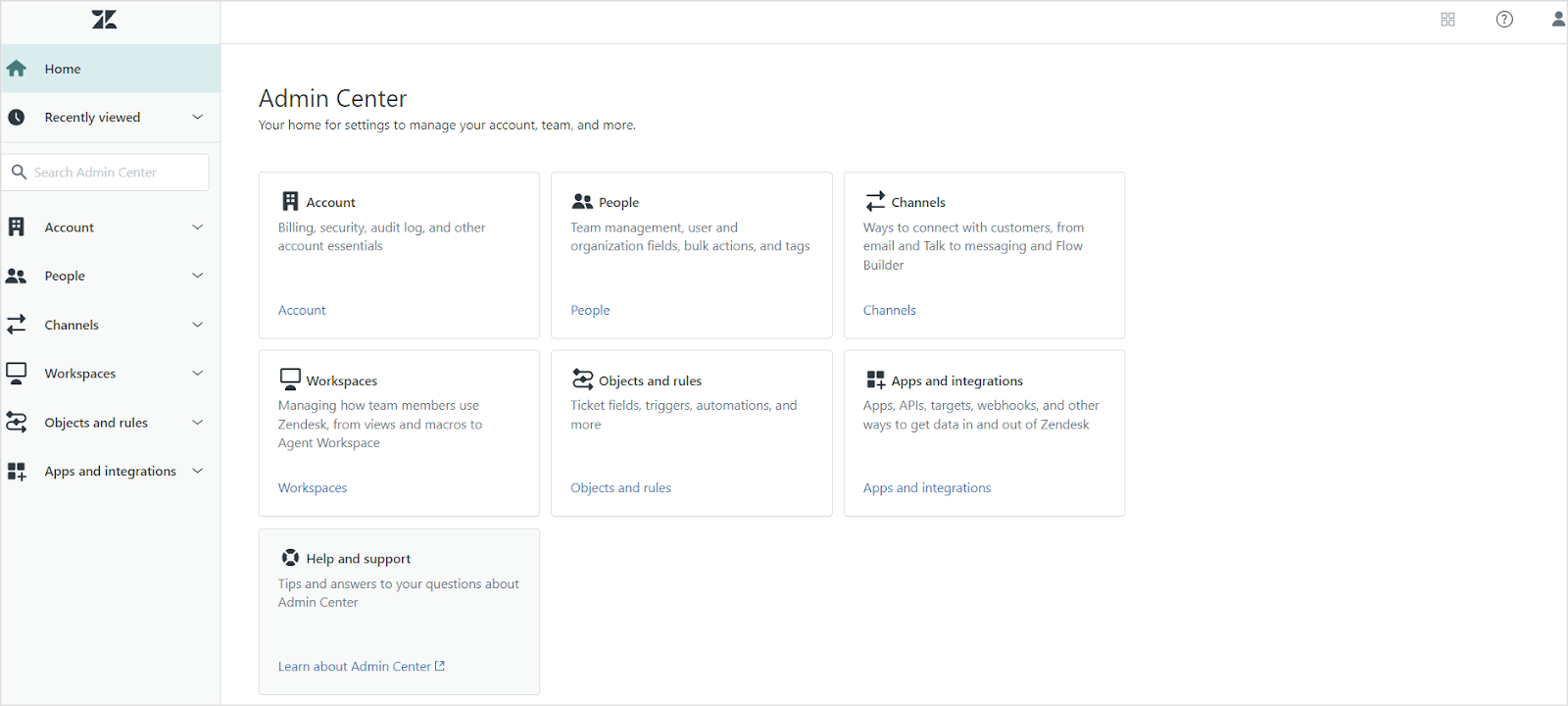
- Under Apps and Integrations, go to the Zendesk API page.
-
On the OAuth Client tab, register Search AI as an OAuth client. See Zendesk OAuth documentation for field descriptions. Set the Redirect URLs field to one of the following based on your region or deployment:
- JP Region:
https://jp-bots-idp.kore.ai/workflows/callback - DE Region:
https://de-bots-idp.kore.ai/workflows/callback - Production:
https://idp.kore.com/workflows/callback
- JP Region:
Step 2: Configure the Zendesk Connector in Search AI
Go to Sources > Connectors and select Zendesk. On the Authorization tab, provide the following details and click Connect.
After a successful connection, ingest content from the Configuration tab using Sync Now.
Content Ingestion
On the Configuration tab, use Sync Now for an immediate sync or Schedule Sync to set up recurring ingestion. Search AI ingests Knowledge Base Articles and Tickets from the connected Zendesk account. Thetype field in ingested content indicates whether a record is an article or a ticket.
Tickets — the following fields are ingested into the content field:
- Title
- Content
- Priority
- Status
- Type
- Assignee
- Requester
- Submitter
- Comments
content field. Additional fields are stored in their respective indexed or metadata fields.
JSON view of ingested content for an article
RACL Support
Search AI enforces access control for ingested tickets and articles using thesys_racl field, which stores identifiers (email IDs, organization IDs, group IDs) that determine which users can view a given piece of content.
Tickets
For ingested tickets, thesys_racl field includes:
- Assignee — email ID of the ticket assignee
- Requester — email ID of the ticket requester
- Submitter — email ID of the ticket submitter
- Followers — email IDs of all ticket followers
- Collaborators — email IDs of all ticket collaborators
- Organization ID — ID of the organization associated with the ticket
- Group ID — ID of the group the ticket is assigned to (if applicable)
Articles
For ingested articles,sys_racl includes permission entities corresponding to the management permissions and user segments assigned to the article.
For example, if an article has management permissions set to “Admins” and visibility set to the “Agents” user segment, Search AI creates two permission entities — one for the management permission and one for the user segment.