

Prerequisites
- A Salesforce Admin account, or an account with API access to all necessary Salesforce objects.
Authentication
Search AI supports the following OAuth 2.0 methods to access Salesforce:- OAuth 2.0 Authorization Code grant type
- OAuth 2.0 Password grant type
Create an OAuth App in Salesforce
-
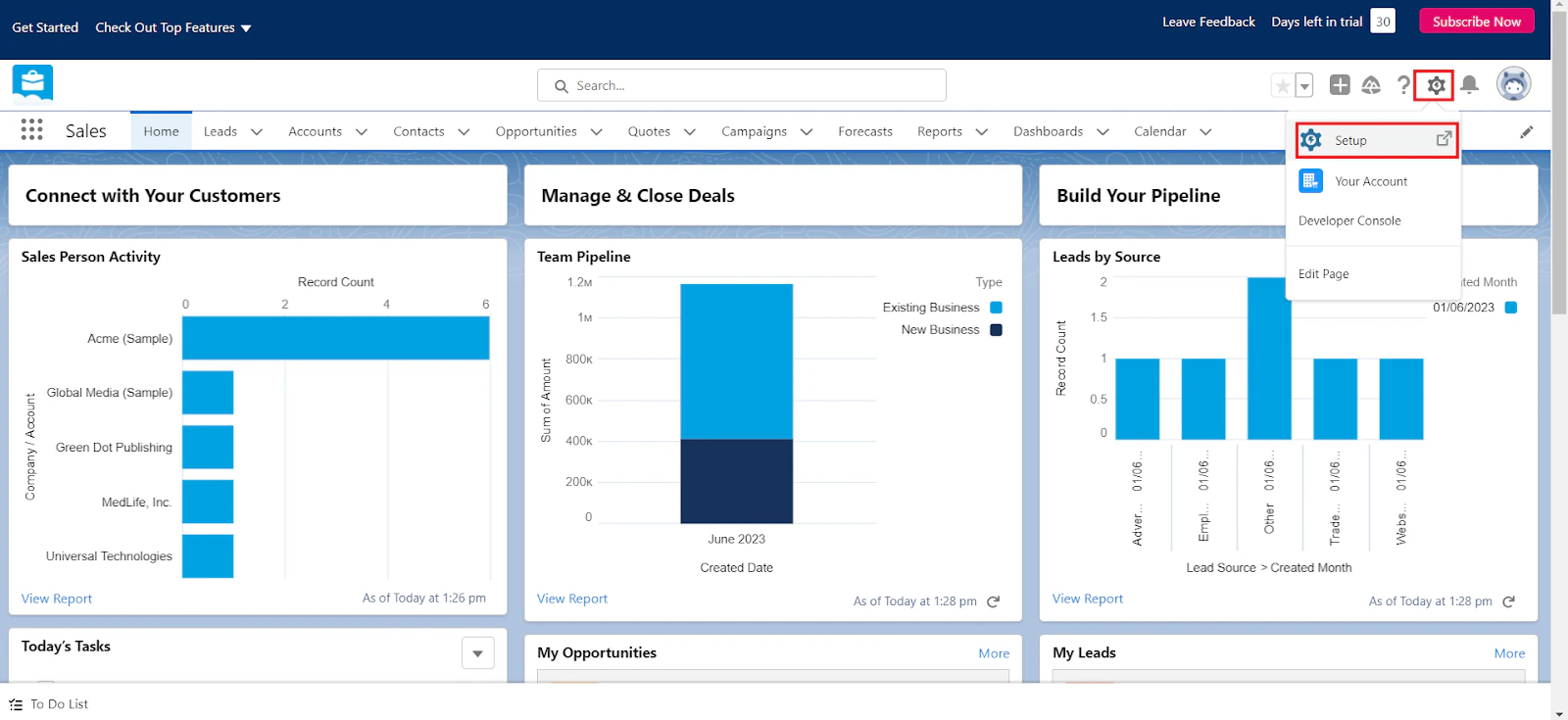
Log in to Salesforce and open Setup from the Setup icon.
-
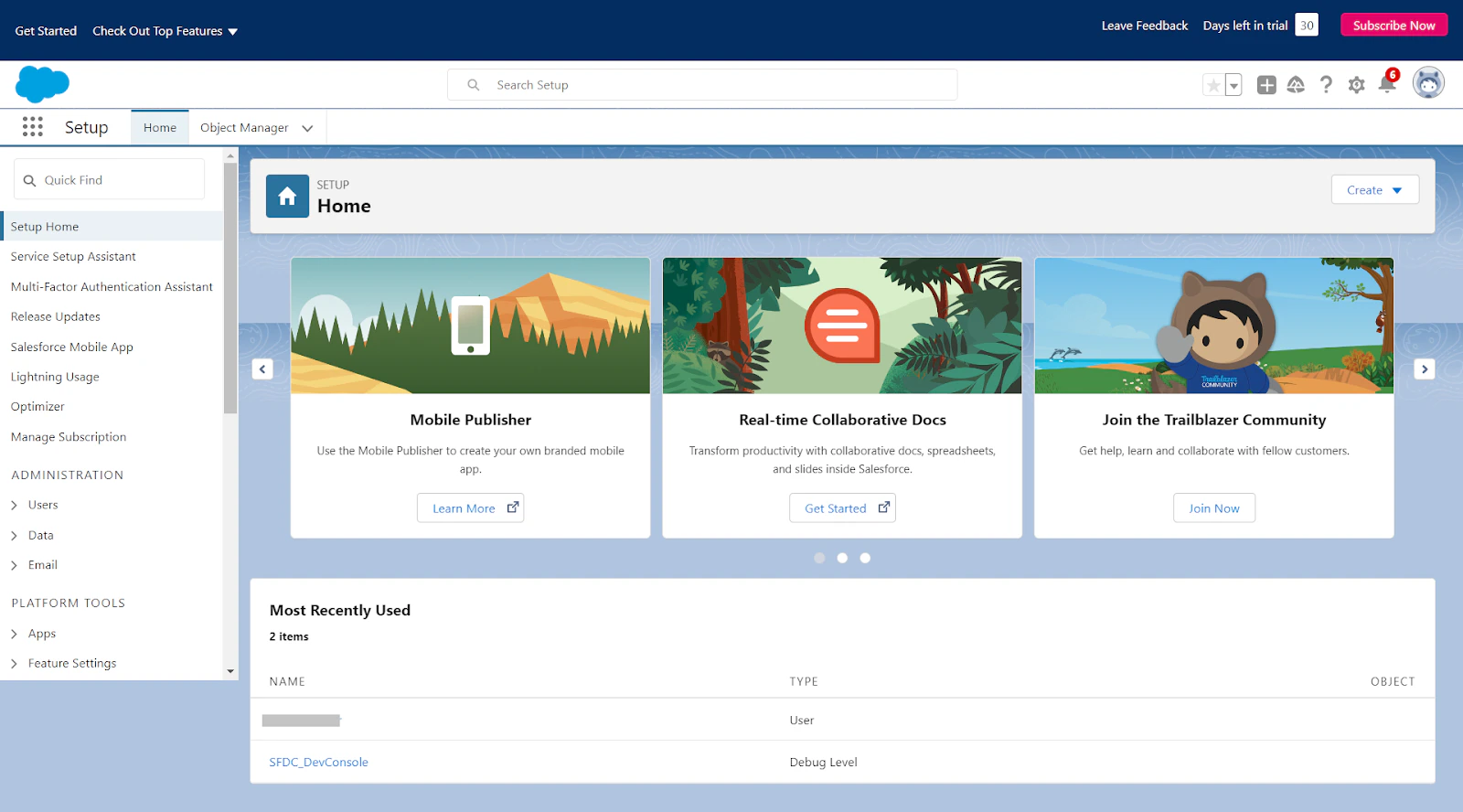
The Object Manager home page opens.
-
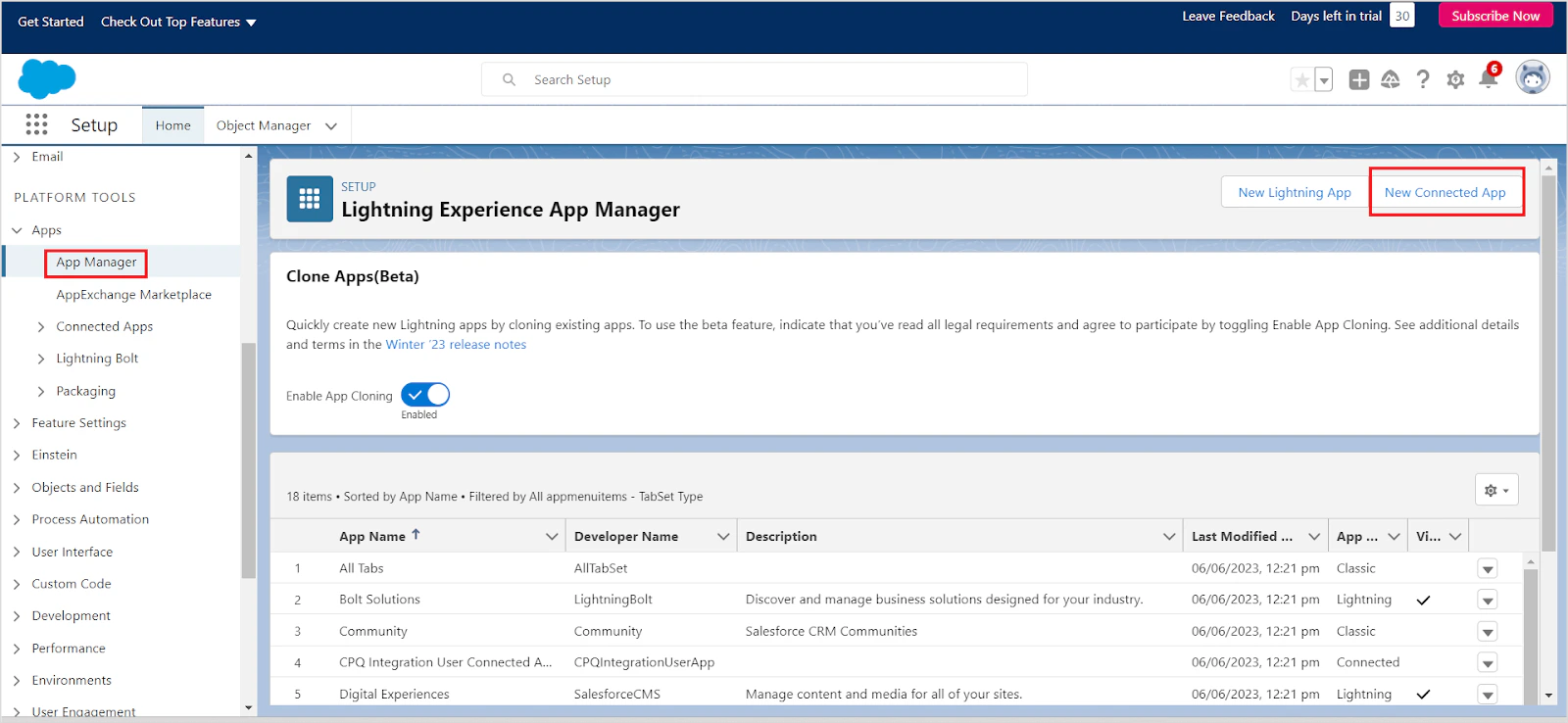
Go to App Manager and click New Connected App.
-
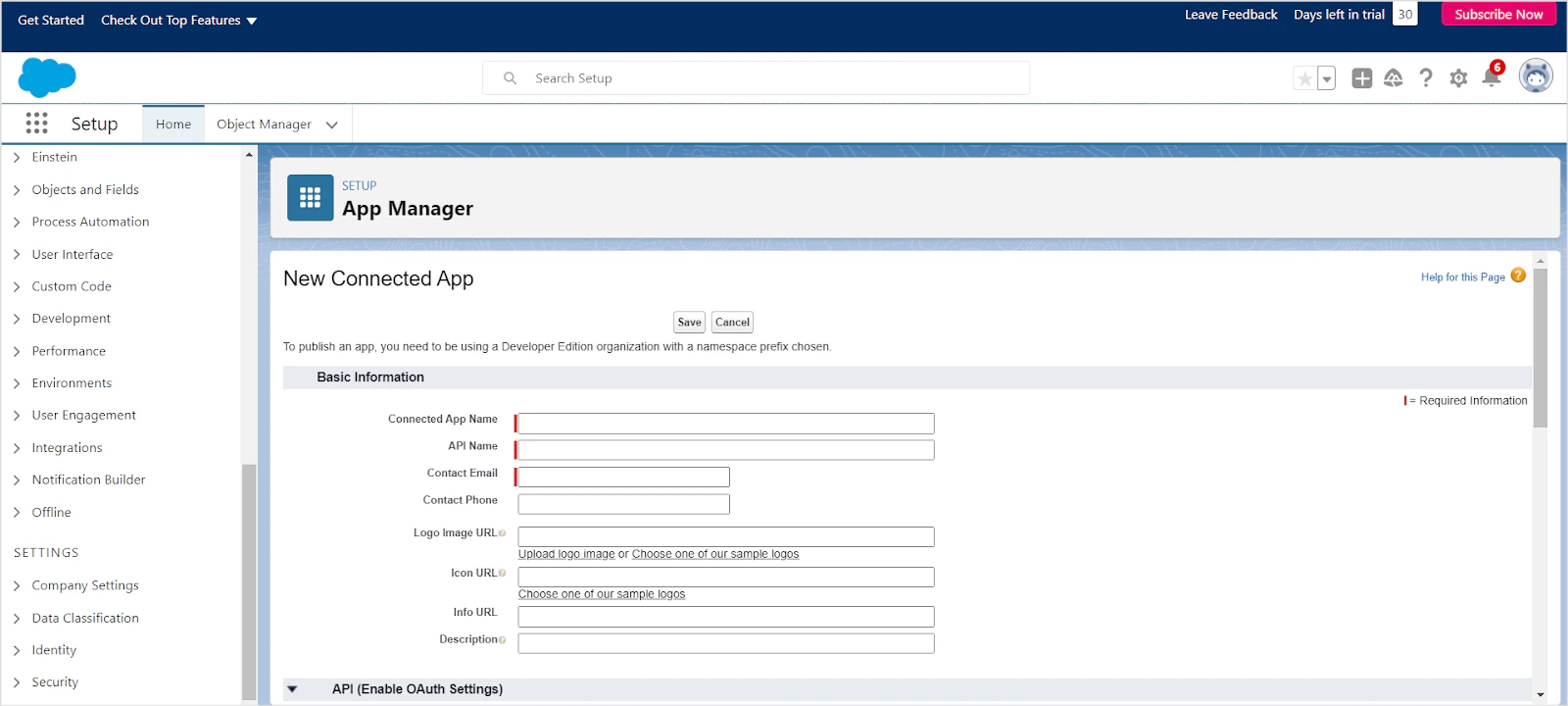
Fill in basic app details - name, email address, logo, and icon.
-
Under the API section, enable OAuth Settings for API integration and set the callback URL for your region:
- JP Region:
https://jp-bots-idp.kore.ai/workflows/callback - DE Region:
https://de-bots-idp.kore.ai/workflows/callback - Prod Region:
https://idp.kore.com/workflows/callback
- JP Region:
-
Add the following Selected OAuth Scopes:
- Full access (full)
- Perform requests at any time (refresh_token, offline_access)
- Disable Require Proof Key for Code Exchange (PKCE) - Search AI does not support this Salesforce feature.
-
Leave remaining settings as default and click Save, then Continue.

- Click Manage Consumer Details to generate the Consumer ID and Secret. Save both values for the next step.
Configure the Salesforce Connector in Search AI
Go to Sources > Connectors and select Salesforce. On the Authorization tab, enter the following and click Connect.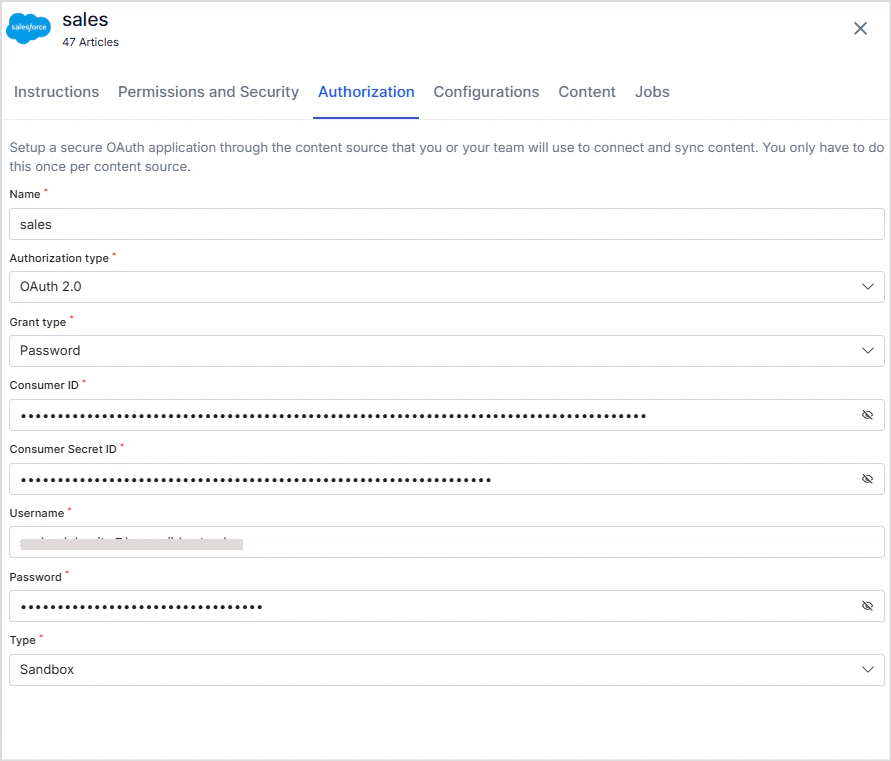
Content Filters
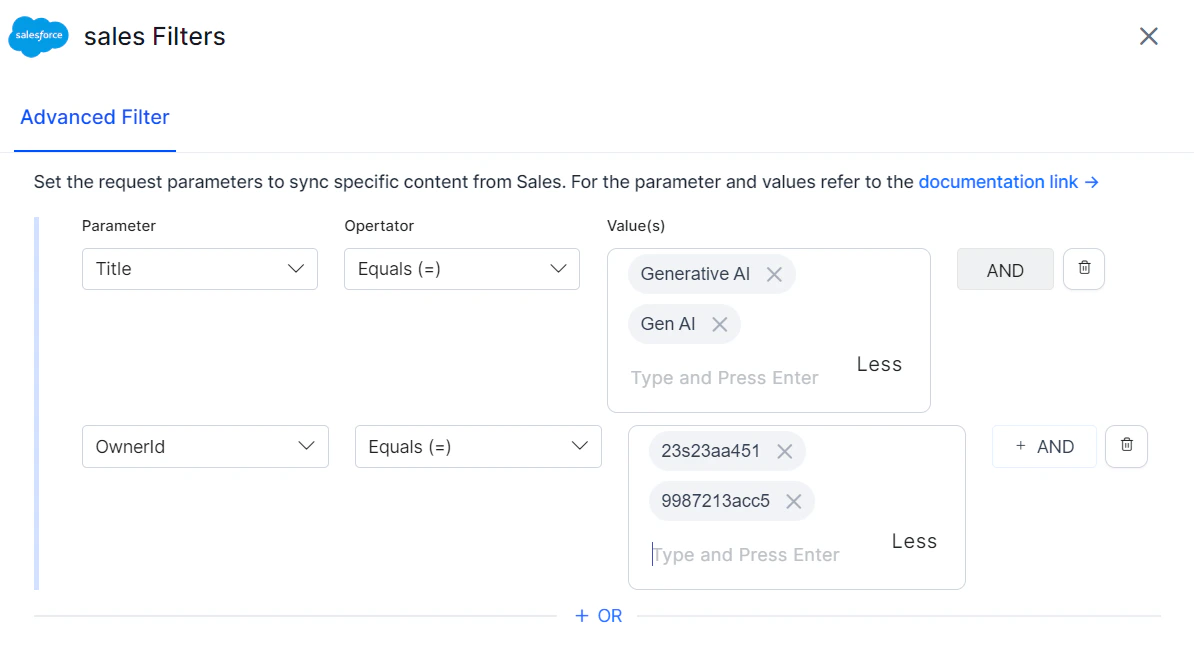
The Salesforce Connector supports selective ingestion. To filter content, select Sync Specific Content and click Configure.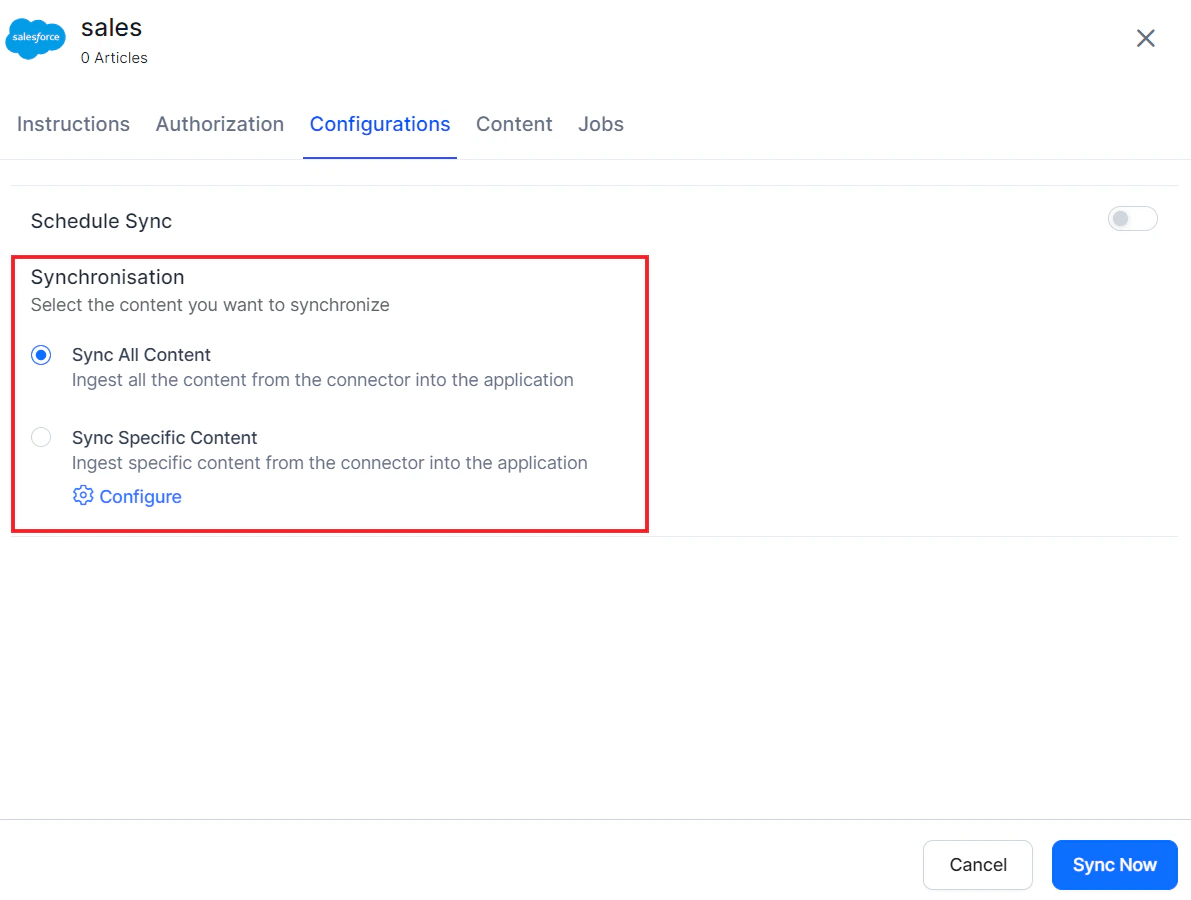
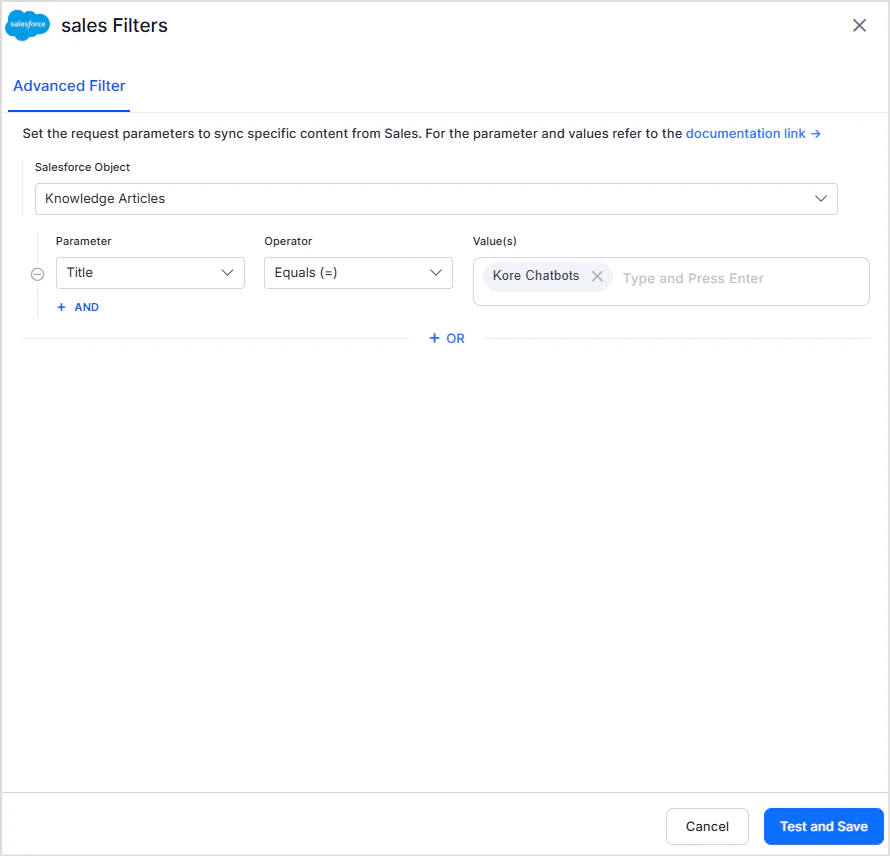
ArticleNumber, ArticleCreatedById, Title, and Language. For the full list of supported fields, see the Salesforce Knowledge Article Version API reference.
Example: Filter for articles published on a specific date.
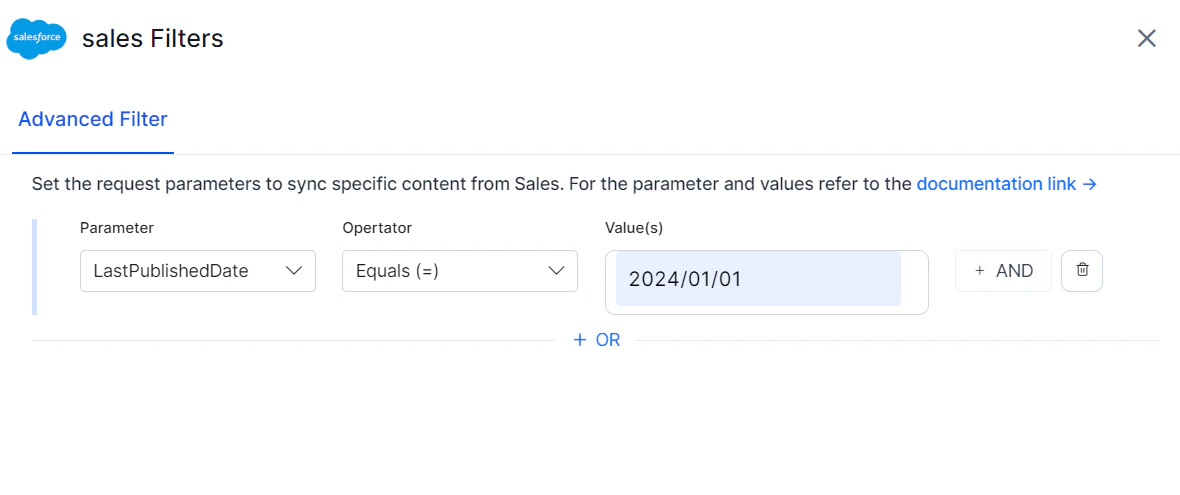
Custom Object Ingestion
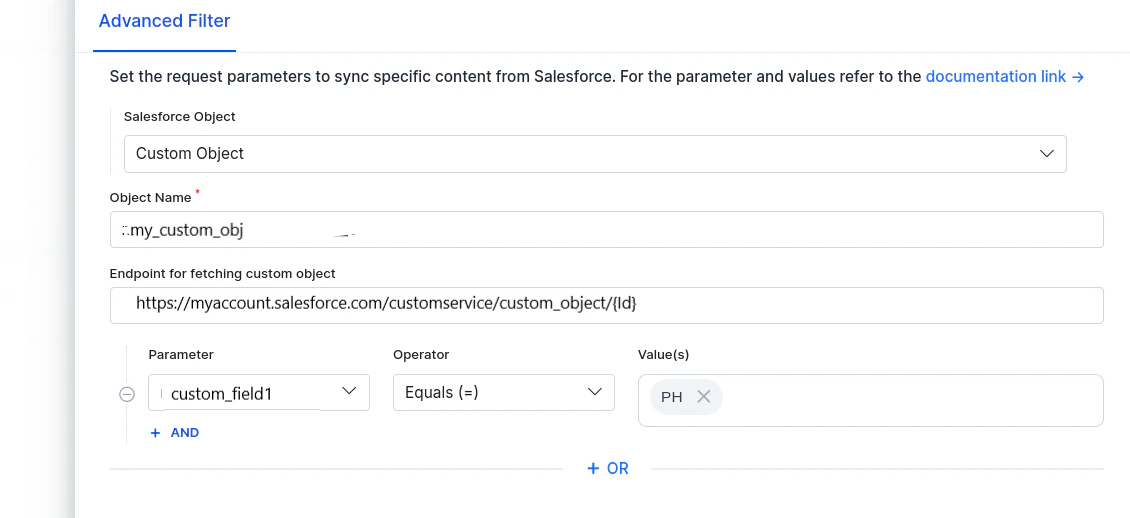
The Salesforce Connector can ingest Custom Objects from Salesforce. Configure custom object ingestion as follows:- In the Advanced Filter, select Custom Object.
- Enter the exact Object Name as it appears in Salesforce to ensure accurate data retrieval.
- By default, the connector fetches all available data for the specified object via Salesforce APIs.
- Optionally, provide an Endpoint for Fetching Custom Object field if additional per-record data is needed. This endpoint is called for each record using its unique identifier to fetch additional metadata and content.
- Optionally, define parameter-value filters to ingest only specific records. Parameter names must exactly match the field names in the Salesforce custom object.
my_custom_object:
- Enter
my_custom_objectin the Object Name field. - Provide the API endpoint URL that returns metadata for this object.
RACL Support
Salesforce provides multi-level access control. The Search AI Connector supports the following access control mechanisms:
The following access control methods aren’t currently supported:
For each Salesforce object, Search AI populates the
sys_racl field with permission entities corresponding to the permission sets, permission set groups, and user profiles that have access. For objects such as Case, Opportunities, Tasks, Contacts, and Accounts, the owner’s email ID is also included in sys_racl.
Use the Permission Entity APIs to associate users with permission entities.