

Connector Specifications
Prerequisites
An Atlassian account with admin access. This account fetches content and resolves access permissions for indexed content. Search AI uses basic authentication to communicate with the Jira server.Configure the Jira Cloud Connector in Search AI
- Go to the Connectors page and select Jira Server Connector.
-
Create or select a Profile.
Each profile saves its own credentials, filters, and mappings. You can maintain multiple profiles under a single connector. -
In the profile setup, provide the following fields:
- Click Connect to authenticate the profile.
- Repeat the process to add additional profiles as needed.
Multiple Authentication Profiles
A single Jira Server Connector supports multiple authentication profiles.- Each profile uses its own credentials and domain.
- Content sync runs across all configured profiles.
- This simplifies multi-account management, reduces the need for multiple connectors, and scales better for enterprise use cases.
Content Ingestion
The connector ingests Work Items from Jira. Each work item is indexed with the following fields:All timestamps are stored in UTC. Work item comments are concatenated into a single field; individual comment metadata is not indexed.
Content Filtering
The Jira Server connector supports standard and advanced filters to control which content is ingested. On the Manage Content page, select Ingest All Content to ingest everything, or select Ingest Filtered Content and click Configure for selective ingestion.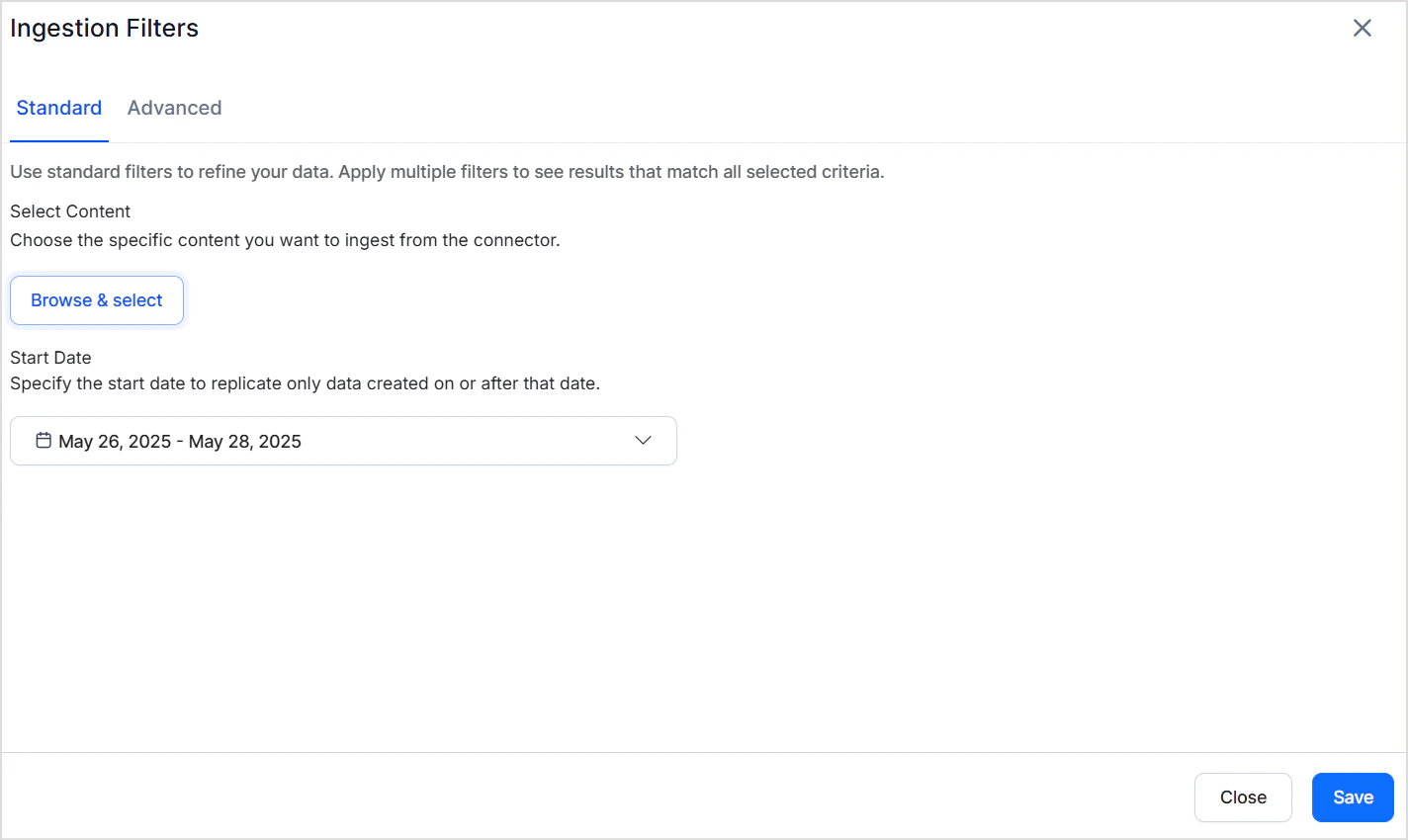
Standard Filters
Use standard filters to ingest work items from specific projects. Select one or more projects — all work items within those projects are ingested. You can also define a date range using the calendar selector to limit ingestion to a specific time frame.Advanced Filters
Advanced filters provide granular control through field-based rules. Since only Work Items are supported for the Jira server connector, rules apply to work items only. For example, ingest only specific types of work items from a particular project.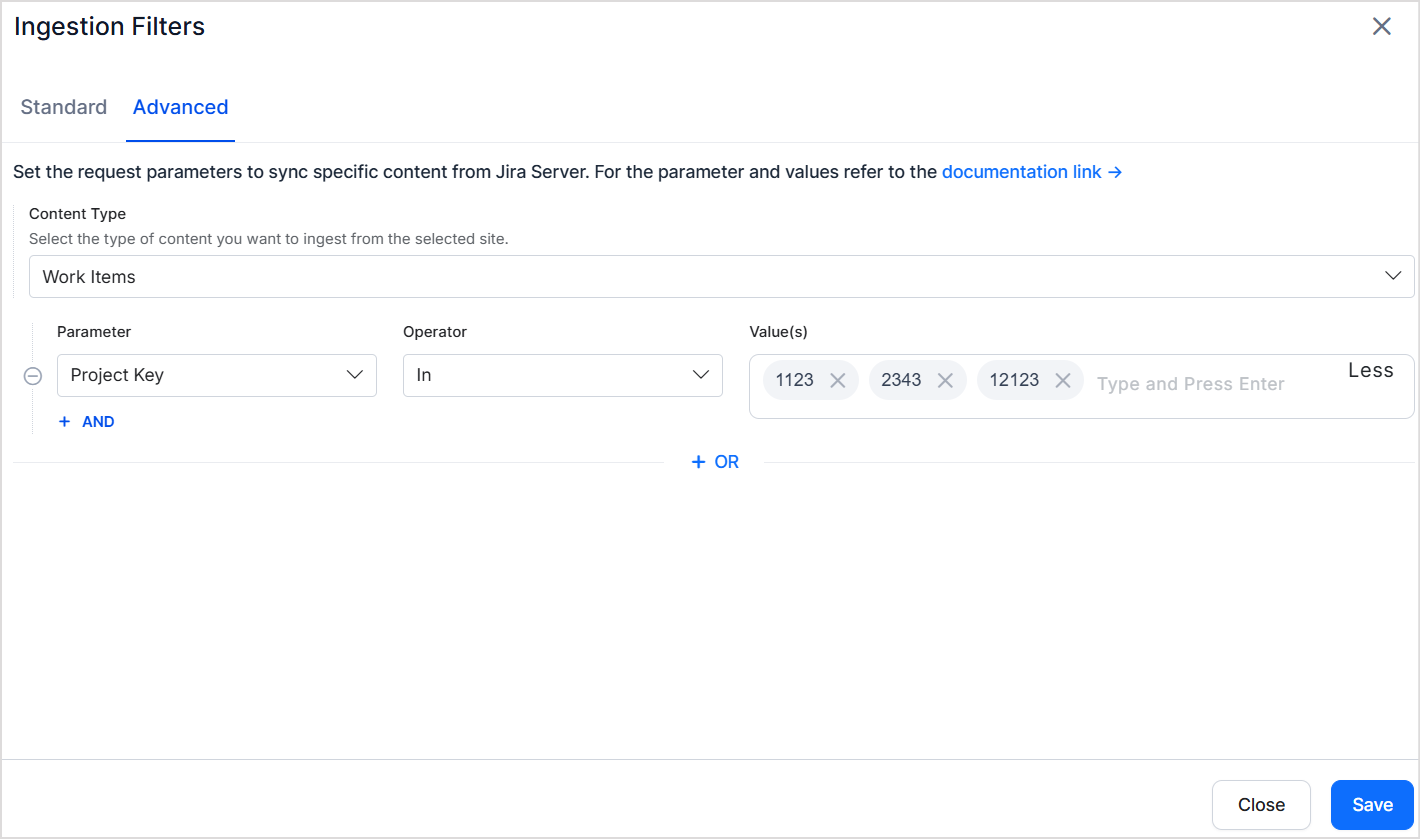
Filter Precedence
Advanced filters override standard filters when their criteria conflict. For example, if a standard filter selects Project A and an advanced filter specifies Project B by key, Project B takes precedence.Access Control
Work Items
- Each work item is linked to a project via a unique Project ID.
- This Project ID is stored in the RACL field of the ingested chunks.
- Associate users with a Project ID using the Permission Entity APIs. Users added to the corresponding permission entities gain access to work items associated with those projects.