

Searching through attachments is not supported.
Specifications
Prerequisites
- Set up authentication on your GitHub On-Prem instance.
- Whitelist the Search AI domain in your GitHub On-Prem instance.
Authorization Support
Search AI supports two authentication methods for GitHub On-Prem:- Personal Access Token
- OAuth 2.0
GitHub Configuration
Personal Access Token
- Go to Developer Settings in your GitHub account.
- Generate a token with the following permissions:
reporead:org
OAuth 2.0
- Register a new OAuth application in GitHub.
- Provide the basic app details.
- Use one of the following callback URLs based on your region:
- JP Region:
https://jp-bots-idp.kore.ai/workflows/callback - DE Region:
https://de-bots-idp.kore.ai/workflows/callback - Prod:
https://idp.kore.com/workflows/callback
- JP Region:
- This generates client credentials. Use the device flow and client credentials to manually create an access token using an API client tool such as Postman.
Configure the GitHub On-Prem Connector in Search AI
Provide the following fields when configuring the connector:
Click Connect to authenticate.
Managing Multiple Authentication Profiles
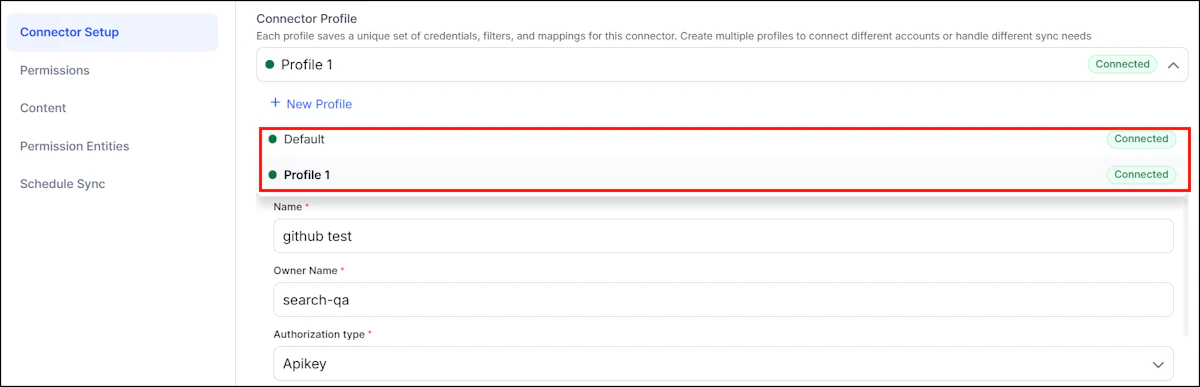
The connector supports multiple authentication profiles, each representing a different GitHub organization.Adding Authentication Profiles
- Add profiles from the connector UI. The dropdown shows connection status: Connected or Not Connected.
- During initial setup, you can’t navigate to other tabs until authentication succeeds.
- After authenticating, a prompt lets you sync with default settings or customize before syncing.
Profile-Specific and Shared Settings
Each profile maintains its own filters, repository selections, and content rules. The following settings are shared across all profiles:- Permissions content (combined content, duplicates removed)
- Sync schedule
Webhook Configuration for Real-Time Sync
Configure GitHub webhooks to enable real-time updates and deletions in Search AI:- Go to Settings > Developer Settings, click Create new GitHub App, and provide app details.
- Enable Active and add the Webhook URL and Webhook Secret from Search AI.
- Set repository permissions: Contents, Issues, Metadata, Pages, Pull requests (Read-only).
- Set organization permissions: Events, Members, Webhooks (Read-only).
- Enable events: Issues, Pull requests, Push, Repository, Comments, and Reviews.
- Select Any account, create the app, and install it in the required organization.
Content Ingestion
- Go to Manage Content and select the object types to ingest: Issues, Pull Requests, Pages, Files, or Commit Messages.
- Choose an ingestion mode:
- Ingest All Content - syncs all content.
- Ingest Filtered Content - configure filters below.
doc_source_type- identifies the content type in the ingested JSONrepository_idandrepository_name- repository detailsurl- link to the specific object- Creation and update timestamps
Real-Time Sync via Webhooks
Search AI processes webhook events to handle content lifecycle:- Update: edited, closed, reopened, synchronize, push, gollum (update)
- Delete: deleted, push, gollum (delete)
Sync Logic
Each sync performs a full fetch of accessible content from GitHub and ingests only new or updated items into the Search AI index.
Conflict Handling
If two authentication profiles apply different field mappings to the same document, the most recent sync takes precedence.
RACL Support
For all content ingested from GitHub repositories, Search AI sets therepository ID as the sys_racl value. This value is stored as a permission entity. Use the Permission Entity APIs to associate users with the permission entity corresponding to each repository ID.
Limitations
- Webhooks don’t sync user permissions in real time
- Permission updates occur only during manual or scheduled sync