> ## Documentation Index
> Fetch the complete documentation index at: https://koreai.mintlify.site/llms.txt
> Use this file to discover all available pages before exploring further.
# Confluence Cloud Connector
[Back to Search AI connectors list](/ai-for-service/searchai/content-sources#supported-connectors)
The Confluence Cloud Connector integrates Search AI with your Atlassian Confluence Cloud account, enabling intelligent search over your organization's knowledge articles using OAuth 2.0 authentication.
| Specification | Details |
| ---------------------- | ------------------------------------------------------------------------------------------------------------------------------------------------------- |
| Repository type | Cloud |
| Supported API version | REST API v1 |
| Supported content | Pages and attachments to the pages in the following formats: .pdf, .doc, .docx, .csv, .txt, .xls, .xlsx, .ppt, .pptx, Images (.jpeg, .png, .svg, .webp) |
| Access control support | Yes |
| Content filtering | Yes |
| Real-Time Sync | Yes |
## Prerequisites
* An admin account in Atlassian Confluence Cloud
* A target domain
* Access to the [Atlassian Developer Portal](https://developer.atlassian.com/)
* Space Admin access (minimum) or Site Admin access (for global rules)
## Configure an OAuth Application
1. Sign in to your developer account at the [Atlassian Developer Portal](https://developer.atlassian.com/).
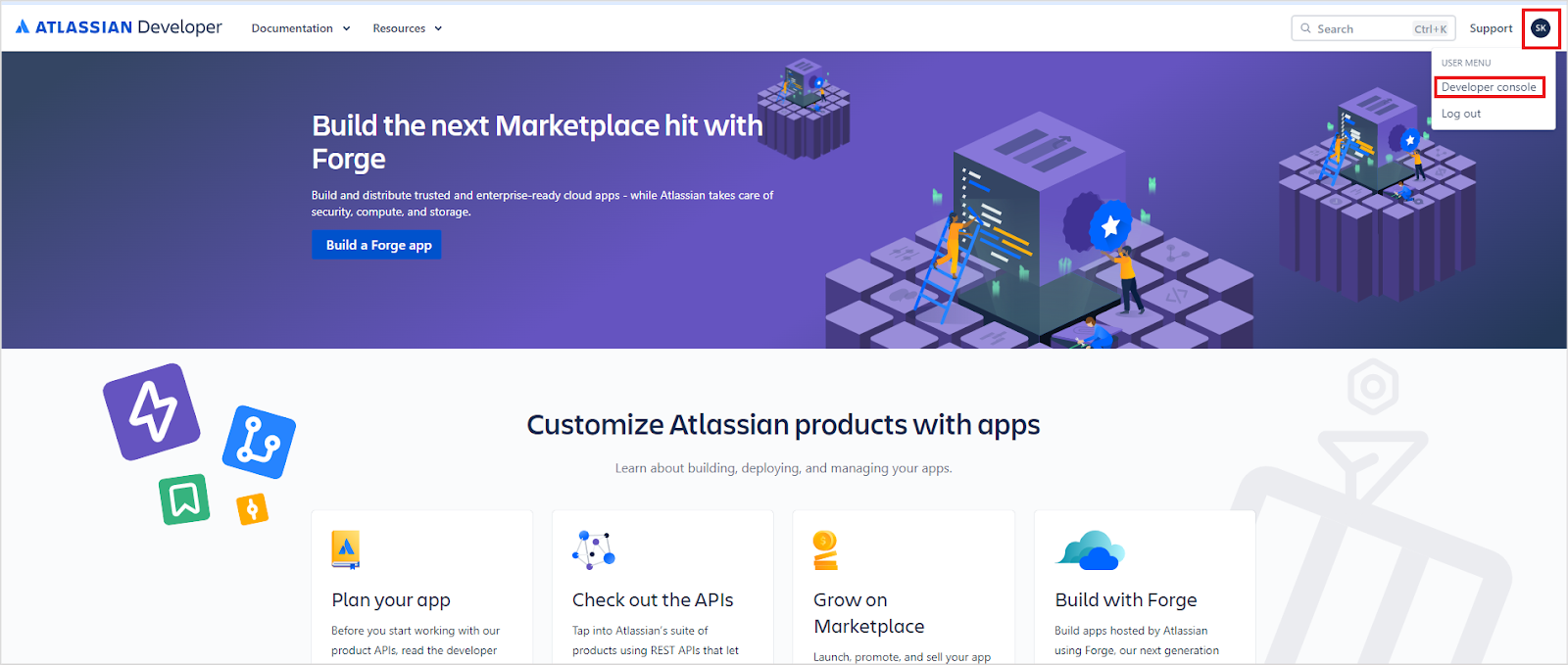 2. Click your profile name at the top right and navigate to the **Developer Console**.
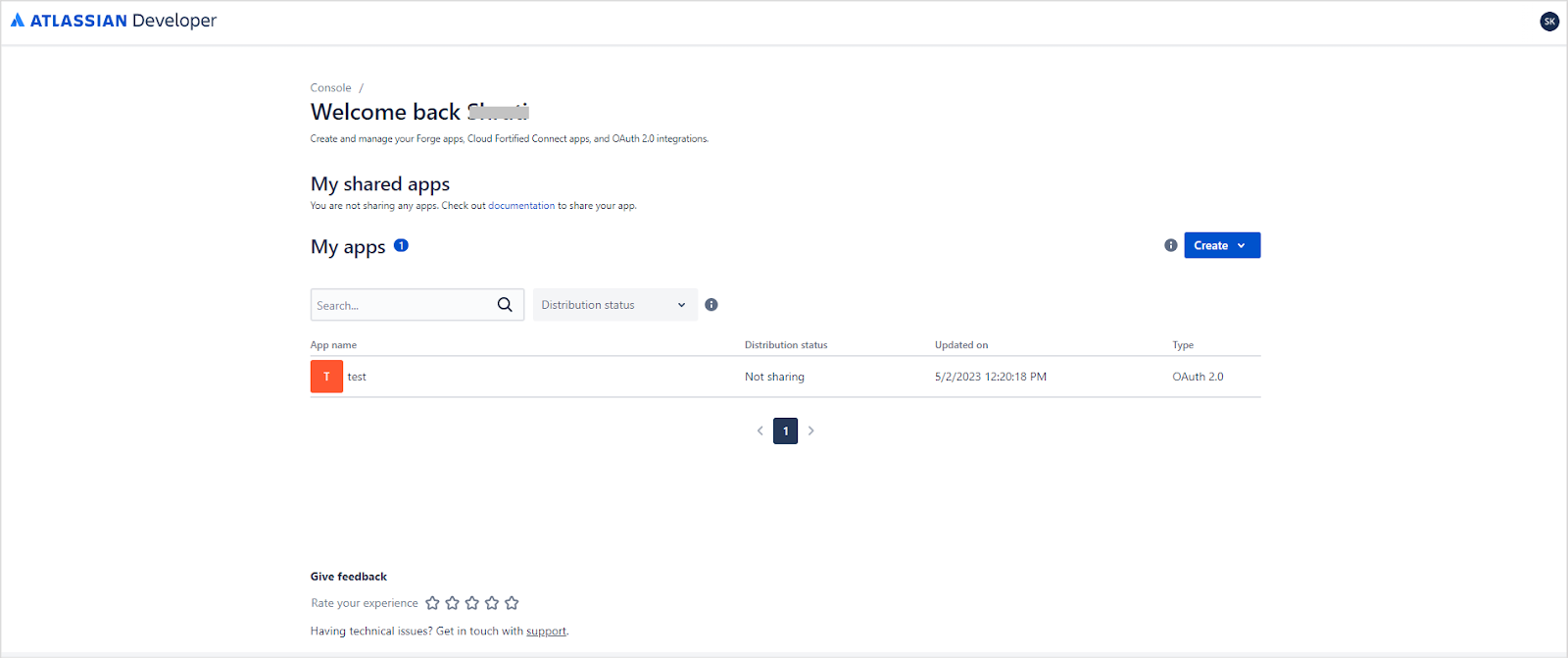 3. Review the list of all your apps.
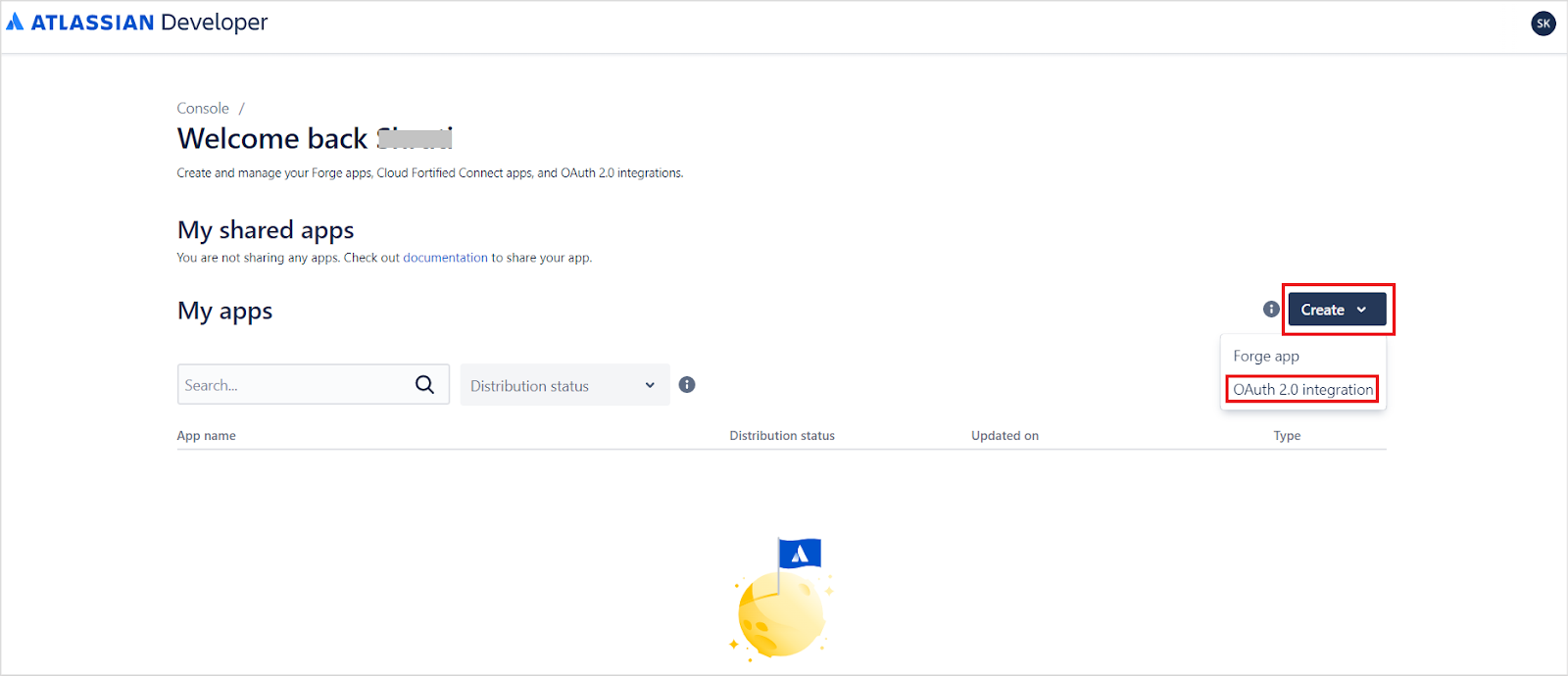
4. Click **Create** and select **OAuth 2.0 Integration**.
3. Review the list of all your apps.
4. Click **Create** and select **OAuth 2.0 Integration**.
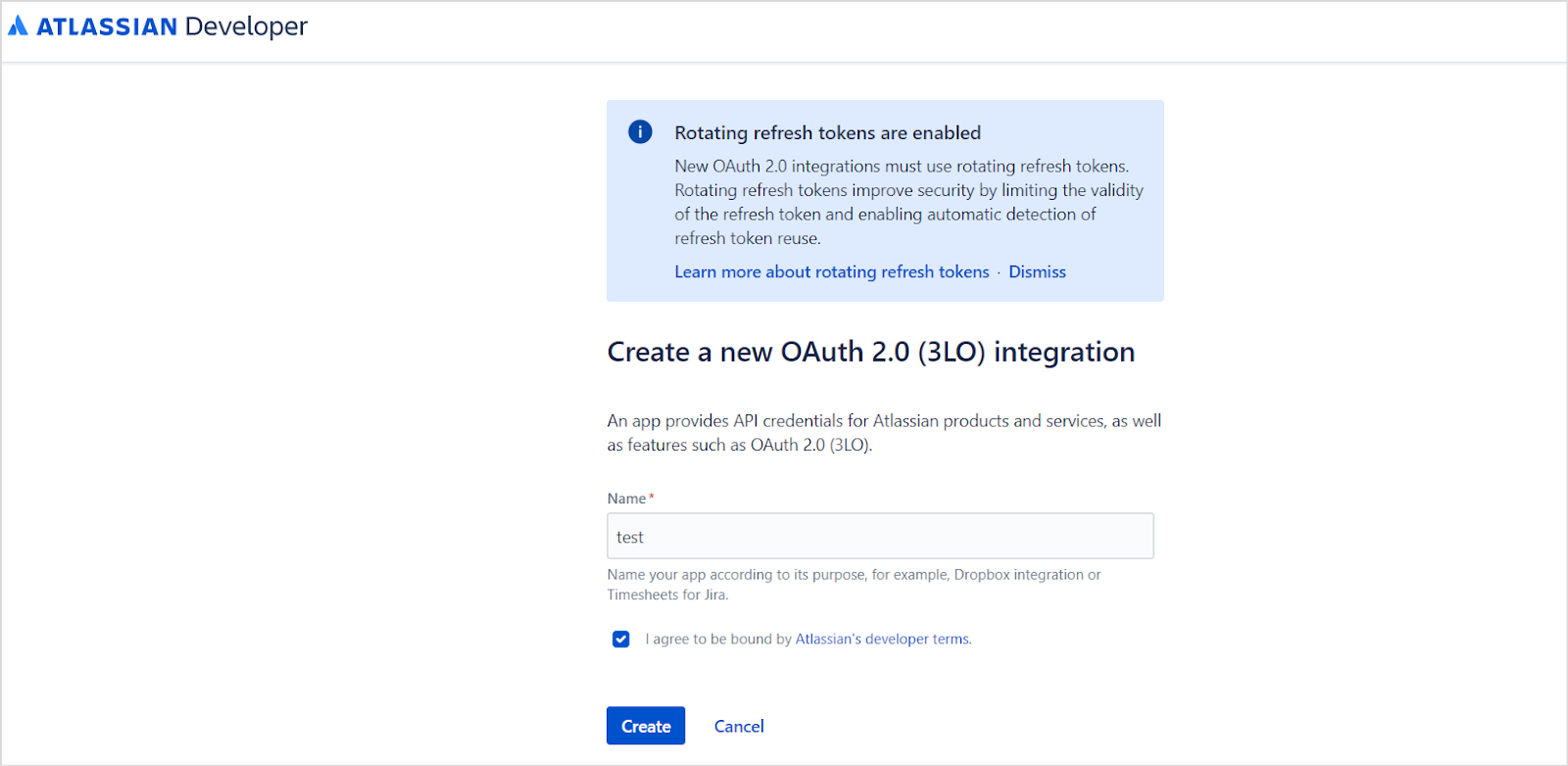
 5. Provide a name for the application and click **Create**.
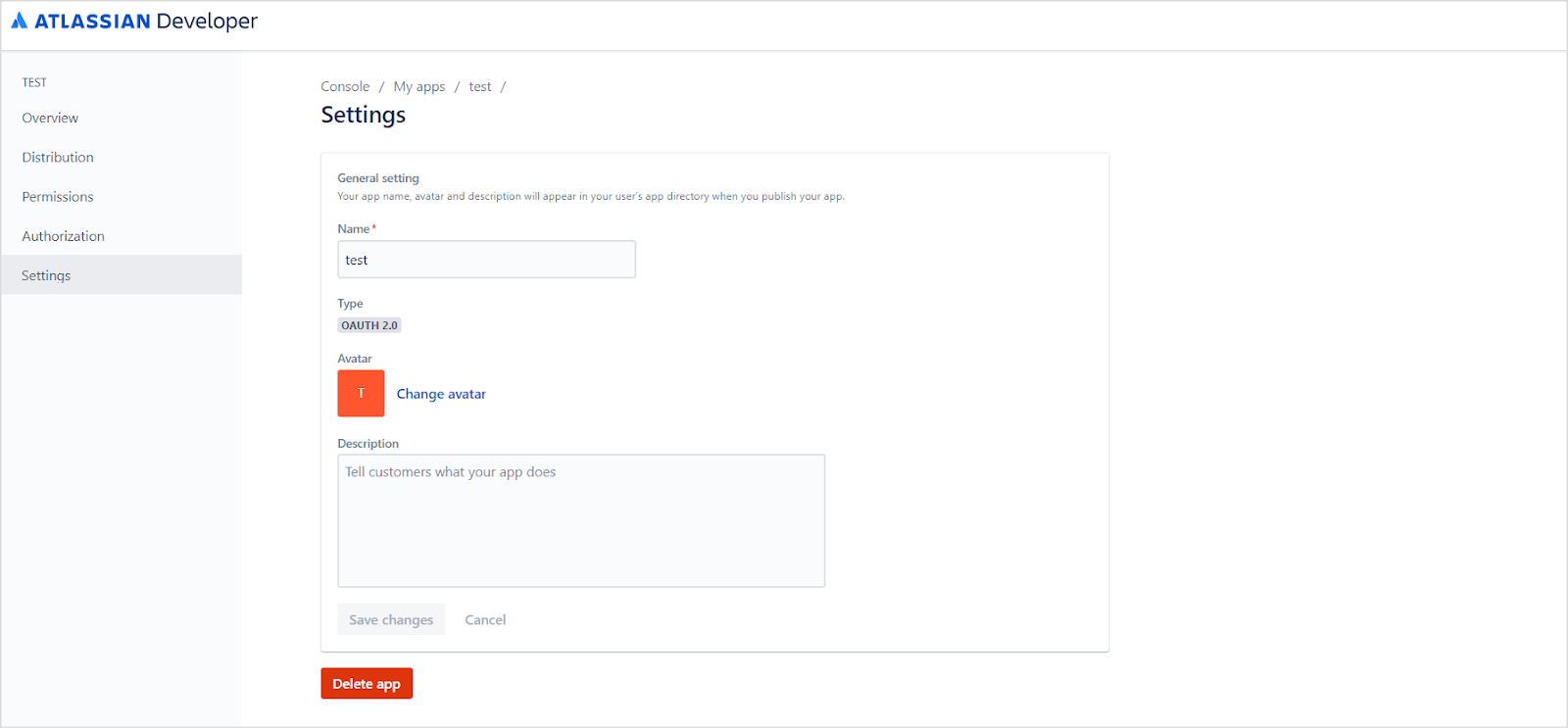
 6. Open the **Settings** tab, update the application name and description, optionally add an avatar, and click **Save changes**.
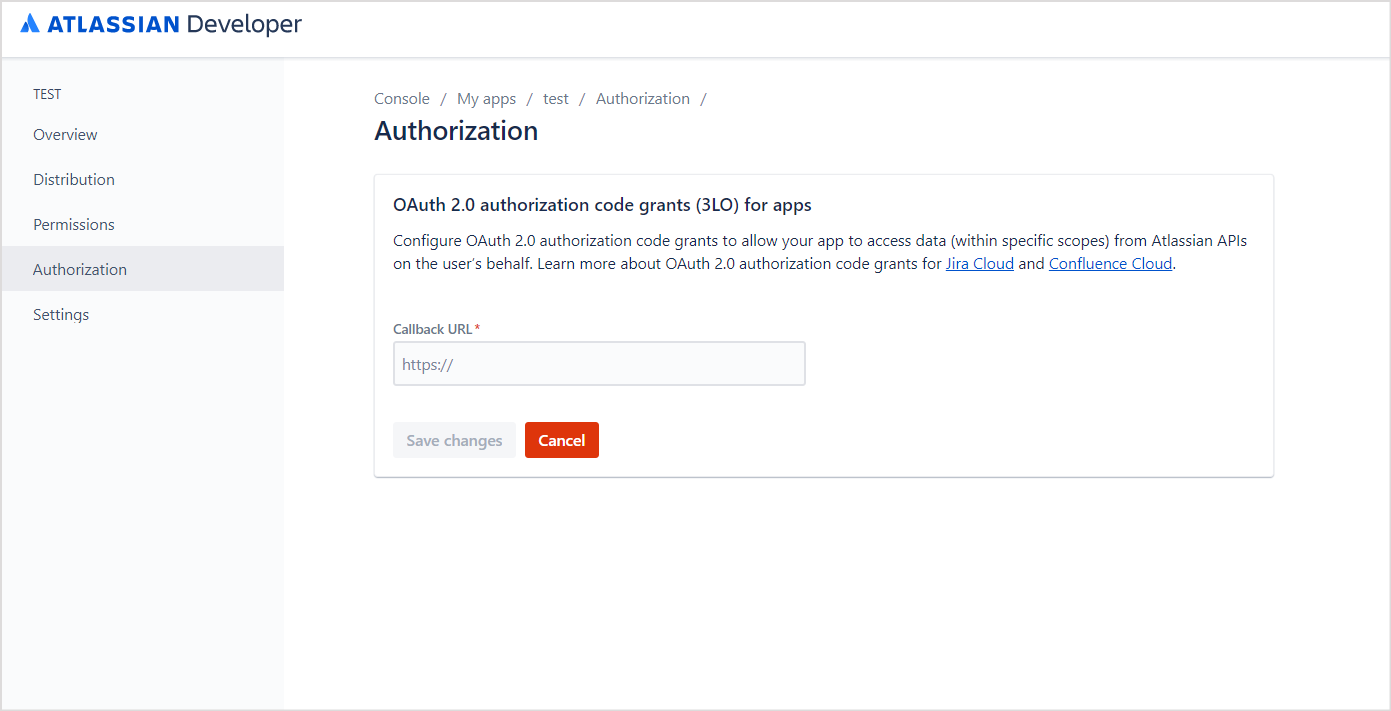
 7. Go to the **Authorization** tab and enter the Search AI callback URL for your region, then click **Save changes**.
| Region | Callback URL |
| ------ | ------------------------------------------------ |
| JP | `https://jp-bots-idp.kore.ai/workflows/callback` |
| DE | `https://de-bots-idp.kore.ai/workflows/callback` |
| Prod | `https://idp.kore.com/workflows/callback` |
7. Go to the **Authorization** tab and enter the Search AI callback URL for your region, then click **Save changes**.
| Region | Callback URL |
| ------ | ------------------------------------------------ |
| JP | `https://jp-bots-idp.kore.ai/workflows/callback` |
| DE | `https://de-bots-idp.kore.ai/workflows/callback` |
| Prod | `https://idp.kore.com/workflows/callback` |
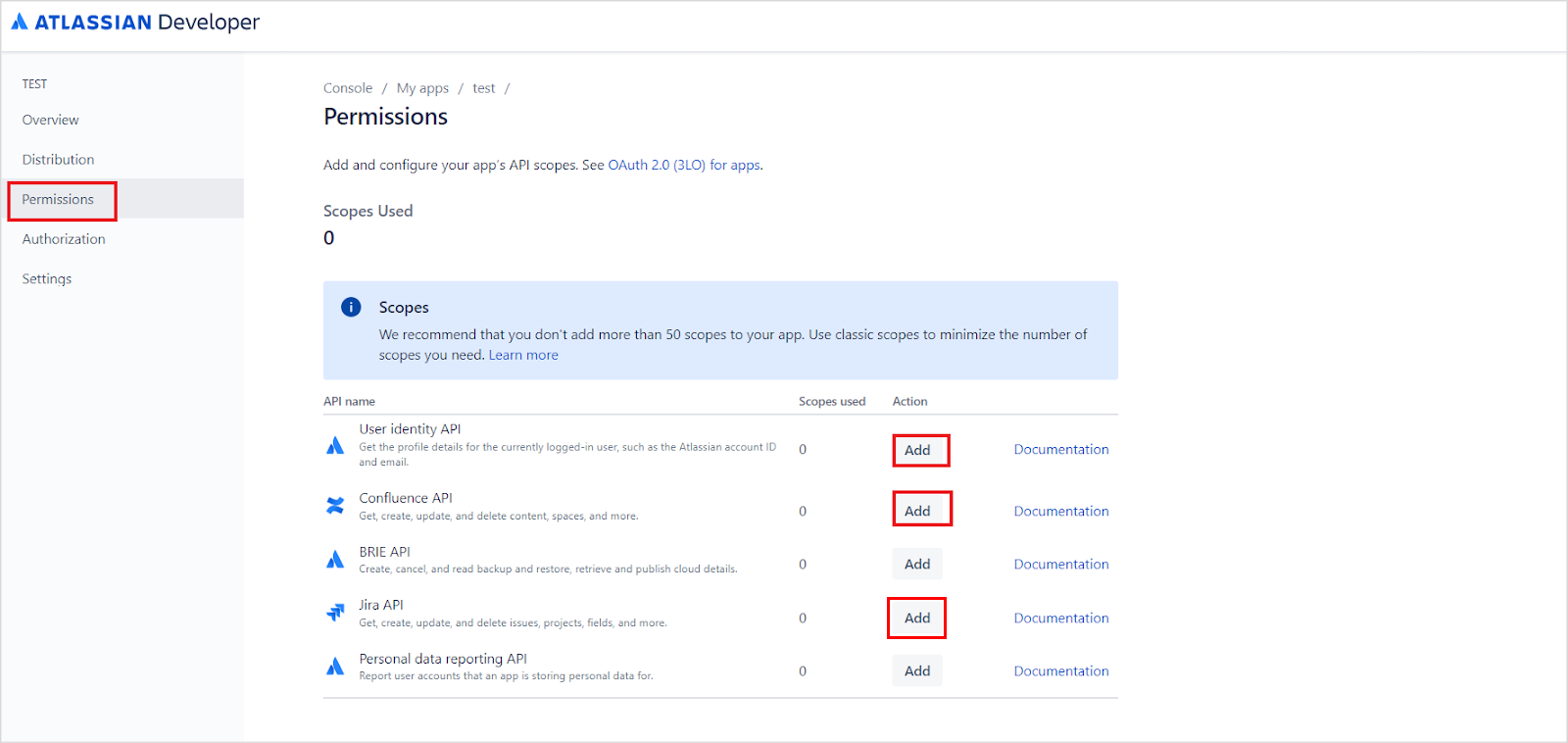
 8. Go to the **Permissions** tab and add the following APIs:`User Identity API`, `Confluence API`, and `Jira API`.
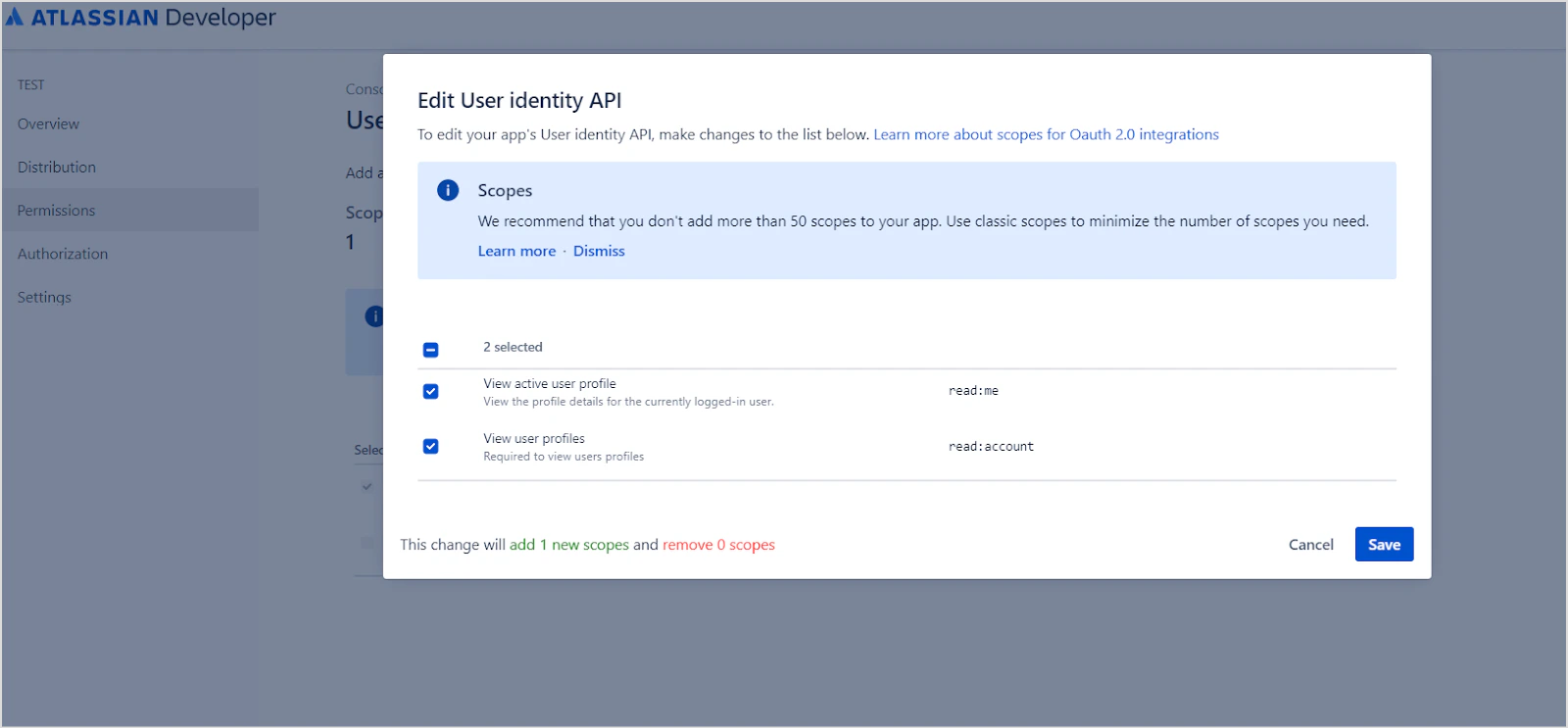
 * **User Identity API** - Click **config**, then **Edit Scopes**, grant the following permissions, and click **Save**:
* `read:me`
* `read:account`
* **User Identity API** - Click **config**, then **Edit Scopes**, grant the following permissions, and click **Save**:
* `read:me`
* `read:account`
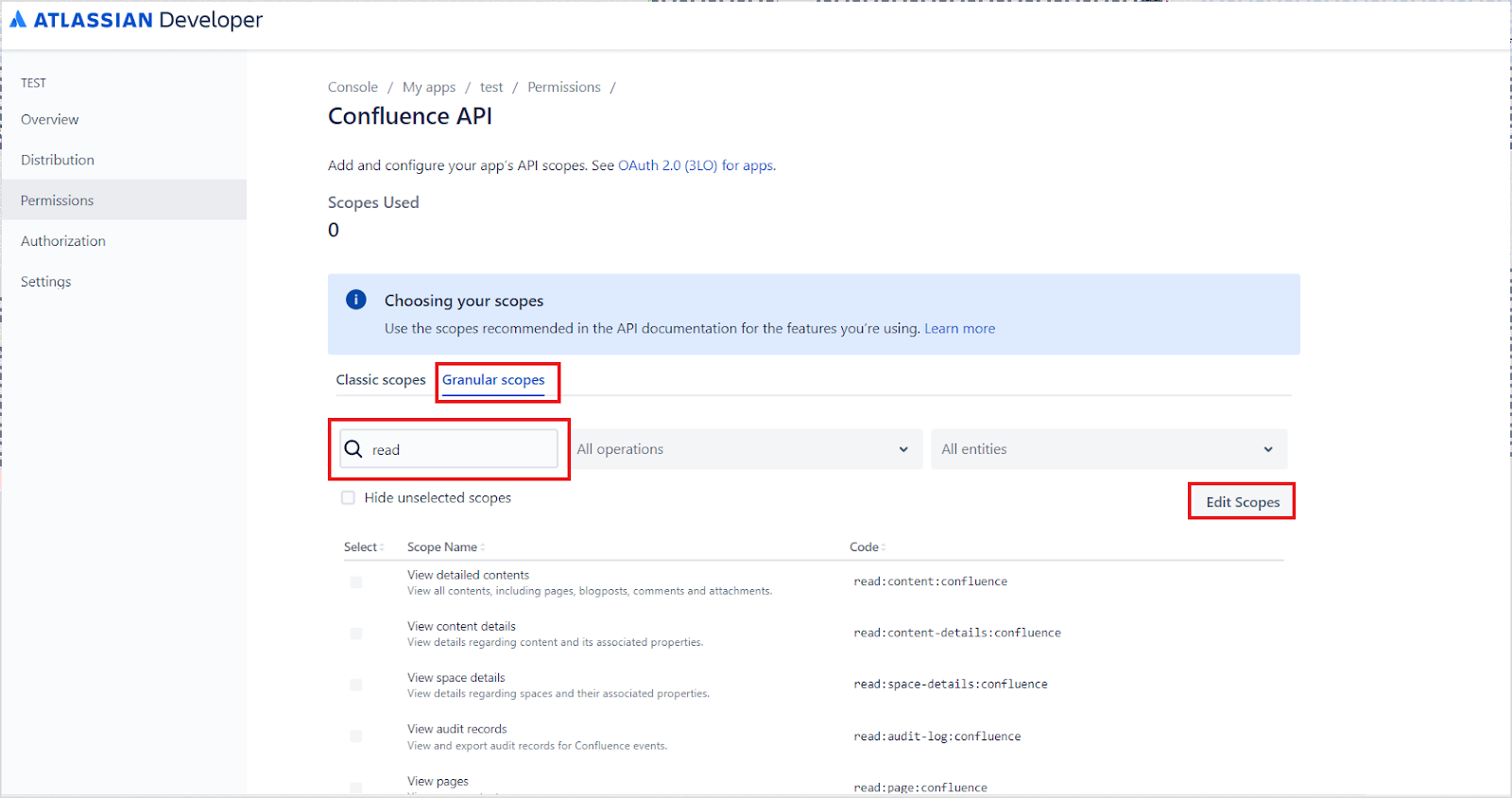
 * **Confluence API** - Go to **Granular Scopes**, select **Edit Scopes**, add the following permissions, and click **Save**:
* `read:analytics.content:confluence`
* `read:content-details:confluence`
* `read:content.permission:confluence`
* `read:content:confluence`
* `read:page:confluence`
* `read:space-details:confluence`
* `read:space.permission:confluence`
* `read:space:confluence`
* `read:user.property:confluence`
* `readonly:content.attachment:confluence`
* `read:confluence-groups`
* `read:confluence-content.all`
For **Classic Scopes**, add `read:confluence-groups` and click **Save**.
* **Confluence API** - Go to **Granular Scopes**, select **Edit Scopes**, add the following permissions, and click **Save**:
* `read:analytics.content:confluence`
* `read:content-details:confluence`
* `read:content.permission:confluence`
* `read:content:confluence`
* `read:page:confluence`
* `read:space-details:confluence`
* `read:space.permission:confluence`
* `read:space:confluence`
* `read:user.property:confluence`
* `readonly:content.attachment:confluence`
* `read:confluence-groups`
* `read:confluence-content.all`
For **Classic Scopes**, add `read:confluence-groups` and click **Save**.
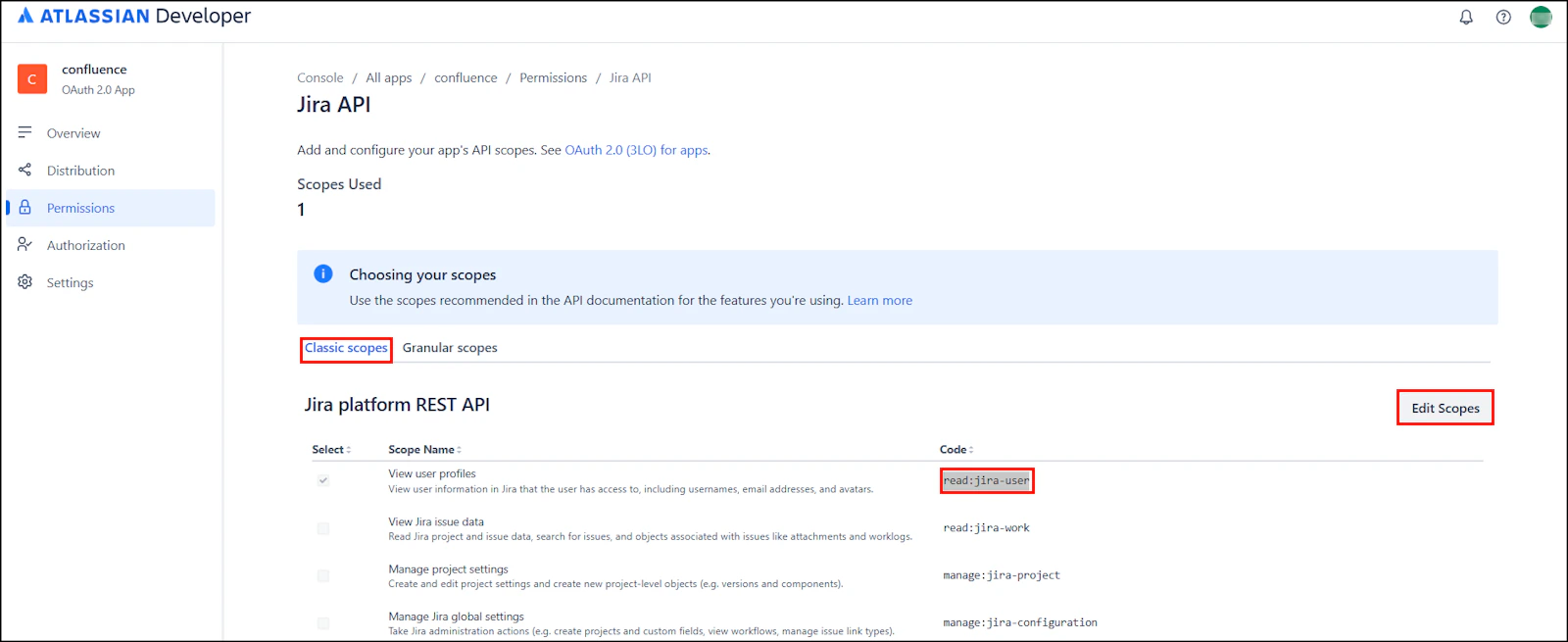
 * **Jira API** - Go to **Classic Scopes**, select **Edit Scopes**, add `read:jira-user`, and click **Save**.
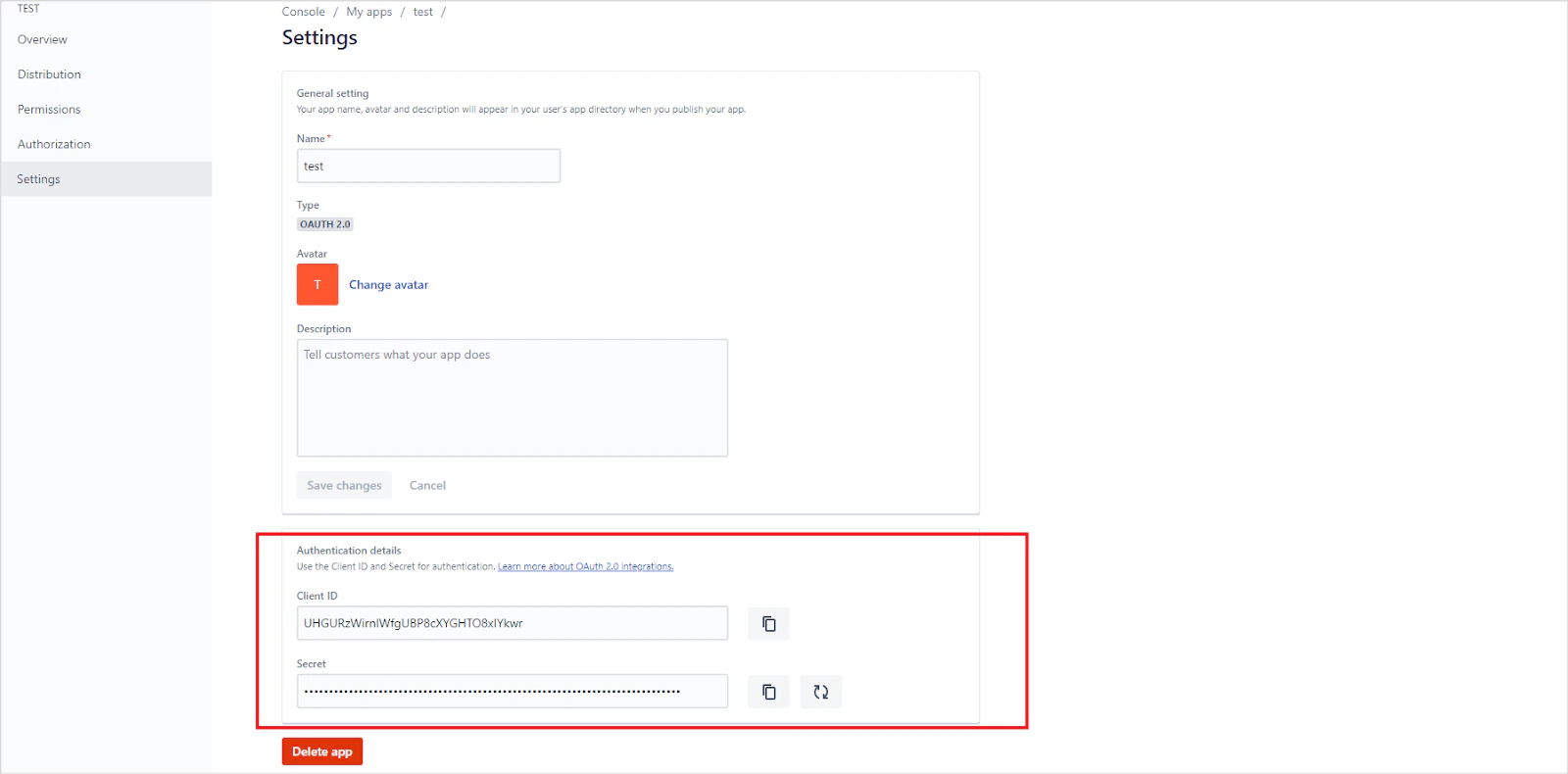
 9. Go to **Settings** and locate the **Client ID** and **Secret** at the bottom of the page. Save these for use in the next step.
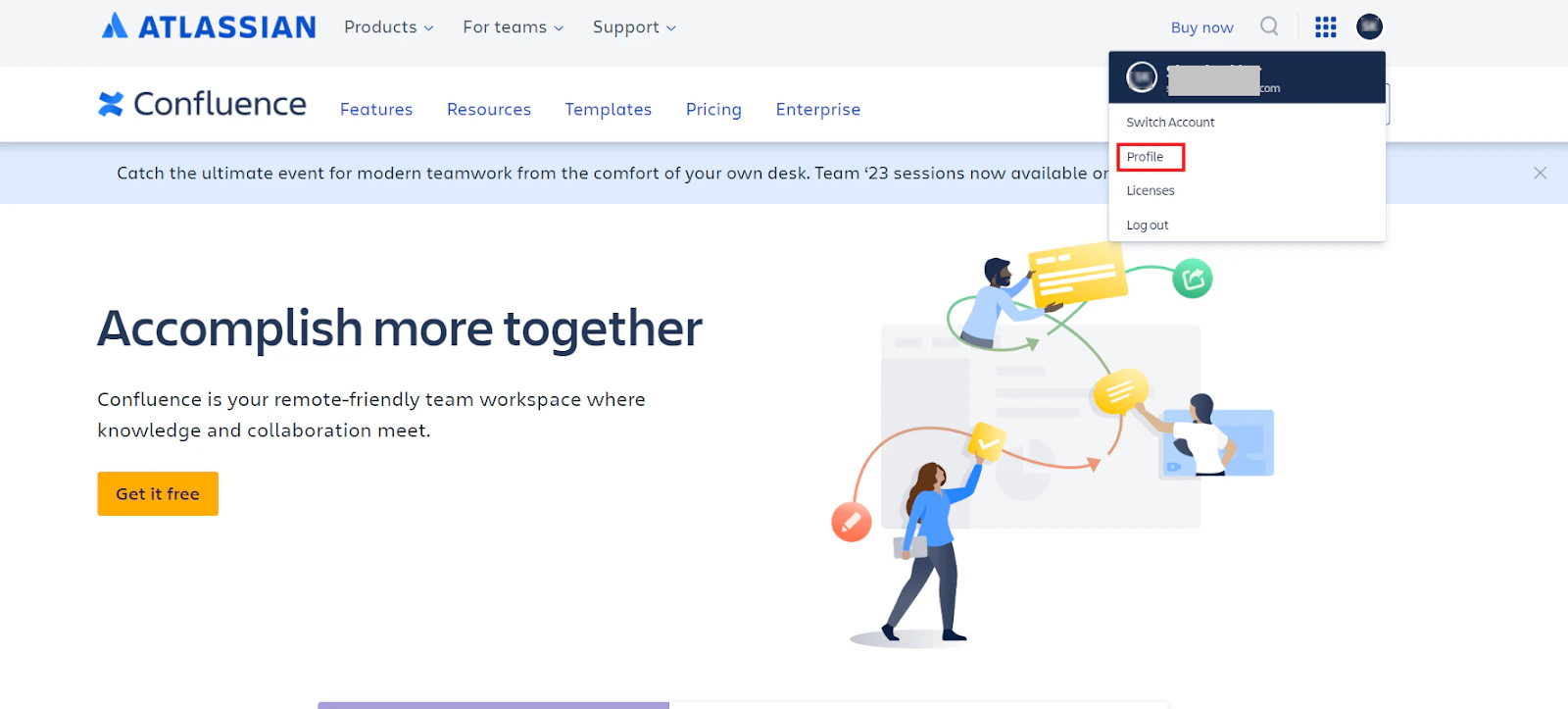
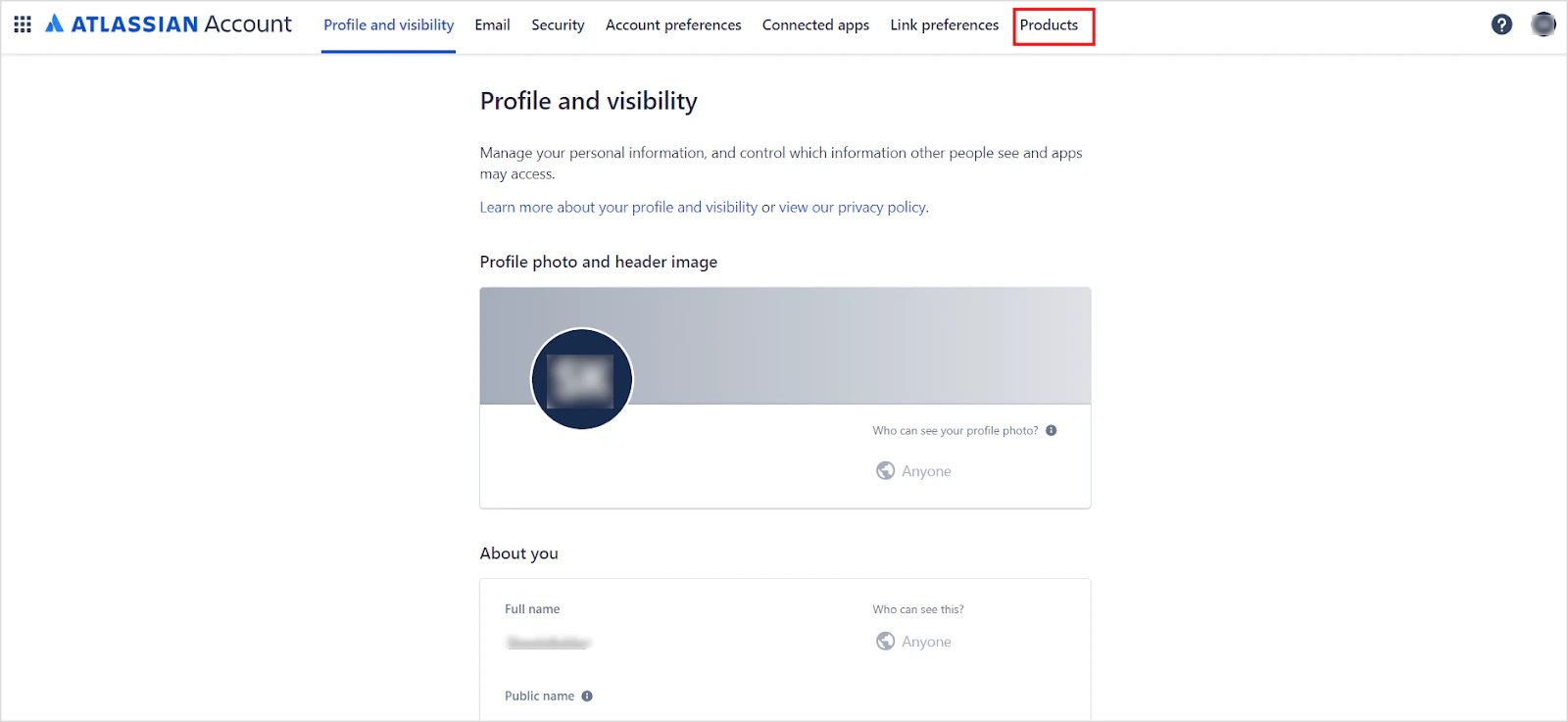
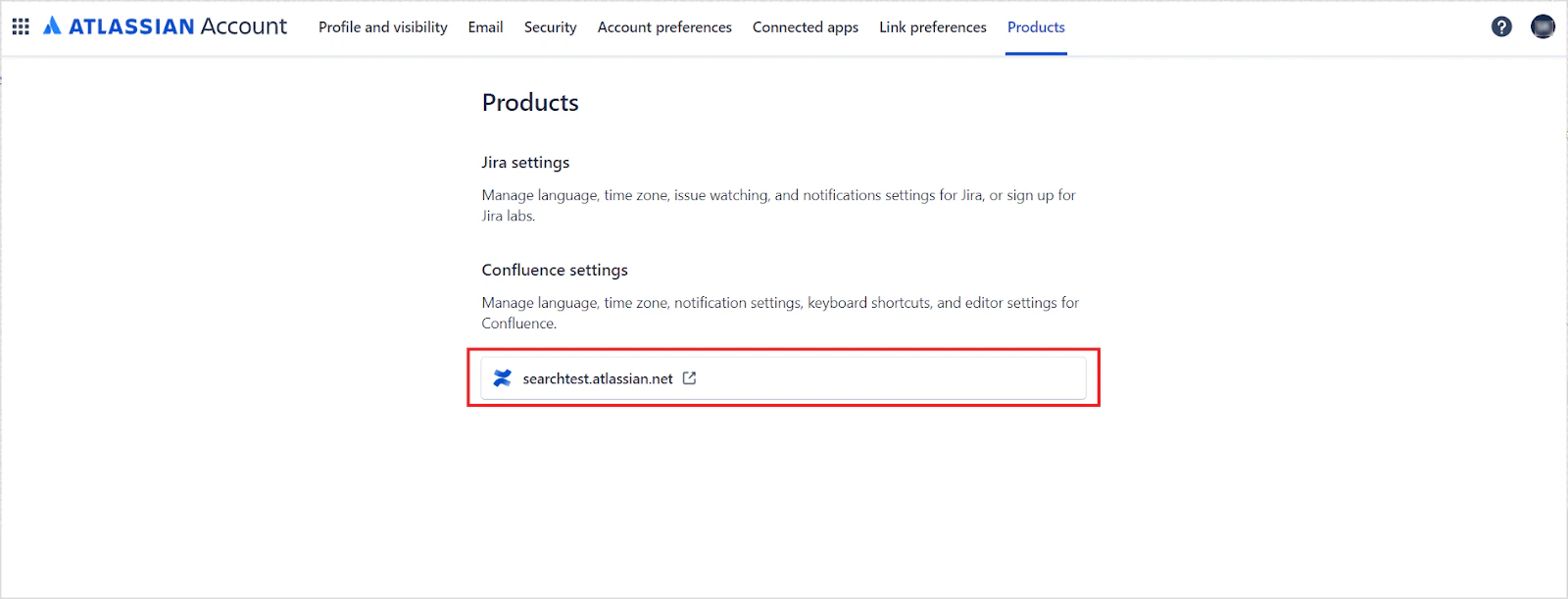
 10. Go to the [Confluence home page](https://www.atlassian.com/software/confluence), click your **Profile**, and navigate to the **Products** tab. The **host URL** is displayed at the bottom of the page.
 ## Configure the Search AI Connector
1. Go to **Content** > **Connectors** and choose **Confluence (Cloud)**.
2. Under Authentication, enter:
| Field | Description |
| ---------------------- | --------------------------------------------------- |
| **Name** | Unique name for the connector |
| **Authorization Type** | OAuth 2.0 |
| **Grant Type** | Authorization Code |
| **Client ID** | Client ID from the Confluence OAuth application |
| **Client Secret** | Client Secret from the Confluence OAuth application |
| **Host URL** | Confluence server base URL (without trailing slash) |
3. To enable real-time synchronization, switch the **Real-Time Sync** toggle to **On**. Use this webhook client secret and URL to configure the trigger in Confluence Cloud.
4. Click **Connect** to initiate authorization.
## Configure Webhook Trigger in Confluence Cloud for Real-Time Sync
This is an optional step and is only required if real time sync is enabled.
1. Go to your Confluence space.
2. Click **Space Settings**.
3. Open **Automation**.
4. Click **Create rule** and add an Incoming Webhook trigger (or select Send web request as an action) for each of the following supported events.
* Page published
* Page updated
* Page deleted
5. Add a **Send web request** action with ingestion endpoint URL and headers as in the Search AI authorization page. Add the HTTP header X-Automation-Webhook-Token and input your secret key (generated in Search AI) for secure authentication.
6. In the request body, select **Custom data** and add the following payloads per trigger.
**Payload for Page\_Published**
```json theme={null}
{
"eventType": "{{eventType}}",
"timestamp": "{{now}}",
"page": {
"id": "{{page.id}}",
"title": "{{page.title}}",
"type": "{{page.type}}",
"status": "{{page.status}}",
"version": "{{page.version.number}}",
"url": "{{page._links.base}}{{page._links.webui}}"
},
"space": {
"key": "{{space.key}}",
"name": "{{space.name}}",
"id": "{{space.id}}"
},
"content": {
"body": "{{page.body.storage.value}}"
},
"author": {
"accountId": "{{page.version.by.accountId}}",
"displayName": "{{page.version.by.displayName}}"
},
"lastUpdated": {
"when": "{{page.version.when}}"
}
}
```
**Payload for Page\_Updated**
```json theme={null}
{
"eventType": "{{eventType}}",
"eventTimestamp": "{{now}}",
"page": {
"id": "{{page.id}}",
"title": "{{page.title}}",
"type": "{{page.type}}",
"status": "{{page.status}}",
"version": {
"number": "{{page.version.number}}",
"when": "{{page.version.when}}"
},
"links": {
"webui": "{{page._links.base}}{{page._links.webui}}",
"api": "{{page._links.base}}/wiki/rest/api/content/{{page.id}}"
}
},
"space": {
"id": "{{space.id}}",
"key": "{{space.key}}",
"name": "{{space.name}}"
},
"author": {
"accountId": "{{page.version.by.accountId}}",
"displayName": "{{page.version.by.displayName}}"
},
"history": {
"createdDate": "{{page.history.createdDate}}",
"createdBy": "{{page.history.createdBy.displayName}}"
},
"content": {
"bodyStorage": "{{page.body.storage.value}}"
}
}
```
**Payload for Page\_Deleted**
```json theme={null}
{
"eventType": "{{eventType}}",
"timestamp": "{{now}}",
"page": {
"id": "{{page.id}}",
"title": "{{page.title}}",
"type": "{{page.type}}",
"status": "{{page.status}}",
"version": "{{page.version.number}}",
"url": "{{page._links.base}}{{page._links.webui}}"
},
"space": {
"key": "{{space.key}}",
"name": "{{space.name}}",
"id": "{{space.id}}"
},
"content": {
"body": "{{page.body.storage.value}}"
},
"author": {
"accountId": "{{page.version.by.accountId}}",
"displayName": "{{page.version.by.displayName}}"
}
}
```
7. Add any additional conditions or branches as needed.
8. Click **Turn on** to activate the rule.
* This rule sends outbound events from Confluence to Search AI each time the trigger condition is met. Site Admin access is required when creating a global rule that applies across all spaces.
* Real-Time sync updates document entities only. Associated users and permissions within those entities must be synchronized through regular incremental or manual sync.
## Multiple Authentication Profiles
A single Confluence Cloud connector supports multiple authentication profiles.
* Each profile authenticates independently using its own OAuth 2.0 credentials.
* Content accessible by multiple profiles is deduplicated automatically.
* Deleting a profile removes only content exclusive to that profile.
* Repeat the steps to create a new profile if needed.
Creating multiple authentication profiles is optional.
## Content Ingestion and Filters
1. Go to the **Content Scope** tab and select the content to ingest. You can sync all content from the Confluence Cloud account or select specific content.
## Configure the Search AI Connector
1. Go to **Content** > **Connectors** and choose **Confluence (Cloud)**.
2. Under Authentication, enter:
| Field | Description |
| ---------------------- | --------------------------------------------------- |
| **Name** | Unique name for the connector |
| **Authorization Type** | OAuth 2.0 |
| **Grant Type** | Authorization Code |
| **Client ID** | Client ID from the Confluence OAuth application |
| **Client Secret** | Client Secret from the Confluence OAuth application |
| **Host URL** | Confluence server base URL (without trailing slash) |
3. To enable real-time synchronization, switch the **Real-Time Sync** toggle to **On**. Use this webhook client secret and URL to configure the trigger in Confluence Cloud.
4. Click **Connect** to initiate authorization.
## Configure Webhook Trigger in Confluence Cloud for Real-Time Sync
This is an optional step and is only required if real time sync is enabled.
1. Go to your Confluence space.
2. Click **Space Settings**.
3. Open **Automation**.
4. Click **Create rule** and add an Incoming Webhook trigger (or select Send web request as an action) for each of the following supported events.
* Page published
* Page updated
* Page deleted
5. Add a **Send web request** action with ingestion endpoint URL and headers as in the Search AI authorization page. Add the HTTP header X-Automation-Webhook-Token and input your secret key (generated in Search AI) for secure authentication.
6. In the request body, select **Custom data** and add the following payloads per trigger.
**Payload for Page\_Published**
```json theme={null}
{
"eventType": "{{eventType}}",
"timestamp": "{{now}}",
"page": {
"id": "{{page.id}}",
"title": "{{page.title}}",
"type": "{{page.type}}",
"status": "{{page.status}}",
"version": "{{page.version.number}}",
"url": "{{page._links.base}}{{page._links.webui}}"
},
"space": {
"key": "{{space.key}}",
"name": "{{space.name}}",
"id": "{{space.id}}"
},
"content": {
"body": "{{page.body.storage.value}}"
},
"author": {
"accountId": "{{page.version.by.accountId}}",
"displayName": "{{page.version.by.displayName}}"
},
"lastUpdated": {
"when": "{{page.version.when}}"
}
}
```
**Payload for Page\_Updated**
```json theme={null}
{
"eventType": "{{eventType}}",
"eventTimestamp": "{{now}}",
"page": {
"id": "{{page.id}}",
"title": "{{page.title}}",
"type": "{{page.type}}",
"status": "{{page.status}}",
"version": {
"number": "{{page.version.number}}",
"when": "{{page.version.when}}"
},
"links": {
"webui": "{{page._links.base}}{{page._links.webui}}",
"api": "{{page._links.base}}/wiki/rest/api/content/{{page.id}}"
}
},
"space": {
"id": "{{space.id}}",
"key": "{{space.key}}",
"name": "{{space.name}}"
},
"author": {
"accountId": "{{page.version.by.accountId}}",
"displayName": "{{page.version.by.displayName}}"
},
"history": {
"createdDate": "{{page.history.createdDate}}",
"createdBy": "{{page.history.createdBy.displayName}}"
},
"content": {
"bodyStorage": "{{page.body.storage.value}}"
}
}
```
**Payload for Page\_Deleted**
```json theme={null}
{
"eventType": "{{eventType}}",
"timestamp": "{{now}}",
"page": {
"id": "{{page.id}}",
"title": "{{page.title}}",
"type": "{{page.type}}",
"status": "{{page.status}}",
"version": "{{page.version.number}}",
"url": "{{page._links.base}}{{page._links.webui}}"
},
"space": {
"key": "{{space.key}}",
"name": "{{space.name}}",
"id": "{{space.id}}"
},
"content": {
"body": "{{page.body.storage.value}}"
},
"author": {
"accountId": "{{page.version.by.accountId}}",
"displayName": "{{page.version.by.displayName}}"
}
}
```
7. Add any additional conditions or branches as needed.
8. Click **Turn on** to activate the rule.
* This rule sends outbound events from Confluence to Search AI each time the trigger condition is met. Site Admin access is required when creating a global rule that applies across all spaces.
* Real-Time sync updates document entities only. Associated users and permissions within those entities must be synchronized through regular incremental or manual sync.
## Multiple Authentication Profiles
A single Confluence Cloud connector supports multiple authentication profiles.
* Each profile authenticates independently using its own OAuth 2.0 credentials.
* Content accessible by multiple profiles is deduplicated automatically.
* Deleting a profile removes only content exclusive to that profile.
* Repeat the steps to create a new profile if needed.
Creating multiple authentication profiles is optional.
## Content Ingestion and Filters
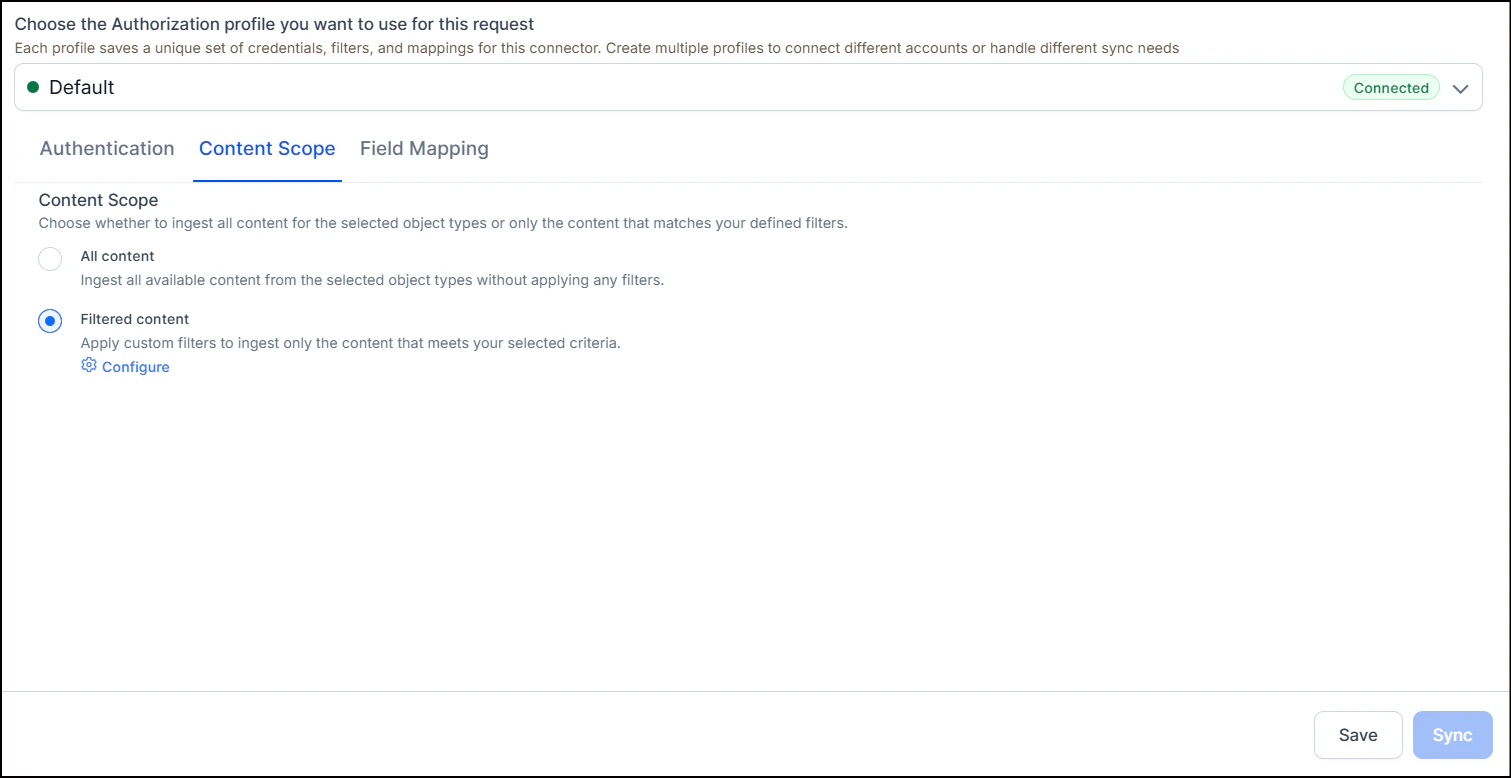
1. Go to the **Content Scope** tab and select the content to ingest. You can sync all content from the Confluence Cloud account or select specific content.
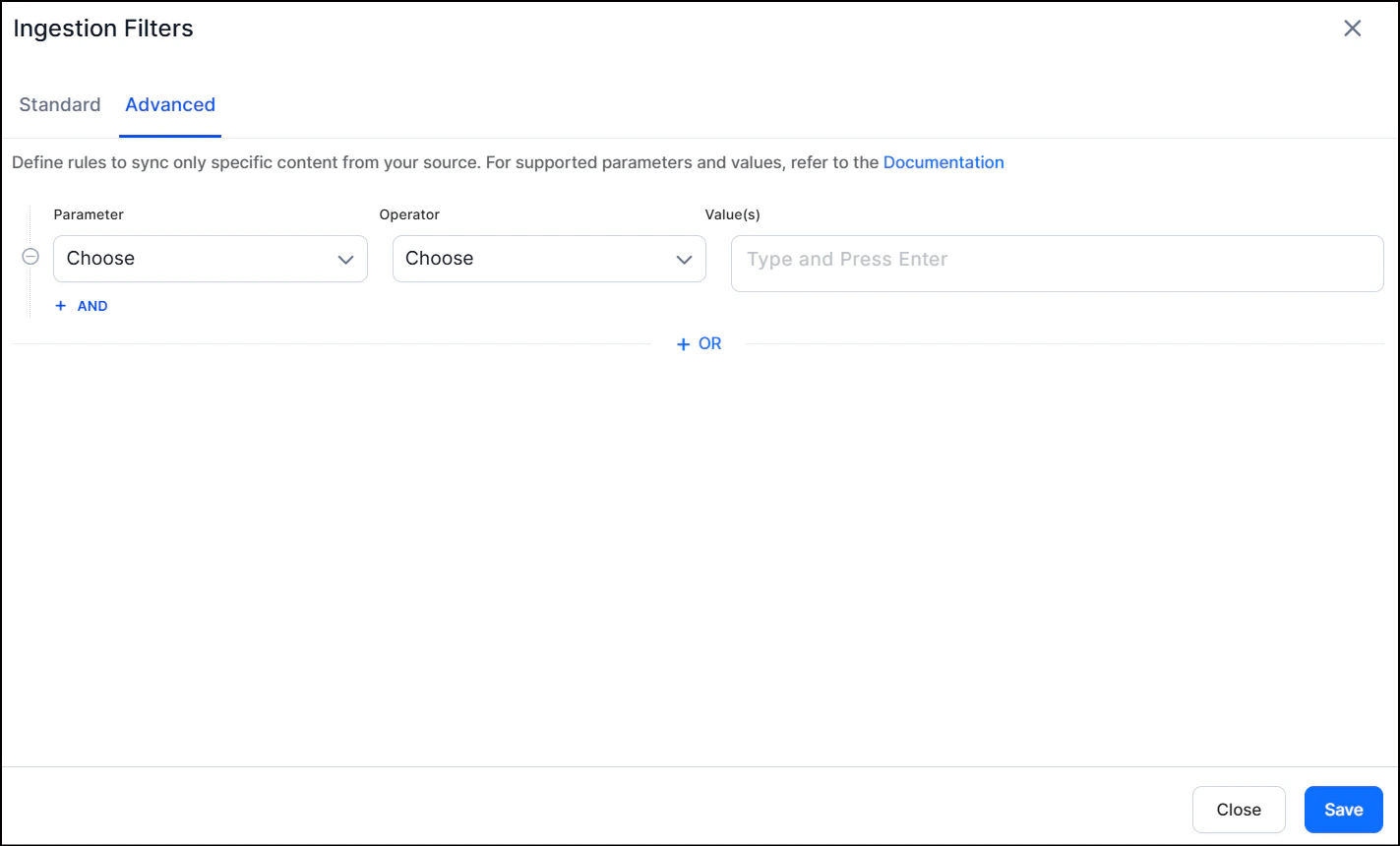
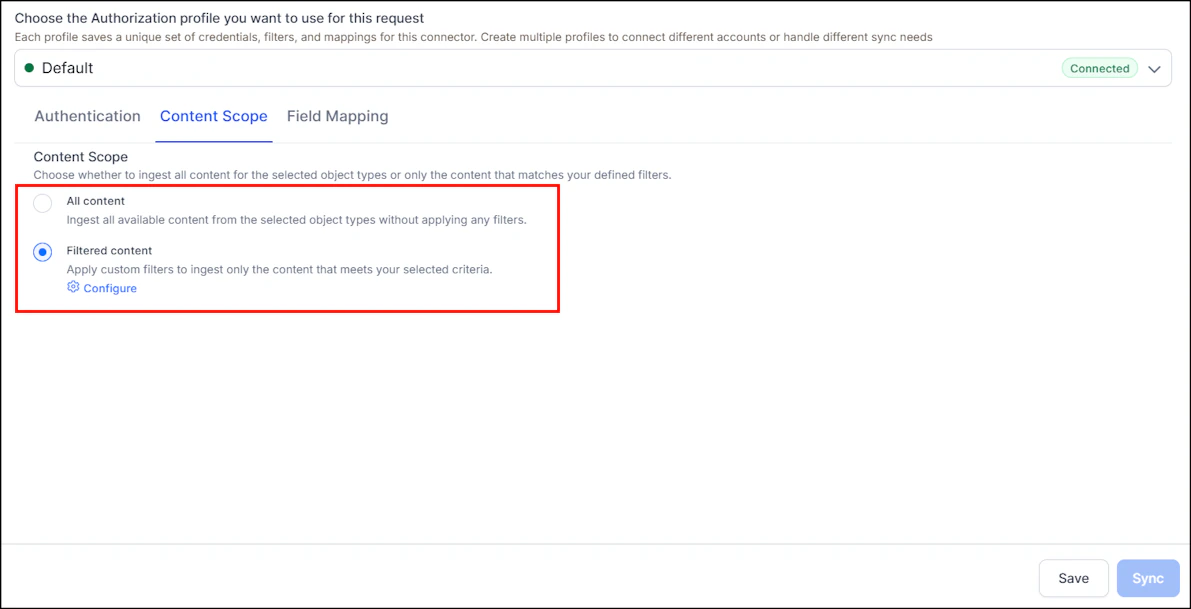 2. To selectively ingest content, select **Filtered content** and click **Configure**. Define rules using a parameter, operator, and value. Define separate filters for each of the accounts configured via different profiles.
 Supported filter parameters:
| Parameter | Description |
| ------------ | --------------------------------------------------------------------------------------------- |
| **Ancestor** | Direct child pages and descendants of given content IDs |
| **Content** | Specific content by content ID |
| **Created** | Content by creation date (`yyyy/mm/dd hh:mm`, `yyyy-mm-dd hh:mm`, `yyyy/mm/dd`, `yyyy-MM-dd`) |
| **Creator** | Content created by specified user account IDs |
| **Label** | Content filtered by label |
| **Parent** | Content under a given parent |
| **ID** | Content by content ID |
| **Space** | Content in a specific space |
| **Title** | Content by page title |
| **User** | Content by user ID |
3. You can also add custom CQL fields. Refer to the [complete list of supported CQL fields](https://developer.atlassian.com/cloud/confluence/cql-fields/).
4. The Operator field accepts values such as equals, not equal, and contains, depending on the selected parameter.
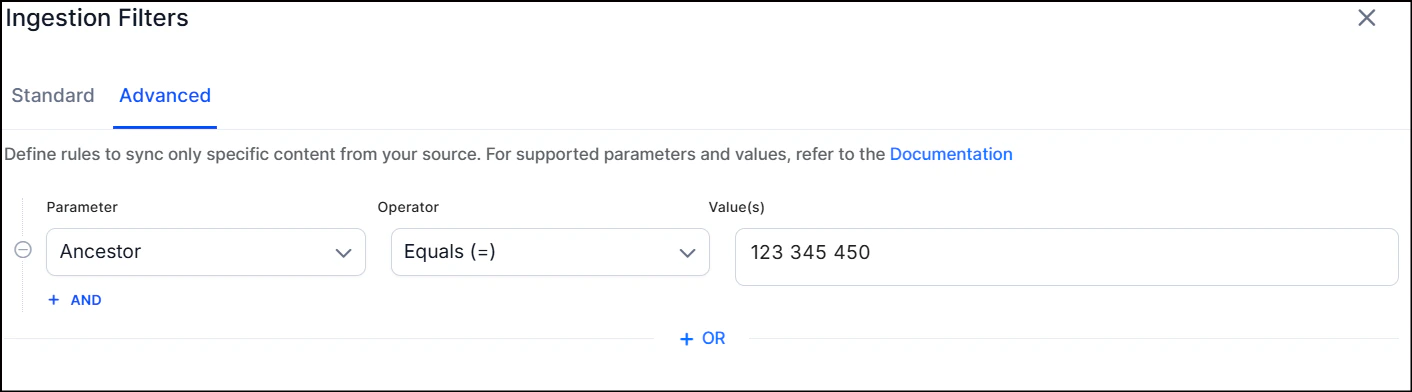
**Example:** Ingest all pages and sub-pages under a given ancestor:
Supported filter parameters:
| Parameter | Description |
| ------------ | --------------------------------------------------------------------------------------------- |
| **Ancestor** | Direct child pages and descendants of given content IDs |
| **Content** | Specific content by content ID |
| **Created** | Content by creation date (`yyyy/mm/dd hh:mm`, `yyyy-mm-dd hh:mm`, `yyyy/mm/dd`, `yyyy-MM-dd`) |
| **Creator** | Content created by specified user account IDs |
| **Label** | Content filtered by label |
| **Parent** | Content under a given parent |
| **ID** | Content by content ID |
| **Space** | Content in a specific space |
| **Title** | Content by page title |
| **User** | Content by user ID |
3. You can also add custom CQL fields. Refer to the [complete list of supported CQL fields](https://developer.atlassian.com/cloud/confluence/cql-fields/).
4. The Operator field accepts values such as equals, not equal, and contains, depending on the selected parameter.
**Example:** Ingest all pages and sub-pages under a given ancestor:
 **Example:** Ingest only pages created or modified after January 1, 2026:
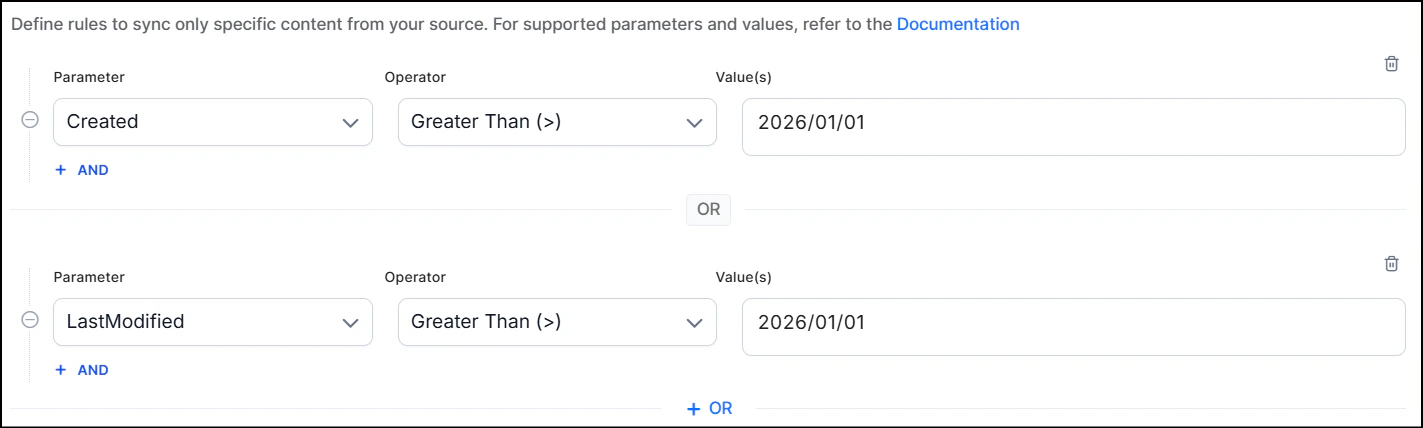 * Use the **OR** operator to combine multiple rules for different content types.
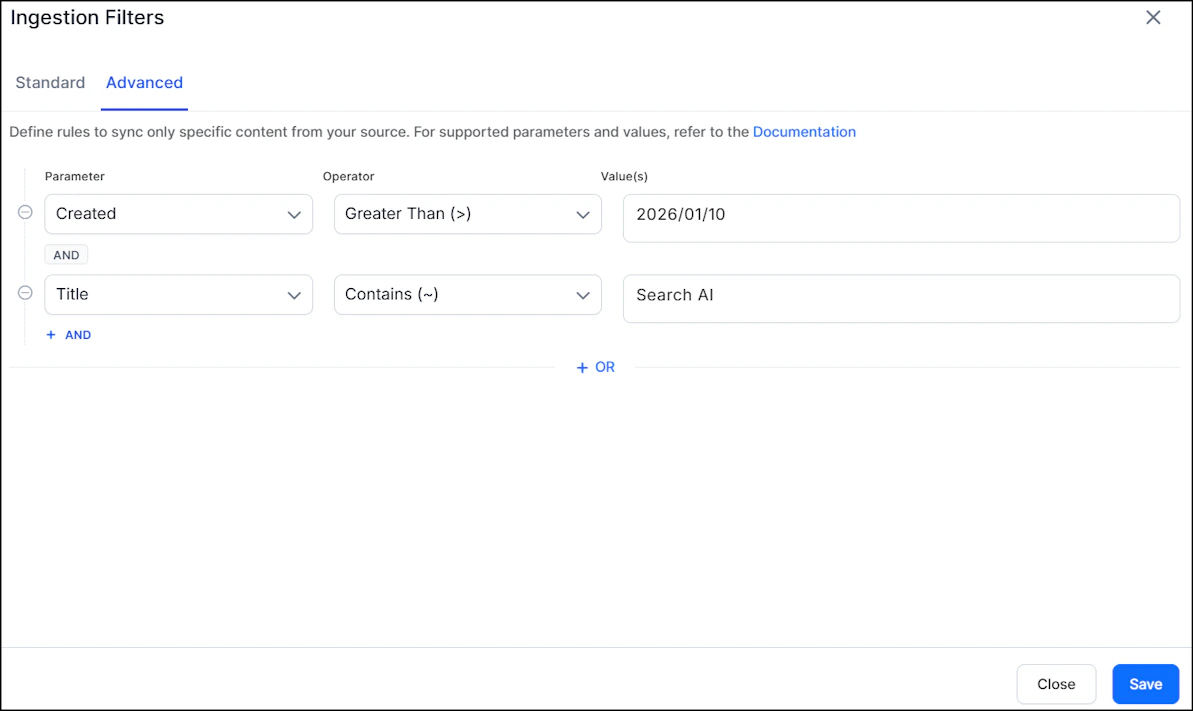
* Use the **AND** operator within a rule to apply multiple conditions. For example, to ingest content created after January 10, 2026 with "SearchAI" in the title:
* Use the **OR** operator to combine multiple rules for different content types.
* Use the **AND** operator within a rule to apply multiple conditions. For example, to ingest content created after January 10, 2026 with "SearchAI" in the title:
 ## Content Sync Schedule
**Manual sync** - Click **Sync** on the Configuration tab to immediately ingest all updates from Confluence Cloud.
## Content Sync Schedule
**Manual sync** - Click **Sync** on the Configuration tab to immediately ingest all updates from Confluence Cloud.
 **Scheduled sync** - Enable **Schedule Sync** and set the date, time, and frequency to keep content automatically up to date.
## Incremental Sync
After the first full sync, subsequent syncs automatically fetch only content that has been created or modified since the last successful sync. This makes syncing significantly faster for large Confluence instances.
Each authentication profile maintains its own independent sync cursor. A full sync is automatically triggered when:
* It's the first sync for a connector or profile
* A full sync is explicitly requested
* The connector's ingestion script has been updated
* RACL configuration has been modified
## Real-Time Sync
1. The Confluence Cloud connector supports real‑time content updates via webhooks.
2. When real time sync is enabled, content changes in Confluence Cloud are reflected in search results in near real‑time (typically within seconds), without any manual or automatic sync.
3. Webhook events are profile‑aware - events are automatically routed to the correct profile based on the Confluence Cloud site.
## Access Control
Search AI supports access control for content ingested via the Confluence Cloud Connector. Go to the **Permissions and Security** tab and select the access mode:
* **Permission Aware** - Honors user permissions from Confluence Cloud. Users can only view search results for content they can access in Confluence.
* **Public Access** - Overrides Confluence permissions. All users can access all ingested content regardless of their Confluence permissions.
### Prerequisites
Access control relies on user email addresses as unique identifiers. The account used to configure the connector must be able to view user email addresses. Use an admin account or ensure users have enabled the required settings in their Confluence profiles.
**Scheduled sync** - Enable **Schedule Sync** and set the date, time, and frequency to keep content automatically up to date.
## Incremental Sync
After the first full sync, subsequent syncs automatically fetch only content that has been created or modified since the last successful sync. This makes syncing significantly faster for large Confluence instances.
Each authentication profile maintains its own independent sync cursor. A full sync is automatically triggered when:
* It's the first sync for a connector or profile
* A full sync is explicitly requested
* The connector's ingestion script has been updated
* RACL configuration has been modified
## Real-Time Sync
1. The Confluence Cloud connector supports real‑time content updates via webhooks.
2. When real time sync is enabled, content changes in Confluence Cloud are reflected in search results in near real‑time (typically within seconds), without any manual or automatic sync.
3. Webhook events are profile‑aware - events are automatically routed to the correct profile based on the Confluence Cloud site.
## Access Control
Search AI supports access control for content ingested via the Confluence Cloud Connector. Go to the **Permissions and Security** tab and select the access mode:
* **Permission Aware** - Honors user permissions from Confluence Cloud. Users can only view search results for content they can access in Confluence.
* **Public Access** - Overrides Confluence permissions. All users can access all ingested content regardless of their Confluence permissions.
### Prerequisites
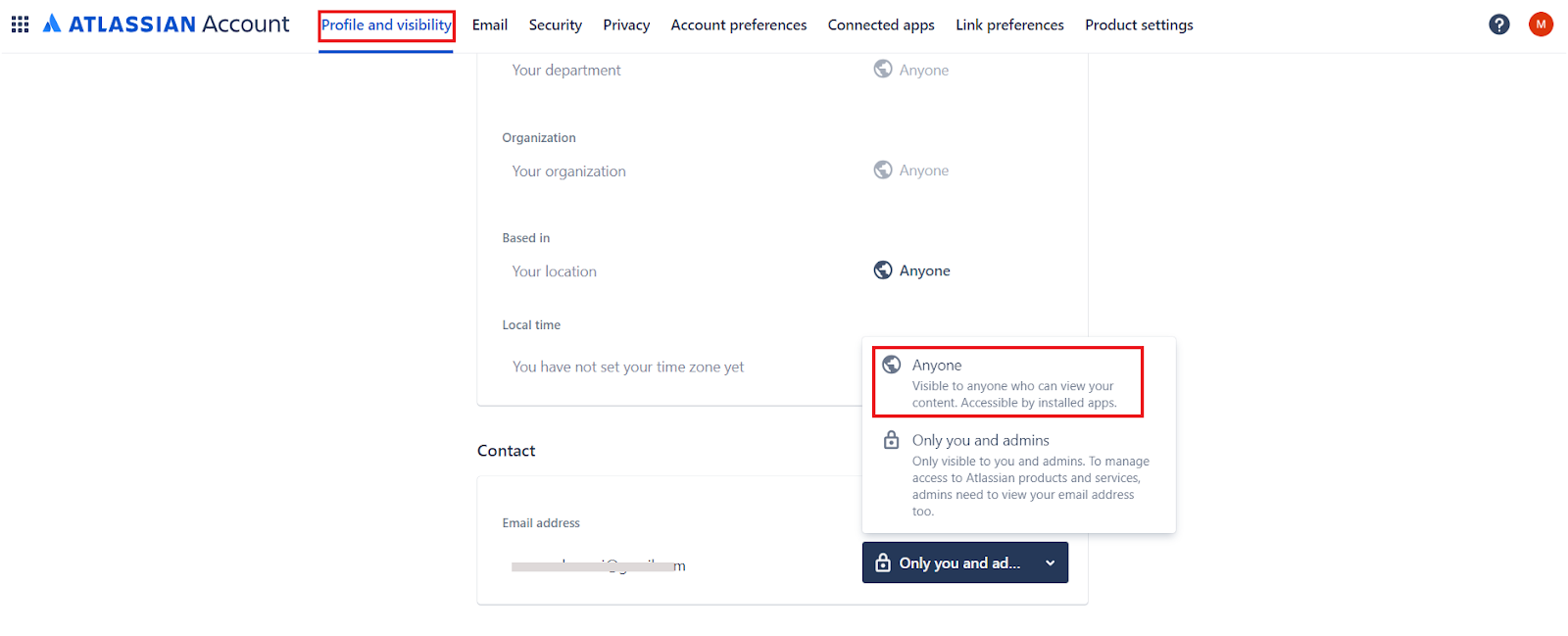
Access control relies on user email addresses as unique identifiers. The account used to configure the connector must be able to view user email addresses. Use an admin account or ensure users have enabled the required settings in their Confluence profiles.
 ### Permission Sets in Confluence Cloud
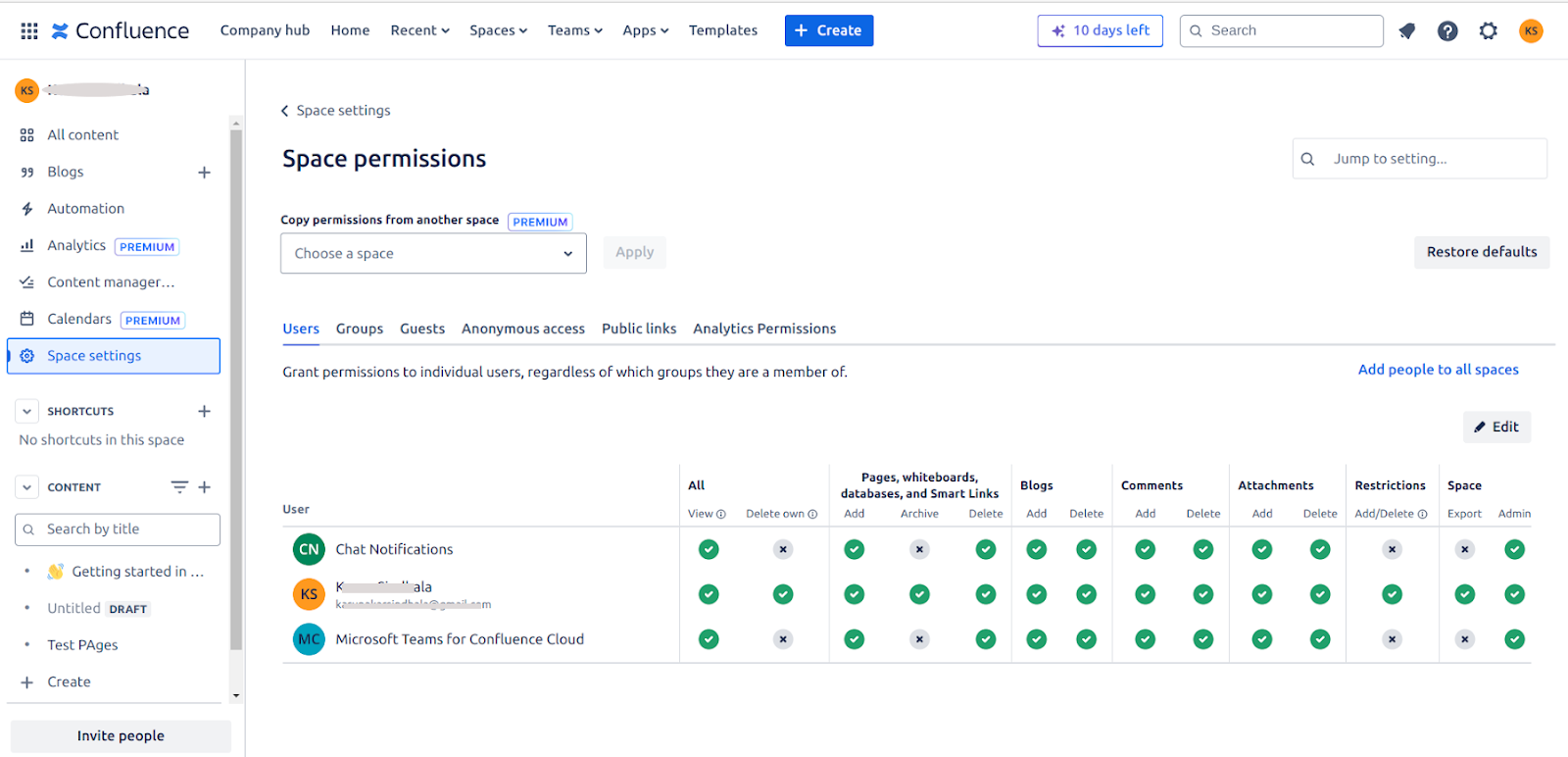
**Space Permissions** - Each space has an independent set of permissions managed by space administrators. Search AI requires at minimum view permission to allow a user to access the content.
### Permission Sets in Confluence Cloud
**Space Permissions** - Each space has an independent set of permissions managed by space administrators. Search AI requires at minimum view permission to allow a user to access the content.
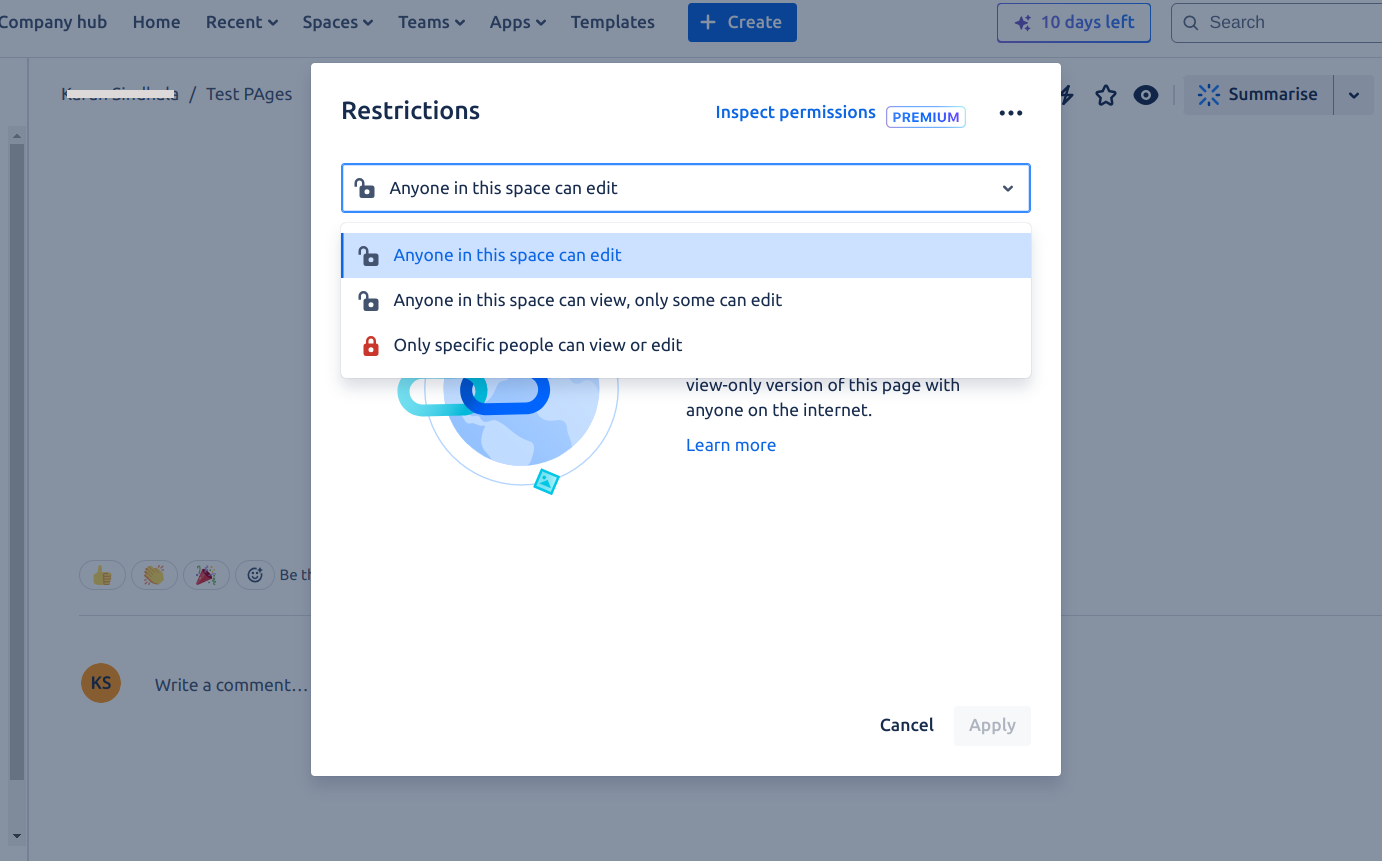
 **Page Restrictions** - Pages inherit space permissions but can define their own restrictions. If a page is set to "Only specific people can view & edit," space permissions aren't applied.
 ### How Permissions Are Handled in Search AI
Search AI uses the `sys_racl` field to control who can access ingested content. The value stored in `sys_racl` depends on whether the document is public or private:
* **Public documents** - The organization's domain name is included in the `sys_racl` field. This ensures that only internal employees belonging to that domain can access the content, rather than allowing unrestricted public access.
* **Private documents** - The space name is included in the `sys_racl` field. Access is scoped to users who have permissions within that specific Confluence space.
* **Individual access** - Users added directly to a space or page are listed in the `sys_racl` field of the indexed content by their email address. These users can directly access the content based on their permissions.
* **Group access** - When access is granted to user groups, Search AI creates a corresponding permission entity for the group. The `sys_racl` field stores the permission entity IDs. Add users to the permission entity using the Permission Entity APIs to grant access.
* **User Onboarding** - When onboarding users, all users must be registered with their associated domain name in Search AI. This ensures that domain-based access control for public documents functions correctly and that the right users are granted access to content scoped to their organization's domain. Use the Permission Entity APIs to associate users with their domain and the appropriate permission entities for group-based access.
### Limitation
Anonymous access isn't supported. If a page allows anonymous access in Confluence Cloud, Search AI doesn't permit viewing that content.
### How Permissions Are Handled in Search AI
Search AI uses the `sys_racl` field to control who can access ingested content. The value stored in `sys_racl` depends on whether the document is public or private:
* **Public documents** - The organization's domain name is included in the `sys_racl` field. This ensures that only internal employees belonging to that domain can access the content, rather than allowing unrestricted public access.
* **Private documents** - The space name is included in the `sys_racl` field. Access is scoped to users who have permissions within that specific Confluence space.
* **Individual access** - Users added directly to a space or page are listed in the `sys_racl` field of the indexed content by their email address. These users can directly access the content based on their permissions.
* **Group access** - When access is granted to user groups, Search AI creates a corresponding permission entity for the group. The `sys_racl` field stores the permission entity IDs. Add users to the permission entity using the Permission Entity APIs to grant access.
* **User Onboarding** - When onboarding users, all users must be registered with their associated domain name in Search AI. This ensures that domain-based access control for public documents functions correctly and that the right users are granted access to content scoped to their organization's domain. Use the Permission Entity APIs to associate users with their domain and the appropriate permission entities for group-based access.
### Limitation
Anonymous access isn't supported. If a page allows anonymous access in Confluence Cloud, Search AI doesn't permit viewing that content.