> ## Documentation Index
> Fetch the complete documentation index at: https://koreai.mintlify.site/llms.txt
> Use this file to discover all available pages before exploring further.
# By AI Agent Metric
The By AI Agent metric lets supervisors configure AI-based evaluations on the Agent Platform. It uses a parent metric with multiple sub-metrics, each with its own question, weight, and logic. A single evaluation call processes all sub-metrics and returns results with justifications.
Supervisors can pass `requestMeta`-based metadata propagation for the Execute API request. The system maps configured custom fields to key-value pairs and sends them in the Execute API request, with `conversationId` included by default.
## When to Use This Metric
Use this metric type for evaluation scenarios that require:
| Scenario | Description |
| --------------------------------- | ------------------------------------------------------------------------------------------------------------- |
| **Multi-dimensional Assessments** | Evaluate several facets (sub-metrics) under one parent metric. |
| **Autonomous AI Analysis** | Leverage AI agents to interpret, reason, and assess interactions using contextual understanding. |
| **Weighted Evaluations** | Assign different weights to sub-metrics to prioritize specific aspects. |
| **Efficient Execution** | Reduce redundant API calls by evaluating multiple sub-metrics within one agentic request. |
| **Seamless Configuration** | Select agentic applications from the same workspace without entering endpoint URLs. |
| **Context-aware Evaluations** | Pass custom metadata (for example, customer ID, ticket ID) to enable external data lookups during evaluation. |
## Prerequisites
Before creating a By AI Agent metric, confirm:
* You have access to both Quality AI and Agent Platform.
* The same workspace is available across both platforms.
* You have permissions to view and deploy agentic application.
* The By AI Agent Metric feature is enabled for your workspace account.
* You have configured at least one agentic app on the Agent Platform with the required response structure.
* Custom fields must exist in the Quality AI custom field registry to enable request metadata mapping.
If no agentic app is configured, the Agent App dropdown remains empty. If the agentic app response doesn’t match the required contract, Test Connection fails and blocks configuration.
***
## Configure By AI Agent Metric
### Step 1: Navigate to Metric Configuration
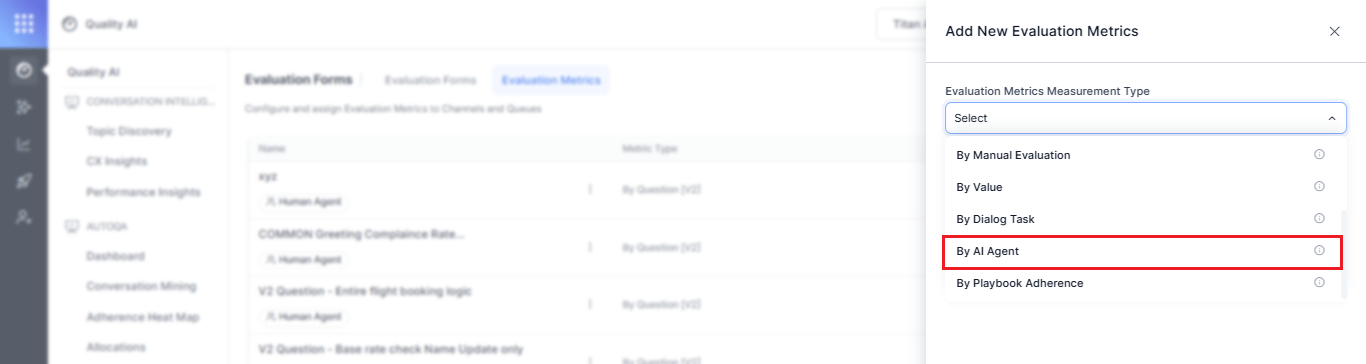
1. Navigate to **Quality AI** > **Configure** > **Evaluation Forms** > **Evaluation Metrics**.
2. Select **+ New Evaluation Metric**.
3. From the **Evaluation Metrics Measurement Type** dropdown, select **By AI Agent**.
 ### Step 2: Create the Parent Metric
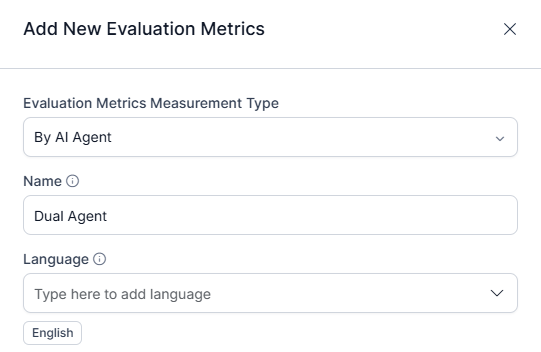
1. Enter a descriptive **Name** (for example, Compliance Disclosure).
2. Select the **Language** for the AI Agent's evaluation.
3. The **Question** field is defined later under sub-metrics.
### Step 2: Create the Parent Metric
1. Enter a descriptive **Name** (for example, Compliance Disclosure).
2. Select the **Language** for the AI Agent's evaluation.
3. The **Question** field is defined later under sub-metrics.
 ### Step 3: Select the Agentic App
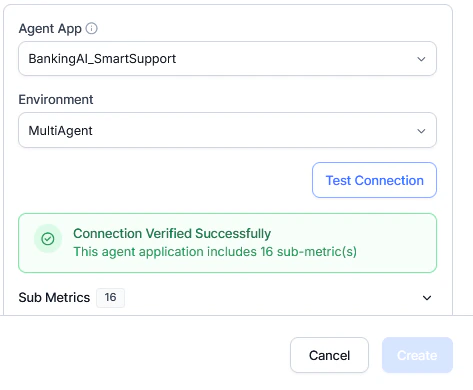
1. In the **Agent App** dropdown, choose from available apps in your workspace.
2. Select the **Environment** (for example, Draft, Version 1, Version 2).
### Step 4: Test Connection and Fetch Sub-Metrics
1. Select **Test Connection**.
2. The system sends a test call to the selected app and retrieves available sub-metrics for configuration.
3. Retrieved sub-metrics display under the parent metric with editable fields.
### Step 3: Select the Agentic App
1. In the **Agent App** dropdown, choose from available apps in your workspace.
2. Select the **Environment** (for example, Draft, Version 1, Version 2).
### Step 4: Test Connection and Fetch Sub-Metrics
1. Select **Test Connection**.
2. The system sends a test call to the selected app and retrieves available sub-metrics for configuration.
3. Retrieved sub-metrics display under the parent metric with editable fields.
 ### Step 5: Configure Sub-Metrics
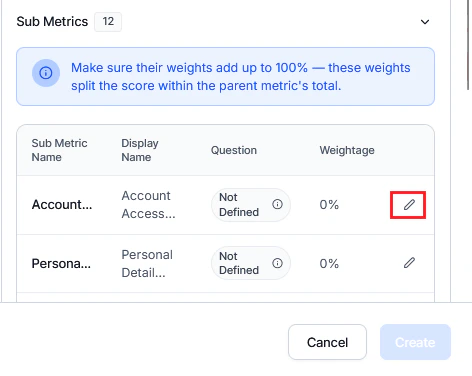
Upon successful connection, the system displays all sub-metrics returned by the agentic app with their reference names.
You can configure each sub-metric individually by selecting **Edit** next to the **Weightage** field. This opens a full-screen configuration panel where you can define the following:
| Field | Description |
| ---------------------- | -------------------------------------------------------------------------------------- |
| **Display Name** | Label for the sub-metric |
| **Question** | Evaluation question for this sub-metric |
| **Positive Weightage** | Assign the positive weight when the criterion is met |
| **Negative Weightage** | Assign the negative weight when the criterion isn't met |
| **Fatal Error** | If enabled, failing this sub-metric marks the entire interaction as a critical failure |
### Step 5: Configure Sub-Metrics
Upon successful connection, the system displays all sub-metrics returned by the agentic app with their reference names.
You can configure each sub-metric individually by selecting **Edit** next to the **Weightage** field. This opens a full-screen configuration panel where you can define the following:
| Field | Description |
| ---------------------- | -------------------------------------------------------------------------------------- |
| **Display Name** | Label for the sub-metric |
| **Question** | Evaluation question for this sub-metric |
| **Positive Weightage** | Assign the positive weight when the criterion is met |
| **Negative Weightage** | Assign the negative weight when the criterion isn't met |
| **Fatal Error** | If enabled, failing this sub-metric marks the entire interaction as a critical failure |
 ### Step 6: Configure Custom Field Propagation
Configures metadata sent in the `requestMeta` object of the [Execute API](/agent-platform/v1/apis/agentic-apps/execute#sample-request) request.
1. Select a conversation-level **Custom Field**.
2. Define Header Name as the key in `requestMeta`.
3. Add multiple mappings using **+ Add Custom Field**.
### Step 6: Configure Custom Field Propagation
Configures metadata sent in the `requestMeta` object of the [Execute API](/agent-platform/v1/apis/agentic-apps/execute#sample-request) request.
1. Select a conversation-level **Custom Field**.
2. Define Header Name as the key in `requestMeta`.
3. Add multiple mappings using **+ Add Custom Field**.
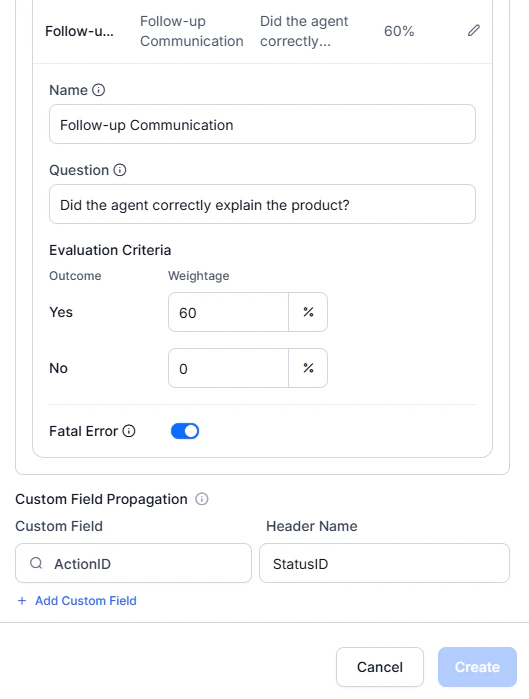 For Agent AI and Express sources, `customConversationId` is automatically included in `requestMeta`.
When all details are configured, select **Create** to save the sub-metric for AI Agent evaluation.
***
## Setting up Response Format
Make sure that the Agent Platform response follows the required JSON contract for sub-metric evaluation.
1. Navigate to your AI Agent configuration in the Agent Platform.
2. Locate the Description field.
3. Follow the [Response format](/ai-for-service/quality-ai/configure/evaluation-criteria/metrics-measurement-types/by-ai-agent#response-format-for-sub-metrics) specification.
***
## Example Use Case: UDAP Compliance
For financial services compliance, a single parent metric can evaluate multiple aspects in one API call:
| Sub-Metric | Weight | What It Evaluates |
| ---------------------- | ------ | ----------------------------------------- |
| Fee Disclosure | 25% | All applicable fees are clearly explained |
| Interest Rate Accuracy | 30% | Interest rate information is accurate |
| Benefit Explanation | 20% | Benefits are clearly described |
| Exclusion Details | 15% | All exclusions are clearly listed |
| Terms Clarity | 10% | Overall clarity of terms |
Each sub-metric is evaluated independently with a single API call, providing detailed justifications for each aspect.
***
## Evaluation Flow
The system sends a single evaluation request that includes:
* Conversation data (transcripts and sub-metrics).
* `requestMeta` (`conversationId` and configured custom fields).
The agent evaluates all sub-metrics and returns structured results. The system maps results and displays adherence with reasoning.
***
## Request Metadata in Execute API
The system sends metadata in the `requestMeta` object of the Execute API.
The `requestMeta` object includes:
* **Contents**: The `conversationId` (always included for Agent AI and Express sources) and custom fields configured for the metric, represented as key-value pairs.
* **Custom Field Mapping Rules**: The system derives keys from Header Names and sources values from conversation-level custom fields. It supports configuration of multiple custom fields per metric.
**Example**:
```json theme={null}
requestMeta: {
customConversationId: "AWS_Mono_22April0xxxx"
phone_number: "862684xxxx"
}
```
This metadata is used only during evaluation execution and isn't stored in the results.
***
## Response Format for Sub-metrics
The Agent Platform must return responses in this JSON format for Quality AI to process sub-metric results:
```json theme={null}
{
"botId": "string",
"accountId": "string",
"conversationId": "string",
"agentEvaluation": [
{
"PARENTMETRIC_ID_VALUE": {
"subMetrics": [
{
"subMetricId": "string",
"subMetricName": "string",
"justification": "string",
"messageIds": ["array"],
"timestamps": ["array"],
"source": "agent | customer",
"isQualified": "YES | NO | NA",
"failureReason": "string"
}
]
}
}
]
}
```
### Sample Response
```json theme={null}
{
"botId": "bot_001",
"accountId": "account_001",
"conversationId": "conv_001",
"agentEvaluation": [
{
"eval_001": {
"subMetrics": [
{
"subMetricId": "sm_001",
"subMetricName": "Loan Inquiry Identification",
"justification": "Agent correctly identified the customer's loan-related query.",
"messageIds": ["msg_001"],
"timestamps": ["2025-10-17T10:00:00Z"],
"source": "agent",
"isQualified": "YES",
"failureReason": ""
},
{
"subMetricId": "sm_002",
"subMetricName": "Loan Eligibility Explanation",
"justification": "Agent provided loan eligibility information.",
"messageIds": ["msg_002", "msg_004"],
"timestamps": ["2025-10-17T10:00:10Z", "2025-10-17T10:00:35Z"],
"source": "agent",
"isQualified": "YES",
"failureReason": ""
}
]
}
}
]
}
```
The Agent Platform contract strictly defines the response format, and no one can modify it. Quality AI only consumes and maps the response.
## Managing Evaluation Metrics
### Edit and Delete Evaluation Metrics
Steps to edit and delete existing Evaluation Metrics:
1. Select an **AI Agent** metric.
2. Select **Edit** to update the required metric details and fields.
For Agent AI and Express sources, `customConversationId` is automatically included in `requestMeta`.
When all details are configured, select **Create** to save the sub-metric for AI Agent evaluation.
***
## Setting up Response Format
Make sure that the Agent Platform response follows the required JSON contract for sub-metric evaluation.
1. Navigate to your AI Agent configuration in the Agent Platform.
2. Locate the Description field.
3. Follow the [Response format](/ai-for-service/quality-ai/configure/evaluation-criteria/metrics-measurement-types/by-ai-agent#response-format-for-sub-metrics) specification.
***
## Example Use Case: UDAP Compliance
For financial services compliance, a single parent metric can evaluate multiple aspects in one API call:
| Sub-Metric | Weight | What It Evaluates |
| ---------------------- | ------ | ----------------------------------------- |
| Fee Disclosure | 25% | All applicable fees are clearly explained |
| Interest Rate Accuracy | 30% | Interest rate information is accurate |
| Benefit Explanation | 20% | Benefits are clearly described |
| Exclusion Details | 15% | All exclusions are clearly listed |
| Terms Clarity | 10% | Overall clarity of terms |
Each sub-metric is evaluated independently with a single API call, providing detailed justifications for each aspect.
***
## Evaluation Flow
The system sends a single evaluation request that includes:
* Conversation data (transcripts and sub-metrics).
* `requestMeta` (`conversationId` and configured custom fields).
The agent evaluates all sub-metrics and returns structured results. The system maps results and displays adherence with reasoning.
***
## Request Metadata in Execute API
The system sends metadata in the `requestMeta` object of the Execute API.
The `requestMeta` object includes:
* **Contents**: The `conversationId` (always included for Agent AI and Express sources) and custom fields configured for the metric, represented as key-value pairs.
* **Custom Field Mapping Rules**: The system derives keys from Header Names and sources values from conversation-level custom fields. It supports configuration of multiple custom fields per metric.
**Example**:
```json theme={null}
requestMeta: {
customConversationId: "AWS_Mono_22April0xxxx"
phone_number: "862684xxxx"
}
```
This metadata is used only during evaluation execution and isn't stored in the results.
***
## Response Format for Sub-metrics
The Agent Platform must return responses in this JSON format for Quality AI to process sub-metric results:
```json theme={null}
{
"botId": "string",
"accountId": "string",
"conversationId": "string",
"agentEvaluation": [
{
"PARENTMETRIC_ID_VALUE": {
"subMetrics": [
{
"subMetricId": "string",
"subMetricName": "string",
"justification": "string",
"messageIds": ["array"],
"timestamps": ["array"],
"source": "agent | customer",
"isQualified": "YES | NO | NA",
"failureReason": "string"
}
]
}
}
]
}
```
### Sample Response
```json theme={null}
{
"botId": "bot_001",
"accountId": "account_001",
"conversationId": "conv_001",
"agentEvaluation": [
{
"eval_001": {
"subMetrics": [
{
"subMetricId": "sm_001",
"subMetricName": "Loan Inquiry Identification",
"justification": "Agent correctly identified the customer's loan-related query.",
"messageIds": ["msg_001"],
"timestamps": ["2025-10-17T10:00:00Z"],
"source": "agent",
"isQualified": "YES",
"failureReason": ""
},
{
"subMetricId": "sm_002",
"subMetricName": "Loan Eligibility Explanation",
"justification": "Agent provided loan eligibility information.",
"messageIds": ["msg_002", "msg_004"],
"timestamps": ["2025-10-17T10:00:10Z", "2025-10-17T10:00:35Z"],
"source": "agent",
"isQualified": "YES",
"failureReason": ""
}
]
}
}
]
}
```
The Agent Platform contract strictly defines the response format, and no one can modify it. Quality AI only consumes and maps the response.
## Managing Evaluation Metrics
### Edit and Delete Evaluation Metrics
Steps to edit and delete existing Evaluation Metrics:
1. Select an **AI Agent** metric.
2. Select **Edit** to update the required metric details and fields.
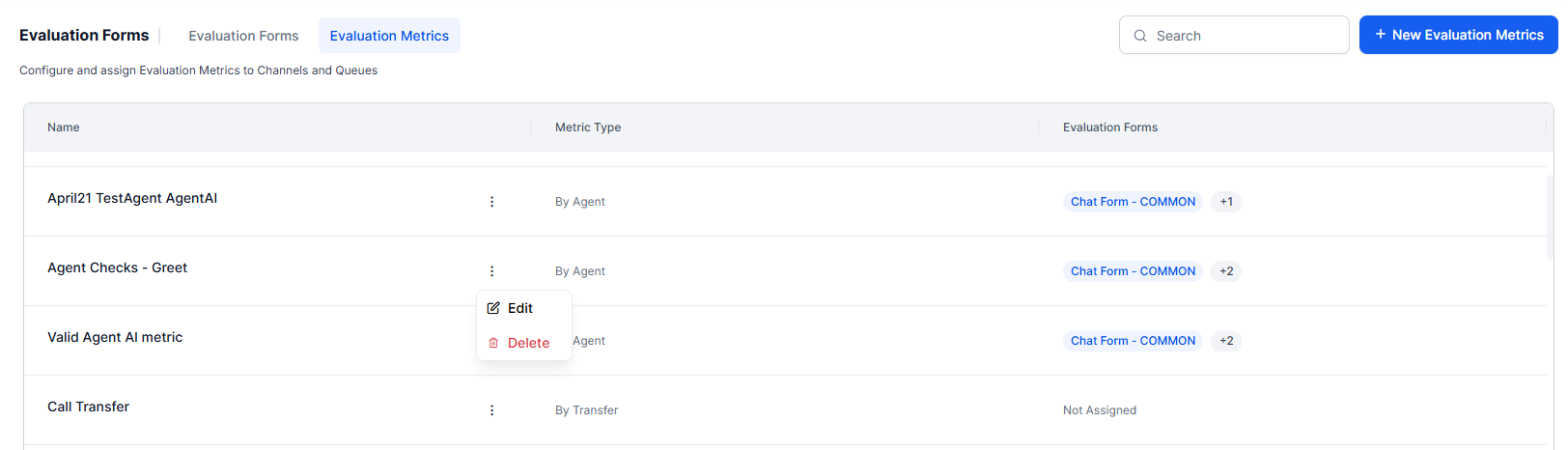 ### Delete Evaluation Metrics
Before deleting a metric:
* Remove it from all associated evaluation forms (for example, Chat Form – COMMON, New Points Based).
* Reassign any linked attributes (for example, Agent AI Metric Attribute-1) to a different metric.
The system allows deletion only after you resolve all dependencies and save the changes.
***
### Delete Evaluation Metrics
Before deleting a metric:
* Remove it from all associated evaluation forms (for example, Chat Form – COMMON, New Points Based).
* Reassign any linked attributes (for example, Agent AI Metric Attribute-1) to a different metric.
The system allows deletion only after you resolve all dependencies and save the changes.
***