Access Coaching Assignments
Navigate to Quality AI > Coaching > Coaching Assignments.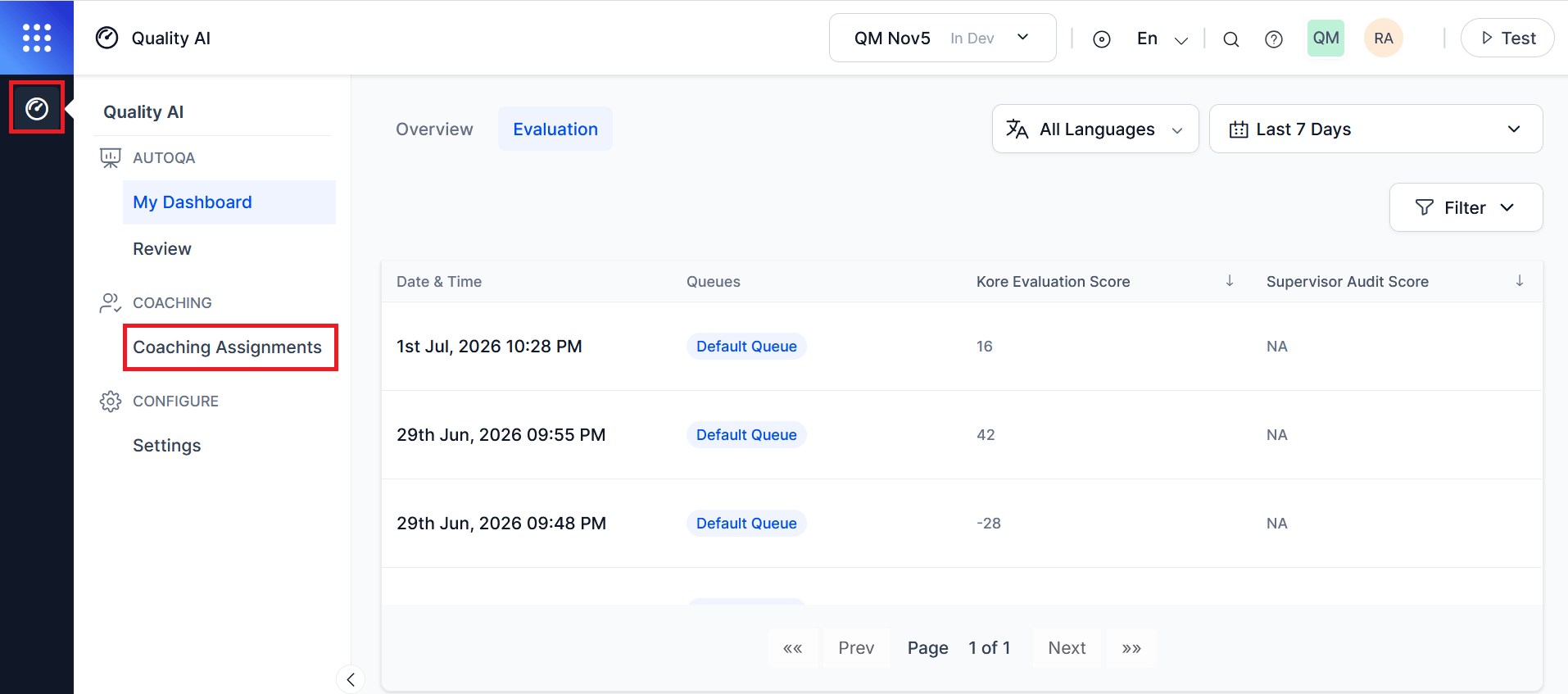
Agents require Agent Dashboard and Coaching Assignments permissions to access this page.
Coaching Assignments Workspace
Coaching Assignments List
The Coaching Assignments list displays all coaching sessions assigned to the signed-in agent. Agents can only see their own assignments, even when supervisors create assignments using groups. The following table describes the key fields used to view and manage coaching session assignments.Agents see only individual coaching assignments. They can’t see any group context, and all assignments display the same regardless of whether Supervisor or QA Users create them from a group or individually.
Coaching Session Details
Selecting a coaching assignment opens the session detail view, where agents can review the coaching information provided by their supervisor or QA evaluator. The agent can view coaching assignments, coaching areas, interactions, best response examples, feedback, action plans, and review status, but can’t modify coaching content, scores, feedback, or action plans.Coaching Areas
Displays the focus areas identified for the coaching session, such as Empathy, Compliance, Product Knowledge, Communication Skills, Etiquette, or Problem Solving. Agents can view these coaching areas but can’t modify them.Interactions Marked for Coaching
Displays the interactions selected by the supervisor or QA evaluator for coaching review. Agents can review the interaction details and open the associated evaluation for reference.Best Response Examples
Displays reference interactions associated with the coaching session. Agents can view available examples for learning and coaching purposes. This section doesn’t allow edits and remains empty when no reference interactions are available. Agents can review these examples to understand expected behaviors, response quality, and performance standards.Feedback and Action Plan
This section displays guidance provided by the supervisor or QA evaluator.Review
The Review section helps agents to monitor evaluation review activity, dispute status, and final resolution outcomes for audited interactions. Agents can view evaluation details and track the progress of reviews and disputes from a centralized workspace. Agents cannot modify evaluations, review outcomes, or dispute records. The Review section includes the following tabs:Pending Review
This tab displays interactions that are in the review workflow and awaiting completion. Agents can view the evaluation details and track the current review status for each interaction.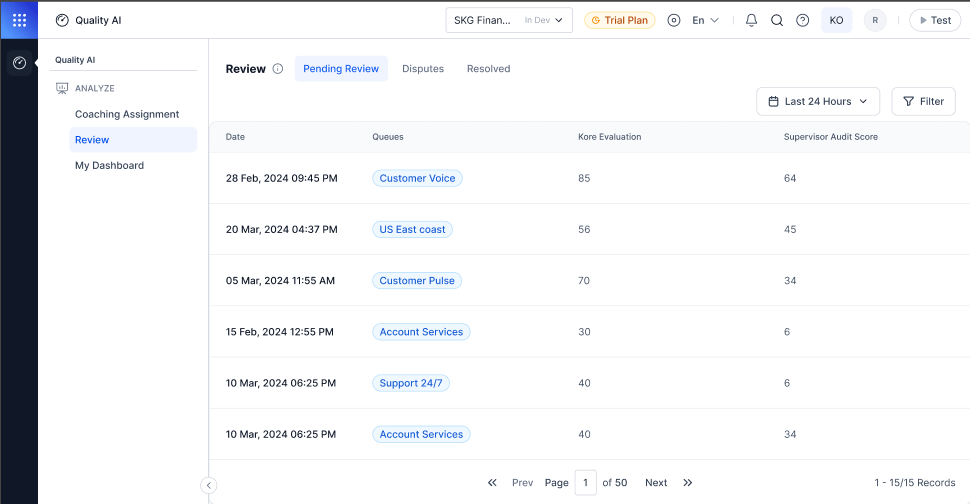
Disputes
This tab displays interactions that have one or more disputed evaluation metrics. Agents can monitor dispute activity and view the number of dispute rounds completed for each interaction.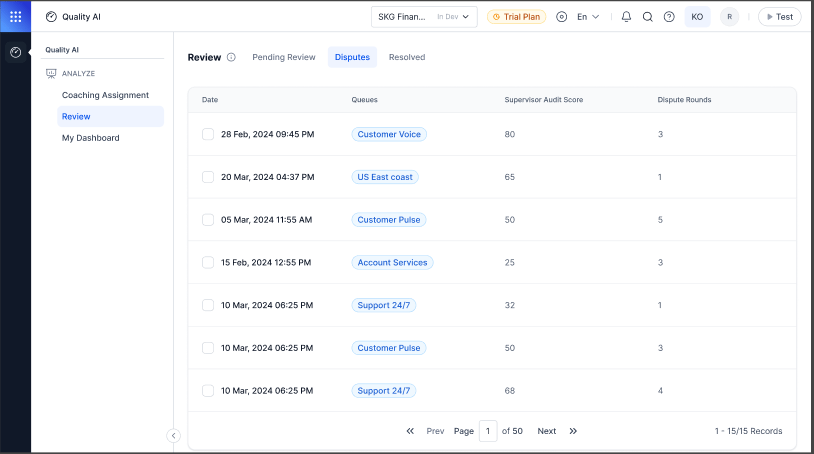
Resolved
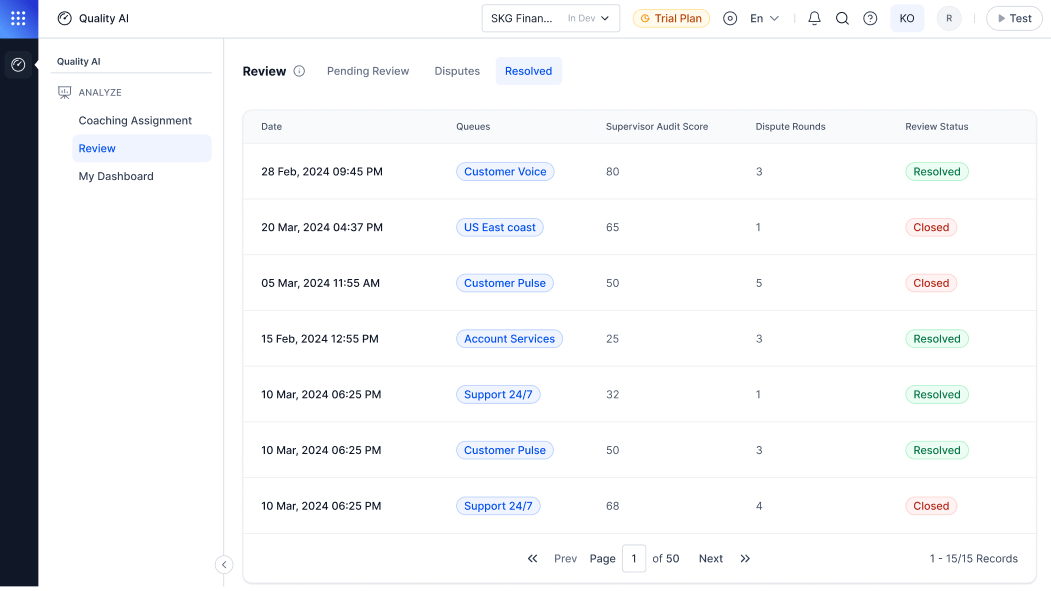
This tab shows completed review and dispute workflows. Agents can view the final evaluation outcome and resolution status.