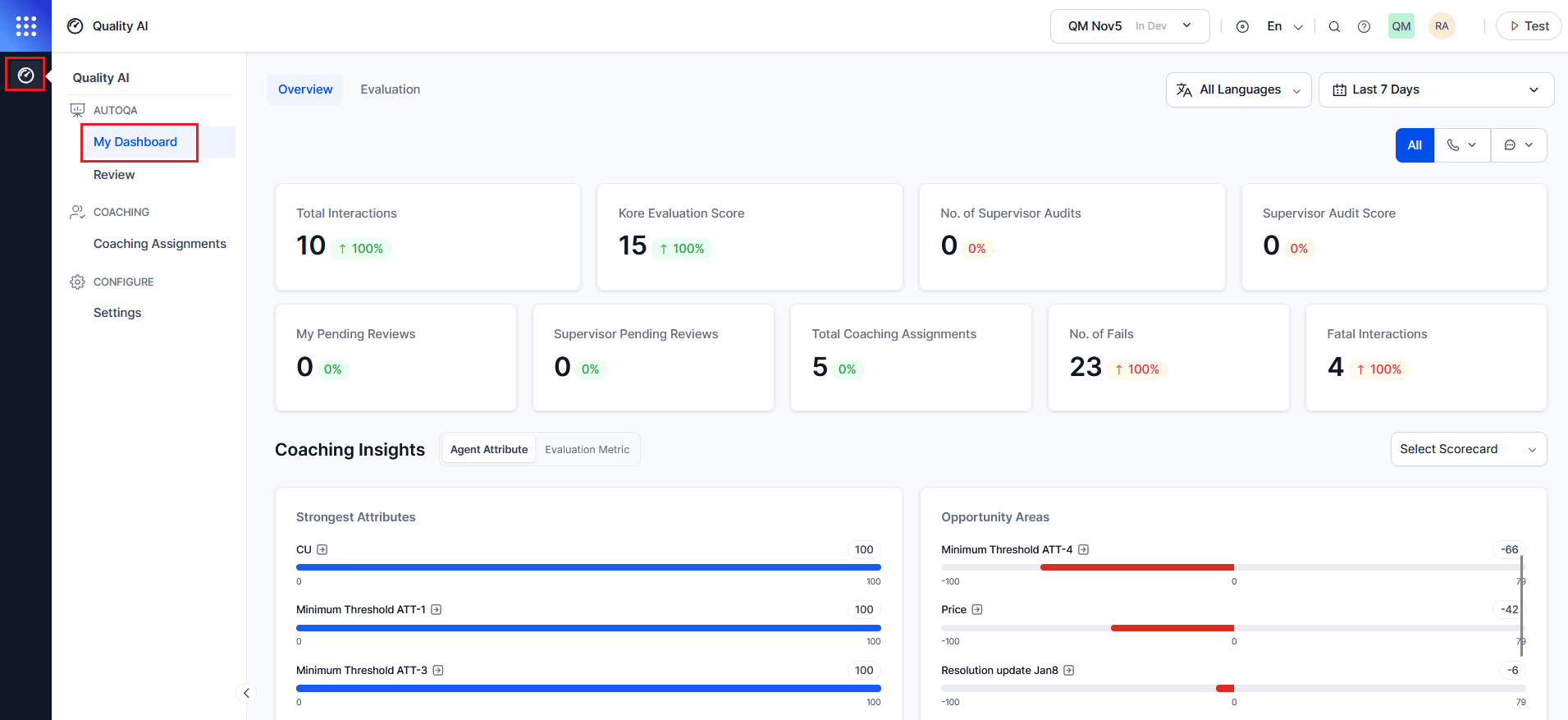
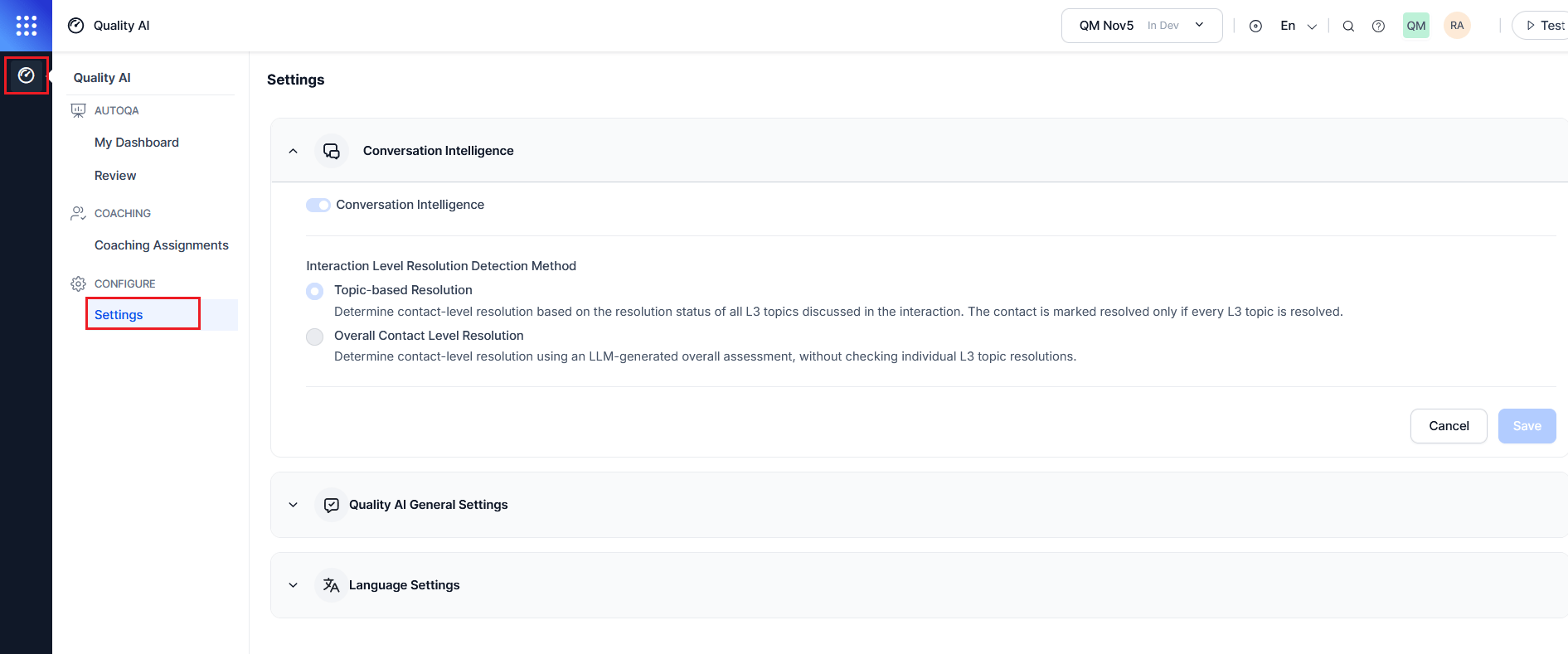
My Dashboard provides agents with a personalized view of their performance across conversations, scorecards, sentiment, and resolution results. It highlights performance using Auto QA and audit scores. Agents can review strengths, gaps, and evaluated interactions based on their access permissions.
The dashboard also includes supervisor-assigned scorecards, sentiment trends, resolution effectiveness, and dispute activity from evaluated interactions. When you enable agent disputes, agents can acknowledge metric-level scores, raise disputes with supporting comments, and track review status until resolution.
By default, agents can only access data from their assigned queues. Cross-queue visibility isn’t supported.
Access My Dashboard
Navigate to Quality AI > Analyze > My Dashboard.
In Quality AI > Settings > Quality AI General Settings, enable Auto QA, Agent Scorecard, and Agent Access to Scored Interactions to view dashboard data, and enable Agent Accept & Dispute to activate the acknowledgement and dispute workflow.
My Dashboard Filters
My Dashboard uses shared global filters across all widgets to refine data by language, date range, channel, and contact direction. All metrics update dynamically based on the selected filters.
| Filter | Description |
|---|
| Language | Filter by one or more configured languages. Evaluation metric settings in Configure > Settings > Language Settings determine the available options. By default, the system selects all languages. |
| Date Range | Filter data using predefined ranges (Today, Yesterday, Last 7/28/90 Days) or a custom range of up to 31 days. The system displays data in the agent’s time zone and sets the default view to the last 7 days for performance analysis and comparison. |
| Channel | Filter by Voice, Chat, or All Channels. Metrics update based on the selected channel. |
By default, all languages are selected. Metrics display only for languages configured at the evaluation metric level.
Filter-Driven Metrics
Based on Language, Date Range, Channel, and Contact Direction applied, the following widgets update:
| Widget | Update |
|---|
| Total Audits | Displays audit counts for the selected filters. |
| Avg. Audits per Agent | Displays the average audits per agent for the selected languages. |
| Evaluation Score | Updates Manual and Auto QA scores. |
| Fail Statistics | Displays failed evaluation metrics for the selected languages. |
| Performance Monitor | Updates overall performance metrics trends. |
Displays key performance indicators based on selected filters. Each widget shows the current value and % change (↑ improvement, ↓ decline).
| Metric | Description |
|---|
| Total Interactions | Displays total interactions during the selected period. |
| Kore Evaluation Score | Displays the average automated Kore evaluation score for completed interactions. |
| No. of Supervisor Audits | Displays the total manual audited interactions completed by supervisors. |
| Supervisor Audit Score | Displays average score from manual supervisor audits, reflecting the latest revised score for any re-evaluated interactions. |
| My Pending Reviews | Total number of completed manual evaluations assigned to the agent that are pending acknowledgment or dispute resolution. |
| Supervisor Pending Reviews | Displays the number of disputes the agent has submitted that are awaiting QA re-evaluation. |
| Total Coaching Assignments | Displays the total number of coaching sessions assigned during the selected period. |
| No. of Fails | Displays the total number of failed scorecards during the selected period. |
| Fatal Interactions | Displays the interactions that failed critical compliance or quality criteria. |
My Pending Reviews and Supervisor Pending Reviews are visible only when Agent Accept & Dispute is enabled in Quality AI > Settings > Quality AI General Settings and disputes are configured for one or more evaluation forms.
Coaching Insights
Displays agent strengths and coaching needs using scorecard and evaluation data at attribute and metric levels. Available in My Dashboard, Supervisor View (Agent Dashboard), and the Evaluation tab.
The Coaching Insights section identifies strong performance areas and coaching opportunities for the agent. It includes the following two tabs:
| Tab | Description |
|---|
| Agent Attribute | Displays performance grouped by agent attributes. |
| Evaluation Metric | Displays performance grouped by individual evaluation metrics derived from forms assigned at the queue level. |
Scorecard Selection
The Coaching Insights feature highlights an agent’s strengths and improvement areas based on selected scorecards. It recalculates insights when you update the scorecard selection.
To select a scorecard, use the Select Scorecard dropdown and choose one or more scorecards. The system automatically updates the insights.
Agent Attribute Tab
Based on the selected scorecard and date range, this tab displays performance at the attribute level.
| Section | Description |
|---|
| Strongest Attributes | Top five highest-scoring attributes based on adherence. |
| Opportunity Areas | Bottom five lowest-scoring attributes indicating coaching needs. |
Each attribute displays as a labeled bar representing adherence across the selected period.
Click-through (Attribute to Metric Modal)
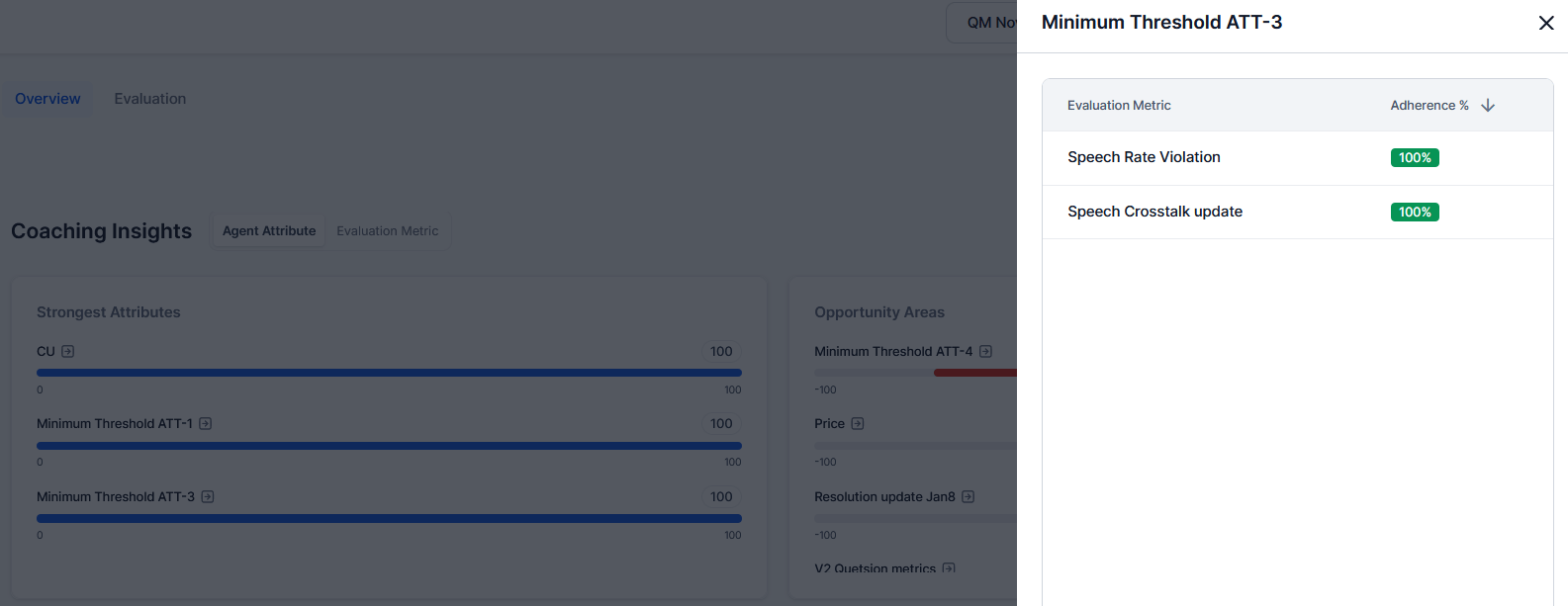
Selecting an attribute opens a detailed metric-level view.
| Column | Description |
|---|
| Evaluation Metric | Name of the individual evaluation metric assigned to this attribute. |
| Adherence % | Adherence percentage with color-coded performance level. |
Adherence Color Coding
| Color | Range | Meaning |
|---|
| Green | High | Meets or exceeds expectations. |
| Yellow | Moderate | Moderately meets expectations. |
| Orange | Low | Below expectations, coaching recommended. |
| Red | Very Low | Significant performance gap. |
| NA | Not Applicable | Not triggered or evaluated. |
Evaluation Metric Tab
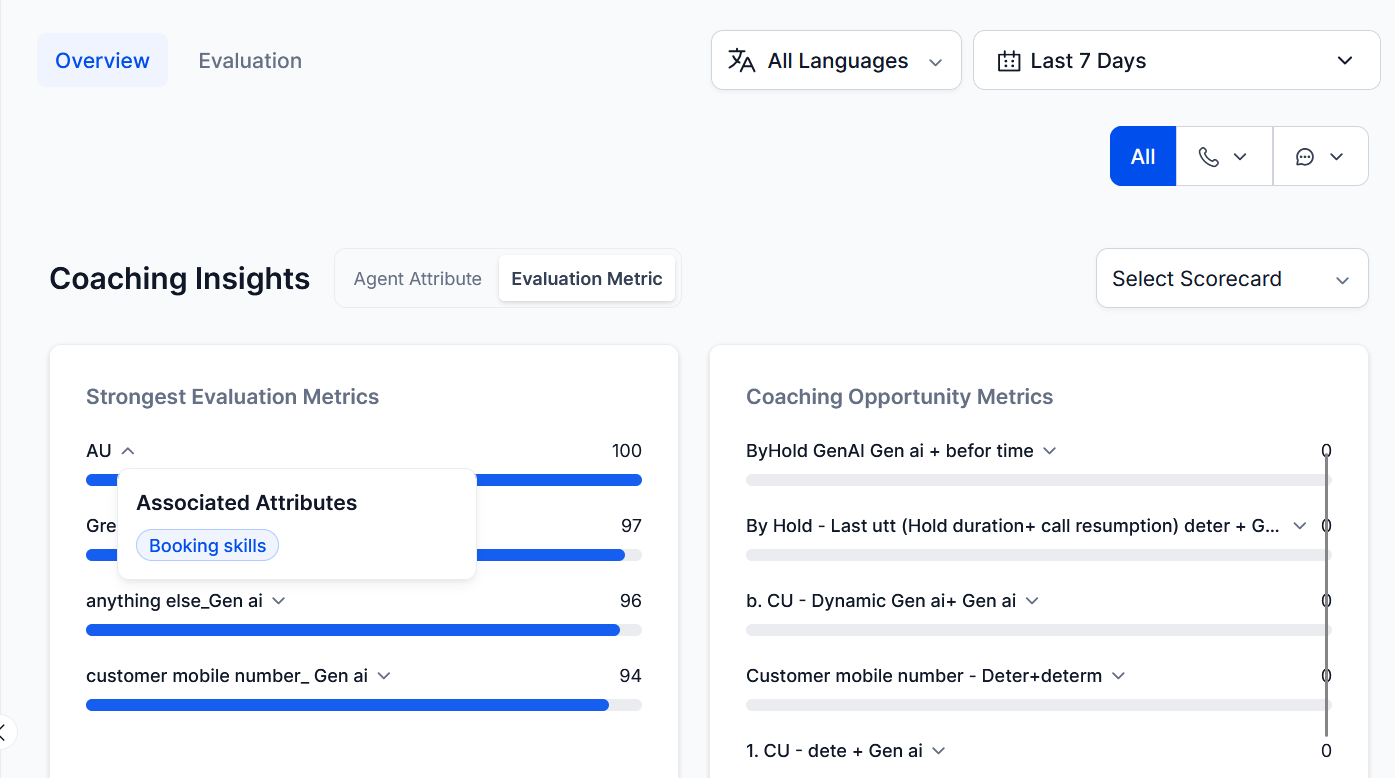
Based on the selected scorecard and date range, this tab displays performance across evaluation metrics in two panels.
| Section | Description |
|---|
| Strongest Evaluation Metrics | Displays the highest-performing individual metrics. |
| Coaching Opportunity Metrics | Displays the lowest-performing metrics requiring improvement. |
Each metric displays as a labeled bar indicating adherence across the selected period. Evaluation forms assigned at the queue level determine the metrics.
Hover Insight (Metric — Attribute)
Hover over a metric to view its mapped agent attribute for quick traceability without changing views.
Example: Hovering over Authentication displays (Agent Attribute: Authentication).
Sentiment Insights
Displays customer sentiment across the agent’s own conversations. Helps agents recognize strengths and identify recurring issues.
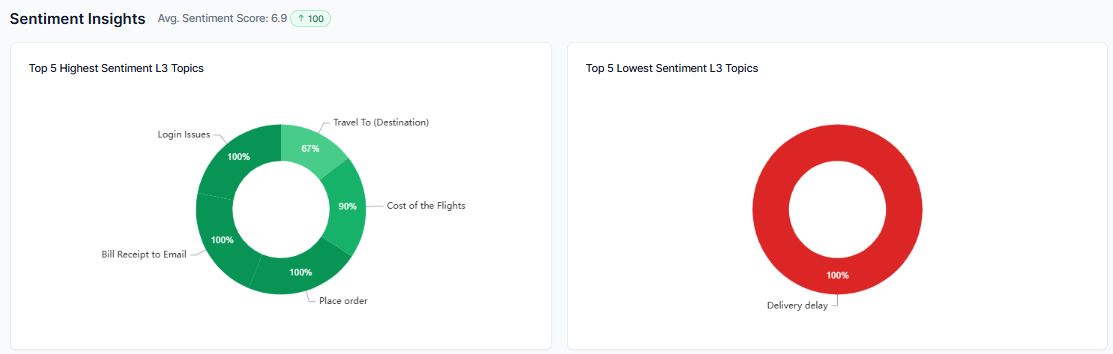
| View | Description |
|---|
| Average Sentiment Score | Displays overall sentiment across all topics, including positive and negative counts with trend indicators. |
| Top 5 Highest Sentiment L3 Topics | Lists the top five L3 topics with the highest sentiment scores in descending order. |
| Top 5 Lowest Sentiment L3 Topics | Lists the top five L3 topics with the lowest sentiment scores in ascending order. |
Resolution Insights
Shows how well the agent resolves customer issues.
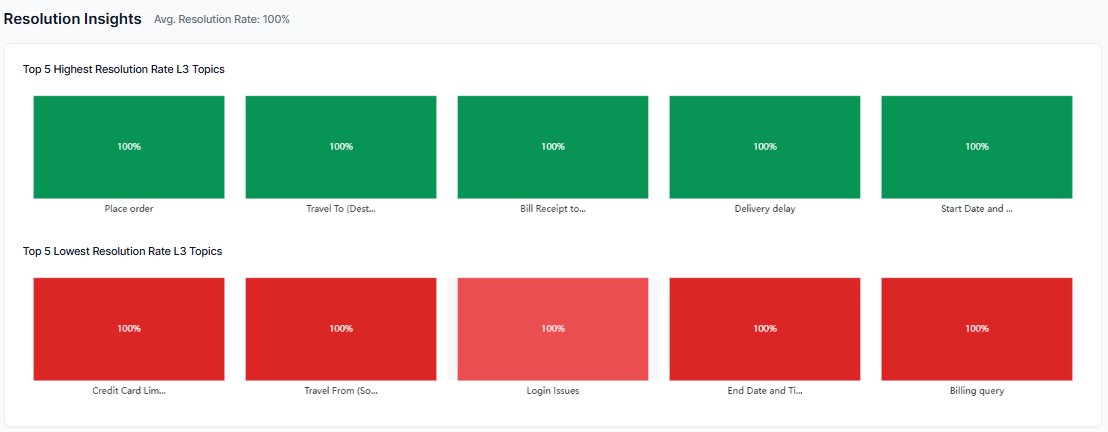
| View | Description |
|---|
| Average Resolution Rate | Shows the agent’s overall resolution rate across all conversations. |
| Top 5 Highest Resolution L3 Topics | Lists the top five L3 topics with the highest resolution rates in descending order. |
| Top 5 Lowest Resolution L3 Topics | Lists the top five L3 topics with the lowest resolution rates in ascending order. |
| Resolved/Unresolved Breakdown | Displays counts and percentages of resolved and unresolved conversations per topic. |
Visual Indicators
- Green: Positive sentiment
- Red: Negative sentiment
Scorecard Trend
Tracks agent performance trends over time based on selected scorecards and language preferences.
Mark as Default
The system automatically selects the oldest assigned scorecard by default. Agents can switch scorecards and compare performance across multiple scorecards.
Language Configuration
Each scorecard supports its own language configuration with auto-selection for mapped languages.
| Feature | Description |
|---|
| Scorecard Selection | Select a scorecard to view its associated attributes, configured languages, and scoring trends. |
| Language Filter | Shows only the languages configured for the selected scorecard and automatically selects all associated languages when you select a scorecard. |
| Multilingual Monitoring | Compares agent performance across configured languages for targeted coaching. |
| Trend Visualization with Time Ranges | Displays all attributes in the selected scorecard with their average scores and tracks attribute-level score trends and average scorecard scores across Daily, Weekly, and Monthly views based on the current period. |
Trend Visualization with Time Ranges
The date range picker provides predefined time filters to analyze interaction data over selected periods, including the last 7, 28, and 90 days, or a custom range for more specific analysis.
Trend visualization displays attribute-level scoring trends and the average scorecard based on the selected time range, using data from the current period.
Scorecard Metrics
| Metric | Description |
|---|
| Avg. Scorecard Score | Displays the agent’s average score for the selected scorecard within the chosen date range. The system shows scorecard data only when evaluated conversations exist after assignment. |
| Attributes | Displays all attributes in the selected scorecard along with their average scores for the selected date range. |
Evaluation Tab
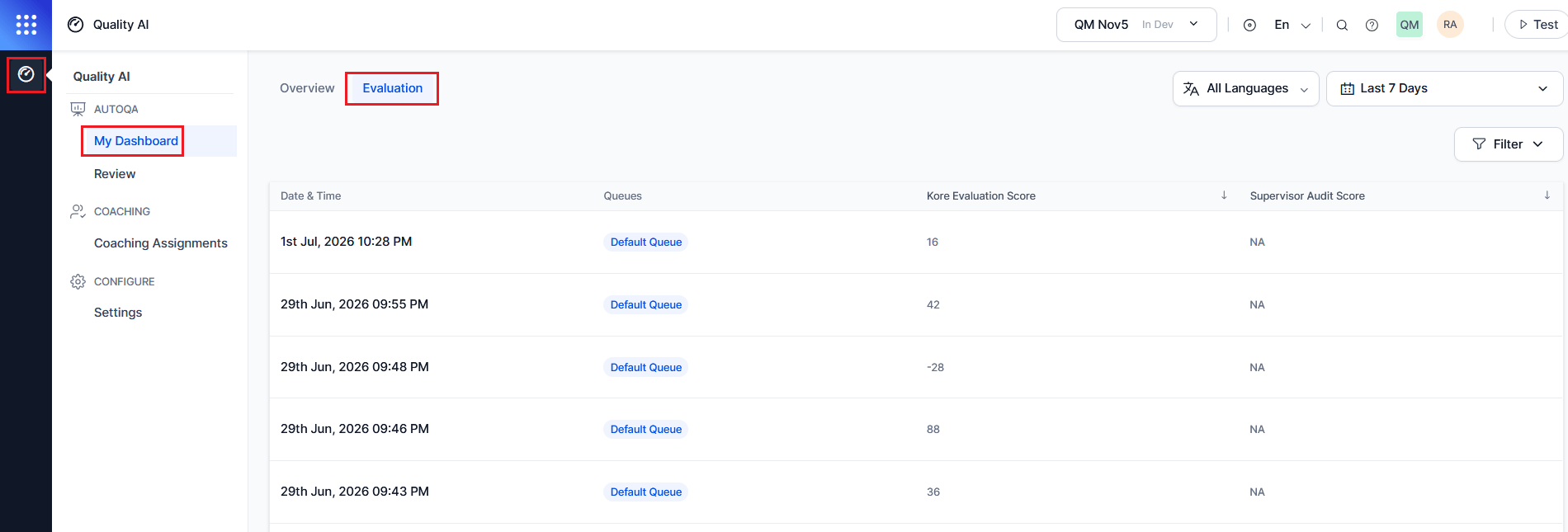
This section displays completed agent interactions along with Date and Time, Queue, Auto QA Score (if available), Audit Score, and evaluation review status based on the user’s access settings.
Access to Evaluation Tab
Navigate to Quality AI > Analyze > My Dashboard > Evaluation.
The Evaluation tab displays automated interaction scores only when the following are enabled in Quality AI > General Settings: Auto QA, Agent Scorecard, and Agent Access to Scored Interactions.
Filter
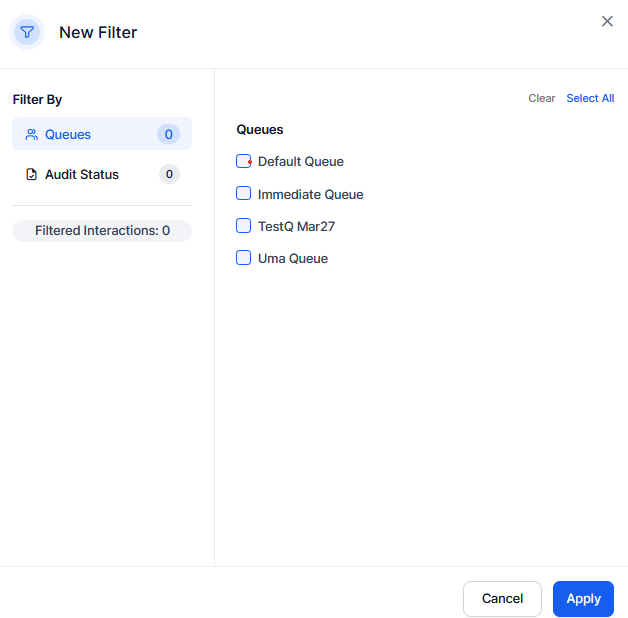
Filtering options vary based on the agent’s access level. Use the Queues filter to refine report results by selecting one or more queues to view associated interactions. Use the Audit Status filter to view interactions based on their audit state, with options for Audited (evaluated interactions) and Not Audited (unevaluated interactions). The filter panel displays the number of interactions that match the selected criteria, and selecting Apply updates the report results.
Available Interaction Views
The interactions displayed depend on the Agent Access to Scored Interactions configuration.
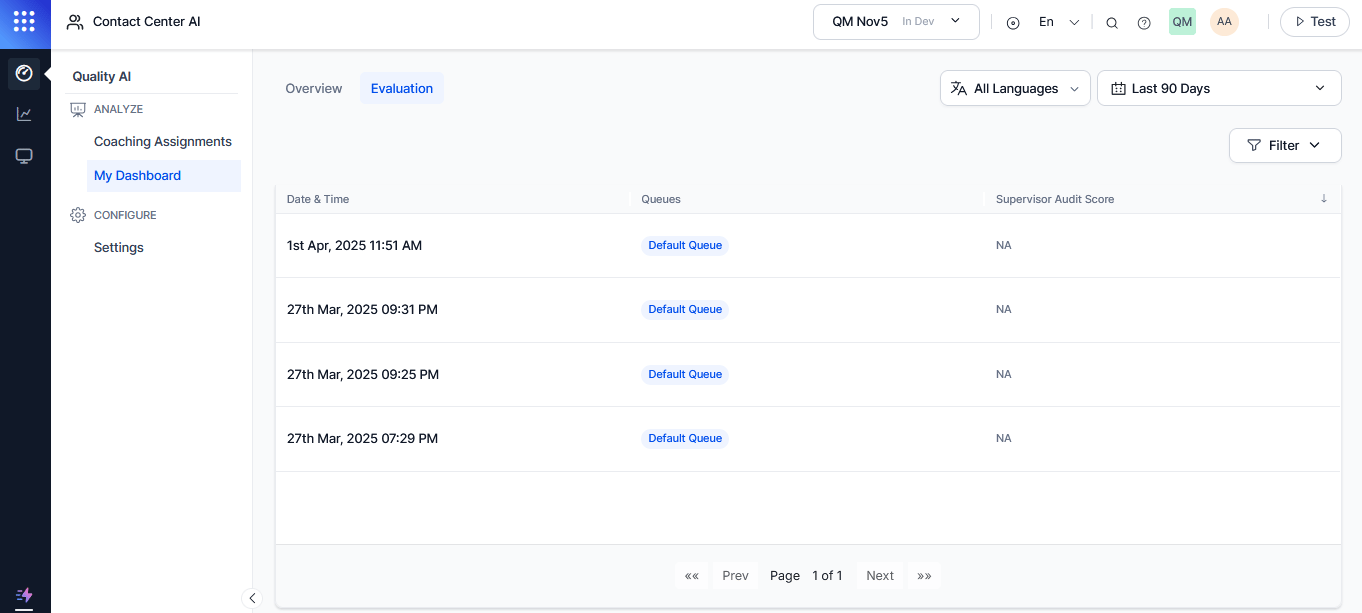
-
Only Manually Audited Interactions: Displays supervisor-audited interactions with Date and Time, Queue, Supervisor Audit Score, Review Status, and Dispute Round.
-
Manually Audited + Auto QA Scored Interactions: Displays interactions with Date and Time, Queue, Auto QA Score (Kore Evaluation Score), Supervisor Audit Score, Review Status, and Dispute Round.
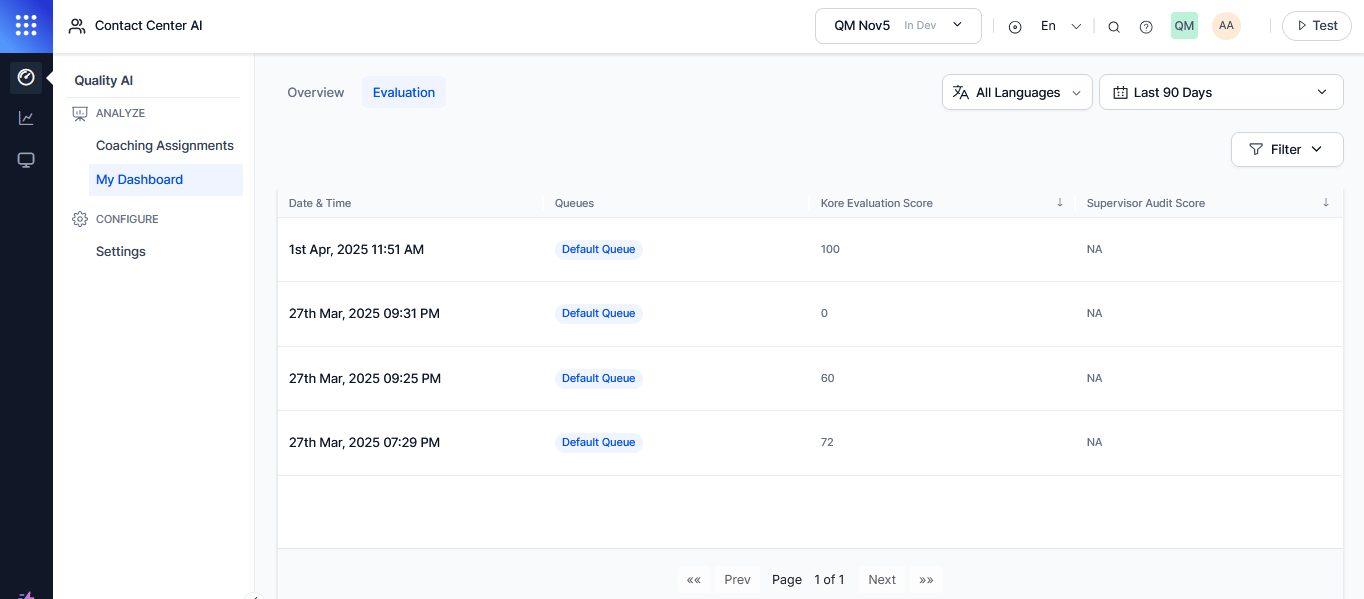
By selecting any reviewed conversations or interactions on the Evaluation page, you can view the detailed audit review of its interactions.
-
Agents can view transcripts and comments only for interactions assigned to them.
-
In each interaction, the Audit tab displays comments within the Transcript section for each interaction.
-
Dispute comments submitted by the agent and QA responses display in the Comments and Dispute for each metric.
Users with the Download Conversations permission can download conversation recordings directly from the audit screen. This permission is available by default to App Owner, App Developer, App Tester, and Supervisor roles.
Review
The Review page gives agents a dedicated view of all their manually evaluated conversations, grouped by review state.
Navigate to Quality AI > Analyze > Review.
Agents can track evaluations awaiting action, monitor active disputes, and view completed or closed dispute outcomes from one place.
Review Tabs
Tabs represent the different evaluation groupings available in the Review tab.
| Tab | Description |
|---|
| Pending Review | Evaluations the agent hasn’t acknowledged or disputed. Select a row to open the audit screen and respond at the metric level. If no evaluated conversations exist, the tab displays: No Evaluated Conversations Found. |
| Disputes | Evaluations with an active dispute submitted by the agent. If no disputes exist, the tab displays: No disputes raised. |
| Resolved | The system includes evaluations with completed reviews, accepted outcomes, and closed disputes. |
Review Status Values
The Review Status column reflects the current acknowledgment or dispute state for each manually evaluated conversation.
| Status | Description |
|---|
| Pending Review | The evaluation is complete and awaiting the agent’s acknowledgment or dispute response. |
| Acknowledged | The agent has accepted all metric scores. |
| Disputed | The agent has disputed one or more metrics, and the dispute is active or is in progress. |
| Awaiting QA Response | The agent has submitted a dispute, and the QA re-evaluation is pending. |
| Re-evaluation Received | QA has responded to the dispute, and the agent can review the decision or updated outcome. |
| Resolved | The agent accepted the disputed evaluation after re-evaluation or acceptance of the QA decision. |
Review Status values display only when Agent Accept & Dispute is enabled in Quality AI > Settings > Quality AI General Settings and disputes are configured for the evaluation form. Evaluations on forms with disputes disabled don’t display a Review Status.
Evaluation Filters
| Filter | Available For | Description |
|---|
| Queues | All access types | The system filters interactions by queue and limits the list to the queues the agent belongs to. |
| Audit Status | Manually Audited + Auto QA | Filters audited and unaudited interactions individually. Visible only when Auto QA interactions are included. |
| Review Status | All access types | Filters manually audited interactions by their current acknowledgment or dispute status. |
Review Tabs
| Tab | Description |
|---|
| Pending Review | Evaluations the agent hasn’t acknowledged or disputed. Select a row to open the audit screen and respond at the metric level. |
| Disputes | Evaluations with an active dispute submitted by the agent. If no disputes exist, the tab displays: No disputes raised. |
| Resolved | Completed evaluations — both accepted outcomes and closed disputes. |
Review Status Values
The Review Status column shows the current acknowledgment or dispute state for each manually evaluated conversation.
| Status | Description |
|---|
| Pending Review | The evaluation is complete and is awaiting the agent’s acknowledgment or dispute response. |
| Acknowledged | The agent has accepted all metric scores. |
| Disputed | The agent has disputed one or more metrics, and the dispute is active or in progress. |
| Awaiting QA Response | The agent has submitted a dispute, and QA re-evaluation is pending. |
| Re-evaluation Received | QA has responded to the dispute, and the agent can review the updated outcome or decision. |
| Resolved | The agent has accepted the QA decision or the re-evaluated results after dispute resolution. |
Review Status values display only when Agent Accept & Dispute is enabled in Quality AI > Settings > Quality AI General Settings and disputes are configured for the evaluation form. Evaluations with disputes disabled don’t display a Review Status.
Responding to an Evaluation
When an agent opens a conversation from the Pending Review tab, the audit screen displays each metric with the evaluator’s score, outcome, and notes or criteria. Agents review each metric individually and choose a response.
To respond to an evaluation,
- Select a conversation from the Pending Review tab to open the audit screen.
- For each metric, review the outcome and the evaluator’s notes.
- Select Accept to acknowledge the score, or Dispute to contest it.
- For any disputed metric, add a comment explaining the reason for the dispute.
- Agents can accept some metrics and dispute others within the same evaluation — they don’t need to contest the evaluation as a whole.
- Select Submit to send the response.
If an agent submits a dispute without comments for all disputed metrics, the following message displays:
If one or more disputed metrics are missing comments. Add comments to all disputed metrics to continue.
After submission, the system routes the disputed metrics to the assigned QA for re-evaluation according to the form’s routing rules. The evaluation status changes to Awaiting QA Response.
Pending Review Tab
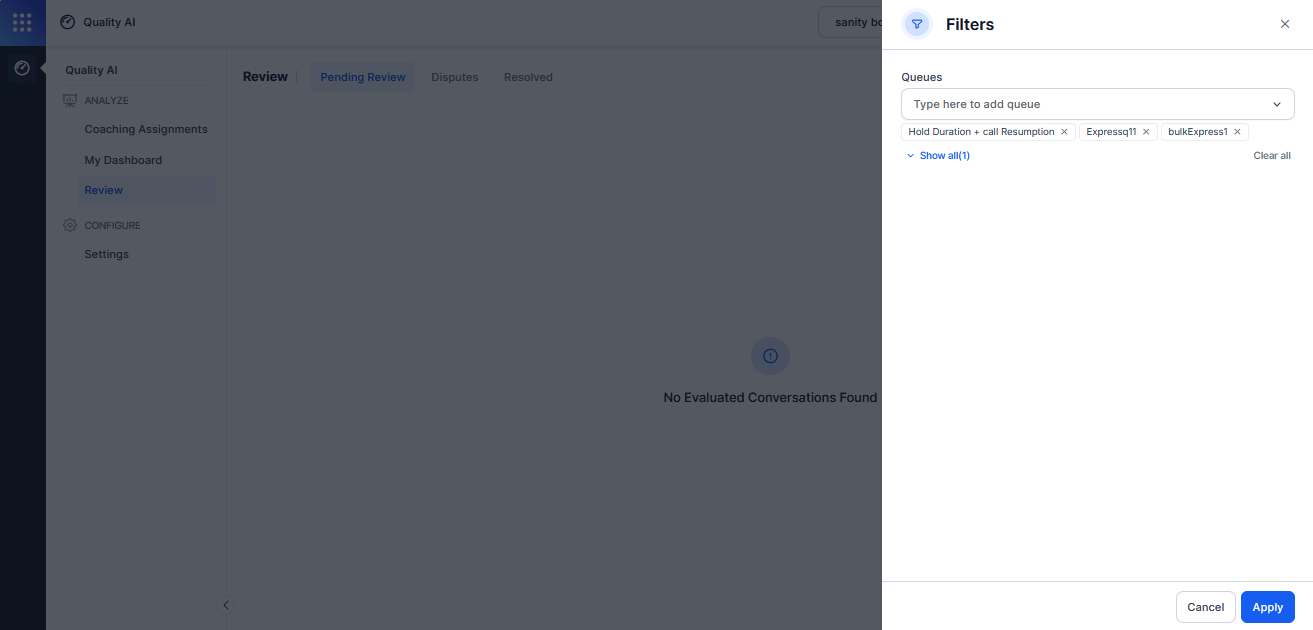
| Column | Description |
|---|
| Date | Date and time when the evaluation completed. |
| Queues | Queue associated with the conversation. |
| Kore Evaluation | Auto QA score for the conversation. |
| Supervisor Audit Score | Manual audit score assigned by QA. |
Disputes Tab
| Column | Description |
|---|
| Date | Date and time when the evaluation completed. |
| Queues | Queues associated with the conversation. |
| Supervisor Audit Score | Manual audit score for the conversation, reflecting the latest revised score after any re-evaluation. |
| Dispute Rounds | Number of dispute rounds completed for the evaluation. |
The Disputes menu item is visible only for users with Agent Dashboard permission when Agent Accept & Dispute is enabled in Quality AI > Settings > Quality AI General Settings and disputes are configured for at least one evaluation form.
Reviewing a QA Re-evaluation Response
When a QA completes their re-evaluation, the evaluation status changes to Re-evaluation Received. The agent can:
The agent can:
- Open the conversation from the Disputes tab.
- Review the QA’s revised score and written response per disputed metric in the Comments and Dispute section.
- Select Accept to close the dispute, or Dispute to raise a further dispute if the form permits additional rounds.
If the form disables multi-round re-disputes, no further Dispute option is available. A message displays explaining the re-evaluation decision is final. See Dispute Restrictions and Limitations.
Disputes
The Disputes tab provides agents with a single view of all evaluations they have actively disputed, including the current round, QA response status, and auditor details.
Access Disputes
Navigate to Quality AI > Disputes.
The Disputes menu item is visible only for users with Agent Dashboard permission when Agent Accept & Dispute is enabled in Quality AI > Settings > Quality AI General Settings and disputes are configured for at least one evaluation form.
Disputes Attributes
| Column | Description |
|---|
| Conversation Date and Time | Date and time the original conversation took place. |
| Audit Score | The audit score assigned to the conversation, reflecting the latest revised score after any re-evaluation. |
| Review Status | Current dispute state of the evaluation. |
| Dispute Round | The current round number of the dispute. |
| Auditor | The QA evaluator who completed the evaluation or re-evaluation. Displayed based on the Hide Auditor Details app-level setting. |
Review Status Values (Disputes View)
| Status | Description |
|---|
| Disputed | The agent has submitted a dispute, and awaiting QA review. |
| Awaiting QA Response | The system routes the dispute to QA and waits for their re-evaluation response. |
| Re-evaluation Received | The QA has responded, and the agent can review the decision and accept or raise a further dispute if permitted. |
| Resolved | The agent accepted the QA’s re-evaluation outcome. |
| Closed | The system closes the dispute process after it reaches the maximum number of rounds or when the form configuration ends the dispute. |
When Hide Auditor Details is enabled at the app level, the Auditor column anonymizes the QA’s name.
Dispute Restrictions and Limitations
When Further Disputes Are Disabled
When the evaluation form disables multi-round re-disputes, agents see a clear in-context message on the re-evaluation screen explaining that the QA’s decision is final and further disputes aren’t permitted. No dispute option is available after this message.
When you enable further disputes, the system sets the maximum number of rounds at the form level (for example, default: 3). Once the evaluation reaches the maximum number of rounds, the system automatically closes the dispute and updates the evaluation status to Closed.
If you disable disputes for the evaluation form associated with a conversation, the system prevents agents from commenting on, accepting, or disputing any metric for that evaluation. The system does not display the metric-level Accept and Dispute buttons, and it shows the evaluation as Audited with no Review Status.
Resolved Tab
The Resolved tab displays completed evaluation reviews along with the evaluation date, associated queues, final supervisor audit score, dispute rounds, and review status.
| Column | Description |
|---|
| Date | Date and time when the evaluation completed. |
| Queues | Queues associated with the conversation. |
| Supervisor Audit Score | Latest revised manual audit score after re-evaluation. |
| Dispute Rounds | Number of dispute rounds completed before resolution or closure. |
| Review Status | Final state of the evaluation — Resolved or Closed. |
Review Filter
The Review Status column reflects the current acknowledgement or dispute state for each manually evaluated conversation.
| Filter | Description |
|---|
| Queues | The system completes the evaluation and waits for the agent’s acknowledgment or dispute response. |
| Acknowledged | The agent accepts all metric scores. |
| Disputed | The agent disputes one or more metrics, and the dispute remains active. |
| Awaiting QA Response | The system routes the dispute to QA and waits for re-evaluation. |
| Re-evaluation Received | QA responds to the dispute, and the agent can review the decision. |
| Resolved | The agent accepts the evaluation after QA re-evaluation. |
Review Status values display only when Agent Accept & Dispute is enabled in Quality AI > Settings and the evaluation form has disputes configured. Evaluations on forms with disputes disabled don’t display a Review Status.
Evaluation Filters
| Filter | Available For | Description |
|---|
| Queues | All access types | The system filters interactions by queue, limited to queues the agent belongs to. |
| Audit Status | Manually Audited + Auto QA | The system filters audited and unaudited interactions individually. This option is visible only when Auto QA interactions are included. |
| Review Status | All access types | The system filters manually audited interactions by their current acknowledgment or dispute status. |
Review Filter
The Queues filter helps you to refine evaluations by selecting one or more queues. It supports multi-select search, enabling users to find and apply relevant queue filters to narrow down the displayed evaluation results and assist with queue filtering and dispute tracking.
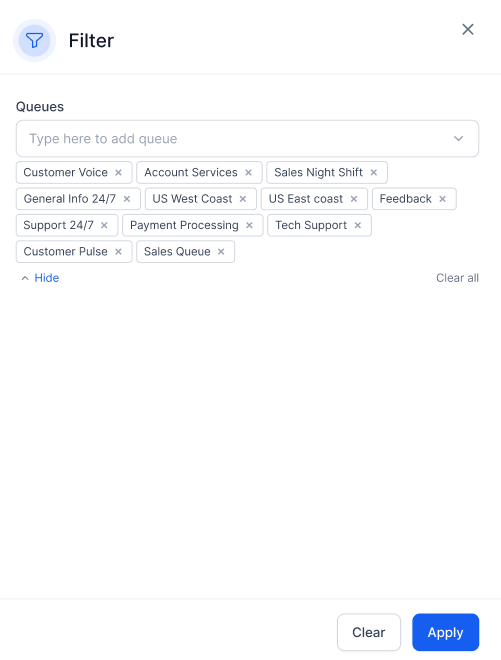
Note: The Review screen is available only when Agent Accept & Dispute is enabled in Quality AI > Settings and at least one evaluation form has disputes configured. If the setting is off or no forms have disputes enabled, the Review screen isn’t accessible.
Language Settings
The Language Settings section is view-only for agents.