> ## Documentation Index
> Fetch the complete documentation index at: https://koreai.mintlify.site/llms.txt
> Use this file to discover all available pages before exploring further.
# Agent Dashboard - Supervisor Evaluation
The Agent Dashboard provides supervisors with a consolidated view of an agent's performance across interactions, evaluations, audits, coaching activities, and customer experience metrics.
The Evaluation tab focuses on interaction-level performance analysis. It displays evaluated interactions for the selected agent, including Auto QA scores, manual audit scores, sentiment scores, bookmarks, and audit status. Supervisors can review individual interactions, identify coaching opportunities, and create coaching assignments directly from selected conversations.
The interaction list displays the most recent conversations first, enabling supervisors to review recent performance and quality trends.
### Access to Evaluation Tab
Navigate to **Quality AI** > **AutoQA** > **Dashboard** > **Agent Leaderboard** > **Select an Agent** > **Evaluation**.
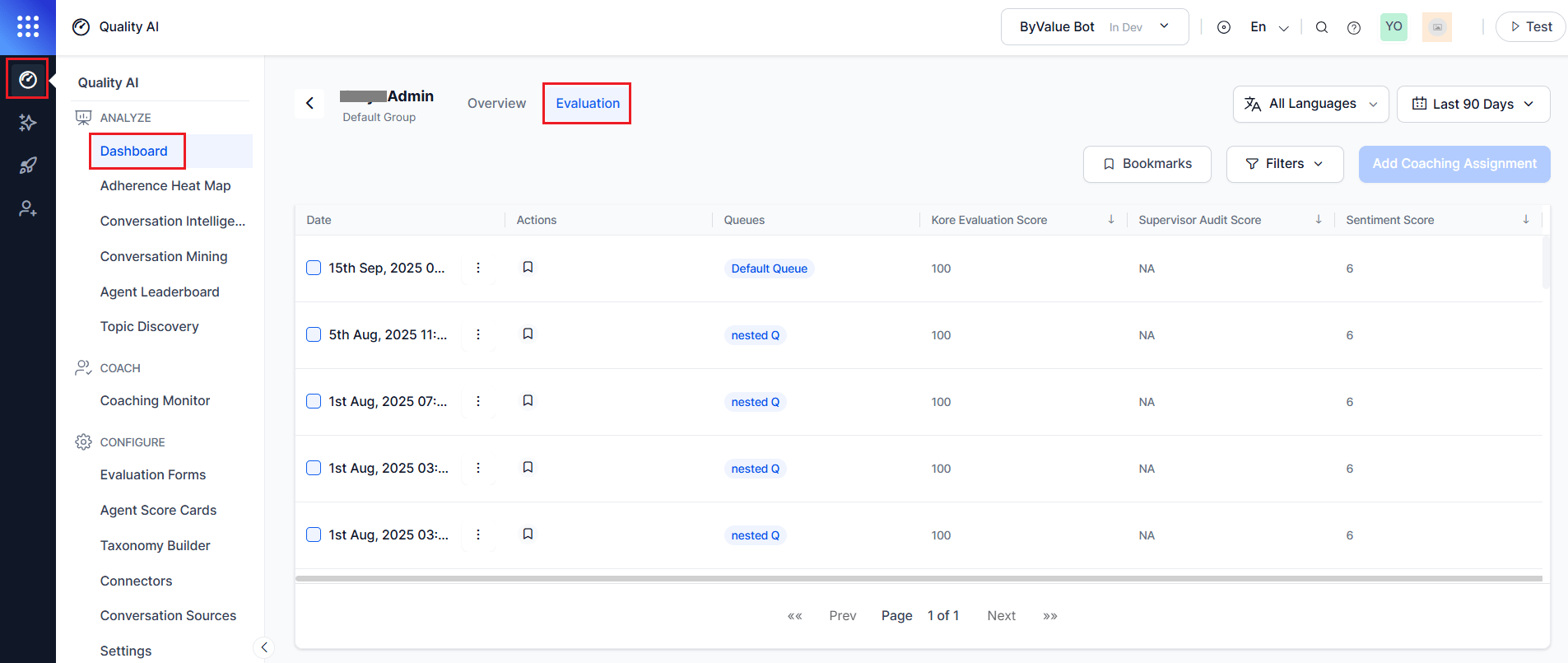 The **Evaluation** tab enables supervisors to:
* Review interaction-level evaluation results.
* Compare Auto QA and manual audit scores.
* View sentiment scores and audit status.
* Filter interactions by queue, channel, language, and contact direction.
* Bookmark interactions for future reference.
* Open interactions in the Audit screen for detailed review.
* Create coaching assignments from selected interactions.
***
## Key Capabilities
| Capability | Description |
| -------------------------------- | ------------------------------------------------------------------------------------ |
| **Interaction-Level Analysis** | Review Auto QA, audit, and sentiment scores for individual interactions. |
| **Audit Review** | Analyze audited and non-audited interactions. |
| **Direction-Aware Insights** | Compare inbound and outbound interaction performance. |
| **Bookmark-Based Coaching** | Use saved bookmarked interactions as coaching references and best-response examples. |
| **Coaching Assignment Creation** | Create coaching assignments directly from selected interactions. |
| **Audit Drill-Down** | Open interactions in the Audit screen for detailed evaluation and review. |
***
## Evaluation Tab Filters
Provides filters to help supervisors focus on specific interaction segments and performance areas.
| Filter | Description |
| -------------- | -------------------------------------------------------- |
| **Language** | Filter interactions by one or more configured languages. |
| **Date Range** | View interactions within a selected date range. |
| **Bookmarks** | Show only bookmarked interactions. |
All filters apply globally and dynamically update the interaction list.
***
## Evaluation Interaction List
Displays filtered interactions for the selected agent.
| Column | Description |
| -------------------------- | --------------------------------------------------------------------------------- |
| **Date Range Selection** | Helps you filter the interactions by selecting a date range. |
| **Actions (Bookmark)** | Bookmarks assigned to the interaction, which you can filter and use for coaching. |
| **Queues** | Displays filtered interactions by queue. |
| **Kore Evaluation Score** | Auto QA score generated from the evaluation form. |
| **Supervisor Audit Score** | Score assigned during manual audit review. Displays N/A if not audited. |
| **Sentiment Score** | Sentiment score generated for the interaction. |
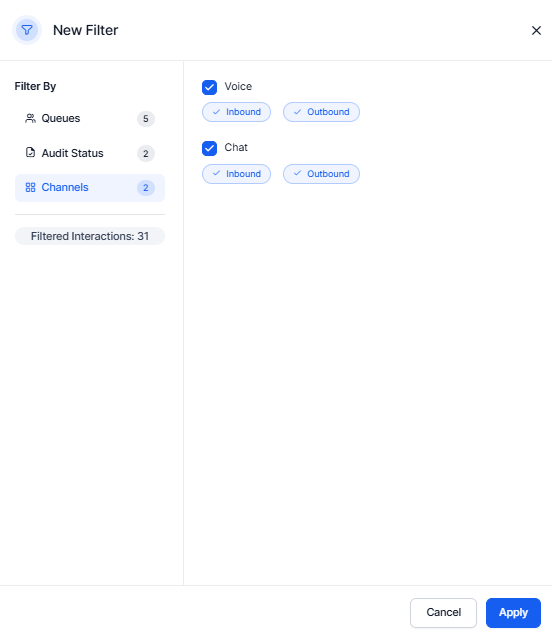
**Available filter categories:**
| Filter | Description |
| ----------------------- | ----------------------------------------------------------------------------------------- |
| **Audit Status** | Filters audited and unaudited interactions individually. |
| **Channels** | Filter by Voice or Chat, with additional selection for Inbound and Outbound interactions. |
| **Filter Interactions** | Displays the total number of filtered interactions. |
The **Evaluation** tab enables supervisors to:
* Review interaction-level evaluation results.
* Compare Auto QA and manual audit scores.
* View sentiment scores and audit status.
* Filter interactions by queue, channel, language, and contact direction.
* Bookmark interactions for future reference.
* Open interactions in the Audit screen for detailed review.
* Create coaching assignments from selected interactions.
***
## Key Capabilities
| Capability | Description |
| -------------------------------- | ------------------------------------------------------------------------------------ |
| **Interaction-Level Analysis** | Review Auto QA, audit, and sentiment scores for individual interactions. |
| **Audit Review** | Analyze audited and non-audited interactions. |
| **Direction-Aware Insights** | Compare inbound and outbound interaction performance. |
| **Bookmark-Based Coaching** | Use saved bookmarked interactions as coaching references and best-response examples. |
| **Coaching Assignment Creation** | Create coaching assignments directly from selected interactions. |
| **Audit Drill-Down** | Open interactions in the Audit screen for detailed evaluation and review. |
***
## Evaluation Tab Filters
Provides filters to help supervisors focus on specific interaction segments and performance areas.
| Filter | Description |
| -------------- | -------------------------------------------------------- |
| **Language** | Filter interactions by one or more configured languages. |
| **Date Range** | View interactions within a selected date range. |
| **Bookmarks** | Show only bookmarked interactions. |
All filters apply globally and dynamically update the interaction list.
***
## Evaluation Interaction List
Displays filtered interactions for the selected agent.
| Column | Description |
| -------------------------- | --------------------------------------------------------------------------------- |
| **Date Range Selection** | Helps you filter the interactions by selecting a date range. |
| **Actions (Bookmark)** | Bookmarks assigned to the interaction, which you can filter and use for coaching. |
| **Queues** | Displays filtered interactions by queue. |
| **Kore Evaluation Score** | Auto QA score generated from the evaluation form. |
| **Supervisor Audit Score** | Score assigned during manual audit review. Displays N/A if not audited. |
| **Sentiment Score** | Sentiment score generated for the interaction. |
**Available filter categories:**
| Filter | Description |
| ----------------------- | ----------------------------------------------------------------------------------------- |
| **Audit Status** | Filters audited and unaudited interactions individually. |
| **Channels** | Filter by Voice or Chat, with additional selection for Inbound and Outbound interactions. |
| **Filter Interactions** | Displays the total number of filtered interactions. |
 ***
## Coaching Workflow
The Evaluation tab supports creating coaching assignments using selected interactions.
## Create Coaching Assignment
1. Select one or more interactions in the **Evaluation** tab that require improvement.
***
## Coaching Workflow
The Evaluation tab supports creating coaching assignments using selected interactions.
## Create Coaching Assignment
1. Select one or more interactions in the **Evaluation** tab that require improvement.
 2. Select **Add Coaching Assignment**.
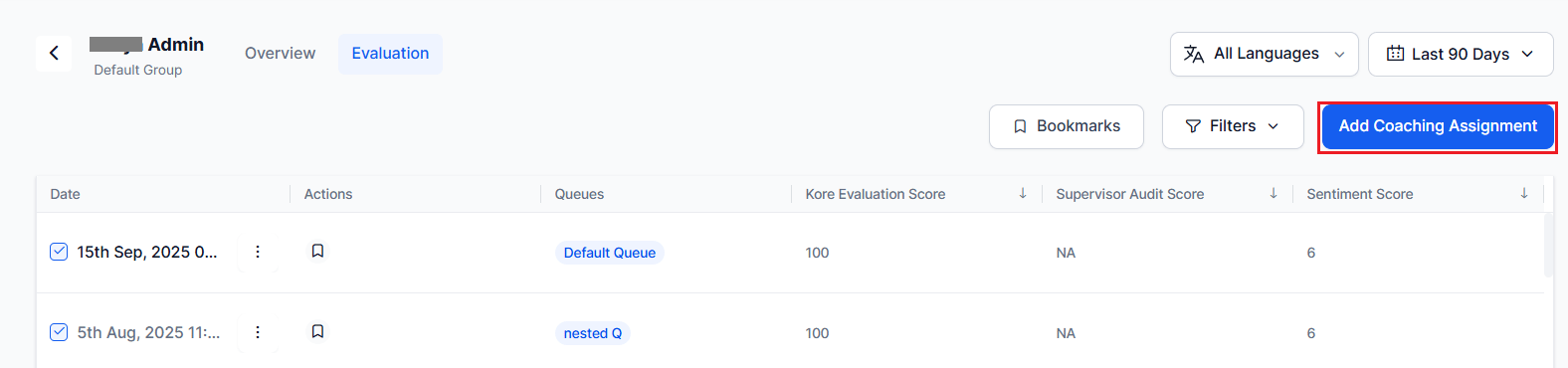 3. Enter a **Name** or title for the coaching assignment.
4. Select one or more **Coaching Areas**, and then select **Add**.
5. Review the interactions listed under **Interactions Marked for Coaching**.
The system automatically adds the interactions selected from the **Evaluation** tab.
6. Under **Best Responses** (optional), add reference interactions from saved bookmarks.
1. Select relevant bookmarked interactions.
2. select **Add Interaction** to add them.
You can select more than one bookmark based on the evaluation criteria. For example, one set for the support queue and another for best responses.
3. Enter a **Name** or title for the coaching assignment.
4. Select one or more **Coaching Areas**, and then select **Add**.
5. Review the interactions listed under **Interactions Marked for Coaching**.
The system automatically adds the interactions selected from the **Evaluation** tab.
6. Under **Best Responses** (optional), add reference interactions from saved bookmarks.
1. Select relevant bookmarked interactions.
2. select **Add Interaction** to add them.
You can select more than one bookmark based on the evaluation criteria. For example, one set for the support queue and another for best responses.
 7. Select **View Interactions** (optional) to review an interaction in AI-Audit screen before adding them as a coaching reference.
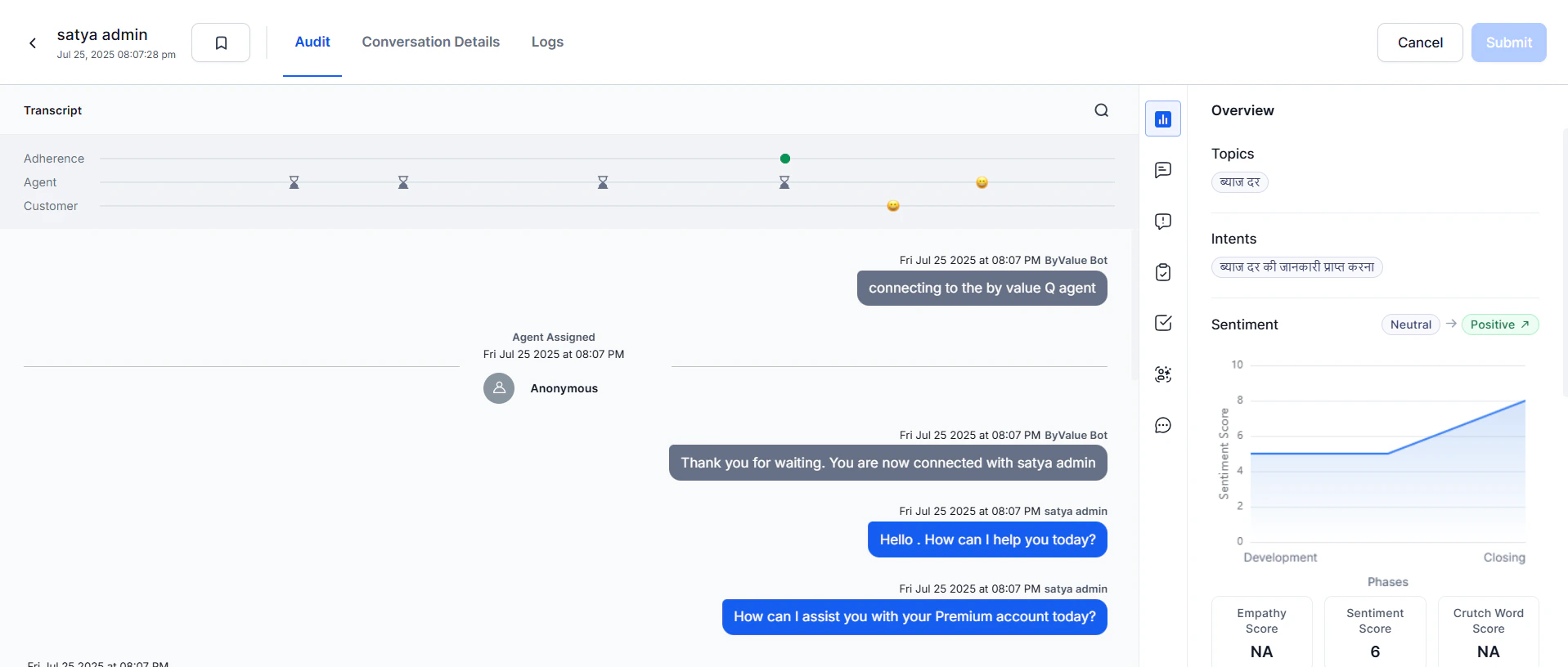 8. In **Feedback**, enter your assessment — strengths and areas for improvement.
9. Enter the **Action Plan** — concrete actions for the agent to improve.
10. Set the **Follow-up Date** review date for coaching.
8. In **Feedback**, enter your assessment — strengths and areas for improvement.
9. Enter the **Action Plan** — concrete actions for the agent to improve.
10. Set the **Follow-up Date** review date for coaching.
 11. Select **Create** to saves the coaching assignment in the agent's dashboard.
## The system adds the assignment to the **Coaching Assignments** page, where supervisors can track its progress and completion.
11. Select **Create** to saves the coaching assignment in the agent's dashboard.
## The system adds the assignment to the **Coaching Assignments** page, where supervisors can track its progress and completion.