> ## Documentation Index
> Fetch the complete documentation index at: https://koreai.mintlify.site/llms.txt
> Use this file to discover all available pages before exploring further.
# Using the Microsoft Graph Action Templates
[Back to Actions Integrations](/ai-for-service/integrations/overview#actions)
Use prebuilt Microsoft Graph action templates to auto-create dialog tasks for managing events, to-do lists, and email.
**To access templates:**
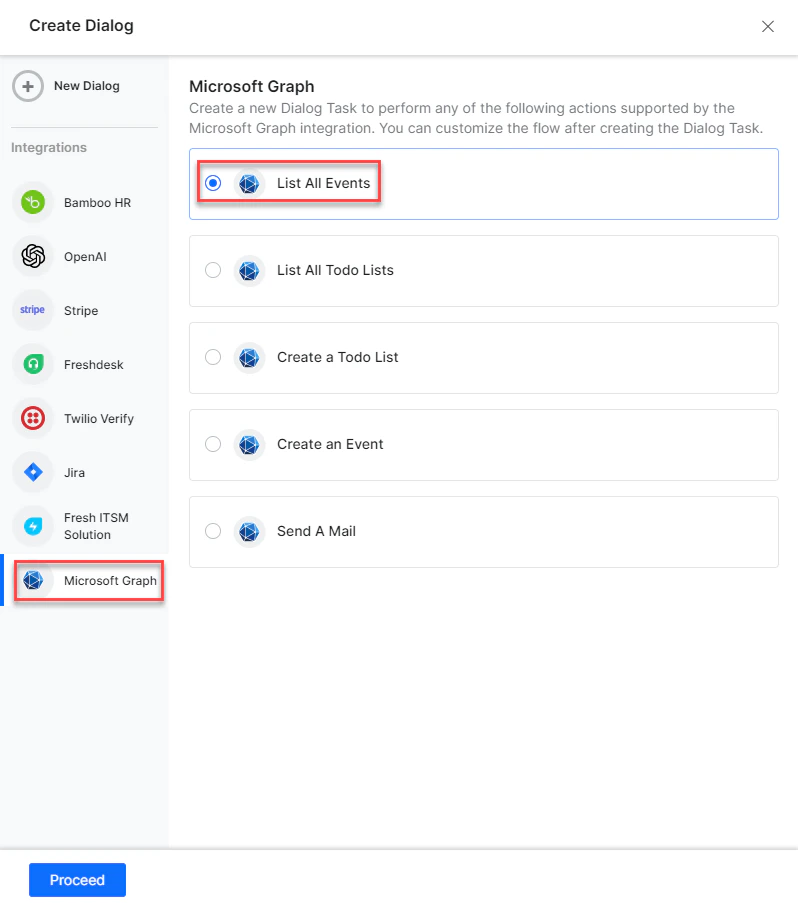
1. Go to **Automation AI** > **Use Cases** > **Dialogs** and click **Create a Dialog Task**.
2. Under **Integration**, select **Microsoft Graph**.
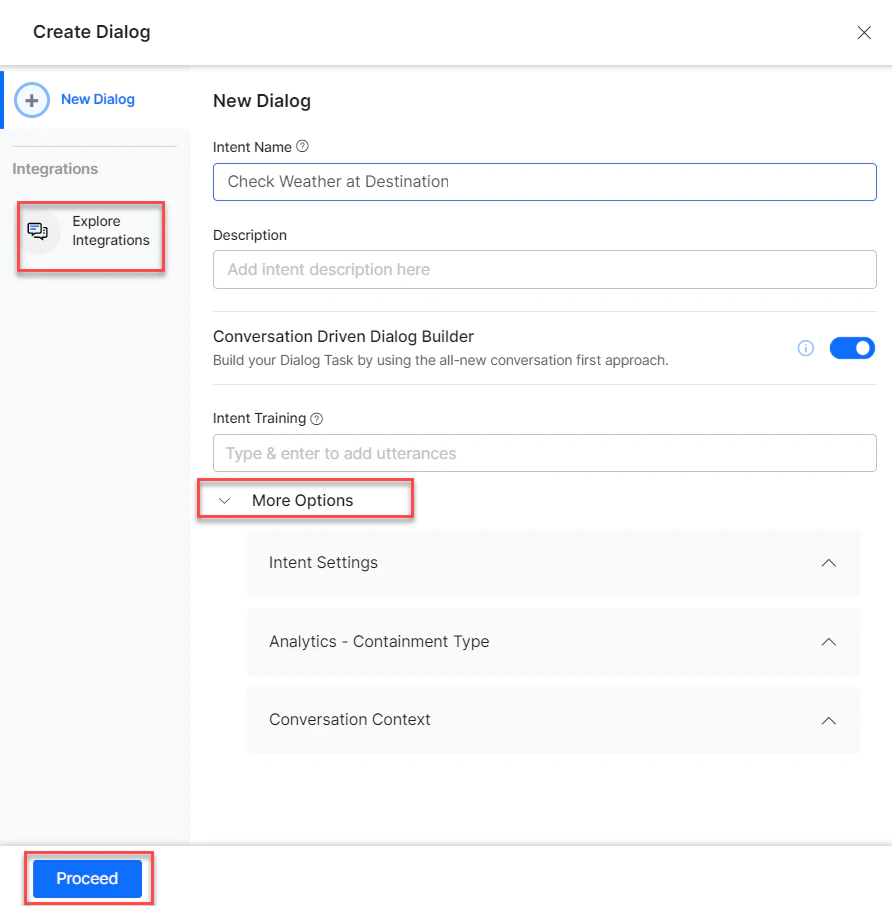
 3. If no integration is configured, click **Explore Integrations** to set one up. See [Actions Overview](/ai-for-service/integrations/overview#actions).
 ***
## Supported Actions
| Task | Description | Method |
| -------------------- | ------------------------------- | ------ |
| List all events | Retrieves all calendar events. | GET |
| List all to-do lists | Retrieves all to-do list items. | GET |
| Create a to-do list | Creates a to-do list. | POST |
| Create an event | Creates a calendar event. | POST |
| Send an Email | Sends an email to a user. | POST |
***
### List All Events
1. Install the template from [Microsoft Graph Action Templates](/ai-for-service/integrations/actions/configuring-the-microsoft-graph-action#step-2-install-the-microsoft-graph-action-templates).
2. The **List All Events** dialog task is added with the following components:
***
## Supported Actions
| Task | Description | Method |
| -------------------- | ------------------------------- | ------ |
| List all events | Retrieves all calendar events. | GET |
| List all to-do lists | Retrieves all to-do list items. | GET |
| Create a to-do list | Creates a to-do list. | POST |
| Create an event | Creates a calendar event. | POST |
| Send an Email | Sends an email to a user. | POST |
***
### List All Events
1. Install the template from [Microsoft Graph Action Templates](/ai-for-service/integrations/actions/configuring-the-microsoft-graph-action#step-2-install-the-microsoft-graph-action-templates).
2. The **List All Events** dialog task is added with the following components:
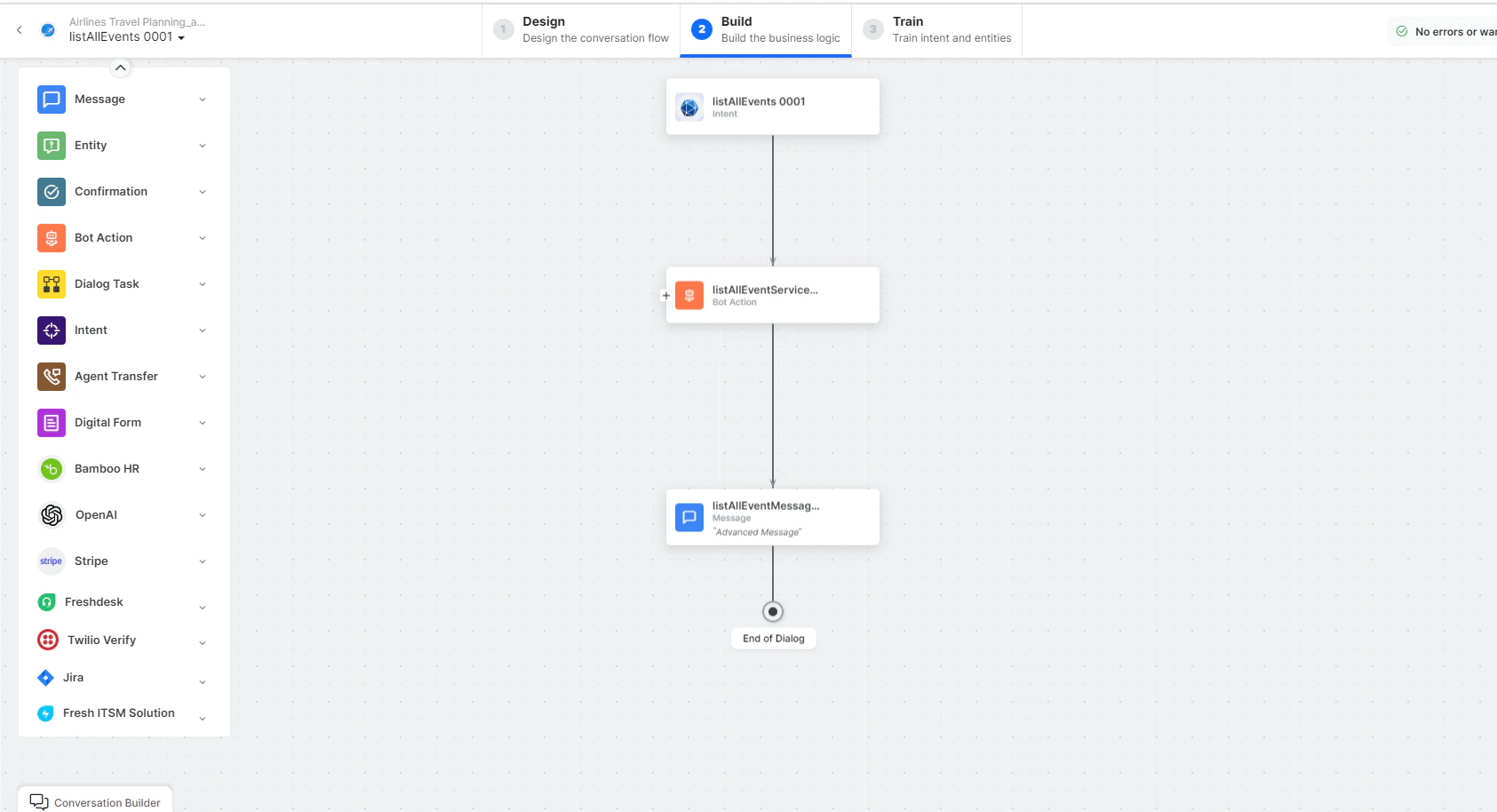 * **listallEvents** - User intent to view all events.
* **listAllEventsService** - Bot action service to fetch all events. Click **+Add Response**:
* **listallEvents** - User intent to view all events.
* **listAllEventsService** - Bot action service to fetch all events. Click **+Add Response**:
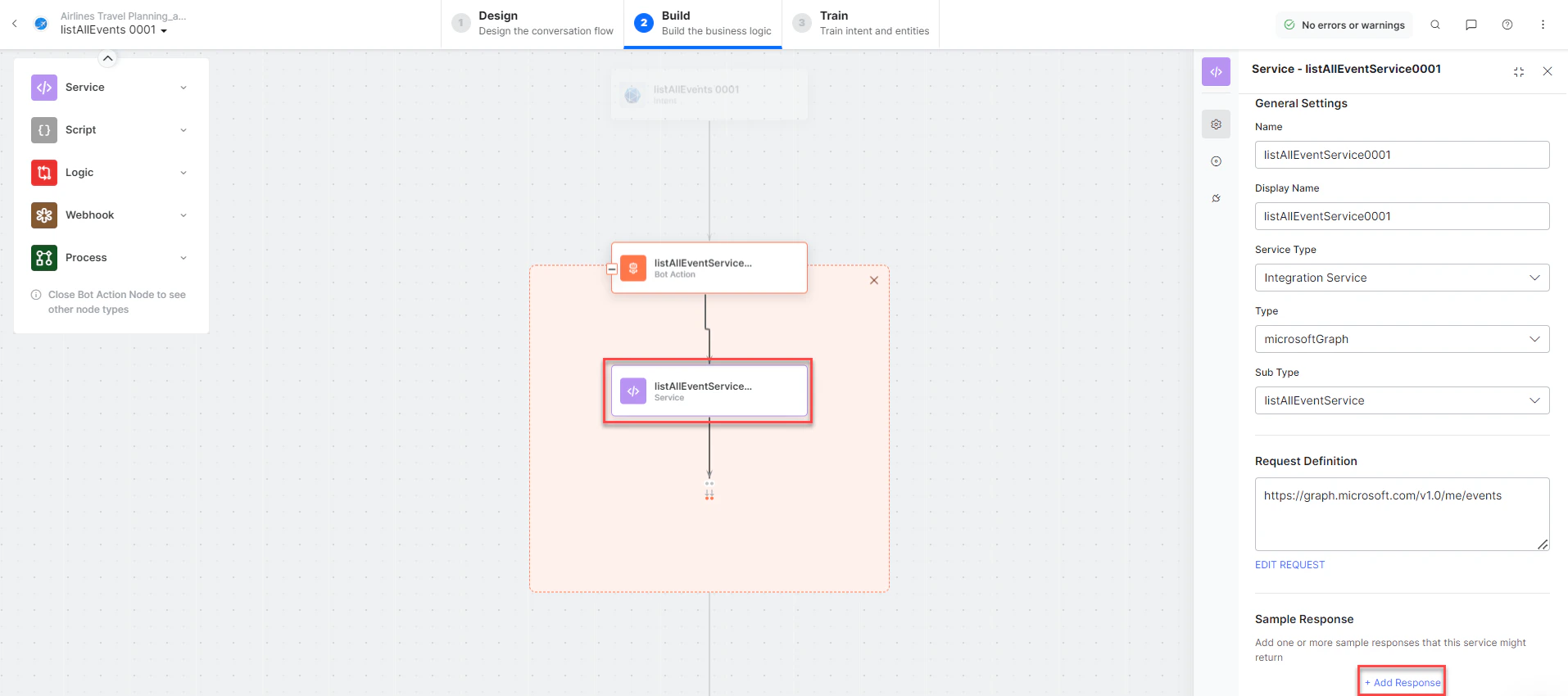 **Sample Response:** (truncated)
```json theme={null}
{
"@odata.context": "https://graph.microsoft.com/v1.0/$metadata#users('john.doe%40outlook.com')/events",
"value": [
{
"id": "AQMkADAwATNiZmY...",
"subject": "event test",
"start": {"dateTime": "2022-12-10T04:30:00.0000000", "timeZone": "UTC"},
"end": {"dateTime": "2022-12-10T05:10:00.0000000", "timeZone": "UTC"}
}
]
}
```
* **listAllEventstMessage** - Message node to display responses.
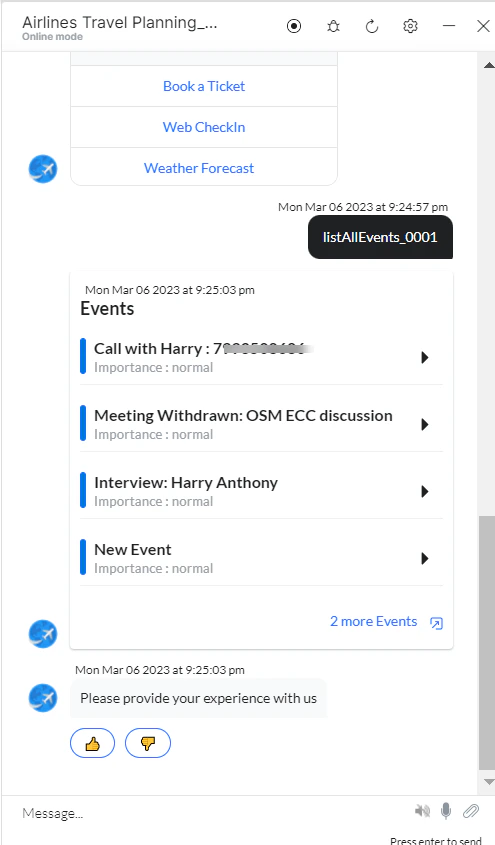
3. Click **Train**, then **Talk to Bot** to test:
**Sample Response:** (truncated)
```json theme={null}
{
"@odata.context": "https://graph.microsoft.com/v1.0/$metadata#users('john.doe%40outlook.com')/events",
"value": [
{
"id": "AQMkADAwATNiZmY...",
"subject": "event test",
"start": {"dateTime": "2022-12-10T04:30:00.0000000", "timeZone": "UTC"},
"end": {"dateTime": "2022-12-10T05:10:00.0000000", "timeZone": "UTC"}
}
]
}
```
* **listAllEventstMessage** - Message node to display responses.
3. Click **Train**, then **Talk to Bot** to test:
 ***
### List All To-Do (Tasks) Lists
1. Install the template from [Microsoft Graph Action Templates](/ai-for-service/integrations/actions/configuring-the-microsoft-graph-action#step-2-install-the-microsoft-graph-action-templates).
2. The **List All Todo Lists** dialog task is added with the following components:
***
### List All To-Do (Tasks) Lists
1. Install the template from [Microsoft Graph Action Templates](/ai-for-service/integrations/actions/configuring-the-microsoft-graph-action#step-2-install-the-microsoft-graph-action-templates).
2. The **List All Todo Lists** dialog task is added with the following components:
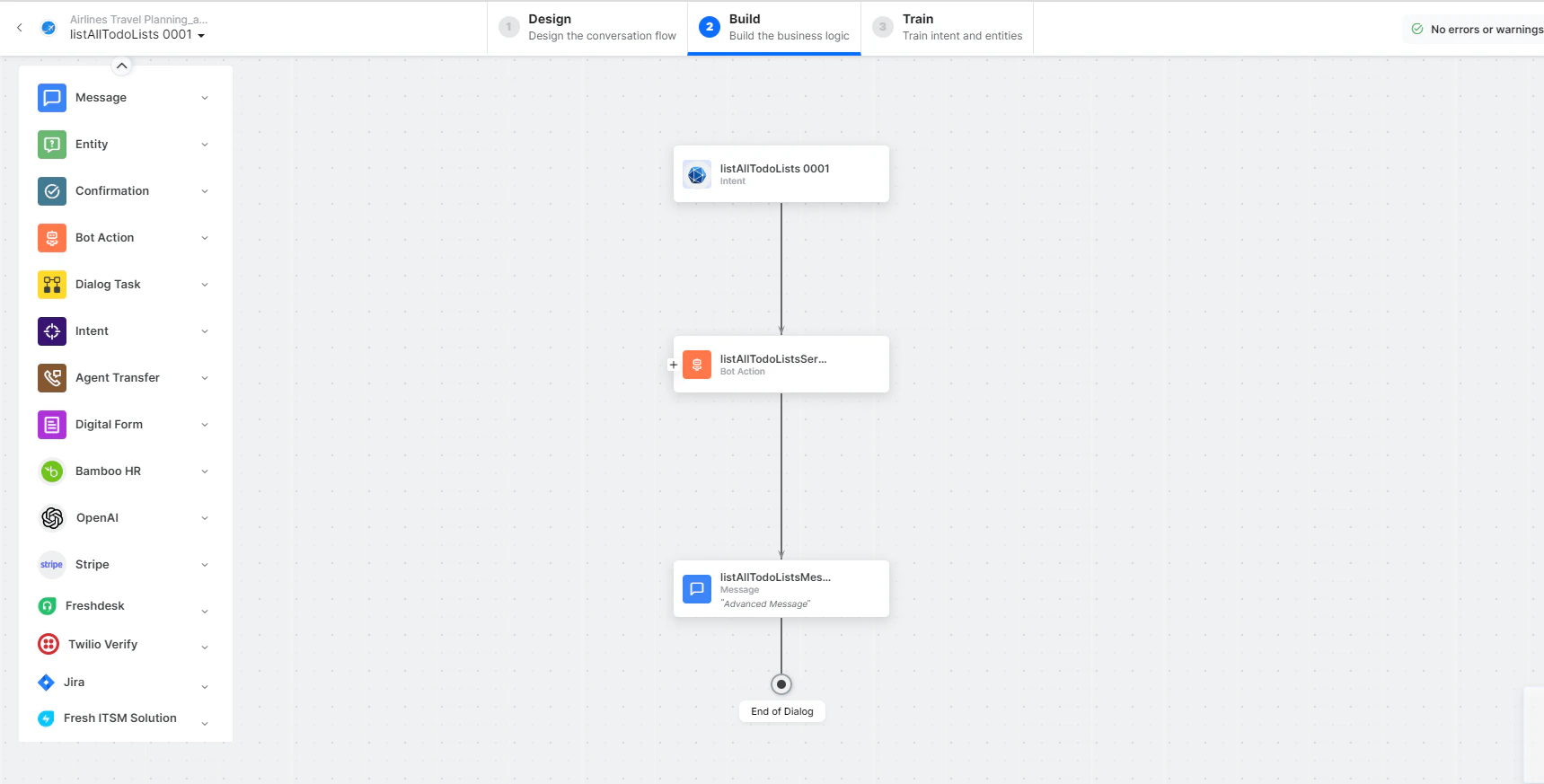 * **listAllToDolists** - User intent to view all to-do lists.
* **listAllToDoListService** - Bot action service to fetch all to-do lists. Click **+Add Response**:
* **listAllToDolists** - User intent to view all to-do lists.
* **listAllToDoListService** - Bot action service to fetch all to-do lists. Click **+Add Response**:
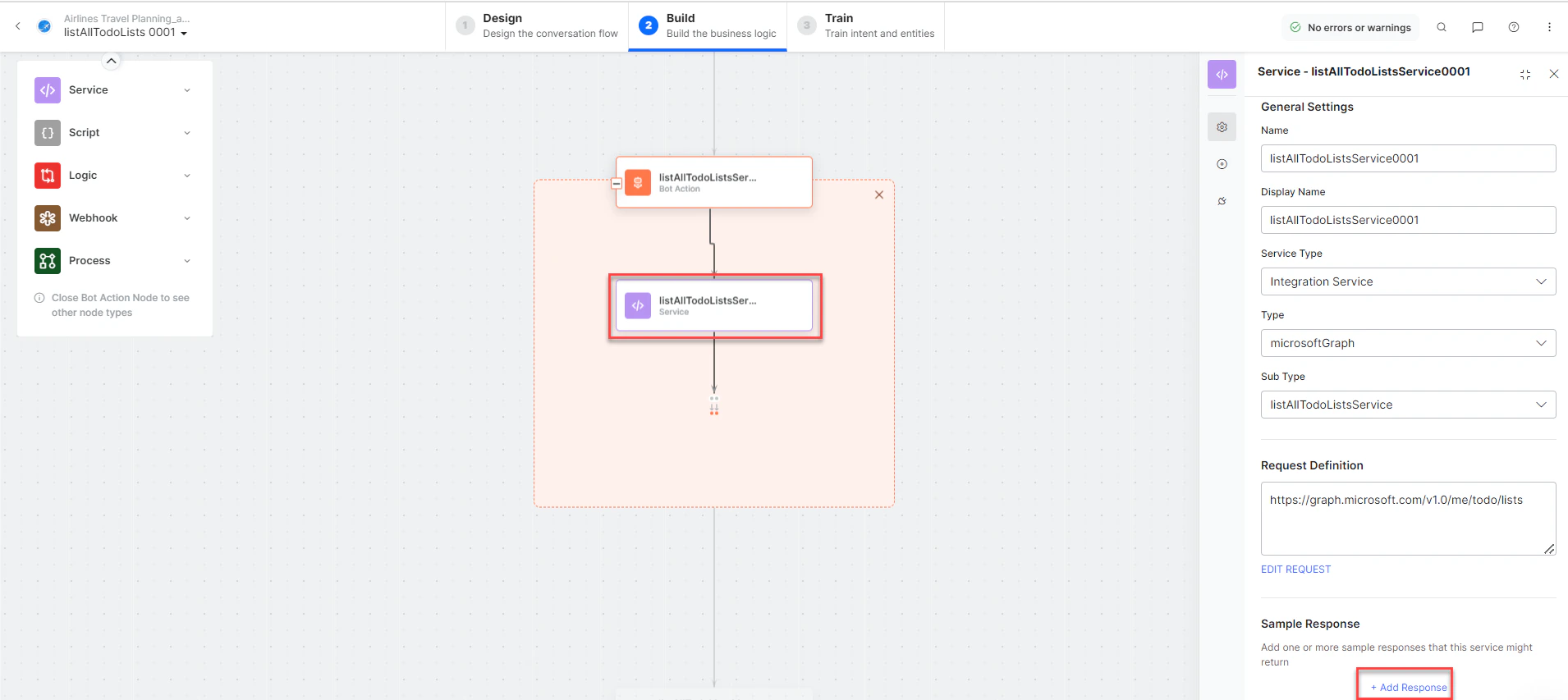 **Sample Response:** (truncated)
```json theme={null}
{
"@odata.context": "https://graph.microsoft.com/v1.0/$metadata#users('john1215%40outlook.com')/todo/lists",
"value": [
{"displayName": "Tasks", "isOwner": true, "wellknownListName": "defaultList"},
{"displayName": "create List from bot", "isOwner": true}
]
}
```
* **listAllTodoListsMessage** - Message node to display responses.
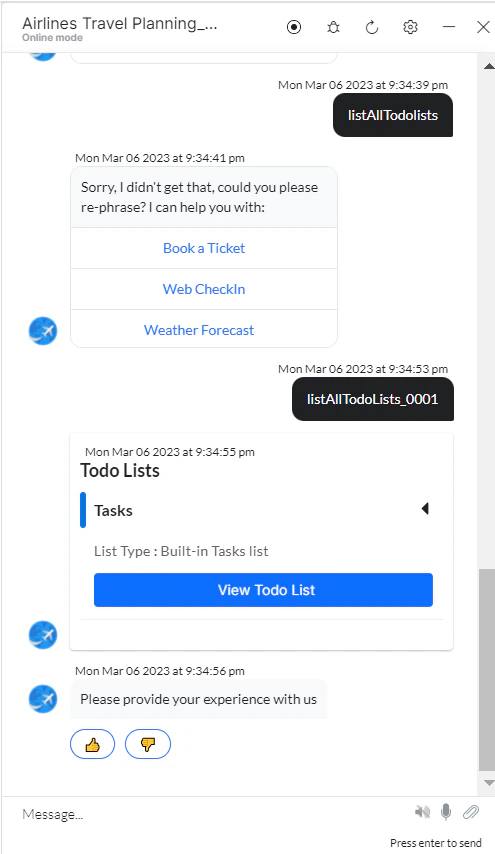
3. Click **Train**, then **Talk to Bot** to test:
**Sample Response:** (truncated)
```json theme={null}
{
"@odata.context": "https://graph.microsoft.com/v1.0/$metadata#users('john1215%40outlook.com')/todo/lists",
"value": [
{"displayName": "Tasks", "isOwner": true, "wellknownListName": "defaultList"},
{"displayName": "create List from bot", "isOwner": true}
]
}
```
* **listAllTodoListsMessage** - Message node to display responses.
3. Click **Train**, then **Talk to Bot** to test:
 ***
### Create an Event
1. Install the template from [Microsoft Graph Action Templates](/ai-for-service/integrations/actions/configuring-the-microsoft-graph-action#step-2-install-the-microsoft-graph-action-templates).
2. The **Create an Event** dialog task is added with the following components:
***
### Create an Event
1. Install the template from [Microsoft Graph Action Templates](/ai-for-service/integrations/actions/configuring-the-microsoft-graph-action#step-2-install-the-microsoft-graph-action-templates).
2. The **Create an Event** dialog task is added with the following components:
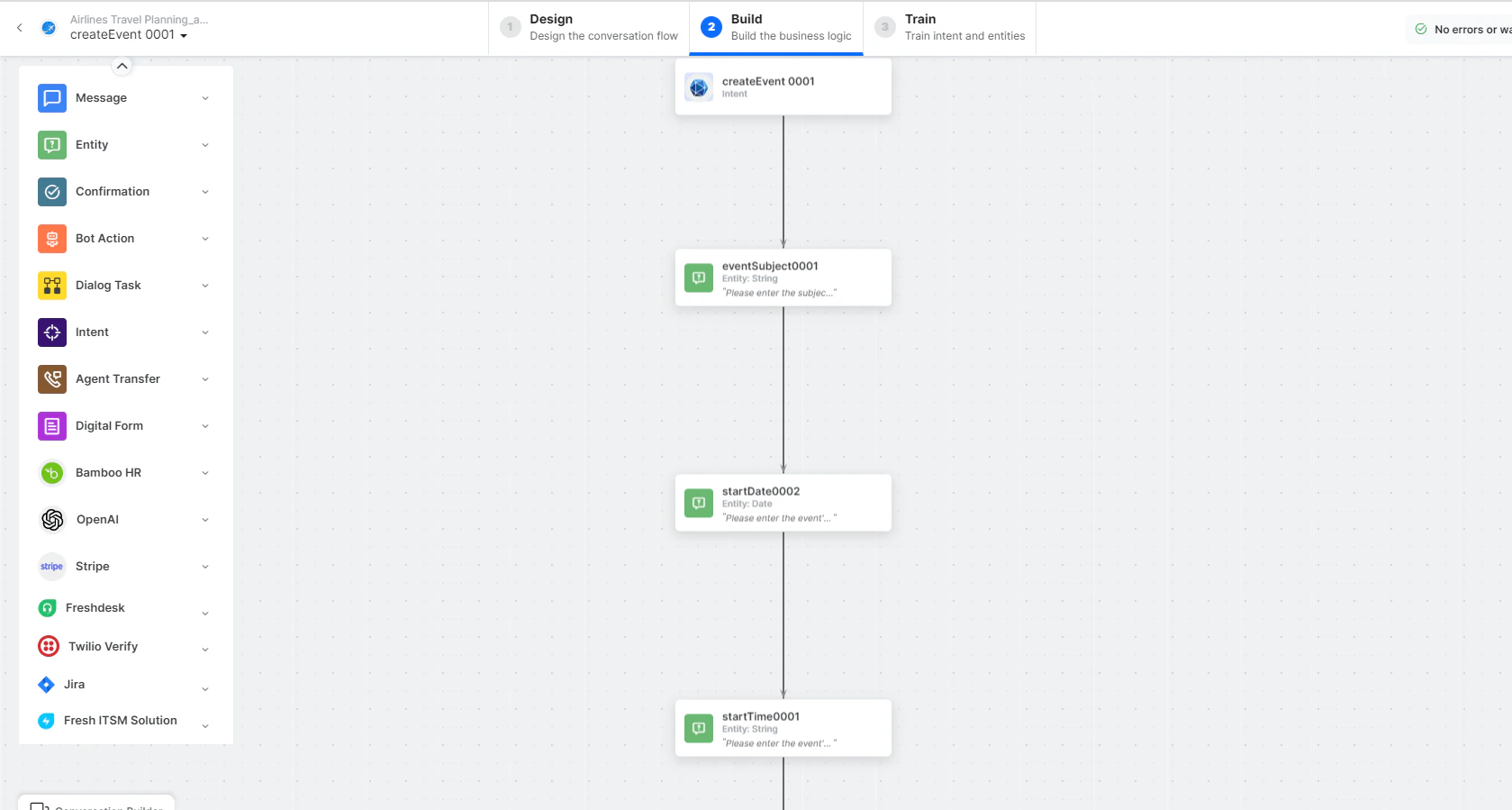 * **createEvent** - User intent to create an event.
* **eventSubject**, **startDate**, **startTime**, **endDate**, **endTime**, **attendeesEmailAddresses** - Entity nodes.
* **getMailboxSettingsService** - Bot action service to fetch mailbox settings.
* **entityFormatterScript** - Script to format attendee email entities.
* **createEventService** - Bot action service to create an event. Click **Edit Request**:
* **createEvent** - User intent to create an event.
* **eventSubject**, **startDate**, **startTime**, **endDate**, **endTime**, **attendeesEmailAddresses** - Entity nodes.
* **getMailboxSettingsService** - Bot action service to fetch mailbox settings.
* **entityFormatterScript** - Script to format attendee email entities.
* **createEventService** - Bot action service to create an event. Click **Edit Request**:
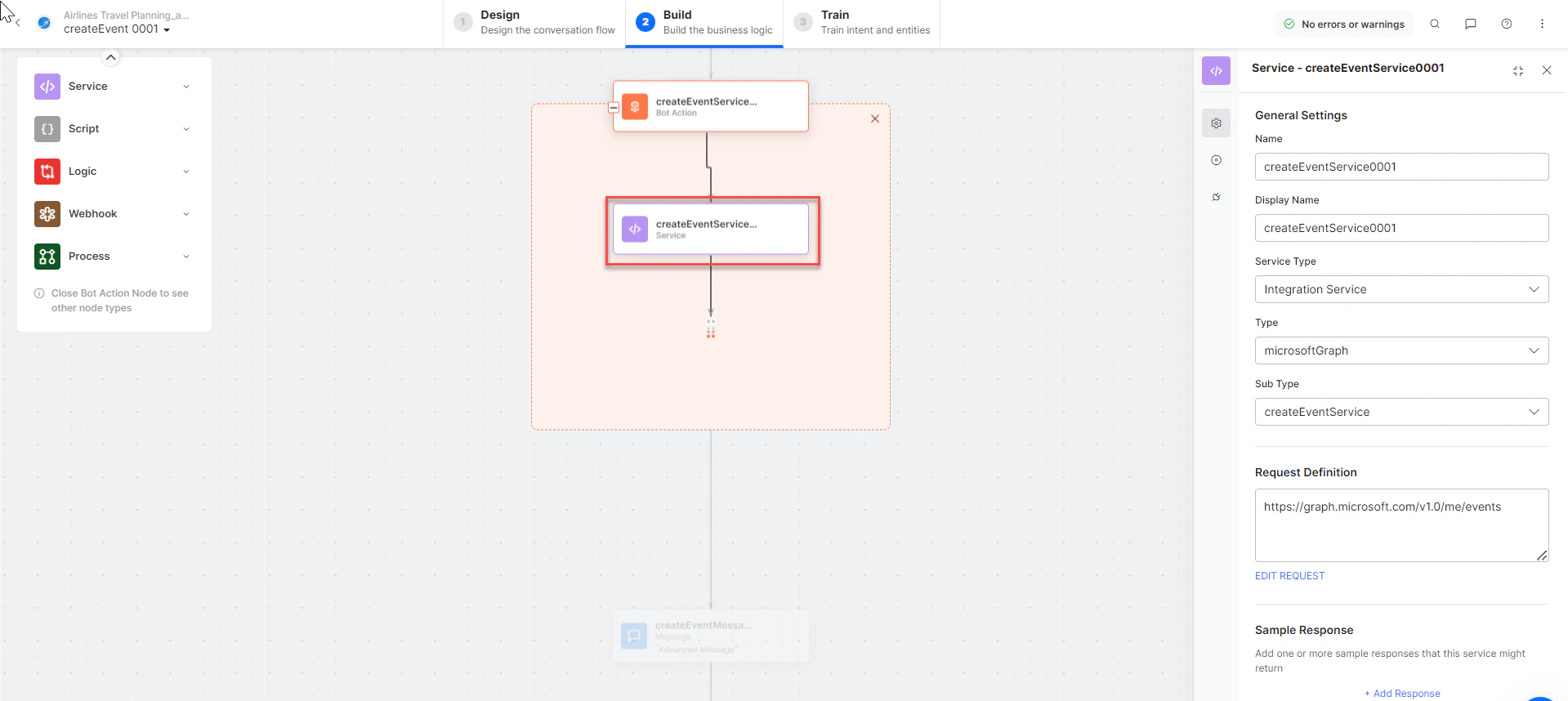 **Sample Request:**
```json theme={null}
{
"subject": "My event 1",
"start": {"dateTime": "2022-11-09T11:45", "timeZone": "India Standard Time"},
"end": {"dateTime": "2022-11-09T11:50", "timeZone": "India Standard Time"},
"attendees": [{"emailAddress": {"address": "john.doe@example.com"}}]
}
```
* **createEventMessage** - Message node to display responses.
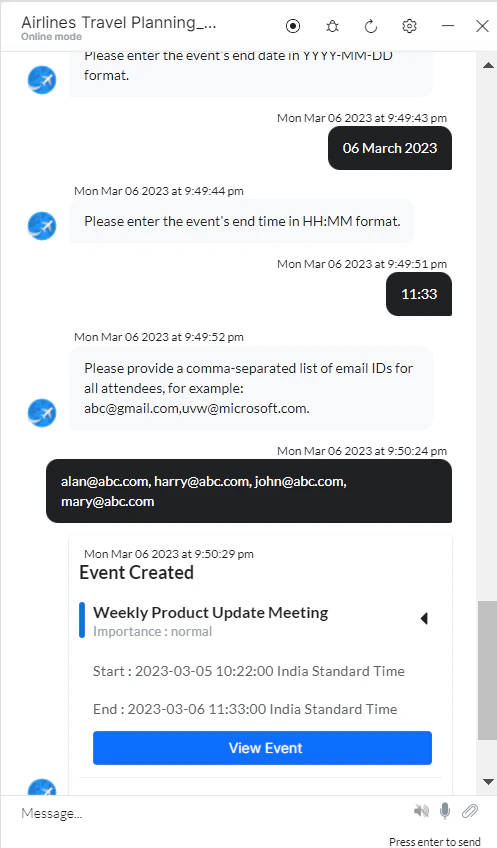
3. Click **Train**, then **Talk to Bot** to test:
**Sample Request:**
```json theme={null}
{
"subject": "My event 1",
"start": {"dateTime": "2022-11-09T11:45", "timeZone": "India Standard Time"},
"end": {"dateTime": "2022-11-09T11:50", "timeZone": "India Standard Time"},
"attendees": [{"emailAddress": {"address": "john.doe@example.com"}}]
}
```
* **createEventMessage** - Message node to display responses.
3. Click **Train**, then **Talk to Bot** to test:
 ***
### Create a To-do (Tasks) List
1. Install the template from [Microsoft Graph Action Templates](/ai-for-service/integrations/actions/configuring-the-microsoft-graph-action#step-2-install-the-microsoft-graph-action-templates).
2. The **Create a todo list** dialog task is added with the following components:
***
### Create a To-do (Tasks) List
1. Install the template from [Microsoft Graph Action Templates](/ai-for-service/integrations/actions/configuring-the-microsoft-graph-action#step-2-install-the-microsoft-graph-action-templates).
2. The **Create a todo list** dialog task is added with the following components:
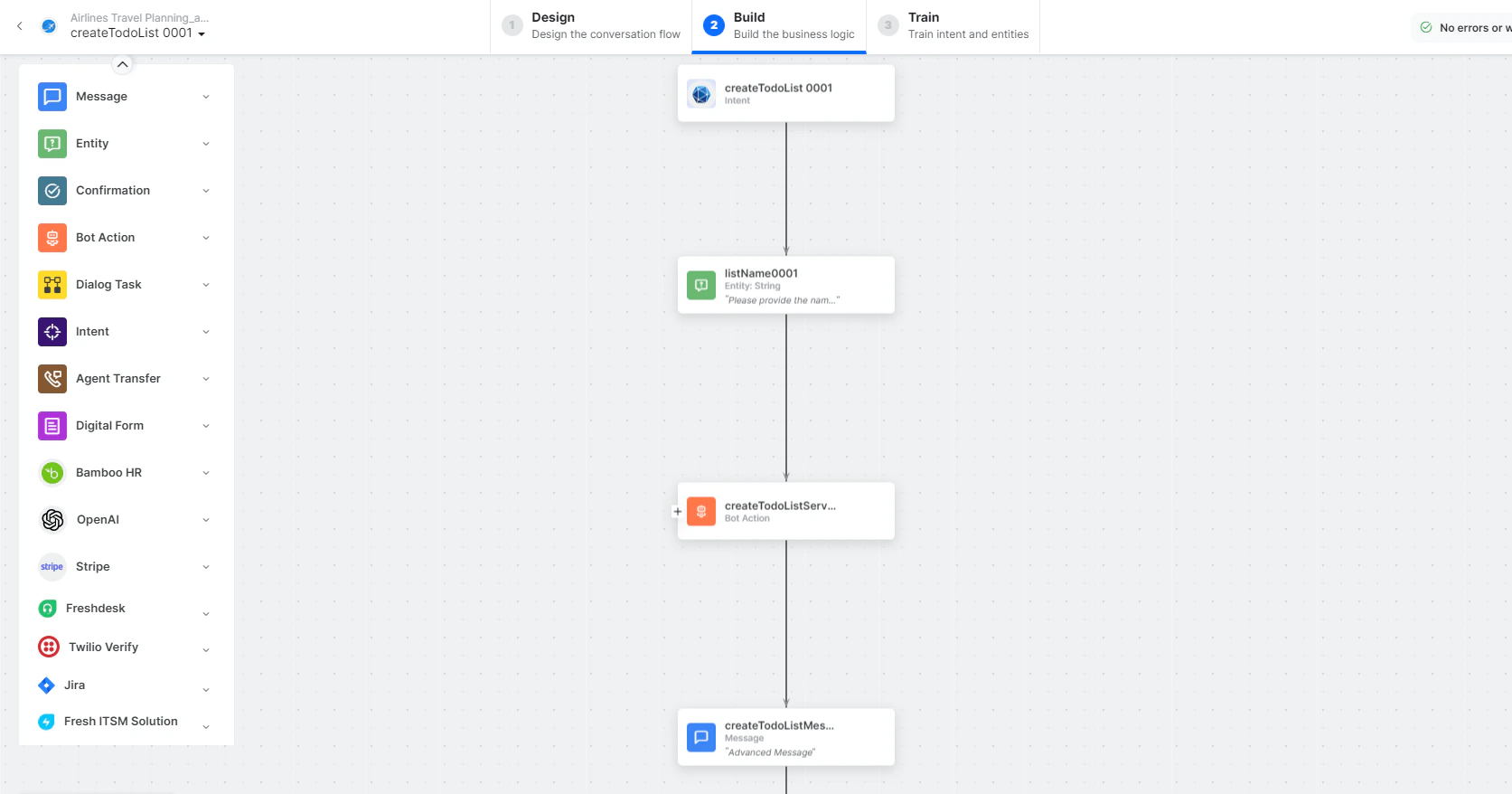 * **createTodolist** - User intent to create a task list.
* **listName** - Entity node for the todo list name.
* **createTodolistService** - Bot action service to create a todo list. Click **Edit Request**:
* **createTodolist** - User intent to create a task list.
* **listName** - Entity node for the todo list name.
* **createTodolistService** - Bot action service to create a todo list. Click **Edit Request**:
 **Sample Request:**
```json theme={null}
{"displayName": "Postman created list3"}
```
**Sample Response:**
```json theme={null}
{
"displayName": "Postman created list3 (1)",
"isOwner": true,
"isShared": false,
"wellknownListName": "none"
}
```
* **createTodolistMessage** - Message node to display responses.
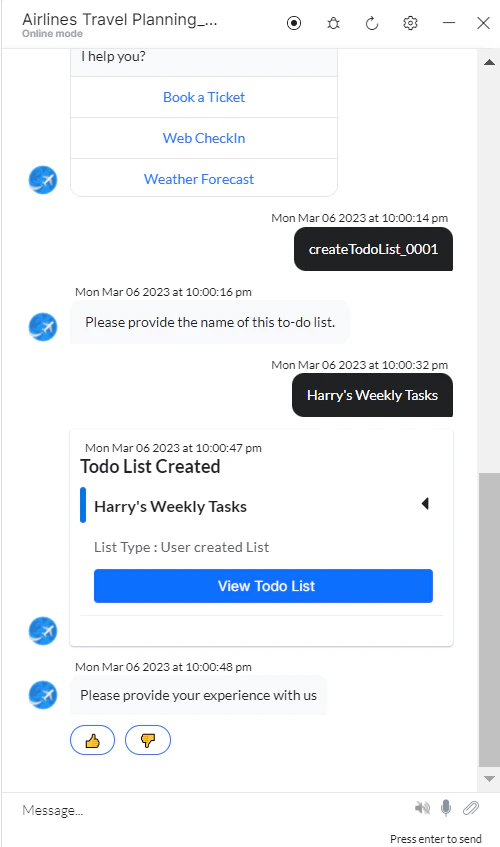
3. Click **Train**, then **Talk to Bot** to test:
**Sample Request:**
```json theme={null}
{"displayName": "Postman created list3"}
```
**Sample Response:**
```json theme={null}
{
"displayName": "Postman created list3 (1)",
"isOwner": true,
"isShared": false,
"wellknownListName": "none"
}
```
* **createTodolistMessage** - Message node to display responses.
3. Click **Train**, then **Talk to Bot** to test:
 ***
### Send an Email
1. Install the template from [Microsoft Graph Action Templates](/ai-for-service/integrations/actions/configuring-the-microsoft-graph-action#step-2-install-the-microsoft-graph-action-templates).
2. The **Send email** dialog task is added with the following components:
***
### Send an Email
1. Install the template from [Microsoft Graph Action Templates](/ai-for-service/integrations/actions/configuring-the-microsoft-graph-action#step-2-install-the-microsoft-graph-action-templates).
2. The **Send email** dialog task is added with the following components:
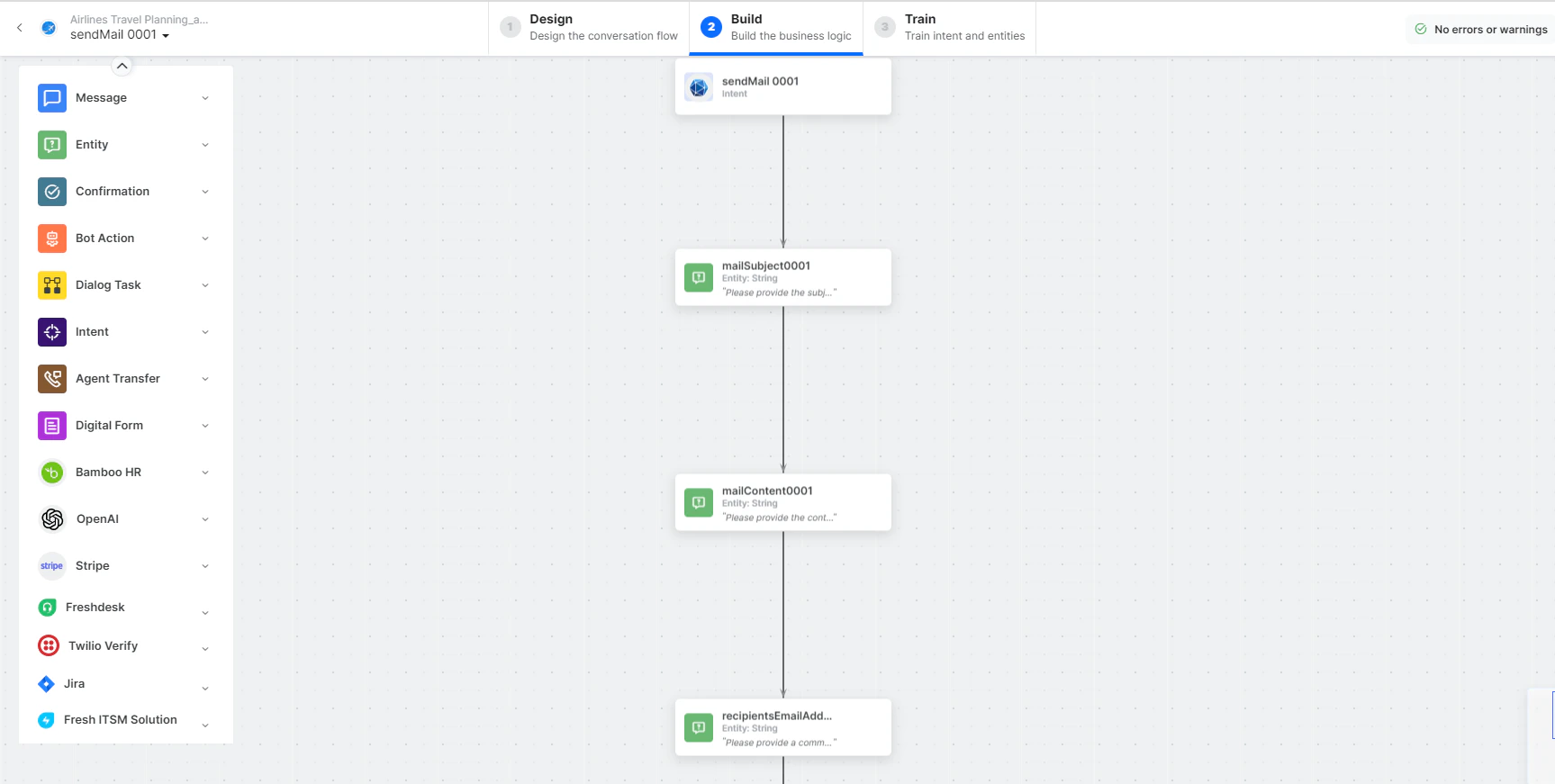 * **sendEmail** - User intent to send an email.
* **mailSubject**, **mailContent**, **recipientsEmailAddresses** - Entity nodes.
* **prepareEmailIdsScript** - Bot action service to format email IDs.
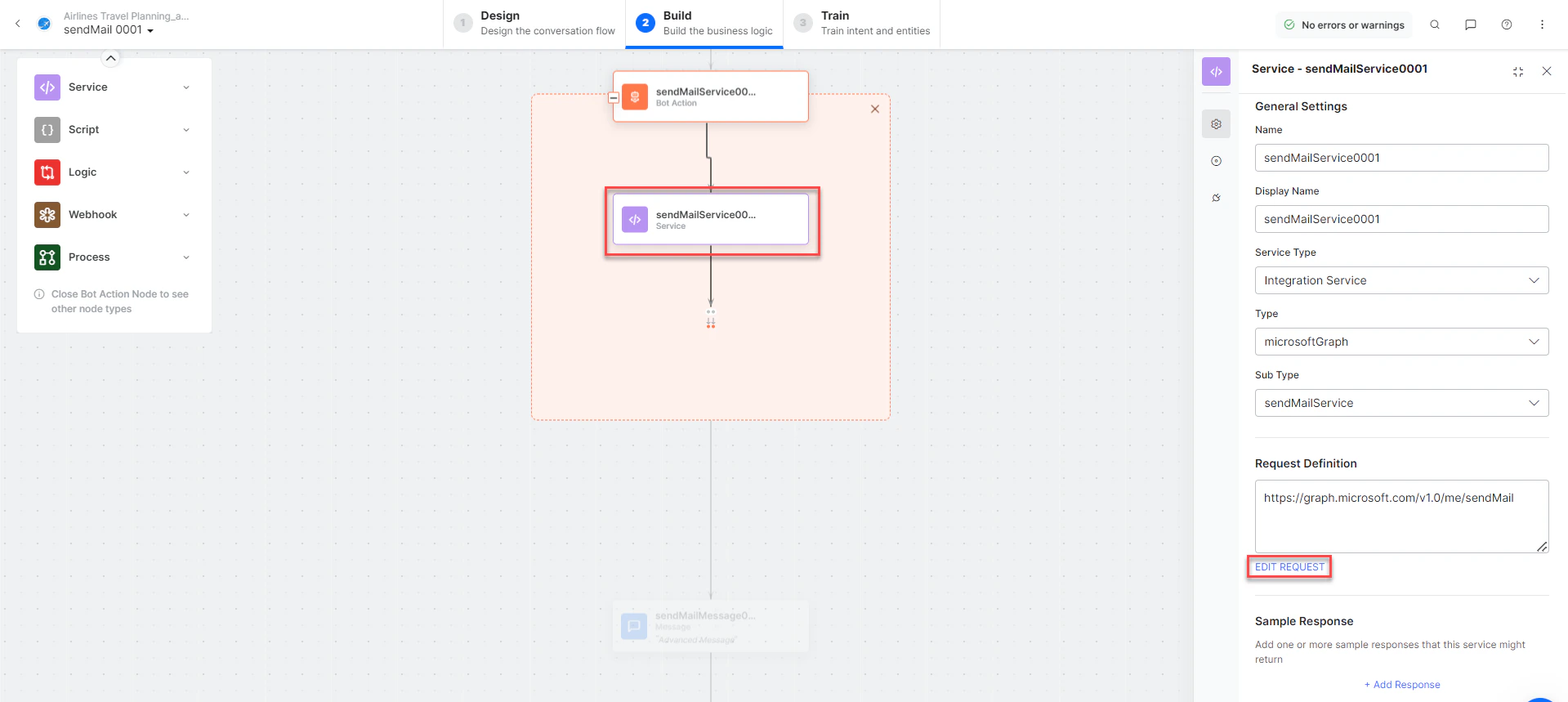
* **sendEmailService** - Bot action service to send email. Click **Edit Request**:
* **sendEmail** - User intent to send an email.
* **mailSubject**, **mailContent**, **recipientsEmailAddresses** - Entity nodes.
* **prepareEmailIdsScript** - Bot action service to format email IDs.
* **sendEmailService** - Bot action service to send email. Click **Edit Request**:
 **Sample Request:**
```json theme={null}
{
"message": {
"subject": "Testing MS graph",
"body": {"contentType": "Text", "content": "Integration is working fine"},
"toRecipients": [
{"emailAddress": {"address": "alan@abc.com"}},
{"emailAddress": {"address": "john@abc.com"}}
]
}
}
```
* **sendMailMessage** - Message node to display responses.
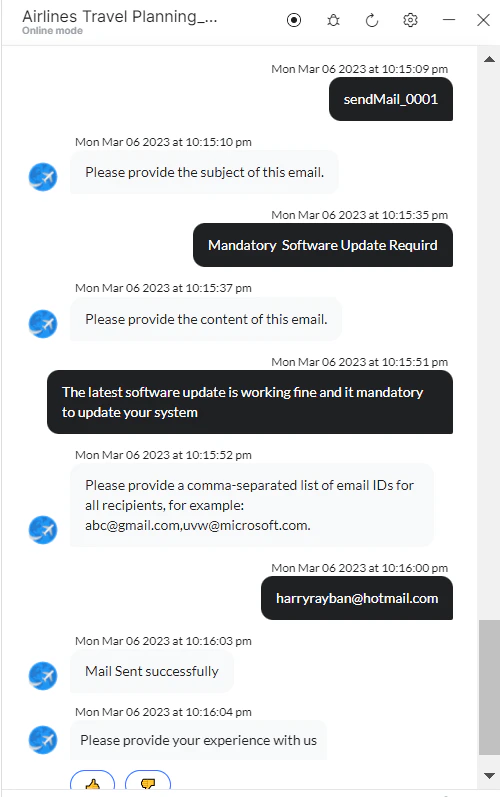
3. Click **Train**, then **Talk to Bot** to test:
**Sample Request:**
```json theme={null}
{
"message": {
"subject": "Testing MS graph",
"body": {"contentType": "Text", "content": "Integration is working fine"},
"toRecipients": [
{"emailAddress": {"address": "alan@abc.com"}},
{"emailAddress": {"address": "john@abc.com"}}
]
}
}
```
* **sendMailMessage** - Message node to display responses.
3. Click **Train**, then **Talk to Bot** to test: