> ## Documentation Index
> Fetch the complete documentation index at: https://koreai.mintlify.site/llms.txt
> Use this file to discover all available pages before exploring further.
# Model Context Protocol
Model Context Protocol (MCP) is an open standard that lets AI agents interact with external tools and services through a single, consistent interface. Instead of building a custom integration for each tool, agents can connect to MCP servers and access all the tools they expose via a single standardized protocol. [Learn more](https://modelcontextprotocol.io/docs/getting-started/intro).
| Without MCP | With MCP |
| --------------------------------------------------------------------------------------------------------------------------------------------------------------------------------------------------------- | --------------------------------------------------------------------------------------------------------------------------------------- |
| Connecting to multiple external services requires a separate integration with custom logic for each service, resulting in maintenance overhead whenever changes are made to the APIs / external services. | The agent accesses multiple tools through a single standardized interface, reducing integration effort and simplifying tool management. |
## Prerequisites
Before you configure an MCP server, ensure that you have:
* The MCP server endpoint URL.
* The required authentication credentials.
* Any request headers required by the MCP server.
## Manage MCP Servers
Use the MCP Servers page to add, edit, view, and delete MCP servers, and to manage the tools available for each server.
After updating the MCP server configuration on the platform, reconfigure the server to validate the changes and refresh the available tools.
You can't delete an MCP server or tool are in use. If dependencies exist, the platform displays where the server or tool is used and prompts you to remove those references before deleting it.
In **Development** mode, the app displays all configured tools. In **Published** mode, the app displays only the tools selected in the Agent Node.
To configure an MCP server:
1. Go to **Generative AI Tools** > **MCP** and click **+ New MCP Server**.
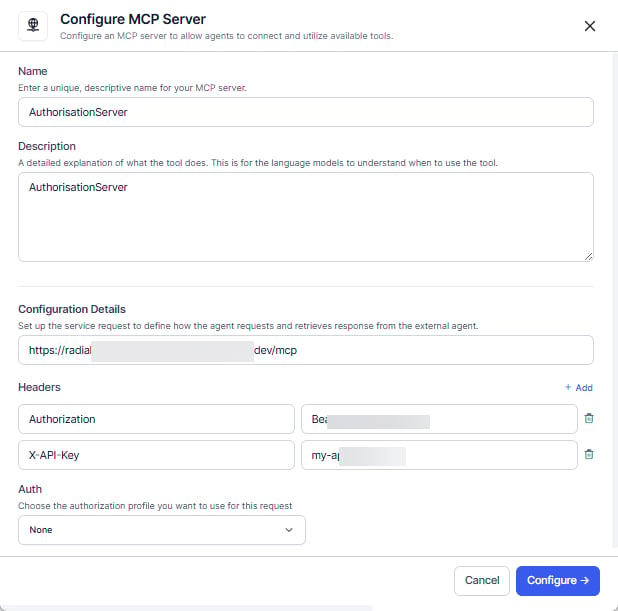 2. Enter the **Name** and **Description**.
3. Enter the MCP server endpoint URL.
4. Configure the required request headers. Click **+ Add** to add a header and specify the key and value. Use environment variables where appropriate.
5. Select the authentication type.
MCP supports server-level authentication only, such as API keys and OAuth 2.0 Client Credentials. User-based authentication is not supported.
6. Click **Configure**.
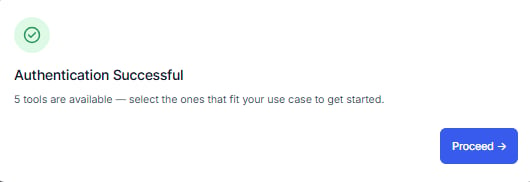
7. Verify the connection and click **Proceed**.
2. Enter the **Name** and **Description**.
3. Enter the MCP server endpoint URL.
4. Configure the required request headers. Click **+ Add** to add a header and specify the key and value. Use environment variables where appropriate.
5. Select the authentication type.
MCP supports server-level authentication only, such as API keys and OAuth 2.0 Client Credentials. User-based authentication is not supported.
6. Click **Configure**.
7. Verify the connection and click **Proceed**.
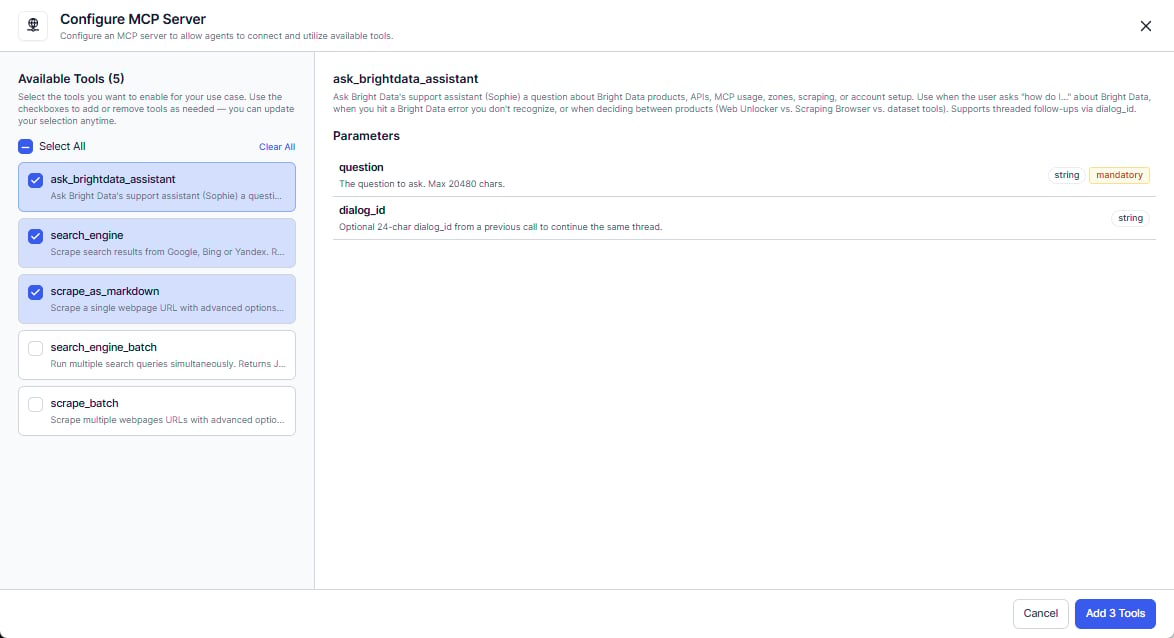
 8. Select the tools that you want to use and click **Add Tools**.
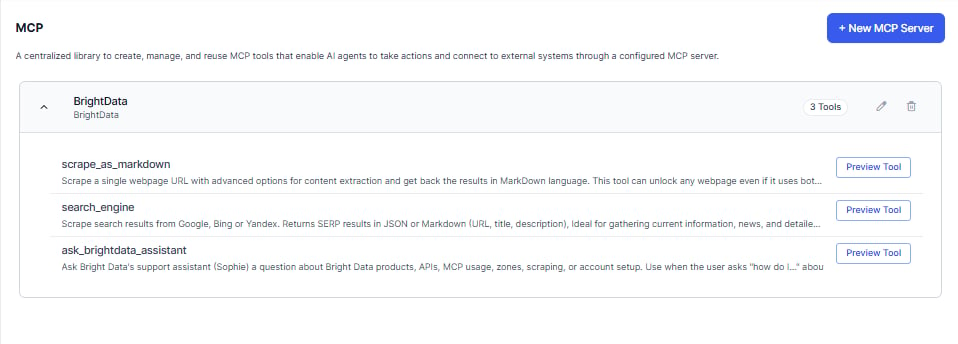
 9. Verify that the selected tools appear on the **MCP** page.
 10. In the **Agent Node**, select one or more MCP tools to make them available to the AI Agent.
If you update an MCP server configuration, reconfigure the server to validate the changes and refresh the available tools.
## Debug Logs
The platform records detailed logs for every MCP server and tool execution. Logs include request and response details, execution status, latency, runtime activity, and entity updates. MCP activity is also available in Task Execution Logs, including the associated MCP server and tool information. Sensitive values are automatically masked.
## Best Practices
* Reconfigure an MCP server after making changes to refresh the available tools and metadata. The platform doesn't automatically detect server updates.
* Use environment variables for API keys, tokens, and other sensitive values instead of hard-coding them in headers.
* After importing an app into another environment, verify that the required authentication profiles, environment variables, and credentials are configured correctly.
* Use clear and unique tool descriptions to help the AI Agent select the appropriate tool during execution.
10. In the **Agent Node**, select one or more MCP tools to make them available to the AI Agent.
If you update an MCP server configuration, reconfigure the server to validate the changes and refresh the available tools.
## Debug Logs
The platform records detailed logs for every MCP server and tool execution. Logs include request and response details, execution status, latency, runtime activity, and entity updates. MCP activity is also available in Task Execution Logs, including the associated MCP server and tool information. Sensitive values are automatically masked.
## Best Practices
* Reconfigure an MCP server after making changes to refresh the available tools and metadata. The platform doesn't automatically detect server updates.
* Use environment variables for API keys, tokens, and other sensitive values instead of hard-coding them in headers.
* After importing an app into another environment, verify that the required authentication profiles, environment variables, and credentials are configured correctly.
* Use clear and unique tool descriptions to help the AI Agent select the appropriate tool during execution.